%%{init: {'theme': 'base', 'themeVariables': { 'primaryColor': '#2C3E50', 'primaryTextColor': '#fff', 'primaryBorderColor': '#16A085', 'lineColor': '#E67E22', 'secondaryColor': '#E67E22', 'tertiaryColor': '#ecf0f1', 'fontSize': '12px'}}}%%
flowchart LR
    subgraph JW["JUST WORKS (INSECURE)"]
        direction TB
        A1["Device A:<br/>'Hi, let's connect!'"]
        B1["Device B:<br/>'OK, connected!'"]
        ATK1["Attacker:<br/>'I can pretend to<br/>be either device!'"]
        A1 --> B1
        ATK1 -.->|"No verification!"| B1
    end

    subgraph NC["NUMERIC COMPARISON (SECURE)"]
        direction TB
        A2["Device A:<br/>Code: 123456"]
        B2["Device B:<br/>Code: 123456"]
        U2["User verifies:<br/>'Both show 123456'"]
        ATK2["Attacker:<br/>BLOCKED"]
        A2 --> U2
        B2 --> U2
        U2 -->|"Accept"| OK2["Connected Securely"]
        ATK2 -.->|"Can't intercept"| U2
    end

    style JW fill:#e74c3c,stroke:#c0392b,color:#fff
    style NC fill:#16A085,stroke:#2C3E50,color:#fff
    style A1 fill:#2C3E50,stroke:#E67E22,color:#fff
    style B1 fill:#2C3E50,stroke:#E67E22,color:#fff
    style ATK1 fill:#c0392b,stroke:#7F8C8D,color:#fff
    style A2 fill:#2C3E50,stroke:#16A085,color:#fff
    style B2 fill:#2C3E50,stroke:#16A085,color:#fff
    style U2 fill:#16A085,stroke:#2C3E50,color:#fff
    style OK2 fill:#27ae60,stroke:#2C3E50,color:#fff
    style ATK2 fill:#7F8C8D,stroke:#c0392b,color:#fff
914 Bluetooth Security: Pairing Methods
914.1 Learning Objectives
By the end of this chapter, you will be able to:
- Understand BLE Pairing Process: Explain the three-phase pairing protocol and key exchange
- Compare Pairing Methods: Analyze Just Works, Passkey Entry, Numeric Comparison, and OOB pairing
- Identify Just Works Vulnerabilities: Recognize why “Just Works” provides no MITM protection
- Select Appropriate Pairing: Choose the right pairing method based on device capabilities and threat model
914.2 Prerequisites
Before diving into this chapter, you should be familiar with:
- Bluetooth Fundamentals and Architecture: Understanding BLE connection establishment and protocol stack
- Basic Cryptography Concepts: Familiarity with encryption and key exchange principles (AES, ECDH)
NoteKey Takeaway
In one sentence: BLE security depends on the pairing method, not just encryption - “Just Works” provides no MITM protection, while Numeric Comparison and Out-of-Band pairing defend against active attackers during setup.
Remember this: Always match pairing method to threat model: use OOB or Numeric Comparison for security-critical devices (locks, medical, payments).
914.3 Why Bluetooth Security Matters
Analogy: Bluetooth security is like locking your front door.
- No security = Leaving door wide open (anyone can walk in)
- Weak security = Cheap lock with key under mat (looks secure, but not really)
- Strong security = Deadbolt + verified keys (only authorized people enter)
Real-world Bluetooth security failures:
| Device | Weak Security | Consequence |
|---|---|---|
| Smart Lock | “Just Works” pairing | Attacker unlocks door during setup |
| Fitness Tracker | No encryption | Health data readable by anyone nearby |
| Medical Pump | Default PIN: 0000 | Attacker can change drug dosage |
| Car Key Fob | No bonding verification | Thieves clone signal, steal car |
914.4 BLE Pairing Methods Comparison
BLE supports four pairing methods with different security levels:
914.4.1 Four Pairing Methods (Weakest to Strongest)
| Method | How It Works | Security Level | Example |
|---|---|---|---|
| Just Works | No verification needed | No MITM protection | Cheap fitness bands |
| Passkey Entry | User types PIN shown on device | Moderate (if PIN is strong) | Keyboards, mice |
| Numeric Comparison | User confirms 6-digit code matches on both | Strong | Smartphones, tablets |
| Out of Band (OOB) | Keys exchanged via NFC/QR | Very Strong | Payment terminals |
%%{init: {'theme': 'base', 'themeVariables': { 'primaryColor': '#2C3E50', 'primaryTextColor': '#fff', 'primaryBorderColor': '#16A085', 'lineColor': '#16A085', 'secondaryColor': '#E67E22', 'tertiaryColor': '#ecf0f1', 'fontSize': '14px'}}}%%
graph TB
    subgraph JW["Just Works (0 bits auth)"]
        JW1[Device A: 'Connect?']
        JW2[Device B: 'OK!']
        JW3[Connected<br/>NO VERIFICATION]
        JW1 --> JW2 --> JW3
    end

    subgraph PE["Passkey Entry (20 bits)"]
        PE1[Device A: Display PIN '542891']
        PE2[User: Enter '542891' on Device B]
        PE3[Device B: Verify PIN]
        PE4[Connected - STATIC PIN]
        PE1 --> PE2 --> PE3 --> PE4
    end

    subgraph NC["Numeric Comparison (20 bits + visual)"]
        NC1[Device A: Display '384726']
        NC2[Device B: Display '384726']
        NC3[User: Verify codes match]
        NC4[User: Confirm on both]
        NC5[Connected - SECURE]
        NC1 --> NC3
        NC2 --> NC3
        NC3 --> NC4 --> NC5
    end

    subgraph OOB["Out-of-Band (128 bits)"]
        OOB1[Device A: Generate key]
        OOB2[NFC/QR: Transfer key]
        OOB3[Device B: Receive key]
        OOB4[BLE: Verify key match]
        OOB5[Connected - MAXIMUM SECURITY]
        OOB1 --> OOB2 --> OOB3 --> OOB4 --> OOB5
    end

    style JW fill:#E67E22,stroke:#c0392b,stroke-width:3px,color:#fff
    style PE fill:#f39c12,stroke:#2C3E50,stroke-width:2px,color:#fff
    style NC fill:#16A085,stroke:#2C3E50,stroke-width:2px,color:#fff
    style OOB fill:#27ae60,stroke:#2C3E50,stroke-width:3px,color:#fff

    style JW1 fill:#2C3E50,stroke:#E67E22,stroke-width:2px,color:#fff
    style JW2 fill:#2C3E50,stroke:#E67E22,stroke-width:2px,color:#fff
    style JW3 fill:#c0392b,stroke:#E67E22,stroke-width:2px,color:#fff

    style PE1 fill:#2C3E50,stroke:#16A085,stroke-width:2px,color:#fff
    style PE2 fill:#2C3E50,stroke:#16A085,stroke-width:2px,color:#fff
    style PE3 fill:#2C3E50,stroke:#16A085,stroke-width:2px,color:#fff
    style PE4 fill:#f39c12,stroke:#16A085,stroke-width:2px,color:#fff

    style NC1 fill:#2C3E50,stroke:#16A085,stroke-width:2px,color:#fff
    style NC2 fill:#2C3E50,stroke:#16A085,stroke-width:2px,color:#fff
    style NC3 fill:#2C3E50,stroke:#16A085,stroke-width:2px,color:#fff
    style NC4 fill:#2C3E50,stroke:#16A085,stroke-width:2px,color:#fff
    style NC5 fill:#16A085,stroke:#2C3E50,stroke-width:2px,color:#fff

    style OOB1 fill:#2C3E50,stroke:#16A085,stroke-width:2px,color:#fff
    style OOB2 fill:#2C3E50,stroke:#16A085,stroke-width:2px,color:#fff
    style OOB3 fill:#2C3E50,stroke:#16A085,stroke-width:2px,color:#fff
    style OOB4 fill:#2C3E50,stroke:#16A085,stroke-width:2px,color:#fff
    style OOB5 fill:#27ae60,stroke:#16A085,stroke-width:2px,color:#fff
914.5 “Just Works” Pairing: A Critical Security Flaw
BLE’s “Just Works” pairing mode provides zero authentication and is vulnerable to Man-in-the-Middle (MITM) attacks:
%%{init: {'theme': 'base', 'themeVariables': { 'primaryColor': '#2C3E50', 'primaryTextColor': '#fff', 'primaryBorderColor': '#16A085', 'lineColor': '#E67E22', 'secondaryColor': '#E67E22', 'tertiaryColor': '#ecf0f1', 'fontSize': '14px'}}}%%
sequenceDiagram
    participant U as User Phone
    participant A as Attacker
    participant D as Smart Lock

    Note over D: Step 1: Advertises service
    D->>U: BLE Advertisement
    D->>A: BLE Advertisement

    Note over A: Step 2: Attacker acts first
    A->>D: Pairing Request (Just Works)
    Note over D,A: No verification required!
    D->>A: Pairing Accept
    A->>D: Complete pairing

    Note over A,D: Step 3: Attacker paired
    rect rgba(231, 76, 60, 0.2)
        Note over A: Attacker now has keys
    end

    Note over U: Step 4: User tries to pair
    U->>D: Pairing Request
    D->>U: Already paired (Rejected)

    Note over A: Step 5: Attacker unlocks anytime
    A->>D: Unlock command
    D->>A: Door unlocked
How the attack works:
- Legitimate device advertises BLE service (smart lock, medical device)
- Attacker intercepts pairing request before legitimate user connects
- Attacker completes “Just Works” pairing (no user verification required)
- Attacker gains full access - can read data, send commands, impersonate user
Real consequences:
- Smart lock: Anyone within range can unlock door during pairing
- Medical device: Attacker reads private health data or alters treatment
- Payment terminal: Intercept transaction information
- Industrial sensor: Inject false data into control systems
Solution: Never use “Just Works” for security-sensitive applications. Use:
- Numeric Comparison (BLE 4.2+): Users verify 6-digit code on both devices
- Passkey Entry: Device displays PIN, user enters on phone
- Out-of-Band: Exchange keys via NFC tag or QR code
TipAlternative View: Pairing Security as Defense Layers
This variant shows the same pairing vulnerability concept as a defense-in-depth diagram:
%% fig-alt: "BLE pairing security shown as defense layers: Outer ring (Just Works) provides no MITM protection with attacker breaking through easily. Middle ring (Passkey Entry) provides moderate protection requiring code knowledge. Inner ring (Numeric Comparison) provides strong MITM protection requiring visual verification. Core (OOB/NFC) provides strongest protection via separate physical channel."
%%{init: {'theme': 'base', 'themeVariables': { 'primaryColor': '#2C3E50', 'primaryTextColor': '#fff', 'primaryBorderColor': '#16A085', 'lineColor': '#E67E22', 'secondaryColor': '#16A085', 'tertiaryColor': '#7F8C8D', 'fontSize': '11px'}}}%%
flowchart TB
    subgraph L1["JUST WORKS - No MITM Protection"]
        subgraph L2["PASSKEY ENTRY - Code Required"]
            subgraph L3["NUMERIC COMPARISON - Visual Verify"]
                subgraph L4["OOB (NFC/QR) - Physical Channel"]
                    SECURE["Your Secure<br/>Connection"]
                end
            end
        end
    end

    ATK["Attacker"] -->|"Breaks through"| L1
    ATK -.->|"Stopped if"| L2
    ATK -.->|"code unknown"| L3

    style L1 fill:#e74c3c,stroke:#c0392b,color:#fff
    style L2 fill:#E67E22,stroke:#d35400,color:#fff
    style L3 fill:#16A085,stroke:#1abc9c,color:#fff
    style L4 fill:#2C3E50,stroke:#34495e,color:#fff
    style SECURE fill:#27ae60,stroke:#2ecc71,color:#fff
    style ATK fill:#7F8C8D,stroke:#95a5a6,color:#fff
Key Insight: Think of pairing methods as concentric security layers. “Just Works” is an unlocked door - attackers walk right through. Each stronger method adds a verification barrier.
914.6 BLE Pairing Process
The BLE pairing process establishes secure communication between two devices through a three-phase protocol:
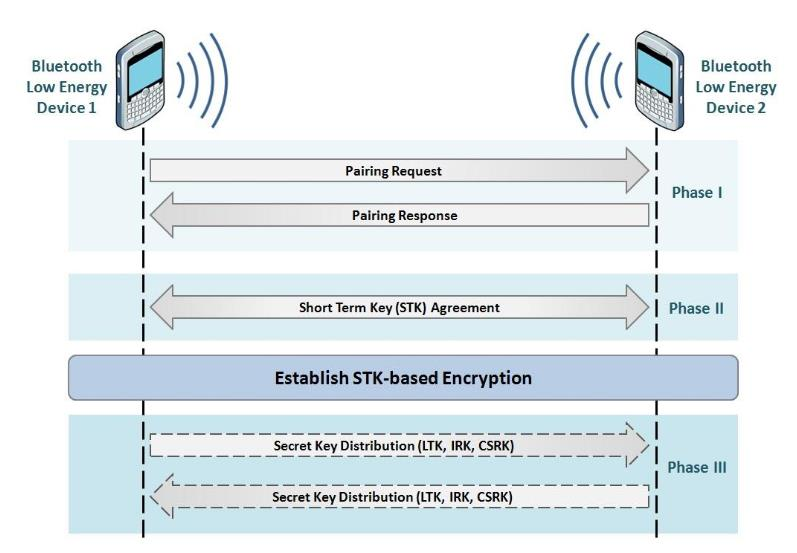
Phase I - Feature Exchange:
- Devices exchange pairing capabilities (I/O capabilities, bonding flags)
- Determines which pairing method will be used (Just Works, Passkey, Numeric Comparison, OOB)
Phase II - Short Term Key (STK) Generation:
- Temporary encryption key established for current session
- Based on agreed pairing method and exchanged nonces
Phase III - Key Distribution:
- LTK (Long Term Key): Stored for future reconnections (bonding)
- IRK (Identity Resolving Key): Enables MAC address privacy
- CSRK (Connection Signature Resolving Key): For signed data verification
914.6.1 Pairing Security (v4.2+)
- ECDH key exchange (LE Secure Connections)
- AES-CCM (128-bit) link-layer encryption for confidentiality/integrity
- MITM resistance depends on the pairing method (e.g., Numeric Comparison/Passkey/OOB vs Just Works)
- Optional privacy features (e.g., resolvable private addresses via IRK) to reduce tracking
NoteAcademic Reference: BLE Numeric Comparison Authentication (University of Edinburgh)
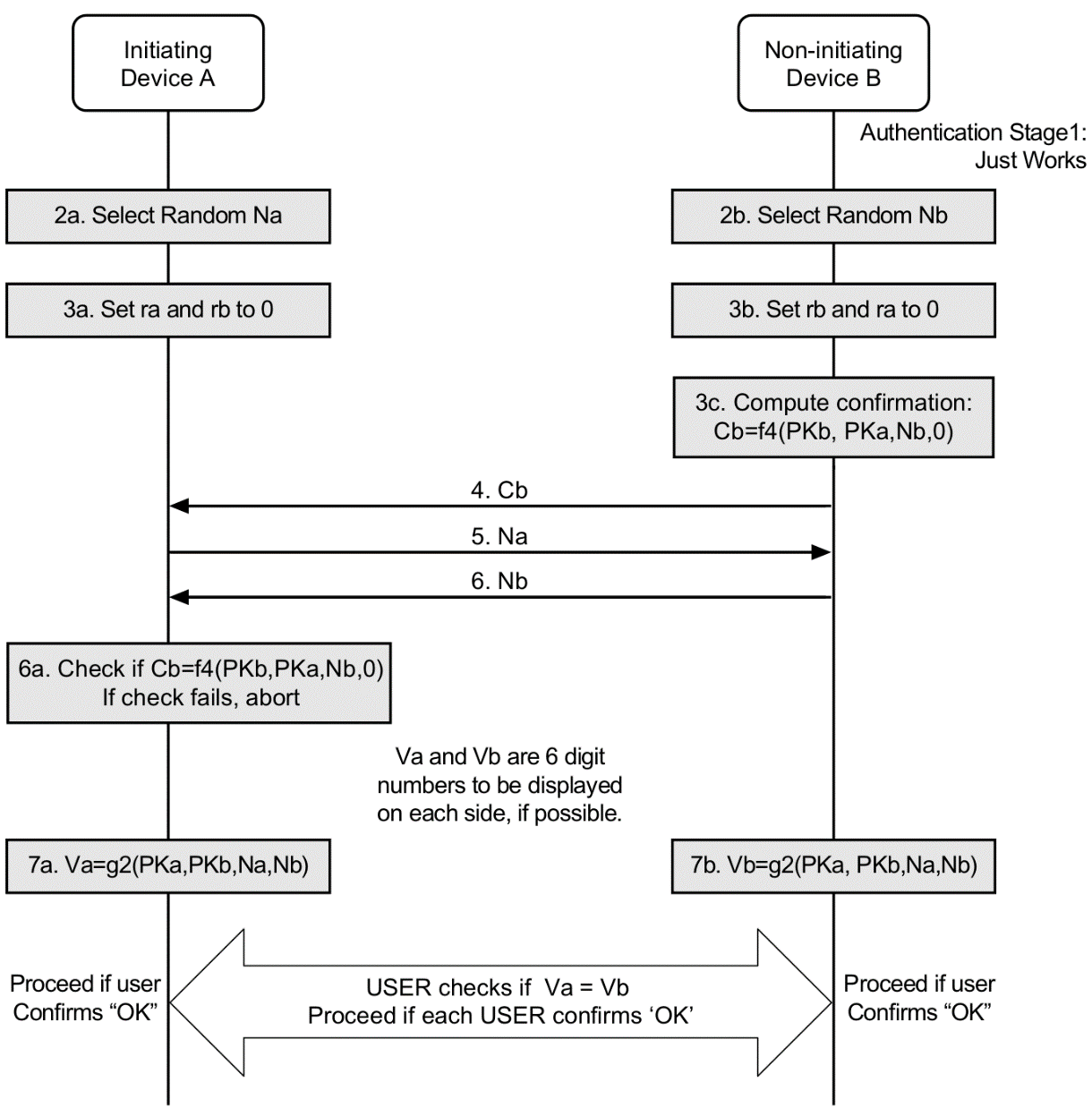
Source: University of Edinburgh - IoT Systems Security Course
This diagram illustrates the cryptographic protocol behind BLE’s Numeric Comparison pairing method. The key security feature is that both devices independently compute 6-digit verification codes (Va and Vb) that must match - if an attacker intercepts the connection, their codes will differ, alerting the user to the MITM attack.
914.7 Bonding: Remembering Trusted Devices
Simple explanation: After pairing, devices can “remember” each other (like saving a contact in your phone).
%%{init: {'theme': 'base', 'themeVariables': { 'primaryColor': '#2C3E50', 'primaryTextColor': '#fff', 'primaryBorderColor': '#16A085', 'lineColor': '#E67E22', 'secondaryColor': '#E67E22', 'tertiaryColor': '#ecf0f1', 'fontSize': '11px'}}}%%
flowchart TB
    subgraph NB["WITHOUT BONDING (Pairing Only)"]
        direction LR
        D1A["Day 1"] --> P1A["Pair"] --> PIN1A["Enter PIN"] --> C1A["Connected"]
        D2A["Day 2"] --> P2A["Pair Again"] --> PIN2A["Enter PIN"] --> C2A["Connected"]
        D3A["Day 3"] --> P3A["Pair Again"] --> PIN3A["Enter PIN"] --> C3A["Connected"]
    end

    subgraph WB["WITH BONDING (Pairing + Save)"]
        direction LR
        D1B["Day 1"] --> P1B["Pair"] --> PIN1B["Enter PIN"] --> C1B["Connected"] --> S1B["Keys Saved"]
        D2B["Day 2"] --> AC2B["Auto-Connect"]
        D3B["Day 3"] --> AC3B["Auto-Connect"]
    end

    style NB fill:#E67E22,stroke:#c0392b,color:#fff
    style WB fill:#16A085,stroke:#2C3E50,color:#fff
    style D1A fill:#2C3E50,stroke:#7F8C8D,color:#fff
    style D2A fill:#2C3E50,stroke:#7F8C8D,color:#fff
    style D3A fill:#2C3E50,stroke:#7F8C8D,color:#fff
    style PIN1A fill:#E67E22,stroke:#2C3E50,color:#fff
    style PIN2A fill:#E67E22,stroke:#2C3E50,color:#fff
    style PIN3A fill:#E67E22,stroke:#2C3E50,color:#fff
    style D1B fill:#2C3E50,stroke:#7F8C8D,color:#fff
    style D2B fill:#2C3E50,stroke:#7F8C8D,color:#fff
    style D3B fill:#2C3E50,stroke:#7F8C8D,color:#fff
    style S1B fill:#27ae60,stroke:#2C3E50,color:#fff
    style AC2B fill:#27ae60,stroke:#2C3E50,color:#fff
    style AC3B fill:#27ae60,stroke:#2C3E50,color:#fff
Trade-off:
- Convenience (no re-pairing)
- Risk (if device stolen, attacker has saved keys)
914.8 Common Beginner Mistakes
Mistake 1: “My device has Bluetooth, so it’s secure”
- Wrong! Many BLE devices use “Just Works” pairing (no MITM protection during setup)
- Check: Does it require PIN or code verification during pairing?
Mistake 2: “I set a strong password, so I’m safe”
- Wrong! If pairing mode is “Just Works”, password doesn’t help
- Check: Pairing method matters more than password strength
Mistake 3: “Bluetooth only works 10 meters, so I’m safe from hackers”
- Wrong! Range depends on environment and hardware; directional antennas can extend it
- Solution: Use secure pairing regardless of “expected” range
Mistake 4: “My smart lock app requires a password, so it’s secure”
- Wrong! App password is not equal to Bluetooth pairing security
- Check: Pairing/transport security and app login are separate controls
914.9 Summary
This chapter covered the fundamentals of BLE pairing security:
- Four Pairing Methods: Just Works (insecure), Passkey Entry (moderate), Numeric Comparison (strong), OOB (strongest)
- Just Works Vulnerability: Provides no MITM protection - attackers can hijack pairing
- Three-Phase Pairing Process: Feature exchange, STK generation, key distribution
- Bonding Trade-offs: Convenience vs. security risk if devices are compromised
- LE Secure Connections: BLE 4.2+ uses ECDH for improved key agreement
914.10 What’s Next
Continue to Bluetooth Security: Encryption and Key Management to learn about:
- BLE encryption architecture and key hierarchy
- Security decision framework for choosing the right protection level
- Best practices and common pitfalls in BLE security implementation