%%{init: {'theme': 'base', 'themeVariables': { 'primaryColor': '#2C3E50', 'primaryTextColor': '#fff', 'primaryBorderColor': '#16A085', 'lineColor': '#16A085', 'secondaryColor': '#E67E22', 'tertiaryColor': '#7F8C8D'}}}%%
timeline
    title ESP32 Network Connection Timeline
    section Layer 2: Wi-Fi Association
        0-500ms : Scan for SSIDs
               : Beacon frames received
        500-1000ms : Authentication
                  : Open/WPA2 exchange
        1000-1500ms : Association
                   : MAC registered with AP
    section Layer 3: IP Configuration
        1500-2000ms : DHCP Discover
                   : Broadcast request
        2000-2500ms : DHCP Offer/Request/ACK
                   : IP 192.168.1.100 assigned
    section Layer 7: Application Ready
        2500-3000ms : DNS query
                   : Resolve server hostname
        3000-4000ms : TCP/TLS handshake
                   : Secure connection
        4000ms+ : MQTT Connect
                : Ready to publish data
640 Networking: Labs and Quiz
640.1 Learning Objectives
By the end of this chapter, you will be able to:
- Configure Wi-Fi Connectivity: Set up ESP32 and Arduino devices for wireless network connections
- Retrieve Network Information: Programmatically obtain IP addresses, MAC addresses, and signal strength
- Implement Network Scanning: Create tools to discover nearby networks and analyze wireless environments
- Debug Connection Issues: Troubleshoot common Wi-Fi configuration problems using serial output
- Apply Security Settings: Configure WPA2/WPA3 credentials for secure IoT device connectivity
- Monitor Network Status: Implement connection event handlers and reconnection logic
640.2 Prerequisites
Before starting these labs, you will get the most value if you are comfortable with:
- Networking Basics – IP addressing, subnets, and how packets move between devices
- Layered Models: Fundamentals – how link, network, and transport layers work together
- Wi-Fi Fundamentals and Standards – SSIDs, basic security (WPA2/WPA3), and coverage limits
- Basic command‑line skills (running
ping,ipconfig/ifconfig,traceroute) on your operating system
If any of these feel unfamiliar, skim the referenced chapters first and then return here for hands‑on practice.
NoteRelated Chapters
Deep Dives: - Network Mechanisms - Packet switching and bandwidth concepts - Routing Fundamentals - How routers make forwarding decisions - Transport Protocols - TCP vs UDP for IoT
Comparisons: - Layered Network Models Review - OSI vs TCP/IP quiz - IoT Protocols Review - Application-layer protocols
Hands-On: - Wi-Fi IoT Implementations - ESP32 Wi-Fi projects - Simulations Hub - Network simulation tools
Learning: - Quizzes Hub - Test networking fundamentals - Networking Review - Video tutorials
640.3 🌱 Getting Started (For Beginners)
TipFor Beginners: How to Use These Networking Labs
These labs assume you have seen the core networking theory and are now ready to practice on real or simulated networks.
- If you have hardware (ESP32/Arduino and home Wi-Fi), focus on the C++ examples and follow the checklists in each lab.
- If you do not have hardware or cannot install tools, you can still learn a lot by:
- reading the code and comments,
- comparing the provided example outputs with what you see on your own laptop or VM,
- answering the Knowledge Check questions using the explanations as a guide.
Key terms used throughout this chapter:
| Term | Simple explanation |
|---|---|
| SSID | The name of a Wi-Fi network |
| Gateway | Router that forwards traffic to other networks |
| DNS server | Translates names like example.com to IP addresses |
| RSSI | Received Signal Strength Indicator (Wi-Fi signal) |
If you ever feel lost, go back to networking-basics.qmd and wifi-fundamentals-and-standards.qmd to refresh the concepts, then return here and treat the Python tools as black‑box helpers whose outputs you interpret rather than code you must fully understand line‑by‑line.
640.4 Hands-On: Network Configuration

640.4.1 Example 1: ESP32 Wi-Fi Connection
// ESP32 Wi-Fi Setup
#include <Wi-Fi.h>

const char* ssid = "YourNetworkName";
const char* password = "YourPassword";

void setup() {
    Serial.begin(115200);

    // Connect to Wi-Fi
    Wi-Fi.begin(ssid, password);
    Serial.print("Connecting to Wi-Fi");

    while (Wi-Fi.status() != WL_CONNECTED) {
        delay(500);
        Serial.print(".");
    }

    Serial.println("\nConnected!");

    // Print network information
    Serial.print("IP Address: ");
    Serial.println(Wi-Fi.localIP());

    Serial.print("MAC Address: ");
    Serial.println(Wi-Fi.macAddress());

    Serial.print("Gateway: ");
    Serial.println(Wi-Fi.gatewayIP());

    Serial.print("Subnet Mask: ");
    Serial.println(Wi-Fi.subnetMask());

    Serial.print("DNS: ");
    Serial.println(Wi-Fi.dnsIP());

    Serial.print("RSSI (Signal Strength): ");
    Serial.print(Wi-Fi.RSSI());
    Serial.println(" dBm");
}

void loop() {
    // Your IoT application code here
}
Tip🎮 Try It: Interactive ESP32 Wi-Fi Simulator
No hardware? No problem! Run this ESP32 Wi-Fi code directly in your browser using the simulator below. Watch the Serial Monitor to see connection status, IP address, MAC address, and signal strength.
What to Try:
- Click the green ▶️ Play button to start the simulation
- Watch the Serial Monitor (bottom panel) for connection output
- The simulated ESP32 connects to a virtual “Wokwi-GUEST” network
- Observe: IP address, MAC address, gateway, subnet, DNS, and RSSI values
Learning Activities:
- RSSI Signal Strength: Values from -50 dBm (excellent) to -90 dBm (poor)
- MAC Address: Notice the unique hardware identifier format (DC:A6:32:XX:XX:XX = Espressif)
- Try modifying: Add
Wi-Fi.disconnect()in loop to test reconnection behavior
NoteLab Extension: Build Your Own Network - With Hardware
Have real hardware? Follow these steps to connect your physical ESP32:
Hardware Needed: - ESP32 development board - USB cable - Wi-Fi network (2.4GHz - ESP32 doesn’t support 5GHz!)
Steps: 1. Flash the ESP32 Wi-Fi example code (above) with your SSID/password 2. Open Serial Monitor (115200 baud) 3. Observe IP address assignment via DHCP 4. Note the gateway and DNS servers 5. From your computer, ping the ESP32’s IP address 6. Modify code to ping google.com from ESP32
Challenge: Set a static IP instead of DHCP. Why might this be useful for IoT deployments?

640.5 Python Implementations
Production-ready Python tools for network analysis and IoT networking.
640.5.1 IP Address Calculator and Subnet Analyzer
Example Output:
IP Address Analysis
============================================================
IP Address: 192.168.1.100/24
Subnet Mask: 255.255.255.0
Network Address: 192.168.1.0
Broadcast Address: 192.168.1.255
Address Class: Class C
Private Address: Yes

Usable Host Range: 192.168.1.1 - 192.168.1.254
Total Hosts: 256
Usable Hosts: 254

============================================================
IoT Network Planning Example
============================================================
IoT Network: 10.20.30.0/22
Subnet Mask: 255.255.252.0
Usable Hosts: 1022 IoT devices
Usable Range: 10.20.28.1 - 10.20.31.254
640.5.2 Network Device Scanner
Example Output:
Network Device Scanner
============================================================
Scanning 254 addresses in 192.168.1.0/24...
✓ Found: 192.168.1.1 (router.local)
✓ Found: 192.168.1.100 (esp32-sensor.local)
✓ Found: 192.168.1.150 (raspberry-pi.local)

============================================================
Scan Results: 3 devices found
============================================================

Device: 192.168.1.1
  Hostname: router.local
  Response Time: 2.45 ms
  Open Ports: 80, 443

Device: 192.168.1.100
  Hostname: esp32-sensor.local
  Response Time: 15.67 ms
  Open Ports: 80, 1883

Device: 192.168.1.150
  Hostname: raspberry-pi.local
  Response Time: 8.23 ms
  Open Ports: 22, 80, 1883
640.5.3 Protocol Performance Simulator
Example Output:
Transport Protocol Comparison for IoT
======================================================================
Scenario: 100 packets × 100 bytes, 5% packet loss, 20ms latency

TCP Statistics:
  Packets Sent: 105
  Packets Received: 100
  Packets Lost: 5
  Delivery Rate: 95.24%
  Packet Loss Rate: 4.76%
  Total Bytes: 14,700
  Avg Latency: 21.0 ms
  Throughput: 560.0 Kbps

UDP Statistics:
  Packets Sent: 100
  Packets Received: 95
  Packets Lost: 5
  Delivery Rate: 95.0%
  Packet Loss Rate: 5.0%
  Total Bytes: 12,800
  Avg Latency: 20.0 ms
  Throughput: 512.0 Kbps

======================================================================
IoT Use Case Recommendations:
======================================================================

✓ Use TCP when:
  - Reliability is critical (firmware updates, configuration)
  - Data loss is unacceptable (financial transactions)
  - Order matters (sequential commands)
  - Trade-off: 1.0ms higher latency

✓ Use UDP when:
  - Real-time data (sensor readings every second)
  - Occasional loss is acceptable (redundant sensors)
  - Low latency is critical (voice, video)
  - Benefit: 20.0ms latency (1.1x faster)
640.5.4 MAC Address Analyzer
Example Output:
MAC Address Analysis
============================================================

MAC Address: B8:27:EB:12:34:56
  OUI: B8:27:EB
  NIC: 12:34:56
  Vendor: Raspberry Pi Foundation
  Type: Unicast
  Administration: Universal

MAC Address: DC:A6:32:AB:CD:EF
  OUI: DC:A6:32
  NIC: AB:CD:EF
  Vendor: Espressif (ESP32)
  Type: Unicast
  Administration: Universal

MAC Address: 00:1B:44:11:22:33
  OUI: 00:1B:44
  NIC: 11:22:33
  Vendor: Arduino
  Type: Unicast
  Administration: Universal
640.6 Hands-On Labs
640.6.1 Lab 1: ESP32 Network Diagnostics Dashboard
Objective: Create comprehensive network diagnostics tool on ESP32 that reports all network parameters.
Materials: - ESP32 development board - Wi-Fi network - Serial monitor
Complete Code:
#include <Wi-Fi.h>
#include <HTTPClient.h>

const char* ssid = "YOUR_WIFI_SSID";
const char* password = "YOUR_WIFI_PASSWORD";

unsigned long lastDiagnostic = 0;
const long diagnosticInterval = 10000; // Every 10 seconds

void printNetworkDiagnostics() {
    Serial.println("\n" + String("=") * 60);
    Serial.println("ESP32 Network Diagnostics Report");
    Serial.println(String("=") * 60);

    // Wi-Fi Status
    Serial.println("\n1. Wi-Fi Connection:");
    Serial.print("   Status: ");
    Serial.println(Wi-Fi.status() == WL_CONNECTED ? "✓ Connected" : "✗ Disconnected");
    Serial.print("   SSID: ");
    Serial.println(Wi-Fi.SSID());
    Serial.print("   RSSI: ");
    Serial.print(Wi-Fi.RSSI());
    Serial.print(" dBm (");

    int rssi = Wi-Fi.RSSI();
    if (rssi > -50) Serial.print("Excellent");
    else if (rssi > -60) Serial.print("Good");
    else if (rssi > -70) Serial.print("Fair");
    else Serial.print("Poor");
    Serial.println(")");

    Serial.print("   Channel: ");
    Serial.println(Wi-Fi.channel());

    // IP Configuration
    Serial.println("\n2. IP Configuration:");
    Serial.print("   IP Address: ");
    Serial.println(Wi-Fi.localIP());
    Serial.print("   Subnet Mask: ");
    Serial.println(Wi-Fi.subnetMask());
    Serial.print("   Gateway: ");
    Serial.println(Wi-Fi.gatewayIP());
    Serial.print("   DNS: ");
    Serial.println(Wi-Fi.dnsIP());

    // MAC Address
    Serial.println("\n3. Hardware:");
    Serial.print("   MAC Address: ");
    Serial.println(Wi-Fi.macAddress());

    // Calculate subnet info
    IPAddress ip = Wi-Fi.localIP();
    IPAddress subnet = Wi-Fi.subnetMask();
    IPAddress gateway = Wi-Fi.gatewayIP();

    // Network address
    IPAddress network(ip[0] & subnet[0], ip[1] & subnet[1],
                     ip[2] & subnet[2], ip[3] & subnet[3]);

    Serial.println("\n4. Network Information:");
    Serial.print("   Network Address: ");
    Serial.println(network);

    // Broadcast address
    IPAddress broadcast(ip[0] | ~subnet[0], ip[1] | ~subnet[1],
                       ip[2] | ~subnet[2], ip[3] | ~subnet[3]);
    Serial.print("   Broadcast Address: ");
    Serial.println(broadcast);

    // Test connectivity
    Serial.println("\n5. Connectivity Tests:");

    // Ping gateway
    Serial.print("   Gateway Reachable: ");
    HTTPClient http;
    http.setTimeout(2000);
    bool gatewayReachable = Wi-Fi.gatewayIP() != IPAddress(0, 0, 0, 0);
    Serial.println(gatewayReachable ? "✓ Yes" : "✗ No");

    // DNS test
    Serial.print("   DNS Resolution: ");
    IPAddress result;
    int dnsResult = Wi-Fi.hostByName("www.google.com", result);
    if (dnsResult == 1) {
        Serial.print("✓ Working (google.com = ");
        Serial.print(result);
        Serial.println(")");
    } else {
        Serial.println("✗ Failed");
    }

    // Internet connectivity test
    Serial.print("   Internet Access: ");
    http.begin("http://clients3.google.com/generate_204");
    int httpCode = http.GET();
    Serial.println(httpCode == 204 ? "✓ Yes" : "✗ No");
    http.end();

    Serial.println("\n" + String("=") * 60);
}

void setup() {
    Serial.begin(115200);
    delay(1000);

    Serial.println("\nESP32 Network Diagnostics Tool");
    Serial.println("Connecting to Wi-Fi...");

    Wi-Fi.begin(ssid, password);

    int attempts = 0;
    while (Wi-Fi.status() != WL_CONNECTED && attempts < 20) {
        delay(500);
        Serial.print(".");
        attempts++;
    }

    if (Wi-Fi.status() == WL_CONNECTED) {
        Serial.println("\n✓ Wi-Fi Connected!");
        printNetworkDiagnostics();
    } else {
        Serial.println("\n✗ Wi-Fi Connection Failed!");
    }
}

void loop() {
    unsigned long now = millis();

    if (now - lastDiagnostic >= diagnosticInterval) {
        lastDiagnostic = now;

        if (Wi-Fi.status() == WL_CONNECTED) {
            printNetworkDiagnostics();
        } else {
            Serial.println("✗ Wi-Fi Disconnected - Attempting reconnection...");
            Wi-Fi.reconnect();
        }
    }
}
Expected Output:
============================================================
ESP32 Network Diagnostics Report
============================================================

1. Wi-Fi Connection:
   Status: ✓ Connected
   SSID: MyHomeNetwork
   RSSI: -45 dBm (Excellent)
   Channel: 6

2. IP Configuration:
   IP Address: 192.168.1.100
   Subnet Mask: 255.255.255.0
   Gateway: 192.168.1.1
   DNS: 192.168.1.1

3. Hardware:
   MAC Address: DC:A6:32:AB:CD:EF

4. Network Information:
   Network Address: 192.168.1.0
   Broadcast Address: 192.168.1.255

5. Connectivity Tests:
   Gateway Reachable: ✓ Yes
   DNS Resolution: ✓ Working (google.com = 172.217.14.206)
   Internet Access: ✓ Yes

============================================================
Learning Outcomes: - Retrieve all network configuration parameters - Perform connectivity diagnostics - Understand Wi-Fi signal strength (RSSI) - Calculate network and broadcast addresses - Test DNS resolution and internet connectivity
640.6.2 Lab 2: Python Advanced Network Scanner with Service Detection

Objective: Build network scanner that identifies IoT devices by detecting open ports and services.
Materials: - Python 3.7+ - Local network access
Complete Code:
Expected Output:
Scanning 192.168.1.0/24 for IoT devices...
Checking 254 hosts on 8 ports
======================================================================
✓ 192.168.1.1 (router.local) - 2 ports open
✓ 192.168.1.100 (esp32-sensor.local) - 3 ports open
✓ 192.168.1.150 (raspberry-pi.local) - 4 ports open

======================================================================
Scan Complete: 3 IoT devices found
======================================================================

📍 Device: 192.168.1.1 (router.local)
   Services:
   Port 80: HTTP - HTTP/1.1 200 OK
   Port 443: HTTPS

📍 Device: 192.168.1.100 (esp32-sensor.local)
   Services:
   Port 80: HTTP - ESP32 Web Server
   Port 1883: MQTT
   Port 8080: HTTP Alt
   ⚠️  Security Warning: Insecure services detected!
      - HTTP (port 80): Consider HTTPS (443)
      - MQTT (port 1883): Consider MQTT/TLS (8883)

📍 Device: 192.168.1.150 (raspberry-pi.local)
   Services:
   Port 22: SSH
   Port 80: HTTP
   Port 443: HTTPS
   Port 1883: MQTT
   ⚠️  Security Warning: Insecure services detected!
      - HTTP (port 80): Consider HTTPS (443)
      - MQTT (port 1883): Consider MQTT/TLS (8883)
Learning Outcomes: - Perform service detection and port scanning - Identify common IoT protocols - Detect security vulnerabilities - Use concurrent programming for efficiency - Understand service banners
640.7 Visual Reference Gallery
NoteAI-Generated Figure Variants for Networking Labs
These AI-generated SVG figures provide alternative visual representations of networking lab concepts. Each figure uses the IEEE color palette for consistency.


640.8 Additional Visual References
NoteVisual: Wi-Fi Module Architecture
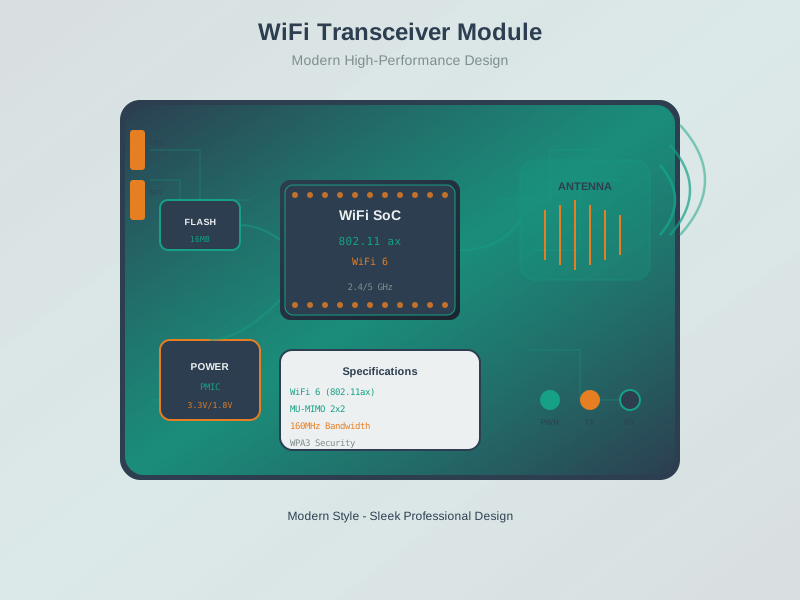
Understanding Wi-Fi module architecture helps developers configure and troubleshoot wireless connectivity in ESP32 and similar IoT platforms.
NoteVisual: Wi-Fi Mesh Network
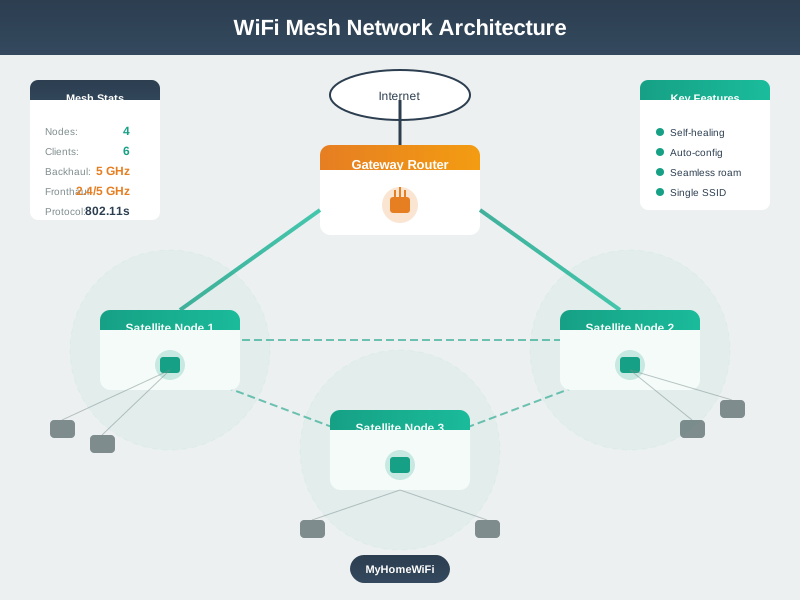
Wi-Fi mesh networks extend coverage beyond single access point range, providing redundant connectivity paths ideal for large IoT deployments.
NoteVisual: 802.11 Channel Access
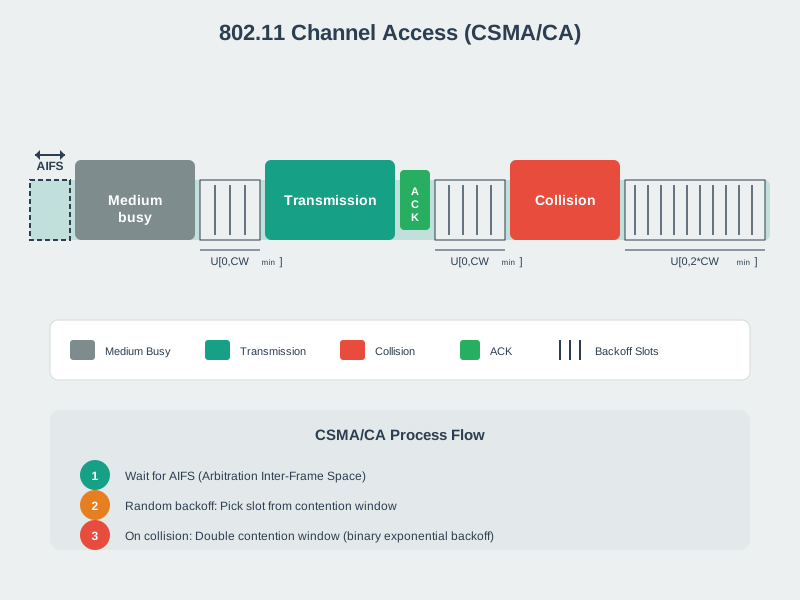
The 802.11 CSMA/CA mechanism ensures fair channel access among multiple wireless devices, essential knowledge for debugging Wi-Fi connectivity issues.
640.9 Summary
- Wi-Fi connectivity for IoT devices requires configuring SSID credentials, retrieving network parameters (IP address, gateway, DNS), and monitoring connection status using libraries like ESP32’s Wi-Fi.h
- Network information retrieval enables devices to programmatically access IP addresses, MAC addresses, subnet masks, gateway addresses, and signal strength (RSSI) for diagnostics and troubleshooting
- IP address calculations involve determining network addresses, broadcast addresses, and usable host ranges using subnet masks, with Python implementations providing tools for subnet analysis and CIDR notation
- Network scanning discovers active devices on a subnet by probing ports and services, identifying IoT protocols like MQTT (1883), CoAP (5683), HTTP (80/443), and SSH (22) to map network topology
- Protocol performance varies significantly between TCP and UDP, with TCP providing reliable delivery through retransmissions at the cost of higher latency, while UDP offers lower latency with potential packet loss
- MAC address analysis reveals device manufacturers through OUI (Organizationally Unique Identifier) lookups and identifies address types (unicast vs multicast, universal vs locally administered)
- Security considerations include detecting insecure services (Telnet, unencrypted HTTP/MQTT), implementing TLS encryption (HTTPS on 443, MQTT/TLS on 8883), and proper firewall configuration
640.10 What’s Next
After completing these hands-on labs and quizzes, you’re ready to explore more advanced networking topics and protocols:
- Network Mechanisms: Understand the underlying technical mechanisms of packet switching, datagrams, bandwidth vs throughput, and converged networks
- Layered Network Models: Comprehensive exploration of OSI and TCP/IP models, encapsulation processes, and how different layers interact in real IoT systems
- Routing Fundamentals: Learn how routers make forwarding decisions, routing protocols, and path selection algorithms
- IoT Protocol Deep Dives: Explore application-layer IoT protocols like MQTT, CoAP, AMQP, and when to use each for specific use cases
640.11 Knowledge Check
Test your understanding of network configuration, addressing, scanning, and protocol performance with these questions.
TipUnderstanding Check: Wi-Fi Troubleshooting for ESP32 Fleet
Scenario: You’ve deployed 50 ESP32 environmental monitors across a 3-story office building. After 2 weeks, 15 devices (30%) stop connecting to Wi-Fi. The others work fine.
Initial Assumptions (All Wrong): - “Wi-Fi password must have changed” → No, 35 devices still connect fine - “ESP32 Wi-Fi is unreliable” → No, same hardware works elsewhere - “Interference from new equipment” → No, happens on all floors randomly
Systematic Troubleshooting (Flowchart-Based):
Step 1: Can ESP32 see network? Run Wi-Fi.scanNetworks() on failed device → Found 12 networks, including target SSID ✓
Step 2: Correct password? Check code: const char* password = "OfficeWi-Fi2024!" → Matches router ✓
Step 3: 2.4GHz network? Router shows: “Office_5GHz” and “Office_2.4GHz” → SSID is “Office_5GHz” ✗
Root Cause Found: 15 ESP32s were configured with:
const char* ssid = "Office_5GHz"; // ← ESP32 doesn't support 5GHz!35 working devices had:
const char* ssid = "Office_2.4GHz"; // ← Correct 2.4GHz SSIDWhy This Happened: - IT upgraded office Wi-Fi, adding 5GHz band - New “Office_5GHz” SSID advertised prominently - Intern configured 15 replacement ESP32s with visible SSID - ESP32 sees 5GHz beacons but cannot connect (hardware limitation: 2.4GHz only)
The Fix:
// BEFORE (fails silently)
const char* ssid = "Office_5GHz";

// AFTER (explicit 2.4GHz with validation)
const char* ssid = "Office_2.4GHz";
Wi-Fi.begin(ssid, password);

// Add diagnostic feedback
if (Wi-Fi.status() != WL_CONNECTED) {
    Serial.println("Wi-Fi failed!");
    Serial.print("Attempted SSID: ");
    Serial.println(ssid);
    Serial.print("Ensure router has 2.4GHz band enabled.");
}
Lessons Learned: 1. ESP32 limitation: 2.4GHz only (no 5GHz, no Wi-Fi 6E) 2. Dual-band confusion: Devices see 5GHz beacons via RSSI but can’t decode them 3. Silent failure: No error message, just timeout (ESP32 library limitation) 4. Diagnostic value: Wi-Fi.scanNetworks() reveals what device sees vs what it can use
Real-World Impact: - 30% deployment failure due to single character difference (“_5GHz” vs “_2.4GHz”) - 2 weeks debugging time saved by systematic troubleshooting flowchart - Now use device capability check before SSID selection
Design Principle: Always verify device Wi-Fi capabilities before deployment. Document which SSIDs are 2.4GHz vs 5GHz. Add runtime diagnostics to IoT firmware for remote troubleshooting.
NoteQuestion 1: OSI vs TCP/IP Model
What is the main difference between the OSI model and TCP/IP model?
Answer:
The OSI (Open Systems Interconnection) model is a 7-layer theoretical framework designed as a reference model, while TCP/IP is a 4-layer practical implementation that actually runs on the internet.
| OSI Model (7 layers) | TCP/IP Model (4 layers) |
|---|---|
| Application | Application |
| Presentation | (combined in Application) |
| Session | (combined in Application) |
| Transport | Transport |
| Network | Internet |
| Data Link | Network Access (Link) |
| Physical | (combined in Link) |
For IoT: TCP/IP is what you implement in code; OSI helps understand which layer each protocol operates at. Example: MQTT (Application) -> TCP (Transport) -> IP (Internet) -> Wi-Fi (Link)
NoteQuestion 2: Subnet Mask Calculation
A network has IP 192.168.10.0 with subnet mask 255.255.255.192 (/26). How many usable host addresses are available, and what is the broadcast address?
Answer:
Calculation steps:
- Subnet mask analysis: 255.255.255.192 = /26 (26 network bits, 6 host bits)
- Total addresses: 2^6 = 64 addresses per subnet
- Usable hosts: 64 - 2 = 62 usable host addresses (subtract network and broadcast)
- Subnet increment: 256 - 192 = 64
For 192.168.10.0/26: - Network address: 192.168.10.0 - First usable host: 192.168.10.1 - Last usable host: 192.168.10.62 - Broadcast address: 192.168.10.63
This subnet size is ideal for small IoT deployments like a single building floor with 50-60 sensors.
NoteQuestion 3: IP Addressing - Private vs Public
Why do most IoT devices use private IP addresses (192.168.x.x, 10.x.x.x) instead of public IPs?
Answer:
Private IP addresses are used for IoT devices because:
- Address scarcity: Only ~4.3 billion IPv4 public addresses exist globally, far fewer than the billions of IoT devices
- Security: Private IPs are not directly routable from the internet, providing a basic firewall
- Cost: Public IPs require registration and often cost money from ISPs
- Network flexibility: Private ranges allow organizations to design internal addressing freely
Private IP ranges (RFC 1918): - 10.0.0.0/8 (16+ million addresses) - Large enterprises, smart cities - 172.16.0.0/12 (1+ million addresses) - Medium organizations - 192.168.0.0/16 (65,536 addresses) - Home networks, small buildings
NAT (Network Address Translation) allows private devices to access the internet by sharing a single public IP. However, NAT creates challenges for IoT: - Inbound connections are blocked (devices behind NAT can’t be directly reached) - Solutions: MQTT persistent connections, port forwarding, VPN tunnels
NoteQuestion 4: Default Gateway Role
What is the role of a default gateway, and why is it essential for IoT devices to reach cloud servers?
Answer:
The default gateway is the router that forwards packets from local network devices to other networks (including the internet). When an IoT device needs to send data to a cloud server:
- Device checks: “Is destination IP on my local subnet?” (using subnet mask)
- If remote (different subnet): Send packet to default gateway
- Gateway examines destination IP and forwards toward the target network
- Packet may traverse multiple routers before reaching cloud server
Example: - IoT sensor IP: 192.168.1.100/24 - Default gateway: 192.168.1.1 - Cloud server: 54.235.100.42
The sensor’s subnet mask (255.255.255.0) reveals that 54.235.100.42 is NOT in the 192.168.1.0/24 network, so the packet must go to the gateway.
IoT configuration essentials: - IP address (device identity) - Subnet mask (local network boundary) - Default gateway (exit point for remote destinations) - DNS server (resolve hostnames like mqtt.example.com)
NoteQuestion 5: DHCP vs Static IP for IoT
When should you use DHCP versus static IP addresses for IoT deployments?
Answer:
Use DHCP (Dynamic) for: - Large-scale sensor deployments (100+ devices) - Devices that may move between networks - Prototype and development environments - Reducing manual configuration errors
Advantages: Automatic configuration, prevents IP conflicts, easy scaling
Use Static IP for: - Critical infrastructure (gateways, servers, MQTT brokers) - Security cameras and NVRs (need fixed addresses for recording) - Devices requiring port forwarding - Industrial control systems with strict addressing requirements
Advantages: Predictable addressing, works even if DHCP server fails
Best practice - DHCP reservations: Combine benefits of both approaches by assigning specific IPs via DHCP based on MAC address. The device gets “dynamic” configuration, but always receives the same IP:
MAC: DC:A6:32:AB:CD:EF -> IP: 192.168.1.100 (reserved)This provides central management (DHCP server) with address predictability (same IP every time).
NoteQuestion 6: Port Numbers for IoT Protocols
What port numbers do common IoT protocols use, and why are they important?
Answer:
Port numbers identify specific services running on a device. Key IoT protocol ports:
| Protocol | Port | Transport | Usage |
|---|---|---|---|
| MQTT | 1883 | TCP | Unencrypted messaging |
| MQTT/TLS | 8883 | TCP | Encrypted messaging |
| CoAP | 5683 | UDP | Constrained devices |
| CoAP/DTLS | 5684 | UDP | Secure constrained devices |
| HTTP | 80 | TCP | Web interfaces |
| HTTPS | 443 | TCP | Secure web |
| SSH | 22 | TCP | Remote device access |
| Modbus TCP | 502 | TCP | Industrial control |
Why ports matter for IoT: - Firewall rules: Must allow traffic on required ports (e.g., open 8883 for secure MQTT) - Security scanning: Open ports reveal services; close unnecessary ones - Service identification: Port 1883 open suggests MQTT broker - Troubleshooting: Connection issues often relate to blocked ports
Security note: Always prefer encrypted variants (8883 over 1883, 5684 over 5683) in production deployments.