%%{init: {'theme': 'base', 'themeVariables': {'primaryColor': '#2C3E50', 'primaryTextColor': '#fff', 'primaryBorderColor': '#1A252F', 'lineColor': '#16A085', 'secondaryColor': '#E67E22', 'tertiaryColor': '#ECF0F1', 'fontSize': '14px'}}}%%
flowchart TD
    subgraph Ecosystem["Arduino/ESP32 Ecosystem"]
        IDE["Arduino IDE<br/>Write & Upload Code"]
        Libs["Libraries<br/>Pre-built Functions"]
        HW["Hardware<br/>Boards & Sensors"]
        Community["Community<br/>Tutorials & Forums"]
    end

    IDE --> Libs
    Libs --> HW
    Community --> IDE
    Community --> Libs

    style IDE fill:#16A085,stroke:#0D6655
    style Libs fill:#E67E22,stroke:#AF5F1A
    style HW fill:#2C3E50,stroke:#1A252F
    style Community fill:#3498DB,stroke:#2471A3
1524 Microcontroller Programming Essentials
1524.1 Learning Objectives
By the end of this chapter, you will be able to:
- Set up Arduino IDE and program ESP32/Arduino boards
- Understand the structure of microcontroller programs (setup/loop)
- Configure GPIO pins for digital and analog input/output
- Implement serial communication for debugging and data transfer
- Use interrupts for responsive sensor reading
- Manage timing without blocking the main program
- Interface with common sensors using code patterns
TipFor Beginners: What is Microcontroller Programming?
A microcontroller is a tiny computer on a chip. Unlike your laptop or phone, it’s designed to do one thing well: interact with the physical world through sensors and actuators.
Why is this different from regular programming?
- Direct hardware access - You control individual pins on the chip
- Real-time constraints - Events happen in microseconds, not milliseconds
- Limited resources - Often only 4-32 KB of RAM (your phone has ~8 GB!)
- No operating system - Your code runs directly on the hardware
What you’ll learn: - How to make an LED blink (the “Hello World” of hardware) - How to read a button or sensor - How to send data to your computer - How to respond to events quickly (interrupts)
This chapter prepares you for hands-on work with Arduino and ESP32 boards in the prototyping chapters.
TipFor Kids: Meet the Sensor Squad! 🌟
Programming a microcontroller is like teaching a tiny robot brain to follow your instructions - you get to be the boss!
1524.1.1 The Sensor Squad Adventure: Max Learns His First Trick
It was Max the Microcontroller’s very first day on the job, and he was SO excited! But there was one problem - Max didn’t know how to do ANYTHING yet. He was just a blank chip, waiting to learn.
“Don’t worry, Max!” said Lila the LED cheerfully. “The humans will teach you using something called PROGRAMMING. They’ll write special instructions that tell you exactly what to do!” Sammy the Sensor nodded wisely. “First, they’ll write a setup() part - that’s like your morning routine where you get ready for the day. You learn which pins do what and say hello to all your sensor friends!”
“Then comes the fun part,” added Bella the Battery. “The loop() is like your daily job that you do over and over forever! Maybe you read Sammy’s temperature, then tell Lila to blink, then wait a second, and do it all again!” Max’s circuits tingled with excitement. “So setup() runs once when I wake up, and loop() runs forever until someone unplugs me? That sounds simple!” The team cheered as the humans uploaded Max’s first program. BLINK! BLINK! BLINK! went Lila, following Max’s brand new instructions. “I did it!” cheered Max. “I made Lila blink! This is amazing - I can learn to do ANYTHING!”
1524.1.2 Key Words for Kids
| Word | What It Means |
|---|---|
| Program | A list of instructions that tells the microcontroller exactly what to do, step by step - like a recipe for a robot! |
| setup() | The part of the program that runs ONE time when the microcontroller wakes up - like brushing your teeth in the morning |
| loop() | The part of the program that runs FOREVER, over and over - like breathing (you do it automatically all day!) |
| Upload | Sending your program from the computer into the microcontroller’s brain so it can learn what to do |
1524.1.3 Try This at Home!
Be a Human Microcontroller: Write a simple “program” on paper with setup() and loop() sections. For setup(), write things you do once in the morning (brush teeth, get dressed). For loop(), write things you repeat all day (breathe, blink eyes, check if you’re hungry). Now have a friend or family member “run” your program - they do the setup steps once, then repeat the loop steps over and over until you say “stop!” This is exactly how a microcontroller works - it follows your instructions perfectly, exactly as you wrote them. If you wrote “jump 100 times” it would do ALL 100 jumps. That’s why programmers have to be very careful with their instructions!
1524.2 The Arduino/ESP32 Ecosystem
1524.2.1 Why Arduino and ESP32?
| Platform | Pros | Cons | Best For |
|---|---|---|---|
| Arduino Uno | Simple, huge community, 5V logic | Slow (16 MHz), no Wi-Fi | Learning, simple projects |
| Arduino Nano | Small, breadboard-friendly | Same limitations as Uno | Compact projects |
| ESP32 | Wi-Fi+Bluetooth, fast (240 MHz), cheap | 3.3V logic, more complex | IoT projects |
| ESP8266 | Very cheap, Wi-Fi | Fewer pins, older | Simple Wi-Fi projects |
| Raspberry Pi Pico | Dual-core, flexible | Less community support | Advanced projects |
%% fig-alt: "Learning journey timeline for Arduino and ESP32 development showing progression from beginner blink LED through intermediate sensors and communication to advanced Wi-Fi and cloud integration."
%%{init: {'theme': 'base', 'themeVariables': { 'primaryColor': '#2C3E50', 'primaryTextColor': '#fff', 'primaryBorderColor': '#16A085', 'lineColor': '#16A085', 'secondaryColor': '#E67E22', 'tertiaryColor': '#7F8C8D', 'fontSize': '12px'}}}%%
timeline
    title Your Microcontroller Learning Journey
    section Week 1-2: Foundations
        Blink LED : First program
                  : Learn setup() and loop()
                  : Understand GPIO output
        Button Input : Digital input
                     : Pull-up resistors
                     : Debouncing concept
    section Week 3-4: Sensors
        Analog Read : ADC fundamentals
                    : Potentiometer, LM35
                    : Voltage conversion
        Serial Debug : UART communication
                     : Print sensor values
                     : Interactive debugging
    section Week 5-6: Timing
        Non-blocking : millis() vs delay()
                     : Multiple tasks
                     : Responsive programs
        Interrupts : Hardware triggers
                   : ISR functions
                   : Real-time response
    section Week 7-8: IoT Ready
        Wi-Fi Connect : ESP32 networking
                     : HTTP requests
                     : MQTT publish
        Cloud Data : Send to dashboard
                   : Complete IoT device
                   : Production patterns
1524.2.2 Setting Up Your Development Environment
1. Install Arduino IDE
Download from arduino.cc (version 2.x recommended)
2. Add ESP32 Board Support (for ESP32 boards)
Go to: File → Preferences
Add to “Additional Boards Manager URLs”:
https://raw.githubusercontent.com/espressif/arduino-esp32/gh-pages/package_esp32_index.jsonGo to: Tools → Board → Boards Manager
Search “esp32” and install “ESP32 by Espressif Systems”
3. Select Your Board
- Tools → Board → Select your board model
- Tools → Port → Select the USB port (COM3, /dev/ttyUSB0, etc.)
1524.3 Program Structure: Setup and Loop
Every Arduino/ESP32 program has two essential functions:
void setup() {
    // Runs ONCE when the board powers on or resets
    // Use for: Pin configuration, serial begin, sensor initialization
}

void loop() {
    // Runs FOREVER in a continuous loop
    // Use for: Reading sensors, controlling outputs, main logic
}
1524.3.1 Understanding the Execution Model
Behind the scenes, the Arduino core (board support package) provides a small runtime that:
- Initializes hardware (clocks, pins, peripherals)
- Calls
setup()once - Repeatedly runs
loop()(or runs it as a background task on RTOS-based boards)
The exact CPU architecture depends on the board (AVR, ARM Cortex-M, Xtensa, RISC-V), but the mental model stays the same: your application code runs, and hardware events (GPIO, timers, UART) can interrupt it.
TipReality Check: Arduino is an API, not a single chip family
- Arduino Uno/Nano: 8-bit AVR (ATmega328P)
- Many modern Arduino boards: ARM Cortex-M (SAMD, STM32, nRF52, etc.)
- ESP32 family: Xtensa or RISC-V cores (Arduino runs on top of ESP-IDF/FreeRTOS)
%%{init: {'theme': 'base', 'themeVariables': {'primaryColor': '#2C3E50', 'primaryTextColor': '#fff', 'primaryBorderColor': '#1A252F', 'lineColor': '#16A085', 'secondaryColor': '#E67E22', 'tertiaryColor': '#ECF0F1', 'fontSize': '14px'}}}%%
flowchart TD
    Power["🔌 Power On"]
    Setup["setup()<br/>Run Once"]
    Loop["loop()<br/>Run Forever"]
    Reset["🔄 Reset Button"]

    Power --> Setup --> Loop
    Loop --> Loop
    Reset --> Setup

    style Power fill:#E67E22,stroke:#AF5F1A
    style Setup fill:#16A085,stroke:#0D6655
    style Loop fill:#2C3E50,stroke:#1A252F
1524.3.2 Microcontroller Architecture Essentials (Conceptual)
Most microcontrollers share the same building blocks:
- Program memory (Flash/ROM) stores your code and constants
- RAM (SRAM) stores the stack, heap, and variables
- Peripherals (GPIO, timers, ADC, UART, I2C, SPI) expose hardware features through registers
%%{init: {'theme': 'base', 'themeVariables': {'primaryColor': '#2C3E50', 'primaryTextColor': '#fff', 'primaryBorderColor': '#1A252F', 'lineColor': '#16A085', 'secondaryColor': '#E67E22', 'tertiaryColor': '#ECF0F1', 'fontSize': '14px'}}}%%
flowchart LR
    CPU["CPU Core"]
    Flash["Flash/ROM<br/>Program + constants"]
    RAM["SRAM<br/>Stack + heap + globals"]
    Periph["Peripherals<br/>GPIO • Timers • ADC • UART • I2C • SPI"]

    Flash --> CPU
    RAM --> CPU
    CPU <--> Periph

    style CPU fill:#2C3E50,stroke:#1A252F
    style Flash fill:#E67E22,stroke:#AF5F1A
    style RAM fill:#16A085,stroke:#0D6655
    style Periph fill:#3498DB,stroke:#2471A3
Two execution contexts matter for IoT code:
- Main context: your normal code (
setup(),loop(), background work) - Interrupt context: short handlers triggered by hardware events
Microcontrollers implement interrupts via an interrupt vector table (or an equivalent dispatch table) that maps interrupt sources to handler function addresses. When you call attachInterrupt() in Arduino code, you’re asking the board support package to wire a pin event to your ISR.
TipOptional: ARM Cortex-M terms you may see in datasheets
On ARM Cortex-M MCUs, the main program runs in Thread mode and ISRs run in Handler mode. On interrupt entry, the CPU pushes a small stack frame (registers + return address) and restores it on exit. Other architectures use different names, but the same idea applies: interrupt code runs in a separate, time-critical context.
NoteWhy This Matters for IoT Programming
Understanding these architectural details helps you:
- Debug interrupt issues - Know why ISRs need special attributes (
IRAM_ATTR,volatile) - Optimize performance - Understand stack usage and function call overhead
- Write safer code - Recognize race conditions between main code and ISRs
- Manage memory - Know where variables live (stack vs heap vs registers)
1524.3.3 Your First Program: Blink
// The "Hello World" of hardware programming
// Blinks the built-in LED on and off

void setup() {
    // Configure the built-in LED pin as an output
    pinMode(LED_BUILTIN, OUTPUT);
}

void loop() {
    digitalWrite(LED_BUILTIN, HIGH);  // Turn LED on
    delay(1000);                       // Wait 1 second (1000 ms)
    digitalWrite(LED_BUILTIN, LOW);   // Turn LED off
    delay(1000);                       // Wait 1 second
}
NoteUnderstanding the Code
pinMode(pin, mode)- Configures a pin as INPUT, OUTPUT, or INPUT_PULLUPdigitalWrite(pin, value)- Sets a pin HIGH (3.3V/5V) or LOW (0V)delay(ms)- Pauses execution for milliseconds
LED_BUILTIN is a predefined constant for the onboard LED (pin varies by board; often pin 13 on Arduino Uno, and commonly GPIO2 on many ESP32 dev boards).
1524.4 GPIO: Digital Input and Output
1524.4.1 What is GPIO?
GPIO (General Purpose Input/Output) pins can be configured as either inputs (reading sensors/buttons) or outputs (controlling LEDs/relays).
1524.4.2 Digital Output Example: Controlling an LED
const int LED_PIN = 2;  // GPIO2 on ESP32

void setup() {
    pinMode(LED_PIN, OUTPUT);
}

void loop() {
    digitalWrite(LED_PIN, HIGH);  // LED on
    delay(500);
    digitalWrite(LED_PIN, LOW);   // LED off
    delay(500);
}1524.5 Analog Input: Reading Sensors
Many sensors output analog voltages. The ADC (Analog-to-Digital Converter) converts these to digital values.
| Board | ADC Resolution | Voltage Range | Value Range |
|---|---|---|---|
| Arduino Uno | 10-bit | 0-5V | 0-1023 |
| ESP32 | 12-bit | 0-3.3V | 0-4095 |
1524.5.1 Reading a Potentiometer
const int POT_PIN = 34;  // GPIO34 (ADC1 on ESP32)

void setup() {
    Serial.begin(115200);
    // No pinMode needed for analog input
}

void loop() {
    int rawValue = analogRead(POT_PIN);  // 0-4095 on ESP32

    // Convert to voltage
    float voltage = rawValue * (3.3 / 4095.0);

    // Convert to percentage
    int percentage = map(rawValue, 0, 4095, 0, 100);

    Serial.print("Raw: ");
    Serial.print(rawValue);
    Serial.print(" | Voltage: ");
    Serial.print(voltage);
    Serial.print("V | Percent: ");
    Serial.print(percentage);
    Serial.println("%");

    delay(100);
}
1524.5.2 Reading a Temperature Sensor (LM35)
const int TEMP_PIN = 35;

void setup() {
    Serial.begin(115200);
}

void loop() {
    int rawValue = analogRead(TEMP_PIN);

    // LM35 outputs 10mV per degree Celsius
    // With 3.3V reference and 12-bit ADC:
    float voltage = rawValue * (3.3 / 4095.0);
    float temperatureC = voltage * 100.0;  // 10mV/°C

    Serial.print("Temperature: ");
    Serial.print(temperatureC);
    Serial.println(" °C");

    delay(1000);
}
1524.6 Serial Communication
1524.6.1 What is Serial Communication?
Serial communication sends data one bit at a time over a wire. It’s essential for: - Debugging - Print values to see what your code is doing - Data logging - Send sensor data to a computer - Configuration - Receive commands from a computer
%%{init: {'theme': 'base', 'themeVariables': {'primaryColor': '#2C3E50', 'primaryTextColor': '#fff', 'primaryBorderColor': '#1A252F', 'lineColor': '#16A085', 'secondaryColor': '#E67E22', 'tertiaryColor': '#ECF0F1', 'fontSize': '14px'}}}%%
flowchart LR
    MCU["ESP32/Arduino"]
    USB["USB-to-Serial<br/>Chip"]
    PC["Computer"]
    Monitor["Serial Monitor<br/>in Arduino IDE"]

    MCU -->|TX| USB
    USB -->|RX| MCU
    USB <-->|USB| PC
    PC --> Monitor

    style MCU fill:#16A085,stroke:#0D6655
    style USB fill:#E67E22,stroke:#AF5F1A
    style PC fill:#2C3E50,stroke:#1A252F
    style Monitor fill:#3498DB,stroke:#2471A3
1524.6.2 Serial Functions
void setup() {
    Serial.begin(115200);  // Start serial at 115200 baud
    Serial.println("Hello, World!");  // Print with newline
}

void loop() {
    // Print different data types
    Serial.print("Integer: ");
    Serial.println(42);

    Serial.print("Float: ");
    Serial.println(3.14159, 2);  // 2 decimal places

    // Read incoming data
    if (Serial.available() > 0) {
        char received = Serial.read();
        Serial.print("Received: ");
        Serial.println(received);
    }

    delay(1000);
}
1524.6.3 Common Serial Functions
| Function | Description | Example |
|---|---|---|
Serial.begin(baud) |
Initialize serial | Serial.begin(115200) |
Serial.print(data) |
Print without newline | Serial.print("Hi") |
Serial.println(data) |
Print with newline | Serial.println(42) |
Serial.available() |
Check if data waiting | if(Serial.available()) |
Serial.read() |
Read one byte | char c = Serial.read() |
Serial.readString() |
Read until timeout | String s = Serial.readString() |
Serial.parseInt() |
Parse integer | int n = Serial.parseInt() |
1524.7 Timing Without Blocking
1524.7.1 The Problem with delay()
delay() blocks the entire program. Nothing else can happen during the delay.
// BAD: Blocking code - can't do anything else during delays
void loop() {
    digitalWrite(LED1, HIGH);
    delay(1000);  // Stuck here for 1 second!
    digitalWrite(LED1, LOW);
    delay(1000);  // Stuck here again!
    // Can't read sensors, respond to buttons, etc.
}
1524.7.2 The Solution: millis() and Non-Blocking Code
// GOOD: Non-blocking code using millis()
unsigned long previousMillis = 0;
const long interval = 1000;  // 1 second
bool ledState = false;

void loop() {
    unsigned long currentMillis = millis();

    // Check if it's time to toggle the LED
    if (currentMillis - previousMillis >= interval) {
        previousMillis = currentMillis;

        // Toggle LED
        ledState = !ledState;
        digitalWrite(LED_PIN, ledState);
    }

    // Other code can run here without being blocked!
    int sensorValue = analogRead(SENSOR_PIN);
    // Process sensor data...
}
%%{init: {'theme': 'base', 'themeVariables': {'primaryColor': '#2C3E50', 'primaryTextColor': '#fff', 'primaryBorderColor': '#1A252F', 'lineColor': '#16A085', 'secondaryColor': '#E67E22', 'tertiaryColor': '#ECF0F1', 'fontSize': '14px'}}}%%
flowchart TD
subgraph Blocking["delay() - Blocking"]
B1["Do Task A"]
B2["Wait 1 second<br/>(CPU idle)"]
B3["Do Task B"]
B4["Wait 1 second<br/>(CPU idle)"]
B1 --> B2 --> B3 --> B4
end
subgraph NonBlocking["millis() - Non-Blocking"]
N1["Check: Time for A?"]
N2["Check: Time for B?"]
N3["Do other work"]
N1 --> N2 --> N3 --> N1
end
style Blocking fill:#E74C3C,stroke:#B03A2E
style NonBlocking fill:#16A085,stroke:#0D6655
1524.7.3 Multiple Timed Tasks
// Blink LED every 500ms AND read sensor every 100ms
unsigned long ledPreviousMillis = 0;
unsigned long sensorPreviousMillis = 0;
const long ledInterval = 500;
const long sensorInterval = 100;

void loop() {
    unsigned long currentMillis = millis();

    // LED task
    if (currentMillis - ledPreviousMillis >= ledInterval) {
        ledPreviousMillis = currentMillis;
        digitalWrite(LED_PIN, !digitalRead(LED_PIN));
    }

    // Sensor task
    if (currentMillis - sensorPreviousMillis >= sensorInterval) {
        sensorPreviousMillis = currentMillis;
        int value = analogRead(SENSOR_PIN);
        Serial.println(value);
    }
}
1524.8 Interrupts: Responding Instantly
1524.8.1 What are Interrupts?
An interrupt immediately pauses the main program when an event occurs (like a button press), runs a special function (ISR - Interrupt Service Routine), then resumes the main program.
%%{init: {'theme': 'base', 'themeVariables': {'primaryColor': '#2C3E50', 'primaryTextColor': '#fff', 'primaryBorderColor': '#1A252F', 'lineColor': '#16A085', 'secondaryColor': '#E67E22', 'tertiaryColor': '#ECF0F1', 'fontSize': '14px'}}}%%
sequenceDiagram
    participant Main as Main Program
    participant ISR as Interrupt Handler
    participant HW as Hardware Event

    Main->>Main: Running loop()
    HW->>Main: Button Pressed!
    Main->>ISR: Pause & Jump to ISR
    ISR->>ISR: Handle Event (very fast)
    ISR->>Main: Return & Resume
    Main->>Main: Continue loop()
1524.8.3 Interrupt Trigger Modes
| Mode | Triggers When |
|---|---|
LOW |
Pin is LOW |
CHANGE |
Pin changes state (HIGH→LOW or LOW→HIGH) |
RISING |
Pin goes LOW→HIGH |
FALLING |
Pin goes HIGH→LOW |
ImportantISR Rules
Keep your ISR fast and simple:
- No delay() - Never use delay() in an ISR
- No Serial - Serial.print() is slow, avoid in ISR
- Use volatile - Variables shared with ISR must be
volatile - Keep it short - Do minimal work, set a flag for main loop
- IRAM_ATTR - Required on ESP32 to place ISR in fast RAM
1524.8.4 Interrupt Timing and Bottom Halves
Understanding interrupt timing is critical for building responsive IoT systems. When an interrupt occurs, the processor must save context, execute the ISR, and restore context—all of which takes time.
The bottom half pattern splits interrupt handling into two parts:
- Top Half (ISR) - Runs immediately, does minimal work:
- Read critical hardware registers
- Set a flag or increment a counter
- Clear interrupt status bits
- Takes microseconds
- Bottom Half (Main Loop) - Processes the event later:
- Heavy computation
- Serial printing
- Network communication
- Can take milliseconds
// Example: Bottom half pattern for sensor reading
volatile bool sensorReady = false;
volatile uint16_t rawValue = 0;

// TOP HALF: Fast ISR
void IRAM_ATTR sensorISR() {
    rawValue = readSensorRegister();  // Quick hardware read
    sensorReady = true;                // Set flag
}

// BOTTOM HALF: Main loop processing
void loop() {
    if (sensorReady) {
        sensorReady = false;

        // Heavy processing here (safe in main loop)
        float voltage = rawValue * 3.3 / 4095.0;
        float temperature = calculateTemp(voltage);
        sendToCloud(temperature);
        Serial.println(temperature);
    }
}1524.8.6 Microcontroller Architecture Visualizations
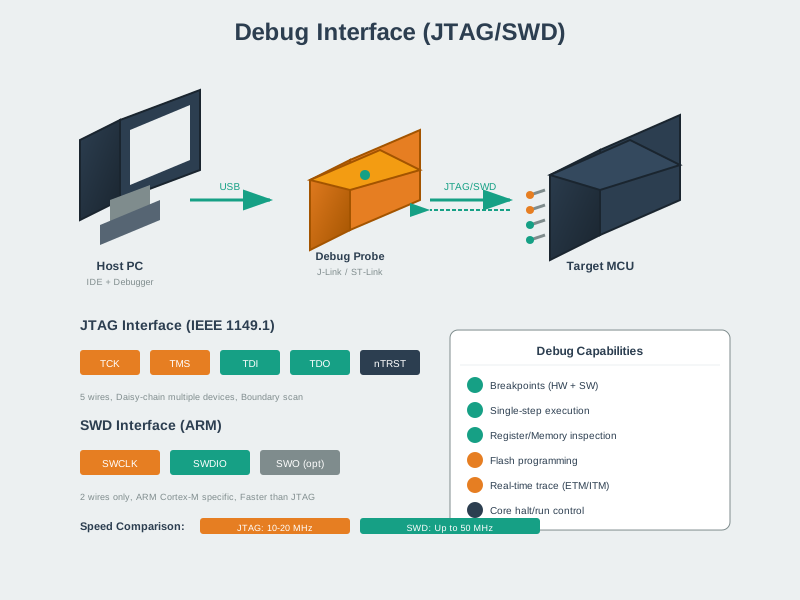
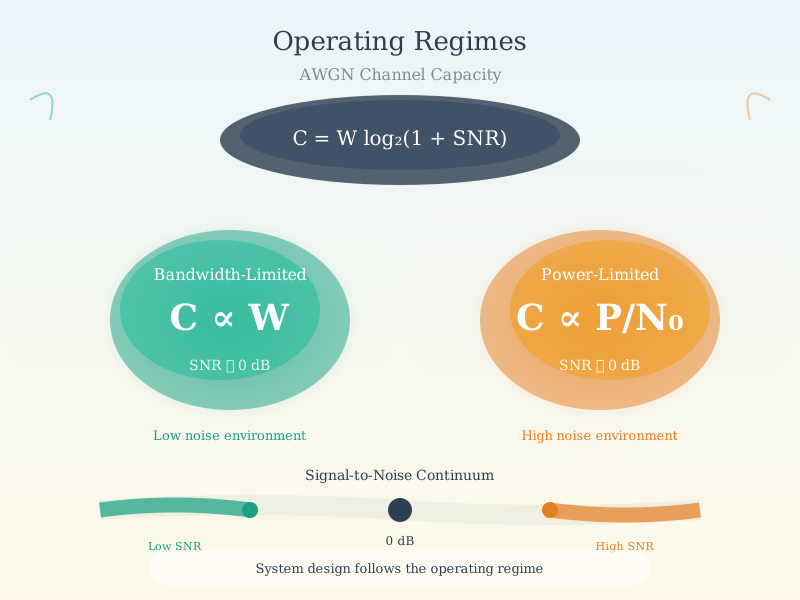
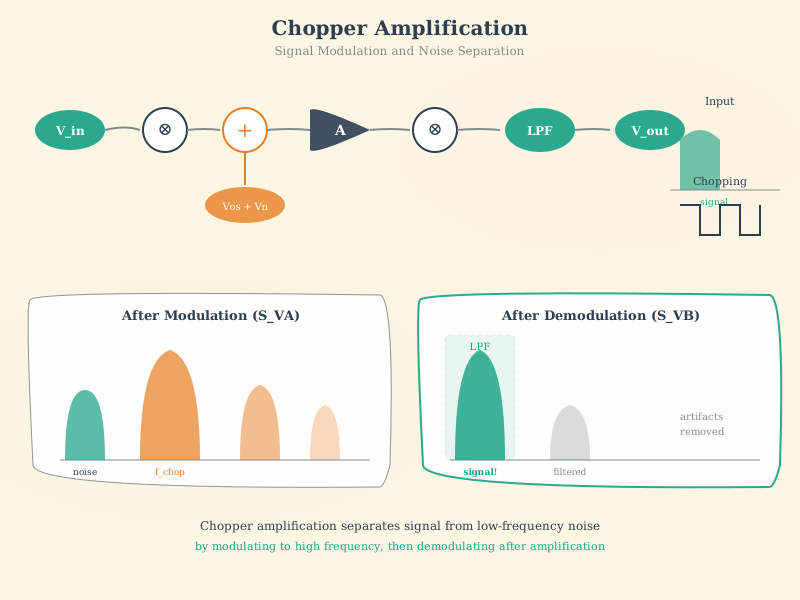
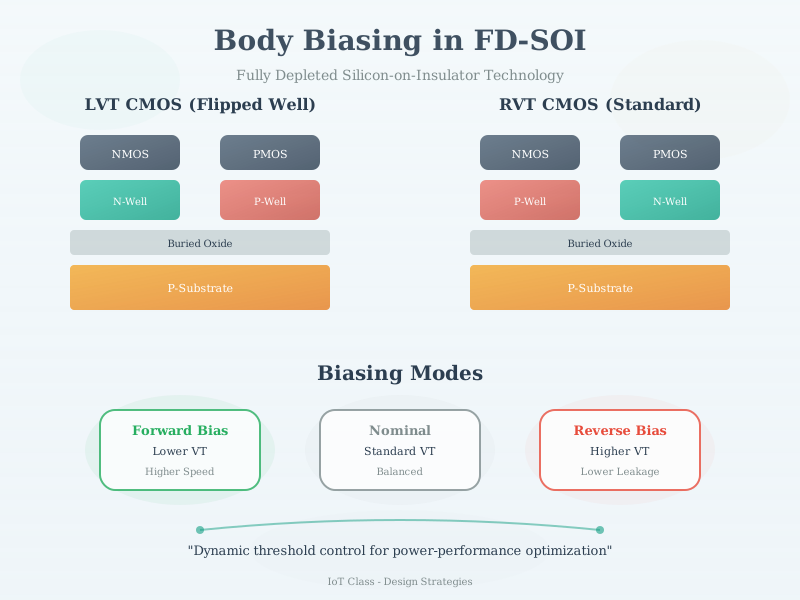
The following AI-generated diagrams illustrate key microcontroller programming concepts and architectures.

1524.9 Common Sensor Patterns
1524.9.1 Pattern 1: Polling (Simple but Blocking)
// Read sensor in main loop
void loop() {
    int value = analogRead(SENSOR_PIN);
    if (value > THRESHOLD) {
        // Take action
    }
    delay(100);  // Read every 100ms
}
1524.9.2 Pattern 2: Non-Blocking with millis()
// Read sensor without blocking
unsigned long lastRead = 0;

void loop() {
    if (millis() - lastRead >= 100) {
        lastRead = millis();
        int value = analogRead(SENSOR_PIN);
        processValue(value);
    }
    // Other tasks can run here
}
1524.9.3 Pattern 3: Interrupt-Driven
// React immediately to digital events
volatile bool motionDetected = false;

void IRAM_ATTR motionISR() {
    motionDetected = true;
}

void loop() {
    if (motionDetected) {
        motionDetected = false;
        // Handle motion detection
        sendAlert();
    }
    // Other tasks
}
1524.9.4 Pattern 4: State Machine
enum State { IDLE, READING, PROCESSING, SENDING };
State currentState = IDLE;
unsigned long stateTimer = 0;

void loop() {
    switch (currentState) {
        case IDLE:
            if (millis() - stateTimer >= 5000) {
                currentState = READING;
            }
            break;

        case READING:
            sensorValue = readSensor();
            currentState = PROCESSING;
            break;

        case PROCESSING:
            processedValue = processSensor(sensorValue);
            currentState = SENDING;
            break;

        case SENDING:
            sendData(processedValue);
            stateTimer = millis();
            currentState = IDLE;
            break;
    }
}
1524.10 Knowledge Check
Test your understanding of core microcontroller programming concepts.
CautionPitfall: Stack Overflow in Interrupt Service Routines
The Mistake: Declaring large local arrays or buffers inside ISRs, such as char buffer[256] for formatting debug messages or storing sensor data within the interrupt handler.
Why It Happens: Developers treat ISRs like regular functions, forgetting that ISRs use a separate, much smaller stack. On ESP32, the ISR stack is typically 2-4 KB (configurable via CONFIG_ESP_SYSTEM_EVENT_TASK_STACK_SIZE), while Arduino AVR boards have only 256-512 bytes for the entire stack. A single char[256] array consumes half the available ISR stack on AVR.
The Fix: Keep ISR local variables under 32 bytes total. Use global or static buffers declared with volatile outside the ISR, and have the ISR only set flags or copy small values (4-8 bytes). For ESP32, use IRAM_ATTR and limit stack usage to under 512 bytes:
// WRONG: Large buffer in ISR
void IRAM_ATTR badISR() {
    char msg[256];  // Stack overflow risk!
    sprintf(msg, "Value: %d", sensorValue);
}

// CORRECT: Minimal ISR, process in main loop
volatile uint16_t isrValue = 0;
volatile bool dataReady = false;

void IRAM_ATTR goodISR() {
    isrValue = readRegister();  // 2 bytes only
    dataReady = true;           // Flag for main loop
}
CautionPitfall: Heap Fragmentation from Repeated malloc/free
The Mistake: Using dynamic memory allocation (malloc, new, String concatenation) in the main loop of embedded systems, leading to gradual memory fragmentation until the system crashes after hours or days of operation.
Why It Happens: On desktop systems, modern allocators and virtual memory hide fragmentation issues. On microcontrollers with 4-256 KB RAM and no virtual memory, fragmentation is permanent until reset. Each String concatenation like String s = "Temp: " + String(temp) + "C" allocates 3+ heap blocks that fragment differently on each iteration.
The Fix: Use static buffers with fixed sizes allocated at compile time. For string formatting, use snprintf() with stack-allocated char[] arrays. Reserve String objects once at startup if absolutely needed:
// WRONG: Heap fragmentation in loop
void loop() {
    String msg = "Sensor: " + String(analogRead(A0));  // Fragments heap!
    Serial.println(msg);
}

// CORRECT: Static buffer, no heap allocation
void loop() {
    static char msg[32];  // Allocated once, reused
    snprintf(msg, sizeof(msg), "Sensor: %d", analogRead(A0));
    Serial.println(msg);
}
For ESP32, monitor heap with ESP.getFreeHeap() and ESP.getMaxAllocHeap() - if max allocatable block shrinks over time while free heap stays constant, you have fragmentation.
WarningCommon Pitfalls
1. Blocking the Loop with delay()
- Mistake: Using
delay(1000)to wait between sensor readings, which freezes the entire program and ignores all inputs during that time - Why it happens:
delay()is the first timing function beginners learn, and it works for simple blink sketches. The consequences only become apparent when adding buttons, displays, or multiple sensors - Solution: Use non-blocking timing with
millis(). Store the last action time and check if enough time has passed:if (millis() - lastRead >= interval) { lastRead = millis(); readSensor(); }. This allows the loop to remain responsive to other inputs
2. Not Using volatile for ISR-Shared Variables
- Mistake: Declaring a variable like
int buttonPressed = 0;that’s modified in an interrupt but read inloop(), then wondering why changes aren’t detected - Why it happens: The compiler optimizes by caching variable values in registers. Without
volatile, it may never re-read the actual memory location where the ISR updated the value - Solution: Always declare ISR-shared variables as
volatile:volatile int buttonPressed = 0;. For multi-byte variables on 8-bit MCUs, also disable interrupts briefly when reading to prevent torn reads
3. Ignoring Pull-Up Resistors on Inputs
- Mistake: Connecting a button between a GPIO pin and ground without enabling internal pull-ups, causing the pin to “float” when the button isn’t pressed and read random high/low values
- Why it happens: Beginners assume unconnected pins read LOW (0V), but floating inputs pick up electrical noise and oscillate unpredictably between HIGH and LOW
- Solution: Enable internal pull-ups with
pinMode(pin, INPUT_PULLUP)for active-low buttons (pressed = LOW), or add external 10k resistors. Always ensure inputs have a defined voltage when not actively driven
1524.11 Summary
| Concept | Key Points |
|---|---|
| Program Structure | setup() runs once, loop() runs forever |
| GPIO | Configure with pinMode(), read/write with digitalRead()/digitalWrite() |
| Analog Input | Use analogRead(), values depend on ADC resolution |
| Serial | Essential for debugging; use Serial.begin(), print(), println() |
| Timing | Avoid delay(); use millis() for non-blocking code |
| Interrupts | Use for time-critical events; keep ISR short |
1524.12 Visual Reference Gallery
The following AI-generated visualizations provide alternative perspectives on microcontroller programming concepts.
NoteArduino Pin Configuration
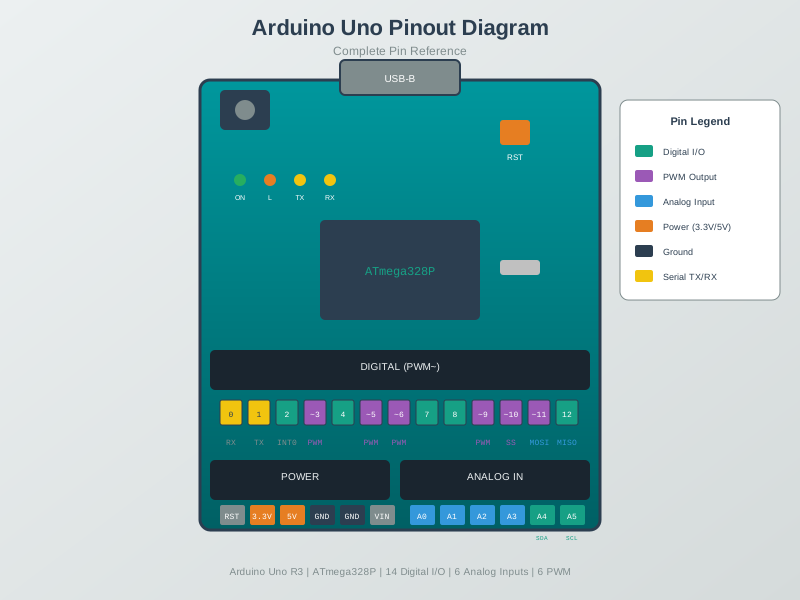
Understanding Arduino pin capabilities ensures correct hardware connections and prevents conflicts between peripherals.
NoteInterrupt Vector Table
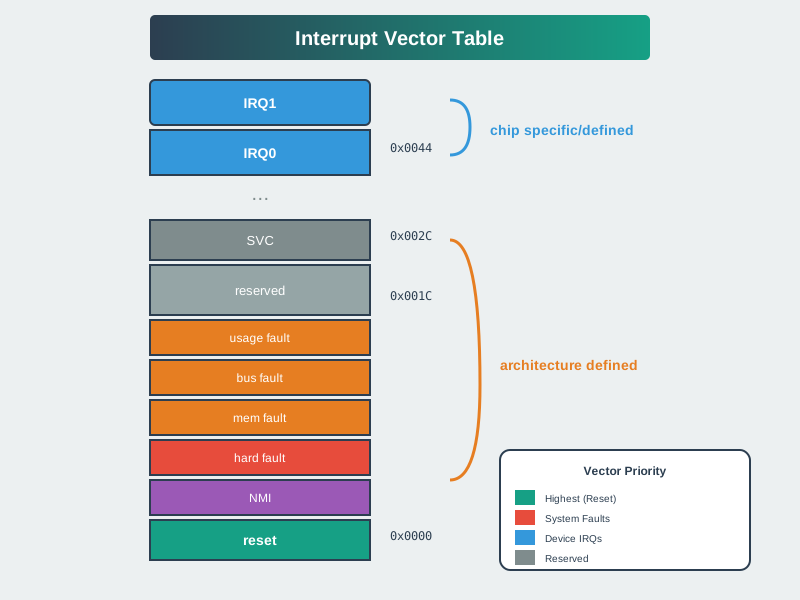
The interrupt vector table maps interrupt sources to their handlers, enabling rapid response to hardware events without polling.
NoteControl Registers Architecture
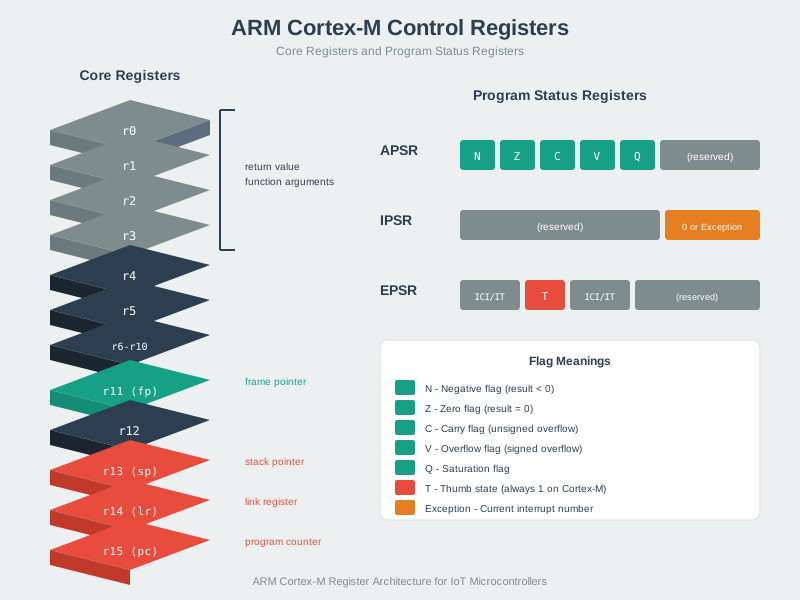
Direct register access provides maximum control over microcontroller peripherals, enabling optimization beyond what library functions allow.
1524.13 What’s Next
With programming fundamentals understood, you’re ready for:
- Prototyping Hardware - Hands-on with Arduino and ESP32 boards
- Sensor Fundamentals - Understanding sensor types
- Sensor Interfacing - I2C, SPI, and data processing
- Sensor Labs - Practical sensor projects
NoteRelated Chapters
- Electronics - Circuit fundamentals
- Analog-Digital Electronics - ADC/DAC concepts
- Energy-Aware Considerations - Power management