Differentiate between batch processing and stream processing paradigms in IoT contexts
Explain windowing strategies including tumbling, sliding, and session windows
Compare Apache Kafka, Flink, and Spark Streaming architectures and their IoT use cases
Design real-time IoT data pipelines with appropriate components and stages
Handle late-arriving data and out-of-order events in streaming systems
Apply exactly-once semantics and backpressure management in production environments
1299.2 Introduction
A modern autonomous vehicle generates approximately 1 gigabyte of sensor data every second from LIDAR, cameras, radar, GPS, and inertial measurement units. If you attempt to store this data to disk and then query it for analysis, you’ve already crashed into the obstacle ahead. The vehicle needs to make decisions in under 10 milliseconds based on continuously arriving sensor streams.
This is the fundamental challenge that stream processing solves: processing data in motion, not data at rest. Traditional batch processing analyzes historical data after it’s been collected and stored. Stream processing analyzes data as it arrives, enabling real-time decisions, alerts, and actions.
In IoT systems, stream processing has become essential infrastructure. Whether you’re monitoring industrial equipment for failure prediction, balancing electrical grids in real-time, or detecting fraud in payment systems, the ability to process continuous data streams with low latency determines system effectiveness.
NoteKey Takeaway
In one sentence: Process data as it arrives - waiting for batch windows means missing the moment when action could have prevented the problem.
Remember this rule: If the value of your insight degrades over time, use stream processing; if you need the complete picture, use batch.
TipFor Beginners: Batch vs Stream
Think of batch processing like counting votes after an election closes. You wait until all ballots are collected, then count them all at once to determine the winner. This works well when you can afford to wait.
Stream processing is like a live vote counter that updates the tally in real-time as each ballot arrives. You see the current state continuously, even before voting ends. This is essential when waiting isn’t an option.
In IoT, batch processing might analyze yesterday’s temperature readings to find trends. Stream processing monitors temperature readings as they arrive to trigger an immediate alert if your server room overheats.
TipFor Kids: Meet the Sensor Squad!
Stream processing is like having a lifeguard who watches the pool RIGHT NOW, instead of checking photos from yesterday!
1299.2.1 The Sensor Squad Adventure: The Never-Ending River Race
The Sensor Squad has a new mission: watching the Data River, where information flows like water - constantly moving, never stopping! The question is: how should they watch it?
Coach Batch has one idea: “Let’s collect ALL the water in buckets throughout the day. At midnight, we’ll look at all the buckets together and see what we collected!” This is called batch processing - wait until you have a big pile of data, then look at it all at once.
But Sammy the Temperature Sensor is worried. “What if the water gets too hot RIGHT NOW? By midnight, it might be too late!”
Captain Stream has a different idea: “Let’s taste the water as it flows by - every single second!” This is stream processing - looking at each drop of data the moment it arrives.
To test both ideas, they set up an experiment at the Data River:
The Batch Team (Coach Batch, Pressi the Pressure Sensor, and Bucketbot): - Collected water samples in buckets all day - At midnight, they discovered: “Oh no! The water was dangerously hot at 2:15 PM!” - But it’s now midnight - that was 10 hours ago! The fish have already left the river.
The Stream Team (Sammy, Lux the Light Sensor, and Motio the Motion Detector): - Watched the water every second - At 2:15 PM exactly, Sammy shouted: “ALERT! Temperature spiking NOW!” - They immediately opened the shade covers to cool the river - The fish stayed happy and safe!
“See the difference?” explains Captain Stream. “Batch processing is great when you can WAIT - like figuring out what the most popular ice cream flavor was last month. But stream processing is essential when you need to act FAST - like knowing when the ice cream truck arrives so you can run outside!”
The Sensor Squad learned an important lesson: not all data problems are the same!
Use Batch when: You’re doing homework about last week’s weather patterns
Use Stream when: You need to know if it’s raining RIGHT NOW so you can grab an umbrella
Motio the Motion Detector added one more example: “It’s like fire alarms! A batch fire alarm would check for smoke once a day at midnight - terrible idea! A stream fire alarm checks CONSTANTLY - that’s how you stay safe!”
1299.2.2 Key Words for Kids
Word
What It Means
Stream Processing
Looking at data the instant it arrives - like watching a movie as it plays instead of waiting until it ends
Batch Processing
Collecting lots of data into a pile, then looking at it all at once later - like saving all your mail and reading it every Sunday
Real-Time
Happening right now, with almost no delay - like a live video call with grandma
Latency
How long you have to wait for something - low latency means fast, high latency means slow
1299.2.3 Try This at Home!
The Temperature Detective Game!
This experiment shows the difference between batch and stream processing:
What you need: - A glass of water - Ice cubes - A timer - A pencil and paper
Batch Method (try this first): 1. Put ice in the water 2. Set a timer for 10 minutes 3. DON’T touch or look at the water! 4. After 10 minutes, feel the water temperature 5. Write down: “After 10 minutes, it was _____ cold”
Stream Method (try this second): 1. Put new ice in fresh water 2. Touch the water every 30 seconds for 10 minutes 3. Write down the temperature feeling each time: “30 sec: a little cold, 1 min: colder, 1:30: really cold…”
What you’ll discover: - Batch method: You only know ONE thing - how cold it was at the end - Stream method: You know EXACTLY when it got coldest and when it started warming up again!
Think about it: - Which method would you use if you wanted to drink the water at the PERFECT coldness? - Which method would you use if you just wanted to know if the ice melted? - What if the ice had a dangerous chemical and you needed to know the INSTANT it started melting?
Real-world connection: - Doctors use stream processing to monitor your heartbeat - they need to know RIGHT AWAY if something is wrong! - Weather scientists use batch processing to study climate patterns from the last 100 years - there’s no rush!
WarningCommon Misconception: “Real-Time Means Instant”
The Misconception: Real-time processing means zero latency, immediate results.
Why It’s Wrong: - “Real-time” means predictable, bounded latency - not zero - Hard real-time: Guaranteed max latency (industrial control) - Soft real-time: Statistical latency bounds (streaming) - Near real-time: Low but not guaranteed (analytics) - Zero latency violates physics (processing takes time)
Real-World Example: - Stock trading “real-time” system: 50ms latency (not instant) - Factory alarm “real-time”: 10ms guaranteed (hard real-time) - Dashboard “real-time”: Updates every 5 seconds (near real-time) - All called “real-time” but vastly different guarantees
The Correct Understanding: | Term | Latency | Guarantee | Example | |——|———|———–|———| | Hard real-time | <10ms | Deterministic | PLC control | | Soft real-time | <100ms | Statistical (99.9%) | Video streaming | | Near real-time | <1s | Best effort | Analytics dashboards | | Batch | Minutes-hours | None | Daily reports |
Specify latency requirements numerically. “Real-time” is ambiguous.
1299.3 Why Stream Processing for IoT?
⏱️ ~10 min | ⭐⭐ Intermediate | 📋 P10.C14.U01
IoT applications have stringent latency requirements that batch processing cannot satisfy. Consider these real-world constraints:
Application Domain
Required Latency
Consequence of Delay
Autonomous vehicles
<10 milliseconds
Collision, injury, death
Industrial safety systems
<100 milliseconds
Equipment damage, worker injury
Smart grid load balancing
<1 second
Blackouts, equipment failure
Predictive maintenance
<1 minute
Unexpected downtime, cascading failures
Financial fraud detection
<5 seconds
Monetary loss, regulatory penalties
Healthcare monitoring
<10 seconds
Patient deterioration, delayed intervention
Beyond latency, stream processing offers several advantages for IoT workloads:
Memory Efficiency: Process data as it arrives rather than storing massive datasets
Continuous Insights: Monitor changing conditions in real-time
Event-Driven Actions: Trigger immediate responses to critical conditions
Temporal Accuracy: Analyze data based on when events actually occurred
Infinite Data Handling: Process unbounded streams that never “complete”
Mermaid diagram
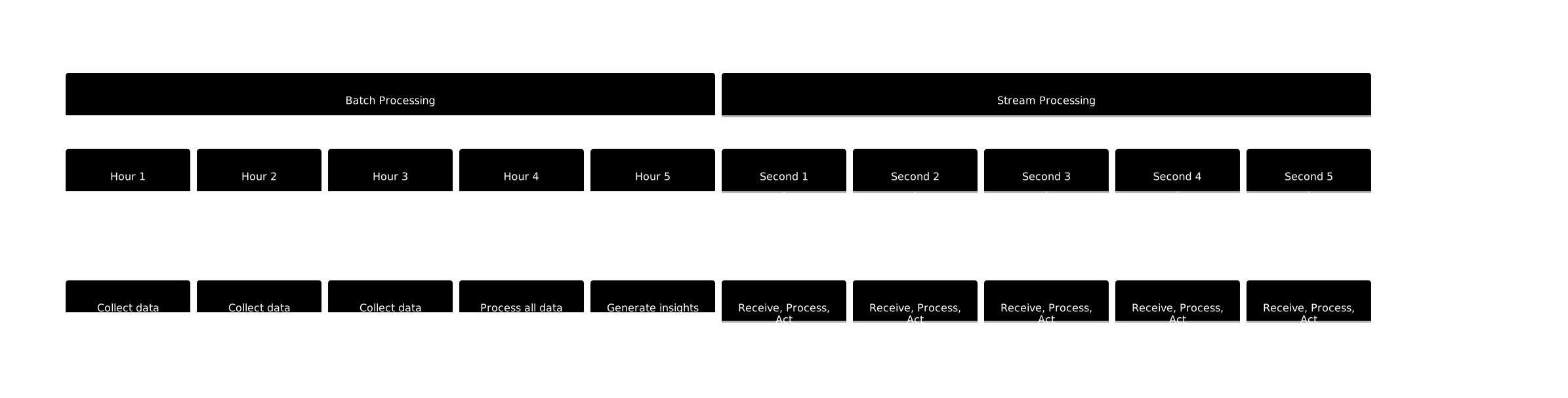
Figure 1299.1: Batch vs Stream Processing Timeline Comparison
NoteKnowledge Check: Stream vs Batch Processing
Show code
{const container =document.getElementById('kc-stream-batch');if (container &&typeof InlineKnowledgeCheck !=='undefined') { container.innerHTML=''; container.appendChild(InlineKnowledgeCheck.create({question:"A chemical plant has pressure sensors that must detect dangerous pressure spikes and trigger emergency shutoffs within 50 milliseconds to prevent explosions. Which processing approach is REQUIRED?",options: [ {text:"Batch processing - collect 1 hour of readings, then analyze for anomalies",correct:false,feedback:"Batch processing would detect the anomaly hours AFTER the explosion already happened! A 50ms safety requirement cannot tolerate hourly batch windows."}, {text:"Stream processing - analyze each reading as it arrives in real-time",correct:true,feedback:"Correct! Stream processing analyzes data event-by-event as it arrives, enabling sub-second response times. Safety-critical systems with <100ms latency requirements MUST use stream processing. The cost of a delayed insight (explosion) far exceeds the infrastructure complexity."}, {text:"Near real-time - update dashboard every 5 seconds",correct:false,feedback:"5-second latency is 100x too slow for a 50ms requirement! Near real-time is fine for dashboards but not for safety shutoffs that prevent explosions."}, {text:"Either approach works - just process faster",correct:false,feedback:"Batch processing fundamentally waits to accumulate data before processing. You can't 'batch faster' to achieve 50ms - the paradigm is wrong for this use case."} ],difficulty:"easy",topic:"stream-processing" })); }}
NoteAlternative View: Lambda Architecture for Hybrid Processing
This architecture diagram shows how real-world IoT systems often combine batch and stream processing in a Lambda Architecture, using each paradigm for its strengths.
%%{init: {'theme': 'base', 'themeVariables': {'primaryColor': '#2C3E50', 'primaryTextColor': '#fff', 'primaryBorderColor': '#16A085', 'lineColor': '#16A085', 'secondaryColor': '#E67E22', 'tertiaryColor': '#7F8C8D'}}}%%
flowchart TB
    subgraph Input["Data Ingestion"]
        IoT[IoT Sensors<br/>1M events/sec]
    end

    subgraph Speed["Speed Layer (Stream)"]
        direction LR
        K[Kafka<br/>Message Queue]
        F[Flink/Storm<br/>Real-time Processing]
        RT[Real-Time View<br/>Last 5 min alerts]
    end

    subgraph Batch["Batch Layer"]
        direction LR
        S3[S3/HDFS<br/>Raw Data Lake]
        SP[Spark<br/>Batch Processing]
        BV[Batch View<br/>Historical aggregates]
    end

    subgraph Serve["Serving Layer"]
        direction LR
        Q[Query Engine]
        D[Dashboard<br/>Unified View]
    end

    IoT --> K
    K --> F --> RT
    K --> S3 --> SP --> BV

    RT --> Q
    BV --> Q
    Q --> D

    style Speed fill:#E67E22,color:#fff
    style Batch fill:#2C3E50,color:#fff
    style Serve fill:#16A085,color:#fff
Figure 1299.2: Lambda Architecture combining stream and batch processing: IoT data enters through Kafka, flowing simultaneously to Speed Layer (Flink for sub-second alerts on recent data) and Batch Layer (Spark for accurate historical aggregates on all data). The Serving Layer merges both views to provide dashboards with both real-time responsiveness and historical accuracy. This hybrid approach acknowledges that stream processing optimizes for latency while batch processing optimizes for correctness and completeness.
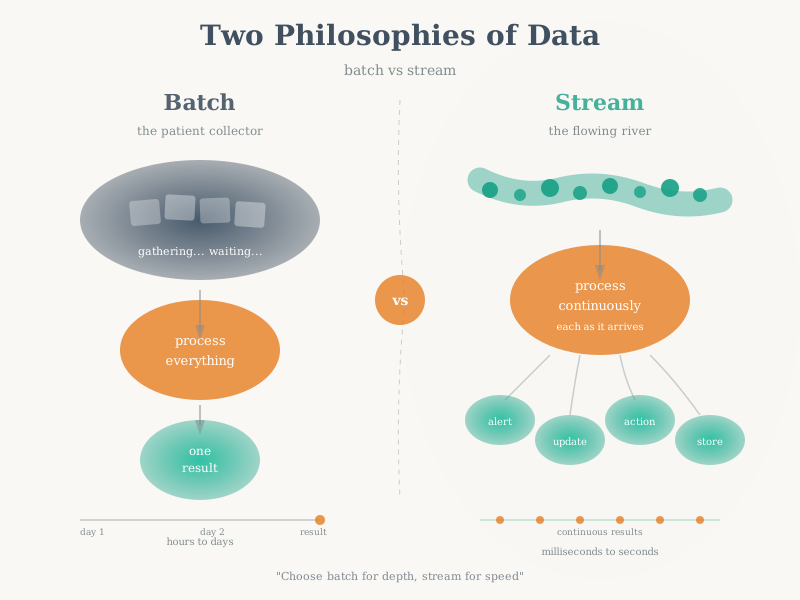
Figure 1299.3: Understanding the fundamental difference between batch and stream processing is crucial for IoT system design. Batch processing excels when historical analysis and complex computations are acceptable with hours of latency. Stream processing is essential when millisecond-to-second latency determines system value, such as fraud detection, anomaly alerts, or autonomous vehicle control. Many production IoT systems use both: stream processing for real-time alerts and batch processing for model retraining and trend analysis.
WarningTradeoff: Batch Processing vs Stream Processing for IoT Analytics
Option A: Batch Processing - Process accumulated data in scheduled intervals - Latency: Minutes to hours (scheduled job completion) - Throughput: Very high (1M+ events/second during batch window) - Resource cost: Burst usage (pay only during processing) - Complexity: Lower (simpler failure recovery, replay from source) - Use case examples: Daily reports, ML model training, historical trend analysis - Infrastructure: Spark on EMR/Dataproc ~$0.05/GB processed
Option B: Stream Processing - Process each event as it arrives - Latency: Milliseconds to seconds (continuous) - Throughput: Moderate (100K-500K events/second sustained) - Resource cost: Always-on (24/7 compute allocation) - Complexity: Higher (state management, exactly-once semantics, late data handling) - Use case examples: Real-time alerts, fraud detection, live dashboards - Infrastructure: Kafka + Flink managed ~$500-2,000/month base cost
Decision Factors: - Choose Batch when: Insight value doesn’t degrade within hours, complex ML models need full dataset context, cost optimization is critical (pay per job), regulatory reports have fixed deadlines (daily/monthly) - Choose Stream when: Alert value degrades in seconds (equipment failure, security breach), user-facing dashboards require <10 second updates, event-driven actions needed (automated shutoffs), compliance requires real-time audit trails - Lambda Architecture (Hybrid): Stream for real-time approximations + batch for accurate historical corrections (most production IoT systems use this pattern)
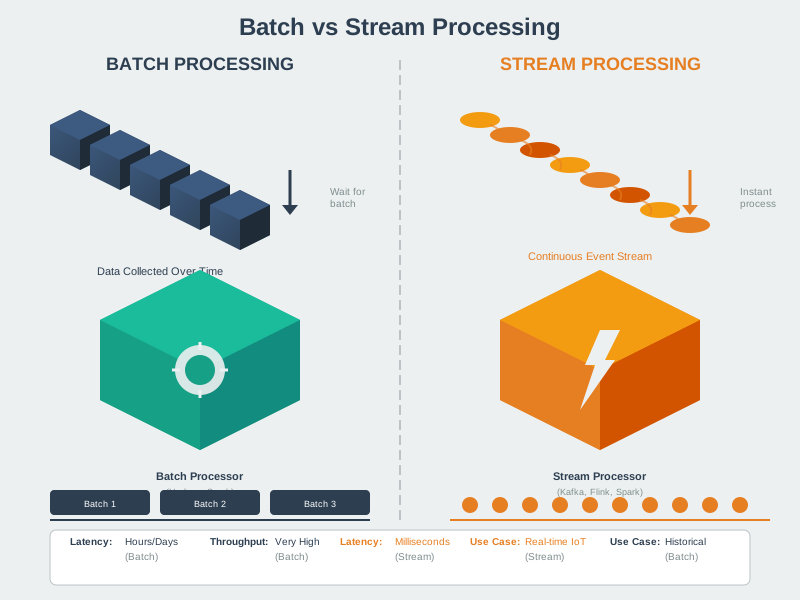
Figure 1299.4: The geometric representation highlights how data volume and velocity differ between paradigms. Batch systems optimize for throughput by processing large chunks efficiently, while stream systems optimize for latency by maintaining minimal buffers and processing events individually or in micro-batches.
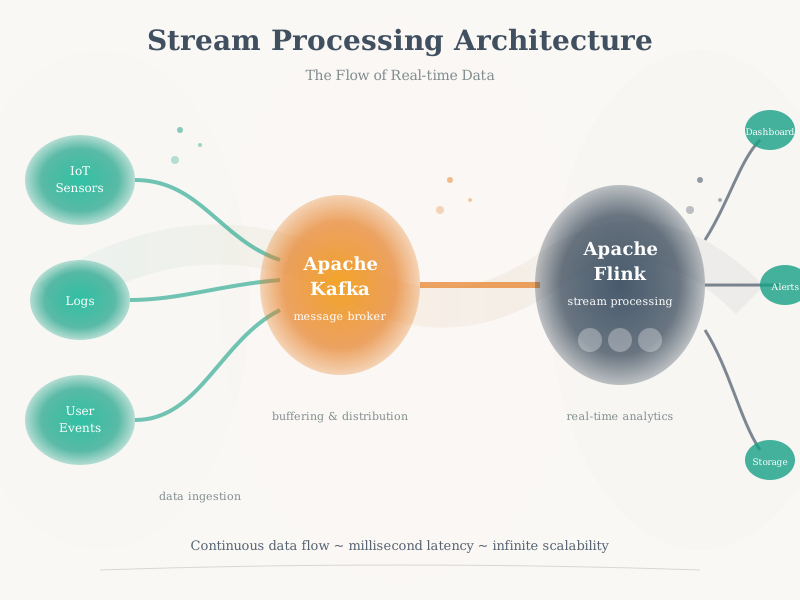
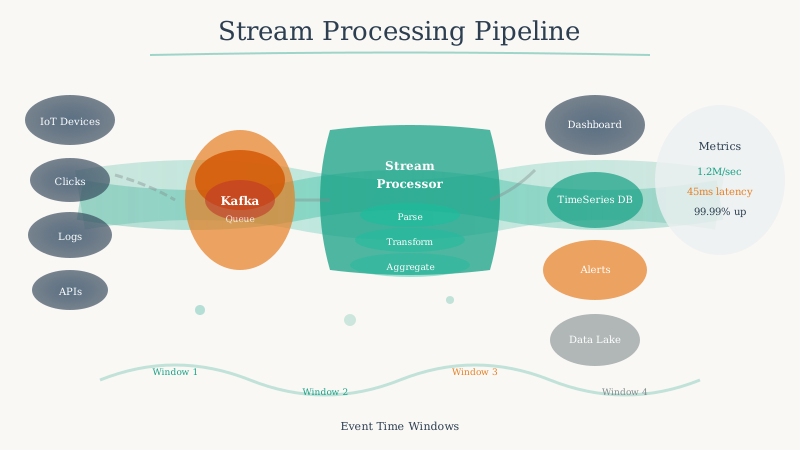
Modern stream processing systems combine multiple architectural components to handle the challenges of real-time IoT data at scale.
Figure 1299.5: End-to-end stream processing architecture from ingestion to action
Figure 1299.6: Stream processing pipeline with fault-tolerant checkpointing
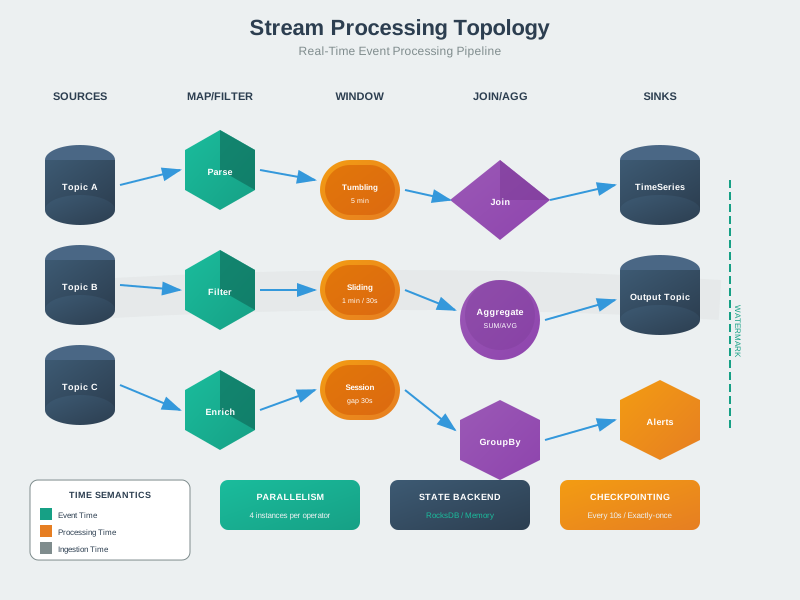
The stream processing topology defines how operators connect to transform data. Each operator performs a specific function like filtering, mapping, or aggregating, with data flowing between operators as unbounded streams.
Figure 1299.7: Stream processing operator topology for scalable event processing
1299.4 Core Concepts
⏱️ ~15 min | ⭐⭐⭐ Advanced | 📋 P10.C14.U02
1299.4.1 Event Time vs Processing Time
One of the fundamental concepts in stream processing is the distinction between event time and processing time:
Event Time: The timestamp when the event actually occurred (e.g., when a sensor took a reading)
Processing Time: The timestamp when the system processes the event (e.g., when the server receives the data)
Example: A temperature sensor in a remote oil pipeline takes a reading at 14:00:00 showing 95°C. However, due to intermittent network connectivity, this reading doesn’t reach your processing system until 14:05:23. The event time is 14:00:00 (when the temperature was actually 95°C), but the processing time is 14:05:23.
For IoT applications, event time is typically more meaningful because you want to understand when conditions actually changed, not when you learned about them. However, this creates challenges:
Out-of-order events: Events may arrive in a different order than they occurred
Late data: Events may arrive long after they occurred
Clock skew: Different sensors may have slightly different clock times
Flowchart diagram
Figure 1299.8: Event time versus processing time showing network and processing delays causing 5-minute difference between sensor reading timestamp and system processing timestamp
TipUnderstanding Windowing
Core Concept: Windowing divides infinite data streams into finite, bounded chunks that can be aggregated and analyzed. Without windows, you cannot compute “average temperature” because the stream never ends.
Why It Matters: The window type you choose determines both your system’s latency and memory requirements. Tumbling windows (non-overlapping) use minimal memory but can miss patterns that span window boundaries. Sliding windows (overlapping) catch boundary-spanning events but multiply memory usage by the overlap factor. Session windows (activity-based) adapt to irregular data patterns but complicate capacity planning.
Key Takeaway: Match window type to your analytics goal. Use tumbling for periodic reports (hourly billing summaries), sliding for trend detection (moving averages that update smoothly), and session for activity analysis (user sessions, machine operation cycles). A 10-second sliding window with 1-second advance uses 10x the memory of a tumbling window of the same size.
1299.4.2 Windowing Strategies
Since data streams are potentially infinite, we need mechanisms to group events into finite chunks for processing. Windowing divides streams into bounded intervals for computation.
1299.4.2.1 Tumbling Windows
Non-overlapping, fixed-size windows that cover the entire stream without gaps.
Use Case: Calculate average temperature every 5 minutes
Flowchart diagram
Figure 1299.9: Tumbling windows showing non-overlapping 5-minute intervals with events assigned to single windows based on timestamp
Characteristics: - Each event belongs to exactly one window - Simple to implement and reason about - Fixed computation frequency - Best for periodic aggregations
Show code
{const container =document.getElementById('kc-data-1');if (container &&typeof InlineKnowledgeCheck !=='undefined') { container.innerHTML=''; container.appendChild(InlineKnowledgeCheck.create({question:"A smart building system needs to calculate energy consumption reports for billing purposes, with reports generated every hour. Each energy reading should be counted exactly once. Which windowing strategy is BEST suited for this use case?",options: [ {text:"Sliding windows with 1-hour size and 5-minute slide",correct:false,feedback:"Sliding windows would cause each energy reading to be counted in multiple overlapping windows, leading to incorrect billing totals. Billing requires each reading counted exactly once."}, {text:"Tumbling windows with 1-hour duration",correct:true,feedback:"Correct! Tumbling windows are non-overlapping and fixed-size, so each energy reading falls into exactly one hourly window. This ensures accurate billing with no double-counting and predictable hourly report generation."}, {text:"Session windows with 1-hour inactivity timeout",correct:false,feedback:"Session windows are activity-based and variable length - they would create irregular billing periods based on when sensors are active, not fixed hourly intervals needed for consistent billing."}, {text:"Global window with hourly triggers",correct:false,feedback:"While global windows with triggers could work, they add unnecessary complexity. Tumbling windows directly express the 'non-overlapping hourly buckets' requirement with simpler semantics."} ],difficulty:"medium",topic:"data-processing" })); }}
1299.4.2.2 Sliding Windows
Overlapping windows that slide by a specified interval, smaller than the window size.
Use Case: Calculate moving average of last 10 minutes, updated every 1 minute
Flowchart diagram
Figure 1299.10: Sliding windows showing overlapping 10-minute windows advancing by 1-minute increments with single event appearing in multiple windows
Characteristics: - Events may belong to multiple overlapping windows - Provides smoother, continuous results - Higher computational cost (more windows to maintain) - Best for trend detection and moving averages
WarningTradeoff: Tumbling Windows vs Sliding Windows for IoT Aggregation
Option A: Tumbling Windows (Non-overlapping) - Memory usage: Low - only 1-2 windows active per key at any time - Memory for 10K sensors, 5-min window: ~200 MB (1 window state per sensor) - Computational cost: O(n) - each event processed once - Output frequency: Fixed (every window_size interval) - Latency to insight: Up to window_size delay for boundary events - Use cases: Periodic reports (hourly averages), batch-like aggregations, memory-constrained edge devices
Option B: Sliding Windows (Overlapping) - Memory usage: High - (window_size / slide_interval) windows active per key - Memory for 10K sensors, 5-min window, 30s slide: ~2 GB (10 overlapping windows per sensor) - Computational cost: O(n * overlap_factor) - each event processed multiple times - Output frequency: Every slide_interval (more granular) - Latency to insight: Maximum slide_interval delay - Use cases: Real-time anomaly detection, moving averages, dashboards requiring smooth updates
Decision Factors: - Choose Tumbling when: Memory is constrained (edge devices, many keys), exact aggregation boundaries matter (hourly billing), processing cost must be minimized, output frequency matches business requirements - Choose Sliding when: Smooth real-time visualization needed, anomaly detection requires continuous evaluation, users expect frequent dashboard updates (every 30s), memory budget allows 5-10x higher usage - Hybrid approach: Tumbling for storage (persist hourly aggregates), sliding for real-time display (smooth visualization) - Flink supports both on the same stream
1299.4.2.3 Session Windows
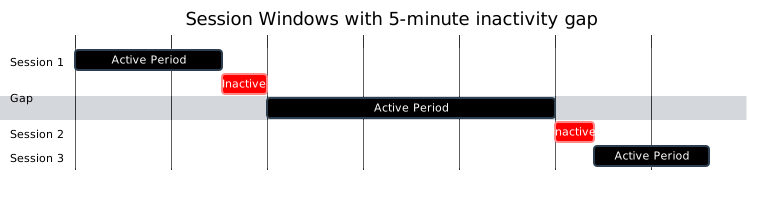
Dynamic windows based on activity periods, separated by gaps of inactivity.
Use Case: Group all sensor readings from a machine during an active work session
Mermaid diagram
Figure 1299.11: Session windows showing dynamic window sizes based on activity with 5-minute inactivity timeout separating three distinct sessions
Characteristics: - Window size varies based on data patterns - Automatically adapts to activity levels - Ideal for user behavior and machine operation cycles - Best for analyzing complete work sessions or usage periods
Show code
{const container =document.getElementById('kc-data-2');if (container &&typeof InlineKnowledgeCheck !=='undefined') { container.innerHTML=''; container.appendChild(InlineKnowledgeCheck.create({question:"An IoT fitness tracking app needs to analyze user workout sessions. Users may take short breaks during workouts, and the app should group all activity from a single workout together. Workouts typically end when there's no activity for 10+ minutes. Which window type is MOST appropriate?",options: [ {text:"Tumbling windows of 30 minutes",correct:false,feedback:"Fixed 30-minute windows would arbitrarily split long workouts or combine separate short workouts. A 45-minute workout would span two windows, losing the session context."}, {text:"Sliding windows of 10 minutes with 1-minute advance",correct:false,feedback:"Sliding windows create overlapping aggregations for trend detection, not distinct sessions. Each activity event would appear in multiple windows, which doesn't capture the 'single workout session' concept."}, {text:"Session windows with 10-minute inactivity gap",correct:true,feedback:"Correct! Session windows naturally group activity bursts separated by inactivity gaps. A 10-minute gap timeout matches the workout pattern - short breaks keep the session open, while 10+ minutes of inactivity closes the session and starts a new one when activity resumes."}, {text:"Global windows with custom triggers",correct:false,feedback:"Global windows require manual trigger logic to define session boundaries. Session windows directly express this pattern with simpler, more readable code and are specifically designed for this use case."} ],difficulty:"medium",topic:"data-processing" })); }}
Figure 1299.12: Windowing Transforms Unbounded Streams into Finite Aggregatable Chunks
In Plain English: You can’t compute “average temperature” over infinite data - it never ends! Windows create finite chunks you can actually process. “Average temperature in the last 5 minutes” is computable.
%%{init: {'theme': 'base', 'themeVariables': {'primaryColor': '#2C3E50', 'primaryTextColor': '#fff', 'primaryBorderColor': '#16A085', 'lineColor': '#E67E22', 'secondaryColor': '#7F8C8D', 'tertiaryColor': '#fff'}}}%%
flowchart TB
    subgraph tumbling["Tumbling Windows"]
        direction LR
        T1["Window 1<br/>00:00-00:05"] --> T2["Window 2<br/>00:05-00:10"] --> T3["Window 3<br/>00:10-00:15"]
        T_DESC["Fixed size<br/>No overlap<br/>1 result per window"]
    end

    subgraph sliding["Sliding Windows"]
        direction LR
        S1["Window A<br/>00:00-00:10"]
        S2["Window B<br/>00:02-00:12"]
        S3["Window C<br/>00:04-00:14"]
        S_DESC["Fixed size<br/>Overlapping<br/>Smooth trends"]
    end

    subgraph session["Session Windows"]
        direction LR
        SE1["Session 1<br/>Activity burst"]
        SE_GAP["Gap > timeout"]
        SE2["Session 2<br/>New activity"]
        SE_DESC["Variable size<br/>Gap-based<br/>User sessions"]
    end

    style tumbling fill:#E8F5E9,stroke:#16A085
    style sliding fill:#FFF3E0,stroke:#E67E22
    style session fill:#E3F2FD,stroke:#2C3E50
Figure 1299.13: Window type comparison: Tumbling (fixed non-overlapping), Sliding (fixed overlapping for smooth trends), Session (variable gap-based for activity bursts)
{fig-alt=“Stream processing window type comparison showing three approaches: Tumbling windows with fixed non-overlapping periods producing one result per window, Sliding windows with fixed overlapping periods for smooth trend detection, and Session windows with variable sizes based on activity gaps for user behavior analysis.”}
Figure 1299.14: IoT temperature sensor windowing example: Tumbling for periodic averages, Sliding for trend detection, Session for machine operation analysis
{fig-alt=“IoT sensor windowing example showing temperature readings flowing into three window types: 5-minute tumbling window producing periodic average reports for dashboard, 5-minute sliding window with 1-minute advance detecting temperature trends for anomaly alerts, and session window tracking machine operation periods for audit logging.”}
%%{init: {'theme': 'base', 'themeVariables': {'primaryColor': '#2C3E50', 'primaryTextColor': '#fff', 'primaryBorderColor': '#16A085', 'lineColor': '#16A085', 'secondaryColor': '#E67E22', 'tertiaryColor': '#fff'}}}%%
sequenceDiagram
    participant S as Sensor
    participant N as Network
    participant P as Processor
    participant W as Window

    Note over S,W: Normal flow - Event arrives on time
    S->>N: Event (T=10:00:05)
    N->>P: Receive (T=10:00:06)
    P->>W: Assign to Window 10:00-10:05

    Note over S,W: Late arrival - Network delay
    S->>N: Event (T=10:00:03)
    N--xN: Network congestion
    N->>P: Receive (T=10:00:15)
    P->>P: Event time < Window close

    alt Grace Period Active
        P->>W: Update Window (late)
        W->>W: Recompute aggregate
    else Grace Period Expired
        P->>P: Drop or side-output
    end
Figure 1299.15: Late data handling: Events arriving after window close can update results during grace period or be dropped/side-output if grace expires
{fig-alt=“Stream processing late data handling sequence showing normal event flow arriving on time versus late arrivals due to network delay. When events arrive after window close time, they either update the window during the grace period (triggering aggregate recomputation) or are dropped/sent to side output if grace period has expired.”}
Figure 1299.16: Decision tree for selecting the appropriate window type based on use case requirements
%%{init: {'theme': 'base', 'themeVariables': {'primaryColor': '#2C3E50', 'primaryTextColor': '#fff', 'primaryBorderColor': '#16A085', 'lineColor': '#E67E22', 'secondaryColor': '#7F8C8D', 'tertiaryColor': '#fff'}}}%%
graph TB
    subgraph mem["Memory Usage Comparison (10-sec window, 100MB/sec)"]
        direction LR
        subgraph tumble["Tumbling"]
            T_MEM["~2 GB<br/>Current + Processing"]
        end
        subgraph slide["Sliding (1s advance)"]
            S_MEM["~10 GB<br/>10 overlapping windows"]
        end
        subgraph session["Session"]
            SE_MEM["Variable<br/>Depends on activity"]
        end
    end

    subgraph rec["Recommendations"]
        R1["< 4GB available → Tumbling"]
        R2["4-16GB + trends → Sliding"]
        R3["Unpredictable load → Session"]
    end

    mem --> rec

    style tumble fill:#E8F5E9,stroke:#16A085
    style slide fill:#FFF3E0,stroke:#E67E22
    style session fill:#E3F2FD,stroke:#2C3E50
Figure 1299.17: Memory footprint comparison showing how sliding windows consume significantly more memory than tumbling windows due to overlap
1299.4.3 Worked Example: Kafka Windowing for Industrial Sensor Analytics
Real-world stream processing requires careful window design to balance memory usage, latency, and analytical accuracy. This example demonstrates how to calculate resource requirements for different windowing strategies in a high-throughput industrial IoT scenario.
Tumbling windows are non-overlapping, so at any moment we maintain: - Current window: Actively receiving events (1 GB) - Processing window: Computing aggregations from just-closed window (1 GB)
Critical Finding: With 1-second slide, we use 10 GB of 16 GB available - 62.5% utilization. This leaves limited headroom for: - State store overhead (~20%) - Garbage collection spikes - Traffic bursts
Memory scales linearly with overlap: Sliding windows with N overlaps require N times the memory of tumbling windows
Latency-memory trade-off: Faster updates (smaller slide) require more memory for concurrent windows
Production headroom: Target 50% memory utilization to handle traffic spikes and GC overhead
Session windows excel for sparse data: When sensors report irregularly, session windows dramatically reduce memory versus fixed windows
Kafka configuration matters:
state.dir should use fast SSD storage for RocksDB
cache.max.bytes.buffering controls memory for state store caching
num.stream.threads should match available CPU cores
1299.5 What’s Next
Continue to Stream Processing Architectures to learn about Apache Kafka, Apache Flink, and Spark Streaming, including architecture comparisons and technology selection guidance.