19 Networking: Labs and Quiz
19.2 Learning Objectives
By the end of this chapter, you will be able to:
- Configure Wi-Fi Connectivity: Set up ESP32 and Arduino devices for wireless network connections
- Retrieve Network Information: Programmatically obtain IP addresses, MAC addresses, and signal strength
- Implement Network Scanning: Create tools to discover nearby networks and analyze wireless environments
- Debug Connection Issues: Troubleshoot common Wi-Fi configuration problems using serial output
- Apply Security Settings: Configure WPA2/WPA3 credentials for secure IoT device connectivity
- Monitor Network Status: Implement connection event handlers and reconnection logic
19.3 Prerequisites
Before starting these labs, you will get the most value if you are comfortable with:
- Networking Basics – IP addressing, subnets, and how packets move between devices
- Layered Models: Fundamentals – how link, network, and transport layers work together
- Wi-Fi Fundamentals and Standards – SSIDs, basic security (WPA2/WPA3), and coverage limits
- Basic command-line skills (running
ping,ipconfig/ifconfig,traceroute) on your operating system
If any of these feel unfamiliar, skim the referenced chapters first and then return here for hands-on practice.
Related Chapters
Deep Dives:
- Network Mechanisms - Packet switching and bandwidth concepts
- Routing Fundamentals - How routers make forwarding decisions
- Transport Protocols - TCP vs UDP for IoT
Comparisons:
- Layered Network Models Review - OSI vs TCP/IP quiz
- IoT Protocols Review - Application-layer protocols
Hands-On:
- Wi-Fi IoT Implementations - ESP32 Wi-Fi projects
- Simulations Hub - Network simulation tools
Learning:
- Quizzes Hub - Test networking fundamentals
- Networking Review - Video tutorials
19.4 Getting Started (For Beginners)
For Beginners: How to Use These Networking Labs
These labs assume you have seen the core networking theory and are now ready to practice on real or simulated networks.
- If you have hardware (ESP32/Arduino and home Wi-Fi), focus on the C++ examples and follow the checklists in each lab.
- If you do not have hardware or cannot install tools, you can still learn a lot by:
- reading the code and comments,
- comparing the provided example outputs with what you see on your own laptop or VM,
- answering the Knowledge Check questions using the explanations as a guide.
Key terms used throughout this chapter:
| Term | Simple explanation |
|---|---|
| SSID | The name of a Wi-Fi network |
| Gateway | Router that forwards traffic to other networks |
| DNS server | Translates names like example.com to IP addresses |
| RSSI | Received Signal Strength Indicator (Wi-Fi signal) |
If you ever feel lost, go back to Networking Basics and Wi-Fi Fundamentals to refresh the concepts, then return here and treat the Python tools as black-box helpers whose outputs you interpret rather than code you must fully understand line-by-line.
19.5 Hands-On: Network Configuration
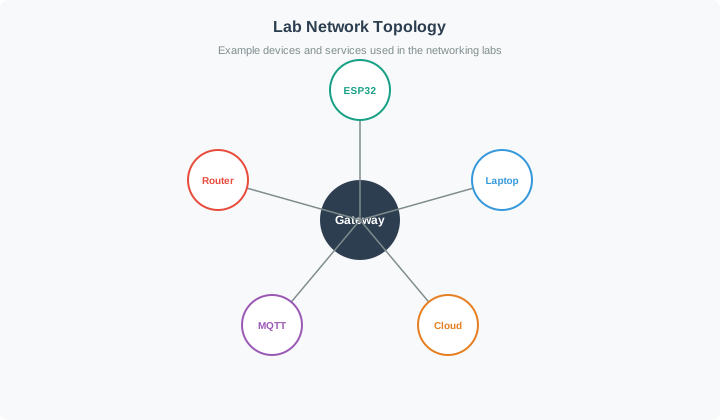
Optional Walkthrough: ESP32 Boot-to-Network Timeline
Use this simple timing model when diagnosing startup delays:
- Layer 2 scan and association: the ESP32 discovers the SSID, authenticates, and associates with the access point.
- Layer 3 configuration: DHCP assigns an IP address, subnet mask, gateway, and DNS server.
- Application setup: DNS resolution, TCP or TLS handshake, and the first MQTT or HTTP request complete.
Troubleshooting shortcut: if association succeeds but the IP stays 0.0.0.0 or 169.254.x.x, focus on DHCP and gateway policy rather than Wi-Fi signal strength.
19.5.1 Example 1: ESP32 Wi-Fi Connection
Optional Implementation Checklist: ESP32 Wi-Fi Trace
Use this checklist when you implement the hardware version. The point of the lab is to interpret the network state, not to memorize a long sketch.
| Step | What the ESP32 should do | Evidence to record |
|---|---|---|
| 1 | Start the serial monitor at 115200 baud | Boot message appears. |
| 2 | Join the configured 2.4 GHz SSID | Status changes to connected. |
| 3 | Print the assigned IP address | A normal LAN address such as 192.168.x.x appears. |
| 4 | Print gateway, subnet mask, and DNS | Gateway and DNS are not 0.0.0.0. |
| 5 | Print MAC address and RSSI | MAC is stable; RSSI is better than about -75 dBm for reliable use. |
Starter code is intentionally left to your ESP32 course template or Arduino examples so you can focus here on reading the network evidence.
Try It: ESP32 Wi-Fi Connection Trace
Use the browser activity below to practise reading the same network outputs before using real hardware.
What to Try:
- Switch between scenarios and read the trace like a serial monitor log
- Decide whether the problem is credentials, frequency band, signal strength, or DHCP
- Compare RSSI against the troubleshooting flowchart below
- On real hardware, record a healthy baseline before diagnosing failures
Learning Activities:
- RSSI signal strength: Values near -50 dBm are strong; values below -80 dBm are unreliable
- IP address:
0.0.0.0or169.254.x.xmeans the device is not ready for normal network traffic - Gateway and DNS: Missing values usually point to DHCP or network policy problems
Lab Extension: Build Your Own Network - With Hardware
Have real hardware? Follow these steps to connect your physical ESP32:
Hardware Needed:
- ESP32 development board
- USB cable
- Wi-Fi network (2.4 GHz – ESP32 does not support 5 GHz!)
Steps:
- Flash a minimal ESP32 Wi-Fi sketch from your course template or Arduino examples with your SSID/password
- Open Serial Monitor (115200 baud)
- Observe IP address assignment via DHCP
- Note the gateway and DNS servers
- From your computer, ping the ESP32’s IP address
- Modify code to ping google.com from ESP32
Challenge: Set a static IP instead of DHCP. Why might this be useful for IoT deployments?
Wi-Fi Troubleshooting Sequence
Use this order when an ESP32 will not get online:
- Check SSID visibility first: if the network never appears, verify that the router is broadcasting 2.4 GHz because standard ESP32 Wi-Fi does not join 5 GHz-only networks.
- Validate credentials next: strong RSSI with
0.0.0.0often means the password or WPA mode is wrong rather than the signal being weak. - Inspect addressing after association: if the link comes up but the address is
169.254.x.xor the gateway stays0.0.0.0, focus on DHCP, VLAN, or firewall policy. - Test name resolution and internet reachability last: if the ESP32 has an IP and gateway but cloud traffic still fails, check DNS, outbound filtering, and target host availability.
Fast rule of thumb: no SSID means radio or band issues; good RSSI with no IP means DHCP or credentials; valid IP with failed requests means DNS or upstream routing.
19.6 Python Implementations
Production-ready Python tools for network analysis and IoT networking.
19.6.1 IP Address Calculator and Subnet Analyzer
Optional Sample Reading: Subnet Analyzer
| Input | Key result | What it means for an IoT lab |
|---|---|---|
192.168.1.100/24 |
Network 192.168.1.0, broadcast 192.168.1.255, 254 usable hosts |
Typical home or small lab subnet. |
10.20.28.0/22 |
Mask 255.255.252.0, 1022 usable hosts |
Better for a larger IoT lab where many devices need addresses. |
| Private address result | Yes for both examples |
Suitable for local networks behind a gateway or NAT. |
19.6.2 Network Device Scanner
Optional Sample Reading: Device Scanner
| Device | Likely role | Response time | Open ports | What to infer |
|---|---|---|---|---|
192.168.1.1 |
Router or gateway | 2.45 ms | 80, 443 | Local management interface is reachable. |
192.168.1.100 |
ESP32 sensor | 15.67 ms | 80, 1883 | Device exposes a web page and MQTT service. |
192.168.1.150 |
Raspberry Pi | 8.23 ms | 22, 80, 1883 | SSH plus web/MQTT suggests a gateway or test broker. |
19.6.3 Protocol Performance Simulator
Optional Sample Reading: TCP vs UDP
Scenario: 100 packets, 100-byte payloads, 5% packet loss, 20 ms base latency.
| Metric | TCP | UDP | Lab interpretation |
|---|---|---|---|
| Packets sent | 105 | 100 | TCP retries lost packets; UDP does not. |
| Delivered | 100 | 95 | TCP prioritizes completeness. |
| Total bytes | 14.7 KB | 12.8 KB | TCP reliability costs extra traffic. |
| Average latency | 21 ms | 20 ms | UDP stays slightly faster in this scenario. |
| Best fit | Firmware/configuration | Frequent sensor readings | Choose based on whether loss is acceptable. |
19.6.4 MAC Address Analyzer
Optional Sample Reading: MAC Address Analyzer
| MAC address | OUI | Likely vendor | Address type | Lab interpretation |
|---|---|---|---|---|
B8:27:EB:12:34:56 |
B8:27:EB |
Raspberry Pi Foundation | Unicast, universal | Likely gateway or single-board computer. |
DC:A6:32:AB:CD:EF |
DC:A6:32 |
Espressif | Unicast, universal | Likely ESP32 or ESP8266 device. |
00:1B:44:11:22:33 |
00:1B:44 |
Arduino | Unicast, universal | Likely development board or module. |
19.7 Hands-On Labs
19.7.1 Lab 1: ESP32 Network Diagnostics Dashboard
Objective: Create a comprehensive network diagnostics tool on ESP32 that reports all network parameters.
Materials:
- ESP32 development board
- Wi-Fi network
- Serial monitor
Optional Diagnostics Dashboard Plan
Build the hardware dashboard as a set of small checks. Keep the serial output short enough that you can compare it with your lab notebook.
| Check | ESP32 information to print | Healthy evidence | If it fails |
|---|---|---|---|
| Wi-Fi status | Connected/disconnected, SSID, channel | Connected to the intended 2.4 GHz network | Recheck SSID, WPA mode, and 2.4 GHz availability. |
| Signal | RSSI in dBm | Better than about -75 dBm | Move the device, improve antenna placement, or add an AP. |
| IP configuration | IP, subnet mask, gateway, DNS | IP is not 0.0.0.0 or 169.254.x.x; gateway and DNS are present |
Check DHCP pool, VLAN, or router policy. |
| Hardware identity | MAC address | Stable address recorded in the inventory | Use it for DHCP reservation or asset tracking. |
| Connectivity | Gateway, DNS, and internet checks | Gateway reachable; DNS resolves; cloud test succeeds | Separate local routing, DNS, and internet firewall issues. |
Optional Diagnostics Report Example
| Section | Example result | Lab interpretation |
|---|---|---|
| Wi-Fi connection | Connected to MyHomeNetwork, channel 6, RSSI -45 dBm |
Strong local link. |
| IP configuration | 192.168.1.100, mask 255.255.255.0, gateway/DNS 192.168.1.1 |
DHCP produced a usable LAN configuration. |
| Hardware | MAC DC:A6:32:AB:CD:EF |
Device can be identified in router logs. |
| Network information | Network 192.168.1.0, broadcast 192.168.1.255 |
Address belongs to the expected /24 subnet. |
| Connectivity tests | Gateway reachable, DNS working, internet access yes | The device is ready for cloud or broker traffic. |
Learning Outcomes:
- Retrieve all network configuration parameters
- Perform connectivity diagnostics
- Understand Wi-Fi signal strength (RSSI)
- Calculate network and broadcast addresses
- Test DNS resolution and internet connectivity
19.7.2 Lab 2: Python Advanced Network Scanner with Service Detection
Network Scanning Workflow
A simple IoT subnet scan follows the same five-step loop every time:
- Expand the target range from CIDR notation such as
192.168.1.0/24into candidate host addresses. - Probe for live hosts with ping or TCP reachability checks so you do not waste time on offline addresses.
- Resolve names and roles using reverse DNS, MAC vendor hints, and known gateway addresses.
- Scan common IoT ports such as
22,80,443,1883,5683,8080, and8883to identify likely services. - Flag security findings when you discover plaintext HTTP or MQTT where TLS-enabled alternatives would be safer.
For beginner use, read the scanner output as a map: who is online, what service each device exposes, and which devices need hardening.
Objective: Build a network scanner that identifies IoT devices by detecting open ports and services.
Materials:
- Python 3.7+
- Local network access
Optional Sample Reading: Advanced Scanner
| Device | Services found | Security note | What to do next |
|---|---|---|---|
192.168.1.1 router |
HTTP, HTTPS | Management interface is exposed locally | Confirm admin password and restrict access. |
192.168.1.100 ESP32 sensor |
HTTP, MQTT, alternate HTTP | Plain HTTP and MQTT are visible | Prefer HTTPS and MQTT/TLS for production. |
192.168.1.150 Raspberry Pi |
SSH, HTTP, HTTPS, MQTT | Mixed secure and insecure services | Keep SSH patched; move MQTT to TLS if sensitive. |
Learning Outcomes:
- Perform service detection and port scanning
- Identify common IoT protocols
- Detect security vulnerabilities
- Use concurrent programming for efficiency
- Understand service banners
19.8 Additional Visual References
Visual: IoT Networking Stack
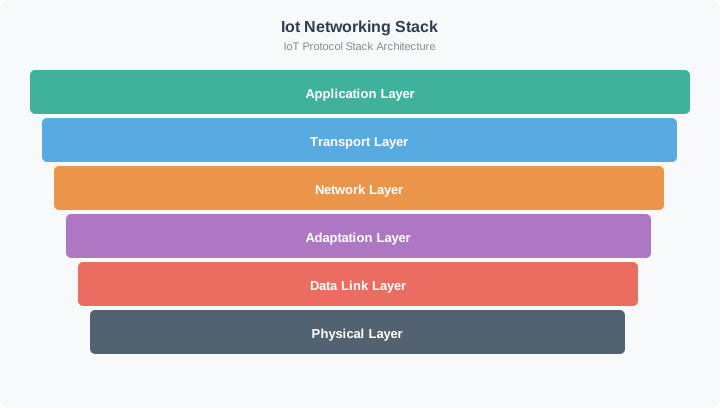
Understanding the complete IoT networking stack helps developers see how protocols at different layers interact during device communication.
Visual: Connectivity Metrics
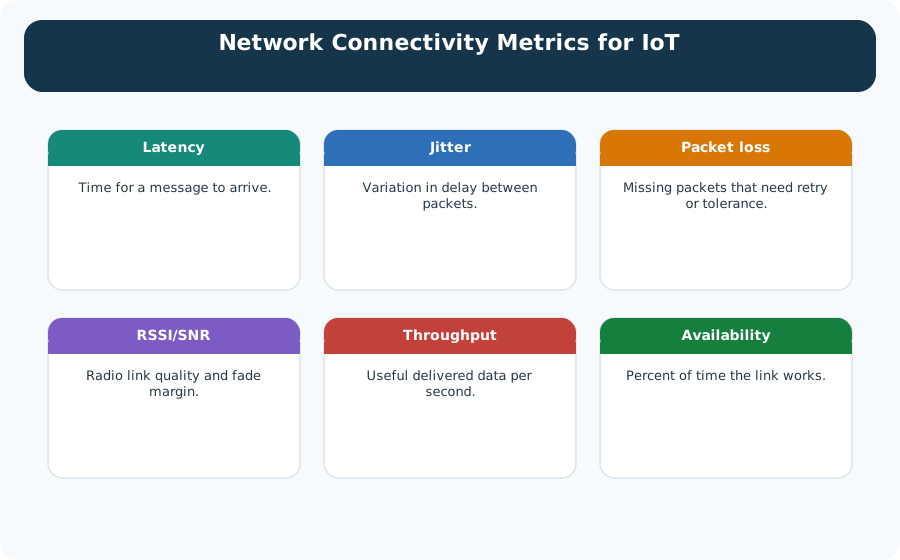
Key metrics for evaluating IoT network performance: RSSI for signal quality, latency for responsiveness, throughput for data capacity, and packet loss for reliability.
Visual: Wi-Fi Module Architecture
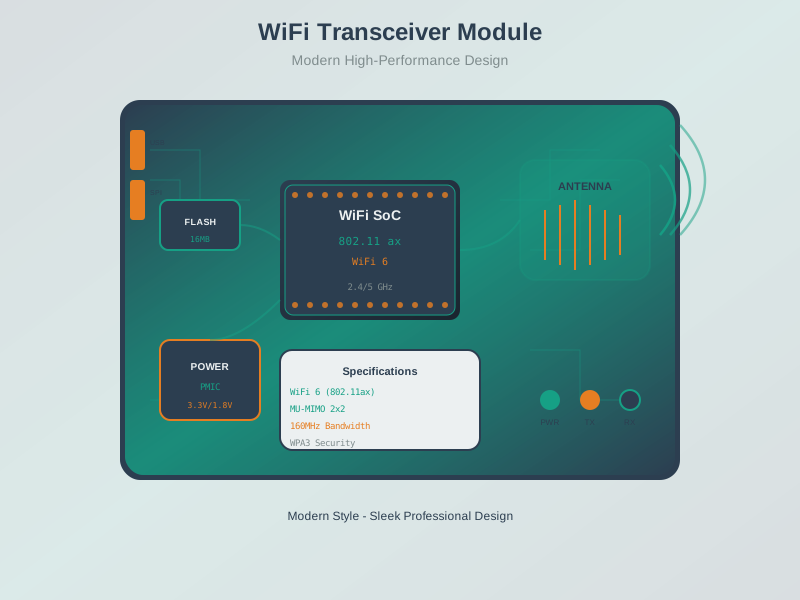
Understanding Wi-Fi module architecture helps developers configure and troubleshoot wireless connectivity in ESP32 and similar IoT platforms.
Visual: Wi-Fi Mesh Network
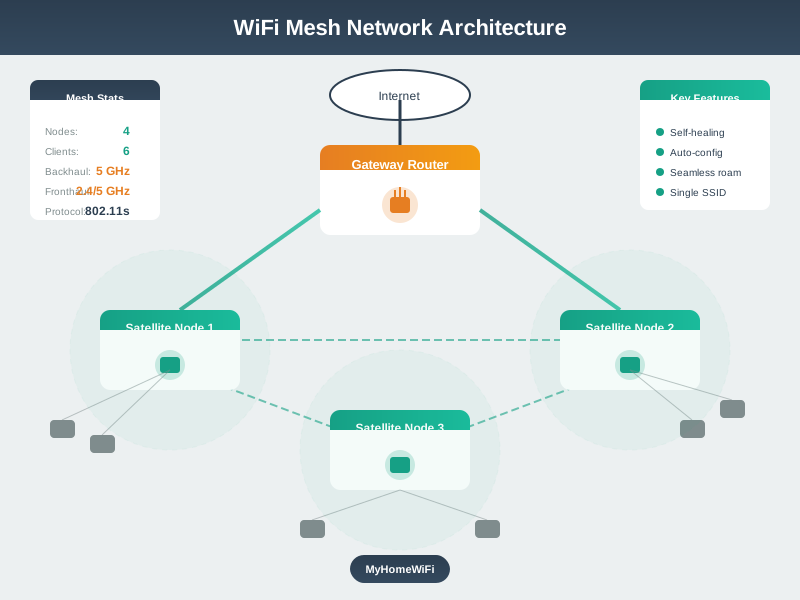
Wi-Fi mesh networks extend coverage beyond single access point range, providing redundant connectivity paths ideal for large IoT deployments.
Visual: 802.11 Channel Access
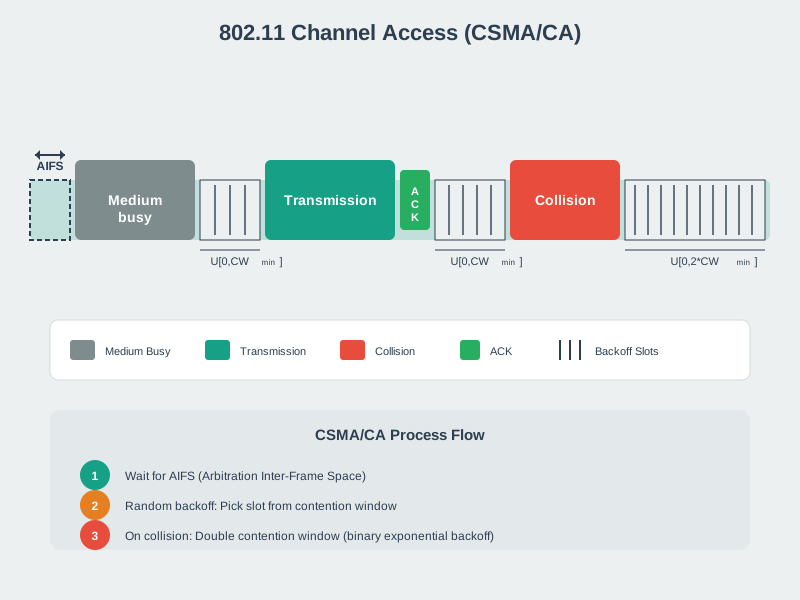
The 802.11 CSMA/CA mechanism ensures fair channel access among multiple wireless devices, essential knowledge for debugging Wi-Fi connectivity issues in dense IoT deployments.
Decision Framework: Choosing Static vs DHCP for Production IoT
This decision matrix helps you determine the optimal IP addressing strategy for different IoT device types:
| Device Type | Static IP | DHCP | DHCP Reservation | Rationale |
|---|---|---|---|---|
| MQTT Broker | Best | No | Acceptable | Fixed address required by all clients; DNS adds complexity; static = zero dependencies |
| IoT Gateway | Best | No | Good | Port forwarding rules need predictable address; reservation provides flexibility + stability |
| Security Cameras | Acceptable | No | Best | NVR needs stable addresses; reservation enables mass deployment without manual config per camera |
| Mobile Robots | No | Best | No | Devices roam between APs; dynamic assignment handles mobility; static would require manual changes per zone |
| Temperature Sensors | No | Best | Optional | 100+ sensors = manual config nightmare; DHCP auto-provisions; reservations useful for critical zones only |
| Industrial PLCs | Required | No | No | Safety-critical control systems must function even if DHCP server fails; static guarantees deterministic addresses |
| Development/Test Devices | No | Best | No | Frequent additions/removals; DHCP prevents IP conflicts; no production dependencies |
Decision Rules:
| Question | If yes | If no |
|---|---|---|
| Is the device safety-critical or infrastructure? | Prefer static IP unless central reservation is required. | Continue to scale and mobility questions. |
| Does it need external port forwarding? | Use DHCP reservation for stable addressing with easier management. | Static IP is acceptable for small infrastructure devices. |
| Does the fleet exceed about 50 devices? | Use DHCP automation. | Reservation or static addressing can be manageable. |
| Will the device move between networks? | Use DHCP. | DHCP reservation gives predictable addresses without manual device edits. |
Configuration Choices:
| Method | What you configure | When to use it | Risk to watch |
|---|---|---|---|
| Static IP on device | IP, gateway, subnet, DNS in firmware | Safety-critical fixed equipment | Manual errors and duplicate addresses. |
| DHCP default | Device asks the network for settings | Mobile, test, and large sensor fleets | Address can change unless tracked by hostname or inventory. |
| DHCP reservation | Router maps MAC address to fixed IP | Gateways, cameras, brokers, and managed fleets | Requires accurate MAC inventory. |
Hybrid Strategy for Real Deployments:
Building Automation Example (500 devices):
| Range | IP Addresses | Purpose |
|---|---|---|
| Static | 192.168.10.1 – 192.168.10.50 | Gateway (.1), MQTT broker (.10), NTP server (.11), Backup gateway (.2) |
| DHCP Reservation | 192.168.10.51 – 192.168.10.150 | Security cameras (.51-.70), Access control panels (.71-.80), HVAC controllers (.81-.95) |
| DHCP Dynamic Pool | 192.168.10.151 – 192.168.10.254 | Temperature sensors (400+), Development devices, Guest maintenance laptops |
Putting Numbers to It
For a 500-device building automation deployment using 192.168.10.0/24:
Address allocation math: $ = 2^8 = 256 $ $ = 256 - 2 = 254 $ $ = 50, (1-50) $ $ = 100, (51-150) $ $ = 104, (151-254) $
IP address utilization: $ = 4, = = 8% $ $ = 45, = = 45% $ $ = 450, = % $
The dynamic pool is oversubscribed by 4.3x, which works because not all 450 sensors are online simultaneously. With a 10% simultaneous connection rate, only ~45 sensors need DHCP leases at once, fitting comfortably in the 104-address pool. This demonstrates the efficiency of DHCP for large sensor deployments – 450 devices share 104 addresses via lease rotation.
Troubleshooting Decision Table:
| Problem | Static IP | DHCP | DHCP Reservation |
|---|---|---|---|
| Device won’t connect | Check IP conflict (ping first), subnet mask, gateway | Check DHCP server status, lease availability | Check MAC address correct in reservation |
| Intermittent connectivity | Non-issue (address is fixed) | Check lease time (too short?), DHCP server reliability | Check reservation not conflicting with static range |
| Can’t reach device remotely | Firewall/NAT config issue | Device IP changed – check DHCP logs | Reservation correct but port forwarding not updated |
| Device moved to new network | Requires manual reconfiguration (firmware update or console access) | Works immediately | Requires new reservation on new network |
Key Metrics to Track:
| Method | IP Conflict Rate | Time to Provision | Mean Time to Resolve |
|---|---|---|---|
| Static IP | Target < 0.1% (requires tracking spreadsheet) | ~10 min (manual config) | ~30 min (manual troubleshooting) |
| DHCP | ~0% (server prevents conflicts) | ~30 sec (plug in and power on) | ~5 min (check DHCP logs) |
| DHCP Reservation | ~0% (managed by DHCP) | ~2 min (add MAC reservation, then deploy) | ~10 min (verify reservation DB) |
Security Implications:
| Method | DHCP Snooping | IP Source Guard | DAI Support | MAC Filtering |
|---|---|---|---|---|
| Static IP | Compatible | Compatible | Compatible | Manual ACLs required |
| DHCP | Essential | Essential | Essential | MAC changes break reservation |
| DHCP Reservation | Optimal | Optimal | Optimal | Reservation ties MAC to IP |
Best Practice for Production IoT:
Use DHCP with reservations for 80% of devices (security cameras, sensors with known locations, gateways), static IP for 15% (critical infrastructure like brokers, NTP, DNS), and pure DHCP for 5% (test devices, temporary maintenance equipment).
This provides the “best of both worlds”: central management via DHCP server + address predictability via reservations + maximum reliability for critical infrastructure via static.
19.9 Interactive Review Activities
19.9.1 Match IoT Network Concepts
19.9.2 Sequence: ESP32 Cold Boot to Data Ready
Common Pitfalls
1. Memorising Lab Results Without Understanding Them
Writing down measured values without being able to explain why they differ from theoretical predictions scores poorly on post-lab analysis questions. Fix: for every measurement that differs from theory by more than 10%, write one sentence explaining the physical reason for the discrepancy.
2. Completing the Lab and Then Attempting the Quiz Without Reviewing Notes
Lab details fade quickly. Fix: review lab notes and sketched diagrams immediately after completing the lab, before moving on to the quiz.
3. Treating the Quiz as Separate From the Lab
Quiz questions about lab exercises test comprehension of what you observed and why. Generic textbook knowledge without reference to the specific lab measurements earns partial credit only. Fix: answer quiz questions with specific reference to your own lab measurements and observations.
19.9.3 Label the Diagram
19.9.4 Code Challenge
19.10 Summary
- Wi-Fi connectivity for IoT devices requires configuring SSID credentials, retrieving network parameters (IP address, gateway, DNS), and monitoring connection status using libraries like the ESP32
WiFi.hlibrary - Network information retrieval enables devices to programmatically access IP addresses, MAC addresses, subnet masks, gateway addresses, and signal strength (RSSI) for diagnostics and troubleshooting
- IP address calculations involve determining network addresses, broadcast addresses, and usable host ranges using subnet masks, with the formula: usable hosts = 2^(32 - prefix) - 2
- Network scanning discovers active devices on a subnet by probing ports and services, identifying IoT protocols like MQTT (1883), CoAP (5683), HTTP (80/443), and SSH (22) to map network topology
- Protocol performance varies significantly between TCP and UDP, with TCP providing reliable delivery through retransmissions at the cost of higher latency, while UDP offers lower latency with potential packet loss
- MAC address analysis reveals device manufacturers through OUI (Organizationally Unique Identifier) lookups and identifies address types (unicast vs multicast, universal vs locally administered)
- Security considerations include detecting insecure services (Telnet, unencrypted HTTP/MQTT), implementing TLS encryption (HTTPS on 443, MQTT/TLS on 8883), and proper firewall configuration
- IP addressing strategy (static, DHCP, or DHCP reservations) should match device criticality, deployment scale, and mobility requirements
19.11 What’s Next
After completing these hands-on labs and quizzes, you are ready to explore more advanced networking topics and protocols:
- Network Mechanisms: Network Mechanisms explains packet switching, datagrams, and bandwidth-versus-throughput trade-offs.
- Layered Network Models: Layered Network Models revisits OSI, TCP/IP, and encapsulation with more depth.
- Routing Fundamentals: Routing Fundamentals covers path selection and forwarding decisions between networks.
- MQTT Fundamentals: MQTT Fundamentals applies these connectivity skills to publish-subscribe messaging.
- Transport Fundamentals: Transport Fundamentals compares TCP and UDP in more detail for IoT workloads.
- Wi-Fi IoT Implementations: Wi-Fi IoT Implementations extends the ESP32 work into OTA, WPA3, provisioning, and mesh networking.
19.12 Knowledge Check
Test your understanding of network configuration, addressing, scanning, and protocol performance with these questions.
Understanding Check: Wi-Fi Troubleshooting for ESP32 Fleet
Scenario: You have deployed 50 ESP32 environmental monitors across a 3-story office building. After 2 weeks, 15 devices (30%) stop connecting to Wi-Fi. The others work fine.
Initial Assumptions (All Wrong):
- “Wi-Fi password must have changed” – No, 35 devices still connect fine
- “ESP32 Wi-Fi is unreliable” – No, same hardware works elsewhere
- “Interference from new equipment” – No, happens on all floors randomly
Systematic Troubleshooting (Flowchart-Based):
Step 1: Can ESP32 see network? Run WiFi.scanNetworks() on failed device – Found 12 networks, including target SSID
Step 2: Correct password? Check code: const char* password = "OfficeWiFi2024!" – Matches router
Step 3: 2.4 GHz network? Router shows: “Office_5GHz” and “Office_2.4GHz” – Failed devices use “Office_5GHz”
Root Cause Found: 15 ESP32s were configured to join the 5 GHz SSID even though standard ESP32 Wi-Fi only supports 2.4 GHz. The 35 working devices used the 2.4 GHz SSID.
Why This Happened:
- IT upgraded office Wi-Fi, adding a 5 GHz band
- New “Office_5GHz” SSID advertised prominently
- A technician configured 15 replacement ESP32s with the visible 5 GHz SSID
- ESP32 sees 5 GHz beacons but cannot associate (hardware limitation: 2.4 GHz radio only)
The Fix:
| Before | After | Why it works |
|---|---|---|
Device attempted Office_5GHz |
Device uses Office_2.4GHz |
ESP32 can associate with 2.4 GHz networks. |
| Failure message was vague | Serial output prints attempted SSID and band hint | The next technician can diagnose the issue without guessing. |
| Fleet inventory did not track SSID choice | Lab notebook records SSID, RSSI, IP, and firmware version | Repeat failures become searchable evidence. |
Lessons Learned:
- ESP32 limitation: Standard ESP32 supports 2.4 GHz only (no 5 GHz, no Wi-Fi 6E)
- Dual-band confusion: Devices see 5 GHz beacons but cannot decode/associate with them
- Silent failure: No error message from the library, just a connection timeout
- Diagnostic value:
WiFi.scanNetworks()reveals what the device sees vs what it can use
Design Principle: Always verify device Wi-Fi capabilities before deployment. Document which SSIDs are 2.4 GHz vs 5 GHz. Add runtime diagnostics to IoT firmware for remote troubleshooting.
Question 1: Subnet Mask Calculation
A network has IP 192.168.10.0 with subnet mask 255.255.255.192 (/26). How many usable host addresses are available, and what is the broadcast address?
Answer:
Calculation steps:
- Subnet mask analysis: 255.255.255.192 = /26 (26 network bits, 6 host bits)
- Total addresses: 2^6 = 64 addresses per subnet
- Usable hosts: 64 - 2 = 62 usable host addresses (subtract network and broadcast)
- Subnet increment: 256 - 192 = 64
For 192.168.10.0/26:
- Network address: 192.168.10.0
- First usable host: 192.168.10.1
- Last usable host: 192.168.10.62
- Broadcast address: 192.168.10.63
This subnet size is ideal for small IoT deployments like a single building floor with 50-60 sensors.
Question 2: IP Addressing – Private vs Public
Why do most IoT devices use private IP addresses (192.168.x.x, 10.x.x.x) instead of public IPs?
Answer:
Private IP addresses are used for IoT devices because:
- Address scarcity: Only ~4.3 billion IPv4 public addresses exist globally, far fewer than the billions of IoT devices
- Security: Private IPs are not directly routable from the internet, providing a basic firewall
- Cost: Public IPs require registration and often cost money from ISPs
- Network flexibility: Private ranges allow organizations to design internal addressing freely
Private IP ranges (RFC 1918):
- 10.0.0.0/8 (16+ million addresses) – Large enterprises, smart cities
- 172.16.0.0/12 (1+ million addresses) – Medium organizations
- 192.168.0.0/16 (65,536 addresses) – Home networks, small buildings
NAT (Network Address Translation) allows private devices to access the internet by sharing a single public IP. However, NAT creates challenges for IoT: - Inbound connections are blocked (devices behind NAT cannot be directly reached) - Solutions: MQTT persistent connections, port forwarding, VPN tunnels
Question 3: Default Gateway Role
What is the role of a default gateway, and why is it essential for IoT devices to reach cloud servers?
Answer:
The default gateway is the router that forwards packets from local network devices to other networks (including the internet). When an IoT device needs to send data to a cloud server:
- Device checks: “Is destination IP on my local subnet?” (using subnet mask)
- If remote (different subnet): Send packet to default gateway
- Gateway examines destination IP and forwards toward the target network
- Packet may traverse multiple routers before reaching cloud server
Example:
- IoT sensor IP: 192.168.1.100/24
- Default gateway: 192.168.1.1
- Cloud server: 54.235.100.42
The sensor’s subnet mask (255.255.255.0) reveals that 54.235.100.42 is NOT in the 192.168.1.0/24 network, so the packet must go to the gateway.
IoT configuration essentials:
- IP address (device identity)
- Subnet mask (local network boundary)
- Default gateway (exit point for remote destinations)
- DNS server (resolve hostnames like mqtt.example.com)
Question 4: Port Numbers for IoT Protocols
What port numbers do common IoT protocols use, and why are they important?
Answer:
Port numbers identify specific services running on a device. Key IoT protocol ports:
| Protocol | Port | Transport | Usage |
|---|---|---|---|
| MQTT | 1883 | TCP | Unencrypted messaging |
| MQTT/TLS | 8883 | TCP | Encrypted messaging |
| CoAP | 5683 | UDP | Constrained devices |
| CoAP/DTLS | 5684 | UDP | Secure constrained devices |
| HTTP | 80 | TCP | Web interfaces |
| HTTPS | 443 | TCP | Secure web |
| SSH | 22 | TCP | Remote device access |
| Modbus TCP | 502 | TCP | Industrial control |
Why ports matter for IoT:
- Firewall rules: Must allow traffic on required ports (e.g., open 8883 for secure MQTT)
- Security scanning: Open ports reveal services; close unnecessary ones
- Service identification: Port 1883 open suggests MQTT broker
- Troubleshooting: Connection issues often relate to blocked ports
Security note: Always prefer encrypted variants (8883 over 1883, 5684 over 5683) in production deployments.