26 Interface Design: Fundamentals
IoT interface design, device state feedback, interface modality, IoT UI patterns, interface accessibility
26.1 Start Simple
The interface should explain the connected system without forcing the user to understand its implementation. Start with the state that matters, the control the person needs, the feedback that confirms or rejects action, and the recovery path when device, network, or permission changes.
26.2 In 60 Seconds
An IoT interface is the part of a connected system that makes device behavior understandable and controllable. It can be a screen, a physical button, a light, a sound, a vibration, a voice flow, a dashboard, a notification, or a support handoff.
Good IoT interface design starts with state:
- What is the device doing?
- Is the data fresh or stale?
- Is the device reachable?
- Did the command succeed, fail, queue, or get rejected?
- Who is allowed to act?
- What happens when the network, sensor, actuator, power, or service path fails?
The interface should answer the user’s real question in the context where the question appears. A person at a door may need one clear local signal. A technician may need a dashboard. A caregiver may need remote status and a support path. A shared household may need permission and ownership cues.
The design task is not to put every feature on a screen. The task is to choose the right modality, pattern, feedback, and recovery path for the user’s goal.
26.3 State Before Modality
Connected interfaces work best when the user can tell what the device knows, what it is doing, and whether a command is safe to trust. The screen, LED, sound, vibration, notification, voice response, printed label, or dashboard is only the delivery channel. The interface problem starts with state: command state, device state, data freshness, permission, safety, ownership, and the path back to a known condition when the system cannot act.
For example, a smart lock does not need the same interface at every touchpoint. The person at the door needs immediate local status: ready, denied, door open, updating, offline, or use another entry. The owner in the app needs invite state, permission history, revoke controls, last reader confirmation, and a support path. Support staff need device identity, firmware version, battery, connectivity, recent failures, ownership, and whether a manual override changed the state.
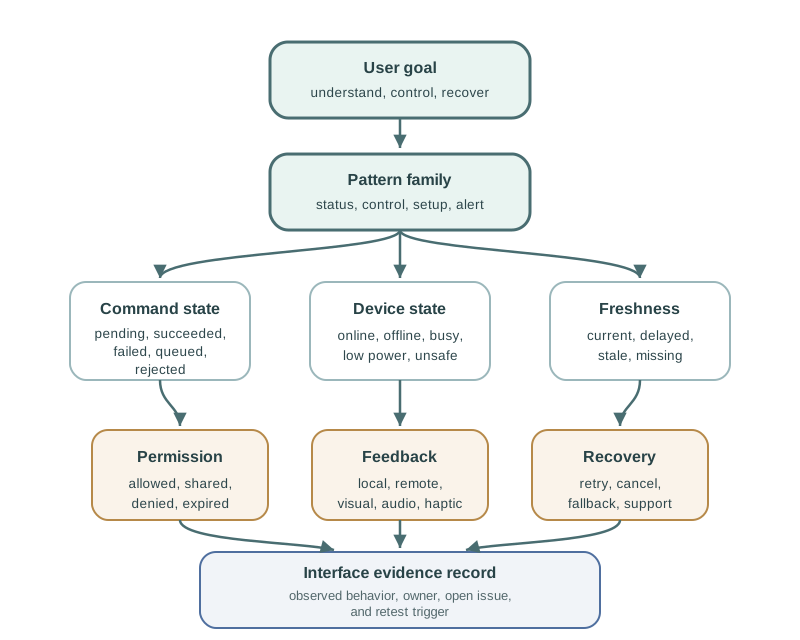
Modality follows from that state model. A local LED can answer “is this device ready?” but cannot explain delegated access. A dashboard can compare many devices but may be too slow for a local safety action. A notification can interrupt at the right time but may lack enough context for diagnosis. A physical control can be reliable during phone or cloud outages but still needs feedback that distinguishes local action from remote confirmation.
The review question is therefore: which surface owns the primary task, which surface confirms the result, and which fallback keeps the user safe when the connected path is stale, delayed, denied, or unavailable?
A reviewable design names that ownership before components are chosen, so later visual polish supports a tested state promise instead of hiding gaps between app, device, cloud, and support responsibilities. ## Map Interface Questions {.depth-l1}
Before drawing controls, write the user’s question at each touchpoint. Then choose the smallest modality that can answer it clearly in context. A resident, visitor, installer, caregiver, operator, technician, and support agent may all touch the same connected product, but they do not need the same surface or the same level of detail. Good interface records separate those roles before layout starts.
Use a short interface table for each decision moment: role, location, goal, risk, available attention, available devices, state needed, modality, feedback wording, recovery route, and evidence. If the user is local and the action is urgent, a physical control or embedded indicator may need to lead. If the user is remote and comparing trends, an app or dashboard can carry more detail. If the action changes access, privacy, heating, movement, dosing, or safety, the interface should add confirmation, permission clarity, and a visible fallback.
- Can I act now? Show lockout, permission, safety, and connectivity state before presenting the command.
- Did it work? Distinguish sent, received, queued, applied, rejected, timed out, and rolled back.
- Is the reading current? Show freshness, sensor confidence, last update time, and the effect of stale data on the decision.
- What can I do next? Offer the recovery path that fits the setting: retry locally, switch to manual control, contact support, or wait for service restoration.
Prototype the state language before polishing the UI. In Figma, label the same control as pending, rejected, stale, denied, offline, and recovered. On a bench device, pair an ESP32, nRF52, or Raspberry Pi prototype with a real LED, buzzer, button, or display so the local cue can be tested with the app cue. For service workflows, use MQTT topics, a device shadow or digital twin stub, Node-RED, Home Assistant, Grafana, or a support-board mock only to the level needed to test the state and handoff question.
Record what the prototype did not prove. A clickable app flow may prove language and hierarchy but not BLE reliability. A bench prototype may prove local feedback but not shared household permissions. A fleet dashboard mock may prove triage grouping but not actual OPC UA, Modbus TCP, or MQTT Sparkplug data freshness. Those boundaries keep the next decision honest. ## IoT Feedback Beyond Success {.depth-l2}
A web form usually controls one server-side action. An IoT command crosses radio links, gateways, queues, firmware, sensors, actuators, batteries, and sometimes another human role. The interface must therefore represent intermediate states without pretending they are final outcomes. “Sent” means the app accepted the action. “Queued” means the service is waiting to deliver it. “Applied” means the device or actuator confirmed it. “Verified” means a sensor or independent state check supports the result.
Designing those states early prevents dangerous ambiguity. “Door locked” is different from “lock command sent”, “lock reports locked from 19 minutes ago”, “lock unreachable”, and “command rejected because the door is open”. Each state needs a modality and wording that match the user’s risk. A low-risk preference can tolerate a quiet retry message. An access, motion, heating, pump, or alarm action may require local feedback, remote confirmation, timeout language, and a manual fallback.
Those states often come from real implementation boundaries: BLE pairing state, Matter commissioning state, MQTT acknowledgements, device-shadow or twin updates, retained telemetry, local firmware error codes, and support-system ownership. In industrial systems, OPC UA quality flags, Modbus register age, gateway buffering, SCADA alarm acknowledgement, and maintenance work-order state can all change what the user should trust. Interface design should expose the boundary that matters to the user without forcing them to debug the whole stack.
The under-the-hood review should ask where the displayed truth comes from. Is the status based on a local sensor, a cloud cache, a retained MQTT message, a gateway heartbeat, a support agent note, or a user-entered override? Is the timestamp visible? Can two surfaces disagree, and if they do, which one owns safety? Can permissions expire or transfer? Can an update, battery saver, or local override block the command? These questions turn implementation complexity into user-visible state instead of leaving it as hidden risk.
Once those boundaries are named, the interface can use plain language: last seen, pending, confirmed by device, confirmed by sensor, stale, offline, denied, unsafe, manual mode, support owns next step. That vocabulary is more useful than a generic success or failure banner because it tells the user what is known, what is not known, and what action is still safe.
26.4 Learning Objectives
By the end of this chapter, you will be able to:
- distinguish interface modality, pattern, component, and state
- choose an interface modality based on context, attention, risk, and task complexity
- organize IoT screens and controls by pattern family
- design feedback for command, device, connectivity, permission, and freshness states
- avoid overloading dashboards and control screens with unrelated tasks
- create an interface record that captures user goal, modality, state, feedback, fallback, and test evidence
26.5 Prerequisites
Before reading this chapter, you should be comfortable with:
- User Experience Design, which explains why interface choices must serve user outcomes.
- Decision-First Prototype Learning Loop, which explains how to test interface assumptions with prototypes.
- Interactive Design Principles, which explains feedback, control, recovery, and evidence.
- Understanding People and Context, which explains how user role and setting shape interface decisions.
26.6 Design Connected State
Use this route before drawing a screen or choosing a component library:
- Name the decision moment. Write the user’s role, location, goal, urgency, and risk. A resident granting guest access, a technician clearing a fault, and an operator acknowledging a safety alert need different interface promises.
- Map the system state behind the visible action. List the command state, device state, data freshness, permission state, and recovery path. For a lock, that might include BLE credential state, reader online state, door-open sensor state, app permission, battery level, and cloud acknowledgement.
- Choose the modality that can answer the question in context. Use a local LED, physical button, haptic cue, app screen, dashboard, notification, voice response, or support handoff only where that channel fits the user’s attention and environment.
- Write the feedback before polishing the layout. Separate “sent”, “queued”, “applied”, “rejected”, “timed out”, “offline”, and “last seen” language. If those words are unclear, the visual hierarchy will not fix the interaction.
- Test failure and shared-use cases. Include stale data, denied permissions, delayed commands, low battery, interrupted setup, caregiver or visitor access, and app-unavailable conditions before accepting the interface.
26.7 Interface Means More Than Screen
Many IoT devices do not have a rich display. Even when an app or dashboard exists, the user’s first interface may be a button, indicator light, motor sound, vibration, printed label, notification, or physical placement.
Treat the interface as the complete communication path between the person and the connected system:
- Input: how the person asks for something or confirms intent.
- Output: how the system shows status, result, risk, or next action.
- Feedback: how the system confirms that it heard, acted, failed, queued, or needs help.
- Recovery: how the person gets back to a safe or understandable state.
- Handoff: how responsibility moves between user, device, app, support, and operations.
The interface is weak when it shows a feature but hides state. It is strong when the user can understand what is happening and what they can safely do next.
26.8 Modality Fit
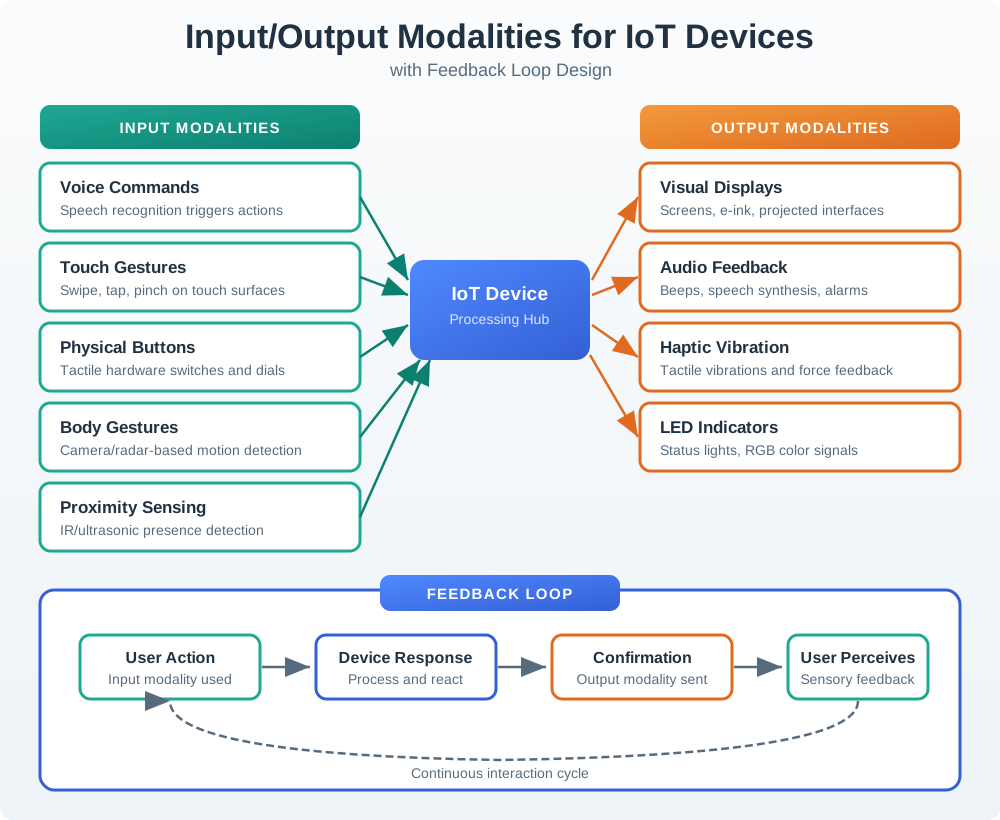
Use Figure 26.2 as a starting point:
- Physical controls fit frequent local action, tactile confirmation, and situations where phones are not available.
- Embedded indicators fit quick status, safety, pairing, charging, and maintenance cues.
- Companion apps fit setup, permission, remote control, explanations, and personal preferences.
- Dashboards fit monitoring, comparison, administration, history, and fleet-level work.
- Notifications fit exception handling, escalation, and time-sensitive awareness.
- Voice or audio cues fit hands-busy tasks and accessibility needs, but need privacy and ambiguity checks.
Most products need more than one modality. The question is which modality owns the primary task and which modalities provide backup, detail, or escalation.
26.9 Choose by Context and Risk
Interface modality should follow the use context:
- Is the user local or remote?
- Are their hands, eyes, or attention available?
- Is the action frequent or rare?
- Is the action reversible?
- Does the user need precise control or quick confirmation?
- Is the setting private, public, noisy, dark, shared, wet, cold, or safety-critical?
- Does the user have permission to act?
- What happens if the interface is misunderstood?
For example, a physical shutoff button may be better than an app-only control for a local safety task. A dashboard may be better than a phone notification for a technician comparing many devices. A short local indicator may be better than a long message when someone is carrying bags at an entry door.
Good modality choices reduce effort without hiding important risk.
26.10 Pattern Families
IoT interfaces are easier to understand when each screen, control, or flow has a clear pattern family.
Common families include:
- Status: show current state, freshness, health, and exceptions.
- Direct control: turn something on, set a level, start an action, stop an action, or confirm a command.
- Setup and pairing: find the device, prove possession, assign location, connect, and recover from failure.
- Configuration: change preferences, roles, thresholds, schedules, and integrations.
- Automation: define conditional behavior and preview consequences.
- Alerts and notifications: decide what needs attention, why it matters, and what action is available.
- History and evidence: show events, measurements, logs, and who did what.
- Support and maintenance: route recovery, service, replacement, ownership, and escalation.
Do not mix too many families into one view. A screen that combines live camera, setup, automation editing, alerts, and device settings makes the user solve the interface structure before solving their actual task.
26.11 State-Aware Interface Model
Use Figure 26.3 to review any interface. The visible control is only one part of the design. A trustworthy interface must also represent:
- User goal: what the person is trying to understand or do.
- Pattern family: status, control, setup, automation, alert, history, or support.
- Command state: idle, pending, succeeded, failed, queued, rejected, or timed out.
- Device state: online, offline, busy, updating, low power, unsafe, locked, or degraded.
- Data freshness: current, delayed, estimated, stale, missing, or manually entered.
- Permission: allowed, denied, shared, delegated, expired, or requires confirmation.
- Feedback: local, remote, visual, audio, haptic, notification, or support response.
- Recovery: retry, cancel, fallback, local override, contact support, or wait.
- Evidence record: what was tested, what was observed, and what remains unproven.
Many IoT interface failures happen because the screen shows the desired action but hides command state, data freshness, or recovery.
26.12 Incremental Examples
26.12.1 Beginner Example: Water-Leak Sensor
A battery leak sensor might have no screen at all. The interface can be a local buzzer, a red LED, a phone notification, and a small history card in the app. The design should distinguish dry, wet, muted, low battery, offline, last checked, and alert acknowledged states. A simple ESP32-C3 or nRF52 prototype can publish wet/dry events over MQTT, but the user still needs local feedback when Wi-Fi is unavailable.
26.12.3 Industrial Maintenance Panel
An industrial panel may combine a local HMI, a Grafana or SCADA dashboard, maintenance notifications, and a computerized maintenance management system handoff. The interface state may come from Modbus TCP, OPC UA, MQTT Sparkplug, a gateway buffer, and a work-order system. Operators need fault severity, last update time, safe local action, lockout state, and escalation ownership. Engineers may need richer diagnostics, but the operator view should not make them interpret protocol details during a fault.
26.13 Feedback and Freshness
Feedback should answer different questions at different moments:
- Before action: What will happen if I do this?
- During action: Did the device hear me? Is the command pending?
- After success: What changed and where can I verify it?
- After failure: What failed, what is safe, and what can I do next?
- After delay: Is the data stale, queued, or still updating?
- After handoff: Who owns the next step?
Avoid vague feedback such as “something went wrong.” A useful message names the state and gives a safe next action. If the device is offline, say what is known locally, what is not known remotely, and whether the last value is stale.
Interface design splits into several review layers:
- Core modality: screen, voice, physical control, light, sound, haptic cue, automation, or service touchpoint.
- Interaction flow: how the user starts, confirms, pauses, cancels, recovers, and hands off a task.
- State synchronization: how device, app, cloud, and shared-user views show current, stale, pending, and failed states.
- Design practice: how prototypes, checklists, and usability tests verify the interface before release.
Rule of thumb: feedback under about 100 ms feels immediate, delays around 1 second need visible acknowledgement, and multi-second IoT actions need progress, status, and recovery options.
26.14 Components and Hierarchy
Interfaces need hierarchy so users can scan without reading everything.
A practical IoT hierarchy is:
- Surface: app, dashboard, device face, notification, voice response, or physical label.
- Task area: status, control, setup, automation, history, or support.
- Group: room, device, zone, role, event type, or maintenance area.
- Component: card, toggle, slider, action button, status chip, timeline item, permission row, or alert.
- State detail: fresh, stale, pending, failed, locked, offline, low power, or needs confirmation.
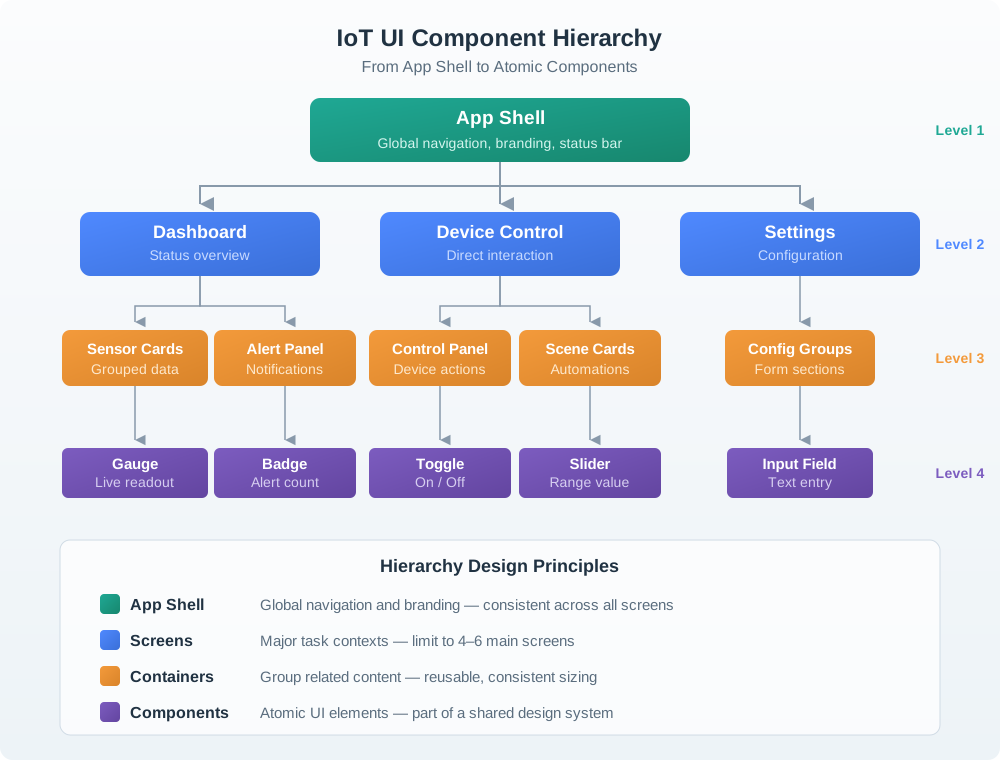
Use Figure 26.4 to keep global surfaces, task screens, content groups, controls, and state details in separate decision layers.
The most frequent and risky question should be easiest to see. Secondary details should be available without taking over the main path. Rare configuration should not compete with daily status and control.
26.17 Equipment Maintenance Review
A maintenance panel reports fault state through a dashboard and a local indicator.
Weak interface:
- The dashboard shows a fault code.
- The local panel has a tiny indicator behind a cover.
- The technician must guess whether the device is safe to inspect.
Improved interface:
- The dashboard groups faults by site, equipment, severity, and last update time.
- The local panel shows maintenance mode and unsafe state before the cover is opened.
- The action flow separates acknowledge, inspect, reset, and escalate.
- The record shows who changed state and when the device returned to service.
The interface supports both remote monitoring and local action. Neither modality has to carry the whole experience alone.
26.18 Common Interface Defects
26.18.1 Screen-Only Thinking
The app is treated as the interface, while local controls, indicators, labels, sound, installation, and support handoff are ignored.
26.18.3 Mixed Pattern Families
Daily controls, setup, automation editing, alert triage, and settings compete on the same surface.
26.18.4 Feedback Without Recovery
The interface reports failure but does not tell the user what is known, what is unknown, and what they can safely do next.
26.18.5 Color-Only Status
Users who cannot see color differences, or who view the interface under poor lighting, lose important state information.
26.19 Review Checklist
Before accepting an IoT interface design, check:
- Is the primary user goal explicit?
- Is the chosen modality appropriate for context, attention, frequency, and risk?
- Does each surface have a clear pattern family?
- Does the interface show command state, device state, and data freshness?
- Are failure, delay, offline, and permission states designed?
- Does feedback include safe recovery or support handoff?
- Are physical controls, embedded indicators, and labels included where relevant?
- Is important status available without relying on color alone?
- Are shared-use roles and permissions visible?
- Is the interface evidence record tied to observed user behavior?
26.20 Try It Now
Rewrite this weak interface status into a state-aware message:
“Device unavailable.”
A stronger answer should name what is known, what is unknown, whether the data is stale, what the user can safely do next, and which modality should carry the message. For example, a local panel might say “Pump gateway offline; last safe reading was 14:05; local shutoff is still available” while the dashboard links to the site support path.
26.21 Identify Missing State
Choose one common IoT control, such as unlock, start pump, change temperature, silence alarm, or revoke access. Write the hidden command state, device state, data freshness state, permission state, and fallback channel that the interface must show before the user can trust the action.
26.23 Match Modality to Role
26.24 Order Interface Design Route
26.25 Summary
IoT interface design is the work of making connected-device state understandable, controllable, and recoverable. A strong interface chooses the right modality for the context, organizes tasks by pattern family, exposes command and device state, handles freshness and permission, and gives users a safe next step when something fails. Screens matter, but the complete interface also includes physical controls, embedded indicators, notifications, dashboards, labels, audio, haptics, and support handoffs.
26.26 Key Takeaway
Interface fundamentals for IoT center on status visibility, clear controls, feedback timing, error prevention, accessibility, and constrained-device behavior.
26.27 See Also
Interface fundamentals connect to the rest of the UX sequence:
- Decision-First Prototype Learning Loop explains how to test interface assumptions.
- Interactive Design Principles defines feedback, control, and recovery expectations.
- User Testing and Iteration explains how to observe whether people understand state and next action.
- Understanding People and Context explains why modality choice depends on role and setting.
- Lightweight Review Template turns these fundamentals into a review process.
Interface design also connects to engineering. Firmware state, network delay, command acknowledgement, data freshness, local fallback, privacy, and support routing all affect what the interface must communicate.
26.28 What’s Next
Continue to Multimodal Interface Design to choose and combine physical, app, dashboard, voice, notification, and support surfaces around the same connected-device state.