Worked example: With 5 runs and per-run times of 4 min setup, 6 min execution, and 3 min review, total lab time is \(5\times(4+6+3)=65\) minutes. This prevents under-scoping and helps schedule complete experimental cycles.
Show code
viewof labRuns = Inputs.range([1,10], {value:5,step:1,label:"Number of runs"})viewof setupTime = Inputs.range([1,15], {value:4,step:1,label:"Setup time (min)"})viewof runTime = Inputs.range([1,30], {value:6,step:1,label:"Execution time (min)"})viewof reviewTime = Inputs.range([1,15], {value:3,step:1,label:"Review time (min)"})
This hands-on lab uses the Wokwi ESP32 simulator to build an accessible IoT interface featuring menu navigation with multimodal feedback (visual OLED display, audio buzzer tones, LED blinks), high-contrast and large-text accessibility modes, and persistent user preferences stored in non-volatile memory – all demonstrating core accessibility design principles without requiring physical hardware.
6.1 Learning Objectives
By completing this lab, you will be able to:
Design Accessible Menus: Create hierarchical navigation that works for users with varying abilities
Implement Multimodal Feedback: Provide visual, audio, and timing-based confirmation of user actions
Apply High Contrast Design: Use color and contrast patterns that meet accessibility standards
Store User Preferences: Persist accessibility settings using non-volatile storage (NVS)
Handle Diverse Input Methods: Support button navigation for users who cannot use touchscreens
Create Glanceable Displays: Design interfaces readable at a glance with clear visual hierarchy
For Beginners: Interface Design: Hands-On Lab
This hands-on chapter lets you practice implementing accessibility features for IoT interfaces. Think of it as a training exercise where you experience your own product through someone else’s eyes. Working through these exercises builds empathy and practical skills for creating inclusive IoT products.
6.2 Prerequisites
Basic understanding of Arduino/C++ syntax
Familiarity with interface design principles from previous chapters
No physical hardware required (browser-based simulation)
6.3 Lab: Build an Accessible IoT Interface
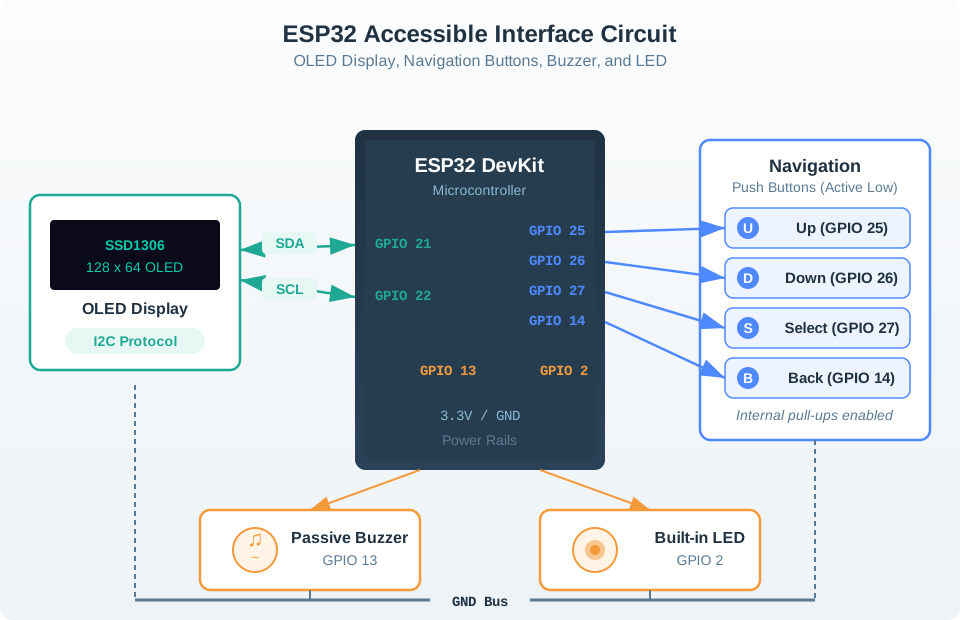
This hands-on lab uses the Wokwi ESP32 simulator to build an accessible IoT interface with menu navigation, visual feedback on an OLED display, audio feedback via buzzer, and user preference storage.
6.3.1 Components Used
Component
Purpose
Connection
ESP32 DevKit
Main microcontroller
Central board
SSD1306 OLED 128x64
Visual display output
I2C (GPIO 21 SDA, GPIO 22 SCL)
Push Button (Up)
Menu navigation up
GPIO 25
Push Button (Down)
Menu navigation down
GPIO 26
Push Button (Select)
Menu selection/confirm
GPIO 27
Push Button (Back)
Return to previous menu
GPIO 14
Passive Buzzer
Audio feedback
GPIO 13
LED (Status)
Visual status indicator
GPIO 2 (built-in)
6.3.2 Key UI/UX Concepts in This Lab
Accessibility Design Principles
This lab demonstrates core accessibility concepts:
Multimodal Feedback: Every action produces visual (OLED + LED), audio (buzzer), and timing-based feedback
High Contrast Mode: Toggle between standard and high-contrast display modes for users with visual impairments
Adjustable Text Size: Switch between normal and large text modes for readability
Audio Confirmation: Distinct sound patterns for navigation, selection, errors, and confirmation
Progressive Disclosure: Show only relevant options at each menu level to reduce cognitive load
Persistent Preferences: Save user accessibility settings so they persist across power cycles
Debounced Input: Handle button bouncing to prevent accidental double-presses
6.3.3 Circuit Diagram
Figure 6.1: Circuit diagram showing ESP32 connected to SSD1306 OLED display via I2C (GPIO 21 SDA, GPIO 22 SCL), four navigation push buttons (Up on GPIO 25, Down on GPIO 26, Select on GPIO 27, Back on GPIO 14) wired active-low with internal pull-ups, a passive buzzer on GPIO 13 for audio feedback, and built-in LED on GPIO 2 for visual status indication
6.3.4 Wokwi Simulator Environment
About Wokwi
Wokwi is a free online simulator for Arduino, ESP32, and other microcontrollers. It allows you to build and test IoT projects entirely in your browser without purchasing hardware. The simulator supports OLED displays, buttons, buzzers, and other components needed for this accessibility-focused UI lab.
Launch the simulator below to get started:
Simulator Tips
Click the + button to add components (search for “SSD1306”, “Button”, “Buzzer”)
Connect wires by clicking on pins
Use internal pull-up resistors for buttons (configured in code)
The Serial Monitor shows debug output and accessibility events
Press the green Play button to run your code
Test both high contrast and standard display modes
6.3.5 Step-by-Step Instructions
6.3.5.1 Step 1: Set Up the Circuit
Add an SSD1306 OLED Display: Click + and search for “SSD1306”
Add a Passive Buzzer: Click + and search for “Buzzer”
Wire the components to ESP32:
OLED Display (I2C):
OLED VCC -> ESP32 3.3V
OLED GND -> ESP32 GND
OLED SDA -> ESP32 GPIO 21
OLED SCL -> ESP32 GPIO 22
Navigation Buttons (active LOW with internal pull-up):
UP Button: One leg to GPIO 25, other leg to GND
DOWN Button: One leg to GPIO 26, other leg to GND
SELECT Button: One leg to GPIO 27, other leg to GND
BACK Button: One leg to GPIO 14, other leg to GND
Audio Feedback:
Buzzer (+) -> ESP32 GPIO 13
Buzzer (-) -> ESP32 GND
6.3.5.2 Step 2: Understanding the Menu Structure
Before copying the code, understand the accessible menu system:
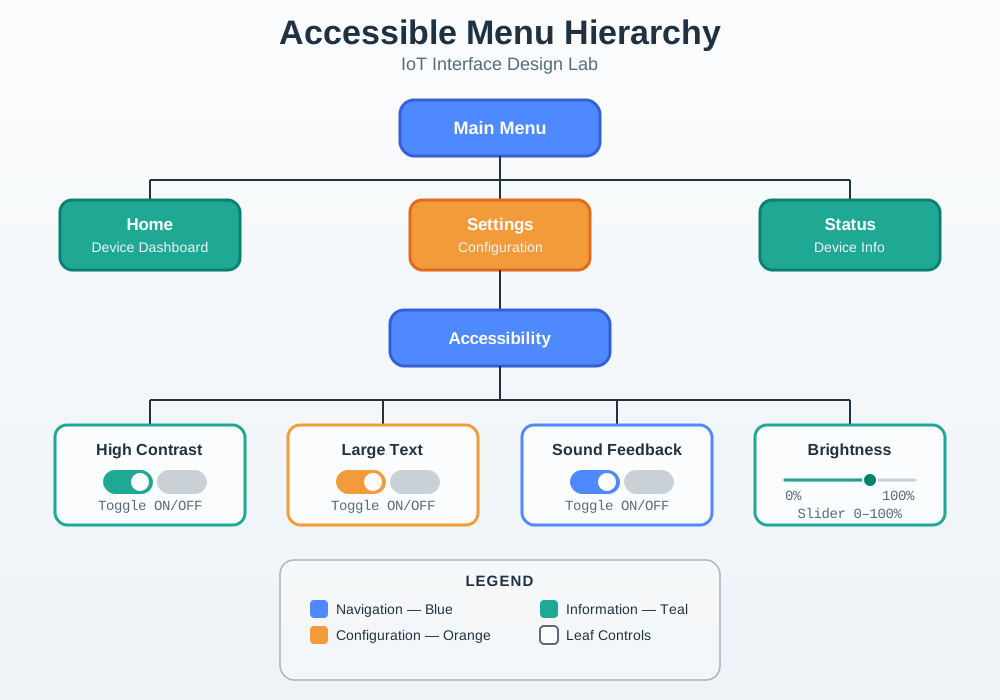
Figure 6.2: Menu hierarchy diagram showing main menu with three options: Home (device status screen), Settings (expands to Accessibility submenu containing High Contrast toggle, Large Text toggle, Sound toggle, and Brightness slider), and System Info (displays device stats, uptime, free heap)
6.3.5.3 Step 3: Copy the Accessible Interface Code
Copy the following code into the Wokwi code editor (replace any existing code). The full source is shown below – key accessibility patterns are highlighted with comments.
Key Accessibility Patterns in This Code
AccessibilitySettings struct – persisted preferences for high contrast, large text, sound
Multimodal feedback – every action confirmed via display + buzzer + LED simultaneously
Press the green Play button to start the simulation
Observe the home screen showing device status
Press SELECT to open the main menu
Use UP/DOWN to navigate between options
Press SELECT on “Settings” to access accessibility options
Toggle High Contrast – notice the inverted display colors
Toggle Large Text – see the text size increase
Toggle Sound – hear different tones for each action
Adjust Brightness – cycle through 25%, 50%, 75%, 100% levels (the SSD1306 only supports dim vs. full brightness, so the display dims below 50%)
Press BACK to return to previous menus
6.3.6 Learning Points
Key UI/UX Concepts Demonstrated
Multimodal Feedback Design:
Action
Visual (OLED)
Audio (Buzzer)
LED Indicator
Navigation
Menu highlight moves
800 Hz beep (30 ms)
Single blink
Selection
Screen updates
Rising dual tone (1200 Hz + 1400 Hz)
Single blink
Toggle ON
Value shows [ON]
Ascending tones (1000 Hz then 1400 Hz)
Single blink
Toggle OFF
Value shows [OFF]
Descending tones (800 Hz then 600 Hz)
Single blink
Back
Previous screen
400 Hz tone (80 ms)
Single blink
Error
Error message bar
Double 200 Hz beep
Triple blink
Accessibility Features Implemented:
High Contrast Mode: Inverts display colors for users with low vision. The monochrome OLED’s white-on-black (or inverted black-on-white) provides very high contrast, well exceeding the WCAG 2.1 Level AA minimum of 4.5:1 for normal text.
Large Text Mode: Doubles text size from 1x (6x8 px characters) to 2x (12x16 px characters) for improved readability. Fewer items fit on screen, so the layout adapts accordingly.
Audio Feedback: Distinct tones for different actions help users who cannot see the display clearly. Ascending tones indicate positive/forward actions; descending tones indicate going back or disabling features.
Persistent Preferences: Settings are saved to NVS (Non-Volatile Storage) and automatically restored on power-up, so users never need to reconfigure accessibility settings after a reboot.
Button-Based Navigation: Physical buttons work for users who cannot use touchscreens. Internal pull-up resistors simplify wiring by eliminating the need for external resistors.
Debouncing: 200 ms debounce delay prevents accidental double-presses, which is particularly important for users with motor control difficulties or tremors.
Design Patterns Used:
Progressive Disclosure: Only relevant options shown at each menu level
Consistent Navigation: Same buttons always perform the same functions
Status Indicators: Visual feedback shows current state at all times
Error Prevention: Menu wrapping prevents “out of bounds” navigation
6.3.7 Debounce Timing Explorer
Use this calculator to explore how debounce delay affects different user groups. Shorter delays feel more responsive but risk accidental double-presses, especially for users with motor impairments.
Try these modifications to deepen your understanding of accessible interface design:
Challenge 1: Add Haptic Feedback Patterns Modify the buzzer code to create distinct vibration-like patterns (rapid tone sequences) that convey different meanings.
Challenge 2: Implement Voice-Over Simulation Add Serial output that “announces” the current menu item and its state when navigation occurs. This simulates screen reader functionality.
Challenge 3: Add Auto-Repeat for Held Buttons Implement a feature where holding UP or DOWN buttons automatically scrolls through menu items at increasing speed.
Challenge 4: Create Color-Coded Status LEDs Add RGB LED support to show different status colors (green = normal, yellow = settings, blue = system info, red = error).
Challenge 5: Implement Timeout and Screen Saver Add a screen timeout that dims or blanks the display after 30 seconds of inactivity.
Challenge 6: Add Language Selection Implement a simple language toggle between English and Spanish to demonstrate internationalization accessibility.
6.3.9 Knowledge Check
Test Your Understanding
Why does the code use internal pull-up resistors for buttons?
Simplifies wiring (no external resistors needed)
Buttons read LOW when pressed, HIGH when released
More reliable than external pull-downs in noisy environments
What accessibility standard does high contrast mode support?
WCAG 2.1 Level AA requires a minimum 4.5:1 contrast ratio for normal text
The monochrome OLED’s inverted display far exceeds this minimum
Why are different audio tones used for different actions?
Users can distinguish actions by sound alone (without seeing the display)
Ascending tones = positive/forward actions
Descending tones = negative/backward actions
What is the purpose of the NVS (Non-Volatile Storage) in this design?
Persists user preferences across power cycles
Users do not need to reconfigure accessibility settings after each reboot
Why does the SSD1306 brightness slider cycle through four levels (25/50/75/100) when the display only supports two brightness states?
The display.dim() API only toggles between dim and full brightness
The stored value could drive an external dimming circuit or a future display upgrade
It demonstrates the accessibility pattern of giving users a familiar control even when hardware is limited
6.3.10 Real-World Applications
This accessible interface pattern applies to many IoT devices:
Device Type
Accessibility Need
Implementation
Smart Thermostat
Vision impaired users
High contrast display, audio temperature announcements
Medical Alert Device
Elderly users
Large buttons, loud audio feedback, simple menus
Industrial HMI
Noisy environments
Visual + haptic feedback since audio may be inaudible
Smart Home Hub
Multiple family members
User profiles with personal accessibility settings
Wearable Devices
On-the-go interaction
Glanceable display, haptic confirmation
Worked Example: Adding Voice Feedback to the Lab
Extension Challenge: Enhance the accessible interface lab with voice announcements for blind users using a speaker module.
Hardware Addition:
DFPlayer Mini MP3 module (plays pre-recorded audio files)
MicroSD card with voice clips: “Lights on”, “Temperature 72”, “Settings menu”, etc.
Connect: TX to GPIO 17, RX to GPIO 16, Speaker to module output
Code Changes:
#include <DFRobotDFPlayerMini.h>DFRobotDFPlayerMini myDFPlayer;// Voice clip IDs on SD card#define VOICE_LIGHTS_ON 1#define VOICE_LIGHTS_OFF 2#define VOICE_SETTINGS 3#define VOICE_HIGH_CONTRAST_ON 4#define VOICE_HIGH_CONTRAST_OFF 5void playVoiceClip(uint8_t clipID){if(settings.soundEnabled){ myDFPlayer.play(clipID); delay(1000);// Wait for clip to finish}}// Inside handleSelect() for the accessibility menu:case0:// Toggle High Contrast settings.highContrast =!settings.highContrast; playVoiceClip(settings.highContrast? VOICE_HIGH_CONTRAST_ON: VOICE_HIGH_CONTRAST_OFF); saveSettings();break;
Voice Script Recording:
Record 20-30 short clips in clear, slow speech
Examples: “Brightness twenty-five percent”, “Menu item one of five”, “Confirmed”
Use text-to-speech tools (Google Cloud TTS, Amazon Polly) or record yourself
Save as MP3, numbered 0001.mp3, 0002.mp3, etc.
Testing with Simulated Blindness:
Blindfold a sighted user (simulate blindness)
Ask them to: change brightness, toggle high contrast, return to home
Measure: success rate, time taken, assistance needed
Goal: >80% success rate without visual feedback
Key Insight: Voice feedback transforms this from “visually accessible” to “blind-accessible.” Multimodal design (visual + audio + haptic) ensures the device works for users with ANY combination of abilities.
Decision Framework: Button Layout for Accessibility
When designing physical button interfaces, button count, size, and layout dramatically affect usability for motor-impaired and elderly users.
Factor
Accessible Design
Inaccessible Design
Impact
Button Count
3-5 large buttons (primary functions)
12+ small buttons (every feature)
Reduced cognitive load, easier targeting
Button Size
44px+ (web), 15mm+ (physical)
<32px (web), <8mm (physical)
WCAG 2.1 minimum target size for motor-impaired users
Choose Touch: Space-constrained devices, need for flexible UI (screen can show different options), younger/tech-savvy users
Hybrid Approach: Physical buttons for critical functions (power, volume, mute) + touchscreen for advanced features
Testing Protocol:
Blindfold test: Can users find and press the correct button without looking?
Glove test: Can users operate with winter gloves on? (Is button spacing adequate?)
Tremor test: Simulate Parkinson’s tremors – do adjacent buttons get pressed?
Speed test: How long does it take to press the emergency button under stress?
Real-World Example: Apple AirPods force-touch stem vs. physical buttons on competing earbuds. Force-touch requires precise pressure – elderly users and people with arthritis report difficulty. Physical buttons are more accessible but less “elegant.”
Common Mistake: Debouncing Failure Leading to Double-Presses
The Mistake: A smart device reads button state directly without debouncing:
// BAD CODE - No debouncingvoid loop(){if(digitalRead(BUTTON_PIN)== LOW){ toggleLight();// Will be called 5-10 times per press!}}
What Happens: Physical buttons “bounce” – contacts make and break multiple times in 5-20 ms when pressed. Without debouncing, a single press registers as 5-10 presses. Result: the light toggles on-off-on-off-on in 100 ms, producing rapid flickering and an unpredictable final state.
Why This is Worse for Accessibility: Motor-impaired users press buttons more slowly and release more gradually, causing LONGER bounce periods (up to 50 ms). Elderly users with tremors cause additional bounces. Result: the device feels “broken” – press once, get 3 toggles.
The Fix – Software Debouncing:
// GOOD CODE - Debounced button readingunsignedlong lastDebounceTime =0;unsignedlong debounceDelay =200;// 200msvoid loop(){if(digitalRead(BUTTON_PIN)== LOW){if((millis()- lastDebounceTime)> debounceDelay){ toggleLight();// Only called once per press lastDebounceTime = millis();}}}
Debounce Delay Guidelines:
User Group
Recommended Delay
Rationale
General public
150-200 ms
Prevents bounce, allows rapid presses
Elderly users
250-300 ms
Slower press/release means longer bounce
Motor-impaired
300-500 ms
Tremors cause continuous bouncing
Touch-sensitive (capacitive)
50-100 ms
No mechanical bounce, but prevents accidental double-tap
Hardware Alternative – Debouncing Capacitor:
0.1 uF capacitor between button and ground
Filters high-frequency bounce noise
Still need software debounce, but reduces the problem
Testing for Bounce Issues:
Press button rapidly 10 times
Expected: 10 toggles (alternating on/off)
Actual without debounce: 20-50 toggles (erratic)
Actual with debounce: 10 toggles (correct)
Real Impact: A smart doorbell without debouncing sent 5 “button press” notifications for a single press. Users complained the doorbell was “broken.” Adding 200 ms debounce fixed the problem – zero lines of functionality code changed, just better input handling.
Common Pitfalls
1. Only testing accessibility on one screen size and browser
IoT field operators use a range of devices: control room desktops (27” 4K), tablet control panels (10” 1080p), and mobile field access (6” 360px wide). An interface that passes accessibility tests on desktop may have touch targets too small on mobile or text too small on a 10” tablet. Test on at least three screen sizes and verify keyboard navigation works on both Windows and macOS keyboard shortcuts.
Key Concepts
Wokwi Simulator: An online ESP32/Arduino simulator enabling IoT interface labs without physical hardware, supporting sensors, displays, and serial output in a browser-based environment
ARIA Landmark: HTML attributes (role=‘main’, aria-label, aria-describedby) that expose interface structure to screen readers, enabling visually impaired users to navigate IoT dashboards by landmark rather than reading every element
Contrast Ratio: The luminance difference between foreground text/icon and background, expressed as a ratio (7:1 is AAA, 4.5:1 is AA minimum per WCAG 2.1) – the primary accessibility metric for IoT dashboard text readability
Focus Indicator: The visible highlight showing which interface element currently has keyboard focus – required for IoT control panels accessible without a mouse, and must have sufficient contrast against the background
Form Validation: Real-time or submit-time feedback on IoT configuration form inputs (sensor threshold, sampling interval, device name) that prevents submission of values outside acceptable ranges before they cause problems
Touch Target Size: The minimum physical interaction area for touchscreen IoT control panel elements – WCAG recommends 44x44 CSS pixels minimum to prevent accidental activation of adjacent controls on mobile devices
Color Blind Simulation: Testing tools (browser extensions, design tools) that preview how an IoT dashboard appears to users with deuteranopia (red-green), protanopia (red), or tritanopia (blue-yellow) color blindness
Keyboard Navigation: The ability to operate all IoT interface functions using only Tab, Enter, Arrow, and Escape keys – required for accessibility compliance and essential for operators using industrial keyboards without a trackpad
2. Adding accessibility features as a post-development retrofit
Retrofitting ARIA roles, focus management, and color contrast into an existing IoT interface requires rewriting structural HTML – not just adding attributes. Accessibility built from the start means using semantic HTML elements (button not div, label not placeholder, table not CSS grid for data), which provides keyboard and screen reader support for free. Budget 15-20% more development time for accessible-first IoT interfaces.
3. Ignoring accessibility for ‘internal’ IoT operator tools
Accessibility requirements apply to all software used by employees, not just public websites. An IoT control panel used by maintenance engineers that fails WCAG 2.1 AA may create legal liability and excludes qualified operators who use assistive technology. Industrial safety standards increasingly require accessible control interfaces for operators with temporary or permanent disabilities.
Label the Diagram
💻 Code Challenge
Order the Steps
Match the Concepts
6.4 Summary
This hands-on lab demonstrated accessible IoT interface design:
Key Takeaways:
Multimodal Feedback: Every action confirmed through visual, audio, and timing feedback
High Contrast: Monochrome OLED inversion provides very high contrast for low vision users
Persistent Preferences: NVS storage ensures settings survive power cycles
Button Navigation: Physical controls with debouncing for motor-impaired users
Progressive Disclosure: Only relevant options shown at each menu level
For Kids: Meet the Sensor Squad!
Accessibility means making sure EVERYONE can use your device – no matter what!
6.4.1 The Sensor Squad Adventure: Building for Everyone
The Sensor Squad built the coolest smart thermostat ever! It had a tiny beautiful screen, whisper-quiet beeps, and sleek tiny buttons. They were SO proud!
Then Grandma Rose came to visit. She squinted at the screen. “The text is so small I can’t read it!” she said.
Uncle Jorge tried next. He was color-blind. “Is the light green or red? I can’t tell!” he said.
Cousin Maria had a cast on her arm. “These buttons are so small I keep pressing the wrong ones!” she said.
The Sensor Squad had a big realization: “We built this for US, not for EVERYONE!”
So they got to work making their thermostat accessible:
For Grandma Rose: Sammy added a “LARGE TEXT” mode that made everything big and bold, plus a “HIGH CONTRAST” mode with extra-bright display
For Uncle Jorge: Lila added different SOUNDS for different states – a happy rising tone for “heating up” and a gentle falling tone for “cooling down” – so you didn’t need to see colors
For Cousin Maria: Max replaced the tiny buttons with BIG buttons that were easy to press, even with a cast
For everyone: Bella made sure the device REMEMBERED your preferences, so you didn’t have to set them up every time
“Designing for accessibility actually made the thermostat better for EVERYONE!” realized Max. “Big text is easier to read from across the room, sounds help when you’re not looking, and big buttons are just more satisfying to press!”
6.4.2 Key Words for Kids
Word
What It Means
Accessibility
Making sure people of ALL abilities can use your device
High Contrast
Making text and pictures stand out clearly (like white chalk on a dark board)
Multimodal Feedback
Giving information in multiple ways – lights AND sounds AND vibrations
Persistent Settings
The device remembers your preferences even when turned off and on again