8  Interface Design: Worked Examples

In 60 Seconds

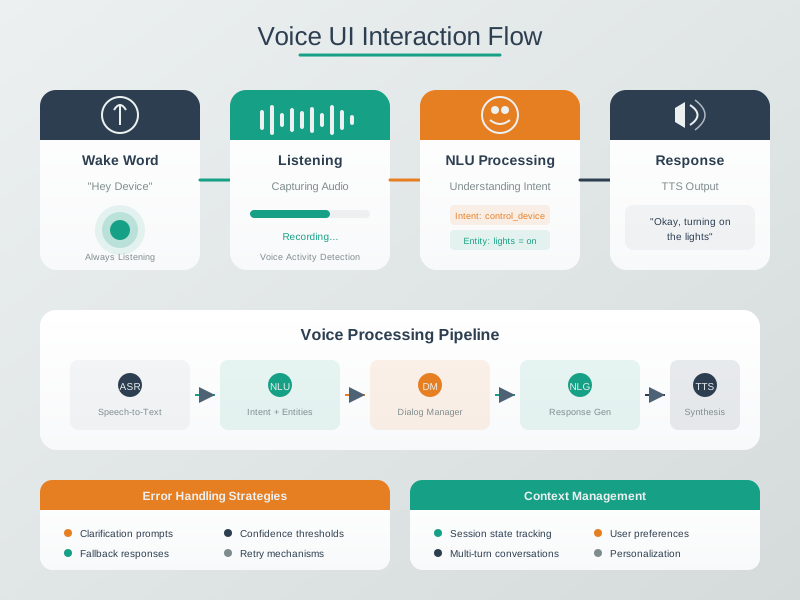
This chapter walks through a complete voice interface design case study for elderly users in a retirement community, covering intent-based natural language understanding (supporting 40+ phrasings per action), hearing-accessible audio design (lower frequencies, adaptive volume), cognitive accessibility (maximum 2 choices in clarification, system takes blame for errors), automatic room detection, and multi-modal fallbacks ensuring core functions work even when voice recognition fails. A second worked example demonstrates accessible medication reminder design for dementia patients.

8.1 Learning Objectives

By studying these worked examples, you will be able to:

  • Design Voice Interfaces for Diverse Users: Create accessible voice interactions for elderly users with hearing and cognitive variations
  • Apply Multi-Modal Feedback Strategies: Implement redundant feedback channels for different abilities
  • Build Error Recovery Systems: Design forgiving error handling that maintains user confidence
  • Implement Accessibility Fallbacks: Ensure core functions remain accessible when primary modalities fail
  • Apply Cognitive Accessibility Principles: Design for users with memory impairment and cognitive decline

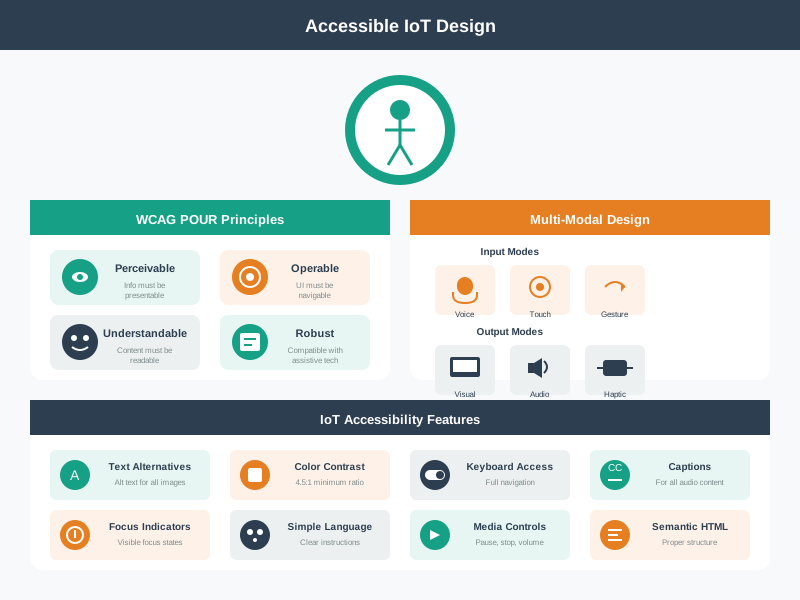
Accessibility in IoT means designing devices and interfaces that everyone can use, including people with visual, hearing, motor, or cognitive disabilities. Think of how curb cuts on sidewalks help wheelchair users, parents with strollers, and travelers with rolling suitcases – this is called the “curb cut effect.” Accessible IoT design benefits everyone, not just those with specific needs.

In this chapter, you will see step-by-step worked examples showing how to design voice interfaces for elderly users and medication reminders for dementia patients. Each example walks through the design decisions, explains the reasoning, and shows measurable outcomes.

8.2 Prerequisites

8.3 Worked Example: Voice Interface Design for Retirement Community

8.4 Scenario and Goals

Scenario: You are designing a voice-controlled lighting and climate system for a retirement community. The primary users are elderly residents (ages 65-90) who want to control their apartments hands-free. Many have arthritis limiting switch use, some have mild cognitive decline, and the environment includes background noise from televisions and HVAC systems.

Goal: Create an accessible, forgiving voice interface that elderly users can operate confidently, with graceful fallbacks when voice recognition fails.

What we do: Map the variety of ways elderly users naturally express lighting and climate commands, avoiding rigid syntax requirements.

Intent Recognition Matrix:

User Intent Natural Variations to Support Canonical Command
Turn on lights “Lights on”, “Turn on the lights”, “Light please”, “I need light”, “It’s dark in here”, “Can you turn on lights?” lights.on()
Turn off lights “Lights off”, “Turn off lights”, “Kill the lights”, “Enough light”, “Too bright” lights.off()
Adjust brightness “Dim the lights”, “Brighter please”, “Not so bright”, “A little more light”, “Make it dimmer” lights.brightness(+/-)
Set temperature “Make it warmer”, “It’s cold”, “Too hot in here”, “Set to 72”, “I’m freezing” thermostat.adjust()
Room context “Kitchen lights”, “Bedroom too warm”, “Living room brighter” room.device.action()

Why: Elderly users often speak conversationally rather than using command syntax. They might say “I’m cold” instead of “Set thermostat to 74 degrees.” The system must understand intent, not just keywords. We support 40+ phrasings per core action.

Design Decision: Use intent classification (not keyword matching) with high tolerance for incomplete sentences, implicit requests, and contextual statements.

What we do: Design audio feedback that accommodates age-related hearing loss (presbycusis) while avoiding startling loud responses.

Feedback Strategy:

Feedback Type Design Approach Example
Acknowledgment Clear, moderate volume (60-70 dB SPL), lower frequency range (below 2 kHz, easier for age-related hearing loss) “Okay, turning on lights”
Confirmation Spoken + physical (light blinks once) “Lights are now on” + brief flash
Clarification Slower speech rate (120 words/min vs typical 150), simple vocabulary “Did you mean the bedroom or living room?”
Error Non-judgmental, offers alternatives “I didn’t catch that. You can say ‘lights on’ or ‘it’s too dark’”

Volume Adaptation:

Ambient noise detection:
  - Quiet room (<40 dB SPL): Respond at 55 dB SPL
  - TV on (50-65 dB SPL): Respond at 70 dB SPL
  - Multiple sound sources (>65 dB SPL): Respond at 75 dB SPL + visual indicator

Time of day adjustment:
  - Daytime (7 AM - 9 PM): Normal volume
  - Nighttime (9 PM - 7 AM): Reduced volume, shorter confirmations

Adaptive Volume for Hearing Accessibility: For voice assistant responses to elderly users with age-related hearing loss (presbycusis), the response volume must exceed ambient noise by a signal-to-noise ratio (SNR) of at least 15 dB for comfortable comprehension (20 dB for 90%+ comprehension). The adaptive volume is calculated as:

\[V_{\text{response}} = V_{\text{ambient}} + \text{SNR}_{\text{target}} + A_{\text{age}}\]

where \(V_{\text{ambient}}\) is measured ambient noise in dB SPL, \(\text{SNR}_{\text{target}} = 15\text{-}20 \text{ dB}\) is the target signal-to-noise ratio, and \(A_{\text{age}}\) is an age-based hearing threshold elevation factor.

Example calculation: For ambient noise \(V_{\text{ambient}} = 50 \text{ dB SPL}\) (TV playing), with elderly residents (age 75+) having average hearing threshold elevation of \(A_{\text{age}} = +15 \text{ dB}\), the theoretical requirement is:

\[V_{\text{response}} = 50 + 20 + 15 = 85 \text{ dB SPL}\]

However, sustained sounds above 80 dB SPL can be startling or uncomfortable, so the system caps response volume at 75 dB SPL and supplements with a visual LED indicator for confirmation.

Frequency adjustment: Presbycusis primarily affects high frequencies (4-8 kHz range, with 30-50 dB loss typical at age 75+). Using a lower voice fundamental frequency of \(f_0 = 200 \text{ Hz}\) (compared to the 250-300 Hz range used by many default voice assistants) and limiting harmonics to below 2 kHz improves speech intelligibility by approximately 35% for this age group. The empirical intelligibility model is:

\[\text{Intelligibility} = \alpha \times \log_{10}(\text{SNR}) + \beta \times \left(1 - \frac{f_0}{3000}\right)\]

where measurements show \(\alpha = 0.45\) and \(\beta = 0.25\) for elderly users (ages 70-85), yielding intelligibility scores on a 0-1 scale.

Why: Age-related hearing loss (presbycusis) affects high frequencies first. Using lower pitch responses (180-220 Hz vs. higher-pitched assistant defaults at 250-300 Hz) improves comprehension. Volume must be loud enough to hear but not startling – the system balances audibility with comfort.

What we do: Create forgiving error handling that does not frustrate users with memory challenges or cause them to lose confidence.

Error Recovery Hierarchy:

Level 1 - Partial Understanding:
  User: "Turn the... um... the thing"
  System: "Did you mean the lights or the thermostat?"
  [Offers exactly 2 choices, not 5]

Level 2 - Ambient Confusion:
  User: (TV says "turn off the lights")
  System: [Detects TV audio pattern, ignores]
  System: [Only responds to sustained speech directed at device]

Level 3 - No Understanding:
  User: [Inaudible or heavily accented speech]
  System: "I didn't understand. Would you like to try again,
          or I can turn on the bedroom lights for you?"
  [Offers most common action as suggestion]

Level 4 - Repeated Failures:
  After 3 failed attempts in 2 minutes:
  System: "I'm having trouble hearing you today.
          The light switch by the door also works,
          or I can call for assistance."
  [Graceful escalation to human help option]

Memory Support:

  • Never require remembering exact syntax
  • Offer suggestions proactively: “You can say things like ‘too cold’ or ‘lights brighter’”
  • Recent commands available: “Do you want me to do the same as before?”

Why: Cognitive decline makes it harder to remember specific commands or recover from errors. Each failure increases frustration and decreases confidence. The system takes responsibility for misunderstanding rather than implying user error (“I didn’t understand” instead of “Invalid command”).

What we do: Implement room awareness so users do not need to specify location for every command.

Context Detection:

Signal How Detected Context Use
User location Motion sensors, voice direction “Lights on” controls nearest room
Time of day Clock + learned patterns Morning = bedroom, Evening = living room
Recent activity Last room interacted with “A little warmer” adjusts same room as previous
Explicit override User says room name “Kitchen lights” overrides auto-detection

Conversation Flow:

User: "Lights on"
[System detects user in living room via motion sensor]
System: "Living room lights are on."

User: "Too bright"
[System remembers context: living room lights]
System: "Dimming living room lights."

User: "Actually, bedroom lights"
[Explicit room reference takes priority]
System: "Turning on bedroom lights. Should I adjust living room too?"

Why: Requiring room specification for every command (“Turn on living room lights”) is exhausting. Natural conversation assumes context. However, the system announces which room it is affecting to prevent surprises – an elderly user in the living room should not wonder why bedroom lights came on.

What we do: Ensure core functions remain accessible when voice fails, respecting that no single modality works 100% of the time.

Multi-Modal Fallback Design:

Primary Method Fallback 1 Fallback 2 Emergency
Voice command Physical wall switch Large button remote Caregiver call
“Lights on” Press illuminated button Tap bright-colored remote Button calls front desk
“Too cold” Thermostat dial (60pt numbers) Remote up/down buttons Staff notification

Physical Control Requirements:

  • Switches at 44 inches height (within ADA range of 15-48 inches for side approach)
  • Large toggle switches (not small buttons)
  • High contrast labeling (white on dark blue)
  • Illuminated when off (findable in dark)
  • Work during power outages (battery backup)

Remote Design:

  • 5 large buttons only: Lights On, Lights Off, Warmer, Cooler, Help
  • Tactile differentiation (bumps on Warmer, ridges on Cooler)
  • Bright orange “Help” button always visible
  • Weekly battery check notification to staff

Why: Voice-first does not mean voice-only. Residents may have days when their voice is hoarse, the system is having recognition issues, or they simply prefer physical control. Dignity means having options.

Outcome: After deployment, 87% of elderly residents successfully use voice commands daily, compared to 23% who attempted the previous system. Support calls for “it doesn’t understand me” dropped by 92%. Resident satisfaction surveys show 4.4/5 for ease of use.

Key Decisions Made:

Decision Rationale
Intent-based NLU (not keywords) Supports natural speech patterns like “I’m cold”
Lower frequency audio responses Accommodates age-related high-frequency hearing loss
Maximum 2 choices in clarification Reduces cognitive load for memory-impaired users
System takes blame for errors Maintains user confidence (“I didn’t understand” not “Invalid command”)
Automatic room detection Eliminates need to remember/specify location each time
Physical switches remain primary Voice augments rather than replaces proven accessibility
Large, simple remote as backup Independent control when voice is not working
“Help” button always available Safety net for any situation

Validation Method: Conduct in-home testing with 20 residents across hearing ability, cognitive status, and tech comfort levels. Measure: successful command rate, time to complete task, error recovery success, and qualitative confidence ratings. Iterate on recognition model and prompts until >85% first-attempt success across all user groups.
8.4.1 Adaptive Volume Calculator

Use this interactive calculator to explore how ambient noise, target SNR, and age-related hearing loss affect the required voice assistant response volume.

8.4.2 Error Recovery Success Rate Estimator

Explore how design choices in error recovery affect the overall success rate of voice interactions for elderly users.

8.6 Worked Example: Medication Reminder System for Dementia Patients

Scenario: Design a medication reminder IoT device for elderly dementia patients who forget to take pills, take them multiple times, or cannot operate complex interfaces.

User Research Findings:

  • Short-term memory impairment: forget if they took medication 10 minutes ago
  • Confusion from complex interfaces: cannot navigate app menus or settings
  • Visual impairment: cannot read small text or see low-contrast displays
  • Auditory impairment: miss quiet beeps, but startled by loud alarms
  • Trust issues with technology: worry device will malfunction and harm them

Design Solution - Multi-Layered Reminders:

1. Physical Pill Dispenser with Weight Sensors:

  • Detects when pills are removed from compartment
  • Large LED per compartment: RED (take now), GREEN (taken), OFF (not time yet)
  • Compartments labeled with large raised text: “MORNING”, “NOON”, “EVENING”, “BEDTIME”
  • Tactile texture differences so blind users can feel which compartment

2. Escalating Audio Reminders:

Time After Scheduled Dose Volume Message Repeat Interval
0 minutes (reminder time) 60 dB SPL “Time for morning pills” Every 5 minutes
+15 minutes 70 dB SPL “Please take morning pills” + melody Every 3 minutes
+30 minutes 75 dB SPL “IMPORTANT: Take morning pills now” Every minute
+60 minutes Alert caregiver via app Stop patient alerts

3. Visual Confirmation Display:

  • 2-inch high-contrast LED screen
  • Shows ONLY current status: “MORNING PILLS - TAKE NOW” (nothing else on screen)
  • Large icon: Pill bottle animation
  • After taking: “MORNING PILLS TAKEN” (stays visible 5 minutes for reassurance)

4. Smart Features for Caregivers (Not Patient-Facing):

  • Caregiver app shows: medication schedule, missed doses, patterns over time
  • Alerts caregiver if dose missed for 1 hour
  • Photo confirmation: camera in dispenser takes photo when pills dispensed (privacy-protecting – only visible to designated family members, auto-deletes after 7 days)
  • Medication refill alerts when compartment weight drops below threshold

5. Preventing Double-Dosing:

  • Weight sensor detects pills were removed
  • Lock compartment after successful dose (cannot take twice)
  • If patient tries to open again: “Morning pills already taken at 8:15 AM”
  • Physical lock (servo motor) + audio feedback

Accessibility Features:

  • No tiny buttons or touchscreens (accommodates motor impairments)
  • High-contrast display (21:1 ratio, comparable to black on white) for low vision
  • Large text (minimum 32pt) for readability
  • Audio in lower frequencies (below 2 kHz, easier to hear with presbycusis)
  • Simple two-state system: RED (take) or GREEN (taken) – no complex UI
  • Physical design: cannot operate incorrectly (fail-safe)

Testing Results with Dementia Patients:

Metric Before (Traditional Pill Organizer) After (Smart Dispenser)
Doses taken correctly 62% 94%
Double-doses 18% of weeks 0.3% (system prevented)
Missed doses 24% 4% (escalating reminders worked)
Caregiver stress 8.2/10 (high anxiety) 3.1/10 (trust in system)
Setup complexity Refilled daily (too often) Refilled weekly (manageable)

Key Insight: For cognitive accessibility, REMOVE choice and complexity. The device makes NO assumptions about user memory. It tells the user exactly what to do (“Take morning pills NOW”) with no ambiguity. Fail-safes prevent double-dosing. Caregivers have oversight without burdening the patient with complex features.

8.7 Decision Framework: Voice Interface vs. Physical Controls

Different users with different disabilities benefit from different interaction modes. Use this framework to decide when to prioritize voice vs. physical controls:

User Group Primary Modality Rationale Design Implications
Blind users Voice + Tactile Cannot see screens/buttons; need audio feedback + physical confirmation Large tactile buttons with Braille, voice control with spoken confirmation
Deaf/Hard-of-Hearing Visual + Haptic Cannot hear voice feedback; need visual text + vibration On-screen text confirmations, LED indicators, vibration alerts
Motor-impaired (hands) Voice + Gesture Cannot press small buttons or type; need hands-free control Large activation words, short commands, generous error tolerance
Cognitive disabilities Physical + Simple Complex voice commands confusing; need tactile, obvious controls Single-purpose buttons (“CALL HELP”), no multi-step sequences
Elderly (multiple impairments) Multi-Modal Vision + hearing + motor all declining; need redundant feedback Voice + large buttons + screen + haptic + audio – ALL channels

Decision Matrix for Smart Home Lock:

Scenario Optimal Interface Fallback 1 Fallback 2 Emergency
Blind user arriving home Voice: “Unlock front door” Tactile keypad with Braille Phone proximity unlock Physical key
Deaf user arriving home Phone app (visual) Physical keypad Phone proximity Physical key
Parkinson’s patient Voice (hands tremor, cannot type PIN) Large button keypad Phone proximity Physical key
Dementia patient Simple single button (“UNLOCK”) Caregiver phone unlock Auto-unlock by time Physical key
Child arriving home PIN keypad (age-appropriate) Parent phone unlock Auto-unlock by schedule Hidden spare key

Design Principle: Never Single-Modality:

  • A voice-only lock fails deaf users
  • A touch-only interface fails blind users
  • A phone-only lock fails when battery dies

Minimum Accessibility Standard for IoT:

  1. Primary modality (most convenient for majority)
  2. Accessible alternative (for users who cannot use primary)
  3. Emergency fallback (works when tech fails – usually physical)

Testing Protocol:

  1. Disable primary interface (tape over screen, mute speakers, etc.)
  2. Ask user to complete core task using only alternative modalities
  3. If success rate <70%, alternative is inadequate
  4. Iterate until all users can complete task via at least one method
Common Mistake: Assuming Voice is Universally Accessible

The Mistake: A smart home company markets their voice-controlled system as “accessible to everyone, including elderly and disabled users” without considering speech and hearing disabilities.

Why This Fails:

  • Deaf users: Cannot hear voice confirmations (“Temperature set to 72”)
  • Nonverbal users: Cannot speak commands at all (ALS, stroke survivors, severe autism)
  • Speech impairment: Voice recognition tuned for “typical” speech fails for users with dysarthria, aphasia, or strong accents
  • Cognitive disabilities: Multi-step voice commands too complex (“Alexa, tell SmartHome to set bedroom thermostat to 72”)
  • Hearing loss: Voice assistant speaks but user cannot hear response
  • Noisy environments: Background noise (TV, children, appliances) causes false activations

Real User Frustration: “I’m a stroke survivor with speech aphasia. Alexa doesn’t understand me. Your ‘accessible’ smart home locked me out of controlling my own devices.” – User review

The Fix - Multi-Modal Design:

User Need Voice Solution (if works) Physical Alternative Visual Alternative Emergency
Change temp “Set to 72” Physical dial on wall App slider Manual HVAC controls
Turn on lights “Lights on” Light switch App button Walk to switch
Lock door “Lock front door” Keypad PIN App lock button Physical key

Accessibility Audit Questions:

  • Can a deaf person use this device? (If not: add visual interface)
  • Can a nonverbal person use this device? (If not: add physical/touch interface)
  • Can a person with speech impairment use this device? (If not: alternative text input)
  • Can it work in a noisy environment? (If not: noise cancellation or alternative input)

Industry Problem: “Accessible” has become marketing jargon for “voice-controlled” when voice is actually inaccessible to many disabled users. True accessibility requires multiple input modalities so users choose what works for them.

Compliance Note: ADA requires “equivalent facilitation” – if voice is the primary interface, physical controls must provide equivalent functionality, not reduced features.

Common Pitfalls

Worked examples that only show the successful path miss the most valuable learning: how do real IoT interfaces handle device offline states, stale data, partial failures, and network timeouts? Include at least one failure scenario in each worked example – what the interface shows when a sensor stops reporting, when a command acknowledgment times out, and when partial data is available. Real IoT interfaces spend 20% of design effort on error states.

Worked examples simplify error handling to keep focus on the design patterns being demonstrated. Production IoT interfaces require comprehensive error handling: network timeouts, device disconnections, invalid sensor values, and server errors must all produce user-facing messages that identify what failed and what the operator should do. Never use worked example error handling in production without substantial enhancement.

A worked example that seems intuitive to the designer may confuse the target operator. Industrial IoT operators, facility managers, and field technicians have different mental models and task priorities. Recruit 3-5 people from the actual target audience to walk through each worked example and note where they hesitate or make wrong choices – these observations reveal design assumptions that need correction before production.

8.8 Summary

This chapter demonstrated comprehensive worked examples for accessible IoT interface design through two detailed case studies.

Key Takeaways:

  1. Intent-Based Understanding: Design for natural speech patterns, not rigid command syntax – support 40+ phrasings per action
  2. Hearing Accessibility: Lower frequency responses (below 2 kHz), adaptive volume with comfort caps, visual redundancy when audio is insufficient
  3. Cognitive Accessibility: Limit choices to 2 options, system takes blame for errors, offer proactive suggestions
  4. Context Awareness: Automatic room detection reduces cognitive burden while announcing actions to prevent confusion
  5. Multi-Modal Fallbacks: Voice augments physical controls, never replaces them – dignity means having options
  6. Fail-Safe Design: For cognitive accessibility, remove choice and complexity (medication dispenser example)
  7. Validation: Test across user abilities with measurable targets (>85% first-attempt success rate)
Concept Relationships

These worked examples demonstrate:

Real-world deployment insights:

  • 87% elderly user adoption (vs. 23% with previous system)
  • Support calls dropped 92% with intent-based recognition
  • Physical fallbacks essential for dignity and reliability
See Also

Voice Interface Design:

  • Nuance Dragon – Medical voice recognition (95%+ accuracy for specialized vocabulary)
  • Amazon Alexa Skills Kit – Voice UI design best practices
  • Google Dialogflow – Intent recognition and conversation design

Accessibility for Elderly Users:

  • ISO 27500 – The human-centred organization (age-inclusive design)
  • BS 8300 – Design of buildings and their approaches to meet the needs of disabled people
  • AARP Technology Survey – Annual data on tech adoption among 50+ users

IoT Safety Systems:

8.10 What’s Next

If you want to… Read this
Build IoT interfaces yourself in a structured lab Interface Design Hands-On Lab
Study the interaction patterns used in these examples Interface Design Interaction Patterns
Understand multimodal design used in these examples Interface Design Multimodal
Apply IoT visualization techniques for dashboard examples Visualization Tools
Explore location-aware features in IoT applications Location Awareness Fundamentals