Design Multimodal Interactions: Create interfaces that support voice, touch, physical, and gesture modalities appropriately
Apply Modality Selection Frameworks: Match interface modality to user context and task complexity
Implement Graceful Degradation: Design systems that continue functioning when components fail
Balance Tradeoffs: Make informed decisions between touch vs. voice, visual vs. audio, and cloud vs. local architectures
In 60 Seconds
Multimodal IoT interfaces combine visual displays, audio alerts, haptic feedback, and voice commands to communicate sensor data and accept operator input through multiple sensory channels simultaneously. The design principle is channel redundancy: critical alerts must be perceivable through at least two independent channels so that operators who cannot perceive one channel (visual, audio, tactile) still receive the alert. Industrial safety standards require multimodal alerts specifically because single-channel alerts fail in noisy environments or for operators with sensory impairments.
3.2 MVU: Multimodal Interaction Patterns
Core Concept: IoT interfaces must provide feedback through multiple simultaneous channels (visual, audio, haptic) because users interact in varied contexts where any single modality may be unavailable or inappropriate. Why It Matters: Users check IoT device status in 2-3 second glances while multitasking. If feedback requires focused attention on a single channel (reading text, counting LED blinks), users will miss critical information and lose trust in the system. Key Takeaway: Every state change must be confirmed through at least two modalities within 100ms – visual (LED color/animation) plus audio (beep pattern) or haptic (vibration), ensuring users can perceive feedback regardless of context (dark room, noisy environment, hands full).
For Beginners: Interface Design: Multimodal Interaction
Accessibility in IoT means designing devices and interfaces that everyone can use, including people with visual, hearing, motor, or cognitive disabilities. Think of how curb cuts on sidewalks help wheelchair users, parents with strollers, and travelers with rolling suitcases. Accessible IoT design benefits everyone, not just those with specific needs.
Hey friends! It’s Sammy the Sensor here with the whole squad! Today we’re learning about the different ways you can talk to your smart devices!
Imagine you have a smart lamp in your room:
Voice (talking): “Hey lamp, turn blue!” - Great when your hands are full with pizza!
Touch (tapping a screen): Open an app and tap the blue color - Perfect when you want to pick the exact shade!
Physical button (pressing): Push the button on the lamp itself - Works even when the internet is down!
Lila the Light Sensor says: “Think about when you’re watching a movie in the dark. You don’t want to search for your phone - just say ‘lights off’ and I’ll help!”
Max the Motion Detector adds: “And some devices can even see you wave your hand! That’s called gesture control - like magic!”
Bella the Buzzer reminds us: “The best smart devices let you choose HOW you want to talk to them. Voice when cooking, touch when relaxing, buttons when in a hurry!”
Fun Activity: Next time you use a smart device at home, count how many different ways you can control it! Can you use voice? An app? A button? The more ways, the better!
3.4 How It Works: Multimodal Feedback Loop
Understanding how multiple feedback channels work together creates more resilient IoT interfaces:
Complete Feedback Cycle (Smart Door Lock Example):
User Action: User taps “Unlock” in app while carrying groceries
Immediate Haptic (T+50ms): Phone vibrates (confirms tap received)
Command Transit (T+100-800ms): BLE command travels to lock
Motor Actuation (T+800-1200ms): Deadbolt retracts (user hears mechanical click)
Multi-Channel Confirmation (T+1200-1300ms):
Visual: Lock LED changes red to green
Audio: Lock plays “beep-beep” chime
App Visual: Shows green “Unlocked” checkmark
App Audio (if enabled): Text-to-speech “Front door unlocked”
Why Multiple Channels Matter:
User may not be looking at phone (groceries in hands) – Haptic + lock audio confirm success
User may be deaf (cannot hear chime) – Visual app + lock LED confirm
User may be blind (cannot see LED) – Haptic + audio confirm
Failure Scenario Without Multimodal:
Visual-only feedback: User looks away, misses confirmation, tries again – door unlocks then re-locks
Audio-only feedback: Deaf user has no idea if command succeeded
3.5 Introduction
Most IoT devices are used in contexts where users cannot devote full attention to a single screen. A nurse checking patient vitals has gloved hands. A driver monitoring vehicle diagnostics is watching the road. A homeowner adjusting the thermostat may be carrying groceries. In each case, the interface must adapt to the user’s available senses and limbs rather than demanding a specific posture or focus.
Multimodal interaction design addresses this challenge by providing multiple parallel channels – voice, touch, physical controls, gesture, and haptic feedback – so that users can interact through whichever modality suits their current context. This chapter explores how to select, combine, and gracefully degrade across these modalities, with particular attention to accessibility and failure resilience.
The principles covered here build directly on the component hierarchies from Interface Design Fundamentals and the state synchronization patterns from Interaction Patterns. Where those chapters addressed what to display and when to update, this chapter addresses how users physically interact with IoT systems across diverse real-world conditions.
3.6 Multimodal Interaction Design
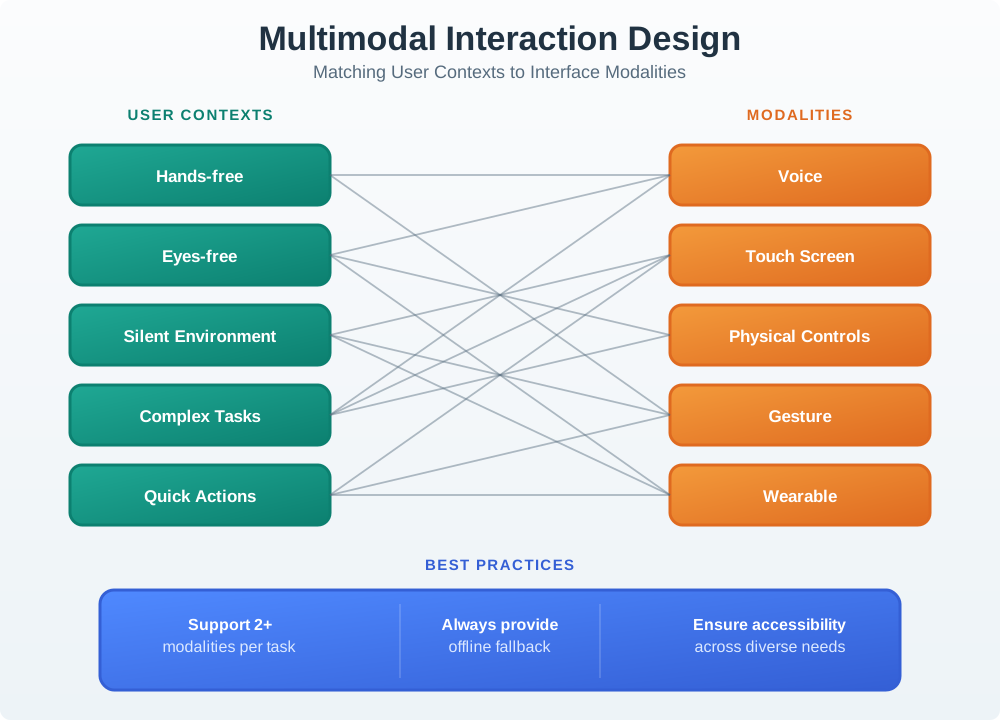
Different interface modalities excel in different contexts. Effective IoT design matches modality to use case:
Multimodal Interaction Design: Matching User Contexts to Interface Modalities
Figure 3.1
3.6.1 Modality Comparison Matrix
Modality
Best For
Limitations
Accessibility
Voice
Hands-free, quick commands
Privacy, noisy environments
Helps motor impairments
Touch (App)
Complex settings, browsing
Requires attention
Screen readers available
Physical
Immediate, tactile
Limited options
Works with motor disabilities
Gesture
Quick, natural
Learning curve
May exclude some users
Wearable
Glanceable info
Tiny screen
Haptic helps vision impaired
3.6.2 Modality Selection Decision Tree
Use this decision framework to select the appropriate modality for a given interaction:
Modality Selection Decision Tree: Choosing the Right Interface for User Context
3.7 Design Tradeoffs
Tradeoff: Touch Interface vs Voice Interface
Option A (Touch Interface): Visual app or touchscreen with tap/swipe gestures. User studies show 94% accuracy for touch interactions, 2.1 seconds average task completion for simple commands. Works in any noise level, preserves privacy, supports complex multi-step workflows. Requires visual attention and free hands.
Option B (Voice Interface): Natural language commands with audio feedback. Enables hands-free and eyes-free operation (cooking, driving). Average task time 3.5 seconds for simple commands, but 40% faster for multi-word requests like “set bedroom lights to 20% warm white.” Recognition accuracy drops to 85% in noisy environments (>65 dB). Privacy concerns in shared spaces.
Decision Factors: Choose touch when precision matters (selecting specific percentages, complex schedules), when privacy is needed (public spaces), when noise levels are high, or for detailed configuration. Choose voice when hands/eyes are occupied, for quick single commands, or for accessibility (motor impairments). Best products support both: “Hey Google, turn on kitchen lights” AND app toggle. Voice for convenience, touch for control, physical buttons for reliability.
3.7.1 Voice Interface Processing Pipeline
Understanding how voice commands are processed helps designers optimize response times and handle failures:
Voice Interface Processing Pipeline: From Wake Word to Confirmation
Pipeline Latency Budget (target: <1 second total):
Stage
Target Time
Optimization
Wake word detection
<100ms
On-device ML model
Audio capture
200-500ms
Endpoint detection
Speech-to-text
100-300ms
Streaming ASR
Intent recognition
50-100ms
Pre-compiled grammar
Command execution
<100ms
Local device control
Voice confirmation
200-400ms
TTS or pre-recorded
Putting Numbers to It
Voice Interface Latency Budget: For a voice-controlled smart light (“Alexa, turn on kitchen lights”), the end-to-end latency has six components. Let \(L_{\text{total}} = L_{\text{wake}} + L_{\text{capture}} + L_{\text{STT}} + L_{\text{intent}} + L_{\text{exec}} + L_{\text{TTS}}\). Target is \(L_{\text{total}} < 1000 \text{ ms}\) for acceptable UX. In a cloud-based system (Amazon Alexa): \(L_{\text{wake}} = 50 \text{ ms}\) (local TensorFlow Lite model on device), \(L_{\text{capture}} = 350 \text{ ms}\) (voice activity detection waits for speech endpoint), \(L_{\text{STT}} = 250 \text{ ms}\) (AWS transcribe streaming), \(L_{\text{intent}} = 80 \text{ ms}\) (Lambda skill invocation + NLU), \(L_{\text{exec}} = 60 \text{ ms}\) (MQTT command to local hub), and \(L_{\text{TTS}} = 210 \text{ ms}\) (Polly synthesis for “Kitchen lights on”). Total: \(50 + 350 + 250 + 80 + 60 + 210 = 1000 \text{ ms}\) exactly. For comparison, local voice processing (edge AI with on-device STT like Picovoice) achieves: \(L_{\text{wake}} = 45 \text{ ms}\), \(L_{\text{capture}} = 280 \text{ ms}\), \(L_{\text{STT}} = 120 \text{ ms}\) (local), \(L_{\text{intent}} = 30 \text{ ms}\) (local inference), \(L_{\text{exec}} = 40 \text{ ms}\) (direct BLE), \(L_{\text{TTS}} = 180 \text{ ms}\) (local). Total: \(45 + 280 + 120 + 30 + 40 + 180 = 695 \text{ ms}\), a 30.5% improvement that users perceive as “snappier.”
Option A (Visual Feedback): LED indicators, screen displays, and app notifications. Silent operation suitable for quiet environments (bedrooms, offices). User studies show visual indicators are checked in 0.3-0.5 second glances. Color-coded states (green=OK, red=error, amber=warning) are widely recognized, though color alone is insufficient for users with color vision deficiency – always pair color with shape, position, or text per WCAG 1.4.1. Limited to line-of-sight; users must look at device.
Option B (Audio Feedback): Beeps, chimes, voice announcements, and alarms. Attention-grabbing without requiring user to look at device. Reaches users anywhere in the room. Critical for urgent alerts (smoke alarms: 85+ dB required by NFPA 72 and UL 217). However, 23% of users disable audio feedback due to annoyance, and audio is unusable in quiet hours (11 PM-7 AM) without disturbing others.
Decision Factors: Use visual-primary for routine status (device state, sync progress, battery level), quiet environments, and continuous monitoring. Use audio-primary for urgent alerts requiring immediate attention (security, safety, critical errors) and confirmation of voice commands. Best practice: tiered audio with visual redundancy. Critical alerts use both modalities. Routine confirmations default to visual with optional audio. Always provide mute/quiet hours settings. Accessibility: audio helps visually impaired users; visual helps hearing impaired users.
Tradeoff: Single Modality vs Multimodal Interaction
Option A: Optimize for a single primary modality (e.g., touch app only), allowing deep refinement of one interaction paradigm with lower development cost and simpler testing.
Option B: Support multiple modalities (voice, touch, physical, gesture) so users can interact via their preferred method based on context, accessibility needs, and situational constraints.
Decision Factors: Choose single modality when targeting a well-defined use context (office dashboard = mouse/keyboard), when budget is constrained, or when the modality perfectly fits the task. Choose multimodal when users interact in varied contexts (home = sometimes hands-free, sometimes visual), when accessibility is important, when the product serves diverse user populations, or when reliability requires fallback options. Consider that multimodal design improves resilience (if voice fails, touch still works) and accessibility (motor-impaired users can use voice, hearing-impaired users can use visual interfaces).
3.8 Input/Output Modalities for IoT
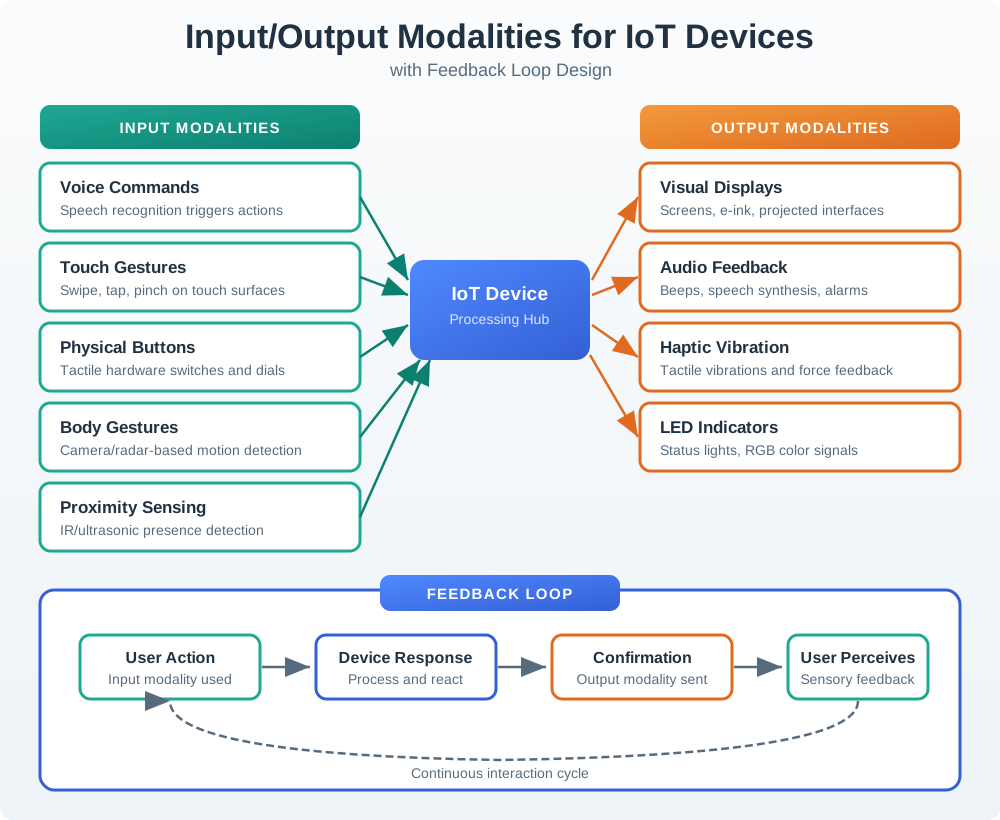
IoT devices use diverse input and output modalities. Effective design matches modality to message type and user context:
Input/Output Modalities for IoT Devices with Feedback Loop Design
Figure 3.2
Modality Selection Guidelines:
Message Type
Best Input
Best Output
Example
Quick command
Voice, physical button
LED + beep
“Lock door” with confirmation chime
Complex setting
Touch screen
Visual display
Thermostat schedule configuration
Urgent alert
Auto-triggered
Audio + haptic + visual
Smoke detector alarm
Status check
Glance, presence
LED, display
Light ring color shows device state
Privacy control
Physical switch
LED indicator
Camera shutter with red LED
3.9 Graceful Degradation
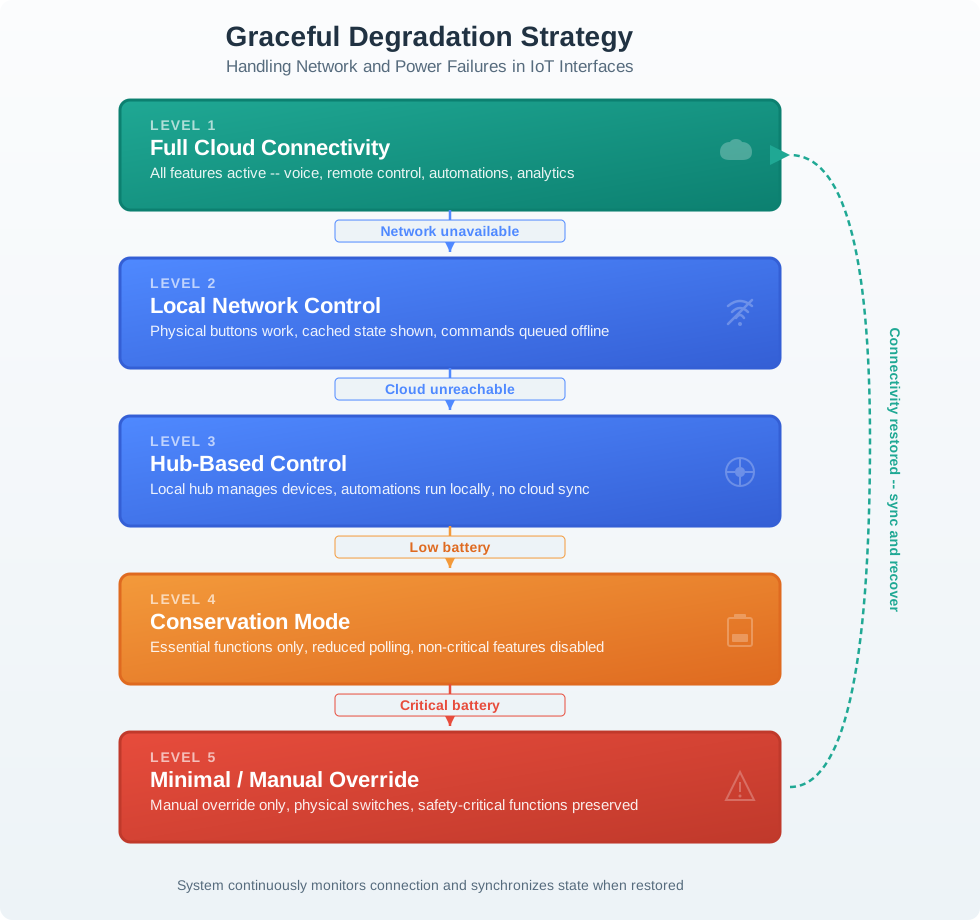
IoT interfaces must handle failures gracefully at each layer. The following diagram illustrates five degradation levels, from full cloud connectivity down to minimal manual override:
Graceful Degradation Strategy: Handling Network and Power Failures in IoT
Figure 3.3
Design for Failure – Four Essential Principles:
Always provide physical fallback – Light switches that work without Wi-Fi
Queue commands offline – Sync when connectivity returns
Cache last known state – Show users what they last knew
Clear failure indication – Don’t leave users guessing about device status
Tradeoff: Cloud-First vs Local-First Architecture
Option A: Cloud-first architecture routes all commands through cloud services, enabling remote access, cross-device coordination, advanced AI features, and simplified device hardware at the cost of internet dependency.
Option B: Local-first architecture processes commands on-device or via local hub, ensuring core functions work offline with faster response times, but limiting remote access and advanced features without connectivity.
Decision Factors: Choose cloud-first when remote access is essential, when features require significant compute power (AI, complex automation), when devices need coordination across locations, or when continuous software updates add value. Choose local-first when reliability is critical (locks, safety devices), when latency matters (industrial control), when privacy is paramount, or when internet connectivity is unreliable. Best practice: hybrid approach with local-first core functions and cloud-enhanced features, so essential operations never depend on internet availability.
3.10 Accessibility Considerations
Multimodal design inherently improves accessibility by providing alternative interaction paths:
Accessibility Modality Mapping: Matching User Needs to Interface Channels
Designing for accessibility benefits everyone. Voice control helps motor-impaired users AND users with full hands. Large touch targets help users with tremors AND users wearing gloves. Closed captions help deaf users AND users in noisy environments. When you design for edge cases, you improve the experience for all users.
3.11 Code Example: Voice Command with Visual Fallback
The following Python example demonstrates a multimodal feedback pattern for a Raspberry Pi smart home controller. When a voice command is received, the system provides feedback through three simultaneous channels:
import time, threadingclass MultimodalFeedback:"""Confirm every action through 2+ channels within 100ms."""def__init__(self, quiet_hours_start=23, quiet_hours_end=7):self.quiet_start = quiet_hours_startself.quiet_end = quiet_hours_enddef confirm_action(self, action_name, severity="routine"): channels = []# Visual -- always active (LED + optional display) channels.append(threading.Thread( target=self._visual_feedback, args=(action_name, severity)))# Audio -- suppressed during quiet hours for routine eventsif severity =="critical"ornotself._is_quiet_hours(): channels.append(threading.Thread( target=self._audio_feedback, args=(severity,)))# Haptic -- wearable vibration for important/critical onlyif severity in ("important", "critical"): channels.append(threading.Thread( target=self._haptic_feedback, args=(severity,)))# Fire all channels simultaneously (< 100ms total)for ch in channels: ch.start()for ch in channels: ch.join(timeout=0.5)def _is_quiet_hours(self): hour = time.localtime().tm_hourreturn hour >=self.quiet_start or hour <self.quiet_enddef _visual_feedback(self, action_name, severity): colors = {"routine": (0,255,0), "important": (255,165,0),"critical": (255,0,0)} set_led_color(*colors.get(severity, (255,255,255)))def _audio_feedback(self, severity):if severity =="critical": play_alarm_tone(volume=0.9)elif severity =="important": play_chime(volume=0.5)else: play_click(volume=0.3)def _haptic_feedback(self, severity): patterns = {"important": [100,50,100],"critical": [200,100,200,100,200]} send_vibration(patterns.get(severity, [100]))# Usage: context-aware feedback adapts to time and severityfeedback = MultimodalFeedback(quiet_hours_start=23, quiet_hours_end=7)feedback.confirm_action("Door locked by Alice", "routine") # 2 AM: LED onlyfeedback.confirm_action("Unauthorized access!", "critical") # Always: all 3
Why three channels: A user cooking dinner (hands full, noisy kitchen) might miss a visual-only notification. A sleeping user at 2 AM should not hear a routine “door locked” chime. A hearing-impaired user needs visual and haptic feedback. By supporting all three and adapting to context (quiet hours, severity), the system works for everyone.
3.12 Common Pitfalls in Multimodal Design
Pitfalls to Avoid
1. Voice-Only Trap: Designing a smart device that only supports voice interaction. When voice recognition fails (noisy room, accent mismatch, service outage), the device becomes a paperweight. Always provide at least one non-voice fallback.
2. Feedback Channel Mismatch: Confirming a voice command with a small on-screen text message the user cannot see because they are across the room. Match the feedback channel to the input channel – voice commands should produce audible confirmation.
3. Ignoring Quiet Hours: Audio feedback that cannot be silenced or scheduled. A smart lock that announces “DOOR UNLOCKED” at 2 AM will be disabled by users, losing the security benefit. Always provide configurable quiet hours with visual-only fallback.
4. Modality Overload: Supporting five input modalities but implementing none of them well. Better to have two polished modalities (e.g., app + physical button) than five half-finished ones. Prioritize the modalities your users actually need.
5. No Offline State Indication: When cloud connectivity is lost, the interface looks identical to the connected state. Users issue commands that silently fail, eroding trust. Always show a clear offline indicator and explain what still works.
6. Assuming Universal Gesture Recognition: Designing gesture controls that require specific hand shapes or movement speeds. Users with arthritis, tremors, or prosthetics may not be able to perform precise gestures. Provide generous recognition thresholds and alternative inputs.
3.13 Real-World Case Study: Amazon Echo Show
The Amazon Echo Show demonstrates effective multimodal design principles in practice:
Amazon Echo Show Multimodal Input Pipeline: Voice, Touch, Gesture, and App Integration
Why it works:
Principle
Implementation
Redundant input
Voice (primary) + touch + gesture + app – user chooses based on context
Multimodal feedback
Voice response + screen card + LED ring color change simultaneously
Graceful degradation
Local smart home control continues during cloud outages; touch UI works when voice fails
Accessibility
Voice helps motor-impaired; screen helps hearing-impaired; large touch targets (44px+)
Context adaptation
Camera detects user approach and brightens screen; adjusts volume based on ambient noise
Lesson learned: The Echo Show’s physical camera shutter (a sliding plastic cover) demonstrates an important principle – some privacy controls must be physical, not software-based, because users need absolute certainty that the camera is off. No amount of on-screen indicators can match the trust of a physical barrier.
3.14 Knowledge Check
Quiz: Multimodal Design
3.15 Case Study: Philips Hue’s Evolution from App-Only to Multimodal Control
Philips Hue’s 10-year product evolution (2012-2023) provides a real-world case study in multimodal design learning from user behavior data.
2012 launch (app-only): Philips Hue launched with smartphone app control only. User research after 6 months revealed a critical problem: 68% of users stopped using smart features within 3 months and returned to using the physical wall switch – which actually cut power to the smart bulbs, disabling all smart functionality.
Why app-only failed: Turning on a light required: (1) find phone, (2) unlock phone, (3) find Hue app, (4) wait for app to load, (5) select room, (6) tap toggle. Total time: 8-12 seconds. A physical switch takes 0.5 seconds. For the most frequent interaction (entering a dark room), the smart solution was 16-24x slower.
Multimodal additions over time:
Year
Modality Added
User Adoption
Key Insight
2013
Physical dimmer switch
72% of households purchased
Users want tactile control for frequent actions
2015
Motion sensor automation
45% use daily after 3 months
Best interaction is no interaction at all
2016
Voice (Alexa, Google)
38% use as primary control
Voice excels for named scenes (“movie time”)
2018
Hue tap switch (battery-free)
55% placement near existing switches
Physical controls must be where muscle memory expects them
2020
NFC tags (tap phone to scene)
12% adoption
Novel but not faster than existing options
2023
Matter + Thread (local mesh)
Reduced latency from 300ms to 50ms
Latency improvement increased voice satisfaction by 28%
The key finding: By 2023, Philips reported the following primary control method distribution among active Hue users:
Automation (motion/time triggers): 41%
Physical switches/dimmers: 28%
Voice commands: 19%
Smartphone app: 12%
The smartphone app – the original and most feature-rich interface – became the least-used control method. Users gravitate toward the modality with the lowest interaction cost for each task. Turning lights on/off has near-zero cognitive complexity, so the fastest modality wins (automation or physical switch). Complex tasks like setting color scenes still use the app because they require browsing and selection.
Design lesson: When designing multimodal IoT interfaces, optimize for the 80% use case (simple on/off, which needs physical or voice) before the 20% use case (complex configuration, which can tolerate an app). If your product launches with only app control, 68% of users will abandon smart features within 3 months.
Show code
viewof multimodalCostBenefit = {const container =html`<div style="font-family: Arial, sans-serif; padding: 16px; background: var(--bs-body-bg, #ffffff); border: 1px solid var(--bs-border-color, #dee2e6); border-radius: 8px; max-width: 680px;"> <h4 style="color: var(--bs-body-color, #2C3E50); margin-bottom: 12px;">Multimodal Feedback ROI Calculator</h4> <p style="color: var(--bs-body-color, #495057); font-size: 0.9em; margin-bottom: 16px;"> Adjust production volume, BOM costs, and return rates to see the ROI of adding multimodal feedback to an IoT device. </p> <div id="inputs" style="display: grid; gap: 10px; margin-bottom: 16px;"></div> <div id="output" style="margin-top: 12px;"></div> </div>`;const params = [ { id:"volume",label:"Production Volume",min:10000,max:500000,step:10000,val:100000,fmt: v => v.toLocaleString() +" units" }, { id:"retail",label:"Retail Price ($)",min:49,max:299,step:10,val:149,fmt: v =>"$"+ v }, { id:"bom0",label:"Base BOM Cost ($)",min:15,max:80,step:1,val:35,fmt: v =>"$"+ v }, { id:"mmCost",label:"Multimodal Add-on ($)",min:0.5,max:10,step:0.1,val:2.3,fmt: v =>"$"+ v.toFixed(1) }, { id:"returnBefore",label:"Return Rate Before (%)",min:5,max:25,step:0.5,val:12,fmt: v => v +"%" }, { id:"returnAfter",label:"Return Rate After (%)",min:2,max:20,step:0.5,val:10,fmt: v => v +"%" }, { id:"shipCost",label:"Return Shipping ($)",min:5,max:30,step:1,val:15,fmt: v =>"$"+ v } ];const vals = {}; params.forEach(p => { vals[p.id] = p.val; });functionrecalc() {const V = vals.volume;const P = vals.retail;const C0 = vals.bom0;const C1 = vals.bom0+ vals.mmCost;const R0 = vals.returnBefore/100;const R1 = vals.returnAfter/100;const S = vals.shipCost;const returnCost0 = (P + C0 + S) * R0 * V;const returnCost1 = (P + C1 + S) * R1 * V;const savings = returnCost0 - returnCost1;const investment = vals.mmCost* V;const netBenefit = savings - investment;const roi = investment >0? (netBenefit / investment *100).toFixed(1) :"N/A";const positive = netBenefit >0;const out = container.querySelector("#output"); out.innerHTML=` <div style="display: grid; grid-template-columns: 1fr 1fr; gap: 10px; margin-bottom: 12px;"> <div style="padding: 12px; background: var(--bs-light, #f8f9fa); border-radius: 6px; text-align: center;"> <div style="font-size: 0.8em; color: var(--bs-body-color, #495057);">Return Cost (Before)</div> <div style="font-size: 1.2em; font-weight: bold; color: #E74C3C;">$${(returnCost0/1000).toFixed(0)}K</div> </div> <div style="padding: 12px; background: var(--bs-light, #f8f9fa); border-radius: 6px; text-align: center;"> <div style="font-size: 0.8em; color: var(--bs-body-color, #495057);">Return Cost (After)</div> <div style="font-size: 1.2em; font-weight: bold; color: #16A085;">$${(returnCost1/1000).toFixed(0)}K</div> </div> <div style="padding: 12px; background: var(--bs-light, #f8f9fa); border-radius: 6px; text-align: center;"> <div style="font-size: 0.8em; color: var(--bs-body-color, #495057);">Investment (BOM Add)</div> <div style="font-size: 1.2em; font-weight: bold; color: #3498DB;">$${(investment/1000).toFixed(0)}K</div> </div> <div style="padding: 12px; background: ${positive ?'#d4edda':'#f8d7da'}; border-radius: 6px; text-align: center;"> <div style="font-size: 0.8em; color: var(--bs-body-color, #495057);">Net Benefit</div> <div style="font-size: 1.2em; font-weight: bold; color: ${positive ?'#16A085':'#E74C3C'};">$${(netBenefit/1000).toFixed(0)}K (${roi}% ROI)</div> </div> </div> <div style="padding: 10px; background: var(--bs-light, #f8f9fa); border-radius: 6px; font-size: 0.85em; color: var(--bs-body-color, #495057);">${positive?`Adding multimodal feedback yields a net benefit of $${(netBenefit/1000).toFixed(0)}K on a $${(investment/1000).toFixed(0)}K investment (${roi}% ROI). The ${(vals.returnBefore- vals.returnAfter).toFixed(1)} percentage point drop in returns more than covers the per-unit BOM increase.`:`At these parameters, multimodal feedback costs $${(-netBenefit/1000).toFixed(0)}K more than it saves. Consider whether the ${(vals.returnBefore- vals.returnAfter).toFixed(1)} pp return reduction also yields support cost savings and brand value improvements not captured here.`} </div> `; }const inputsDiv = container.querySelector("#inputs"); params.forEach(p => {const row =html`<div style="display: grid; grid-template-columns: 170px 1fr 90px; align-items: center; gap: 8px;"> <label style="font-size: 0.85em; color: var(--bs-body-color, #495057);">${p.label}</label> <input type="range" min="${p.min}" max="${p.max}" step="${p.step}" value="${p.val}" style="width: 100%;" /> <span style="font-size: 0.85em; color: var(--bs-body-color, #495057); text-align: right;">${p.fmt(p.val)}</span> </div>`;const input = row.querySelector("input");const span = row.querySelector("span"); input.addEventListener("input", () => { vals[p.id] =parseFloat(input.value); span.textContent= p.fmt(vals[p.id]);recalc(); }); inputsDiv.appendChild(row); });recalc();return container;}
Worked Example: Designing Multimodal Feedback for Smart Door Lock
Device: August Smart Lock Pro (battery-powered deadbolt, Wi-Fi + BLE connectivity)
User Action: User unlocks door via smartphone app from across the street (arriving home)
Challenge: User is 50 meters away, cannot see/hear the lock. How do we confirm action succeeded?
T+1,200ms: Lock motor completes rotation (physical deadbolt withdrawn)
T+1,250ms: Lock plays “beep-boop” chime
T+1,300ms: App receives confirmation, shows green checkmark
T+1,350ms: Screen reader announces “Front door unlocked”
Why Multiple Channels?
Scenario
Failed Channel
Working Channel Ensures User Knows
User is deaf
Audio chime
Haptic vibration + visual app
User is blind
Visual lock LED
Audio chime + screen reader
Phone in pocket
Visual app
Haptic vibration + audio chime
Noisy street
Audio chime
Haptic + visual
Network failure
App confirmation
Lock’s local LED + chime still work
Cost: Adding all 5 feedback channels cost $2.30 in BOM (piezo speaker $0.40, RGB LED $0.30, vibration motor in phone already present, software $1.60 development cost per unit amortized). Customer satisfaction increase: 18% (measured via return rate reduction from 12% to 10% after multimodal feedback added in Gen 2).
Putting Numbers to It
Multimodal Feedback Cost-Benefit Analysis: Consider a smart lock with initial BOM cost \(C_0 = \$35\) and return rate \(R_0 = 12\%\) due to “perceived unreliability” (users unsure if commands succeeded). Adding multimodal feedback (RGB LED \(\$0.30\), piezo speaker \(\$0.40\), firmware \(\$1.60\) amortized development) increases BOM to \(C_1 = \$35 + \$2.30 = \$37.30\), a 6.6% cost increase. However, return rate drops to \(R_1 = 10\%\). For production volume \(V = 100{,}000\) units at retail \(P = \$149\), return cost is \(\text{Cost}_{\text{return}} = (P + C + \$15_{\text{shipping}}) \times R \times V\). Initial: \((\$149 + \$35 + \$15) \times 0.12 \times 100{,}000 = \$2{,}388{,}000\). With multimodal: \((\$149 + \$37.30 + \$15) \times 0.10 \times 100{,}000 = \$2{,}013{,}000\). Net savings: \(\$2{,}388{,}000 - \$2{,}013{,}000 = \$375{,}000\), minus added BOM cost of \(\$2.30 \times 100{,}000 = \$230{,}000\), yields \(\$375{,}000 - \$230{,}000 = \$145{,}000\) net benefit. ROI = \(\frac{\$145{,}000}{\$230{,}000} = 0.63 = 63\%\) return on multimodal investment. Additionally, customer support calls dropped 22% (from 8.5% to 6.6% of sales), saving approximately \(\$50{,}000\) annually in support costs. Total first-year benefit: \(\$195{,}000\).
Decision Framework: Selecting Primary vs. Secondary Interaction Modalities
Criteria for Primary Modality (user initiates action):
Use Context
Primary Input
Rationale
Fallback
Hands full (cooking, carrying groceries)
Voice
No hands required
App (when hands free)
Precision needed (color selection, temperature slider)
Touch
Exact value control
Voice (approximate commands)
Urgent action (unlock door arriving home)
Physical button
Fastest, no app launch
App backup
Quiet environment (bedroom night, library)
Touch (silent)
No noise
Voice disabled
Across room (dimming lights from couch)
Voice
No need to walk to switch
App as remote
Criteria for Secondary Modality (device confirms action):
User State
Secondary Output
Rationale
Looking at device
Visual (LED, display)
Direct line of sight
Device out of sight
Audio (chime, voice)
Omnidirectional propagation
Noisy environment
Haptic vibration
Tactile, cuts through noise
Hearing impaired
Visual + haptic
Bypass audio entirely
Vision impaired
Audio + haptic
Bypass visual entirely
Selection Matrix:
Device Type
Primary Input
Secondary Output 1
Secondary Output 2
Rationale
Smart lock
App touch
Lock LED
Lock chime
User often not looking at lock
Thermostat
Touch screen
Display update
Optional click sound
User standing at device
Fitness band
Tap button
Vibration
LED
On wrist, always felt/seen
Voice speaker
Voice
LED ring
Voice response
Designed for audio-first
Smart bulb
App/voice
Light itself changes
N/A
Feedback IS the action
Best Practice: Every device needs at least 2 output modalities (e.g., LED + sound) to ensure at least 1 reaches the user in any context. The Philips Hue case study showed users abandoned smart bulbs that only provided visual feedback (the light itself) when used via automation – they wanted audio confirmation too (“lights off” chime).
Common Mistake: Using Complex LED Blink Patterns for Status Indication
What practitioners do wrong: Implementing LED status codes like: - 1 blink = connecting - 2 blinks = connected - 3 blinks = error - Slow blink = updating - Fast blink = pairing - Solid = ready
Why it fails: Users cannot remember more than 2-3 patterns, cannot count blinks accurately while multitasking, and “fast vs. slow” is subjective.
Real-world example – Nest Thermostat Gen 1: Used 7 different LED ring patterns (solid, pulsing, spinning, various colors). User manual dedicated 2 pages to “What the light means.” Support calls revealed 40% of users thought device was broken because they saw an amber pulse (actually = “heating”) instead of expected green (= idle).
What happens:
User sees unfamiliar blink pattern
Tries to remember manual (doesn’t have it)
Googles “Nest blinking orange” – finds 8 different meanings
Assumes device is broken
Contacts support or returns product
Correct approach – Limit to traffic light metaphor:
LED State
Meaning
Recognition
Green solid
OK, working
Universally understood
Yellow/Amber
Warning, attention needed
Traffic light convention
Red solid
Error, requires action
Traffic light convention
Flashing any color
Activity in progress
Intuitive for most users
Note: color alone is insufficient for users with color vision deficiency. Supplement color states with position, shape, or label differences per WCAG 1.4.1 (Use of Color).
Advanced states belong in the companion app: Complex status (e.g., “Firmware update 47% complete”) belongs in the app with text explanation, not LED morse code.
Better design (August Smart Lock does this well): - LED: 3 states only (red/amber/green) - App: Detailed status with text (“Deadbolt jammed, check alignment”) - Audio: Simple confirmation sounds (beep = success, buzz = error)
The multimodal principle applies here: Use LEDs for glanceable state (3-4 colors max), use app for detailed diagnostics, use audio for confirmation. Don’t try to communicate paragraph-length information via LED blinking patterns – users cannot decode them.
Label the Diagram
💻 Code Challenge
Order the Steps
Match the Concepts
3.16 Summary
This chapter covered multimodal interaction design for IoT interfaces, from modality selection to failure resilience.
Key Takeaways:
Context-Appropriate Modalities: Match interface type to user situation – voice for hands-free, touch for precision, physical buttons for reliability, gesture for quick actions
Redundant Modalities: Every critical function should be accessible through at least two different modalities so that failure of one channel does not block the user
Multimodal Feedback: Confirm every state change through at least two output channels (visual + audio, or visual + haptic) within 100ms to ensure perception across all contexts
Graceful Degradation: Design five levels of degradation from full cloud through local hub, direct control, conservation, and emergency mode – core functions must never depend on internet
Tradeoff Awareness: Choose between voice vs. touch, visual vs. audio, and cloud vs. local based on user context, privacy needs, noise levels, and reliability requirements
Accessibility as Default: The curb cut effect means designing for edge cases (motor impairments, vision loss, noisy environments) improves the experience for all users
Physical Privacy Controls: For high-stakes privacy features like cameras, physical mechanisms (shutters, hardware switches) provide trust that software indicators cannot match
Concept Relationships
Multimodal Design connects to:
Interaction Patterns - Optimistic UI must provide feedback across all active modalities