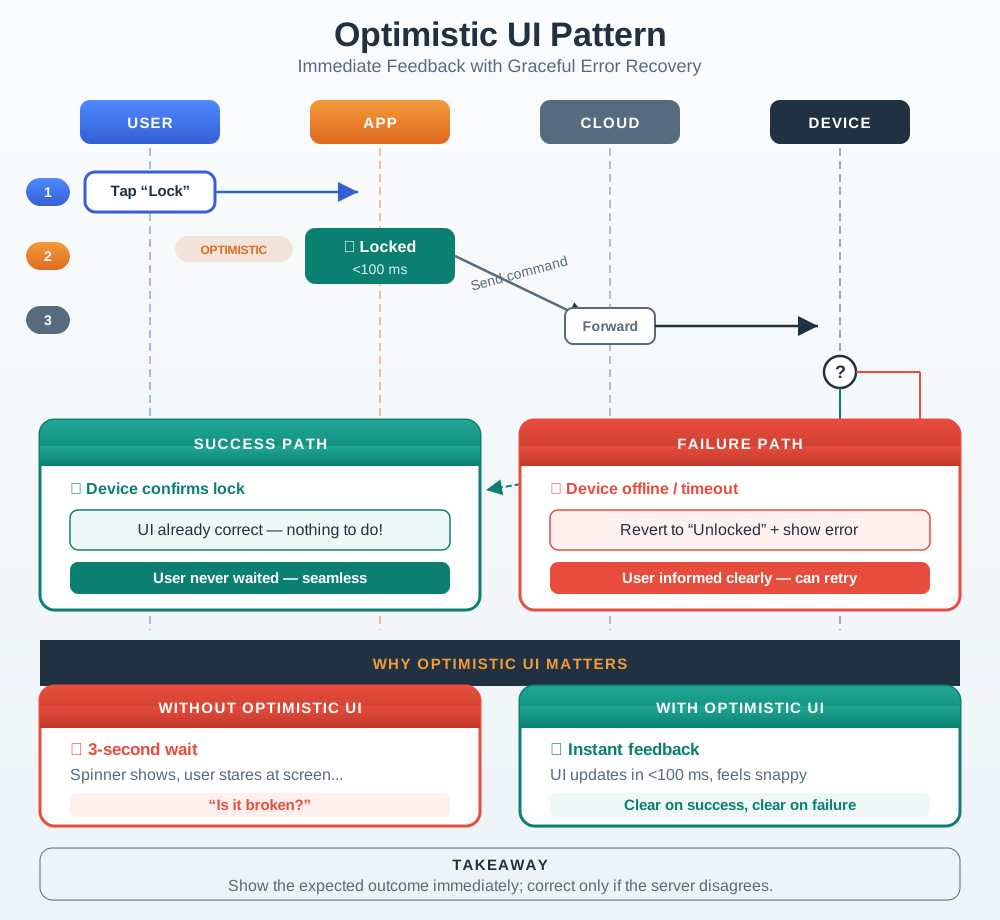
Implement Optimistic UI Updates: Provide immediate feedback while commands travel to devices
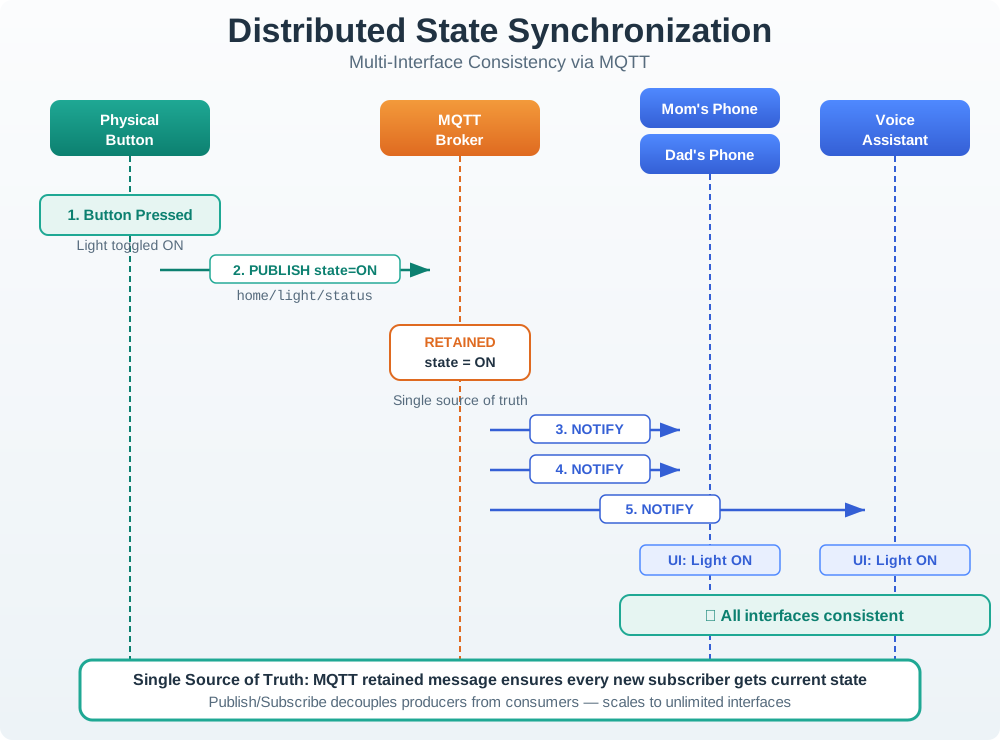
Design Distributed State Synchronization: Keep multiple interfaces synchronized with a single source of truth
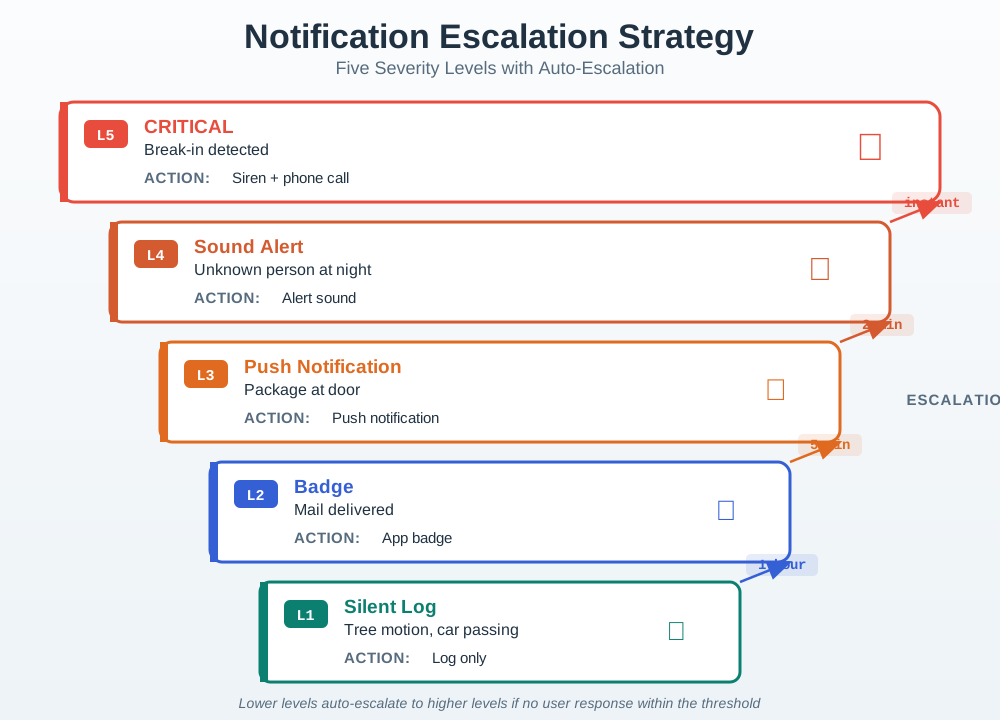
Apply Notification Escalation: Create intelligent alert systems that avoid fatigue while ensuring critical events get attention
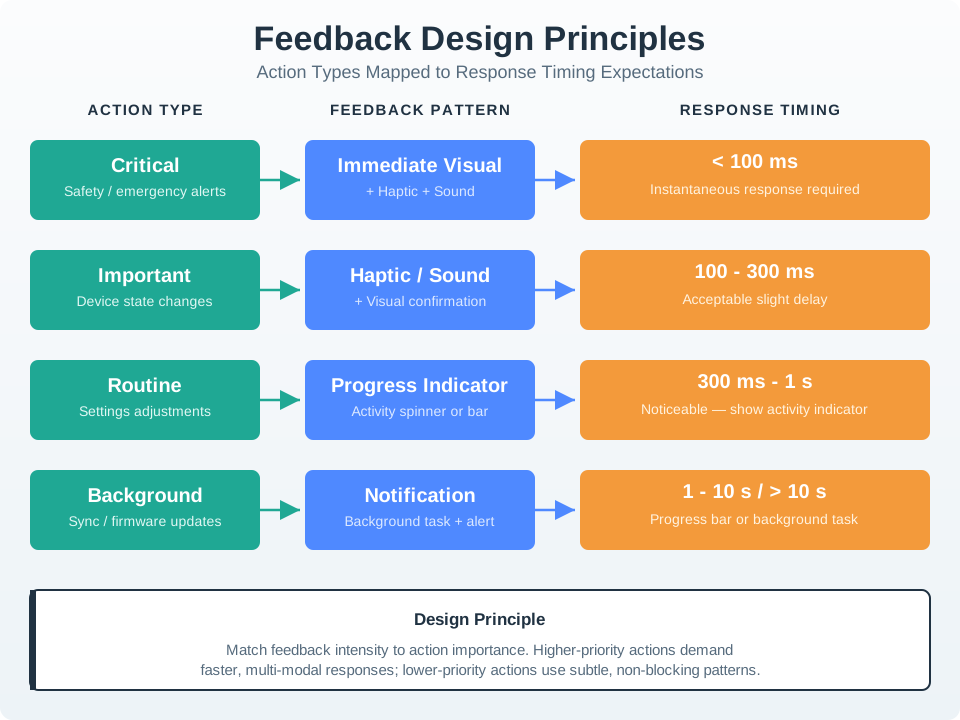
Match Feedback to Action Importance: Design appropriate response timing and modality for different action types
In 60 Seconds
IoT interaction patterns are reusable interface solutions to recurring problems: device list selection, alert acknowledgment, configuration wizards, and emergency stop flows. Using established patterns reduces user learning time (operators recognize patterns from other applications) and reduces development time (patterns have known accessibility requirements). The most critical pattern in IoT is the emergency action pattern – confirm-action-feedback for any command that affects physical devices, because there is no undo for a valve that has already opened.
4.2 Key Concepts
Master-Detail Pattern: An interface layout with a scrollable device list (master) and a detail panel showing the selected device’s full data – the dominant IoT fleet management pattern enabling simultaneous fleet overview and device inspection
Alert Acknowledgment Pattern: A structured interaction where operators must explicitly confirm they have seen and understood an alert before it is cleared, creating an audit trail of who responded to each IoT system event
Command Confirmation Pattern: A two-step interaction (select action, then confirm) required for irreversible or high-impact IoT actuator commands, preventing accidental activation from misclicks or touch-screen errors
Configuration Wizard: A multi-step guided interface for complex IoT device provisioning and configuration that breaks the process into sequential validated steps, reducing setup errors during initial device deployment
Dashboard Drill-Down: A navigation pattern from high-level fleet status to individual device detail to specific sensor reading history, each level triggered by clicking the previous level’s summary – enables investigation without losing context
Toast Notification: A transient overlay message showing the result of an IoT action (command sent, alert cleared, device added) without requiring acknowledgment and without blocking the main interface during normal operation
Infinite Scroll vs Pagination: Two strategies for navigating long IoT device lists: infinite scroll loads more devices as the user scrolls (better for browsing), pagination shows fixed-size pages with explicit navigation (better for returning to a specific position)
Contextual Action Menu: A right-click or long-press menu showing available actions for a specific IoT device in context (reboot, configure, view history, remove) rather than requiring navigation to a separate device management screen
4.3 MVU: Minimum Viable Understanding
Core concept: Network latency is unavoidable in IoT, so interfaces must provide immediate visual feedback (optimistic updates) while commands travel to devices, then reconcile with actual state on success or failure. Why it matters: Users tap buttons expecting instant response. A 3-second delay with no feedback leads to repeated taps, queued commands, and broken user trust. Key takeaway: Acknowledge every action within 100ms visually, show progress during processing, and confirm or gracefully revert based on actual device response.
For Beginners: Interface Design: Interaction Patterns
Accessibility in IoT means designing devices and interfaces that everyone can use, including people with visual, hearing, motor, or cognitive disabilities. Think of how curb cuts on sidewalks help wheelchair users, parents with strollers, and travelers with rolling suitcases. Accessible IoT design benefits everyone, not just those with specific needs.
How do users perceive different response delays? Adjust the delay to see which feedback category it falls into, and what design response is appropriate.
perceptionCategory = responseDelay <100?"Instantaneous": responseDelay <300?"Slight delay": responseDelay <1000?"Noticeable": responseDelay <10000?"Slow":"Broken"perceptionColor = responseDelay <100?"#16A085": responseDelay <300?"#3498DB": responseDelay <1000?"#E67E22": responseDelay <10000?"#9B59B6":"#E74C3C"designResponse = responseDelay <100?"Direct manipulation feel. No indicator needed.": responseDelay <300?"Acceptable for most actions. Subtle transition animation.": responseDelay <1000?"Show activity indicator (spinner or pulse animation).": responseDelay <10000?"Progress bar with status text. Keep user informed.":"Move to background task. Send notification on completion."importanceMatch = {const isGood = (actionImportance ==="Critical (lock/alarm)"&& responseDelay <300)|| (actionImportance ==="Important (temperature)"&& responseDelay <1000)|| (actionImportance ==="Routine (light toggle)"&& responseDelay <1000)|| (actionImportance ==="Background (firmware update)");return isGood;}barWidth =Math.min(100, (responseDelay /15000) *100)html`<div style="background: var(--bs-body-bg, #fff); border: 1px solid var(--bs-border-color, #dee2e6); border-radius: 8px; padding: 20px; font-family: Arial, sans-serif; color: var(--bs-body-color, #212529);"> <h4 style="margin-top:0; color: #2C3E50;">Perception Analysis</h4> <div style="margin-bottom: 16px;"> <div style="display: flex; justify-content: space-between; margin-bottom: 4px; font-size: 0.85em;"> <span>0ms</span> <span>100ms</span> <span>300ms</span> <span>1s</span> <span>10s</span> <span>15s</span> </div> <div style="position: relative; height: 28px; background: var(--bs-light, #f0f0f0); border-radius: 14px; overflow: hidden;"> <div style="position: absolute; left: 0; top: 0; height: 100%; width: ${barWidth}%; background: linear-gradient(90deg, #16A085, #3498DB, #E67E22, #9B59B6, #E74C3C); border-radius: 14px; transition: width 0.3s;"></div> <div style="position: absolute; left: ${barWidth}%; top: 50%; transform: translate(-50%, -50%); background: #2C3E50; color: white; padding: 2px 8px; border-radius: 10px; font-size: 0.8em; white-space: nowrap;">${responseDelay} ms</div> </div> </div> <table style="width: 100%; border-collapse: collapse; margin-bottom: 16px;"> <tr style="border-bottom: 1px solid var(--bs-border-color, #dee2e6);"> <td style="padding: 6px 8px; font-weight: 600;">User perception</td> <td style="padding: 6px 8px; text-align: right; color: ${perceptionColor}; font-weight: 700;">${perceptionCategory}</td> </tr> <tr style="border-bottom: 1px solid var(--bs-border-color, #dee2e6);"> <td style="padding: 6px 8px; font-weight: 600;">Design response</td> <td style="padding: 6px 8px; text-align: right;">${designResponse}</td> </tr> <tr style="border-bottom: 1px solid var(--bs-border-color, #dee2e6);"> <td style="padding: 6px 8px; font-weight: 600;">Matches action importance?</td> <td style="padding: 6px 8px; text-align: right; color: ${importanceMatch ?'#16A085':'#E74C3C'}; font-weight: 600;">${importanceMatch ?'Yes -- appropriate for this action type':'No -- response too slow for this action type'}</td> </tr> </table> <div style="padding: 10px 14px; border-radius: 6px; background: var(--bs-light, #f8f9fa); border-left: 4px solid ${perceptionColor};"> <strong>Design guideline:</strong> ${responseDelay <100?'This is the gold standard. Users feel they are directly manipulating the interface.': responseDelay <300?'Most users will not consciously notice this delay. Safe for non-critical actions.': responseDelay <1000?'Users notice the wait. Always show a visual indicator at this delay level.': responseDelay <10000?'This feels slow. Use progress indication and consider optimistic UI to mask the delay.':'Users assume the system is broken. Must use background processing with completion notification.'} </div></div>`
Putting Numbers to It
Optimistic UI Latency Budget: For a smart lock controlled via smartphone app through cloud (Wi-Fi -> Internet -> Cloud -> MQTT -> Gateway -> Zigbee -> Device), the end-to-end latency has multiple components. Let \(L_{\text{total}} = L_{\text{UI}} + L_{\text{network}} + L_{\text{actuator}}\), where \(L_{\text{UI}}\) is UI feedback time, \(L_{\text{network}}\) is round-trip network time, and \(L_{\text{actuator}}\) is physical actuation time. For acceptable UX, we target \(L_{\text{total}} < 2000 \text{ ms}\). Measured components: \(L_{\text{UI}} = 50 \text{ ms}\) (optimistic update), \(L_{\text{network}} = L_{\text{WiFi}} + L_{\text{Internet}} + L_{\text{Cloud}} + L_{\text{MQTT}} + L_{\text{Zigbee}} = 30 + 120 + 80 + 40 + 35 = 305 \text{ ms}\), and \(L_{\text{actuator}} = 800 \text{ ms}\) (motor throws deadbolt). Total: \(50 + 305 + 800 = 1155 \text{ ms}\), well under 2-second threshold. Without optimistic UI, perceived latency would be 1155 ms (feels slow). With optimistic UI showing “Locking…” at 50 ms, user perceives instant acknowledgment, then waits for physical confirmation (motor sound at 355 ms). The 50 ms feedback creates psychological perception of \(<100 \text{ ms}\) responsiveness despite 1155 ms actual latency.
4.7 Optimistic UI Latency Explorer
Use this interactive calculator to experiment with latency components across different IoT control paths:
4.8 Code Example: Optimistic UI with Error Recovery
The following JavaScript demonstrates an optimistic UI pattern for an IoT device control. The interface updates immediately while the command travels to the device:
/* Visual states for optimistic UI */.device-toggle.pending {opacity:0.7;position:relative;}.device-toggle.confirmed {border-color:#16A085;}.device-toggle.error {border-color:#E74C3C;animation:shake 0.3sease-in-out;}
Accessibility notes:aria-busy="true" tells screen readers a state change is in progress. aria-label updates to communicate current status. Error messages are announced via role="alert".
Why this design works for everyone: Screen readers announce “CO Level Critical” immediately via aria-live="assertive". Color-blind users see bold text and border patterns, not just red. Motor-impaired users get 44px touch targets. Cognitively stressed users get clear action buttons with explicit labels.
4.10 Worked Example: Latency Budget Analysis for a Smart Door Lock
Scenario: SafeHome Inc. is designing a smart door lock with four control interfaces: physical keypad (on-device), mobile app (cloud-routed), voice assistant (Alexa/Google), and NFC tag. Users expect the door to unlock in under 2 seconds from any interface. Design a latency budget that ensures this target.
Step 1: Map the End-to-End Latency Path for Each Interface
Interface
Path
Components in Chain
Physical keypad
Keypad -> MCU -> Motor
2 hops, all local
Mobile app
Phone -> Cloud API -> Device Hub -> Lock MCU -> Motor
4 hops, 1 internet round-trip
Voice assistant
Microphone -> Cloud STT -> Skill -> Cloud API -> Hub -> Lock -> Motor
6 hops, 2 internet round-trips
NFC tag
Phone NFC -> BLE -> Lock MCU -> Motor
3 hops, local wireless
Step 2: Measure Each Component’s Latency
Component
Typical (ms)
Worst Case (ms)
Notes
Physical keypad debounce + PIN verify
50
80
On-device computation
Motor actuation (deadbolt throw)
300
500
Mechanical, fixed
Phone BLE connection (established)
50
200
Varies with BLE state
Phone BLE connection (cold start)
800
2,000
BLE advertising discovery
Wi-Fi to cloud API (round-trip)
80
400
Depends on ISP, server location
Cloud API processing
50
200
Authentication + authorization
Cloud to device hub (MQTT)
30
150
Persistent connection
Hub to lock (Zigbee/Thread)
20
100
1-2 mesh hops
Voice STT processing
400
1,200
“Alexa, unlock front door”
Voice skill routing
100
300
AWS Lambda cold start
NFC tap + BLE handoff
150
400
NFC read + BLE command
Step 3: Calculate Total Latency Per Interface
Interface
Best Case
Typical
Worst Case
Meets 2s Target?
Physical keypad
350ms
400ms
580ms
Yes (large margin)
Mobile app (BLE direct)
400ms
550ms
900ms
Yes
Mobile app (cloud)
530ms
780ms
1,550ms
Yes (tight at worst)
Voice assistant
950ms
1,430ms
2,950ms
No (worst case fails)
NFC tag
500ms
650ms
1,100ms
Yes
Step 4: Fix the Voice Assistant Path
Voice control exceeds the 2-second budget at worst case. Mitigation options:
Mitigation
Latency Saved
Tradeoff
Pre-warm Lambda (keep-alive pings)
200ms (eliminates cold start)
$3/month AWS cost
Local voice processing (on-hub STT)
600ms (eliminates cloud STT round-trip)
Requires hub with NPU; lower accuracy
Optimistic motor start (begin unlocking at 80% STT confidence)
300ms
2% false-unlock risk
Combined: pre-warm + optimistic start
500ms
$3/month + 2% risk
With mitigations applied:
Interface
Worst Case (original)
Worst Case (mitigated)
Meets 2s?
Voice assistant
2,950ms
2,450ms
Still no
Voice + local STT
2,950ms
1,750ms
Yes
Decision: Require a hub with local STT capability for voice-controlled door locks. Cloud-only voice path cannot reliably meet the 2-second UX target.
Step 5: Design the Optimistic UI Timeline
For the mobile app (cloud path, typical 780ms):
t=0ms     User taps "Unlock" button
t=50ms    UI shows "Unlocking..." with animation (optimistic feedback)
t=80ms    BLE/cloud command dispatched
t=130ms   Cloud API receives, authenticates, authorizes
t=180ms   MQTT command sent to hub
t=210ms   Hub sends Zigbee command to lock
t=480ms   Motor begins moving (user hears click -- audio confirmation)
t=780ms   Motor completes, lock reports "unlocked"
t=830ms   UI updates to "Unlocked" (green checkmark)
Key Insight: The 50ms optimistic UI update at t=0 is what makes the experience feel instant. Without it, users perceive 780ms of silence as “broken.” With it, the perceived latency is 50ms (instant) followed by a reassuring progression. The physical click at 480ms provides audio confirmation before the UI even completes – multi-sensory feedback that builds trust.
Latency Budget Rule of Thumb: For safety-critical IoT controls (locks, alarms, medical devices), budget 2 seconds total. Allocate 50ms for UI feedback, 500ms for motor/actuator, leaving 1,450ms for the entire network + cloud + processing chain. If your network path exceeds 1,450ms at the 95th percentile, add a local fallback path.
Try It: Multi-Interface Latency Comparison
Compare end-to-end latency across different control interfaces for a smart door lock. Toggle interfaces on or off and adjust shared parameters to see which paths meet the 2-second UX target.
State Synchronization Message Overhead: In a smart home with 8 devices (4 thermostats, 2 smart plugs, 2 lights) and 3 interfaces (2 phones, 1 voice assistant), consider MQTT pub/sub state sync. Each device publishes state changes to topic home/devices/{id}/state. With QoS 1 (at-least-once delivery), each state change generates: 1 PUBLISH message (device to broker, approximately 150 bytes with JSON payload {"temp": 72, "mode": "heat", "fan": "auto"}), 1 PUBACK (broker to device, approximately 20 bytes), and \(N\) PUBLISH messages (broker to \(N=3\) subscribers, \(3 \times 150 = 450\) bytes), plus \(3\) PUBACK (subscribers to broker, \(3 \times 20 = 60\) bytes). Total per state change: \(150 + 20 + 450 + 60 = 680\) bytes. If each device updates state every 5 minutes (typical thermostat reporting interval), daily traffic is \(8 \text{ devices} \times \frac{1440 \text{ min}}{5 \text{ min}} \times 680 \text{ bytes} = 8 \times 288 \times 680 = 1,566,720 \text{ bytes} \approx 1.5 \text{ MB/day}\). Over cellular (LTE-M at $0.20/MB), annual cost is \(1.5 \times 365 \times 0.20 = \$109.50\) per home. For 10,000 homes, this is \(\$1,095,000/year\) just for state sync traffic – motivating local hub architectures with edge aggregation.
4.11 MQTT State Sync Cost Calculator
Estimate the bandwidth and cost of MQTT state synchronization for your IoT deployment:
The Problem: Toggle switches and buttons that don’t clearly show current state, leaving users guessing.
Real Example: A smart plug app has a toggle labeled “Power.” When the toggle is to the right, does that mean the power is ON, or that tapping will turn it ON?
The Fix:
Bad Design
Good Design
Toggle labeled “Power”
Status: “CURRENTLY ON” with button labeled “Turn Off”
Button labeled “Lock”
Status: “Unlocked” with button labeled “Lock Door”
Slider with no labels
“Brightness: 75%” with slider showing current value
Design Principle: Show state (what is true now) separately from controls (what you can do).
4.12.2 Mistake 2: No Feedback for Delayed Actions
The Problem: Commands sent to IoT devices take 1-5 seconds due to network latency, but UI provides no feedback, leading users to tap repeatedly.
Real Example: User taps “Lock Door” in app. Nothing happens visually for 3 seconds. User taps again, thinking it failed. Door locks, then unlocks.
The Fix: Implement optimistic UI updates with loading states:
One of the most common IoT UI mistakes is unclear state indication. Use this tool to evaluate whether a control design clearly communicates the current device state versus the available action.
Show code
viewof deviceType = Inputs.select( ["Smart Plug","Door Lock","Thermostat","Light Dimmer","Garage Door"], {value:"Smart Plug",label:"Device type"})viewof currentState = Inputs.radio(["On / Locked / Heating / Bright / Closed","Off / Unlocked / Cooling / Dim / Open"], {value:"On / Locked / Heating / Bright / Closed",label:"Current device state"})viewof showsCurrentState = Inputs.checkbox(["Label shows CURRENT state (e.g., 'Currently ON')"], {value: ["Label shows CURRENT state (e.g., 'Currently ON')"]})viewof showsAvailableAction = Inputs.checkbox(["Button shows AVAILABLE action (e.g., 'Turn Off')"], {value: ["Button shows AVAILABLE action (e.g., 'Turn Off')"]})viewof hasColorCoding = Inputs.checkbox(["Uses color to reinforce state"], {value: ["Uses color to reinforce state"]})viewof hasIconState = Inputs.checkbox(["Icon visually reflects state"], {value: []})viewof hasTextFallback = Inputs.checkbox(["Text label works without color (color-blind safe)"], {value: []})
Show code
stateMap = ({"Smart Plug": {on:"ON",off:"OFF",actionOn:"Turn Off",actionOff:"Turn On"},"Door Lock": {on:"Locked",off:"Unlocked",actionOn:"Unlock",actionOff:"Lock"},"Thermostat": {on:"Heating (72F)",off:"Cooling (68F)",actionOn:"Switch to Cool",actionOff:"Switch to Heat"},"Light Dimmer": {on:"On (75%)",off:"Off",actionOn:"Turn Off",actionOff:"Turn On"},"Garage Door": {on:"Closed",off:"Open",actionOn:"Open",actionOff:"Close"}})isFirstState = currentState ==="On / Locked / Heating / Bright / Closed"deviceInfo = stateMap[deviceType]currentLabel = isFirstState ? deviceInfo.on: deviceInfo.offactionLabel = isFirstState ? deviceInfo.actionOn: deviceInfo.actionOffclarityScore = {let score =0;if (showsCurrentState.length>0) score +=30;if (showsAvailableAction.length>0) score +=30;if (hasColorCoding.length>0) score +=15;if (hasIconState.length>0) score +=15;if (hasTextFallback.length>0) score +=10;return score;}clarityRating = clarityScore >=85?"Excellent": clarityScore >=60?"Good": clarityScore >=40?"Needs Improvement":"Poor"clarityColor = clarityScore >=85?"#16A085": clarityScore >=60?"#3498DB": clarityScore >=40?"#E67E22":"#E74C3C"html`<div style="background: var(--bs-body-bg, #fff); border: 1px solid var(--bs-border-color, #dee2e6); border-radius: 8px; padding: 20px; font-family: Arial, sans-serif; color: var(--bs-body-color, #212529);"> <h4 style="margin-top:0; color: #2C3E50;">State Clarity Evaluation: ${deviceType}</h4> <div style="display: flex; gap: 16px; margin-bottom: 16px; flex-wrap: wrap;"> <div style="flex: 1; min-width: 200px; padding: 16px; border-radius: 8px; border: 2px solid #E74C3C; background: rgba(231,76,60,0.05);"> <div style="font-size: 0.8em; color: #E74C3C; font-weight: 600; margin-bottom: 8px;">BAD DESIGN</div> <div style="text-align: center; padding: 12px; background: var(--bs-light, #eee); border-radius: 6px;"> <div style="font-size: 0.9em; color: #7F8C8D;">Toggle: "${deviceType ==="Smart Plug"?"Power": deviceType ==="Door Lock"?"Lock": deviceType ==="Thermostat"?"Mode": deviceType ==="Light Dimmer"?"Light":"Door"}"</div> <div style="margin-top: 4px; font-size: 0.8em; color: #999;">Which state is active? What does tapping do?</div> </div> </div> <div style="flex: 1; min-width: 200px; padding: 16px; border-radius: 8px; border: 2px solid #16A085; background: rgba(22,160,133,0.05);"> <div style="font-size: 0.8em; color: #16A085; font-weight: 600; margin-bottom: 8px;">GOOD DESIGN</div> <div style="text-align: center; padding: 12px; background: var(--bs-light, #eee); border-radius: 6px;"> <div style="font-size: 0.9em; font-weight: 600;">Status: ${currentLabel}</div> <div style="margin-top: 6px; padding: 6px 16px; background: #3498DB; color: white; border-radius: 4px; display: inline-block; font-size: 0.85em;">${actionLabel}</div> </div> </div> </div> <div style="margin-bottom: 16px;"> <div style="display: flex; justify-content: space-between; margin-bottom: 4px;"> <span style="font-weight: 600;">Clarity Score</span> <span style="font-weight: 700; color: ${clarityColor};">${clarityScore}/100 -- ${clarityRating}</span> </div> <div style="height: 12px; background: var(--bs-light, #f0f0f0); border-radius: 6px; overflow: hidden;"> <div style="height: 100%; width: ${clarityScore}%; background: ${clarityColor}; border-radius: 6px; transition: width 0.3s;"></div> </div> </div> <div style="padding: 10px 14px; border-radius: 6px; background: var(--bs-light, #f8f9fa); border-left: 4px solid ${clarityColor};"> <strong>Recommendation:</strong> ${showsCurrentState.length===0&& showsAvailableAction.length===0?'Critical: Add both a current state label AND an action button with clear verb. Users should never guess what tapping a control will do.': showsCurrentState.length===0?'Add a visible label showing the CURRENT device state (e.g., "Currently '+ currentLabel +'").': showsAvailableAction.length===0?'Add a button label with a clear verb describing the AVAILABLE action (e.g., "'+ actionLabel +'").': hasTextFallback.length===0?'Good design overall. Add text labels that work without color for color-blind accessibility (WCAG 1.4.1).':'Excellent state clarity. Users can instantly understand device status and available actions.'} </div></div>`
4.13 Knowledge Check
Quiz: Interaction Patterns
Common Pitfalls
1. Using the same interaction pattern for all IoT command types
A non-destructive action (refresh device data) needs no confirmation; a reversible action (change alert threshold) needs one confirmation; an irreversible action (factory reset device, open emergency valve) needs two confirmations plus reason logging. Applying the same confirmation dialog to all actions causes confirmation fatigue for frequent safe operations, and insufficient caution for rare dangerous operations.
2. Implementing patterns without keyboard equivalents
Interaction patterns implemented using drag-and-drop, right-click menus, or hover-triggered controls are inaccessible to keyboard-only users and screen reader users. Every pattern must have a keyboard equivalent: drag-and-drop needs a keyboard move operation, context menus need a keyboard shortcut trigger, and hover effects need focus-visible equivalents. Test every pattern with Tab navigation before release.
3. Breaking established IoT platform conventions without reason
Operators who have used Grafana, ThingsBoard, or SCADA systems have mental models for how dashboards should behave. Introducing novel interaction patterns (e.g., swipe-left to acknowledge alerts on desktop, or double-click to configure when single-click is industry standard) requires operators to relearn behaviors and increases error rates. Only deviate from established patterns when there is a specific usability benefit that outweighs the relearning cost.
Label the Diagram
💻 Code Challenge
Order the Steps
Match the Concepts
4.14 Summary
This chapter covered essential interaction patterns for IoT interfaces:
Key Takeaways:
Optimistic UI: Provide immediate feedback (< 100ms), show progress during network operations, reconcile on success/failure
State Synchronization: Device state is authoritative, all interfaces subscribe to updates, last-write-wins for conflicts
Notification Escalation: Five severity levels from silent logging to emergency alerts, with automatic escalation on non-response
Feedback Matching: Critical actions need immediate + haptic, background tasks need completion notifications
For Kids: Meet the Sensor Squad!
Interaction patterns are the secret rules that make smart devices feel smooth and responsive!
4.14.1 The Sensor Squad Adventure: The Impatient Button Press
Max the Microcontroller built a smart light switch for the living room. You pressed the button in the app, and… nothing happened for 3 seconds. Then the light turned on.
“Is it broken?” asked Sammy the Sensor, pressing the button again. Now the light turned on, then off, then on again! “I pressed it three times because I thought it wasn’t working!” groaned Sammy.
Lila the LED had an idea. “What if the button IMMEDIATELY shows the light is on – even before the message reaches the actual light? That way, Sammy sees instant feedback!”
They called this trick Optimistic UI – the app shows “light is ON” right away and trusts that the message will get through. If something goes wrong, it changes back and says “Oops, the light didn’t respond. Try again?”
Next problem: Dad changed the thermostat using the wall dial, but Mom’s phone app still showed the old temperature! “Why does my app say 70 when Dad just set it to 72?” asked Mom.
“We need STATE SYNC!” explained Bella the Battery. “When ANYONE changes something – the wall dial, Mom’s phone, Dad’s phone, or even a voice command – ALL of them should update at the same time. Like a group text message for devices!”
Finally, the security camera was sending 50 notifications a day: “Motion detected!” for every squirrel, leaf, and passing car. Everyone turned off notifications… and missed a real delivery!
“We need NOTIFICATION ESCALATION!” said Sammy. “Squirrels get a silent note in the log. Delivery trucks get a quiet badge on the app. But a person at the door at midnight? THAT gets a LOUD alert!”
4.14.2 Key Words for Kids
Word
What It Means
Optimistic UI
Showing the result instantly (before it actually happens) so the app feels super fast
State Sync
Making sure ALL devices show the same information at the same time
Alert Fatigue
When you get SO many notifications that you ignore ALL of them, even important ones
Notification Escalation
Using quiet alerts for small things and loud alerts for important things
Incremental Examples: From Simple to Complex
4.14.3 Example 1: Basic Toggle (No Optimistic UI)
// BAD: User sees 3-second delayasyncfunctiontoggleLight(deviceId) {const response =awaitfetch(`/api/devices/${deviceId}/toggle`);updateUI(response.state);// 3 seconds later...}
4.14.4 Example 2: Optimistic UI Without Error Handling
// BETTER: Instant feedback, but broken on errorsfunctiontoggleLight(deviceId) {updateUI('on');// Optimisticfetch(`/api/devices/${deviceId}/toggle`);// Fire and forget}
4.14.5 Example 3: Optimistic UI With Proper Reconciliation
WCAG 2.1 Guideline 2.2.1 - Timing Adjustable (users must be able to turn off/adjust time limits)
ISO 9241-110 - Dialogue principles (feedback, self-descriptiveness)
Try It Yourself
Exercise 1: Implement Optimistic Light Control
Build a simple IoT light controller with optimistic UI:
// Start with this basic structureclass LightController {constructor(deviceId) {this.deviceId= deviceId;this.state='unknown'; }asynctoggle() {// Exercise: Implement optimistic UI pattern// 1. Store previous state// 2. Update UI immediately to 'pending'// 3. Send command to device// 4. On success: confirm new state// 5. On failure: revert + show error with retry }}
Test the 100ms threshold: 1. Create button with delays: 0ms, 50ms, 100ms, 150ms, 300ms, 1000ms 2. Have 5 users tap each button 3. Ask: “Did it feel instant or delayed?” 4. Observe: Most users notice >150ms delay, feel frustration >300ms
Match: Interaction Pattern Concepts
Order: Implementing Optimistic UI for an IoT Command