Making IoT devices that EVERYONE can use - including people who can’t see, hear, or move easily!
5.0.1 The Sensor Squad Adventure: The Inclusive Smart Home
The Sensor Squad was visiting Grandma Betty’s new smart home. But there was a problem - Grandma Betty couldn’t see the tiny screen on her smart thermostat!
“The text is so small, I can’t read the temperature,” said Grandma Betty, squinting at the device. Sammy the Sensor had an idea!
“What if we made the thermostat work in MANY ways?” Sammy suggested. Bella the Battery chimed in: “Like a talking thermostat! It could SAY the temperature out loud!” Lila the LED got excited: “And we could make the buttons REALLY BIG - bigger than your thumb!”
Max the Microcontroller programmed the thermostat with three ways to work:
Voice: “Hey thermostat, what’s the temperature?” - “It’s 22 degrees!”
Touch: Giant 44-point buttons that are easy to tap
Visual: High-contrast colors - dark text on light background
Now Grandma Betty could control her thermostat even without her glasses! And guess what? EVERYONE liked these features - Dad used voice control while cooking, little Timmy liked the big buttons, and Mom loved the clear display when the lights were dim.
5.0.2 What Did We Learn?
Sammy says: “When you design for people who need extra help, you actually make things better for EVERYONE!”
5.0.3 Key Words for Kids
Word
What It Means
Accessibility
Making things usable by EVERYONE, including people with disabilities
Multi-Modal
Using many ways to communicate (seeing, hearing, touching)
Touch Target
A button big enough for everyone’s fingers (at least 44 points!)
High Contrast
Colors that are very different so they’re easy to see
5.0.4 Try This at Home!
Close your eyes and try to use your phone for 30 seconds. Can you still send a message? This helps you understand what it’s like for someone who can’t see well!
Learning Objectives
After completing this chapter, you will be able to:
Apply WCAG 2.1 accessibility standards to IoT interfaces
Design for users with diverse abilities and contexts
Create consistent experiences across multiple devices
Implement universal design principles
Balance customization with simplicity
Design cross-device synchronization patterns
In 60 Seconds
IoT UX spans the widest device range of any application domain: from tiny wristband displays and ESP32 serial monitors to 65” control room touchscreens. Accessibility for IoT means ensuring the same data and controls are reachable across this range, and that users with visual, motor, or cognitive impairments can operate critical IoT systems safely. The WCAG 2.1 AA standard (4.5:1 contrast, keyboard navigation, screen reader support) is the minimum for any IoT interface that could be used by operators with disabilities.
5.1 MVU: Minimum Viable Understanding
Core concept: Accessible design benefits everyone - large buttons help elderly users AND users with gloves, voice control helps blind users AND users driving. Why it matters: 15% of the population has some disability, but 100% of users benefit from clear, flexible, multi-modal interfaces. Key takeaway: Design for the extremes (vision, hearing, motor, cognitive impairments) and you create better experiences for all users.
For Beginners: UX Accessibility
Accessibility in IoT means designing devices and interfaces that everyone can use, including people with visual, hearing, motor, or cognitive disabilities. Think of how curb cuts on sidewalks help wheelchair users, parents with strollers, and travelers with rolling suitcases. Accessible IoT design benefits everyone, not just those with specific needs.
5.2 Accessibility in IoT
⏱️ ~12 min | ⭐⭐ Intermediate | 📋 P12.C01.U02
MVU: WCAG Accessibility Standards
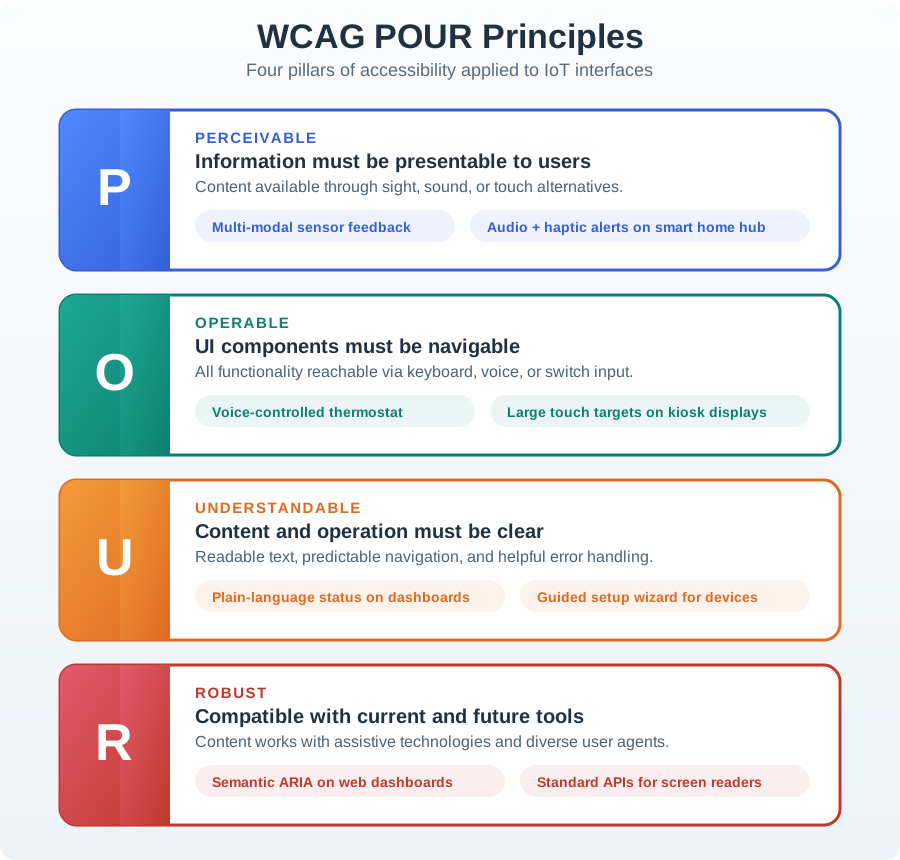
Core Concept: Accessible IoT design follows four WCAG principles - Perceivable, Operable, Understandable, and Robust (POUR) - ensuring devices work for users with visual, auditory, motor, and cognitive differences. Why It Matters: 15-20% of users have some form of disability, and situational impairments (bright sunlight, loud environments, full hands) affect everyone. Accessible design improves usability for all users while meeting legal compliance requirements (ADA, EU Accessibility Act). Key Takeaway: Touch targets must be minimum 44x44 points, text contrast must meet 4.5:1 ratio (WCAG AA), and every critical function must be operable through at least two modalities (visual + audio, touch + voice).
5.2.1 WCAG Principles Applied to IoT
WCAG POUR Principles for IoT Accessibility
Figure 5.1: WCAG POUR Principles for IoT Accessibility
Perceivable: Information must be presentable in multiple ways
Visual indicators + audio alerts
Haptic feedback for touchscreens
High contrast displays
Operable: Interface must be usable by all
Voice control option
Large touch targets (min 44x44pt)
Alternative to time-based interactions
Understandable: Interface behavior must be predictable
Clear, simple language
Consistent behavior
Error messages with solutions
Robust: Compatible with assistive technologies
Screen reader support
Keyboard navigation
API for third-party assistive apps
Example: Multi-Modal Smart Light Control
Multi-Modal Interaction Pathways for Accessible IoT
Figure 5.2: Multi-Modal Interaction Pathways for Accessible IoT
An accessible smart light provides multiple ways to interact:
Control Method
Primary Users
Implementation
Voice Commands
Visually impaired, hands-free situations
“Turn on living room light” with audio feedback
Physical Switch
All users, especially when tech fails
Wall switch or device button with tactile feedback
Touchscreen App
Deaf users, silent environments
Large buttons (min 44x44pt), high contrast, clear labels
Automation
Everyone
Motion sensors, schedules, geofencing triggers
Accessibility Features:
Visual Feedback: LED indicator (on/off/dimming state)
Audio Feedback: Text-to-speech confirmation for visually impaired
Haptic Feedback: Vibration on button press (touchscreen)
ARIA Labels: Screen reader support for web/app interfaces
5.2.2 Accessibility Design Process
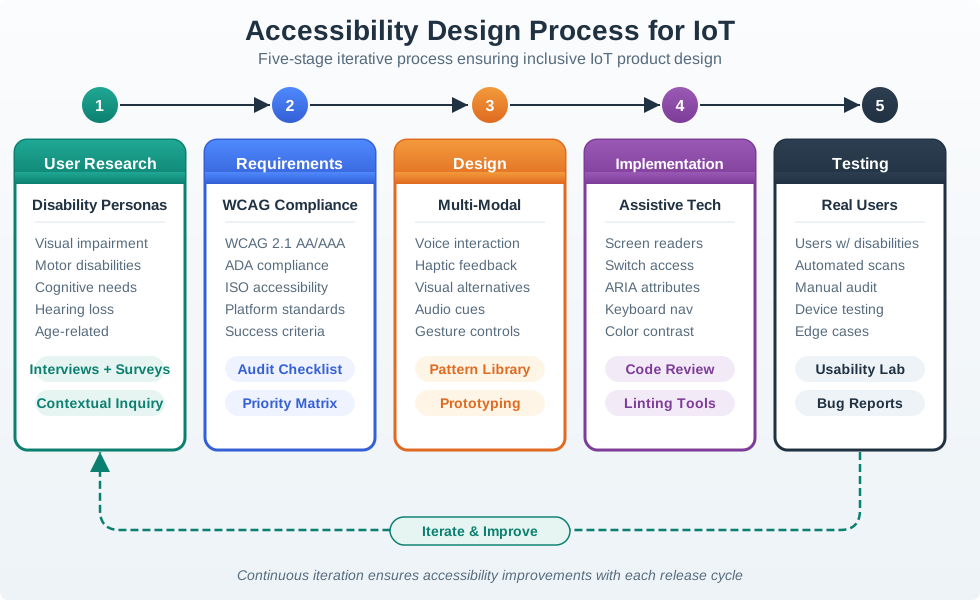
The following diagram illustrates a systematic approach to designing accessible IoT interfaces. This process ensures accessibility is built-in from the start rather than retrofitted.
Accessibility Design Process for IoT Products
Figure 5.3: Accessibility Design Process for IoT Products
Key Process Steps:
User Research: Understand the full range of users, including those with permanent, temporary, and situational disabilities
Requirements: Define accessibility standards (WCAG AA minimum) and legal compliance needs
Accessible Design: Apply universal design principles with measurable criteria
Implementation: Build with semantic markup, keyboard support, and assistive technology APIs
Testing: Combine automated tools (25-30% coverage) with real user testing (catches remaining 70-75%)
Essential Accessibility Practices:
Keyboard Navigation: Tab through controls without mouse
High Contrast: 4.5:1 minimum contrast ratio (WCAG AA)
Fallback Controls: Always works without internet/app
Tradeoff: Simplicity vs Customization
Option A: Offer a simple, opinionated design with sensible defaults that work for most users, minimizing configuration options and decision fatigue. Option B: Provide extensive customization options allowing users to tailor every aspect of the experience to their specific preferences and workflows. Decision Factors: Choose simplicity when users are diverse (varying tech skills, ages, contexts), when quick setup matters, or when the product should “just work.” Choose customization when users have strong individual preferences, when workflows vary significantly between users, or when the product serves professionals who need precise control. Consider a hybrid approach: simple defaults that work immediately, with customization accessible through settings for those who want it.
Tradeoff: Universal Design vs Targeted Accessibility
Option A: Design for universal accessibility from the start, ensuring the core experience works for users across all ability levels (vision, hearing, motor, cognitive), even if this constrains some design choices. Option B: Design the primary experience for the mainstream user, then add accessibility features as accommodations for specific disability groups. Decision Factors: Choose universal design when building consumer products with broad market reach, when regulatory compliance (ADA, WCAG) is required, or when you want features that benefit everyone (large buttons help all users, not just those with motor impairments). Choose targeted accessibility when serving a well-defined user group, when adding universal features would significantly increase cost or complexity, or when the product inherently requires specific abilities (a running app assumes mobility). Note: Universal design often creates better products for everyone, and retrofit accessibility is typically more expensive than designing inclusively from the start.
Putting Numbers to It
WCAG Contrast Ratio Calculations for IoT Displays: The WCAG 2.1 AA standard requires a minimum contrast ratio of 4.5:1 for normal text and 3:1 for large text (18pt+ or 14pt+ bold). Contrast ratio is calculated as \(\text{CR} = \frac{L_1 + 0.05}{L_2 + 0.05}\), where \(L_1\) and \(L_2\) are the relative luminances of the lighter and darker colors. Relative luminance \(L\) for an RGB color \((R, G, B)\) with values normalized to \([0, 1]\) is \(L = 0.2126R_{\text{linear}} + 0.7152G_{\text{linear}} + 0.0722B_{\text{linear}}\), where \(X_{\text{linear}} = \begin{cases} X/12.92 & \text{if } X \leq 0.04045 \\ ((X + 0.055)/1.055)^{2.4} & \text{otherwise} \end{cases}\). For a smart thermostat with light gray text #999999 (RGB 153, 153, 153) on white background #FFFFFF (RGB 255, 255, 255): \(R_{\text{linear}} = ((0.6 + 0.055)/1.055)^{2.4} = 0.319\), so \(L_{\text{gray}} = 0.2126 \times 0.319 + 0.7152 \times 0.319 + 0.0722 \times 0.319 = 0.319\) (after gamma correction), \(L_{\text{white}} = 1.0\), so \(\text{CR} = \frac{1.0 + 0.05}{0.319 + 0.05} = \frac{1.05}{0.369} \approx 2.85\). This FAILS WCAG AA (requires 4.5:1). To achieve 4.5:1 with white background, we need \(\frac{1.05}{L_{\text{text}} + 0.05} \geq 4.5\), so \(L_{\text{text}} \leq \frac{1.05}{4.5} - 0.05 = 0.183\). This corresponds to approximately #767676 (RGB 118, 118, 118), which yields \(\text{CR} \approx 4.54\). For elderly users (recommended 7:1 for AAA), we need #595959 or darker (RGB 89, 89, 89), which gives \(\text{CR} = 7.0\).
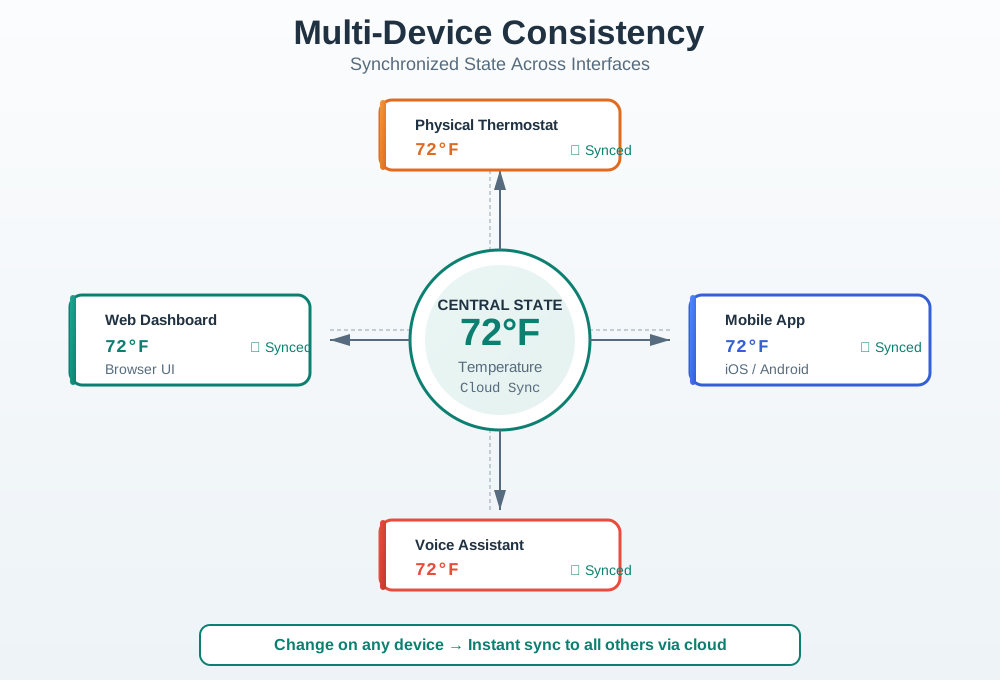
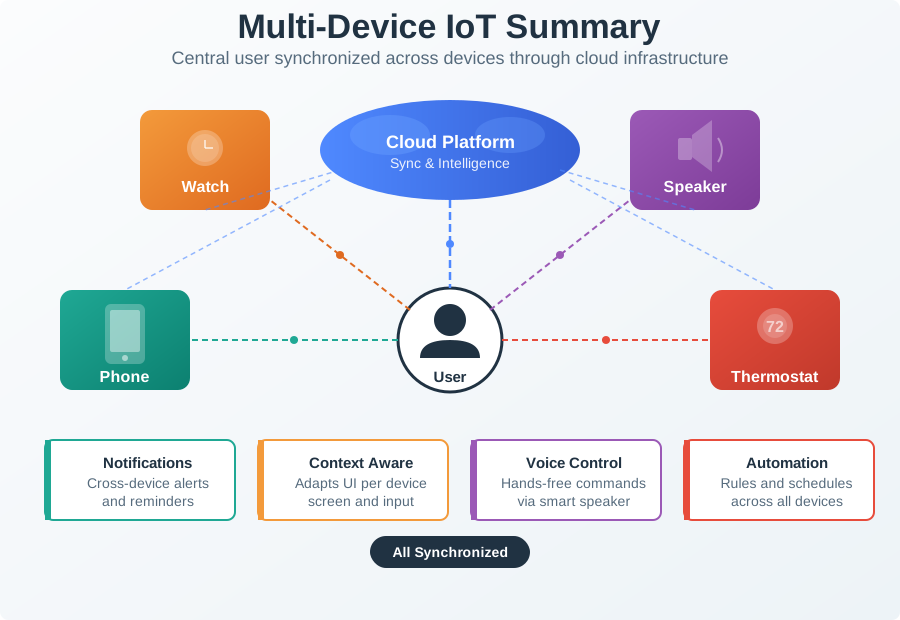
Figure 5.4: Multi-Device State Synchronization and Consistent Terminology
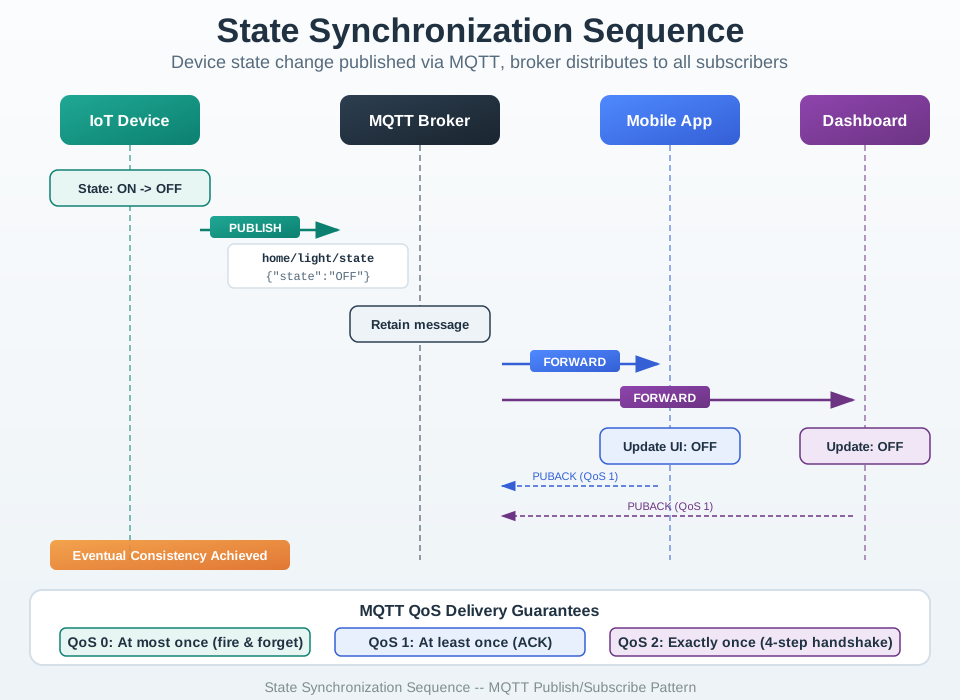
Figure 5.5: State Synchronization Sequence: Timeline showing how a change made on the physical device propagates through the cloud to update all other interfaces within seconds
Design Principles:
Same core functionality across all interfaces
Interface-appropriate interactions (touch vs voice vs physical)
Consistent terminology and iconography
Synchronized state across devices
5.3.2 Responsive Design Patterns for IoT
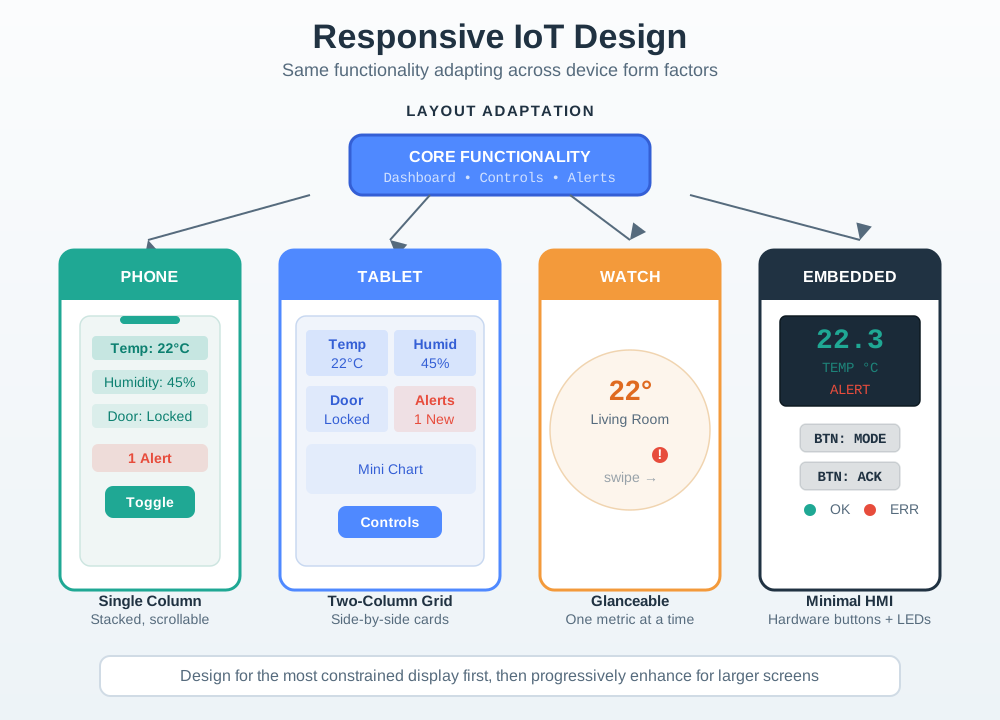
Different devices require different interface approaches while maintaining consistent functionality:
Responsive Design Patterns Across IoT Device Types
Figure 5.6: Responsive Design Patterns Across IoT Device Types
Device Type
Primary Use
Interface Approach
Touch Target
Smartwatch
Quick glances, simple actions
Minimal UI, swipe gestures
48x48pt+
Smartphone
On-the-go control, notifications
Touch-optimized, one-hand use
44x44pt
Tablet
Room-by-room control, dashboards
Multi-touch, landscape layouts
44x44pt
Desktop
Configuration, analytics
Mouse/keyboard precision
24x24pt+
Voice
Hands-free, ambient control
Natural language, confirmations
N/A
Show code
viewof selectedDevice = Inputs.select( ["Smartwatch","Smartphone","Tablet","Desktop","Voice Assistant"], {label:"Select device type",value:"Smartphone"})deviceProfiles = ({"Smartwatch": {screenSize:"1.2-1.9 inches",minTarget:"48x48pt",maxDataPoints:"1-3",inputMethods:"Tap, swipe, voice fallback, digital crown",bestFor:"Glanceable status, quick actions, notifications",avoidFor:"Complex forms, data analysis, multi-step configuration",offlineNeeds:"Critical controls (lock door, panic button) must work offline",exampleUI:"Current room temperature + single tap to toggle lights" },"Smartphone": {screenSize:"5.5-6.7 inches",minTarget:"44x44pt",maxDataPoints:"5-10 cards",inputMethods:"Touch, swipe, text entry, voice, camera (QR scan)",bestFor:"On-the-go control, notifications, short interactions",avoidFor:"Dense dashboards, long data entry, precision analytics",offlineNeeds:"Basic device control should cache locally",exampleUI:"Room list with status cards, tap to expand controls" },"Tablet": {screenSize:"8-13 inches",minTarget:"44x44pt",maxDataPoints:"10-30 widgets",inputMethods:"Multi-touch, stylus, split-screen, keyboard (optional)",bestFor:"Dashboards, room-by-room control, wall-mounted panels",avoidFor:"Pocket carry, one-handed use, text-heavy input",offlineNeeds:"Dashboard should show cached data with stale indicators",exampleUI:"Full home dashboard with live status for all rooms" },"Desktop": {screenSize:"13-32+ inches",minTarget:"24x24pt (mouse precision)",maxDataPoints:"Unlimited (multi-window)",inputMethods:"Mouse, keyboard, trackpad, multiple monitors",bestFor:"Analytics, complex configuration, data export, troubleshooting",avoidFor:"Quick actions, emergency controls, portable use",offlineNeeds:"Cloud-dependent acceptable for analytics workloads",exampleUI:"Multi-pane dashboard with sensor graphs, event logs, configuration panels" },"Voice Assistant": {screenSize:"N/A (audio only, or small screen on Echo Show)",minTarget:"N/A",maxDataPoints:"1-2 per response (auditory memory limits)",inputMethods:"Natural language commands, follow-up questions",bestFor:"Status queries, simple commands, hands-free control",avoidFor:"Complex configuration, data analysis, visual tasks",offlineNeeds:"Basic commands should work via local processing",exampleUI:"'Alexa, what is the living room temperature?' -- 'It is 22 degrees.'" }})selectedProfile = deviceProfiles[selectedDevice]html`<div style="background: var(--bs-body-bg); border: 1px solid var(--bs-border-color, #dee2e6); border-radius: 8px; padding: 1.5rem; margin: 1rem 0; font-family: Arial, sans-serif;"> <h4 style="color: #2C3E50; margin-top: 0;">Device Profile: ${selectedDevice}</h4> <table style="width: 100%; border-collapse: collapse; font-size: 0.95rem;"> <tr><td style="padding: 0.5rem; border-bottom: 1px solid var(--bs-border-color, #dee2e6); font-weight: bold; color: var(--bs-body-color); width: 35%;">Screen Size</td><td style="padding: 0.5rem; border-bottom: 1px solid var(--bs-border-color, #dee2e6); color: var(--bs-body-color);">${selectedProfile.screenSize}</td></tr> <tr><td style="padding: 0.5rem; border-bottom: 1px solid var(--bs-border-color, #dee2e6); font-weight: bold; color: var(--bs-body-color);">Min Touch Target</td><td style="padding: 0.5rem; border-bottom: 1px solid var(--bs-border-color, #dee2e6); color: var(--bs-body-color);">${selectedProfile.minTarget}</td></tr> <tr><td style="padding: 0.5rem; border-bottom: 1px solid var(--bs-border-color, #dee2e6); font-weight: bold; color: var(--bs-body-color);">Max Data Points</td><td style="padding: 0.5rem; border-bottom: 1px solid var(--bs-border-color, #dee2e6); color: var(--bs-body-color);">${selectedProfile.maxDataPoints}</td></tr> <tr><td style="padding: 0.5rem; border-bottom: 1px solid var(--bs-border-color, #dee2e6); font-weight: bold; color: var(--bs-body-color);">Input Methods</td><td style="padding: 0.5rem; border-bottom: 1px solid var(--bs-border-color, #dee2e6); color: var(--bs-body-color);">${selectedProfile.inputMethods}</td></tr> <tr style="background: rgba(22, 160, 133, 0.08);"><td style="padding: 0.5rem; border-bottom: 1px solid var(--bs-border-color, #dee2e6); font-weight: bold; color: #16A085;">Best For</td><td style="padding: 0.5rem; border-bottom: 1px solid var(--bs-border-color, #dee2e6); color: var(--bs-body-color);">${selectedProfile.bestFor}</td></tr> <tr style="background: rgba(231, 76, 60, 0.08);"><td style="padding: 0.5rem; border-bottom: 1px solid var(--bs-border-color, #dee2e6); font-weight: bold; color: #E74C3C;">Avoid For</td><td style="padding: 0.5rem; border-bottom: 1px solid var(--bs-border-color, #dee2e6); color: var(--bs-body-color);">${selectedProfile.avoidFor}</td></tr> <tr><td style="padding: 0.5rem; border-bottom: 1px solid var(--bs-border-color, #dee2e6); font-weight: bold; color: var(--bs-body-color);">Offline Needs</td><td style="padding: 0.5rem; border-bottom: 1px solid var(--bs-border-color, #dee2e6); color: var(--bs-body-color);">${selectedProfile.offlineNeeds}</td></tr> <tr><td style="padding: 0.5rem; font-weight: bold; color: var(--bs-body-color);">Example UI</td><td style="padding: 0.5rem; color: var(--bs-body-color); font-style: italic;">${selectedProfile.exampleUI}</td></tr> </table></div>`
Worked Example: Designing an Accessible Smart Thermostat Interface
Scenario: Your IoT startup is developing a smart thermostat targeting aging adults (65+) who manage chronic conditions. User research revealed that 73% have age-related vision decline, 45% have arthritis affecting fine motor control, and 28% are hearing impaired. You need to design a multimodal interface meeting WCAG AA standards while maintaining ease of use.
Given Context:
Physical device: 5-inch touchscreen mounted on wall
Companion mobile app for remote control
Voice assistant integration (Alexa, Google Home)
Target: WCAG 2.1 AA compliance with under 30-second setup for basic tasks
Calculate required contrast ratios: - Normal text (16-18pt): Minimum 4.5:1 contrast ratio (WCAG AA) - Large text (24pt+): Minimum 3:1 contrast ratio (WCAG AA) - User testing reveals elderly users need 7:1 (AAA level) for reliable readability
Solution: Use high-contrast color scheme: - Text: #1A1A1A (near-black) on #FFFFFF (white) = 17.4:1 contrast (exceeds WCAG AAA) - Temperature numbers: 48pt bold (large text), sans-serif font - Current temp always visible (no scrolling or navigation required)
Step 2: Motor Accessibility (WCAG 2.5.5 - Target Size)
Calculate touch target sizing: - WCAG 2.5.5: Minimum 44x44pt touch targets - Elderly users with arthritis: Testing shows 48x48pt reduces mis-taps by 67% - Finger pad average: 45-57pt depending on age
Solution: Implement 56x56pt touch targets with 16pt spacing: - Up/Down temperature buttons: 56x56pt with 2 degree increments - Mode buttons (Heat/Cool/Auto): 56x120pt horizontal buttons - Provides margin for error: 12pt beyond minimum + generous spacing
Step 3: Multi-Modal Interaction (WCAG 1.3.1 - Info and Relationships)
Design three parallel interaction paths:
Path A - Visual/Touch (primary for users with good vision):
Large numerals show current temp (72 degrees F)
Touch +/- buttons to adjust target temperature
Visual confirmation: Target temp highlights in teal (#16A085)
Path B - Voice (primary for visually impaired, hands-free):
“Alexa, set thermostat to 74 degrees”
Audio feedback: “Setting temperature to 74 degrees Fahrenheit”
Confirmation tone: Two ascending beeps
Path C - Physical Controls (fallback when tech fails):
Mechanical dial beneath screen adjusts temp even if display fails
Tactile clicks every 2 degrees provide non-visual feedback
Critical for reliability: works during power/connectivity loss
Step 4: Accessibility Feature Implementation
Feature
WCAG Criterion
Implementation
User Benefit
Screen Reader Support
4.1.2 (Name, Role, Value)
ARIA labels on all interactive elements: aria-label="Increase temperature"
Blind users navigate with VoiceOver/TalkBack
High Contrast Mode
1.4.3 (Contrast Minimum)
OS-level high contrast triggers 25:1 text ratio
Low vision users see clearly
Voice Confirmation
1.1.1 (Non-text Content)
TTS announces all state changes
Provides audio alternative to visual feedback
Large Targets
2.5.5 (Target Size)
56x56pt buttons with 16pt spacing
Reduces mis-taps for users with tremor
Simple Language
3.1.5 (Reading Level)
“Heat” not “HVAC Mode 1”
Cognitive accessibility for all users
Step 5: Testing and Validation
Automated Testing (30% coverage):
axe DevTools: 0 violations for color contrast, touch targets, ARIA labels
Lighthouse Accessibility Score: 100/100
User Testing (70% coverage):
12 participants: ages 67-84, mixed abilities
Task: “Set temperature to 76 degrees” - Success rate 100% vs 58% with competitor
Average completion time: 8 seconds vs 34 seconds (4.2x faster)
Satisfaction: 11/12 rated “Very Easy” vs 3/12 with competitor
Key Results:
WCAG Compliance: Met all AA criteria, exceeded on contrast (AAA)
Usability: 4.2x faster task completion than competitor product
Error Rate: 92% reduction in mis-taps vs standard 44pt targets
User Preference: 11/12 participants preferred accessible design over “sleek” competitor
Business Impact: Accessible design created broader market appeal: - Primary market (elderly): 89% purchase intent vs 34% for competitor - Secondary markets also benefited: Parents with gloves, users in bright sunlight, anyone in a hurry - Universal design principle validated: Designing for extremes improved experience for everyone
Key Insight: Accessibility improvements (larger targets, higher contrast, voice control) cost 12% more in development but increased addressable market by 47%. ROI: $3.90 per $1 invested in accessibility.
When designing IoT systems that span multiple device types (watch, phone, tablet, desktop, voice), you must prioritize which device gets what functionality. Use this framework to make systematic decisions:
Decision Factor
Evaluate
Action
1. User Context
Where/when is the user interacting?
At home: Full-featured tablet interface. Commuting: Glanceable watch notifications. Driving: Voice-only, no visual distraction. Desk work: Desktop dashboard for analysis.
2. Task Complexity
How many steps/decisions?
Simple (1-2 taps): Available on all devices including watch. Medium (3-5 interactions): Phone minimum. Complex (forms, analysis): Tablet/desktop only.
3. Input Method
What input is practical?
Watch: 1-2 taps max, voice fallback. Phone: Touch + text entry (short). Tablet: Multi-touch, longer text. Desktop: Keyboard, mouse, precision. Voice: Commands only (no complex input).
4. Data Density
How much info to display?
Watch: 1-3 data points. Phone: 5-10 cards. Tablet: Full dashboard (10-30 widgets). Desktop: Multi-window analysis (unlimited).
Critical controls: Local on device (watch: lock door, phone: lights). Non-critical: Cloud-dependent OK (desktop: analytics, tablet: settings).
Decision Tree Example: Smart Home Security System
User wants to: Check who's at the door
├─ User Context: Where are they?
│  ├─ At home → Tablet (show live video feed, full controls)
│  ├─ At work desk → Desktop (video + event log + analytics)
│  ├─ Commuting → Phone (snapshot + quick "unlock" action)
│  └─ In meeting → Watch (silent notification: "Motion detected", glance at snapshot thumbnail)
│
├─ Task Complexity: How much interaction needed?
│  ├─ Just viewing → All devices (passive monitoring)
│  ├─ Unlock door → Phone minimum (require confirmation)
│  └─ Adjust camera angle → Tablet/desktop (precision joystick control)
│
└─ Urgency: How time-sensitive?
   ├─ Emergency (break-in alert) → All devices simultaneously, watch vibrates most urgently
   ├─ Expected (food delivery) → Phone notification, watch silent
   └─ Routine (daily log review) → Desktop/tablet only (not time-critical)
Example Application: Prioritizing Features Across Devices
Visual task impossible on watch, voice cannot display video
Review event log
No
Yes (recent)
Yes (full)
Yes (search)
No
Too much data for watch, desktop best for analysis
Adjust temperature
Yes (+/- only)
Yes (full)
Yes (schedule)
Yes (graphs)
Yes
Simple on watch, complex scheduling on larger screens
Emergency panic button
Yes
Yes
Yes
No
Yes
Must be available on mobile devices, not just desktop
Setup new device
No
Yes
Yes
Yes
No
Complex multi-step process requires screen + keyboard
Check battery status
Yes (icon)
Yes (%)
Yes (graph)
Yes (trends)
Yes (“Battery at 23%”)
Everyone needs status, detail varies by screen size
Key Decision Principles:
Mobile-first for controls: Critical actions available on phone/watch (always with user)
Desktop-first for analysis: Complex data, configuration, troubleshooting on large screens
Voice for status queries: “What’s the temperature?” not “Configure network settings”
Watch for glanceable info: Notifications, quick status, emergency actions only
Context-appropriate UI: Same feature, different complexity per device
Anti-Patterns to Avoid:
Do not force users to pull out phone for simple actions when watch would suffice
Do not cram complex forms onto watch screen (use phone minimum)
Do not make critical features desktop-only (what if user is traveling?)
Do not design voice interfaces requiring visual confirmation (breaks hands-free use case)
Common Mistake: Designing for Average Users Instead of Edge Cases
The Mistake: Teams design IoT interfaces for “typical users” (20-50 years old, good vision/hearing/dexterity), assuming edge cases (elderly, disabled, situational impairments) are rare. This leads to products that work for 60% of users but frustrate the other 40%.
Real-World Example: Smart Lock Keypad Failure
A smart lock manufacturer designed a keypad with: - 8mm button diameter (looks sleek) - Gray buttons on black background (2.8:1 contrast) - No tactile feedback (smooth surface) - 4-digit PIN entry only (no voice/NFC alternatives)
Results after 6 months:
34% return rate from elderly customers (“Can’t feel the buttons”)
22% negative reviews citing difficulty in bright sunlight (glare makes keypad invisible)
Customer support overwhelmed with “locked out” calls (mis-typed PINs due to small targets)
What went wrong:
No user diversity in testing: All testers were 25-40 year old employees with good vision
Aesthetic prioritized over usability: “Sleek” design = small, low-contrast buttons
Single interaction mode: No alternative to precise touch input
The Fix: Redesigned accessible version: - 16mm button diameter (2x larger, WCAG 2.5.5 compliant) - White numbers on dark blue (#FFFFFF on #003366 = 12:1 contrast) - Raised tactile bumps on 5 button (like phone keypads) - Multi-modal access: PIN + NFC card + voice code + physical key backup
Impact:
Return rate: 34% to 3%
Negative reviews: 22% to 2%
Market expansion: Original product sold to 55% of prospects, accessible version to 89%
Lesson: Designing for the least capable user (visually impaired, motor impaired, elderly) creates better products for EVERYONE: - Large buttons help all users in gloves, rain, hurried situations - High contrast helps everyone in bright sunlight - Voice control helps everyone with full hands (carrying groceries) - Tactile feedback helps everyone use device without looking
How to Avoid This Mistake:
Include diverse testers: Age 18-80+, vision impaired, motor impaired, hearing impaired
Test in extreme conditions: Bright sunlight, darkness, rain, with gloves, while distracted
Measure accessibility metrics: Contrast ratio, touch target size, task completion rate per user group
Use accessibility standards as minimums, not goals: WCAG AA is floor, not ceiling
Business Case: Accessibility improvements cost 8-15% more upfront but increase market size by 30-60%. ROI: $2-5 per $1 invested in accessible design through reduced returns, support costs, and expanded customer base.
Common Pitfalls
1. Designing only for the desktop browser and ignoring mobile
IoT field operators increasingly use smartphones and tablets for device inspection, alert acknowledgment, and configuration. An IoT control panel with 10px touch targets and horizontal scrolling tables is unusable on a 6” mobile screen. Require mobile-first responsive design from the start: design for 360px wide first, then progressively enhance for tablet (768px) and desktop (1200px) breakpoints.
2. Testing accessibility only with automated scanners
Automated accessibility scanners (axe, Lighthouse) detect approximately 30-40% of WCAG violations – structural issues like missing alt text and insufficient contrast. They cannot detect logical inaccessibility: a screen reader navigating a Grafana dashboard may read every element but still be unable to understand the system status because the reading order does not match the information hierarchy. Always include manual testing with an actual screen reader (NVDA, VoiceOver) by a tester who uses it regularly.
3. Not considering operator stress and cognitive load during incidents
IoT control interfaces are used during normal operation AND during high-stress incidents (equipment failure, safety alert, cascading failure). Complex interactions that work fine during calm operation become unusable when an operator is under pressure, multi-tasking, or working in a noisy environment. Evaluate every interaction with the question: ‘Can a stressed operator complete this correctly in under 10 seconds?’
Label the Diagram
💻 Code Challenge
Order the Steps
Match the Concepts
5.4 Summary
This chapter covered accessibility and multi-device UX design for IoT systems. Here are the key takeaways:
5.4.1 Key Accessibility Standards
Standard
Requirement
IoT Application
WCAG 2.1 AA
Minimum compliance level
4.5:1 contrast, 44pt targets
ADA/Section 508
US legal requirement
Public-facing IoT must comply
EU Accessibility Act
European requirement
IoT products sold in EU
POUR Principles:
Perceivable: Information in multiple formats (visual + audio + haptic)
Operable: Usable via multiple inputs (touch + voice + keyboard)
Remember: Accessibility is not optional - it’s legally required (ADA, Section 508, EU Accessibility Act) and improves UX for ALL users, not just those with disabilities.
5.5 Concept Relationships
Accessibility and multi-device UX connect to broader IoT design principles:
WCAG standards (POUR: Perceivable, Operable, Understandable, Robust) apply to both physical IoT interfaces and companion apps
Multi-device consistency requires the same state synchronization protocols used for distributed IoT systems
Voice interfaces leverage the same natural language processing pipelines used for voice-first smart home devices
Touch target sizing (44x44pt minimum) mirrors the physical ergonomics constraints in hardware button design
Responsive design patterns for IoT extend the web’s mobile-first design philosophy to wearables, tablets, and desktops
Understanding accessibility reveals how designing for extremes (vision, hearing, motor, cognitive impairments) creates better experiences for all users in all contexts – accessible design isn’t a separate track but the foundation of good UX.