2 Designing IoT Dashboards
More
Depth: Practitioner
Progress saves as you read. Mark sections complete as you go; your progress appears in the sidebar.
2.1 In 60 Seconds
This section: In 60 Seconds — Picture an operator who sees a calm chart while four room sensors have stopped reporting.
Prove the First Screen Leads to Action
Picture an operator who sees a calm chart while four room sensors have stopped reporting. A useful first screen must expose the missing evidence before its visual polish matters.
Telemetry means measurements and status sent from a device for review elsewhere. Show its age, state, source, and limits beside the decision it supports.
Test normal, stale, missing, and urgent cases with a real task. Keep the screen, input values, time, user choice, drill-down path, and outcome so another reviewer can repeat the decision.
This check covers the chosen roles and cases, not every user or emergency. The deeper sections develop hierarchy, charts, maps, accessibility, uncertainty, and review evidence.
A dashboard is useful when it helps someone decide what needs attention now. Start with the state, the evidence age, the reason it matters, and the next place to investigate.
Only then add trend charts, maps, tables, and drill-downs. A first screen that hides stale or missing data can look calm while the system is actually unsafe.
2.2 Start With The Action Surface
This section: Start With The Action Surface — An IoT dashboard is not a wall of charts.
An IoT dashboard is not a wall of charts. It is the surface where a user decides whether the system is healthy, which thing needs attention, and what evidence supports the next action. A useful dashboard makes the current state obvious before it asks the user to inspect details.
Treat the first screen as a dashboard decision surface: it should turn raw telemetry into a reviewable choice, not just display everything the system can measure.
The basic design pattern is simple: name the user decision, put the highest-status answer first, show the reason and freshness evidence, and provide a clear drill-down path for anything abnormal, stale, missing, or uncertain. Figure 2.1 shows the resulting priority stack; inspect it before deciding which panels deserve the first screen.
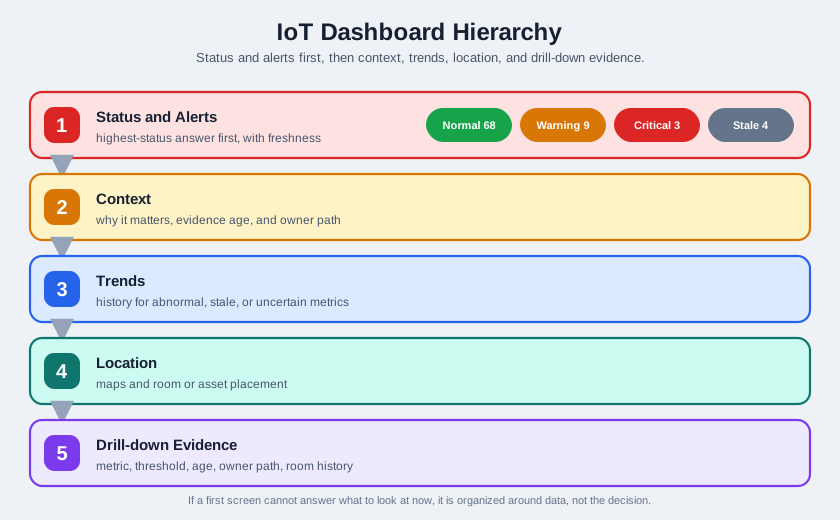
The numbered tiers in Figure 2.1 begin with Status and Alerts, where the example counts “Normal 68,” “Warning 9,” “Critical 3,” and “Stale 4” answer what needs attention. Context adds why it matters and who owns the response; Trends and Location then supply history and placement. The base, Drill-down Evidence, carries metric, threshold, age, owner path, and room history into diagnosis. The widening stack is an information priority, not a measure of visual size: immediate state leads, while increasingly detailed evidence supports the next action.
Worked example — first-screen triage. Imagine a campus air-quality dashboard with 80 rooms reporting temperature, CO2, particulate matter, and gateway status. A chart-first screen might show four plots for every building and force the operator to hunt for the problem. A decision-surface screen starts with the operational question: “Which rooms need action now?” It might show Normal: 68, Warning: 9, Critical: 3, and Stale: 4, then list the three critical rooms with metric, threshold, age, and owner path. The operator does not need every trend before knowing that room B-214 is critical for CO2, the sample is two minutes old, and the drill-down leads to the room history and ventilation asset.
The worked example also shows why stale and missing states cannot be hidden. If four rooms are offline and the dashboard simply drops them from the total, the campus looks healthier than it is. If stale readings stay green, users may trust old data. A reviewable first screen keeps the denominator visible, separates stale from normal, and gives a next step: inspect gateway health, sensor power, or the affected room detail. The dashboard is doing design work when it reduces a dense telemetry estate to a bounded, evidence-backed decision.
If the first screen cannot answer “what should I look at now?”, the dashboard is probably organized around available data instead of the user’s decision.
2.2.1 Beginner Design Moves
2.2.2 Lead with state
Show whether the system is normal, warning, critical, stale, missing, or unknown before showing dense telemetry.
2.2.3 Pair values with meaning
Display units, threshold labels, timestamps, freshness, and short reason text so a number is not interpreted alone.
2.2.4 Separate urgency
Keep urgent alerts visually distinct from background trends, routine summaries, and exploratory drill-downs.
2.2.5 Expose uncertainty
Missing, stale, estimated, invalid, and offline data should appear as explicit states rather than silent blanks or zeros.
2.2.6 Beginner Example
A building dashboard that says “12 rooms above comfort range; oldest update 4 minutes ago; inspect east wing” is more useful than a grid of temperature charts with no freshness label. The first version tells the operator what is happening, whether the data is current, and where to go next.
2.2.7 Overview Knowledge Check
2.3 Build The First Screen From Evidence
This section: Build The First Screen From Evidence — Dashboard design becomes safer when the team reviews the first screen as a product contract.
Dashboard design becomes safer when the team reviews the first screen as a product contract. The contract does not need to be long, but it should connect the visible interface to telemetry sources, state rules, user roles, and the evidence needed before release.
A short review record keeps that contract testable: it names the decision, the state model, the freshness rule, and the retest trigger before the dashboard ships.
2.3.1 How It Works: Dashboard Review Record
- Name the decision. Write the question the dashboard must answer for a specific role, such as an operator checking active incidents or an engineer diagnosing stale gateway data.
- Define the state model. List the normal, warning, critical, stale, missing, invalid, offline, and unknown states that the dashboard must distinguish.
- Map the first screen. Place global status, urgent alerts, affected assets, freshness, and the primary drill-down path before secondary trends and tables.
- Prove edge cases. Review examples for normal operation, alert bursts, stale data, missing data, delayed updates, and recovery back to current state.
- Record the retest trigger. Decide what changes require another review, such as new telemetry fields, new thresholds, new roles, changed refresh behavior, or changed alert ownership.
After Figure 2.1 establishes first-screen priority, Figure 2.2 answers a different question: how to prove that one proposed dashboard is safe for a named role, state contract, version, and target surface—and which later changes force the team to review it again.
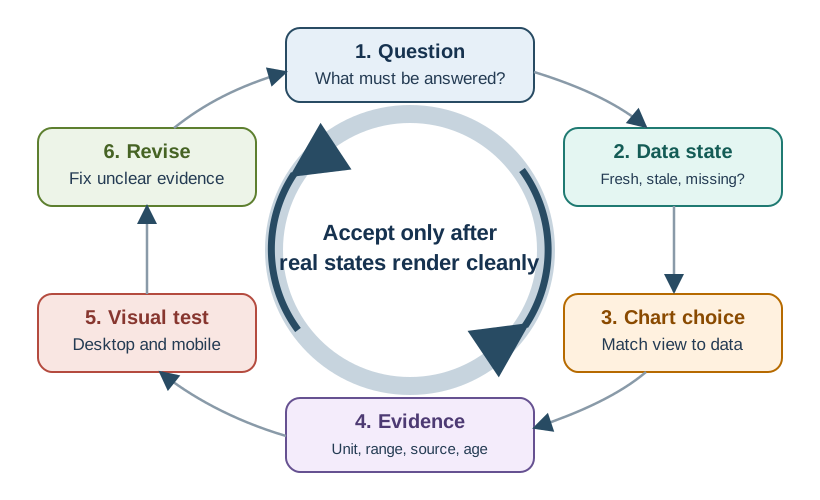
Across the top of Figure 2.2, the review contract fixes the role, state model, evidence meaning, and action boundary before the action-surface map places status, age, urgent alerts, affected assets, and owner on the first screen. State proof and surface-access proof then run in parallel; both must pass. The disposition limits approval to the tested role, version, and displays, while revise and retest sends failed evidence back through the affected check. Retest triggers preserve the central lesson: dashboard trust belongs to a specific contract, not to a timeless screenshot.
Use the procedure as a release record, not as a visual-polish recipe. Store the tested state examples, target-surface evidence, disposition, conditions, and owner with the dashboard release. If telemetry, thresholds, roles, permissions, refresh behavior, alert ownership, drill-down paths, or target displays change, reopen the contract rather than assuming the previous screenshots still prove the design.
2.3.2 Intermediate Example
An operations team designs a gateway-health dashboard. The first screen uses a fleet status label, alert count by severity, oldest telemetry age, affected site list, and a drill-down link to the gateway detail page. Trend charts sit below the status area because trends explain the condition after the operator knows which site needs attention.
2.3.3 Design Ledger
2.3.4 Practitioner Knowledge Check
2.4 Preserve State Meaning End To End
This section: Preserve State Meaning End To End — The hard part of an IoT dashboard is not drawing panels.
The hard part of an IoT dashboard is not drawing panels. The hard part is preserving the meaning of telemetry as it moves from device, gateway, stream processor, storage, and API into a visible state. If those semantics are lost, a polished dashboard can confidently show the wrong thing.
2.4.1 State Semantics Behind The View
Every visible state should be backed by a rule that can be tested. A “critical” label should trace to a threshold or event rule. A “stale” label should trace to an update window. A “missing” label should trace to absence of usable data, not to a measured zero. An “estimated” label should tell the user that the value was inferred rather than observed directly.
2.4.2 Advanced Example
A water-pump dashboard receives flow telemetry through an intermittent link. During a link outage, the last observed flow rate remains numerically plausible. The dashboard should not keep showing it as current. A reviewable design stores both event time and receive time, applies a freshness window, changes the tile to stale when the window is exceeded, keeps the last observed value as historical context, and links the user to device and gateway health evidence.
Worked example — time semantics. Suppose a pump reports an event at 10:00:00, the gateway forwards it at 10:00:08, and a dashboard refreshes at 10:05:00. The display refresh is current, but the telemetry evidence is five minutes old. If the freshness rule says flow evidence expires after 90 seconds, the tile must show a stale state even if the value itself is still plausible. A more precise tile might read “Last flow: 18 L/min, observed 5 min ago, gateway delay 8 s, stale by freshness rule.” That wording preserves the difference between observed time, received time, and rendered time.
The same semantics protect aggregates. If a fleet tile says “97% normal” but excludes devices with invalid samples, the denominator is misleading. A trustworthy implementation carries quality flags through aggregation: normal, warning, critical, stale, missing, invalid, and estimated are counted separately before any percentage is shown. That way a site with 97 normal devices and 3 stale devices is not confused with a site where all 100 devices are current. Under the hood, dashboard trust comes from preserving those state meanings across the data path, not from redrawing the page more often.
2.4.3 Implementation Checks
2.4.4 Data identity
Device, site, sensor, and stream identifiers must be stable enough that an alert and a drill-down page refer to the same thing.
2.4.5 Time meaning
Event time, receive time, display time, and refresh time should not be treated as interchangeable.
2.4.6 Quality propagation
Validation failures, estimates, gaps, rejected readings, and aggregation rules need visible consequences in the UI.
2.4.7 Side-effect boundary
Acknowledgements, escalations, and commands should be separated from passive viewing and should preserve an audit trail.
2.4.8 Try It: First-Screen Audit
Pick one existing IoT dashboard or sketch a simple one. Write the primary user decision, the first status label, the freshness rule, the missing-data state, and the drill-down target. If any item is unclear, that is the next design fix.
2.4.9 Under-The-Hood Knowledge Check
2.5 Choosing the Right Chart Type
This section: Choosing the Right Chart Type
2.5.1 In 60 Seconds
Start with one person and one decision. The same temperature stream might need a line chart, a status tile, a heatmap, a ranked list, or a map depending on what the user must decide next.
Choose the view that makes the decision safest, then prove it with units, freshness, missing-data behavior, thresholds, and a drill-down path. A chart type is accepted only when normal and broken examples still tell the truth.
2.5.2 Start With The User’s Decision
-

Write the user's decision before choosing a chart.
-

Match the data shape, update rate, audience, and freshness proof to that decision.
-

Test normal, missing, stale, late, and abnormal data before accepting the view.
IoT visualization types should be chosen from the question the user must answer. A chart is not valuable because it is familiar or attractive. It is valuable when it makes the right status, trend, pattern, comparison, or exception visible with enough evidence for the user to act.
The practical choice connects six things: user decision, data shape, update behavior, audience, freshness or quality evidence, and the retest rule that says when the view needs another review. Use Figure 2.3 to keep those decisions in sequence before choosing a familiar chart by habit.
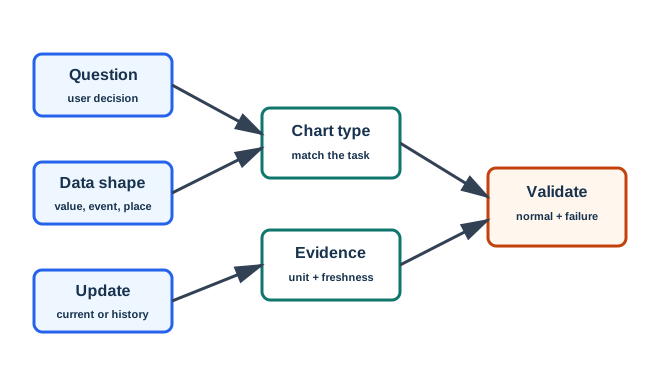
In Figure 2.3, Question fixes the user decision before Data shape distinguishes a value, event, or place. Update then asks whether the view represents current state or history; only after those inputs does Chart type match a form to the task. The last two boxes, Evidence and Validate, require units and freshness plus both normal and failure examples. That ordering explains why the same temperature stream may become a status tile for present safety, a time-series line for control drift, or a heatmap for repeated spatial patterns.
Update behavior and evidence decide whether the view is trustworthy. A current-state view needs freshness, unit, threshold, and quality state. A historical view needs time range, sampling or aggregation rule, gap handling, and visible thresholds. A pattern or map view needs a drill-down path so the user can move from the summary to the source and owner. The selected type is accepted only after normal and failure examples prove that missing, stale, delayed, and abnormal data remain visible.
Use time-series views for change, status views for now, heatmaps for repeated patterns, maps when location changes action, comparisons for ranking, and composition views for parts of a whole.
2.5.2.1 Common Visualization Types
2.5.2.2 Time series
Shows change over time, recent drift, cycles, spikes, gaps, and before-and-after effects.
2.5.2.3 Status view
Shows current state, latest value, alert level, freshness, and whether the reading is usable now.
2.5.2.4 Pattern view
Uses heatmaps, distributions, or relationship plots to reveal repeated patterns, clusters, and outliers.
2.5.2.5 Action context
Uses maps, ranked lists, comparisons, or drill-downs when the next step depends on place, priority, or owner.
2.5.2.6 Beginner Examples
A changing temperature stream belongs in a line chart when the question is about trend or drift, but the same stream may need a status view when an operator asks whether action is required now. Building occupancy can move to a heatmap when the review seeks repeated daily patterns across time and place. Fleet data justifies a map only when location changes dispatch, inspection, routing, or triage; otherwise a ranked status list may answer faster. These examples apply the sequence in Figure 2.3: the decision and data shape select the view, while update behavior and evidence determine whether users can trust it.
2.5.2.7 Overview Knowledge Check
2.5.3 Turn The Choice Into A Review Record
A practical visualization review should leave a record that explains why a view type was chosen. The record should tie the user decision to the telemetry source, prepared data shape, visual encoding, freshness behavior, normal and abnormal examples, stale or missing-data behavior, drill-down path, and retest trigger.
This prevents chart selection from becoming a style argument. The useful question is not “does this chart look good?” It is “can this user safely answer this decision from this data, including degraded states?”
2.5.3.1 Selection Sequence
Begin by identifying the user and the action or judgment that depends on the view. Classify the underlying data as continuous values, current states, events, locations, categories, relationships, or distributions, then choose the visual form that answers the decision rather than matching a preferred dashboard style. Define the trust signals—units, thresholds, timestamps, freshness, missing data, uncertainty, and quality state—that affect interpretation. Complete the record with normal, abnormal, stale, and missing-data examples, and state which change will reopen the design. This sequence makes the later evidence ledger a design test rather than a catalogue of chart options.
2.5.3.2 Evidence Ledger
2.5.3.3 Worked Review: Mixed Sensor Dashboard
Suppose a building dashboard needs to show zone temperature, occupancy, gateway health, and active alerts. One chart type cannot answer every decision safely. The review can assign a status summary for live action, time-series trends for recent temperature changes, a heatmap for occupancy patterns, and an alert table for triage ownership.
The review record should also say what stale data looks like, how missing readings differ from measured zero, which thresholds define warning or critical states, and where an engineer drills down when an operator sees an abnormal state.
2.5.3.4 Practitioner Knowledge Check
2.5.4 Preserve Evidence Through The Display
Under the hood, a visualization is the final stage of a data contract. Source telemetry is validated, transformed, aggregated, labeled, and rendered through visual encodings such as position, length, color, shape, text, ordering, and grouping. Each encoding carries a claim about what the user can infer.
For IoT data, the hidden risks often come from freshness and quality rather than from the chart shape alone. A view can be readable and still misleading if it hides stale values, delayed events, invalid readings, unit changes, threshold changes, or aggregation rules.
Encoding choices should preserve the strongest evidence channel for the most important comparison. Position on a shared scale is usually better for precise numeric comparison than area or angle. Text labels and icons help status views because state meaning matters more than decoration. Color can reinforce severity, but it should not be the only carrier for normal, warning, critical, stale, or missing states. Ordering and grouping should match the action path rather than the order in which data arrived.
Retest evidence closes the contract. If the source schema changes, an aggregation window changes, thresholds are retuned, or the audience shifts from analysts to operators, the selected chart type may no longer answer the same question. A reliable review records examples for normal readings, abnormal readings, missing data, stale data, and recovery. It also records what the user should do next, because a beautiful view that stops before ownership or diagnosis can still fail the operational task.
2.5.4.1 Internal Responsibilities
2.5.4.2 Data preparation
Normalize units, timestamps, device identity, quality flags, aggregation rules, and missing-data behavior before rendering.
2.5.4.3 Encoding choice
Use position and length for precise comparison, labels for state meaning, and color as reinforcement rather than the only signal.
2.5.4.4 Freshness contract
Show last update, stale state, estimated state, unavailable state, and delayed-event behavior where those affect action.
2.5.4.5 Retest evidence
Retest when a source, threshold, audience, aggregation, update frequency, or action path changes.
2.5.4.6 Failure Modes To Review
Review each failure in terms of the incorrect inference it permits. Color-only status can hide meaning from users who cannot distinguish the palette or who lack a textual state label. Hidden freshness lets a latest value appear valid long after its device stopped reporting. Unit ambiguity makes values with different units or aggregation windows look comparable, while overloaded series, markers, and panels can bury the one decision the user must make. A weak drill-down completes none of the operational work: it announces a problem but offers no path to the source, accountable owner, or next diagnostic detail. The remedy is evidence matched to the decision, not decoration added after the chart is chosen.
2.5.4.7 Retest Signals
Retest the visualization when device firmware changes fields or units, the telemetry pipeline changes sampling or aggregation, thresholds change meaning, the audience changes role, a dashboard becomes part of an operational action, or missing and delayed data become more common than the original review expected.
2.5.4.8 Under-The-Hood Knowledge Check
2.5.5 Summary
IoT visualization types should be selected from the user decision, not from a chart gallery. Time-series views answer change-over-time questions. Status views answer current-state questions. Heatmaps, maps, comparisons, relationships, and composition views answer narrower pattern, location, ranking, relationship, and contribution questions.
The strongest visualization record also states the data shape, update behavior, freshness evidence, missing-data behavior, audience, drill-down path, and retest rule. That record keeps the view useful when devices are delayed, data is stale, thresholds change, or users rely on the display for action.
2.5.6 Key Takeaway
Choose the visualization type from the decision it must support, then make units, freshness, missing data, thresholds, and drill-down evidence visible enough for safe action.
2.5.7 See Also
Dashboard Design Principles for IoT
Turn visualization choices into a first-screen hierarchy for status, alerts, context, trends, and drill-downs.
Visualization Tools
Choose tools from data sources, update needs, operational constraints, and review evidence.
Real-Time Visualization for IoT
Review freshness, update cadence, late data, provisional state, and live-display guardrails.
2.6 Summary
This section: Summary — IoT dashboard design starts with the user’s decision, then builds a first screen that makes state, evidence, freshness, and next action visible.
IoT dashboard design starts with the user’s decision, then builds a first screen that makes state, evidence, freshness, and next action visible. Good dashboards separate urgent alerts from background trends, label uncertainty explicitly, and give each role a clear path from overview to detail.
The deeper design work is semantic. The dashboard must preserve what a value means: which asset it describes, when it was observed, whether it is current, whether it passed quality checks, and what action boundary surrounds it. Without that evidence, a dashboard can look finished while still misleading users.
Design an IoT dashboard as a reviewable decision surface: state first, freshness visible, uncertainty explicit, alerts actionable, and drill-down paths tied to evidence.
2.7 See Also
This section: See Also
2.7.1 Visualization Types for IoT Data
Use this when the next question is which chart or visual form fits the decision.
2.7.2 Real-Time Visualization for IoT
Use this when the dashboard must handle update lanes, freshness windows, decimation, and overload behavior.
2.7.3 Visualization Tools
Use this when the design question becomes platform selection, governance, and maintainability.
Find help
3 reviewed answers.
Where should I start in a module?
Open the module page from the sidebar to see its chapters in order. Use the module map to return to a topic you need.
Modules and pathsReviewed
What can I try when a project does not work?
Check the symptom, then work through the diagnostic steps. Keep the error message and the smallest example that reproduces it.
When you are stuckReviewed
How do interactive examples work?
Use the interactive guide to check how examples and simulations work before changing your project.
Interactive examples guideReviewed