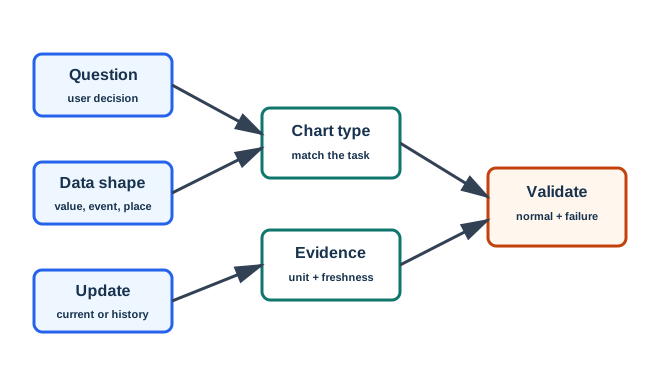
ESP32 dashboards with Chart.js and serial visualization
3.1 Learning Objectives
By the end of this chapter, you will be able to:
Select appropriate visualization types for various IoT data patterns by matching chart type to the question being asked
Design time-series charts (line, area, candlestick) for continuous sensor monitoring with proper decimation
Implement gauges and meters that convey real-time threshold status at a glance
Construct heatmaps for pattern discovery across time and spatial dimensions
Deploy geographic maps for spatial IoT device data with color-coded status overlays
Differentiate status indicators for binary and categorical states across large device fleets
Calculate information density and viewing-distance constraints for large-format dashboard displays
In 60 Seconds
Choosing the right chart type for IoT data is a question-driven decision: line charts answer ‘how has this value changed over time?’, gauge charts answer ‘is the current value within acceptable range?’, heatmaps answer ‘what patterns exist across devices and time?’, and maps answer ‘where is the anomaly?’. Using the wrong chart type forces operators to mentally translate the visualization rather than reading the answer directly – a line chart showing HVAC threshold breaches requires more cognitive effort than a color-coded status grid showing the same data.
3.2 Key Concepts
Line Chart: The default visualization for time-series IoT sensor data, showing value evolution over time with multiple series for multi-sensor comparison – effective when trend shape (rising, cycling, spike) conveys meaning
Gauge Chart: A visualization showing current sensor value relative to defined thresholds (normal, warning, critical), enabling instant status assessment without requiring numerical interpretation
Heatmap: A two-dimensional color matrix encoding sensor values by color intensity – rows represent devices or sensors, columns represent time buckets – optimal for discovering cross-fleet patterns and temporal anomalies
Choropleth Map: A geographic visualization coloring regions by aggregate sensor values, used for spatial IoT data like environmental monitoring, smart city asset health, or supply chain tracking
Scatter Plot: A two-variable visualization plotting pairs of sensor readings to reveal correlations (e.g., temperature vs energy consumption), used in IoT analytics to identify causal relationships
Box Plot: A statistical summary visualization showing median, quartiles, and outliers across device groups or time periods – effective for fleet-level sensor health comparisons without displaying millions of individual readings
Sparkline: A miniature trend line embedded inline within a table or dashboard, showing value trajectory in minimal space – ideal for device fleet status tables where both current value and recent trend are needed
Sankey Diagram: A flow visualization showing quantities moving through connected stages, used in IoT to display energy flow, data pipeline throughput, or material tracking in industrial systems
3.3 Minimum Viable Understanding: Choosing the Right Chart
Core Concept: Each visualization type reveals different patterns. Line charts excel at trends over time, gauges show current status at a glance, heatmaps reveal two-dimensional patterns, and maps add spatial context.
Why It Matters: The wrong chart type can obscure critical insights. A pie chart showing temperature over time is meaningless, while a line chart showing the same data reveals trends, anomalies, and patterns instantly.
Key Takeaway: Ask “What insight do I need?” first. Trends over time? Use line charts. Current value vs. limits? Use gauges. Patterns across time and space? Use heatmaps. Device locations? Use maps.
3.4 Introduction
Choosing the right visualization type is the foundation of effective IoT dashboards. Each chart type has specific strengths that match certain data characteristics and user needs. This chapter explores the major visualization types used in IoT systems, when to use each, and how they work together to provide comprehensive monitoring.
For Beginners: Why Different Chart Types Matter
Imagine you have temperature data from your home thermostat. You could display this data in many ways:
As a single number: “Current: 72F” – Good for right now, but no context
As a line chart: Shows how temperature changed all day – Great for trends
As a gauge: Shows if you’re in the “comfortable” range – Quick status check
As a heatmap: Shows which hours of which days are warmest – Pattern discovery
Each visualization answers a different question. The art is matching the visualization to the question you’re trying to answer.
For Kids: Meet the Sensor Squad!
Different pictures tell different stories!
Imagine the Sensor Squad collected information about how many kids visited the playground each hour. They could show this information in different ways:
Line chart: A wiggly line going up and down shows when lots of kids came (lunch time!) and when nobody came (early morning)
Gauge: Like a speedometer that shows “Are there kids playing RIGHT NOW?” with colors for empty (blue), some (green), and crowded (red)
Heatmap: A grid where dark squares mean “lots of kids” and light squares mean “not many” – shows patterns like “Saturdays are always busy!”
Map: A picture of the playground with dots showing WHERE kids like to play most
Each picture answers a different question about the same information!
3.5 Visualization Selection Decision Table
Use this table to quickly match your data question to the right chart type. The “wrong choice” column shows common mistakes that obscure the insights you need.
Question You’re Asking
Best Chart Type
Why It Works
Wrong Choice (and Why)
How did temperature change over 24 hours?
Line chart
Shows continuous trend, reveals anomalies
Pie chart (no time axis), bar chart (implies discrete events)
Is the current tank level safe?
Radial gauge with zones
Green/yellow/red gives instant status
Line chart (too much history when you need “right now”)
Which hours of which days use most energy?
Time-based heatmap
Color intensity reveals 2D patterns
Stacked bar (only shows one dimension at a time)
Where are my 500 delivery trucks right now?
Point map with color-coded status
Geographic context + per-vehicle state
Table of lat/lng coordinates (no spatial intuition)
What fraction of bandwidth goes to each protocol?
Stacked area chart
Shows composition changing over time
Pie chart (only one time snapshot, no trend)
Is the vibration level within tolerance?
Linear gauge with setpoint markers
Quick pass/fail at a glance
Heatmap (overkill for a single-value threshold check)
Which of my 200 sensors are offline?
Status grid (colored tiles)
Scan 200 states in 2-3 seconds
Scrollable table (takes 30+ seconds to find red rows)
Why this matters: A factory that displays vibration data on a heatmap when operators need a simple pass/fail gauge forces operators to interpret color gradients under time pressure. A logistics company that shows fleet positions in a table instead of a map adds minutes to every routing decision. Matching chart type to question is not aesthetics – it is the difference between a 2-second insight and a 30-second search.
3.6 Interactive Chart Type Explorer
Use this explorer to see which chart types match different IoT data characteristics. Select a data type and user goal to see recommendations.
Show code
viewof dataType = Inputs.select( ["Continuous sensor readings","Binary/categorical states","Geographic positions","Multi-sensor correlations","Composition/proportions"], {label:"Data type:",value:"Continuous sensor readings"})viewof userGoal = Inputs.select( ["Trend over time","Current status check","Pattern discovery","Spatial awareness","Fleet-wide overview"], {label:"User goal:",value:"Trend over time"})
Show code
recommendations = {const lookup = {"Continuous sensor readings_Trend over time": {best:"Line Chart",why:"Shows continuous trends, reveals anomalies and cycles. Supports multi-sensor overlay for comparison.",avoid:"Pie chart (no time axis), bar chart (implies discrete events)",example:"24-hour temperature across 5 rooms overlaid on one axis" },"Continuous sensor readings_Current status check": {best:"Radial Gauge with Threshold Zones",why:"Green/yellow/red zones give instant pass/fail. Readable from 10+ feet on NOC displays.",avoid:"Line chart (too much history when you need 'right now')",example:"Tank fill level: green (20-80%), yellow (10-20%, 80-90%), red (<10%, >90%)" },"Continuous sensor readings_Pattern discovery": {best:"Time-Based Heatmap",why:"Color intensity reveals 2D patterns (hour-of-day vs. day-of-week). Pre-attentive processing finds anomalies in 2-5 seconds.",avoid:"Stacked bar (only shows one dimension at a time)",example:"Energy consumption by hour (rows) and day (columns) over 30 days" },"Continuous sensor readings_Spatial awareness": {best:"Geographic Heatmap",why:"Overlays measurement intensity on floor plans or maps. Shows coverage gaps and hot spots.",avoid:"Table of coordinates (no spatial intuition)",example:"Wi-Fi signal strength across office floor plan" },"Continuous sensor readings_Fleet-wide overview": {best:"Sparkline Grid + Stat Panels",why:"Compact sparklines (60x20px) show trend direction for dozens of sensors simultaneously. Stat panels highlight outliers.",avoid:"Full-size line charts (cannot fit 50+ on one screen)",example:"50 temperature sensors: sparkline + current value + delta arrow each" },"Binary/categorical states_Trend over time": {best:"State Timeline / Gantt Chart",why:"Color-coded horizontal bars show when states changed. Reveals uptime/downtime patterns.",avoid:"Line chart (binary values produce flat lines with vertical jumps, hard to read)",example:"Machine on/off states for 20 assembly line stations over a shift" },"Binary/categorical states_Current status check": {best:"Traffic Light Indicators",why:"Red/yellow/green gives instant OK/Warning/Critical. Fastest to scan at a glance.",avoid:"Gauge (overkill for binary state)",example:"10 servers: green = healthy, yellow = degraded, red = down" },"Binary/categorical states_Pattern discovery": {best:"Status Heatmap Grid",why:"Rows = devices, columns = time periods. Color blocks reveal systemic patterns (e.g., all Floor 3 sensors drop out at 2 AM).",avoid:"Individual timeline per device (cannot compare 200 devices visually)",example:"200 motion sensors: occupied (dark) vs. vacant (light) over 24 hours" },"Binary/categorical states_Spatial awareness": {best:"Floor Plan with Color-Coded Icons",why:"Status overlaid on physical layout shows which physical areas have issues.",avoid:"Alphabetical device table (loses spatial context)",example:"Building floor plan with green/red dots for sensor connectivity" },"Binary/categorical states_Fleet-wide overview": {best:"Status Grid (Colored Tiles)",why:"Scan 200+ device states in 2-3 seconds. Faulted devices (red tiles) pop out pre-attentively.",avoid:"Scrollable table (30+ seconds to find red rows)",example:"500 robot status tiles: green (running), yellow (idle), blue (maintenance), red (fault)" },"Geographic positions_Trend over time": {best:"Animated Route Map",why:"Shows movement trajectories with timestamps. Playback reveals speed, stops, and detours.",avoid:"Table of lat/lng with timestamps (impossible to visualize paths)",example:"Delivery truck routes over a day with speed-colored path segments" },"Geographic positions_Current status check": {best:"Point Map with Status Icons",why:"Current positions on a real map with color-coded markers for each vehicle or device state.",avoid:"Coordinates table (no spatial intuition, cannot judge proximity)",example:"Fleet of 500 vehicles: green (on-route), yellow (stopped), red (delayed)" },"Geographic positions_Pattern discovery": {best:"Density Heatmap on Map",why:"Aggregated position data reveals hotspots, common routes, and coverage gaps.",avoid:"Point map with 10,000 overlapping markers (visual clutter)",example:"Ride-share pickup density across a city by hour of day" },"Geographic positions_Spatial awareness": {best:"Choropleth Map",why:"Regions colored by metric values show geographic distribution and coverage patterns.",avoid:"Bar chart by region name (loses spatial relationships between regions)",example:"Average air quality index by neighborhood with color gradient" },"Geographic positions_Fleet-wide overview": {best:"Clustered Point Map with Summary Panel",why:"Clusters at zoom-out prevent clutter; expanding clusters shows individual devices. Summary panel shows fleet-wide KPIs.",avoid:"Thousands of individual markers at city scale (completely unreadable)",example:"2,000 delivery drones clustered by zone, with zone-level status summary" },"Multi-sensor correlations_Trend over time": {best:"Multi-Axis Line Chart",why:"Dual Y-axes show two metrics on synchronized time axis. Reveals whether humidity rises when temperature drops.",avoid:"Separate charts (cannot visually correlate timing of changes)",example:"Temperature (left axis) vs. energy consumption (right axis) over 7 days" },"Multi-sensor correlations_Current status check": {best:"Scatter Plot with Threshold Box",why:"X = sensor A, Y = sensor B. Points inside the 'normal' box are OK; outliers indicate anomalies.",avoid:"Two separate gauges (cannot show the relationship between sensors)",example:"Temperature vs. humidity: normal zone = 20-24C and 40-60% RH" },"Multi-sensor correlations_Pattern discovery": {best:"Correlation Heatmap Matrix",why:"N x N matrix shows pairwise correlation coefficients as colors. Reveals unexpected sensor relationships.",avoid:"N separate line charts (cannot compare N*(N-1)/2 pairs visually)",example:"10 environmental sensors: discover that CO2 correlates 0.85 with occupancy" },"Multi-sensor correlations_Spatial awareness": {best:"Linked Map + Chart View",why:"Click a sensor on the map to see its correlation with neighbors. Spatial proximity often explains correlation.",avoid:"Correlation matrix alone (loses spatial context of sensor placement)",example:"Click a temperature sensor on floor plan to see correlation with nearby HVAC sensors" },"Multi-sensor correlations_Fleet-wide overview": {best:"Parallel Coordinates Plot",why:"Each vertical axis represents a sensor dimension. Lines crossing axes reveal multi-dimensional patterns and outlier devices.",avoid:"Table of sensor readings (cannot see multi-dimensional patterns)",example:"100 devices with 6 health metrics: lines diverging on axis 4 reveal a batch issue" },"Composition/proportions_Trend over time": {best:"Stacked Area Chart",why:"Shows both total and composition changing over time. Each band represents one component's contribution.",avoid:"Pie chart (only one time snapshot, no trend)",example:"Energy breakdown: HVAC + lighting + equipment stacked over 24 hours" },"Composition/proportions_Current status check": {best:"Donut Chart with Center KPI",why:"Proportions visible as arc segments. Center displays total value or key metric.",avoid:"Multiple gauges (shows individual values, not proportional relationship)",example:"Network bandwidth: 45% MQTT, 30% HTTP, 15% CoAP, 10% other. Center: 850 Mbps total" },"Composition/proportions_Pattern discovery": {best:"100% Stacked Area Chart",why:"Normalizes to 100% so composition shifts are visible even when totals vary. Reveals when one category dominates.",avoid:"Regular stacked area (composition changes hidden by total value changes)",example:"Protocol mix over time: MQTT share growing from 30% to 60% as legacy HTTP declines" },"Composition/proportions_Spatial awareness": {best:"Proportional Symbol Map (Pie Markers)",why:"Pie chart markers sized by total, with segments showing composition at each location.",avoid:"Choropleth (shows only one metric per region, not composition)",example:"Energy source mix by building: marker size = total kWh, segments = solar/grid/battery" },"Composition/proportions_Fleet-wide overview": {best:"Treemap",why:"Nested rectangles sized by value show hierarchy and proportion simultaneously. Compact for dashboards.",avoid:"Stacked bar per device (does not scale beyond 20 devices)",example:"Resource allocation across 50 edge nodes: rectangle size = CPU usage, color = memory pressure" } };const key = dataType +"_"+ userGoal;return lookup[key] || {best:"Line Chart (default)",why:"Versatile general-purpose chart for most IoT data.",avoid:"None specific",example:"General sensor monitoring" };}
Time-series visualizations are the workhorses of IoT dashboards, showing how values change over time.
3.7.1 Line Charts
The most common choice for continuous sensor data.
Best for: Temperature, humidity, pressure, any gradual changes
Shows: Trends, patterns, anomalies over time
Example: 24-hour temperature monitoring across multiple rooms
When to use line charts:
Continuous measurements sampled at regular intervals
Comparing multiple sensors over the same time period
Identifying trends, cycles, or anomalies
Drilling down from overview to detail
3.7.2 Area Charts
Emphasize magnitude and volume.
Best for: Energy consumption, data throughput, cumulative values
Shows: Total volume, stacking for composition
Example: Daily energy usage showing heating vs. cooling vs. lighting
Stacked area charts are particularly useful for showing how components contribute to a total, such as:
Energy breakdown by system (HVAC, lighting, equipment)
Network traffic by protocol
Resource utilization by process
3.7.3 Candlestick / Range Charts
Show statistical summaries of time periods in a single visual element.
Best for: Statistical summaries of aggregated IoT readings per time bucket
Shows: Min, max, open (period start), and close (period end) values – revealing both range and direction of change
Example: Hourly traffic summary showing peak, minimum, and average vehicle counts; or vibration amplitude range per hour with start/end values to show drift
For Beginners: Understanding Candlestick Charts
Candlestick charts originated in financial markets (open-high-low-close, or OHLC), but they map naturally to IoT aggregated data:
Body = range between the period’s first and last reading (analogous to open/close)
Wicks = extend to the min and max readings in that period
A “tall” candlestick means high variability in that period; a “short” one means stable readings. The body color (e.g., green vs. red) can indicate whether the value trended up or down during the period. This packs four statistics (min, max, start, end) into one compact glyph per time bucket.
Flowchart diagram
Figure 3.1: Flowchart showing selection criteria for time-series visualization types
Figure 3.2: Comparison matrix showing the strengths and characteristics of each time-series chart type
3.8 Gauges and Meters
Gauges provide instant status awareness for current values.
3.8.1 Radial Gauges
Traditional speedometer-style displays.
Best for: Single current values with thresholds
Shows: Status at a glance (normal/warning/critical)
Best for: Key metrics that need maximum visibility
Shows: Current value + change direction (up/down arrows)
Example: Current building occupancy: 237 (up from 220)
When to use gauges:
Monitoring current state vs. historical trends
Quick status checks across many metrics
Alert conditions based on thresholds
Dashboards viewed from a distance (NOC displays)
3.9 Heatmaps
Heatmaps visualize two-dimensional data patterns using color intensity.
3.9.1 Time-Based Heatmaps
Days vs. hours grids.
Best for: Pattern discovery across time periods
Shows: When values are high/low across day/week/month
Example: Building occupancy by hour (rows) and day of week (columns)
3.9.2 Geographic Heatmaps
Location-based intensity.
Best for: Spatial distribution of values
Shows: Hot spots, coverage gaps, regional patterns
Example: Wi-Fi signal strength across floor plan
3.9.3 Correlation Heatmaps
Variable relationships.
Best for: Multi-sensor analysis
Shows: Which sensors correlate positively/negatively
Example: Temperature vs. humidity vs. energy use correlations
Graph diagram
Figure 3.3: Common heatmap use cases in IoT monitoring
Figure 3.4: Process flow showing how raw sensor data transforms into a heatmap visualization
3.10 Geographic Maps
Maps add spatial context to IoT device data.
3.10.1 Point Maps
Individual device locations.
Best for: Device tracking, asset management
Shows: Where devices are, current status by color
Example: Fleet vehicle locations with status indicators
3.10.2 Choropleth Maps
Regions colored by values.
Best for: Regional aggregation, coverage areas
Shows: Geographic distribution of metrics
Example: Average air quality by neighborhood
3.10.3 Route Maps
Paths and trajectories.
Best for: Mobile devices, logistics
Shows: Movement patterns, delivery routes
Example: Drone flight paths with altitude data
Tools for geographic visualization: Leaflet.js, MapBox, Google Maps API, Grafana GeoMap panel
3.11 Status Indicators
Simple visual indicators for binary or categorical states.
3.11.1 Traffic Lights
Red/yellow/green status.
Best for: System health, threshold-based alerts
Shows: OK/Warning/Critical at a glance
Example: Machine operational status across factory floor
3.11.2 Icons and Symbols
Visual metaphors.
Best for: Device types, connection status
Shows: Recognizable states without reading
Example: Battery icon for charge level, Wi-Fi bars for signal
3.11.3 State Tables
Rows of devices with status columns.
Best for: Many devices, multiple status dimensions
Shows: Comprehensive status across device fleet
Example: 100 sensors showing connectivity, battery, data rate
Flowchart diagram
Figure 3.5: Chart type selection decision tree guiding from visualization goal to appropriate chart type
Figure 3.6: Decision tree for selecting IoT visualization types based on the insight needed
3.12 Worked Examples
Worked Example: Selecting Chart Types for a Smart Building Dashboard
Scenario: A facilities management company is deploying an IoT monitoring dashboard for a 50,000 sq ft office building with 200 sensors measuring temperature, humidity, occupancy, and energy consumption. The dashboard must serve both operators (real-time monitoring) and executives (weekly reviews).
Given:
200 sensors reporting every 30 seconds = 400 data points/minute
Display resolution: 1920x1080px operator monitors, 390x844px mobile for executives
Temperature sensors: continuous readings 65-78F with 0.1F precision
Occupancy sensors: binary (occupied/vacant) with 15-minute aggregation
Energy meters: cumulative kWh readings every 15 minutes
Steps:
Temperature data: Select line charts for temporal trends. With 48 readings/sensor/day, display 24-hour view showing all 50 temperature sensors. Apply LTTB downsampling from 2,400 points to 960 points (one per 2px width on 1920px display) preserving peaks/valleys.
Occupancy patterns: Choose heatmap grid with rows = floors (5), columns = hours (24). Aggregate binary occupancy to percentage (0-100%) per zone per hour. Color scale: white (0%) to navy (#2C3E50) at 100%.
Energy consumption: Use stacked area chart for composition breakdown (HVAC 45%, lighting 30%, equipment 25%). Rolling 7-day window with 15-minute buckets = 672 data points, no decimation needed.
Current status overview: Deploy radial gauges for real-time metrics. Three thresholds: green (normal: 68-72F), yellow (warning: 72-75F), red (critical: >75F). Gauge diameter: 120px for clear visibility from 10ft.
Mobile executive view: Convert line charts to sparklines (60x20px inline) showing trend direction. Replace detailed heatmap with traffic light summary (3 status indicators: Building Overall, Energy Target, Comfort Score).
Result: Operators see building status in 3 seconds via gauge colors. Temperature anomalies visible in line chart trends within 5 seconds. Executives receive weekly summary in 12 seconds on mobile: current status + week-over-week trend arrows.
Key Insight: Match data characteristics to chart types: continuous measurements to line charts; binary states aggregated to heatmaps; composition breakdown to stacked areas; instant status to gauges. Mobile requires 3x information density reduction from desktop.
Putting Numbers to It
A smart building heatmap displays CO2 levels for 12 floors across 24 hours using a 288-cell grid (12 rows x 24 columns). Compare information density to a table of the same data.
Heatmap information density: Each cell shows one value via color. Human eye processes entire grid in parallel. Pattern recognition time: approximately 5 seconds to identify “Floor 8 spikes at 2 PM” by scanning for dark cells.
Table information density: 288 cells, each with numeric value (e.g., “780 ppm”). Sequential reading at approximately 2 cells/second = 144 seconds to scan all values. Pattern discovery requires comparing 288 numbers mentally (impractical).
Information ratio: Heatmap reveals patterns roughly 29x faster (144 s / 5 s = 28.8) due to parallel visual processing vs. serial text reading.
Color perception bandwidth: Human vision processes color in under 50 ms per cell. 288 cells x 50 ms = 14.4 seconds for full sequential scan. But pattern detection (finding anomalies) happens pre-attentively – dark cells “pop out” in 2-5 seconds because the human visual system detects outlier colors without conscious effort.
Tradeoff: Heatmap loses exact numeric precision (color gradient provides approximately 8-12 distinguishable intensity levels), but precision is unnecessary for pattern discovery (“Which hours are problematic?” not “Exactly 783 ppm vs. 789 ppm?”).
Worked Example: Information Density Calculation for Factory Floor Display
Scenario: An automotive manufacturer needs a large-format dashboard (4K display at 3840x2160px, viewed from 15 feet) for their assembly line showing 500 robot status indicators, 12 production KPIs, and 3 trend charts.
Given:
Viewing distance: 15 feet (4.57 meters)
Display: 65-inch 4K (3840x2160px, 68 PPI)
Font readability at 15 feet: minimum 48pt text (0.67 inches tall)
500 robots with 4 status states: Running (green), Idle (yellow), Maintenance (blue), Fault (red)
12 KPIs: units produced, cycle time, OEE, defect rate, etc.
Calculate minimum readable element size: At 15 feet viewing distance and 68 PPI, minimum legible element = 0.5 inches = 34 pixels. Round up to 40px for safety margin.
Robot status grid layout: 500 robots in 25x20 grid. Each cell = 40x40px = 1000x800px total. Position in top-right quadrant.
KPI panel sizing: 12 KPIs at 48pt minimum font = 64px line height. Two-column layout: 6 KPIs per column, 400px width each = 800x400px.
Chart allocation: Three charts at 900x700px each arranged vertically. Line weight: 4px minimum for visibility at distance.
Color contrast verification: Factory lighting at 500 lux requires 7:1 contrast ratio for WCAG AAA. Navy (#2C3E50) on white = 10.7:1 (passes). Alert red (#E74C3C) on white = 3.9:1 (below AAA, but acceptable for large 40x40px color-coded status blocks where hue, not text, carries meaning).
Result: Factory supervisors identify faulted robots (red squares) in 1-2 seconds from 15 feet. Production KPIs readable in 3 seconds. Total scan time: 8-10 seconds for complete situational awareness.
Key Insight: Large-format distant displays require 3-4x larger minimum element sizes than desktop dashboards. Prioritize color-coded status blocks over text. Color contrast requirements can be relaxed for non-text elements where the hue itself is the information carrier.
Worked Example: Designing a Dashboard for a 12-Floor Office Building
Scenario: FacilityIQ manages a 12-floor office building with 480 sensors (40 per floor): temperature, humidity, CO2, occupancy, and energy meters. Building operators need a dashboard that answers five key questions during their morning review.
Step 1: Map questions to visualization types
Operator Question
Data Characteristics
Chart Type
Reasoning
“Are any floors too hot or too cold right now?”
12 current temperature values vs. 20-24C comfort range
12 radial gauges with green (20-24C), yellow (18-20, 24-26C), red zones
Instant scan of 12 floors in 3 seconds; gauge colors give pass/fail without reading numbers
“How did energy use compare to yesterday?”
2 time-series (today vs. yesterday), 24 hourly values each
Overlay line chart with today (solid) and yesterday (dashed)
Shows trend shape comparison; area between lines highlights differences
“Which floors at which hours had high CO2?”
12 floors x 24 hours x 30 days = 8,640 values
Time-based heatmap (floors as rows, hours as columns)
Color intensity reveals patterns like “Floor 8 always spikes at 2 PM” that tables cannot show
“Where are the occupancy hotspots?”
Floor plan with 480 sensor positions and current occupancy counts
Geographic choropleth overlaid on floor plan
Colors on the actual floor plan let operators dispatch cleaning or HVAC adjustments to specific zones
“What percentage of energy goes to HVAC vs. lighting vs. equipment?”
3 categories over 24 hours
Stacked area chart
Shows both the total and the composition changing through the day (e.g., HVAC dominates 6-9 AM startup)
Step 2: Layout for a 4K wall display (3840x2160)
Dashboard Zone
Position
Size
Content
Temperature status
Top-left
1200x400px
12 radial gauges (100x100px each), 2 rows of 6
Energy comparison
Top-right
1400x400px
Overlay line chart (today vs. yesterday)
CO2 heatmap
Middle-left
1400x600px
12-row x 24-column heatmap with floor labels
Floor plan occupancy
Middle-right
1200x600px
Building cross-section with choropleth zones
Energy breakdown
Bottom
2800x400px
Full-width stacked area chart for 24 hours
Step 3: Validate with the 5-second test
Show the dashboard to 3 building operators for 5 seconds, then ask “What’s the most important thing you noticed?” If they identify a real issue (e.g., “Floor 8 temperature is in the red zone”), the visualization hierarchy works. If they say “I see a lot of charts” or “I’m not sure what to look at first,” the layout needs revision.
Result: The morning review drops from 15 minutes (scrolling through tabular data) to 3 minutes (visual scan of dashboard zones). The CO2 heatmap reveals that Floor 8 consistently exceeds 1000 ppm between 2-4 PM, prompting a ventilation schedule adjustment that was invisible in daily average reports.
3.13 Knowledge Check
Knowledge Check: IoT Data Visualization
Knowledge Check: Dashboard Design
Key Takeaway
Match the visualization type to the question being asked: line charts for trends over time, gauges for current status at a glance, heatmaps for two-dimensional pattern discovery, maps for spatial context, and status indicators for quick fleet-wide assessment. The wrong chart type can obscure the very insights you need.
Match: Chart Types to IoT Data
Order: Visualization Selection Process
Common Pitfalls
1. Using bar charts for continuous time-series sensor data
Bar charts represent discrete categories or aggregated periods, not continuous time-series. Using a bar chart for 1-second temperature readings creates a visual that cannot show the signal’s shape (rising edge, oscillation, spike). Use line charts for continuous sensor time-series and reserve bar charts for aggregated comparisons (e.g., monthly energy consumption by building).
2. Displaying too many series on a single line chart
More than 5-7 series on one line chart becomes impossible to distinguish, especially when multiple sensors show similar values with slight offsets. For fleet-wide comparisons, use a heatmap (color represents value, rows are devices) rather than adding more lines. If individual traces must be shown, use small multiples (one chart per device in a grid) rather than overloading a single chart.
3. Using pie charts for IoT time-series or proportion data
Pie charts require human angle estimation, which is less accurate than reading position on a common axis. For IoT protocol distribution or device type breakdowns, use horizontal bar charts. For proportions that change over time, use stacked area charts. The only legitimate use of pie charts is showing a single dominant proportion (e.g., 95% of devices are online vs 5% offline).
Label the Diagram
💻 Code Challenge
3.14 Summary
Choosing the right visualization type is foundational to effective IoT dashboards:
Line charts for continuous time-series trends and multi-sensor comparisons
Area charts for cumulative values and composition breakdowns
Candlestick / range charts for statistical summaries showing min, max, and directional change per time bucket
Gauges for current status with threshold-based coloring
Heatmaps for pattern discovery across time periods or geographic regions
Maps for spatial device data with location context
Status indicators for binary states and quick fleet-wide assessments
The key is matching the visualization type to the question you’re trying to answer and the audience who will view the dashboard.
Concept Relationships
Understanding visualization types connects to several related concepts: