ESP32 dashboards with Chart.js and serial visualization
In 60 Seconds
These hands-on labs demonstrate the complete IoT data visualization pipeline, from physical sensors through embedded processing to visual output. You will build real-time web dashboards with Chart.js on ESP32 and ASCII-art serial visualizations for debugging, learning the same patterns used in production IoT systems at any scale.
8.1 Learning Objectives
By completing these hands-on labs, you will be able to:
Configure ESP32 microcontrollers with multiple sensor inputs
Create lightweight web servers on embedded hardware
Implement real-time data visualization using Chart.js
Build ASCII-art visualizations for Serial Monitor debugging
Calculate and display running statistics (min, max, average)
Implement threshold-based alerting for anomaly detection
Apply visualization principles from sensors to browser display
Core Concept: These labs demonstrate the complete data flow from physical sensors through embedded processing to visual output - the same pattern used in production IoT systems at any scale.
Why It Matters: Understanding this end-to-end flow helps you debug problems (is the issue in sensing, processing, or display?), design efficient systems (where should processing happen?), and build prototypes that demonstrate real IoT concepts.
Key Takeaway: Start with Serial visualization for debugging (works everywhere, no network needed), graduate to web dashboards for user-facing displays. Both techniques remain useful throughout your IoT career.
For Beginners: Data Visualization Labs
These hands-on labs let you create visual displays of IoT data. Think of it as learning to draw clear, informative charts that tell the story of what your sensors are measuring. You will build dashboards that update in real time, turning streams of raw numbers into pictures anyone can understand at a glance.
All labs use the Wokwi online simulator - no physical hardware required.
8.3 Lab 1: Real-Time Web Sensor Dashboard
~45 min | Intermediate | P10.C05.U07
8.3.1 What You’ll Build
A complete real-time sensor dashboard running directly on an ESP32. The dashboard displays live temperature, light level, and user-controlled values with auto-updating charts - all served from the microcontroller itself with no external server required.
8.3.2 Circuit Setup
Component
ESP32 Pin
Purpose
Temperature Sensor (NTC)
GPIO 34
Analog temperature reading
Light Sensor (LDR)
GPIO 35
Ambient light level
Potentiometer
GPIO 32
User-adjustable value
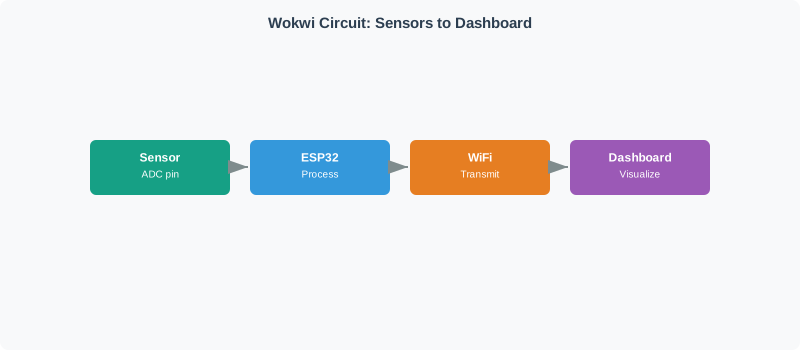
Figure 8.1: Circuit diagram showing sensor connections to ESP32 ADC pins and data flow to the web dashboard
8.3.3 Wokwi Simulator
Getting Started with Wokwi
Click inside the simulator below
Delete the default code and paste the provided code
Click the green “Play” button to start the simulation
Click the generated URL in the serial monitor to open your dashboard
8.3.4 Step 1: Configure the Circuit
Add this diagram.json configuration by clicking the diagram.json tab:
{"version":1,"author":"IoT Class Lab","editor":"wokwi","parts":[{"type":"wokwi-esp32-devkit-v1","id":"esp","top":0,"left":0},{"type":"wokwi-ntc-temperature-sensor","id":"ntc1","top":-50,"left":150},{"type":"wokwi-photoresistor-sensor","id":"ldr1","top":-50,"left":250},{"type":"wokwi-potentiometer","id":"pot1","top":150,"left":200}],"connections":[["esp:GND.1","ntc1:GND","black",["h0"]],["esp:3V3","ntc1:VCC","red",["h0"]],["esp:34","ntc1:OUT","green",["h0"]],["esp:GND.1","ldr1:GND","black",["h0"]],["esp:3V3","ldr1:VCC","red",["h0"]],["esp:35","ldr1:OUT","orange",["h0"]],["esp:GND.1","pot1:GND","black",["h0"]],["esp:3V3","pot1:VCC","red",["h0"]],["esp:32","pot1:SIG","blue",["h0"]]]}
8.3.5 Step 2: Complete Arduino Code
Copy this code into the Wokwi editor. The sketch has three parts: the Arduino setup and sensor reading logic, the embedded HTML/CSS dashboard, and the Chart.js update script.
Part B – Embedded HTML/CSS Dashboard (expand to view)
This string literal is assigned to htmlPage in the full sketch. It contains the dashboard layout with three sensor cards, a gauge, and Chart.js chart containers.
const char* htmlPage = R"rawliteral(<!DOCTYPE html><html><head><meta charset="UTF-8"><meta name="viewport" content="width=device-width, initial-scale=1.0"><title>ESP32 Sensor Dashboard</title><script src="https://cdn.jsdelivr.net/npm/chart.js"></script><!-- CSS: dark theme, grid layout, gauge widget (see full source in Wokwi) --></head><body><div class="header"><h1>ESP32 Sensor Dashboard</h1></div><div class="dashboard"><div class="card"><!-- TEMPERATURE: value + line chart --></div><div class="card"><!-- LIGHT LEVEL: value + line chart --></div><div class="card"><!-- POTENTIOMETER: value + gauge --></div></div><div class="status"><span id="status">Connecting...</span> | Updates: <span id="updateCount">0</span></div><!-- Chart.js update script (see Part C) --></body></html>)rawliteral";
Part C – Chart.js Real-Time Update Logic (expand to view)
Embedded inside the HTML <script> tag. Fetches /data every 500 ms and updates Chart.js line charts plus the gauge.
The full combined source (all three parts in a single .ino file) is available in the Wokwi simulation linked above. The split shown here highlights the three architectural layers: embedded C++ (sensor reading + server), HTML/CSS (layout + styling), and JavaScript (real-time chart updates).
8.3.6 Step 3: Running the Simulation
Start the simulation: Click the green “Play” button
Wait for Wi-Fi: Watch the Serial Monitor for “Wi-Fi connected!”
Open the dashboard: Click the IP address link (e.g., http://10.0.0.1)
Interact with sensors:
Click on the NTC sensor and adjust temperature
Click on the LDR and change light level
Drag the potentiometer slider
Troubleshooting
Dashboard doesn’t load? Check the Serial Monitor for the correct IP address
Charts not updating? Ensure the simulation is running (green Play button)
Compilation errors? Verify you copied the complete code including all brackets
8.3.7 Key Concepts Demonstrated
Concept
Implementation
Real-World Application
Real-time updates
500ms polling interval
Balance between freshness and server load
Data decimation
Keep last 20 points
Prevent memory overflow on constrained devices
Visual hierarchy
Large values, smaller charts
Immediate status awareness, then trends
JSON API
Separate data endpoint
Clean separation of data and presentation
Responsive design
CSS Grid layout
Works on various screen sizes
Try It: Polling Interval vs. Data Freshness Explorer
Adjust the polling interval and observe how it affects data freshness, server load, and chart smoothness. This demonstrates the real-time update tradeoff from Lab 1’s 500ms polling design.
A serial-based visualization dashboard that displays sensor data using ASCII graphics directly in the Serial Monitor. This approach works on any microcontroller without Wi-Fi capability and is invaluable for debugging.
8.4.2 Why Serial Visualization?
Aspect
Web Dashboard
Serial Visualization
Setup complexity
Requires Wi-Fi, HTML, JavaScript
Just Serial.print()
Debugging
Need browser, may miss fast events
Direct, real-time output
Hardware requirements
Wi-Fi-capable MCU
Any MCU with UART
Network dependency
Requires connection
Works offline
Best for
Production dashboards
Development, debugging
8.4.3 Circuit Setup
Component
ESP32 Pin
Purpose
Potentiometer
GPIO 34
User-adjustable value (0-100%)
Photoresistor (LDR)
GPIO 35
Ambient light level
8.4.4 Wokwi Simulator
8.4.5 Circuit Configuration
Add this diagram.json:
{"version":1,"author":"IoT Class Lab","editor":"wokwi","parts":[{"type":"wokwi-esp32-devkit-v1","id":"esp","top":0,"left":0},{"type":"wokwi-potentiometer","id":"pot1","top":-80,"left":150},{"type":"wokwi-photoresistor-sensor","id":"ldr1","top":-80,"left":280}],"connections":[["esp:GND.1","pot1:GND","black",["h0"]],["esp:3V3","pot1:VCC","red",["h0"]],["esp:34","pot1:SIG","green",["h0"]],["esp:GND.1","ldr1:GND","black",["h0"]],["esp:3V3","ldr1:VCC","red",["h0"]],["esp:35","ldr1:OUT","orange",["h0"]]]}
8.4.6 Complete Arduino Code
The sketch has three logical sections: configuration and drawing helpers, the main loop with multi-rate updates, and statistics tracking.
Experiment with sparkline encoding by adjusting the simulated sensor value and pattern. This demonstrates how Lab 2 encodes continuous values into discrete ASCII characters for Serial Monitor visualization.
sparkDemo = {const charSets = {"4-level":" ._#","8-level":" _.-~*+#","16-level":" _.,-~:;=*+^%#@&" };const chars = charSets[sparkResolution];const maxIdx = chars.length-1;const values = [];for (let i =0; i < sparkLength; i++) {let v;const t = i / sparkLength;if (sparkSignal ==="sine") v =50+ (sparkAmplitude /2) *Math.sin(t *Math.PI*4);elseif (sparkSignal ==="sawtooth") v = (t * sparkAmplitude) % sparkAmplitude;elseif (sparkSignal ==="random") v =Math.random() * sparkAmplitude;elseif (sparkSignal ==="step") v = (Math.floor(t *5) %2) * sparkAmplitude;else v = (i ===Math.floor(sparkLength *0.3) || i ===Math.floor(sparkLength *0.7)) ? sparkAmplitude : sparkAmplitude *0.15; values.push(Math.max(0,Math.min(100, v))); }const sparkline = values.map(v => {const idx =Math.round((v /100) * maxIdx);return chars[Math.min(idx, maxIdx)]; }).join("");const barChartValue = values[values.length-1];const barFilled =Math.round((barChartValue /100) *30);const barStr ="#".repeat(barFilled) +"-".repeat(30- barFilled);const barPct =Math.round(barChartValue);return { sparkline, values, barStr, barPct,charCount: chars.length };}html`<div style="background: var(--bs-light, #f8f9fa); padding: 1.5rem; border-radius: 8px; font-family: Arial, sans-serif;"> <h4 style="color: #2C3E50; margin-top: 0;">ASCII Visualization Preview</h4> <div style="background: #1a1a2e; color: #00ff41; padding: 1.25rem; border-radius: 6px; font-family: 'Courier New', monospace; font-size: 0.9rem; line-height: 1.6; overflow-x: auto;"> <div style="color: #888;">--- SPARKLINE HISTORY ---</div> <div>SENSOR <span style="color: #ffd93d;">${sparkDemo.sparkline}</span> |</div> <div style="color: #888; margin-top: 0.5rem;">--- BAR CHART ---</div> <div>SENSOR [<span style="color: #6bcb77;">${sparkDemo.barStr}</span>] ${sparkDemo.barPct<10?" ": sparkDemo.barPct<100?" ":""}${sparkDemo.barPct}%</div> </div> <div style="margin-top: 1rem; display: grid; grid-template-columns: 1fr 1fr; gap: 1rem;"> <div style="background: white; padding: 1rem; border-radius: 6px; border-left: 4px solid #3498DB;"> <strong style="color: #3498DB;">Encoding</strong><br/> <span style="color: #2C3E50;">${sparkDemo.charCount} discrete levels</span><br/> <span style="color: #7F8C8D; font-size: 0.85em;">Each char maps to a ${(100/ sparkDemo.charCount).toFixed(1)}% range</span> </div> <div style="background: white; padding: 1rem; border-radius: 6px; border-left: 4px solid #E67E22;"> <strong style="color: #E67E22;">Information Density</strong><br/> <span style="color: #2C3E50;">${sparkLength} data points in 1 line</span><br/> <span style="color: #7F8C8D; font-size: 0.85em;">vs. ${sparkLength} lines for individual values</span> </div> </div> <p style="color: #7F8C8D; font-size: 0.85em; margin-top: 0.75rem; margin-bottom: 0;">Lab 2 uses 8-level encoding (" _.-~*+#") with 40 characters to show 20 seconds of history. Try switching to 4-level to see how reducing resolution affects pattern recognition.</p></div>`
8.5 Lab 3: Multi-Sensor IoT Dashboard
~45 min | Intermediate | P10.C05.U09
8.5.1 What You’ll Build
A comprehensive multi-sensor monitoring dashboard with temperature, light, and motion sensors. Features ASCII bar charts, sparklines, statistics, and threshold-based alerts.
8.5.2 Circuit Setup
Component
ESP32 Pin
Purpose
NTC Thermistor
GPIO 34
Temperature sensing
Photoresistor (LDR)
GPIO 35
Ambient light level
PIR Motion Sensor
GPIO 27
Motion detection
8.5.3 Wokwi Simulator
8.5.4 Circuit Configuration
{"version":1,"author":"IoT Class Lab","editor":"wokwi","parts":[{"type":"wokwi-esp32-devkit-v1","id":"esp","top":0,"left":0},{"type":"wokwi-ntc-temperature-sensor","id":"ntc1","top":-80,"left":120},{"type":"wokwi-photoresistor-sensor","id":"ldr1","top":-80,"left":220},{"type":"wokwi-pir-motion-sensor","id":"pir1","top":-80,"left":320}],"connections":[["esp:GND.1","ntc1:GND","black",["h0"]],["esp:3V3","ntc1:VCC","red",["h0"]],["esp:34","ntc1:OUT","green",["h0"]],["esp:GND.1","ldr1:GND","black",["h0"]],["esp:3V3","ldr1:VCC","red",["h0"]],["esp:35","ldr1:OUT","orange",["h0"]],["esp:GND.1","pir1:GND","black",["h0"]],["esp:3V3","pir1:VCC","red",["h0"]],["esp:27","pir1:OUT","purple",["h0"]]]}
8.5.5 Key Features
This lab adds to the previous concepts:
Threshold-based alerting: Warning and critical levels for temperature
Motion event counting: Track discrete events, not just continuous values
Alert panel: Display only when state changes (avoid alert fatigue)
constfloat TEMP_WARNING =30.0;// Temperature warning threshold (C)constfloat TEMP_CRITICAL =40.0;// Temperature critical threshold (C)constint LIGHT_LOW =20;// Low light warning (%)constint LIGHT_HIGH =90;// High light warning (%)
Try It: Threshold Alert Simulator
Configure temperature thresholds and observe how alert states change as the simulated sensor value fluctuates. This demonstrates Lab 3’s threshold-based alerting and the importance of alert-on-change to avoid alarm fatigue.
Grafana: Apply these same concepts using Grafana panels instead of ASCII art
Dashboard Design: Use the 5-second rule - can you assess system status in 5 seconds?
Production Systems: Add persistence (SD card logging) and network transmission
Advanced Analytics: Implement moving averages, exponential smoothing, or FFT for pattern detection
For Kids: Meet the Sensor Squad!
Building an IoT dashboard is like building your very own weather station display!
8.6.1 The Sensor Squad Adventure: The DIY Dashboard
The Sensor Squad decided to build their OWN dashboard to monitor the school garden! They used a tiny computer called an ESP32.
“First things first,” said Max the Microcontroller. “Let’s connect our sensors!”
Sammy the Sensor connected a temperature sensor to measure how warm the soil is, a light sensor to check if the plants are getting enough sun, and a dial (potentiometer) that students could turn to set the watering level.
“Now we need to SEE the data!” said Lila the LED.
Max built TWO ways to display data:
Way 1: Serial Monitor (Simple Text) “This is like reading a text message,” Max explained. “It shows bar charts made of # symbols!”
“I can see the temperature is low and light is high – the garden needs water but has plenty of sun!” said Sammy.
Way 2: Web Dashboard (Fancy Charts) “This is like a real weather website!” said Lila. “It shows smooth, colorful charts that update in real-time!”
The web dashboard had: - A BIG number showing the current temperature - A line chart showing how temperature changed over time - A gauge showing the watering dial position
“I like the simple text version for quick checks,” said Bella the Battery. “But the web dashboard is great for showing the whole class!”
“That’s the key lesson,” said Max. “Start simple (Serial Monitor) for testing, then build fancy (Web Dashboard) for showing off. Both are useful!”
8.6.2 Key Words for Kids
Word
What It Means
ESP32
A tiny, cheap computer that can connect to Wi-Fi – smaller than a cookie!
Serial Monitor
A simple text display for seeing what your microcontroller is doing – like reading its diary
Web Dashboard
A web page with charts and graphs – like a weather website for your own sensors
Real-Time
Updating right now, as it happens – like watching a live sports score
Key Takeaway
The complete IoT visualization pipeline flows from physical sensors through embedded processing to visual output. Start with Serial Monitor visualization for development and debugging (works everywhere, no network needed), then graduate to web dashboards for user-facing displays. Both techniques remain valuable throughout an IoT career – match the visualization approach to the audience and context.
Quiz: IoT Visualization Labs
Interactive Quiz: Match IoT Visualization Concepts
Interactive Quiz: Sequence the Steps
Worked Example: Building a Multi-Panel ESP32 Dashboard with Threshold Alerts
Scenario: An environmental monitoring station tracks temperature, humidity, and air quality (CO2 ppm) in a greenhouse. Requirements: Web dashboard updates every 5 seconds, visual alerts when values exceed thresholds, historical trend charts showing last 2 hours.
Hardware: ESP32 + DHT22 (temp/humidity) + MQ-135 (CO2 analog sensor)
// Circular buffer for 2 hours (2h × 60min × 12 samples/min = 1440 samples)constint BUFFER_SIZE =1440;float tempHistory[BUFFER_SIZE];float humidityHistory[BUFFER_SIZE];int co2History[BUFFER_SIZE];int bufferIndex =0;void recordSample(float temp,float humidity,int co2){ tempHistory[bufferIndex]= temp; humidityHistory[bufferIndex]= humidity; co2History[bufferIndex]= co2; bufferIndex =(bufferIndex +1)% BUFFER_SIZE;// Circular wrap}// Calculate statistics for displaystruct Stats {float min, max, avg;};Stats calculateStats(float* buffer,int size){ Stats s ={999,-999,0};float sum =0;for(int i =0; i < size; i++){if(buffer[i]< s.min) s.min = buffer[i];if(buffer[i]> s.max) s.max = buffer[i]; sum += buffer[i];} s.avg = sum / size;return s;}
Step 3: Dashboard HTML with Chart.js + Status Panels
The dashboard uses a 3-column grid with one panel per sensor. Each panel shows the current value, min/max/avg statistics, and a Chart.js line chart. Panels change border color based on threshold status.
Dashboard HTML Structure (expand to view)
<!DOCTYPE html><html><head><script src="https://cdn.jsdelivr.net/npm/chart.js"></script><style>.panel { border:3pxsolid#ddd;border-radius:10px;padding:20px;margin:10px; }.panel.ok { border-color:#4CAF50; }.panel.warning { border-color:#FFC107; }.panel.critical { border-color:#F44336; }.value { font-size:3rem;font-weight:bold; }</style></head><body><h1>Greenhouse Environmental Monitor</h1><div style="display: grid; grid-template-columns: repeat(3, 1fr);"><!-- Three identical panels: Temperature, Humidity, CO2 --><!-- Each has: value display, min/max/avg stats, Chart.js canvas --><div id="tempPanel" class="panel"><h2>Temperature</h2><div class="value" id="tempValue">--</div><canvas id="tempChart" height="150"></canvas></div><!-- Humidity and CO2 panels follow same pattern --></div><script>// Fetch /data every 5 seconds, update charts + status colorsasyncfunctionupdateDashboard() {const data =await (awaitfetch('/data')).json();// Update values, stats, chart data, and panel border colors// Color logic: <18°C = critical (red), >26°C = warning (yellow), else ok (green) tempChart.update(); }setInterval(updateDashboard,5000);</script></body></html>
Threshold Alert Probability: If temperature follows normal distribution \(\mathcal{N}(\mu=22, \sigma=3)\) and threshold is 30°C: \[P(\text{alert}) = P(T > 30) = 1 - \Phi\left(\frac{30-22}{3}\right) \approx 0.4\%\]
Real-world insight: The 17 KB circular buffer enables 2-hour dashboards with statistical overlays (min/max/avg) while consuming less RAM than a single PNG image.
Key Insight: The circular buffer for statistics (1440 samples × 4 bytes = 5.6 KB per sensor) enables rich dashboard features (min/max/avg over 2 hours) with minimal ESP32 RAM footprint.
:
Common Pitfalls
1. Using blocking delay() calls in Arduino ESP32 web server loops
ESP32 web servers running in the Arduino loop that contain delay() calls block the server from handling HTTP requests during the delay. When the sensor reading loop uses delay(1000), the web server cannot respond to dashboard requests during that second. Use non-blocking timing with millis() or FreeRTOS tasks to run sensor sampling and HTTP serving concurrently.
2. Hardcoding Wi-Fi credentials in ESP32 firmware
Embedding Wi-Fi SSID and password directly in source code uploaded to GitHub repositories exposes credentials to the public. Use a separate credentials header file in .gitignore, or better, implement a WiFiManager captive portal that allows credential configuration via a browser without recompiling. Never commit files containing passwords to any version control repository.
3. Not handling browser WebSocket disconnections
A Chart.js dashboard that opens a WebSocket connection to an ESP32 will silently stop updating when the connection drops (device reset, network hiccup). Implement reconnection logic: on WebSocket ‘close’ event, attempt reconnection with exponential backoff. Without reconnection, the dashboard appears frozen and operators may not realize they are viewing stale data.
8.7 What’s Next
If you want to…
Read this
Understand real-time visualization techniques for live dashboards