4 IoT UX Pitfalls and Safer Patterns
IoT UX pitfalls, IoT design patterns, dashboard overload, IoT alert fatigue, UX recovery patterns
4.1 Start Simple
Many IoT UX failures begin when a team treats the interface as a polished skin over devices, networks, cloud jobs, and people. Start by naming the failure pattern: hidden latency, unclear authority, missing recovery, overconfident automation, buried consent, or a mobile-only assumption that breaks when the physical context changes.
UX Uma
“If a tired person at 2am can’t use it, the feature doesn’t exist yet — design for the worst moment, not the demo.”
Through this chapter, Uma pairs each pitfall with its safer pattern: where the state contract breaks, and what makes the fix provable.
4.2 In 60 Seconds
Many IoT UX failures are not mysterious. They repeat because connected products combine physical devices, networks, automation, shared roles, alerts, permissions, maintenance, and support.
This chapter pairs common pitfalls with safer design patterns:
- dashboard overload -> decision hierarchy
- latency denial -> command state feedback
- expert blindness -> representative task testing
- mobile-only control -> local fallback
- alert fatigue -> alert hierarchy and acknowledgement
- automation overreach -> explanation and temporary override
- permission confusion -> task-based permission language
- failure ambiguity -> distinct states and recovery paths
Use these patterns as review tools. A pattern is not a decoration. It is a repeatable way to prevent a specific user misunderstanding or recovery failure.
4.3 Learning Objectives
By the end of this chapter, you will be able to:
- recognize common IoT UX pitfalls before they reach users
- connect each pitfall to a safer design pattern
- diagnose whether a pitfall is caused by state, control, context, role, or recovery failure
- write a pattern recommendation that can be tested
- use a triage record to track fixes and conditions that would reopen the issue
4.4 Broken State Contracts
Most IoT UX pitfalls happen when the product hides a state contract from the user. The app says a command was sent, but the device has not acted. A dashboard shows a green value, but the reading is stale. A voice assistant accepts a command, but the room or role is ambiguous. A support agent sees a different state name from the one the user sees.
Safer patterns make the contract visible. Users need to know what the system believes, where that state came from, how fresh it is, which role can act, and what recovery path is available. The same pattern should work across local device controls, companion apps, dashboards, notifications, voice responses, and support tools.
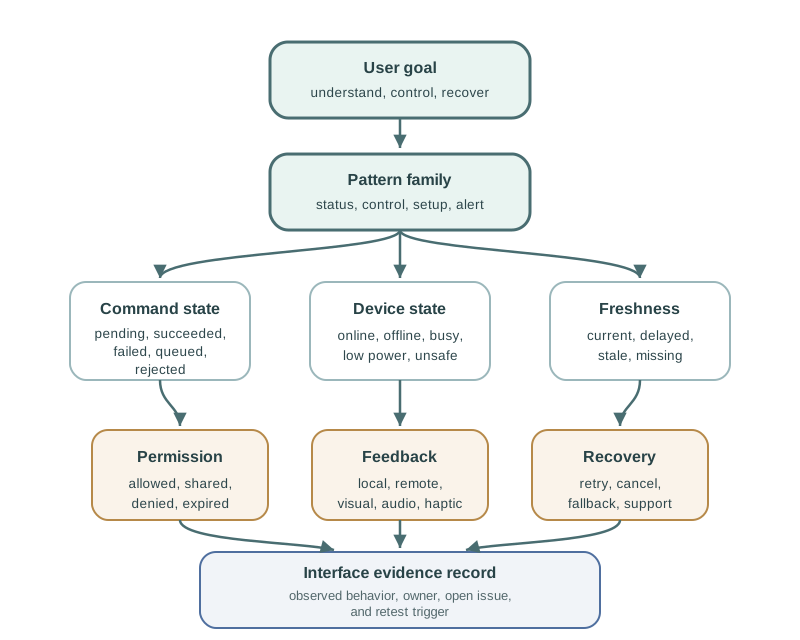
A pitfall review should therefore identify the broken contract before proposing screen changes. Dashboard overload often means the decision hierarchy is missing, not that the page needs smaller charts. Latency denial means the command path needs distinct sent, pending, applied, failed, and duplicate-suppressed states. Alert fatigue means severity, ownership, acknowledgement, and escalation are mixed together. Permission confusion means sensing, control, sharing, retention, and revocation are not explained in task language.
The safer pattern is the smallest repeatable rule that makes the next action reliable. For example, a stale reading should keep the last value visible while exposing timestamp, source, confidence, and recommended action. A temporary automation pause should show who paused it, how long it lasts, who else is affected, and how normal operation resumes.
- State clarity: separate sent, pending, applied, rejected, stale, offline, muted, denied, updating, low_battery, and overridden states.
- Control clarity: distinguish temporary pause, permanent disable, retry, undo, revoke, acknowledge, escalate, and local fallback actions.
- Role clarity: show whether owner, guest, operator, maintainer, caregiver, bystander, or support staff are affected.
4.5 Diagnose Before Choosing Patterns
Do not choose a pattern only because the symptom sounds familiar. If users tap twice, the cause might be missing pending feedback, a slow device path, an idempotency bug, a disabled button that has no explanation, or a cloud acknowledgement arriving before the device state changes. The safer pattern depends on the mechanism.
For a delayed lock command, test the command path from app tap to cloud request, MQTT or WebSocket event, gateway delivery, device acknowledgement, mechanical movement, reported state update, and notification. For an alert-fatigue problem, inspect event threshold, duplicate suppression, quiet-hours handling, acknowledgement ownership, escalation rule, and whether the alert changes the next action. For permission confusion, map what is sensed, controlled, shared, remembered, and revocable by role.
A practical triage row should include the affected role, entry context, surface, expected state, observed state, available fallback, accessibility path, privacy implication, and support vocabulary. Treat this as an evidence record rather than a meeting note. The row should point to a reproduced scenario, such as a delayed gateway, expired guest invite, muted caregiver alert, low-battery sensor, offline hub, or stale dashboard reading. If the pattern cannot be tested against the original scenario, it is still only a proposal.
Choose acceptance checks that cover at least two touchpoints. A resident might use the app while a lock reader shows local feedback and support sees the same command id. A facility operator might acknowledge an urgent alert from a dashboard while a mobile notification changes state. A caregiver might pause reminders locally while the owner account sees who paused them and when they resume.
Uma’s Worst-Moment Test
- Moment: a delayed gateway, an expired guest invite, a muted caregiver alert, a low-battery sensor, or a stale dashboard reading.
- Fails when: the pattern is only tested against the symptom’s name — missing pending feedback, a slow device path, and an idempotency bug all look like “users tap twice.”
- Fix: acceptance checks that cover at least two touchpoints, such as a resident’s app, a lock reader’s local feedback, and support seeing the same command id.
- Name the failing mechanism: state visibility, command timing, alert priority, permission boundary, automation explanation, local fallback, or support diagnosis.
- Select the pattern: decision hierarchy, command-state feedback, representative task testing, local control, alert hierarchy, temporary override, task-based permission, or distinct recovery states.
- Prove the change: rerun the original scenario with the affected role, failure state, accessibility path, and support view included.
4.6 Safer Patterns Need Hooks
Pattern quality depends on the implementation exposing enough truth to the interface. Useful hooks include command id, idempotency key, sequence number, request timestamp, device-shadow desired and reported state, MQTT retained message, WebSocket update, APNs or FCM delivery state, firmware version, battery threshold, RSSI/SNR, retry budget, queue depth, support correlation id, role id, permission scope, and audit log entry.
The UI should consume those hooks as product states, not internal debris. A pending command can disable duplicate actions while still offering cancel or status details. A stale sensor value can keep the old reading visible while marking timestamp, source, and recommended action. A muted alert can show owner, duration, and escalation behavior. A support console can use the same state vocabulary as the app so users are not asked to translate engineering terms.
The contract needs stable names across firmware, cloud services, mobile code, dashboards, and support tooling. Device shadows or digital twins should distinguish desired state from reported state. Event streams should carry sequence numbers or timestamps so the UI can ignore stale updates. Command handlers should treat retry and duplicate suppression deliberately, especially for toggles, locks, pumps, heaters, and other controls where repeating an action changes the physical world.
Alert and permission patterns also need data rules. Store acknowledgement actor, acknowledgement time, mute duration, escalation state, and next action instead of one generic dismissed flag. Permission records should separate role, scope, device, location, expiry, revocation, and audit reason. Retention and access rules matter because the evidence that helps support diagnose a failure can also expose occupancy, health, or security behavior.
- Command hook: request_sent, device_acknowledged, applied, rejected, timed_out, rolled_back, and duplicate_suppressed.
- Alert hook: severity, location, source, first_seen, last_seen, acknowledged_by, muted_until, escalation_state, and next_action.
- Recovery hook: local_control_available, permission_repair_needed, battery_replacement_needed, gateway_check_needed, and support_escalated.
4.7 Diagnose Pitfalls First
A pitfall is a repeated design failure pattern. It is usually visible through symptoms:
- users ignore a dashboard
- users repeat commands
- users cannot explain device state
- users disable alerts or automation
- users rely on support for ordinary recovery
- users share accounts because roles are missing
- users mistrust data because freshness is unclear
Do not stop at the symptom. Ask what design assumption produced it.
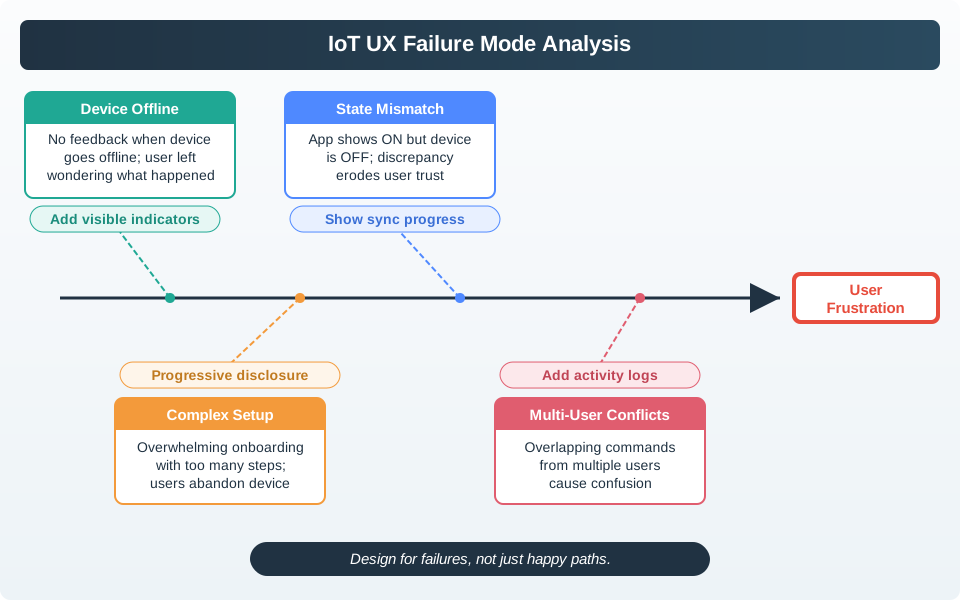
Use Figure 4.2 to separate the visible symptom from the design assumption that created it before choosing a safer pattern.
4.8 Pitfall Pattern Map
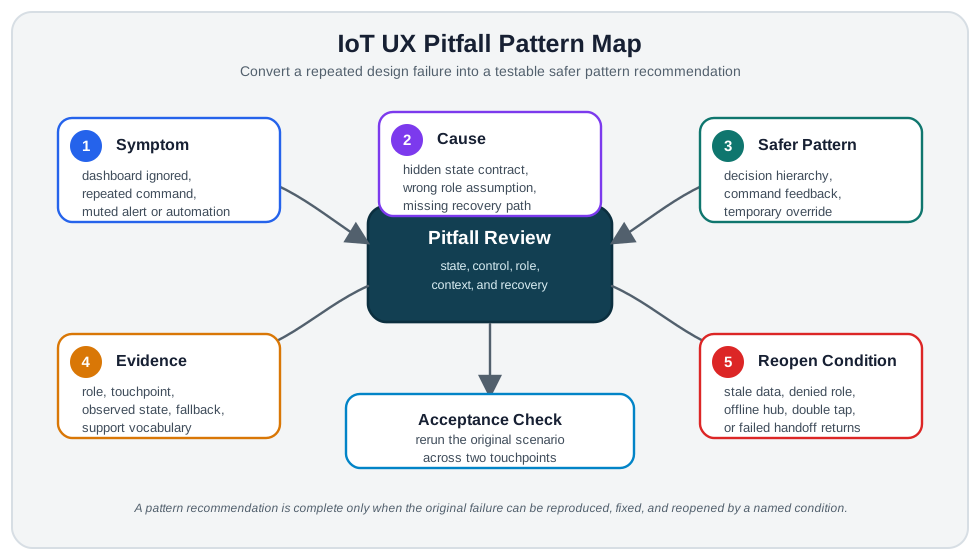
Use Figure 4.3 to turn a design problem into a testable pattern recommendation.
Use Figure 26.3 when a pitfall involves stale data, delayed commands, muted alerts, failed permissions, or support handoff. The pattern should expose the state that changes the user’s next action.
4.9 Pitfall 1: Dashboard Overload
Symptom:
- Users ignore the dashboard or miss important changes.
Cause:
- The dashboard is organized around available data instead of decisions.
Safer pattern:
- Create a decision hierarchy.
- Show overall state first.
- Group related warnings.
- Reveal details only when investigation is needed.
- Keep raw readings and logs available for expert review, not as the first view.
Review question:
- Can the user tell what needs attention and what action comes next without scanning every metric?
4.10 Pitfall 2: Latency Denial
Symptom:
- Users press a command repeatedly because nothing appears to happen.
Cause:
- The design assumes commands are instant, even when device, network, or cloud paths add delay.
Safer pattern:
- Show command states: sent, pending, applied, failed, queued, or rejected.
- Confirm when the device state changes, not only when the app sends a request.
- Prevent duplicate actions while a command is pending.
- Explain what the user can do if the command fails.
Review question:
- Can the user distinguish “request sent” from “device changed”?
4.11 Pitfall 3: Expert Blindness
Symptom:
- Engineers and expert users can complete the flow, but new users cannot.
Cause:
- The design relies on internal terms, hidden gestures, setup rituals, or knowledge the target user does not have.
Safer pattern:
- Test with representative users.
- Replace internal terms with task language.
- Make setup mode, pairing, permission, and recovery visible.
- Use progressive disclosure for expert options.
Review question:
- Can a realistic first-time user explain what the system is asking and why?
4.12 Pitfall 4: Mobile-Only Control
Symptom:
- Users cannot complete an important action when the phone is unavailable, inconvenient, or inappropriate.
Cause:
- The product treats the app as the only control surface.
Safer pattern:
- Provide local controls for high-frequency or high-consequence actions.
- Use device feedback for local state.
- Support accessible alternatives.
- Keep app, device, dashboard, and support language consistent.
Review question:
- Can the user still complete the core action when the app path is not available?
4.13 Pitfall 5: Alert Fatigue
Symptom:
- Users ignore alerts, mute them, or cannot tell which one matters.
Cause:
- Alerts are triggered by events rather than user decisions and consequence.
Safer pattern:
- Separate information, warning, and urgent action.
- Include what happened, where, when, and what to do next.
- Show acknowledgement and ownership.
- Escalate only when needed.
- Suppress duplicates that do not change the action.
Review question:
- Does each alert help the right person take the right action?
4.14 Pitfall 6: Automation Overreach
Symptom:
- Users disable automation because it feels unpredictable or hard to correct.
Cause:
- Automation acts without enough explanation, control, or recovery.
Safer pattern:
- Explain the active rule in user language.
- Show why automation acted when consequence matters.
- Separate temporary pause from permanent disable.
- Make override state visible to affected users.
- Restore normal behavior predictably.
Review question:
- Can users understand, pause, and recover automation without breaking the system?
4.15 Pitfall 7: Permission Confusion
Symptom:
- Users deny permissions, grant too much access, or cannot tell who can sense or control what.
Cause:
- Permissions are explained with system terms instead of tasks and consequences.
Safer pattern:
- Explain permissions at the moment of need.
- Say what will be sensed, controlled, shared, or remembered.
- Use role-based permission views.
- Make active access visible.
- Provide a clear way to revoke or repair access.
Review question:
- Can the user explain what they are granting and how to change it later?
4.16 Pitfall 8: Failure State Ambiguity
Symptom:
- Users and support teams guess what happened after a device stops behaving normally.
Cause:
- Many failure causes share one generic message.
Safer pattern:
- Separate offline, stale, low power, updating, denied, muted, pending, rejected, and failed states.
- Show consequence and next action.
- Keep historical information visible without presenting it as current.
- Use the same state terms in support tools.
Review question:
- Can the user and support team identify the state without translating different terms?
4.17 Pitfall Triage Record
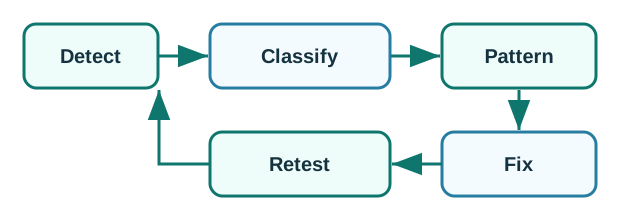
Use Figure 4.5 to manage pitfall fixes without losing the evidence trail.
Record:
- symptom
- affected role
- context
- likely cause
- safer pattern
- recommended fix
- evidence that will prove the fix works
- condition that would reopen the issue
Use these common IoT scenarios as quick pattern checks:
- Door access with full hands: avoid touch-only flows; support proximity, timing, fallback access, and clear denial feedback.
- Pairing recovery: design for failed pairing, device reset, ownership transfer, and reattempt without starting from zero.
- Stale dashboard data: show freshness, source, and uncertainty before users act on old state.
- Pauseable automation: every automation that affects people should have visible state, manual override, and a safe resume path.
- Water leak alerts: separate warning, urgent action, acknowledgement, and follow-up so alerts do not become noise.
- Shared roles: distinguish owner, guest, maintainer, caregiver, resident, and support permissions.
- Low-power maintenance: show what sleeps, what still works, and when maintenance evidence is needed.
Each example should map to one pitfall, one user impact, one recovery pattern, and one piece of evidence.
4.18 Incremental Examples
4.18.1 Overloaded Facility Dashboards
Scenario:
- A dashboard shows many room sensors, equipment states, and alerts.
- Operators say the dashboard is accurate but hard to use.
Pitfall diagnosis:
- Dashboard overload.
- Failure state ambiguity.
- Alert hierarchy weakness.
Pattern recommendation:
- Start with overall health and active action items.
- Group warnings by location and consequence.
- Show stale/offline/current state near readings.
- Reveal detailed charts only after the operator chooses an issue.
- Keep expert logs behind the investigation path.
Follow-up check:
- Ask operators to find the most urgent issue, explain the state, and choose the next action.
4.18.2 Smart Room Automation
Scenario:
- A shared room adjusts lighting and temperature automatically.
- Users complain that they do not know why it changes or how to pause it.
Pitfall diagnosis:
- Automation overreach.
- Mobile-only control.
- Expert blindness in rule names.
Pattern recommendation:
- Use one rule name across wall control, app, dashboard, and support.
- Show the active rule and pause duration.
- Add a local temporary pause.
- Separate pause from permanent disable.
- Record the override so other roles understand the state.
Follow-up check:
- Ask users to pause automation for a meeting, check whether others can see that state, and restore normal behavior.
Uma’s Worst-Moment Test
- Moment: a shared room adjusts lighting and temperature automatically, and users cannot tell why it changed or how to pause it.
- Fails when: the rule has a different name on the wall control, the app, and support — one role’s pause looks like another role’s silence.
- Fix: one rule name everywhere, the active rule shown, a local temporary pause separate from permanent disable, and the override recorded for other roles.
4.18.3 Smart-Lock Delay Handoff
Scenario:
- A resident taps “unlock” for a shared door, sees no feedback for several seconds, taps again, and the lock later changes state twice. Support sees a cloud success message, but the resident saw only a spinner.
Pitfall diagnosis:
- Latency denial.
- Failure state ambiguity.
- One-role design between resident, guest, property manager, installer, and support.
- Permission confusion if the account role cannot explain who may unlock or revoke access.
Pattern recommendation:
- Show sent, pending, device-acknowledged, applied, rejected, timed-out, and duplicate-suppressed states.
- Disable duplicate unlock while preserving cancel, status detail, and emergency fallback guidance.
- Use command id, idempotency key, request timestamp, MQTT or WebSocket update, device-shadow desired/reported state, firmware version, battery threshold, gateway offline interval, and support correlation id.
- Use the same state vocabulary in the mobile app, reader indicator, property-manager dashboard, and support console.
- Separate owner, guest, installer, and support permissions in the recovery path.
Follow-up check:
- Ask a resident to unlock while the gateway is delayed, ask a property manager to inspect the same event, and ask support to explain whether the command was pending, applied, rejected, or duplicate-suppressed.
4.19 Pitfall-to-Pattern Row
Choose one IoT UX issue and fill in a row:
| Field | Your answer |
|---|---|
| Symptom | What the user, operator, or support person experienced |
| Affected role | Owner, guest, operator, maintainer, caregiver, bystander, or support |
| System state | Fresh, stale, pending, rejected, offline, muted, denied, updating, or low power |
| Likely cause | State visibility, command timing, alert priority, permission boundary, automation explanation, fallback, or support diagnosis |
| Safer pattern | Pattern that changes the next user decision or recovery path |
| Acceptance check | Scenario that proves the pattern works for the affected role |
4.20 Micro-Exercise: Pick the Safer Pattern
For each symptom, name one safer pattern:
- Users ignore a dashboard with 40 metrics and no next action.
- A caregiver cannot tell whether a medication reminder is muted, late, or already acknowledged.
- A guest cannot unlock a door after an invite expires and support uses a different state name from the app.
4.21 Pattern Checklist
For each pitfall, confirm:
- the symptom is observed, not guessed
- the affected role is clear
- context and system state are described
- the root cause is separated from the symptom
- the safer pattern changes the user decision or recovery path
- the fix has acceptance evidence
- conditions that would reopen the issue are recorded
4.22 Common Mistakes When Applying Patterns
Watch for:
- Pattern copying: using a pattern because it sounds familiar, not because it fits the symptom.
- Over-simplifying: hiding needed state rather than organizing it.
- False confirmation: showing “sent” as if it means “device changed.”
- One-role design: fixing the owner experience while ignoring guest, operator, maintainer, or support roles.
- Alert renaming only: changing alert labels without changing priority, acknowledgement, or action.
- No scenario follow-up: assuming a pattern works because it is a known pattern.
4.23 Concept Check: Command State Feedback
4.24 Concept Check: Match Pitfall to Pattern
4.25 Concept Check: Order the Pitfall Review
4.26 Summary
IoT UX pitfalls repeat because connected systems combine state, delay, automation, alerts, roles, permissions, and recovery. Good patterns address the cause of the failure: decision hierarchy for overloaded dashboards, state feedback for latency, representative testing for expert blindness, local fallback for mobile-only control, alert hierarchy for alert fatigue, explainable override for automation, task-based permissions, and distinct recovery states.
4.27 Key Takeaway
UX pitfall review should catch unclear feedback, excessive attention demands, privacy surprises, inaccessible flows, and brittle automation early.
4.28 See Also
This chapter connects to:
- UX Design Fundamentals for the principles behind each pattern.
- UX Process Loop for process vocabulary.
- UX Design Evaluation for testing whether a pattern works.
- Worked Example Pitfall Set for scenario applications.
- Interface Design Fundamentals for control and feedback details.
- Prototyping Techniques for IoT for testing patterns before implementation.
4.29 What’s Next
Continue with:
- Interface Design Fundamentals, if the pitfall involves controls, labels, feedback, or layout.
- Interactive Design Process, if the team needs a workflow for applying patterns.
- Prototyping Techniques for IoT, if the pattern needs a testable prototype.
- Understanding People and Context, if the pitfall comes from weak user or context evidence.