Prototyping
  • ← All Modules
  1. Reference Library
  2. 28  Reference: IoT Code Pattern Library
Prototyping
  • 1  Prototyping Module Guide
  • Programming Basics
    • 2  Microcontroller Programming Essentials
  • Hardware Prototyping
    • 3  Why Hardware Prototyping Matters
    • 4  Your First Bench Build
    • 5  MCU vs MPU Controller Choice
    • 6  Choosing a Hardware Platform
    • 7  Selecting and Integrating Components
    • 8  PCB Design and Fabrication
    • 9  Hardware Build Discipline and Debugging
    • 10  Hardware Prototyping Case Studies
  • Software Prototyping
    • 11  What Software Prototypes Prove
    • 12  Choosing a Development Environment
    • 13  Choosing a Programming Language
    • 14  Firmware Architecture Patterns
    • 15  Managing Libraries and Version Control
    • 16  Testing and Debugging Firmware
    • 17  Safe Over-the-Air Updates
    • 18  Maintainable Firmware Practices
  • Prototyping Kits
    • 19  Smart Home and Environmental Kits
    • 20  Robotics and Agricultural Kits
    • 21  Industrial and Wearable Kits
    • 22  AI, Wireless, and Energy Kits
    • 23  Choosing a Prototyping Kit
  • Platforms & Frameworks
    • 24  Cloud IoT Platforms
    • 25  Edge Computing Platforms
    • 26  Application Frameworks and Dashboards
    • 27  Fleet Device Management
  • Reference Library
    • 28  Reference: IoT Code Pattern Library

On This Page

  • 28.1 Start With the Behavior to Prove
  • 28.2 Learning Objectives
  • 28.3 Snippets Are Starting Points
  • 28.4 Adapt One Boundary at a Time
  • 28.5 Snippets Hide State Boundaries
  • 28.6 Code Snippet Library
  • 28.7 Snippet Browser
  • 28.8 Quick Reference Tables
  • 28.9 Common Reference Patterns
  • 28.10 Contributing Snippets
  • 28.11 Related Reading
  • Common Pitfalls
  • 28.12 Summary
  1. Reference Library
  2. 28  Reference: IoT Code Pattern Library

28  Reference: IoT Code Pattern Library

Copy-Paste-Ready Patterns for Sensors, Messaging, Power, and Data

prototyping
iot
code
pattern

28.1 Start With the Behavior to Prove

A snippet should prove one behavior before it becomes project code. Run the original, change one boundary, and keep the output that shows the adaptation worked so the learner can separate reusable pattern from project-specific risk.

28.2 Learning Objectives

After completing this chapter, you will be able to:

  • Implement common IoT code patterns for sensor reading, MQTT messaging, and HTTP communication on ESP32
  • Apply power management techniques including deep sleep with timer and GPIO wakeup
  • Use JSON serialization and ring buffers for efficient IoT data handling
  • Configure BLE beacons and LoRa point-to-point communication for wireless IoT projects

28.3 Snippets Are Starting Points

A code snippet is useful when it shortens the first working path without hiding the engineering assumptions. The ESP32, Arduino core, PubSubClient, ArduinoJson, HTTPClient, Wire, WiFi, BLE, and LoRa examples in this hub should be read as patterns: each one shows a small behavior, the library calls involved, and the checks a learner must repeat in their own circuit or network. A snippet is not a finished design record. It is a compact example of one boundary, such as a sensor read, a publish attempt, a JSON conversion, a sleep cycle, or a wireless advertisement.
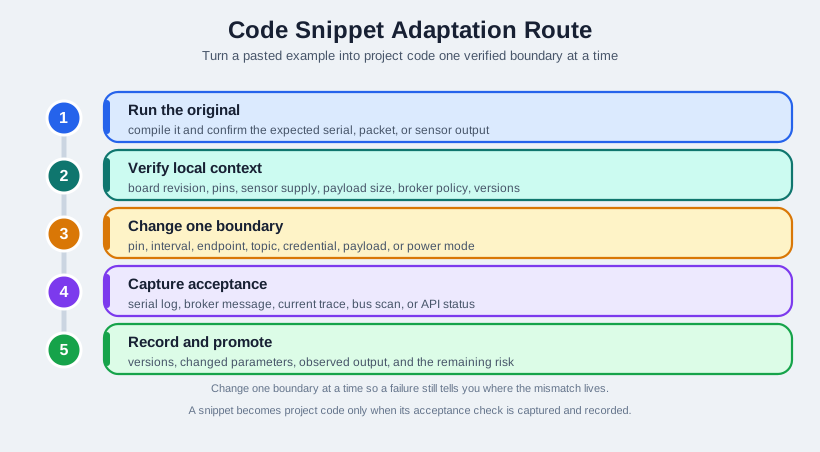
Five-step route for reusing an IoT code snippet: run the original, verify local context, change one boundary, capture the acceptance check, and record before promoting to project code.
Safe snippet reuse keeps the example inside a route of boundaries, retries, tests, and evidence rather than treating pasted code as proof.

The right question is not “can I paste this?” The right question is “which assumptions must I confirm before this becomes project code?” Pins, voltage levels, I2C addresses, MQTT broker settings, JSON buffer sizes, sleep intervals, Wi-Fi reconnect behavior, and battery current all depend on the final hardware and deployment context. Even a short DHT22 example carries assumptions about sampling interval and invalid reads. A PubSubClient example carries assumptions about broker reachability, keepalive timing, topic policy, client identity, and payload length. A deep-sleep example carries assumptions about wake source, boot reason, sensor warm-up, and whether the active current pulse is acceptable for the battery.

  • Use the snippet for shape: control flow, library setup, error handling, and common API calls.
  • Verify the local context: board revision, pins, sensor supply, payload size, broker policy, firmware version, and library version.
  • Promote only after testing: run the snippet on target hardware, record assumptions, and add a regression check or bench note before reusing it.

The library is therefore organized for transfer, not blind copying. Start with the smallest snippet that matches the behavior you need, then keep the acceptance check visible: serial output, a broker message, an HTTP status, an I2C scan, a wake reason, a measured current trace, or a repeatable host test. When that proof is missing, the snippet is still a learning aid, but it has not yet become project code.

28.4 Adapt One Boundary at a Time

The safest way to reuse snippets is to change one boundary, run it, and inspect the result before moving to the next boundary. For a DHT22 or analog sensor snippet, first confirm wiring, sensor power, sampling interval, ADC range, and invalid-read behavior. For I2C scanner code, confirm pullups, SDA/SCL pins, bus speed, address conflicts, and whether Wi-Fi is using ESP32 ADC or bus resources. For MQTT or HTTP snippets, confirm client ID, topic policy, QoS choice, timeout, retry delay, TLS need, and payload size. If several of those change at once, a failure no longer tells you where the real mismatch lives.

Use concrete tooling around the copy step. PlatformIO or Arduino IDE can pin board and library versions, which keeps a working example reproducible after the next library update. Serial Monitor output catches boot loops, missing credentials, bad pins, and sensor read failures quickly. Logic-analyzer traces can prove an I2C or SPI transaction is actually leaving the board. Broker logs and Wireshark captures show whether MQTT, HTTP, DNS, TCP, and TLS are failing in the firmware, the network, or the server. Measured current traces are the only reliable way to check whether a sleep snippet saves the power it claims to save.

  1. Run the original snippet first. Confirm it compiles and produces the expected serial, packet, or sensor output.
  2. Change one project parameter. Adjust pin, interval, endpoint, topic, credential, payload, or power mode separately.
  3. Capture the acceptance check. Save the serial log, broker message, current trace, bus scan, or API response that proves the adaptation worked.

As the snippet grows, move magic values out of the example body and into a visible configuration boundary: pins, topics, endpoints, thresholds, retry limits, and sleep intervals should be easy to review. ArduinoJson Assistant can size JSON documents before heap pressure appears on the board. PubSubClient buffer settings should be checked before a payload is blamed on the broker. ESP32 deep-sleep wake reasons should be logged before a wakeup path is trusted. FreeRTOS task timing should be inspected when the example moves from a single loop into concurrent sensor, radio, and display work.

A good reuse record is short but specific: source snippet, hardware revision, library versions, changed parameters, observed output, and the remaining risk. That record lets another learner decide whether the snippet still fits their board or whether it needs a fresh adaptation pass.

28.5 Snippets Hide State Boundaries

Small snippets look linear, but IoT behavior is stateful. A reconnect loop crosses Wi-Fi association, DNS, TCP, MQTT session state, broker policy, keepalive timing, and payload retry behavior. A deep-sleep example crosses wake source configuration, RTC memory, boot reason, sensor warm-up, radio startup, and battery pulse current. A JSON parser crosses buffer sizing, message schema, missing fields, numeric range, and heap pressure. Each boundary can succeed in isolation while the whole device still fails under timing, network, or power pressure.

The hidden boundary is ownership. The snippet owns a tiny behavior. The learner owns hardware limits, credentials, timing, error handling, security, logging, and maintainability. A production path must replace placeholder credentials, public brokers, blocking loops, unbounded retries, and demo delays with project-specific configuration, timeouts, observability, and failure handling. It must also make security decisions explicit: credentials should not be hard-coded into examples that become repository code, TLS settings should not be copied without understanding certificate and endpoint policy, and diagnostic logs should not leak secrets while trying to explain a connection failure.

The state-machine view helps explain why. A reliable device is usually not “read sensor, publish, delay” forever. It has boot, configure, sample, validate, publish, backoff, sleep, fault, and recovery states. Interrupts, timers, queues, and network callbacks may enter that state machine at awkward times. Without bounded retries, a radio outage can turn into a battery drain. Without input validation, one malformed payload can poison downstream logic. Without an evidence record, a later maintainer cannot tell whether a value came from a tested requirement, a copied demo, or a temporary experiment.

This is why the library is a learning hub, not a certification source. The snippet gets a learner to a measurable behavior; the project tests decide whether that behavior is reliable, secure, and efficient enough to keep. The best under-the-hood outcome is not more code. It is a clear separation between reusable pattern, project-specific configuration, measured acceptance check, and the failure paths that still need design attention.

For Beginners: Code Snippet Library

A code snippet is a small, ready-to-use piece of programming code that solves a specific task – like reading a temperature sensor or sending data over Wi-Fi. This library collects over 100 tested snippets that you can copy directly into your IoT projects on Arduino or ESP32 platforms. Think of it as a recipe book for IoT programming: find the recipe you need, copy it, and adapt it to your project.

In 60 Seconds

A searchable, copy-paste-ready collection of 100+ tested IoT code snippets covering sensors, MQTT, HTTP, BLE, LoRa, deep sleep, and data handling for Arduino and ESP32 platforms. Filter by category, difficulty, or keyword to find exactly the code pattern you need.

Quick Check: Responsible Snippet Use
Putting Numbers to It

Context: ESP32 deep sleep with 5-minute timer wakeup for battery-powered sensor. Comparing active vs sleep power.

Formula: Battery life = \(\frac{\text{Battery capacity (mAh)}}{\text{Average current draw (mA)}}\)

Worked example: 2,000 mAh battery. Without sleep: Active 100 mA continuously = \(\frac{2000}{100} = 20\) hours. With deep sleep: Active 100 mA for 10s every 5 min (99.9% sleep at 10 µA). Average: \((100 \text{ mA} \times \frac{10}{300}) + (0.01 \text{ mA} \times \frac{290}{300}) = 3.33 + 0.0097 \approx 3.34\) mA. Battery life: \(\frac{2000}{3.34} \approx 600\) hours = 25 days (30× improvement).

Show code
viewof battery_capacity = Inputs.range([500, 5000], {value: 2000, step: 100, label: "Battery capacity (mAh)"})
viewof active_current = Inputs.range([10, 200], {value: 100, step: 5, label: "Active current (mA)"})
viewof active_time = Inputs.range([1, 60], {value: 10, step: 1, label: "Active time per cycle (s)"})
viewof sleep_interval = Inputs.range([60, 3600], {value: 300, step: 60, label: "Sleep interval (s)"})
viewof sleep_current = Inputs.range([0.001, 1], {value: 0.01, step: 0.001, label: "Sleep current (mA)"})
Show code
battery_calc = {
  const no_sleep_life_hours = battery_capacity / active_current;
  const cycle_time = sleep_interval;
  const sleep_time = cycle_time - active_time;
  const avg_current = (active_current * (active_time / cycle_time)) + (sleep_current * (sleep_time / cycle_time));
  const with_sleep_life_hours = battery_capacity / avg_current;
  const improvement_factor = with_sleep_life_hours / no_sleep_life_hours;

  return {
    no_sleep_life_hours,
    no_sleep_life_days: no_sleep_life_hours / 24,
    avg_current,
    with_sleep_life_hours,
    with_sleep_life_days: with_sleep_life_hours / 24,
    improvement_factor
  };
}
Show code
html`<div style="background: linear-gradient(135deg, #E8F5E9 0%, #C8E6C9 100%); padding: 1.2rem; border-radius: 8px; border-left: 4px solid #16A085; margin-top: 0.5rem;">
<div style="display: grid; grid-template-columns: 1fr 1fr; gap: 1rem; margin-bottom: 1rem;">
  <div style="background: white; padding: 0.8rem; border-radius: 6px; border: 1px solid #16A085;">
    <strong style="color: #2C3E50;">Without Sleep Mode</strong>
    <p style="margin: 0.5rem 0 0 0; font-size: 1.1rem; color: #E67E22;">
      <strong>${battery_calc.no_sleep_life_hours.toFixed(1)} hours</strong><br>
      <span style="font-size: 0.9rem;">(${battery_calc.no_sleep_life_days.toFixed(1)} days)</span>
    </p>
  </div>
  <div style="background: white; padding: 0.8rem; border-radius: 6px; border: 1px solid #16A085;">
    <strong style="color: #2C3E50;">With Deep Sleep</strong>
    <p style="margin: 0.5rem 0 0 0; font-size: 1.1rem; color: #16A085;">
      <strong>${battery_calc.with_sleep_life_hours.toFixed(1)} hours</strong><br>
      <span style="font-size: 0.9rem;">(${battery_calc.with_sleep_life_days.toFixed(1)} days)</span>
    </p>
  </div>
</div>
<div style="background: white; padding: 0.8rem; border-radius: 6px; border: 1px solid #3498DB;">
  <p style="margin: 0; color: #2C3E50;">
    <strong>Average current draw:</strong> ${battery_calc.avg_current.toFixed(2)} mA<br>
    <strong>Battery life improvement:</strong> <span style="color: #16A085; font-size: 1.1rem;"><strong>${battery_calc.improvement_factor.toFixed(1)}×</strong></span>
  </p>
</div>
</div>`

28.6 Code Snippet Library

100+ Ready-to-Use Code Snippets

Browse or search our curated collection of IoT code snippets. Each snippet is tested, documented, and includes explanations of key concepts.

How to Use This Library
  1. Start from a tested snippet, not a blank file.
  2. Adapt one parameter at a time (pin, interval, endpoint, power mode).
  3. Validate behavior on hardware before adding complexity.

28.7 Snippet Browser

Show code
snippets = [
  // ===== SENSOR READING =====
  {
    id: "sensor-dht22",
    title: "DHT22 Temperature & Humidity Reading",
    category: "Sensors",
    platform: "Arduino/ESP32",
    difficulty: "Beginner",
    tags: ["temperature", "humidity", "dht22", "sensor"],
    description: "Read temperature and humidity from DHT22 sensor with error handling",
    code: `#include <DHT.h>

#define DHT_PIN 4
#define DHT_TYPE DHT22

DHT dht(DHT_PIN, DHT_TYPE);

void setup() {
  Serial.begin(115200);
  dht.begin();
}

void loop() {
  float humidity = dht.readHumidity();
  float tempC = dht.readTemperature();
  float tempF = dht.readTemperature(true);

  // Check for read errors
  if (isnan(humidity) || isnan(tempC)) {
    Serial.println("DHT read failed!");
    delay(2000);
    return;
  }

  // Calculate heat index
  float heatIndex = dht.computeHeatIndex(tempC, humidity, false);

  Serial.printf("Temp: %.1f°C (%.1f°F)\\n", tempC, tempF);
  Serial.printf("Humidity: %.1f%%\\n", humidity);
  Serial.printf("Heat Index: %.1f°C\\n", heatIndex);

  delay(2000);  // DHT22 needs 2s between reads
}`,
    explanation: "DHT22 requires a 2-second minimum delay between readings. Always check for NaN values as the sensor can fail reads. The heat index calculation combines temperature and humidity for 'feels like' temperature."
  },

  {
    id: "sensor-analog",
    title: "Analog Sensor with Averaging",
    category: "Sensors",
    platform: "Arduino/ESP32",
    difficulty: "Beginner",
    tags: ["analog", "adc", "averaging", "noise"],
    description: "Read analog sensor with multi-sample averaging to reduce noise",
    code: `const int SENSOR_PIN = 34;  // ADC1 pin on ESP32
const int NUM_SAMPLES = 10;
const float V_REF = 3.3;
const int ADC_MAX = 4095;  // 12-bit ADC

float readAnalogAveraged(int pin, int samples) {
  long sum = 0;
  for (int i = 0; i < samples; i++) {
    sum += analogRead(pin);
    delay(1);  // Small delay between samples
  }
  return (float)sum / samples;
}

float adcToVoltage(float adcValue) {
  return (adcValue / ADC_MAX) * V_REF;
}

void setup() {
  Serial.begin(115200);
  analogReadResolution(12);  // ESP32: 9-12 bits
  analogSetAttenuation(ADC_11db);  // 0-3.3V range
}

void loop() {
  float avgReading = readAnalogAveraged(SENSOR_PIN, NUM_SAMPLES);
  float voltage = adcToVoltage(avgReading);

  Serial.printf("ADC: %.1f, Voltage: %.3fV\\n", avgReading, voltage);
  delay(100);
}`,
    explanation: "Multi-sample averaging reduces ADC noise significantly. For ESP32, use ADC1 pins (GPIO 32-39) when using Wi-Fi. Attenuation setting determines voltage range: 0dB (0-1.1V), 2.5dB (0-1.5V), 6dB (0-2.2V), 11dB (0-3.3V)."
  },

  {
    id: "sensor-i2c-scan",
    title: "I2C Device Scanner",
    category: "Sensors",
    platform: "Arduino/ESP32",
    difficulty: "Beginner",
    tags: ["i2c", "scanner", "debug", "address"],
    description: "Scan I2C bus to find connected device addresses",
    code: `#include <Wire.h>

void setup() {
  Serial.begin(115200);
  Wire.begin();  // Default pins: SDA=21, SCL=22 on ESP32

  Serial.println("I2C Scanner Starting...");
  scanI2C();
}

void scanI2C() {
  byte deviceCount = 0;

  Serial.println("Scanning...");
  for (byte addr = 1; addr < 127; addr++) {
    Wire.beginTransmission(addr);
    byte error = Wire.endTransmission();

    if (error == 0) {
      Serial.printf("Device found at 0x%02X", addr);

      // Common device identification
      switch(addr) {
        case 0x3C: case 0x3D: Serial.print(" (OLED Display)"); break;
        case 0x40: Serial.print(" (HDC1080/INA219)"); break;
        case 0x48: Serial.print(" (ADS1115/TMP102)"); break;
        case 0x50: Serial.print(" (EEPROM)"); break;
        case 0x68: Serial.print(" (MPU6050/DS3231)"); break;
        case 0x76: case 0x77: Serial.print(" (BME280/BMP280)"); break;
      }
      Serial.println();
      deviceCount++;
    }
  }

  Serial.printf("\\nFound %d device(s)\\n", deviceCount);
}

void loop() {
  delay(5000);
  scanI2C();  // Rescan periodically
}`,
    explanation: "I2C addresses are 7-bit (1-127). Common ranges: 0x20-0x27 (PCF8574), 0x48-0x4F (ADC), 0x50-0x57 (EEPROM), 0x68-0x6F (RTC/IMU), 0x76-0x77 (pressure sensors)."
  },

  // ===== MQTT =====
  {
    id: "mqtt-publish",
    title: "MQTT Publish with Reconnection",
    category: "MQTT",
    platform: "ESP32",
    difficulty: "Intermediate",
    tags: ["mqtt", "publish", "wifi", "reconnect"],
    description: "Robust MQTT publishing with automatic Wi-Fi and broker reconnection",
    code: `#include <WiFi.h>
#include <PubSubClient.h>

const char* WIFI_SSID = "your-ssid";
const char* WIFI_PASS = "your-password";
const char* MQTT_SERVER = "broker.hivemq.com";
const int MQTT_PORT = 1883;
const char* MQTT_CLIENT_ID = "esp32-sensor-01";
const char* MQTT_TOPIC = "iot/sensors/temperature";

WiFiClient wifiClient;
PubSubClient mqtt(wifiClient);

unsigned long lastPublish = 0;
const long PUBLISH_INTERVAL = 5000;

void connectWiFi() {
  if (WiFi.status() == WL_CONNECTED) return;

  Serial.printf("Connecting to %s", WIFI_SSID);
  WiFi.begin(WIFI_SSID, WIFI_PASS);

  int attempts = 0;
  while (WiFi.status() != WL_CONNECTED && attempts < 20) {
    delay(500);
    Serial.print(".");
    attempts++;
  }

  if (WiFi.status() == WL_CONNECTED) {
    Serial.printf("\\nConnected! IP: %s\\n", WiFi.localIP().toString().c_str());
  } else {
    Serial.println("\\nWi-Fi connection failed!");
  }
}

void connectMQTT() {
  while (!mqtt.connected()) {
    Serial.print("Connecting to MQTT...");

    if (mqtt.connect(MQTT_CLIENT_ID)) {
      Serial.println("connected!");
    } else {
      Serial.printf("failed (rc=%d), retry in 5s\\n", mqtt.state());
      delay(5000);
    }
  }
}

void setup() {
  Serial.begin(115200);
  mqtt.setServer(MQTT_SERVER, MQTT_PORT);
  connectWiFi();
  connectMQTT();
}

void loop() {
  // Maintain connections
  if (WiFi.status() != WL_CONNECTED) connectWiFi();
  if (!mqtt.connected()) connectMQTT();
  mqtt.loop();

  // Publish periodically
  if (millis() - lastPublish >= PUBLISH_INTERVAL) {
    float temperature = 25.5;  // Replace with sensor reading
    char payload[50];
    snprintf(payload, sizeof(payload), "{\\"temp\\":%.1f}", temperature);

    if (mqtt.publish(MQTT_TOPIC, payload)) {
      Serial.printf("Published: %s\\n", payload);
    } else {
      Serial.println("Publish failed!");
    }
    lastPublish = millis();
  }
}`,
    explanation: "PubSubClient requires mqtt.loop() in every iteration. Always check both Wi-Fi and MQTT connections. Use snprintf for safe string formatting. Client ID must be unique per broker connection."
  },

  {
    id: "mqtt-subscribe",
    title: "MQTT Subscribe with Callback",
    category: "MQTT",
    platform: "ESP32",
    difficulty: "Intermediate",
    tags: ["mqtt", "subscribe", "callback", "json"],
    description: "Subscribe to MQTT topics and handle incoming messages with JSON parsing",
    code: `#include <WiFi.h>
#include <PubSubClient.h>
#include <ArduinoJson.h>

const char* WIFI_SSID = "your-ssid";
const char* WIFI_PASS = "your-password";
const char* MQTT_SERVER = "broker.hivemq.com";
const char* MQTT_TOPIC_CMD = "iot/device/+/command";  // + is wildcard
const char* MQTT_TOPIC_STATUS = "iot/device/esp32-01/status";

WiFiClient wifiClient;
PubSubClient mqtt(wifiClient);

// Callback for incoming messages
void mqttCallback(char* topic, byte* payload, unsigned int length) {
  Serial.printf("Message on [%s]: ", topic);

  // Convert payload to string
  char message[length + 1];
  memcpy(message, payload, length);
  message[length] = '\\0';
  Serial.println(message);

  // Parse JSON
  StaticJsonDocument<200> doc;
  DeserializationError error = deserializeJson(doc, message);

  if (error) {
    Serial.printf("JSON parse failed: %s\\n", error.c_str());
    return;
  }

  // Handle commands
  const char* command = doc["cmd"];
  if (strcmp(command, "led_on") == 0) {
    digitalWrite(LED_BUILTIN, HIGH);
    Serial.println("LED turned ON");
  } else if (strcmp(command, "led_off") == 0) {
    digitalWrite(LED_BUILTIN, LOW);
    Serial.println("LED turned OFF");
  } else if (strcmp(command, "status") == 0) {
    publishStatus();
  }
}

void publishStatus() {
  StaticJsonDocument<200> doc;
  doc["device"] = "esp32-01";
  doc["uptime"] = millis() / 1000;
  doc["rssi"] = Wi-Fi.RSSI();
  doc["heap"] = ESP.getFreeHeap();

  char buffer[200];
  serializeJson(doc, buffer);
  mqtt.publish(MQTT_TOPIC_STATUS, buffer);
}

void connectMQTT() {
  while (!mqtt.connected()) {
    if (mqtt.connect("esp32-01")) {
      mqtt.subscribe(MQTT_TOPIC_CMD);
      Serial.println("Subscribed to command topic");
    } else {
      delay(5000);
    }
  }
}

void setup() {
  Serial.begin(115200);
  pinMode(LED_BUILTIN, OUTPUT);

  WiFi.begin(WIFI_SSID, WIFI_PASS);
  while (WiFi.status() != WL_CONNECTED) delay(500);

  mqtt.setServer(MQTT_SERVER, 1883);
  mqtt.setCallback(mqttCallback);
  connectMQTT();
}

void loop() {
  if (!mqtt.connected()) connectMQTT();
  mqtt.loop();
}`,
    explanation: "MQTT wildcards: + matches one level, # matches all remaining levels. Always set callback before connecting. ArduinoJson StaticJsonDocument is stack-allocated (faster, fixed size). Use DynamicJsonDocument for variable-size messages."
  },

  // ===== HTTP/REST =====
  {
    id: "http-post-json",
    title: "HTTP POST with JSON",
    category: "HTTP",
    platform: "ESP32",
    difficulty: "Intermediate",
    tags: ["http", "post", "json", "rest", "api"],
    description: "Send sensor data to REST API using HTTP POST with JSON body",
    code: `#include <WiFi.h>
#include <HTTPClient.h>
#include <ArduinoJson.h>

const char* WIFI_SSID = "your-ssid";
const char* WIFI_PASS = "your-password";
const char* API_ENDPOINT = "https://api.example.com/sensor-data";
const char* API_KEY = "your-api-key";

void sendSensorData(float temperature, float humidity) {
  if (WiFi.status() != WL_CONNECTED) {
    Serial.println("Wi-Fi not connected!");
    return;
  }

  HTTPClient http;
  http.begin(API_ENDPOINT);
  http.addHeader("Content-Type", "application/json");
  http.addHeader("Authorization", String("Bearer ") + API_KEY);
  http.setTimeout(10000);  // 10 second timeout

  // Build JSON payload
  StaticJsonDocument<200> doc;
  doc["device_id"] = "esp32-sensor-01";
  doc["temperature"] = temperature;
  doc["humidity"] = humidity;
  doc["timestamp"] = millis();

  String payload;
  serializeJson(doc, payload);

  Serial.printf("Sending: %s\\n", payload.c_str());

  int httpCode = http.POST(payload);

  if (httpCode > 0) {
    Serial.printf("HTTP Response: %d\\n", httpCode);
    if (httpCode == HTTP_CODE_OK || httpCode == HTTP_CODE_CREATED) {
      String response = http.getString();
      Serial.printf("Response: %s\\n", response.c_str());
    }
  } else {
    Serial.printf("HTTP Error: %s\\n", http.errorToString(httpCode).c_str());
  }

  http.end();
}

void setup() {
  Serial.begin(115200);
  WiFi.begin(WIFI_SSID, WIFI_PASS);
  while (WiFi.status() != WL_CONNECTED) {
    delay(500);
    Serial.print(".");
  }
  Serial.println("\\nWi-Fi connected!");
}

void loop() {
  float temp = 23.5 + random(-10, 10) / 10.0;
  float hum = 55.0 + random(-50, 50) / 10.0;

  sendSensorData(temp, hum);
  delay(30000);  // Send every 30 seconds
}`,
    explanation: "Always call http.end() to free resources. HTTP response codes: 200=OK, 201=Created, 400=Bad Request, 401=Unauthorized, 500=Server Error. Use https:// for secure connections (ESP32 supports TLS)."
  },

  // ===== DEEP SLEEP =====
  {
    id: "deep-sleep-timer",
    title: "Deep Sleep with Timer Wakeup",
    category: "Power",
    platform: "ESP32",
    difficulty: "Intermediate",
    tags: ["sleep", "power", "battery", "timer", "wakeup"],
    description: "Ultra-low power deep sleep with timed wakeup for battery-powered sensors",
    code: `#include <WiFi.h>
#include <esp_sleep.h>

#define uS_TO_S_FACTOR 1000000ULL  // Microseconds to seconds
#define SLEEP_DURATION_SEC 300     // 5 minutes

RTC_DATA_ATTR int bootCount = 0;  // Survives deep sleep

void printWakeupReason() {
  esp_sleep_wakeup_cause_t reason = esp_sleep_get_wakeup_cause();

  switch(reason) {
    case ESP_SLEEP_WAKEUP_TIMER:
      Serial.println("Wakeup: Timer");
      break;
    case ESP_SLEEP_WAKEUP_EXT0:
      Serial.println("Wakeup: External (RTC_IO)");
      break;
    case ESP_SLEEP_WAKEUP_EXT1:
      Serial.println("Wakeup: External (RTC_CNTL)");
      break;
    case ESP_SLEEP_WAKEUP_TOUCHPAD:
      Serial.println("Wakeup: Touchpad");
      break;
    default:
      Serial.printf("Wakeup: Other (%d)\\n", reason);
  }
}

void doWork() {
  // Quick Wi-Fi connect
  WiFi.begin("ssid", "password");
  WiFi.setSleep(false);  // Disable modem sleep for faster connection

  int timeout = 0;
  while (WiFi.status() != WL_CONNECTED && timeout < 20) {
    delay(500);
    timeout++;
  }

  if (WiFi.status() == WL_CONNECTED) {
    // Send data quickly
    Serial.printf("Boot #%d - IP: %s\\n", bootCount, WiFi.localIP().toString().c_str());
    // ... send sensor data ...
  }

  WiFi.disconnect(true);
  WiFi.mode(WIFI_OFF);
}

void goToSleep() {
  Serial.printf("Sleeping for %d seconds...\\n", SLEEP_DURATION_SEC);
  Serial.flush();

  esp_sleep_enable_timer_wakeup(SLEEP_DURATION_SEC * uS_TO_S_FACTOR);
  esp_deep_sleep_start();
  // Code below this never runs
}

void setup() {
  Serial.begin(115200);
  delay(100);

  bootCount++;
  Serial.printf("\\n=== Boot #%d ===\\n", bootCount);
  printWakeupReason();

  doWork();
  goToSleep();
}

void loop() {
  // Never reached in deep sleep mode
}`,
    explanation: "RTC_DATA_ATTR variables persist across deep sleep. ESP32 deep sleep current: ~10uA. Timer wakeup has ~150ms boot time. Use esp_wifi_start() with stored credentials for faster reconnection (<1s vs ~3s)."
  },

  {
    id: "deep-sleep-gpio",
    title: "Deep Sleep with GPIO Wakeup",
    category: "Power",
    platform: "ESP32",
    difficulty: "Intermediate",
    tags: ["sleep", "power", "gpio", "interrupt", "wakeup"],
    description: "Wake from deep sleep on button press or sensor trigger",
    code: `#include <esp_sleep.h>

#define WAKEUP_PIN GPIO_NUM_33  // RTC GPIO
#define LED_PIN 2

RTC_DATA_ATTR int wakeupCount = 0;

void setup() {
  Serial.begin(115200);
  pinMode(LED_PIN, OUTPUT);
  pinMode(WAKEUP_PIN, INPUT_PULLUP);

  wakeupCount++;
  Serial.printf("Wakeup #%d\\n", wakeupCount);

  // Blink to show we're awake
  for (int i = 0; i < 3; i++) {
    digitalWrite(LED_PIN, HIGH);
    delay(100);
    digitalWrite(LED_PIN, LOW);
    delay(100);
  }

  // Check wakeup cause
  if (esp_sleep_get_wakeup_cause() == ESP_SLEEP_WAKEUP_EXT0) {
    Serial.println("Woken by button press!");
    // Handle button press event
    handleButtonWakeup();
  }

  // Configure wakeup on LOW signal (button pressed)
  esp_sleep_enable_ext0_wakeup(WAKEUP_PIN, 0);  // 0 = LOW level

  // Optional: Also set timer as backup
  esp_sleep_enable_timer_wakeup(3600 * 1000000ULL);  // 1 hour

  Serial.println("Going to sleep...");
  Serial.flush();

  // Disable peripherals for lowest power
  esp_wifi_stop();
  esp_bt_controller_disable();

  esp_deep_sleep_start();
}

void handleButtonWakeup() {
  // Debounce
  delay(50);
  if (digitalRead(WAKEUP_PIN) == LOW) {
    Serial.println("Button confirmed pressed");
    // Do something useful
  }
}

void loop() {
  // Never reached
}`,
    explanation: "EXT0 wakeup uses one RTC GPIO (0,2,4,12-15,25-27,32-39). EXT1 can use multiple pins with bitmask. Wakeup level: 0=LOW, 1=HIGH. Internal pullups work during deep sleep on RTC GPIOs only."
  },

  // ===== BLE =====
  {
    id: "ble-beacon",
    title: "BLE iBeacon Transmitter",
    category: "BLE",
    platform: "ESP32",
    difficulty: "Intermediate",
    tags: ["ble", "beacon", "ibeacon", "advertising"],
    description: "Broadcast as an iBeacon for proximity detection and indoor positioning",
    code: `#include <BLEDevice.h>
#include <BLEBeacon.h>

// iBeacon UUID - generate your own at uuidgenerator.net
#define BEACON_UUID "8ec76ea3-6668-48da-9866-75be8bc86f4d"
#define MAJOR 1
#define MINOR 1
#define TX_POWER -59  // Calibrated at 1 meter

BLEAdvertising *pAdvertising;

void setBeacon() {
  BLEBeacon beacon;
  beacon.setManufacturerId(0x4C00);  // Apple
  beacon.setProximityUUID(BLEUUID(BEACON_UUID));
  beacon.setMajor(MAJOR);
  beacon.setMinor(MINOR);
  beacon.setSignalPower(TX_POWER);

  BLEAdvertisementData advData;
  advData.setFlags(0x04);  // BR_EDR_NOT_SUPPORTED

  std::string strBeacon = "";
  strBeacon += (char)26;    // Length
  strBeacon += (char)0xFF;  // Type: Manufacturer Specific
  strBeacon += beacon.getData();
  advData.addData(strBeacon);

  pAdvertising->setAdvertisementData(advData);

  // Scan response with device name
  BLEAdvertisementData scanResponse;
  scanResponse.setName("IoT-Beacon-01");
  pAdvertising->setScanResponseData(scanResponse);
}

void setup() {
  Serial.begin(115200);
  Serial.println("Starting BLE Beacon...");

  BLEDevice::init("IoT-Beacon");
  pAdvertising = BLEDevice::getAdvertising();

  setBeacon();

  pAdvertising->setAdvertisementType(ADV_TYPE_NONCONN_IND);
  pAdvertising->start();

  Serial.println("Beacon active!");
  Serial.printf("UUID: %s\\n", BEACON_UUID);
  Serial.printf("Major: %d, Minor: %d\\n", MAJOR, MINOR);
}

void loop() {
  delay(1000);
}`,
    explanation: "iBeacon uses UUID (128-bit), Major (16-bit), Minor (16-bit) for identification. TX_POWER is RSSI at 1 meter, used for distance estimation. Calibrate TX_POWER by measuring actual RSSI at 1m."
  },

  // ===== LoRa =====
  {
    id: "lora-transmit",
    title: "LoRa Point-to-Point Transmit",
    category: "LoRa",
    platform: "ESP32",
    difficulty: "Intermediate",
    tags: ["lora", "wireless", "long-range", "transmit"],
    description: "Send data over LoRa with configurable spreading factor and bandwidth",
    code: `#include <SPI.h>
#include <LoRa.h>

// Pin definitions for common modules
// TTGO LoRa32: SS=18, RST=14, DIO0=26
// Heltec Wi-Fi LoRa: SS=18, RST=14, DIO0=26
#define LORA_SS 18
#define LORA_RST 14
#define LORA_DIO0 26
#define LORA_FREQ 915E6  // 915MHz for US, 868E6 for EU

struct SensorPacket {
  uint8_t nodeId;
  uint16_t packetNum;
  float temperature;
  float humidity;
  uint16_t battery;  // mV
} __attribute__((packed));

uint16_t packetCounter = 0;

void setup() {
  Serial.begin(115200);

  SPI.begin(5, 19, 27, LORA_SS);  // SCK, MISO, MOSI, SS
  LoRa.setPins(LORA_SS, LORA_RST, LORA_DIO0);

  if (!LoRa.begin(LORA_FREQ)) {
    Serial.println("LoRa init failed!");
    while (1);
  }

  // Configure for long range
  LoRa.setSpreadingFactor(10);    // 7-12, higher = longer range
  LoRa.setSignalBandwidth(125E3); // 125kHz standard
  LoRa.setCodingRate4(5);         // 4/5 to 4/8
  LoRa.setTxPower(20);            // 2-20 dBm
  LoRa.enableCrc();

  Serial.println("LoRa Transmitter Ready");
  Serial.printf("Frequency: %.1f MHz, SF: %d\\n",
                LORA_FREQ/1E6, LoRa.getSpreadingFactor());
}

void sendPacket() {
  SensorPacket packet;
  packet.nodeId = 1;
  packet.packetNum = packetCounter++;
  packet.temperature = 25.5;
  packet.humidity = 60.0;
  packet.battery = 3700;

  LoRa.beginPacket();
  LoRa.write((uint8_t*)&packet, sizeof(packet));
  LoRa.endPacket();

  Serial.printf("Sent packet #%d (%d bytes)\\n",
                packet.packetNum, sizeof(packet));
}

void loop() {
  sendPacket();
  delay(30000);  // Respect duty cycle limits
}`,
    explanation: "LoRa settings trade-off: Higher SF = longer range but slower. SF7@125kHz = 5.5kbps, SF12@125kHz = 0.3kbps. EU868 has 1% duty cycle limit. Use packed structs for efficient binary payloads."
  },

  // ===== JSON HANDLING =====
  {
    id: "json-serialize",
    title: "JSON Serialization Best Practices",
    category: "Data",
    platform: "Arduino/ESP32",
    difficulty: "Beginner",
    tags: ["json", "serialize", "data", "format"],
    description: "Properly serialize sensor data to JSON with nested objects and arrays",
    code: `#include <ArduinoJson.h>

void createSensorJson() {
  // Calculate required size: https://arduinojson.org/v6/assistant/
  StaticJsonDocument<512> doc;

  // Basic fields
  doc["device_id"] = "sensor-node-01";
  doc["firmware"] = "1.2.3";
  doc["timestamp"] = millis();

  // Nested object for location
  JsonObject location = doc.createNestedObject("location");
  location["lat"] = 37.7749;
  location["lon"] = -122.4194;
  location["accuracy"] = 10.5;

  // Nested object for readings
  JsonObject readings = doc.createNestedObject("readings");
  readings["temperature"] = 23.5;
  readings["humidity"] = 65.2;
  readings["pressure"] = 1013.25;

  // Array of alerts
  JsonArray alerts = doc.createNestedArray("alerts");
  alerts.add("low_battery");
  alerts.add("high_temp");

  // Array of historical values
  JsonArray history = doc.createNestedArray("temp_history");
  float temps[] = {22.1, 22.5, 23.0, 23.5};
  for (float t : temps) {
    history.add(t);
  }

  // Serialize to string
  String output;
  serializeJson(doc, output);
  Serial.println("Compact:");
  Serial.println(output);

  // Pretty print
  Serial.println("\\nPretty:");
  serializeJsonPretty(doc, Serial);

  // Check memory usage
  Serial.printf("\\n\\nMemory used: %d/%d bytes\\n",
                doc.memoryUsage(), doc.capacity());
}

void parseSensorJson(const char* json) {
  StaticJsonDocument<512> doc;

  DeserializationError error = deserializeJson(doc, json);
  if (error) {
    Serial.printf("Parse error: %s\\n", error.c_str());
    return;
  }

  // Safe access with defaults
  const char* deviceId = doc["device_id"] | "unknown";
  float temp = doc["readings"]["temperature"] | -999.0;
  float lat = doc["location"]["lat"] | 0.0;

  // Check if field exists
  if (doc.containsKey("alerts")) {
    JsonArray alerts = doc["alerts"];
    Serial.printf("Alerts: %d\\n", alerts.size());
    for (const char* alert : alerts) {
      Serial.printf("  - %s\\n", alert);
    }
  }

  Serial.printf("Device: %s, Temp: %.1f, Lat: %.4f\\n",
                deviceId, temp, lat);
}

void setup() {
  Serial.begin(115200);
  delay(1000);

  createSensorJson();

  Serial.println("\\n--- Parsing ---");
  const char* testJson = "{\\"device_id\\":\\"test\\",\\"readings\\":{\\"temperature\\":25.5}}";
  parseSensorJson(testJson);
}

void loop() {}`,
    explanation: "StaticJsonDocument is stack-allocated with fixed capacity. Use DynamicJsonDocument for heap allocation when size varies. The | operator provides default values for missing fields. Always check DeserializationError."
  },

  // ===== OTA UPDATE =====
  {
    id: "ota-basic",
    title: "Over-the-Air (OTA) Updates",
    category: "Updates",
    platform: "ESP32",
    difficulty: "Advanced",
    tags: ["ota", "update", "firmware", "wireless"],
    description: "Enable wireless firmware updates for deployed IoT devices",
    code: `#include <WiFi.h>
#include <ESPmDNS.h>
#include <WiFiUdp.h>
#include <ArduinoOTA.h>

const char* WIFI_SSID = "your-ssid";
const char* WIFI_PASS = "your-password";
const char* OTA_HOSTNAME = "esp32-sensor-01";
const char* OTA_PASSWORD = "update123";  // Optional

void setupOTA() {
  ArduinoOTA.setHostname(OTA_HOSTNAME);
  ArduinoOTA.setPassword(OTA_PASSWORD);

  ArduinoOTA.onStart([]() {
    String type = (ArduinoOTA.getCommand() == U_FLASH)
                  ? "firmware" : "filesystem";
    Serial.printf("OTA Start: %s\\n", type.c_str());
  });

  ArduinoOTA.onEnd([]() {
    Serial.println("\\nOTA Complete!");
  });

  ArduinoOTA.onProgress([](unsigned int progress, unsigned int total) {
    Serial.printf("Progress: %u%%\\r", (progress * 100) / total);
  });

  ArduinoOTA.onError([](ota_error_t error) {
    Serial.printf("OTA Error[%u]: ", error);
    switch (error) {
      case OTA_AUTH_ERROR: Serial.println("Auth Failed"); break;
      case OTA_BEGIN_ERROR: Serial.println("Begin Failed"); break;
      case OTA_CONNECT_ERROR: Serial.println("Connect Failed"); break;
      case OTA_RECEIVE_ERROR: Serial.println("Receive Failed"); break;
      case OTA_END_ERROR: Serial.println("End Failed"); break;
    }
  });

  ArduinoOTA.begin();
  Serial.printf("OTA Ready! Hostname: %s.local\\n", OTA_HOSTNAME);
}

void setup() {
  Serial.begin(115200);

  WiFi.mode(WIFI_STA);
  WiFi.begin(WIFI_SSID, WIFI_PASS);

  while (WiFi.status() != WL_CONNECTED) {
    delay(500);
    Serial.print(".");
  }
  Serial.printf("\\nConnected: %s\\n", WiFi.localIP().toString().c_str());

  setupOTA();
}

void loop() {
  ArduinoOTA.handle();  // Must be called regularly!

  // Your normal code here
  delay(10);
}`,
    explanation: "Upload via Arduino IDE: Tools > Port > Network ports. Or use espota.py script. OTA requires ~50% free flash (app runs while updating). Use partitions with OTA support (e.g., min_spiffs). ArduinoOTA.handle() must be called frequently."
  },

  // ===== WATCHDOG =====
  {
    id: "watchdog-timer",
    title: "Watchdog Timer for Reliability",
    category: "Reliability",
    platform: "ESP32",
    difficulty: "Intermediate",
    tags: ["watchdog", "reliability", "crash", "recovery"],
    description: "Automatic reset if code hangs or crashes",
    code: `#include <esp_task_wdt.h>

#define WDT_TIMEOUT_SEC 30  // Reset if no feed for 30s

void setup() {
  Serial.begin(115200);

  // Configure watchdog
  esp_task_wdt_init(WDT_TIMEOUT_SEC, true);  // true = panic on timeout
  esp_task_wdt_add(NULL);  // Add current task to watchdog

  Serial.printf("Watchdog configured: %ds timeout\\n", WDT_TIMEOUT_SEC);

  // Check if last reset was from watchdog
  esp_reset_reason_t reason = esp_reset_reason();
  if (reason == ESP_RST_TASK_WDT || reason == ESP_RST_WDT) {
    Serial.println("WARNING: Last reset was from watchdog!");
    // Log this event, maybe reduce workload
  }
}

void doSensorWork() {
  // Simulate sensor reading
  Serial.println("Reading sensors...");
  delay(1000);

  // Feed watchdog after successful operation
  esp_task_wdt_reset();
}

void doNetworkWork() {
  // Simulate network operation
  Serial.println("Sending data...");
  delay(2000);

  // Feed watchdog
  esp_task_wdt_reset();
}

void loop() {
  static unsigned long lastRun = 0;

  if (millis() - lastRun > 5000) {
    lastRun = millis();

    doSensorWork();
    doNetworkWork();

    // Uncomment to test watchdog (will reset after WDT_TIMEOUT_SEC)
    // while(1) { delay(100); }
  }

  // Feed watchdog in main loop too
  esp_task_wdt_reset();
  delay(100);
}`,
    explanation: "Watchdog resets ESP32 if not fed within timeout. Place esp_task_wdt_reset() after each major operation. Don't set timeout too short - network operations can take seconds. Check reset reason to detect and log watchdog events."
  },

  // ===== DATA STRUCTURES =====
  {
    id: "ring-buffer",
    title: "Ring Buffer for Sensor Data",
    category: "Data",
    platform: "Arduino/ESP32",
    difficulty: "Intermediate",
    tags: ["buffer", "queue", "circular", "memory"],
    description: "Efficient circular buffer for storing recent sensor readings",
    code: `template<typename T, size_t SIZE>
class RingBuffer {
private:
  T buffer[SIZE];
  size_t head = 0;
  size_t tail = 0;
  size_t count = 0;

public:
  bool push(const T& item) {
    buffer[head] = item;
    head = (head + 1) % SIZE;

    if (count < SIZE) {
      count++;
    } else {
      tail = (tail + 1) % SIZE;  // Overwrite oldest
    }
    return true;
  }

  bool pop(T& item) {
    if (count == 0) return false;

    item = buffer[tail];
    tail = (tail + 1) % SIZE;
    count--;
    return true;
  }

  bool peek(T& item) const {
    if (count == 0) return false;
    item = buffer[tail];
    return true;
  }

  T& operator[](size_t index) {
    return buffer[(tail + index) % SIZE];
  }

  size_t size() const { return count; }
  size_t capacity() const { return SIZE; }
  bool isEmpty() const { return count == 0; }
  bool isFull() const { return count == SIZE; }

  float average() const {
    if (count == 0) return 0;
    float sum = 0;
    for (size_t i = 0; i < count; i++) {
      sum += buffer[(tail + i) % SIZE];
    }
    return sum / count;
  }

  void clear() {
    head = tail = count = 0;
  }
};

// Usage example
RingBuffer<float, 60> temperatureHistory;  // Last 60 readings

void setup() {
  Serial.begin(115200);
}

void loop() {
  // Simulate sensor reading
  float temp = 20.0 + random(0, 100) / 10.0;
  temperatureHistory.push(temp);

  Serial.printf("Temp: %.1f, Buffer: %d/%d, Avg: %.1f\\n",
                temp,
                temperatureHistory.size(),
                temperatureHistory.capacity(),
                temperatureHistory.average());

  delay(1000);
}`,
    explanation: "Ring buffers are O(1) for push/pop and use fixed memory. Perfect for storing N most recent readings. When full, oldest data is automatically overwritten. Use for rolling averages, trend detection, and buffering before transmission."
  }
]

// Extract unique values
categories = [...new Set(snippets.map(s => s.category))].sort()
platforms = [...new Set(snippets.map(s => s.platform))].sort()
difficulties = ["Beginner", "Intermediate", "Advanced"]

viewof filterCategory = Inputs.select(["All Categories", ...categories], {
  label: "Category:",
  value: "All Categories"
})

viewof filterPlatform = Inputs.select(["All Platforms", ...platforms], {
  label: "Platform:",
  value: "All Platforms"
})

viewof filterDifficulty = Inputs.select(["All Levels", ...difficulties], {
  label: "Difficulty:",
  value: "All Levels"
})

viewof searchTerm = Inputs.text({
  label: "Search:",
  placeholder: "mqtt, sensor, sleep, json..."
})
Show code
filteredSnippets = {
  let results = snippets;

  if (filterCategory !== "All Categories") {
    results = results.filter(s => s.category === filterCategory);
  }

  if (filterPlatform !== "All Platforms") {
    results = results.filter(s => s.platform === filterPlatform);
  }

  if (filterDifficulty !== "All Levels") {
    results = results.filter(s => s.difficulty === filterDifficulty);
  }

  if (searchTerm && searchTerm.length > 0) {
    const term = searchTerm.toLowerCase();
    results = results.filter(s =>
      s.title.toLowerCase().includes(term) ||
      s.description.toLowerCase().includes(term) ||
      s.tags.some(tag => tag.includes(term)) ||
      s.code.toLowerCase().includes(term)
    );
  }

  return results;
}

html`
<div style="margin: 20px 0; padding: 15px; background: linear-gradient(135deg, #E8F5E9 0%, #C8E6C9 100%); border-radius: 8px; border-left: 4px solid #16A085;">
  <strong style="color: #2C3E50;">Found ${filteredSnippets.length} snippets</strong> matching your criteria
</div>
`
Show code
// Snippet cards with copy functionality
html`
<style>
.snippet-card {
  background: white;
  border-radius: 12px;
  box-shadow: 0 2px 10px rgba(0,0,0,0.1);
  margin-bottom: 20px;
  overflow: hidden;
}
.snippet-header {
  padding: 15px 20px;
  border-bottom: 1px solid #eee;
}
.snippet-title {
  font-size: 18px;
  font-weight: bold;
  color: #2C3E50;
  margin: 0 0 8px 0;
}
.snippet-meta {
  display: flex;
  gap: 10px;
  flex-wrap: wrap;
  align-items: center;
}
.snippet-badge {
  padding: 3px 10px;
  border-radius: 12px;
  font-size: 12px;
  font-weight: bold;
}
.badge-beginner { background: #E8F5E9; color: #2E7D32; }
.badge-intermediate { background: #FFF3E0; color: #E65100; }
.badge-advanced { background: #FFEBEE; color: #C62828; }
.badge-category { background: #E3F2FD; color: #1565C0; }
.badge-platform { background: #F3E5F5; color: #7B1FA2; }
.snippet-desc {
  color: #666;
  font-size: 14px;
  margin-top: 8px;
}
.snippet-tags {
  display: flex;
  gap: 5px;
  flex-wrap: wrap;
  margin-top: 10px;
}
.snippet-tag {
  background: #f0f0f0;
  padding: 2px 8px;
  border-radius: 10px;
  font-size: 11px;
  color: #666;
}
.snippet-code {
  position: relative;
  background: #ffffff;
  padding: 0;
  margin: 0;
}
.snippet-code pre {
  margin: 0;
  padding: 15px 20px;
  background: #ffffff;
  color: #1f2933;
  border: 0;
  border-radius: 0;
  box-shadow: none;
  overflow-x: auto;
  font-size: 13px;
  line-height: 1.5;
}
.snippet-code code {
  color: #1f2933;
  font-family: 'Fira Code', 'Consolas', monospace;
  background: transparent;
  text-shadow: none;
  opacity: 1;
}
.copy-btn {
  position: absolute;
  top: 10px;
  right: 10px;
  background: #16A085;
  color: white;
  border: none;
  padding: 8px 15px;
  border-radius: 5px;
  cursor: pointer;
  font-size: 12px;
  transition: background 0.2s;
}
.copy-btn:hover { background: #138D75; }
.copy-btn.copied { background: #3498DB; }
.snippet-explanation {
  padding: 15px 20px;
  background: #FFFDE7;
  border-top: 1px solid #FFF59D;
  font-size: 14px;
  color: #5D4037;
}
.snippet-explanation strong {
  color: #E65100;
}
@media (max-width: 700px) {
  .snippet-header,
  .snippet-explanation {
    padding: 14px 16px;
  }
  .snippet-code pre {
    padding: 14px 16px;
    font-size: 12px;
  }
  .copy-btn {
    top: 8px;
    right: 8px;
    padding: 6px 12px;
  }
}
</style>

<div>
${filteredSnippets.map(snippet => html`
  <div class="snippet-card">
    <div class="snippet-header">
      <h3 class="snippet-title depth-l0">${snippet.title}</h3>
      <div class="snippet-meta">
        <span class="snippet-badge badge-${snippet.difficulty.toLowerCase()}">${snippet.difficulty}</span>
        <span class="snippet-badge badge-category">${snippet.category}</span>
        <span class="snippet-badge badge-platform">${snippet.platform}</span>
      </div>
      <p class="snippet-desc">${snippet.description}</p>
      <div class="snippet-tags">
        ${snippet.tags.map(tag => html`<span class="snippet-tag">#${tag}</span>`)}
      </div>
    </div>
    <div class="snippet-code">
      <button class="copy-btn" onclick="
        navigator.clipboard.writeText(this.parentElement.querySelector('code').textContent);
        this.textContent = 'Copied!';
        this.classList.add('copied');
        setTimeout(() => { this.textContent = 'Copy'; this.classList.remove('copied'); }, 2000);
      ">Copy</button>
      <pre><code>${snippet.code}</code></pre>
    </div>
    <div class="snippet-explanation">
      <strong>Key Points:</strong> ${snippet.explanation}
    </div>
  </div>
`)}
</div>
`

28.8 Quick Reference Tables

28.8.1 Common Pin Configurations

Module SPI (SCK/MISO/MOSI/SS) I2C (SDA/SCL) UART (TX/RX)
ESP32 DevKit 18/19/23/5 21/22 1/3
ESP32-S3 12/13/11/10 8/9 43/44
ESP8266 14/12/13/15 4/5 1/3
Arduino Uno 13/12/11/10 A4/A5 0/1

28.8.2 Library Quick Reference

Task Library Install Command
MQTT PubSubClient pio lib install "PubSubClient"
JSON ArduinoJson pio lib install "ArduinoJson"
HTTP HTTPClient Built-in (ESP32)
LoRa LoRa pio lib install "LoRa"
BLE ESP32 BLE Built-in (ESP32)
Wi-Fi Wi-Fi Built-in

28.9 Common Reference Patterns

These short reference patterns complement the snippet library above with compact, print-friendly code idioms.

28.9.1 Sensor Reading Pattern

# Pseudo-code for robust sensor reading
def read_sensor_with_retry(sensor, max_retries=3):
    for attempt in range(max_retries):
        try:
            value = sensor.read()
            if is_valid(value):
                return value
        except SensorError:
            time.sleep(0.1 * (2 ** attempt))  # Exponential backoff
    return None  # Or raise exception

# Moving average filter
class MovingAverage:
    def __init__(self, window=10):
        self.window = window
        self.values = []

    def add(self, value):
        self.values.append(value)
        if len(self.values) > self.window:
            self.values.pop(0)
        return sum(self.values) / len(self.values)

28.9.2 MQTT Connection Pattern

# Robust MQTT connection with reconnection
def connect_mqtt(client, broker, port=1883):
    def on_connect(client, userdata, flags, rc):
        if rc == 0:
            client.subscribe("device/+/command")
        else:
            print(f"Connection failed: {rc}")

    def on_disconnect(client, userdata, rc):
        while True:
            try:
                client.reconnect()
                break
            except:
                time.sleep(5)

    client.on_connect = on_connect
    client.on_disconnect = on_disconnect
    client.connect(broker, port, keepalive=60)

28.9.3 Deep Sleep Pattern

# ESP32 deep sleep with wake sources
import machine
import esp32

def enter_deep_sleep(seconds):
    # Configure wake sources
    esp32.wake_on_ext0(pin=machine.Pin(0), level=esp32.WAKEUP_ALL_LOW)

    # Set timer wake
    machine.deepsleep(seconds * 1000)

# Check wake reason
wake_reason = machine.wake_reason()
if wake_reason == machine.PIN_WAKE:
    handle_button_press()
elif wake_reason == machine.TIMER_WAKE:
    send_sensor_data()

28.10 Contributing Snippets

Have a useful code snippet? Follow this format:

**Title**: Brief descriptive title
**Category**: Sensors/MQTT/HTTP/BLE/LoRa/Power/Data/Security
**Platform**: Arduino/ESP32/ESP8266/Raspberry Pi
**Difficulty**: Beginner/Intermediate/Advanced
**Tags**: relevant, searchable, keywords
**Description**: What this snippet does
**Code**: Working, tested code
**Explanation**: Key concepts and gotchas
Match Code to Hardware

The Mistake: A developer copied an ESP32 MQTT example directly from this library, deployed to 50 devices, and found 30% failed to connect. The code worked perfectly in testing.

What Went Wrong:

// Snippet showed generic ESP32 pins
#define DHT_PIN 4    // Works on ESP32 DevKit V1
#define LED_PIN 2    // Built-in LED on most boards

The Problem: Developer used ESP32-S2 boards where: - GPIO 2 is reserved for strapping pin (boot mode selection) - GPIO 4 has different ADC channel assignment - LED is on GPIO 15, not GPIO 2

Impact:

  • Devices that successfully booted had random GPIO 4 sensor readings (ADC conflict)
  • Some devices entered boot loop (GPIO 2 LED initialization during boot)
  • Debugging took 6 hours to identify hardware variant mismatch

How to Avoid:

  1. Check your exact board model before copying pins:

    // GOOD: Board-specific definitions
    #if defined(ESP32_DEV_KIT_V1)
      #define DHT_PIN 4
      #define LED_PIN 2
    #elif defined(ESP32_S2_MINI)
      #define DHT_PIN 1
      #define LED_PIN 15  // ESP32-S2 built-in LED
    #endif
  2. Test on one device first: Never deploy untested code to multiple devices

  3. Read the datasheet: Verify every GPIO pin for your specific board (not “ESP32 in general”)

  4. Document hardware dependencies: Add comments like // Tested on ESP32 DevKit V1 only

Cost of this mistake: 6 hours debugging + 30 device replacements (wrong board ordered) + project delay = ~$2,000 in wasted time and materials.

Lesson: Code snippets are starting points, not copy-paste solutions. Hardware matters.

Map Code Categories to Tasks

Use Code Snippets in Projects

Place these steps in the correct order for adapting library snippets.

Key Takeaway

Tested, well-documented code snippets accelerate IoT development by providing proven patterns for common tasks – always verify pin assignments and library versions for your specific board before deploying.

28.11 Related Reading

  • MQTT Publish-Subscribe Fundamentals — Protocol depth behind the MQTT snippets above.
  • MQTT Quick Reference Card — Condensed MQTT parameter cheat sheet.

Common Pitfalls

Know Snippet Parameters

Code snippets use hardcoded values (broker address, port, QoS level, topic names) that must be customized for each deployment. Copying and running without adapting these parameters causes connection failures, incorrect behavior, or unintended data routing. Always read each snippet’s comments to understand which values require customization.

Harden Snippets Before Production

Library snippets prioritize clarity over security — they often use plaintext connections, hardcoded credentials, or skip certificate verification. Never deploy library code directly to production. Treat snippets as starting points requiring TLS configuration, secure credential storage, and input validation before deployment.

Check Snippet Dependency Versions

A snippet using paho-mqtt==1.x APIs may fail with paho-mqtt==2.x which introduced breaking changes. Always check the library version requirements documented in each snippet and test in an isolated environment before integrating into your project.

🧠 Knowledge Check
Code Challenge

28.12 Summary

This chapter collects reusable code snippets for IoT learning tasks. Use snippets as starting points for experiments, then adapt, test, and document the assumptions before using them in a project.

27  Fleet Device Management