34  Wi-Fi Architecture Fundamentals

In 60 Seconds

Wi-Fi architecture choice (infrastructure, Wi-Fi Direct, or mesh) determines your IoT deployment’s coverage, complexity, and power. A single AP covers ~20-30m indoors, mesh extends coverage via multi-hop but halves bandwidth per hop, and Wi-Fi Direct enables router-free peer connections. For battery-powered sensors at scale, consider lower-power alternatives like Zigbee, Thread, or LoRaWAN.

MVU: Minimum Viable Understanding

Core concept: Wi-Fi architecture choice (infrastructure, Wi-Fi Direct, or mesh) determines your IoT deployment’s coverage, complexity, and power requirements - getting this decision wrong at the start leads to costly redesigns.

Why it matters: A single Wi-Fi router covers ~20-30 meters indoors but signal degrades rapidly through walls. Mesh networks extend coverage via multi-hop relaying, but each hop roughly halves effective bandwidth and requires powered relay nodes. Wi-Fi Direct enables router-free peer connections but doesn’t scale beyond 1-to-few devices.

Key takeaway: Start with infrastructure mode (single AP) for simple deployments under 500 sqm. Move to mesh only when you have verified coverage gaps AND can power always-on relay nodes. For battery-powered sensors at scale, consider lower-power alternatives (Zigbee, Thread, LoRaWAN) instead of Wi-Fi mesh.

34.1 Learning Objectives

By the end of this chapter, you will be able to:

  • Differentiate Wi-Fi Architectures: Classify infrastructure mode, Wi-Fi Direct, and mesh networking by topology, coverage, and scalability characteristics
  • Analyse Network Topologies: Justify when to apply star, peer-to-peer, or mesh topology based on deployment constraints
  • Evaluate Mode Trade-offs: Assess power consumption, coverage range, and complexity trade-offs when selecting each architecture
  • Design Architecture Solutions: Propose and defend the appropriate Wi-Fi mode for specific IoT deployment scenarios

Wi-Fi architecture describes how wireless networks are organized. At the simplest level, a Wi-Fi network has access points (the radio towers) and clients (your devices). But larger networks add controllers, mesh links, and roaming features. Understanding architecture helps you design networks that work well for dozens or thousands of IoT devices.

34.2 Prerequisites

Before diving into this chapter, you should be familiar with:

  • Wi-Fi Fundamentals and Standards: Understanding Wi-Fi standards (802.11b/g/n/ac/ax), frequency bands (2.4/5 GHz), and basic Wi-Fi characteristics is essential background
  • Networking Basics: Knowledge of network topologies (star, mesh), MAC layer concepts, and wireless communication fundamentals
Key Concepts
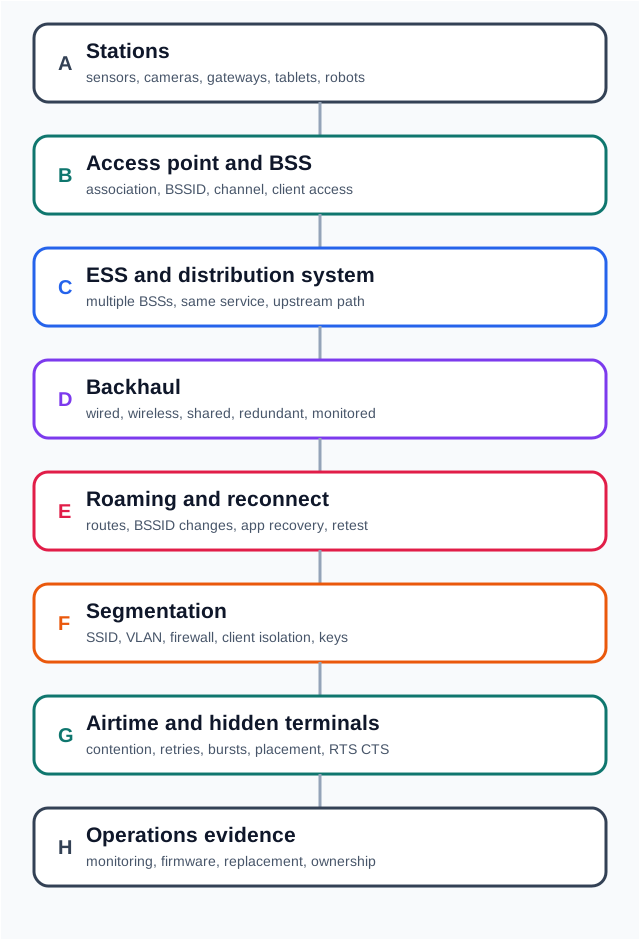
  • BSS (Basic Service Set): The fundamental 802.11 network unit; an AP and all devices associated to it form one BSS
  • ESS (Extended Service Set): Multiple BSSs sharing the same SSID connected via a distribution system (DS) for seamless roaming
  • Distribution System (DS): The wired or wireless backbone interconnecting APs in an ESS; typically Ethernet in enterprise networks
  • Association: Process by which a client authenticates with an AP and joins its BSS; required before data exchange
  • IBSS (Independent BSS): Ad-hoc mode where devices communicate directly without an AP; limited range and scalability
  • BSSID: The 48-bit MAC address of an AP’s radio interface; uniquely identifies a BSS
  • Beacon Frame: Management frame transmitted by every AP announcing its presence, SSID, capabilities, and channel
  • Probe Request/Response: Active scanning mechanism where clients discover APs by broadcasting probe requests and receiving responses

34.3 Key Takeaway

In one sentence: Wi-Fi architecture choices (infrastructure, Wi-Fi Direct, or mesh) determine coverage, complexity, and power requirements for IoT deployments.

Remember this rule: Use infrastructure mode for simple deployments, Wi-Fi Direct for temporary peer-to-peer connections without routers, and mesh for whole-building coverage with seamless roaming.

Deep Dives:

Comparisons:

Architecture Context:

34.4 What is Wi-Fi Architecture?

New to Wi-Fi Networks? Start Here!

This section is designed for beginners. If you’re already familiar with Wi-Fi infrastructure mode, mesh networks, and CSMA/CA, feel free to skip to the technical sections below.

34.4.1 Simple Explanation

Analogy: Think of Wi-Fi architecture as different ways to organize a conversation in a room full of people.

Key Terms for Wi-Fi Architecture:

Term What It Means Real-World Example
Infrastructure Mode All devices connect through central router Your home Wi-Fi (most consumer Wi-Fi IoT devices)
Wi-Fi Direct (P2P) Two devices connect without router Phone to Printer direct connection
Mesh Network Multiple routers relay messages Google Wi-Fi, Eero whole-home systems
SSID Network name (same for all mesh nodes) “MyHome_Wi-Fi” appears everywhere
Backhaul Connection between mesh nodes How mesh nodes talk to each other
Self-Healing Automatic rerouting when node fails If Node B dies, uses Node C instead

34.4.2 Why Wi-Fi Architecture Matters for IoT

Wi-Fi is widely available, but architecture choices determine: - Coverage and roaming behavior (single AP vs multiple nodes) - Power strategy (how many nodes must be always-on) - Performance under load (more devices, more contention) - Provisioning and temporary links (router required or not)

Three main Wi-Fi modes:

  1. Infrastructure Mode = Everyone talks through a moderator (router)
    • Like a conference call where everyone calls a central number
    • The router is the “traffic cop” directing all messages
  2. Wi-Fi Direct = Two people talking directly to each other
    • Like a phone call between two friends (no middleman)
    • One device acts as a temporary hotspot
  3. Mesh Network = Multiple conversations with everyone helping relay messages
    • Like people in a crowded room passing notes to help messages reach far corners
    • If one person leaves, others find a new path

34.4.3 Wi-Fi Modes Comparison (Everyday Examples)

Mode Real-World Analogy When You Use It IoT Example
Infrastructure Coffee shop Wi-Fi - everyone connects to router Home, office, public Wi-Fi Smart home devices to router to internet
Wi-Fi Direct AirDrop between two phones (direct connection) Phone to printer, phone to camera Camera directly streaming to phone
Mesh Relay race - multiple runners passing baton Large house, office building, warehouse Sensors spread across factory floor

34.4.4 Wi-Fi Architecture Comparison Table

The following table provides a comprehensive comparison of the three main Wi-Fi architectures for IoT deployments:

Feature Infrastructure Mode Wi-Fi Direct Wi-Fi Mesh
Topology Star (centralized) Point-to-point Multi-hop mesh
Coverage Single AP range (~20-30m indoor) Direct device range Extended via relays
Scalability Limited by AP capacity 1-to-few devices only Hundreds of nodes possible
Internet Access Built-in via router Requires separate connection Via root node
Setup Complexity Simple Simple Moderate to complex
Power Requirements AP always-on One device as soft AP All relay nodes always-on
Latency Low (single hop) Very low (direct) Higher (multi-hop)
Self-Healing No No Yes (automatic rerouting)
Roaming Manual AP switch N/A Seamless
Best For Home, small office Temporary connections Large buildings, warehouses
Battery-Powered Sensors Possible (with sleep) Possible (intermittent) Only at leaf nodes

34.4.5 Architecture Selection Decision Flowchart

Use this flowchart to determine the best Wi-Fi architecture for your IoT deployment:

Wi-Fi architecture selection flowchart starting with 'What is your deployment scenario?' and branching through questions about coverage area, device count, internet requirements, and power availability to recommend Infrastructure Mode, Wi-Fi Direct, or Wi-Fi Mesh.

This decision flowchart helps select the appropriate Wi-Fi architecture based on coverage needs, power availability, and connectivity requirements.

Imagine the Sensor Squad trying to send a message across a HUGE warehouse!

34.4.6 The Sensor Squad Adventure: The Warehouse Message Relay

Thermo the Temperature Sensor was stationed way at the back of a giant warehouse, near the loading dock. He had an important message: “The freezer door is open! Ice cream is melting!”

But there was a problem. The Wi-Fi router was ALL the way at the front office, and Thermo couldn’t reach it directly - too many metal shelves in the way!

“Don’t worry!” called Motion Mo from the middle of the warehouse. “I’ll help relay your message!”

Here’s how the Sensor Squad mesh network worked:

  1. Thermo (at the back) shouted his message to Motion Mo (in the middle)
  2. Motion Mo passed it to Sunny the Light Sensor (near the office)
  3. Sunny handed it to the Wi-Fi Router (the team captain)
  4. The Router sent it to the cloud, and the warehouse manager got an alert on her phone!

“We’re like a relay race team!” cheered Thermo. “Even though I can’t reach the router directly, my friends help pass my message along!”

But there was a catch. Power Pete the Battery Manager noticed something: “Motion Mo and Sunny have to stay awake ALL the time to help relay messages. They need to be plugged into the wall, not running on batteries!”

That’s why in a mesh network: - Relay helpers (middle nodes) need constant power - they’re always listening - Edge sensors (like Thermo) can sleep to save battery - The more helpers you pass through, the slower the message gets (but it still arrives!)

Fun fact: If Motion Mo gets tired and takes a nap (power failure), the mesh network is smart enough to find ANOTHER friend to relay through. That’s called self-healing - like finding a new relay runner when one gets a cramp!

34.5 Infrastructure Mode (Most Common)

How it works:

Wi-Fi infrastructure mode diagram showing Smart Bulb, Door Sensor, and Thermostat all connecting through a central Wi-Fi Router, which then connects to the Internet and Cloud services. All IoT devices connect in a star topology through the single router.

Infrastructure mode: All devices connect through a central router (star topology)

Key points:

  • One router controls everything (like a traffic cop)
  • All devices connect to router (star topology)
  • Router provides internet access (bridge to cloud services)
  • Most Wi-Fi IoT deployments start here

Real example: Your smart home has 15 devices (lights, sensors, cameras). All connect to your Wi-Fi router. Router assigns each device an IP address and forwards messages between devices and the internet.

Why indoor coverage drops quickly: the 6 dB per wall rule

Wi-Fi signal strength is measured in dBm (decibel-milliwatts). A typical Wi-Fi router transmits at +20 dBm, and devices need around -70 dBm minimum to maintain a connection. Let’s calculate coverage through walls:

Free-space path loss at 2.4 GHz: $ = 20 {10}(d) + 20 {10}(f) - 27.55 $

where \(d\) is distance in meters and \(f\) is frequency in MHz.

For \(d = 10\) m at \(f = 2400\) MHz: $ = 20 {10}(10) + 20 {10}(2400) - 27.55 = 20 + 67.6 - 27.55 $

Indoor attenuation (approximate):

  • Drywall/wood interior wall: 3-6 dB loss
  • Concrete/brick wall: 10-15 dB loss
  • Metal door/elevator: 20+ dB loss
  • Floor (reinforced concrete): 15-20 dB loss

Coverage calculation: $ = - - $

At 10 m with 2 interior walls: $ = 20 - 60 - (2 ) = -50 $

At 10 m with 4 interior walls: $ = 20 - 60 - (4 ) = -60 $

At 15 m through 2 concrete floors: $ = 20 - 64 - (2 ) = -74 $

Key insight: Every wall costs 3–6 dB. You have about 90 dB of signal budget (\(20 - (-70) = 90\) dB). FSPL consumes ~60 dB at 10 m, leaving only 30 dB for obstacles – roughly 5–6 interior walls or 2 concrete floors before you lose connection.

Limitations:

  • Router is single point of failure (router dies = all offline)
  • Indoor coverage can drop quickly through walls/floors/metal
  • Extending coverage usually means adding APs/mesh/extenders (each with trade-offs)

34.6 Wi-Fi Direct (Peer-to-Peer)

Analogy: Wi-Fi Direct is like Bluetooth, but faster and longer range.

How it works:

Wi-Fi Direct peer-to-peer connection showing a smartphone acting as a soft AP (temporary router) connecting directly to a Smart Camera without needing an infrastructure router.

Wi-Fi Direct: Two devices connect directly without a router

Key points:

  • Two devices connect directly (no router required)
  • One device acts as “soft AP” (temporary hotspot)
  • Often higher throughput than Bluetooth (especially BLE), but throughput depends on Wi-Fi standard, channel width, and RF conditions
  • Range can be longer than Bluetooth in open space, but is highly environment/antenna dependent

Real examples:

  • Phone to camera: Transfer photos from DSLR to phone instantly
  • Phone to printer: Print documents without router
  • Phone to speaker: Stream music to Wi-Fi Direct speaker
  • Game console to TV: Miracast screen mirroring

When to use:

  • Temporary connections (don’t need internet)
  • High-speed file transfers
  • Field deployment (no existing Wi-Fi infrastructure)

Limitations:

  • Only 1-to-1 or 1-to-few connections (not scalable)
  • One device must stay awake as soft AP (drains battery)

34.6.1 Wi-Fi Direct Group Formation

Wi-Fi Direct uses a negotiation process to establish which device becomes the Group Owner (soft AP). This is determined through the Group Owner Intent (GOI) value:

Wi-Fi Direct group formation sequence showing Device A and Device B exchanging GOI (Group Owner Intent) values. Device B with higher GOI (14) becomes the Group Owner acting as soft AP, while Device A becomes the P2P Client.

Group Owner Intent (GOI): A value from 0-15 that indicates how strongly a device wants to be the Group Owner. Higher values indicate stronger preference. If both devices have the same GOI, a tie-breaker bit decides.

Typical GOI Values:

  • Smartphones: Lower GOI (prefer client role to save battery)
  • Cameras/Displays: Higher GOI (typically have more power, act as AP)
  • Printers: High GOI (always ready to receive from multiple devices)

34.6.2 Knowledge Check: Wi-Fi Direct Applications

## Wi-Fi Mesh Networks (Self-Healing) {#net-wifi-arch-fund-mesh}

Analogy: A mesh network is like a relay race where runners pass messages across a large area.

Traditional Wi-Fi (Single Router):

Traditional single router Wi-Fi showing signal degradation over distance. Router in living room sends signal that gets progressively weaker through the house, resulting in no signal reaching the bedroom which is too far away.

Traditional Wi-Fi: Signal degrades over distance, creating dead zones

Wi-Fi Mesh:

Wi-Fi mesh network showing Main Router in living room connected to Mesh Node 1 in hallway, which connects to Mesh Node 2 in bedroom, which connects to Bedroom Sensor. All nodes relay signals maintaining full signal strength throughout the house.

Wi-Fi Mesh: Multiple nodes relay signals for full coverage everywhere

How it works:

  1. Main router connects to internet
  2. Mesh nodes placed throughout area (hallway, bedroom, garage)
  3. Each node relays messages to extend coverage
  4. Automatic routing - finds best path to destination
  5. Self-healing - if one node fails, finds alternate path

34.6.3 Self-Healing (Automatic Rerouting)

Scenario: Node 2 battery dies

Mesh self-healing diagram showing: Before failure - message flows through Node 1, Node 2, Node 3 to Sensor. After Node 2 dies, the mesh automatically reroutes through Node 4 to maintain connectivity.

Self-healing: Mesh automatically finds alternate path when a node fails

34.6.4 Multi-Hop Communication

Multi-hop communication path showing a message traveling from Sensor through Mesh Node A (hop 1), Mesh Node B (hop 2), Main Router (hop 3), and finally to the Cloud. Each hop is labeled sequentially.

Multi-hop communication: Message relays through multiple nodes to reach the cloud

Each hop can extend coverage into another area, but it also increases airtime usage (the same payload is forwarded multiple times), adds latency, and can reduce effective throughput—especially when client traffic and backhaul share the same radio/channel.

34.6.5 Real-World Mesh Examples

Application Why Mesh? Typical scale
Large office building Concrete walls/floors create dead zones Multiple rooms/floors
Warehouse Metal racks and long aisles block signals Large indoor floor
Outdoor site / farm Wide spacing and limited infrastructure Field-scale (line-of-sight dependent)
Campus / neighborhood Coverage extension with many powered nodes Street/block-scale (deployment dependent)

34.6.6 Mesh vs Wi-Fi Extenders

Feature Wi-Fi Extender Mesh Network
Setup Simple Complex
Network name Different SSID Same SSID (seamless)
Handoff Manual switch Automatic
Performance Often reduced (retransmits on same channel) Varies; dedicated backhaul or wired uplinks preserve more
Self-healing No Yes
Best for 1-2 extra rooms Whole house/building

34.7 Hidden Terminal Problem

Analogy: The hidden terminal problem is like two people trying to talk to you at the same time, but they can’t hear each other.

Scenario:

Hidden terminal problem diagram showing Sensor A and Sensor B on opposite sides of a Router. Both can reach the router but cannot hear each other, leading to collisions when both transmit simultaneously.

Hidden terminal: Two sensors cannot hear each other but both reach the router

What happens:

  1. Sensor A checks: “Is anyone talking?” (silence, can’t hear B)
  2. Sensor A starts transmitting to Router
  3. Sensor B checks: “Is anyone talking?” (silence, can’t hear A)
  4. Sensor B starts transmitting to Router at SAME TIME
  5. COLLISION! Router receives garbled message from both

Solution: RTS/CTS (Request To Send / Clear To Send)

RTS/CTS handshake sequence diagram showing: Sensor A sends RTS to Router, Router broadcasts CTS to all, Sensor B hears CTS and waits, Sensor A sends data successfully, then Sensor B can request its turn.

RTS/CTS handshake prevents hidden terminal collisions

Real impact:

  • Without RTS/CTS: hidden-terminal collisions can cause frequent retransmissions and noticeable packet loss
  • With RTS/CTS: typically improves reliability, but adds protocol overhead and can reduce throughput

34.7.1 Knowledge Check: Hidden Terminal Problem

## Quick Self-Check {#net-wifi-arch-fund-check}

Common Misconception: “Wi-Fi Mesh = Always Faster”

The Myth: Many assume Wi-Fi mesh networks are faster than single routers because they have more access points.

The Reality: Mesh networks trade speed for coverage—each hop reduces effective bandwidth.

The following numbers are illustrative for single-radio (shared channel) backhaul. Actual performance varies by hardware, environment, and traffic patterns.

Illustrative Throughput Impact (shared-channel backhaul):

Path Effective Throughput Notes
Single router (no mesh) ~300 Mbps Baseline at 10m
Mesh with 1 hop ~150-180 Mbps ~40-50% reduction
Mesh with 2 hops ~75-90 Mbps ~70% reduction
Mesh with 3 hops ~40-50 Mbps ~85% reduction

Why This Happens:

Bandwidth comparison showing Single Router Path with full bandwidth versus Mesh Path with 2 hops where bandwidth is reduced because the same channel is reused at each hop.

Mesh bandwidth reduction: Each hop reuses the channel, effectively halving throughput

The Problem: Most consumer mesh systems use single-radio backhaul: - Same Wi-Fi radio handles both client devices AND mesh links - Each hop “re-uses” the wireless channel - Bandwidth effectively divided by number of hops

How to design around it:

  • Prefer wired/ethernet backhaul where possible (best performance)
  • Use dual-band or tri-band mesh with dedicated backhaul channel
  • Keep critical devices to 2 or fewer wireless hops from the root
  • For high-bandwidth IoT (cameras), minimize hops or use wired connections

Key takeaway: Mesh solves coverage problems, not speed problems. For bandwidth-sensitive applications, minimize hops and consider wired backhaul.

34.7.2 Knowledge Check: Architecture Selection

Cross-Hub Connections

Enhance Your Learning:

This chapter connects to multiple learning resources across the module:

Watch: Videos Hub has Wi-Fi mesh tutorials, CSMA/CA animations, and ESP32 mesh setup walkthroughs

Practice: Simulations Hub offers interactive mesh topology visualizers, hidden terminal simulators, and network performance calculators

Test: Quizzes Hub provides Wi-Fi architecture assessments, mesh design challenges, and CSMA/CA problem sets

Map: Knowledge Map shows how Wi-Fi mesh connects to WSN routing, network topologies, and edge computing patterns

Gaps: Knowledge Gaps clarifies common misconceptions about mesh self-healing times, RTS/CTS overhead, and Wi-Fi Direct limitations

34.8 Power vs Coverage Trade-offs

Understanding the relationship between power consumption, coverage, and complexity is crucial for Wi-Fi architecture selection:

Wi-Fi architecture trade-offs quadrant chart showing Infrastructure Mode in the low power/small coverage quadrant, Wi-Fi Direct in the low power/temporary connection area, and Wi-Fi Mesh in the high power/large coverage quadrant. Non-Wi-Fi alternatives are shown for battery-powered large coverage needs.

Key insight: Wi-Fi mesh provides excellent coverage but requires always-on powered nodes. For battery-powered large-area deployments, lower-power protocols are more appropriate.

34.8.1 Real-World Architecture Decisions

Deployment Scenario Recommended Architecture Reasoning
Smart home (< 200 sqm) Infrastructure Single router covers most homes; devices mostly powered
Large home (> 300 sqm) Wi-Fi Mesh or Extender Coverage gaps require additional nodes
Conference room camera Infrastructure or Wi-Fi Direct Direct video streaming, high bandwidth
Warehouse inventory tags NOT Wi-Fi (use RFID/BLE) Too many battery devices, Wi-Fi power prohibitive
Factory floor sensors Wi-Fi Mesh with powered nodes Large area, can power relay infrastructure
Outdoor IoT (farm, campus) NOT Wi-Fi (use LoRaWAN/cellular) Range and power requirements exceed Wi-Fi capabilities
Temporary event monitoring Wi-Fi Direct or Mobile AP No existing infrastructure, short deployment

34.9 Enterprise vs Consumer Wi-Fi: Why IoT Deployments Fail

Many IoT projects start on consumer-grade Wi-Fi equipment and encounter problems at scale. Understanding the differences prevents costly mid-project equipment replacement.

Capability Consumer Router Enterprise AP
Max connected clients 20-30 (practical) 200-500
Client isolation Rarely supported Standard feature
VLAN support None Multiple SSIDs per VLAN
PoE power No Yes (802.3af/at)
Centralized management No Controller-based
Roaming (802.11r/k/v) Rarely Standard
Typical cost $50-200 $300-1,200

Common failure scenario: A factory deploys 80 ESP32 sensors on a $150 consumer mesh system. At 30 devices, the mesh starts dropping connections. At 50 devices, DHCP lease exhaustion causes random sensors to go offline. At 80 devices, the router reboots every 4-6 hours due to memory exhaustion.

Rule of Thumb for Wi-Fi IoT

If deploying more than 20 Wi-Fi IoT devices in one location, budget for enterprise-grade access points from the start. The AP cost ($300-1,200) is a fraction of the labor cost to debug and replace consumer equipment mid-deployment.

Scenario: A 3-story smart home uses a mesh Wi-Fi system (Google Nest Wi-Fi) with one root node connected to fiber and two satellite nodes on floors 2 and 3. A 4K security camera on floor 3 streams at 25 Mbps. What is the actual impact on the home’s internet bandwidth?

Step 1: Trace the path from camera to internet

Camera (Floor 3)
  → Satellite Node 2 (Floor 3, wireless backhaul)
  → Satellite Node 1 (Floor 2, wireless backhaul)
  → Root Node (Floor 1, wired to fiber)
  → Internet

Step 2: Calculate hop count and airtime

Hops from camera to root: 3 hops (all wireless)

Single-radio mesh (typical consumer mesh):
  - Same channel used for client traffic AND backhaul
  - Each hop requires retransmitting the full payload

Airtime calculation:
  Camera → Sat2:  25 Mbps uses 25 Mbps airtime
  Sat2 → Sat1:    25 Mbps uses 25 Mbps airtime (relay)
  Sat1 → Root:    25 Mbps uses 25 Mbps airtime (relay)
  ─────────────────────────────────────────────
  Total airtime:  75 Mbps (3× the camera bitrate)

Step 3: Calculate effective internet bandwidth used

Fiber link capacity: 500 Mbps down, 100 Mbps up

Camera upstream uses:
  Internet bandwidth: 25 Mbps (only the final hop to internet counts)
  Wi-Fi airtime: 75 Mbps (all three wireless hops)

Available Wi-Fi bandwidth on that channel: ~300 Mbps (802.11ac, 80 MHz)
Remaining for other devices: 300 - 75 = 225 Mbps

Result: The camera uses only 25 Mbps of internet bandwidth BUT consumes 75 Mbps of wireless airtime (25% of Wi-Fi capacity), leaving 225 Mbps for other devices. Adding a second 4K camera on floor 3 would consume another 75 Mbps airtime, leaving only 150 Mbps.

Why wired backhaul is superior: If Satellite Nodes 1 and 2 were connected via Ethernet instead of wireless: - Airtime used: 25 Mbps (only camera→Sat2 hop is wireless) - Wired hops (Sat2→Sat1→Root) use separate Ethernet bandwidth - Remaining Wi-Fi capacity: 300 - 25 = 275 Mbps (90% more available)

Deployment Scenario Recommended Architecture Reasoning
Small office (<200 sqm, <30 devices) Infrastructure (single AP) Coverage adequate with one AP; mesh adds complexity without benefit; all devices within 20-30m of router
Large home (>300 sqm, 3+ floors) Wi-Fi Mesh (3-4 nodes) Single AP insufficient; mesh extends coverage seamlessly; devices roam between nodes automatically
Warehouse (5,000 sqm, 200+ sensors) NOT Wi-Fi (use Zigbee/Thread or sub-GHz) Wi-Fi mesh with 200 battery devices is impractical; power budget requires always-on relay nodes; consider LoRaWAN or cellular
Conference room (temporary) Wi-Fi Direct (phone→projector) No existing infrastructure needed; short-term use case; eliminates guest network complexity
Factory floor (metal/concrete, 50+ devices) Infrastructure with multiple APs + controller Mesh unreliable through metal; wired APs with controller provide deterministic coverage; enterprise features (VLAN, client isolation) required
Hotel (100+ rooms, 500+ transient devices) Infrastructure with controller Mesh cannot scale to 500 devices; controller manages roaming; VLAN isolation between guest rooms critical for security
Outdoor campus (buildings 100m apart) NOT Wi-Fi (use sub-GHz or fiber + APs) Wi-Fi range insufficient for outdoor inter-building links; use fiber backhaul with APs in each building, or LoRaWAN for sensors

Key trade-offs:

  • Infrastructure: Simple, highest performance, but limited coverage (1 AP = ~30m radius indoor)
  • Mesh: Extended coverage, easy setup, but each hop halves bandwidth and requires powered nodes
  • Wi-Fi Direct: No router needed, fast setup, but only 1-to-few connections (doesn’t scale)

Battery-powered sensor rule: If >30% of devices are battery-powered with multi-year life requirements, don’t use Wi-Fi (infrastructure OR mesh). Wi-Fi’s idle current (15-80 mA) drains batteries in weeks. Use Zigbee/Thread (1 µA idle) or LoRaWAN (sub-µA) instead.

Common Mistake: Using Consumer Mesh for 100+ IoT Devices

The Error: A building manager buys 3 Google Nest Wi-Fi units ($299 for 3-pack) to support 120 smart lights, 30 occupancy sensors, 20 smart plugs, and 15 thermostats across a 2,000 sqm office, thinking “mesh means it scales.”

Why it fails catastrophically:

Consumer mesh limitations:

Google Nest Wi-Fi (2020 model):
  Max clients per node:   100 (spec)
  Practical limit:         40-50 clients per node before degradation
  DHCP pool:              254 addresses (192.168.86.x)
  Routing table limit:    ~200 entries before CPU saturation

185 total devices (120+30+20+15):
  Nodes needed (40 devices each): 5 nodes (3 deployed)
  Result: Each node handles ~62 devices (25% over practical limit)

Observed failures:

Week 1:
  - Devices randomly disconnect
  - DHCP lease exhaustion (runs out of IP addresses during busy periods)
  - Mesh nodes reboot every 4-8 hours due to memory exhaustion

Week 2:
  - 40% of lights fail to respond to commands
  - Smart plugs offline intermittently
  - Occupancy sensors miss 30% of events

Network diagnostics:
  - ARP table full (256 entry limit, 185 devices + broadcast traffic)
  - CPU usage: 95-100% on router (packet forwarding backlog)
  - Memory usage: 98% (out-of-memory kernel kills processes)

Financial impact:

Hardware cost:
  3× Google Nest Wi-Fi:        $299
  Replacement attempt with 5×:  $499 (still fails, hits different limit)

Labor cost:
  Initial installation:     $2,000 (2 days)
  Troubleshooting:         $3,000 (3 site visits × $1,000)
  Replacement install:     $2,500 (rip out + enterprise gear)
  ─────────────────────────────────
  Total wasted:            $8,298

The correct enterprise solution:

Enterprise-grade system (Ubiquiti UniFi):
  3× UniFi 6 Long-Range APs:   $600 ($200 each)
  1× Cloud Key Gen2 Plus:      $200 (controller)
  PoE switch (8-port):         $150
  ─────────────────────────────
  Total hardware:              $950 (plus $1,500 install)

Capabilities:
  Max clients per AP:          300+ (enterprise controller)
  Total network capacity:      1,000+ devices
  VLAN support:                Isolate IoT from corporate network
  Client isolation:            Prevent device-to-device attacks
  Roaming (802.11r/k/v):       Sub-50ms handoff between APs
  Centralized management:      Single dashboard for all APs

Result: All 185 devices connected reliably, 12% CPU usage, seamless roaming.

Lesson: Consumer mesh (Google, Eero, Nest) caps at ~50-80 devices per deployment. For >50 IoT devices, budget for enterprise APs from the start. The $950 enterprise solution costs LESS than the failed $299 consumer mesh (after counting wasted labor).

Common Pitfalls

SSID is the human-readable network name (shared across APs in an ESS). BSSID is the unique MAC address of each individual AP radio. Roaming between APs changes the BSSID while keeping the same SSID and IP address. Mixing these concepts causes confusion in network troubleshooting.

An ESS requires a distribution system (usually Ethernet) connecting all APs. Without proper DS connectivity, APs broadcast the same SSID but cannot forward traffic between their clients. Client devices appear connected but cannot communicate with each other or the internet.

IBSS (ad-hoc) mode has no AP coordination, no guaranteed DHCP, and poor scalability beyond 3-4 devices. Production IoT deployments should always use infrastructure mode with APs. IBSS is only appropriate for temporary testing in environments without AP infrastructure.

Every SSID on every AP transmits beacons 10 times per second by default. In an area with 20 APs each broadcasting 3 SSIDs, that is 600 beacon frames per second consuming channel time. Minimize SSIDs per AP and consider increasing the beacon interval for dense IoT deployments.

34.10 Summary

This chapter covered the fundamental Wi-Fi architecture modes for IoT:

  • Infrastructure Mode: Centralized star topology where an access point manages association and typically provides DHCP/routing/internet access—common in home/office IoT
  • Wi-Fi Direct: Peer-to-peer connections without a traditional router, where one device acts as a temporary soft AP (Group Owner); useful for ad-hoc links and provisioning, but not ideal for large fleets
  • Wi-Fi Mesh Networks: Multi-hop topology where nodes relay traffic to extend coverage; resilience and reconvergence behavior depend on stack/topology, and backhaul design strongly affects performance
  • Hidden Terminal Problem: Two stations can’t sense each other but both reach the AP, causing collisions; RTS/CTS handshake mitigates this at the cost of overhead

34.11 What’s Next

If you want to… Read this
Learn Wi-Fi MAC layer and protocols Wi-Fi MAC Layer and Protocols
Explore Wi-Fi architecture modes Wi-Fi Architecture Modes
Understand Wi-Fi mesh networks Wi-Fi Architecture and Mesh
Apply Wi-Fi architecture to IoT apps Wi-Fi MAC Layer and IoT Applications
Practice design exercises Wi-Fi Mesh Design and Exercises