Practice: Wi-Fi Spectrum Analysis
More
Depth: Practitioner
Progress saves as you read. Mark sections complete as you go; your progress appears in the sidebar.
This lab belongs to Propagation and Link Budgets
Start With the Wireless Story
This section: Start With the Wireless Story — Picture a sensor that works beside the desk but drops out in the store room.
Turn Invisible Radio Use Into a Site Decision
Picture a sensor that works beside the desk but drops out in the store room. The signal bars look strong. Several nearby networks may still be talking over one another.
A spectrum view shows how radio energy is spread across a band. A network scan shows the named Wi-Fi networks a device can hear. They answer related but different questions. Use both when possible, and keep the place and time of each observation.
Start with the service claim. Mark the real device locations. At each point, record the band, channel, signal level, network name, and signs of busy air. Separate weak reach from crowding, a wrong password, failure to get an address, loss beyond the local network, or poor device power.
Change one thing at a time. Try a new channel, band, local radio position, or device place. Repeat the same walk and save the before and after result.
Plan the walk before the scan. Mark each room. Mark each device place. Mark walls and metal. Mark doors that move. Use the real device height. Use the real case. Use the real power mode. Keep the same path for each run.
At every point, save the time. Save the band. Save the channel. Save the signal. Save the network name. Note how long the scan ran. Note nearby work. Note any lost join. Note any slow page. Note any failed message.
Then test one change. Move the local radio. Change one channel. Change one band. Reduce one wide channel. Remove one loud source if the site allows it. Repeat the walk. Compare the same points. Keep both records.
Do not call a radio change a fix until the service improves. A strong scan can still hide a bad key, a full address pool, a weak outside link, or a device fault. Test the user action that matters. Record the answer. Set the event that forces another walk.
One scan is only a sample. Use Practitioner for the survey record and choice. Use Under the Hood for channel width, shared use, radar rules, and radio limits.
A spectrum lab turns invisible contention into evidence. Start by scanning who is using each channel, how strong those signals are, where congestion appears, and what channel plan or retest note follows from the measurements.
In 60 Seconds
This section: In 60 Seconds — A Wi-Fi spectrum lab turns scans into a defensible channel and coexistence decision.
A Wi-Fi spectrum lab turns scans into a defensible channel and coexistence decision. The useful output is not a long scanner program. It is a clear record of where scans were taken, which networks were observed, which channels and bands are crowded, whether the intended device can attach in the installed form, and what must be retested after access point, antenna, enclosure, channel, firmware, or site changes.
This lab keeps the review practical:
- define the Wi-Fi service claim and device locations
- scan from representative points, not only from the desk
- record channel, band, signal, and AP identity where available
- separate weak signal from channel crowding, adjacent-channel overlap, authentication, DHCP, backhaul, and power problems
- make one bounded channel, placement, or band decision at a time
- save the decision and retest triggers
Learning Objectives
This section: Learning Objectives
By the end of this lab, you will be able to:
- create a Wi-Fi survey record that separates observation from recommendation
- classify channel crowding, overlap, weak signal, and non-spectrum failures
- connect scan points to real IoT device locations, enclosure states, and access point placement
- explain why channel choice differs between 2.4 GHz, 5 GHz, and 6 GHz deployments
- produce a retest plan after channel, AP, antenna, enclosure, firmware, or site changes
Lab Scope
This section: Lab Scope — Use this lab when Wi-Fi is a candidate or selected radio for an IoT deployment.
Use this lab when Wi-Fi is a candidate or selected radio for an IoT deployment. It is useful before installation, during troubleshooting, and after a site or network change.
The lab should answer five questions:
- What Wi-Fi service area or device locations are being reviewed?
- Which band, channel width, security mode, and AP or controller context are in scope?
- What do scans show at the real device locations?
- Is the first failing layer signal, congestion, overlap, authentication, addressing, roaming, backhaul, power, or application behavior?
- What channel, placement, band, or retest decision follows from the evidence?
Survey Evidence Flow
This section: Survey Evidence Flow — Wi-Fi spectrum review should move from claim to scan evidence before changing the channel plan.
Wi-Fi spectrum review should move from claim to scan evidence before changing the channel plan. Use Figure 1 to preview the evidence sequence so each scan point and change remains tied to the original deployment question.
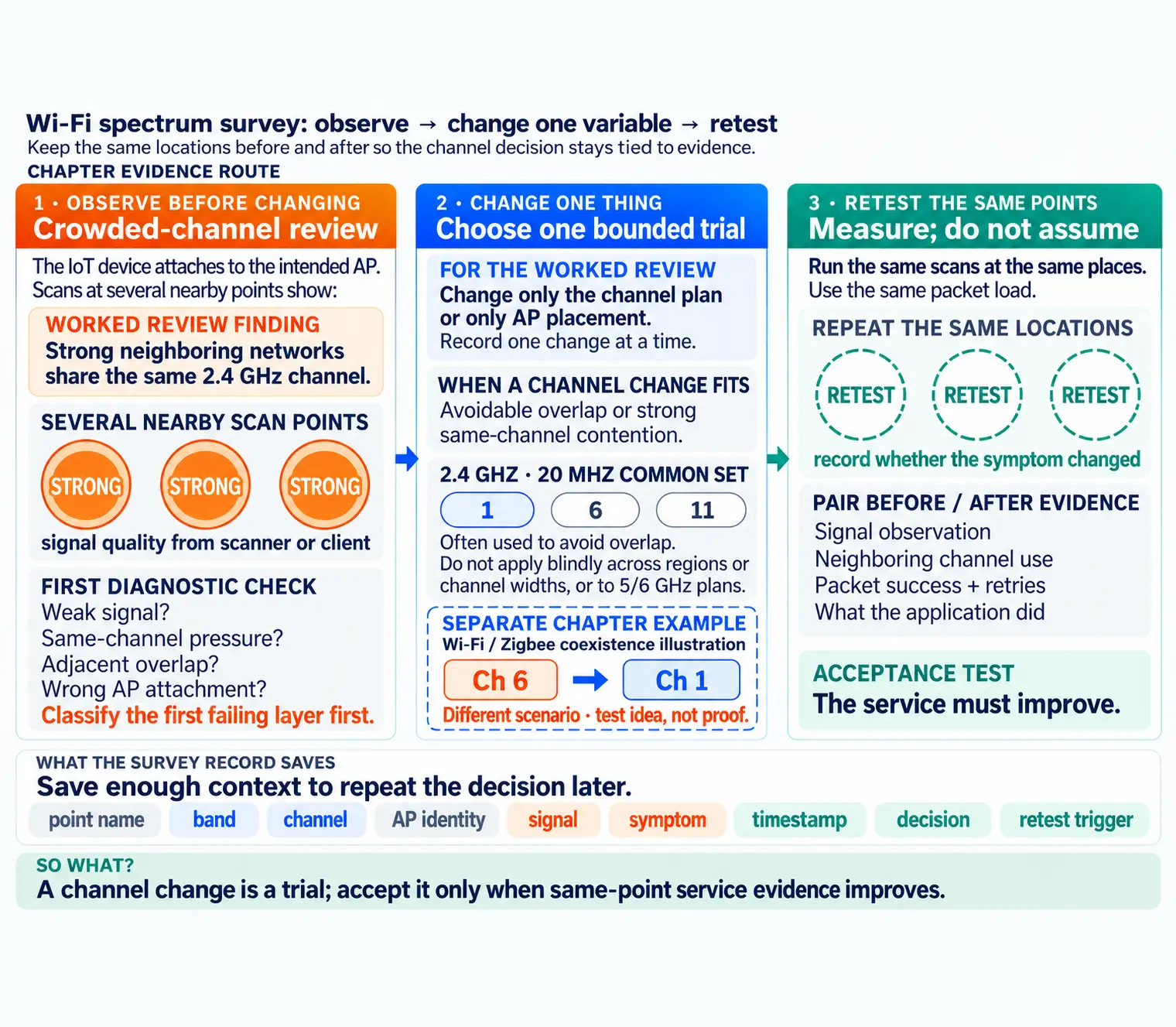
Read Figure 1 from scope and marked scan points into channel observations, then classify the first symptom before selecting one change. The final retest is part of the route, not an optional appendix: it shows whether the changed channel, width, band, or placement improved the same client locations. That disciplined order connects the survey to an auditable planning decision rather than a collection of screenshots.
Equipment And Setup
This section: Equipment And Setup — If a phone or laptop scanner is used instead of the target IoT device, record that substitution.
Use tools that match the decision you need to make:
- a Wi-Fi scanner, controller view, access point logs, or managed-network dashboard
- the target IoT device or a representative client
- the intended antenna, enclosure, power state, and mounting position
- a floor plan, route sketch, photo set, or named point list
- a record sheet for point name, band, channel, AP identity, signal, and symptom notes
If a phone or laptop scanner is used instead of the target IoT device, record that substitution. Different antennas, drivers, roaming behavior, and power states can produce different observations.
Define The Survey Claim
This section: Define The Survey Claim — Start by writing the claim that the survey must support.
Start by writing the claim that the survey must support. Examples:
- “These sensors must attach to the warehouse Wi-Fi from their installed shelves.”
- “The commissioning tablet must stay connected along this maintenance route.”
- “The AP channel plan should reduce overlap for the 2.4 GHz IoT network.”
- “The device should use the selected band without moving to an unreliable AP.”
Do not survey the entire building by default if the design only needs a set of devices, cabinets, shelves, or routes. A narrower claim usually creates better evidence.
Mark Scan Points
This section: Mark Scan Points — For each point, record the device orientation, height, enclosure state, and whether the point is final or exploratory.
Choose scan points that represent the deployment:
- planned IoT device locations
- route edges and handoff areas
- corners, cabinets, metal structures, and shielded rooms
- locations near microwave ovens, machinery, dense shelving, water, or crowds
- places where the device will be enclosed, wall mounted, battery powered, or low to the floor
- locations that previously showed weak coverage or unstable service
For each point, record the device orientation, height, enclosure state, and whether the point is final or exploratory.
Collect Wi-Fi Observations
This section: Collect Wi-Fi Observations — Run it: Reproduce the scan in the channel analyzer below before you walk the site.
Run it: Reproduce the scan in the channel analyzer below before you walk the site. Watch which APs land on each channel and how much airtime each channel is using, so you can tell a genuinely crowded channel from a merely busy one and see where 2.4 GHz neighbors overlap. Read the band, channel, neighbor, and utilization evidence off the analyzer and record it against each scan point below.
At each point, capture the fields available from your tool:
- band and channel
- AP or BSSID identity when visible
- SSID or network role, without recording secrets
- signal quality from the scanner or client
- visible neighboring networks and their channel use
- noise, retries, channel utilization, or airtime clues when the tool provides them
- association, authentication, addressing, and application symptom notes
- time, site activity, doors, people movement, and equipment state
For 2.4 GHz plans using 20 MHz channels in common channel sets, channels 1, 6, and 11 are often used to avoid overlap. Do not apply that rule blindly to every region, channel width, or 5/6 GHz plan. The survey record should say which band and channel plan it is reviewing.
Classify The First Symptom
This section: Classify The First Symptom — Keep the diagnosis tied to the first failing layer.
Keep the diagnosis tied to the first failing layer.
- Weak signal: the intended AP is visible but the client has low or unstable signal evidence at the installed point.
- Crowded channel: many strong neighboring APs share the same channel or tool evidence shows airtime pressure.
- Adjacent overlap: nearby channels overlap a 2.4 GHz plan and can cause avoidable contention.
- Wrong AP or roaming: the client attaches to an unexpected AP or switches at the wrong location.
- Authentication or addressing: the radio can see the AP, but security, DHCP, VLAN, or policy setup fails.
- Backhaul or application: Wi-Fi attachment is clean, but the network path or application test fails.
- Power or enclosure: the device changes behavior when the final enclosure, antenna, or transmit state is used.
Only the first three are primarily spectrum or channel-plan findings. The others must be recorded so they are not incorrectly fixed with channel changes.
Coexistence Review Map
This section: Coexistence Review Map — Inspect Figure 2 to separate a genuine overlap hypothesis from signal and non-spectrum failures before changing either network’s channel plan.
Inspect Figure 2 to separate a genuine overlap hypothesis from signal and non-spectrum failures before changing either network’s channel plan.
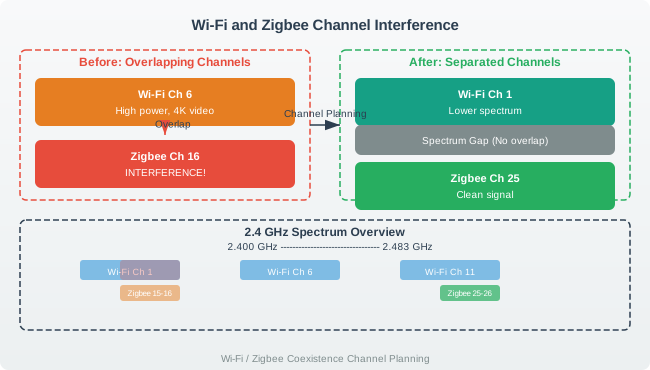
Read Figure 2 from the “before” plan to the “after” trial. First find the wide Wi-Fi band and the thin Zigbee band inside it. Then follow the planned Wi-Fi move away from that shared space. More space is a test idea, not proof of a fix. Run the same scans and packet load at the same places. Compare packet success, retries, and what the app did before you accept the new channel plan.
Decision Options
This section: Decision Options — Record one change at a time when the goal is diagnosis.
Each finding should lead to one bounded decision:
- Change channel when evidence shows avoidable overlap or strong same-channel contention.
- Change band when the device, AP, and deployment policy support another band and the survey evidence justifies it.
- Adjust AP placement or power when several scan points show a shared boundary or roaming problem.
- Change device placement or antenna orientation when only one installed point is weak and the device location is flexible.
- Review security or addressing when the client sees the AP but cannot complete network attachment.
- Review backhaul or application path when Wi-Fi attachment is clean but the service still fails.
- Retest installed form when open-bench evidence differs from enclosure, mounting, or battery-powered evidence.
Record one change at a time when the goal is diagnosis. If several changes are made together, mark the result as exploratory rather than accepted evidence.
Step 1: Define the survey question
- On a point list or floor plan, name the IoT clients and service area that need a Wi-Fi decision.
- Record AP role, band, channel width, security mode, enclosure, and intended device orientation.
- Set a pass rule for connection and delivery before looking at the channel graph.
- The expected output is a bounded claim that can be tested again after one channel or placement change.
- Note every substitute client or scanner; its radio may behave differently from the IoT device.
Step 2: Mark installed scan points
- On your own site, mark shelf, corner, route-edge, and previously failing locations on the same map.
- Record height, orientation, enclosure, time, and nearby machinery for each point.
- Include a point near the AP and one at the edge so channel pressure can be compared spatially.
- The expected point record is repeatable by another technician using the same scanner and client.
- A real site scan was not run here; the local channel fixture in Step 4 is instructional only.
Step 3: Read the analyzer before scanning
- Open the embedded Wi-Fi Channel Analyzer above in a browser and inspect APs by band and channel.
- In the browser run, the default plan diagnosed partial overlap between AP A and AP B; Optimize changed its plan label from
UsabletoStrong. - Compare channel occupancy and utilization in that tool, keeping its display separate from live site readings.
- At each real scan point, use your own scanner or controller to record AP identity, signal, neighbors, and retries.
- If the tool exposes only AP counts, do not infer airtime pressure without utilization or retry evidence.
- Capture the actual browser or scanner window for any image used as step evidence.
Step 4: Classify a sample channel record
- In a local Python terminal, classify a small fixture with channels 1, 6, and 11 at 24%, 83%, and 28% utilization.
- The run returned
channel=1 ... class=lower-pressure,channel=6 ... class=busy,channel=11 ... class=lower-pressure. - This synthetic comparison illustrates a review method; it is not a scan of the learner’s building.
- Use actual AP identity, channel width, signal, retries, and timestamps before judging a live channel plan.
- Strong signal beside poor delivery requires attachment and backhaul checks as well as spectrum review.
Step 5: Isolate the first symptom
- At each real point, classify weak signal, same-channel pressure, adjacent overlap, wrong AP, or a later network failure.
- Compare the client association and addressing record with the scan before changing a channel.
- For the crowded-channel review below, check both near-device and near-AP observations.
- Mark good signal with failed data as ambiguous until authentication, DHCP, backhaul, and power are checked.
- The expected output names the first failing layer and cites the supporting scan or client evidence.
Step 6: Retest one proposed change
- Change only channel, width, band, AP placement, or device position for one controlled trial.
- On your own site, rescan the same points with the same client and comparable traffic conditions.
- Compare channel, signal, utilization, retries, association, and application delivery before and after.
- If several changes occurred, record the trial as exploratory until a single-variable retest is done.
- Save an accepted, limited, blocked, or redesign decision with the scan timestamps and review owner.
Lab Record Template
This section: Lab Record Template — Redact secrets, private identifiers, credentials, and network names that should not be shared.
For each scan point, record:
- point name and map reference
- device, firmware, enclosure, antenna, mounting, and power state
- scanner or client tool used
- band, channel, channel width if known, SSID role, and AP identity when visible
- signal observation and scan timestamp
- neighboring channel pressure or overlap clues
- association, authentication, addressing, roaming, backhaul, and application notes
- first failing layer
- decision and next action
- retest trigger
Redact secrets, private identifiers, credentials, and network names that should not be shared.
Worked Review: Crowded Channel
This section: Worked Review: Crowded Channel — Scenario: an IoT device attaches to the intended AP, but scans at several nearby points show strong neighboring networks sharing the same 2.4 GHz channel.
Scenario: an IoT device attaches to the intended AP, but scans at several nearby points show strong neighboring networks sharing the same 2.4 GHz channel.
Good review sequence:
- Confirm the device, AP identity, band, channel, and installed point.
- Compare scan points near the device and near the AP.
- Check whether the symptom is weak signal, same-channel pressure, adjacent-channel overlap, or wrong AP attachment.
- Change only the channel plan or only the AP placement for the next test.
- Retest the same points and record whether the symptom changed.
Accepted answer: “This is a channel-plan finding only if the evidence points to channel pressure or overlap. If the client is failing authentication or addressing, changing channels is the wrong fix.”
Worked Review: Strong Signal But No Data
This section: Worked Review: Strong Signal But No Data — Scenario: a scanner shows strong signal from the intended AP at the device location, but the IoT application cannot publish data.
Scenario: a scanner shows strong signal from the intended AP at the device location, but the IoT application cannot publish data.
Good review sequence:
- Do not mark the location as a weak coverage point.
- Check association, authentication, addressing, and policy evidence.
- Check backhaul reachability or gateway logs if Wi-Fi attachment is clean.
- Check power behavior during active transmit if the device resets or disappears.
- Record the first failing layer and retest that layer.
Accepted answer: “Strong signal with failed data is ambiguous until network attachment, backhaul, and application layers are checked.”
Common Mistakes
This section: Common Mistakes
- scanning only from a laptop at a desk instead of the installed device locations
- treating a phone scan as final evidence for a different IoT antenna and enclosure
- changing AP channel, AP placement, and device antenna in the same retest
- applying a 2.4 GHz channel rule to every band or channel width
- ignoring wrong-AP attachment or roaming behavior
- treating authentication, addressing, backhaul, or application failures as spectrum failures
- recording only screenshots without point names, timestamps, and device state
- leaving private SSIDs, credentials, or identifiers in shared reports
- failing to retest after AP, channel, firmware, antenna, enclosure, mounting, or site changes
Knowledge Check: Wi-Fi Spectrum Analysis
This section: Knowledge Check: Wi-Fi Spectrum Analysis
Match The Evidence To The Survey Decision
This section: Match The Evidence To The Survey Decision
Order The Wi-Fi Spectrum Lab
This section: Order The Wi-Fi Spectrum Lab
Review Checklist
This section: Review Checklist
Before accepting the Wi-Fi spectrum lab, confirm that the record includes:
- bounded Wi-Fi service claim
- representative scan points and skipped areas, if any
- target device, firmware, antenna, enclosure, mounting, and power state
- scanner or client tool used
- band, channel, AP identity, and signal observations
- neighboring channel pressure or overlap clues
- association, authentication, addressing, roaming, backhaul, and application notes
- first failing layer for weak or failed points
- one-variable retest evidence where changes were made
- redaction of secrets and private identifiers
- retest triggers after AP, channel, band, firmware, antenna, enclosure, mounting, power, or site changes
See Who Is on Each Channel, and How Busy It Is
This section: See Who Is on Each Channel, and How Busy It Is — Before reading a scan, inspect Figure 3 to ask which numbered centres share airtime because their channel widths overlap.
Before reading a scan, inspect Figure 3 to ask which numbered centres share airtime because their channel widths overlap.
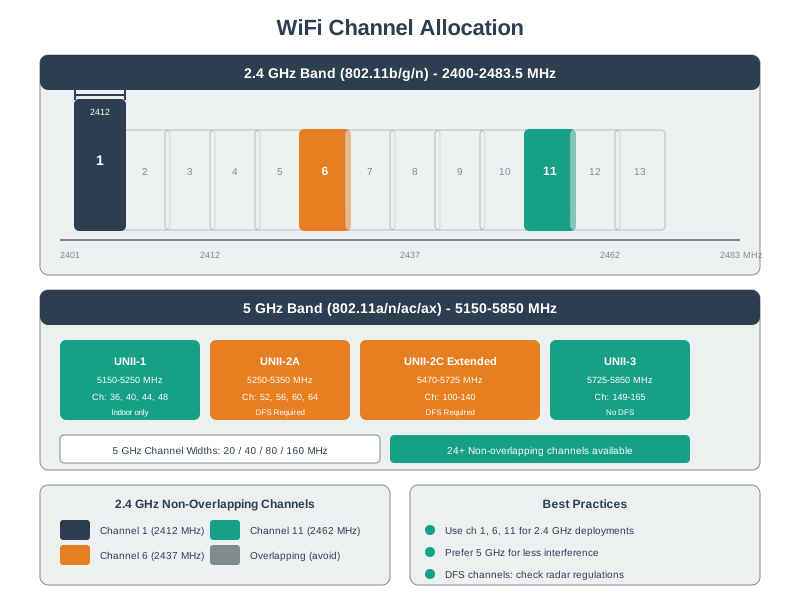
In Figure 3, read the 2.4 GHz row first. Its centres are 5 MHz apart, so channels 1 and 6 are 5 steps × 5 MHz = 25 MHz apart; that clears their 20 MHz footprints. The same step leads to channel 11 as the third reuse choice. Then compare 5 GHz, where more centres exist but channel width and DFS rules can join or limit them. The scan now becomes band-and-width proof rather than a list of channel numbers.
The evidence record should therefore list more than SSID and signal strength. For each scan point, capture the band, channel width, AP or BSSID identity where visible, neighboring channels, and whether the target client actually attached from its installed orientation. A clean-looking scan from a laptop at desk height can still be weak evidence for a low-power sensor inside a metal enclosure.
For a multi-AP site, channel planning is a small graph-colouring problem: APs that can hear or interfere with each other are adjacent vertices, and the available non-overlapping channels are the colours. The useful plan keeps adjacent APs on different colours where possible, reuses a channel only where distance and walls make airtime sharing acceptable, and then verifies the result with scans from the target device locations.
When several APs are visible, avoid treating “strongest AP” as the decision. Strong signal on a crowded or overlapping channel may perform worse than a slightly weaker AP on a cleaner channel. The survey should preserve the reason for the recommendation so a later firmware, AP, or site change can be retested against the same channel evidence.
For a common 20 MHz Wi-Fi plan using channels 1–11, 1, 6, and 11 are the standard non-overlapping reuse set. Check the local regulatory channel set and installed widths before applying it.
Overview Knowledge Check
Read a Scan and Judge Interference
This section: Read a Scan and Judge Interference — A Wi-Fi scanner lists each visible AP with its SSID, channel, width, and RSSI; better tools add channel utilization (percent of airtime busy).
A Wi-Fi scanner lists each visible AP with its SSID, channel, width, and RSSI; better tools add channel utilization (percent of airtime busy). Interpreting a scan means separating two kinds of interference:
- Co-channel : two APs on the same channel. When they are within sensing range, CSMA/CA makes them share airtime; capacity falls as competing traffic grows.
- Adjacent-channel overlap : APs on partially overlapping channels (e.g. 1 and 3). They may not decode each other’s frames; their energy can still trigger clear-channel assessment or corrupt packets. This is usually harder to coordinate than same-channel sharing.
That distinction changes the repair. Co-channel crowding may be acceptable if the airtime is low, or it may require AP power changes, client steering, narrower channels, or a 5/6 GHz move. Adjacent overlap is usually a channel-plan hygiene issue: move the offending APs back to a non-overlapping plan before blaming propagation, antenna placement, or the IoT device.
Deployment heuristics are only starting points. A shared SSID can make roaming possible across APs, and modest cell overlap helps a moving client see the next AP before the old one disappears, but too much overlap creates co-channel pressure. Treat rules such as “place same-channel APs far apart” and “keep enough overlap for roaming” as hypotheses that must survive the scan, roaming log, and application-latency evidence.
Worked example. A 2.4 GHz scan shows APs on channels 1, 3, 6, 8, and 11. Channel 3 overlaps both 1 and 6, and channel 8 overlaps both 6 and 11. If these are managed APs, move the APs on 3 and 8 onto the local non-overlapping plan, then rescan and test service; the change trades partial overlap for coordinated airtime sharing where APs can sense one another. If channel 6 then shows 80% utilization, that is a capacity problem to solve by spacing APs or moving clients to 5 GHz, not by inventing a fourth channel.
For a defensible lab result, make the next test one-variable. If the record changes channel, AP placement, transmit power, and client band preference together, the retest may prove that something improved but not why. A good practitioner note says which channel symptom was observed, which single change addresses it, and which scan points must be repeated.
Practitioner Knowledge Check
5 GHz Channels, Width, and DFS
This section: GHz Channels, Width, and DFS — The 5 GHz band solves 2.4 GHz’s scarcity by offering many more 20 MHz channels, grouped into UNII sub-bands (UNII-1 ch 36–48, UNII-2A ch 52–64, UNII-2C ch 100–144, UNII-3 ch 149–165).
The 5 GHz band solves 2.4 GHz’s scarcity by offering many more 20 MHz channels, grouped into UNII sub-bands (UNII-1 ch 36–48, UNII-2A ch 52–64, UNII-2C ch 100–144, UNII-3 ch 149–165). But two levers complicate the analysis. Channel width can bond channels to 40/80/160 MHz for more throughput — at the cost of consuming more of the band and leaving fewer non-overlapping choices for reuse. An 80 MHz channel is four times the spectrum of a 20 MHz one, so in dense areas wider is not better.
DFS (Dynamic Frequency Selection) governs the applicable UNII-2 channels, which are shared with radar. Before using a DFS channel an AP must perform a channel-availability check (60 seconds in the general ETSI case, 10 minutes for channels overlapping 5600–5650 MHz) and then keep monitoring; if it detects radar it must move channels within the applicable limit. DFS channels add reuse options but carry the risk of a radar-triggered channel change mid-service.
That is why under-the-hood review should record the channel set, width, and DFS policy together. A survey that only says “5 GHz available” hides whether the plan has four 20 MHz reuse options, two 40 MHz options, one 80 MHz option, or a larger pool that depends on DFS channels staying usable at that site.
Worked example. In an office’s available channel set, only two 80 MHz slots fit without overlap. Narrowing to 40 MHz creates four non-overlapping choices in that same set, so neighbouring APs can be assigned separate channels; a measured reduction in contention can raise aggregate capacity. Enabling vetted DFS channels may add more choices, accepting radar-driven moves. Spectrum analysis tests whether width was the bottleneck.
For IoT, the hidden constraint is often reliability rather than peak throughput. A low-rate device may benefit more from a stable 20 or 40 MHz plan with predictable roaming than from a wide channel that looks fast in a client speed test but collapses reuse for neighboring APs. The lab decision should match the device’s traffic, not a generic maximum-rate target.
Under-the-Hood Knowledge Check
Summary
This section: Summary — Wi-Fi spectrum analysis should produce a survey record that explains why a channel, band, placement, or retest decision is justified.
Wi-Fi spectrum analysis should produce a survey record that explains why a channel, band, placement, or retest decision is justified. A clean record ties each observation to a real device point, separates channel pressure from weak signal and non-spectrum failures, and preserves the conditions that would make the decision invalid later.
Key Takeaway
This section: Key Takeaway — Lab: Wi-Fi Spectrum Analysis should produce deployment evidence for spectrum assumptions, coverage, antenna placement, link budget, modem behavior, fallback paths, and validation limits.
Lab: Wi-Fi Spectrum Analysis should produce deployment evidence for spectrum assumptions, coverage, antenna placement, link budget, modem behavior, fallback paths, and validation limits.
Concept Relationships
This section: Concept Relationships
- Wi-Fi fundamentals explains the channel, band, association, and management-frame context behind the survey.
- Coverage planning labs turn Wi-Fi scan points into a broader deployment acceptance record.
- Propagation design explains why enclosures, mounting, obstacles, and multipath change observed Wi-Fi behavior.
- Frequency bands explains why 2.4 GHz, 5 GHz, and 6 GHz channel decisions are not interchangeable.
- Mobile wireless review compares Wi-Fi survey evidence against cellular and low-power wireless choices.
What’s Next
This section: What’s Next
- Wi-Fi Fundamentals and Standards reviews the protocol context behind Wi-Fi survey evidence.
- Lab: Coverage Planning turns scan evidence into a deployment coverage record.
- Wireless Propagation and Design explains obstacle, enclosure, and multipath effects.
- Frequency Bands and Licensing reviews band and channel context.
- Mobile Wireless Comprehensive Review compares Wi-Fi evidence with other wireless options.