Decision input
Capture the destination, local interface, route entries, and route source before selecting a path.
routing fundamentals lab, route table lab, default gateway lab, traceroute lab, longest prefix match, next hop troubleshooting
A routing lab begins to make sense when the first trace has a claim attached to it. The trace should show where a packet started, which next hop accepted it, whether the destination or prefix matched, and what changed after the forwarding decision.
Treat each command output as evidence, not as a screenshot to collect. If a route table, ping, traceroute, or packet capture cannot support a specific claim about the path, the lab record is not yet ready for review.
This lab chapter turns routing basics into observable records. You will read a local route table, prove longest-prefix match with a small route set, interpret traceroute output without overreading silent hops, and check whether a static next hop is actually reachable. The goal is not to paste a long terminal transcript. The goal is to produce a compact routing decision record that another learner can verify.
By the end of this chapter, you will be able to:
Run these labs on a local machine, a classroom lab, a container network, or a paper model. Do not connect test routes to a production network. Use documentation prefixes such as 192.0.2.0/24, 198.51.100.0/24, and 203.0.113.0/24 when writing examples that are not meant to be routed on the public internet.
For each lab, record:
Goal: Identify which route your device would use for local and non-local destinations.
Use the command that fits your system:
route print.Get-NetRoute.ip route.netstat -rn or route -n get <destination>.Look for three route types:
192.168.1.0/24 dev wlan0.default via 192.168.1.1 or 0.0.0.0/0.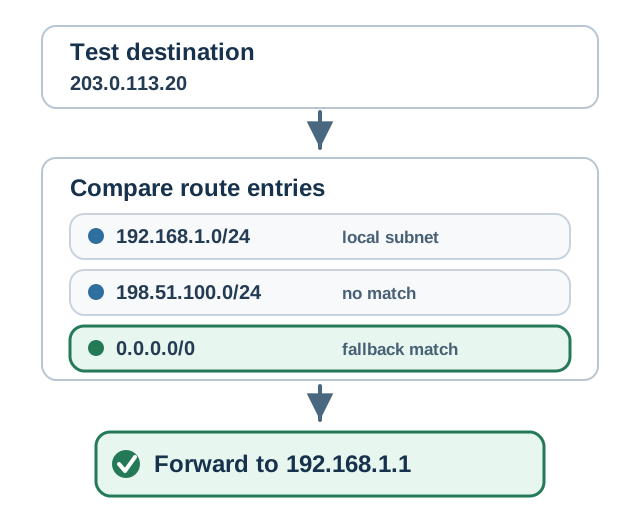
Use this compact record:
192.168.1.0/24 dev wlan0 and default via 192.168.1.1 dev wlan0.192.168.1.50.203.0.113.20.Acceptance standard: Your report must show the selected route and at least one route that was rejected.
Goal: Show that prefix specificity is checked before ordinary metric comparison.
Use this worksheet route set:
0.0.0.0/0 through gateway A.10.0.0.0/8 through gateway B.10.2.0.0/16 through gateway C.10.2.4.0/24 through gateway D.Test these destinations:
10.2.4.77.10.2.9.12.10.8.1.5.198.51.100.20.For each destination, list every matching prefix and choose the longest one. Do not compare metrics until the prefix match has narrowed the candidates to routes with the same destination prefix and comparable route preference.
Example decision:
10.2.4.77./0, /8, /16, and /24.10.2.4.0/24./8 route would not override the /24 match.Then test 10.2.9.12:
/0, /8, and /16.10.2.0.0/16./16 is more specific than /8 and /0.Acceptance standard: At least one example must include three or more matching prefixes and must explain why the default route loses.
Goal: Use hop output as route observations while avoiding common false conclusions.
Run a trace only against a safe destination you are allowed to test:
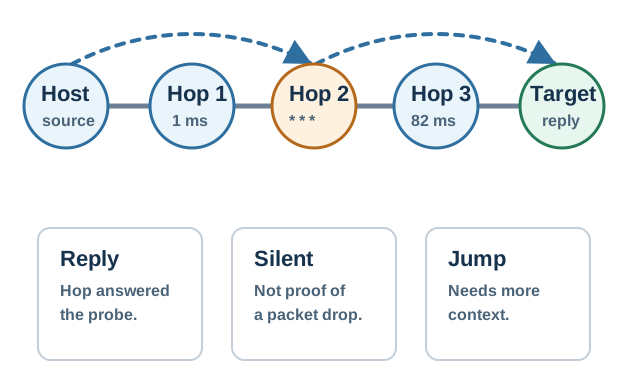
tracert example.com.traceroute example.com.Traceroute sends probes with increasing TTL or Hop Limit values. A router that decrements the value to zero may send an ICMP Time Exceeded reply. That reply reveals a hop address and round-trip time. Some routers do not reply, so a silent hop is not automatically a routing failure.
Interpret common patterns carefully:
1 ms, 5 ms, 12 ms: normal increasing path observations.* * * followed by later successful hops: the hop did not answer the probe, but traffic likely continued.Record the trace as path observations, not as a complete diagnosis:
Acceptance standard: Your report must explain at least one traceroute line without treating traceroute as proof of end-to-end application success.
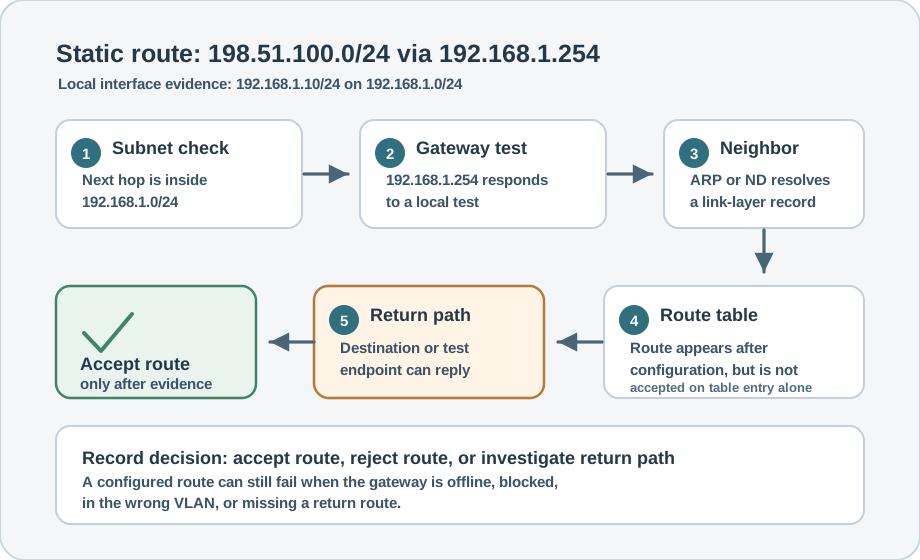
Goal: Verify that a static route points to a reachable next hop before relying on it.
Use a lab-only route such as:
198.51.100.0/24.192.168.1.254.192.168.1.0/24.Before adding or trusting the route, check:
Write the result in this form:
198.51.100.0/24 via 192.168.1.254.192.168.1.10/24.192.168.1.0/24.Do not assume that a route is valid merely because it appears in the table. A route can be syntactically installed while the next hop is offline, blocked, in the wrong VLAN, or missing a return route.
Acceptance standard: Your report must include a next-hop test before the final destination test.
Use this short structure for all four labs:
Keep screenshots or command output short. A route table excerpt with the relevant rows is better than a full terminal dump that hides the important decision.
* * * in traceroute as proof that the path stopped.This lab is not finished when a learner finds a route-table row. It is finished when the learner can prove why that row won, which alternatives lost, and what the record still cannot prove about link reachability, firewalls, return paths, or application behavior.
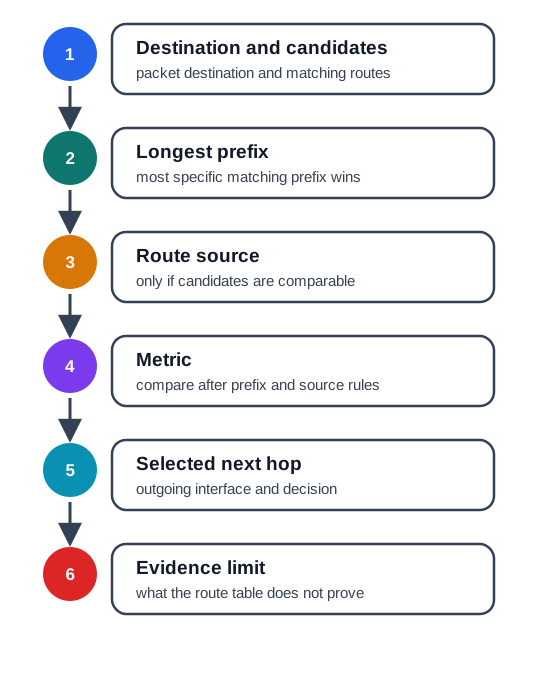
That order prevents two common lab mistakes. First, learners often jump from a destination to the default route because the default is easy to see. The proof record instead lists every matching prefix and shows why a more specific route wins. Second, learners often treat an installed route as delivery proof. The evidence limit makes the boundary visible: the table chose a next hop, but the next hop, return path, filtering, and remote service still need their own records.
Use the depth exercise as a small audit trail. Each row should answer a narrow question: what destination was tested, which entries matched, which one won, what next hop or interface was selected, and what remains unproven. A reviewer should be able to replay the decision without reading a full terminal dump or trusting a screenshot label.
For beginner routing labs, this is the difference between observation and diagnosis. "The default route matched" is an observation. "The network is healthy" is a diagnosis that needs more evidence. Keep those two statements separate so the lab can teach route selection without pretending to prove the whole path.
Capture the destination, local interface, route entries, and route source before selecting a path.
Show the matching prefixes, the longest match, and any metric or preference rule that remains after prefix choice.
State what the route lookup does not prove, including next-hop health, return path, filtering, or remote service state.
A good lab report lets another reviewer repeat the decision from the recorded evidence. It should separate route lookup, neighbor reachability, traceroute observations, and return-path assumptions instead of blending them into one "network works" claim.
Start by trimming the input to the rows that matter. A full route table can be useful as raw evidence, but the report should extract the connected route, default route, static route, or host route that matched the tested destination. Then write the rejected rows beside the selected row. That small comparison is what proves the learner followed longest-prefix and route-preference rules instead of picking the row that looked familiar.
After the route choice, move one boundary at a time. If the next hop is local, prove subnet membership before testing reachability. If the gateway answers, check neighbor or ARP evidence before trusting remote delivery. If traceroute has a silent hop, record the silence as a probe observation and keep reading later hops. If the final destination answers, still state whether the test proves the application protocol or only the probe path.
A static route to `198.51.100.0/24` appears in the table through `192.168.1.254`. The replayable record checks that `192.168.1.254` is inside the local prefix, confirms neighbor or ARP resolution, records whether the gateway answers, and only then tests a remote destination and return path.
Keep failure language precise. "Route selected" means the lookup chose a row. "Next hop reachable" means the local link and neighbor record supported the gateway. "Forward probe reached target" means that one probe shape made it across the path. "Service works" needs application-layer evidence. Separating those labels keeps troubleshooting practical and stops a single successful ping from being overstated as a full routing proof.
Route tables describe a local forwarding decision. Traceroute observes probe responses along a path. Ping or application tests observe a different packet shape. Treating those records as interchangeable hides failures caused by ICMP policy, asymmetric return paths, stateful filters, neighbor resolution, and service-layer behavior.
The route table is local state. It can show a connected prefix, static entry, default gateway, route source, metric, and outgoing interface, but it does not show every downstream router. Traceroute is active observation. It creates a series of probes with increasing TTL or Hop Limit values, so it can expose responding hops and silent hops, but it does not force every router to answer. A ping or HTTP request is a different packet and may pass or fail for reasons that traceroute did not test.
Neighbor resolution is another boundary. IPv4 ARP or IPv6 Neighbor Discovery can prove that a next-hop address maps to a link-layer peer on the local network. That does not prove the peer has a route onward, accepts the traffic, or can send replies back. In an IoT lab, the same distinction matters at gateways and border routers: a device can have a valid local next hop while the mesh, firewall, NAT, or upstream routing policy still blocks the complete exchange.
Shows the local route lookup result, but not whether every downstream hop will accept the packet.
Shows probe replies or silence under TTL behavior, but not a complete application-delivery guarantee.
Needs its own evidence because a forward route can be correct while replies take another path or fail.
Under the hood, the safest conclusion is the narrow one supported by the record. If the route lookup chose the default route, say that. If traceroute reached the target after one silent hop, say that a hop did not answer but forwarding probably continued. If the next hop failed neighbor resolution, stop before blaming the remote network. This discipline turns routing labs into useful diagnostics instead of broad claims that collapse when one layer behaves differently.
Routing labs are useful when they leave records of topology, assumptions, route decisions, failures, and the reasoning behind each selected path.
This chapter prepares you for:
Continue to Routing Labs: Advanced to test forwarding records, convergence behavior, and metric choice. Then use Routing Labs: Algorithms to connect these observations to the algorithms that build or select routes.