17 Traffic Capture Tools
More
Depth: Practitioner
Progress saves as you read. Mark sections complete as you go; your progress appears in the sidebar.
17.1 Start Simple: Put the Recorder in the Right Place
This section: Start Simple: Put the Recorder in the Right Place — Traffic tools feel technical, but their first question is ordinary: where should the recorder stand?
Traffic tools feel technical, but their first question is ordinary: where should the recorder stand? Wireshark, tcpdump, tshark, a radio sniffer, a SPAN port, and a TAP all become useful only when they can see the disputed traffic. If the recorder is in the wrong place, a perfect capture still answers the wrong question.
Use the tool as part of the evidence route, not as a verdict machine. Place it where the traffic should pass, write down the mode and filter, preserve the raw pcap, and then let a reviewer replay the same record. The tool collects the scene; the bounded conclusion still belongs to the review.
17.2 Tools Are Evidence Collectors, Not Oracles
This section: Tools Are Evidence Collectors, Not Oracles
A traffic-analysis tool does one thing: it records the packets that reach its observation point, in whatever mode it is running. That makes it an evidence collector, and like any evidence collector its output is only as good as where it was placed, what it was allowed to see, and how the record was preserved. The canonical tools divide cleanly by role: a graphical analyzer such as Wireshark for interactive inspection and decoding, a command-line capturer such as tcpdump for headless or long-running capture, a scriptable decoder such as tshark for repeatable summaries, and the pcap (or pcapng) capture file as the durable artifact they all read and write.
The mistake that wastes traffic reviews is treating a tool's output as a complete explanation. A capture answers "what crossed this point, when, and in what order." It does not, by itself, explain every device state, and it cannot show what never reached the point it was taken from. Strong tool use pairs the capture with its context — observation point, mode, filter, clock — and compares it against device logs and service records before drawing a conclusion.
If you only need the intuition, this layer is enough: pick the tool whose role fits the question, place it where it can see the traffic in dispute, preserve the raw pcap, and record the point, mode, and filter. The tool collects evidence; you still have to bound the conclusion to what that vantage point could see.
Before selecting a packet tool, use Figure 17.1 to place it inside the evidence route; the question and observation point must come before the tool name.
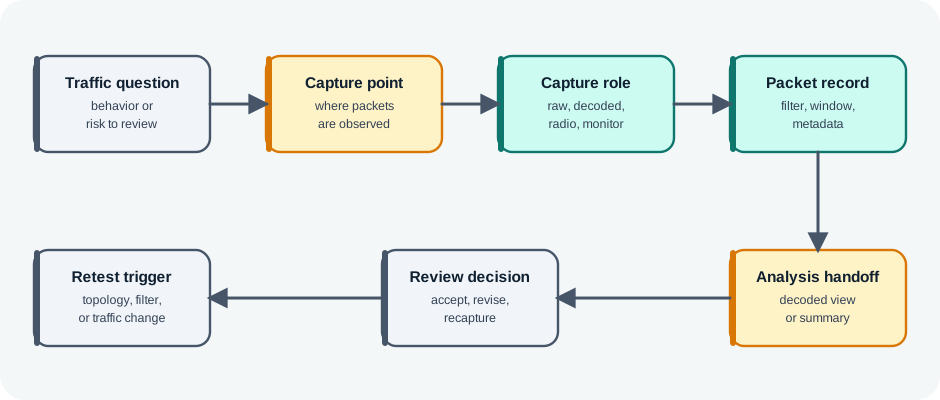
Follow Figure 17.1 from the traffic question to the observation point, then choose the capture role and preserve its packet record. The analysis handoff, decision, and retest trigger turn tool output into bounded evidence rather than an unexplained screenshot.
The One-Minute View
Match role to question
Graphical analyzer, CLI capture, scriptable decode, or radio capture — pick the role the question needs. Read Figure 17.1 in that order.
See the traffic first
A tool only records what reaches its point in its mode; getting the traffic there is half the job.
Preserve the raw record
Save the pcap and its context so another reviewer can re-decode and reproduce the finding.
Beginner Examples
Read these examples as a progression from the simplest observation to the boundary that still needs evidence. Begin with this case: an engineer captures with tcpdump to a pcap on a headless gateway, then opens the file in Wireshark on a laptop to decode it. Then examine how a host in promiscuous mode sees its own and broadcast traffic but not two other devices' switched conversation — that needs a mirrored port. Finish by considering how a scriptable tshark summary runs in CI to flag a missing message, but the raw pcap is kept so the finding can be re-examined. Together, the examples connect an intuitive result to a bounded engineering claim.
Overview Knowledge Check
If you can treat a tool as a bounded evidence collector, you have the core idea. Continue to Practitioner for the roles and how to get traffic to them.
17.3 Tool Roles and Getting Traffic to Them
This section: Tool Roles and Getting Traffic to Them
Choosing a tool is really choosing a role for the observation point and the question. The roles below cover most IoT work; the second half of the job is getting the relevant traffic to whichever tool you pick, because a switch will not hand you traffic you did not arrange to see.
Getting the Traffic to the Tool
On a switched network, a host in promiscuous mode sees only the frames the switch forwards to its port — its own, broadcast, and multicast — not other devices' conversations. To capture those you configure port mirroring (a switch SPAN port that copies selected ports' traffic to yours) or insert a network TAP in the link. Wi-Fi frame capture needs monitor mode on the right channel; BLE and Zigbee need protocol-specific radio sniffers. Whatever you choose, record it: the observation point, the mode, and the filter are what let another reviewer tell whether a missing packet was truly absent or simply never in view. Read Figure 17.2 in that order.
Before starting a capture, inspect Figure 17.2 to specify what traffic must be visible and which record will let another reviewer reproduce the observation.
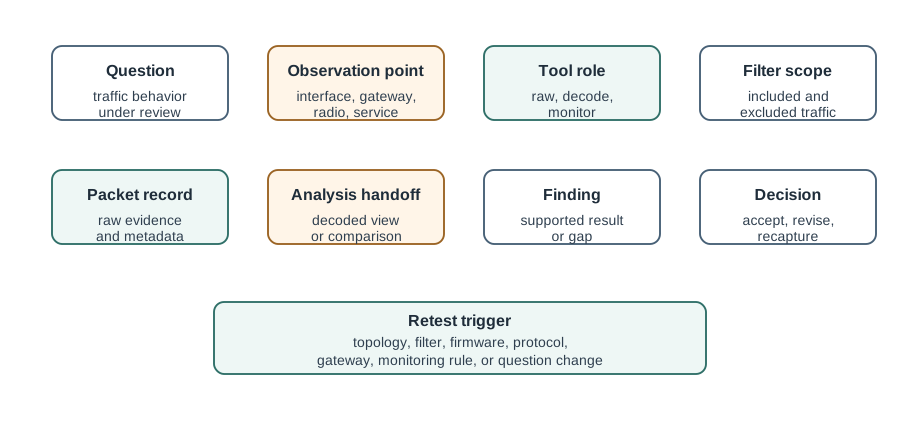
Read Figure 17.2 from question and observation point through tool role, mode, filter, and preserved pcap. Finish with analysis, finding, decision, and retest trigger. The route connects correct capture placement to an auditable conclusion and exposes packets that were merely out of view.
Practitioner Knowledge Check
If you can match the role to the question and get the traffic to the tool, you can stop here. Continue to Under the Hood for preserving evidence and telling real loss from a capture artifact. Read Figure 17.2 in that order.
17.4 Preserving Evidence and Reading the Capture Honestly
This section: Preserving Evidence and Reading the Capture Honestly
The deeper skill is in the capture file and its limits: preserving the raw record with enough metadata to reinterpret it, trusting timestamps appropriately, and distinguishing a genuine network problem from an artifact of the capture itself.
Raw pcap First, Decode Later
Preserve the raw capture, not just a decoded summary. The pcapng format carries useful metadata alongside the packets — interface details, timestamps, and comments — and keeping the raw file lets a later reviewer decode it differently or check a field the first summary omitted. A decoded note without its raw record is a review note, not durable packet evidence; if the raw file is gone, say so and limit the conclusion accordingly.
Trust Timestamps, but Know Their Source
Timing analysis — latency, jitter, inter-packet gaps — depends on the capture's clock. Timestamps come from the capture point, so a single point gives consistent relative timing, but comparing captures from two points means reconciling two clocks that may drift. Record the time source; an unstated clock is how a "delay" turns out to be skew between two captures rather than anything on the wire.
Real Loss Versus Capture Drops
A gap in a capture has two very different causes. The network may genuinely have lost packets — visible as retransmissions and consistent across vantage points — or the capture tool may have dropped them because the host could not keep up under load, leaving the packets on the wire but absent from the file. Before blaming the network, check the tool's reported drop or interface-overflow counters; attributing capture drops to network loss sends an investigation in the wrong direction. The same caution applies to a filter: a capture filter discards excluded packets permanently, so a "missing" message may simply have been filtered out, which is why the filter scope belongs in every record.
Common Review Findings
Review these failure modes in the order they can weaken or invalidate the result. Begin with Tool but no point. A summary names a tool but not the observation point, so the finding cannot be placed. Then examine Missing filter scope. A "missing" packet might have been excluded rather than absent. Then examine No raw record. A decoded finding has no pcap behind it, leaving it a note rather than durable evidence. Then examine Drops read as loss. A gap is called network loss without ruling out capture drops or a too-narrow filter. Then examine Unstated clock. The capture's time source or window is missing, so timing claims cannot be trusted. Finish with Over-generalized. A clean trace at one point becomes a conclusion about every path and time window. This sequence connects each warning to the evidence a reviewer should demand before accepting the claim.
Under-the-Hood Knowledge Check
At this depth, capture tools are a discipline of preserved, context-bound evidence: pick the role, get the traffic to it, keep the raw pcap with its filter and clock, and rule out capture artifacts before blaming the network. A trustworthy review can reproduce the finding from the saved file and states what the capture could not see.
17.5 Summary
This section: Summary — A capture tool is an evidence collector that records only what reaches its observation point in its current mode; its output must be bounded by that context.
A capture tool is an evidence collector that records only what reaches its observation point in its current mode; its output must be bounded by that context. The canonical roles are a graphical analyzer (Wireshark) for interactive decode, a CLI capturer (tcpdump) for headless or long-running capture, a scriptable decoder (tshark) for repeatable summaries, plus radio/link-layer capture and service-side logs; pcap and pcapng are the durable capture artifacts; preserve the raw file, since pcapng also carries interface, timestamp, and comment metadata. On a switched network, promiscuous mode does not reveal other devices’ traffic; use port mirroring (SPAN) or a network TAP, and use monitor mode for Wi-Fi frame capture and protocol-specific sniffers for BLE or Zigbee. Always record the observation point, mode, and filter so a reviewer can tell whether a missing packet was absent or simply out of view. Timestamps come from the capture point; one point gives consistent relative timing, but multi-point comparison must reconcile clock drift, so record the time source. A gap can be real network loss or a capture drop under load; check the tool’s drop counters before blaming the network, and remember a capture filter discards excluded packets permanently.
Traffic-analysis tools are chosen by capture point, protocol decode, filtering, timestamp quality, and exportable evidence — and they are trustworthy only when the raw capture, its observation point, its filter, and its clock are preserved. Match the tool’s role to the question, get the disputed traffic to it with SPAN or a TAP, and rule out capture drops and filters before you conclude the network lost anything.
17.6 See Also
This section: See Also
Traffic Analysis Fundamentals
The method behind the tools: questions, observation points, filters, and limits.
Analyzing IoT Protocols
Decode MQTT, CoAP, and other conversations once the capture is in hand.
Traffic Analysis & Monitoring
Fold capture evidence into a repeatable test and monitoring workflow.
Network Simulation Tools
Contrast captured traffic with model-based evidence from simulation.
Find help
3 reviewed answers.
Where should I start in a module?
Open the module page from the sidebar to see its chapters in order. Use the module map to return to a topic you need.
Modules and pathsReviewed
What can I try when a project does not work?
Check the symptom, then work through the diagnostic steps. Keep the error message and the smallest example that reproduces it.
When you are stuckReviewed
How do interactive examples work?
Use the interactive guide to check how examples and simulations work before changing your project.
Interactive examples guideReviewed