11 Firmware Emulation and Debugging
More
Depth: Practitioner
Progress saves as you read. Mark sections complete as you go; your progress appears in the sidebar.
Platform emulation runs the actual firmware image — the same bytes you would flash to the device — on a software model of the target machine. That is the line that separates emulation from simulation: a simulation models how something behaves, while an emulator executes the real binary on a modeled CPU and peripherals. Because the real code runs, you get true build, boot, and register-level behavior, plus a full debugger, before or without any hardware.
This chapter treats emulation the way the rest of the module treats evidence: an emulator run is trustworthy only when the artifact that ran, the modeled boundary, the captured trace, the model gap, and the retest trigger are recorded together.
11.1 Start With the Firmware-on-a-Model Story
This section: Start With the Firmware-on-a-Model Story
11.1.1 Use the Model to Expose the Next Risk
Firmware is the software stored inside a device.
Picture a controller program tested before the final board arrives. A model can supply sensor values, time, and link failures. It can expose a bad state change or retry rule early. It cannot prove real current draw, radio range, heat, or connector behaviour unless those effects are represented and checked.
Write a model boundary before the test. List what is real, what is copied, what is simplified, and what is absent. Run normal input, a limit value, bad timing, restart, lost communication, and a stuck device. Save input, output, version, and expected decision.
Move each surviving claim to the cheapest next test that can challenge it. Logic may stay in the model. Electrical and radio claims need bench or field evidence. The deeper sections compare simulation and emulation, timing, hardware links, and ways to keep a fast test honest as the product changes.
Picture a firmware image that can boot before the first board is on the desk. The bytes are real, the breakpoints are real, and the state changes are real; the machine around them is the model. That makes emulation a useful bridge between code review and hardware evidence.
For everyday IoT teams, this is where an update path, parser, boot check, or driver decision can be inspected without waiting for a target device. The emulator can prove that the compiled code followed a path under a modeled input. It cannot prove what an unmodeled sensor, clock, bus, or radio would do.
Start simple by naming the firmware artifact, the modeled machine boundary, the trace or debug evidence, the known model gap, and the hardware retest that must happen when the real target is available.
11.2 Overview: Running the Real Binary on a Modeled Machine
This section: Overview: Running the Real Binary on a Modeled Machine — Emulation executes the actual firmware image on a software model of the target processor and its peripherals.
Emulation executes the actual firmware image on a software model of the target processor and its peripherals. The distinction from simulation is precise and worth holding onto: a simulation models how a part behaves, while an emulator runs the real binary — the same machine instructions that would run on the chip — against a modeled machine. Because the genuine code executes, you can watch it build, boot, and run at the register level, set breakpoints, single-step, and inspect memory, all before a board exists.
The single most important idea is where the fidelity sits. Emulation is faithful at the digital and logic boundary: the instructions really execute, so boot logic, parsing, and state machines behave as the compiled code dictates. But the world the code talks to — sensors, radios, buses, clocks — is still modeled, and often simplified or stubbed. So an emulator pass is "this firmware logic executed correctly against these modeled peripherals," not "the device works." The evidence is bounded by which peripherals are modeled and how faithfully.
If you only need the intuition, this layer is enough: emulation runs the real firmware on a modeled CPU and peripherals, so it gives true instruction-level behavior and full debugging early. Its evidence is bounded by the peripheral models and the timing model, so a useful run records the artifact that ran, which boundary was modeled, and which physical behavior still needs hardware.
Think of a stunt double who really performs the stunt — that is the real binary — but on a movie set rather than a real building. The action is genuine; the surroundings are built and controlled. A simulation, by contrast, is the storyboard sketch of the stunt. Emulation gives you the real action against a constructed set; the set’s accuracy is exactly the boundary of what the run can prove. Follow Figure 11.1 to see where binary evidence ends and model evidence begins.
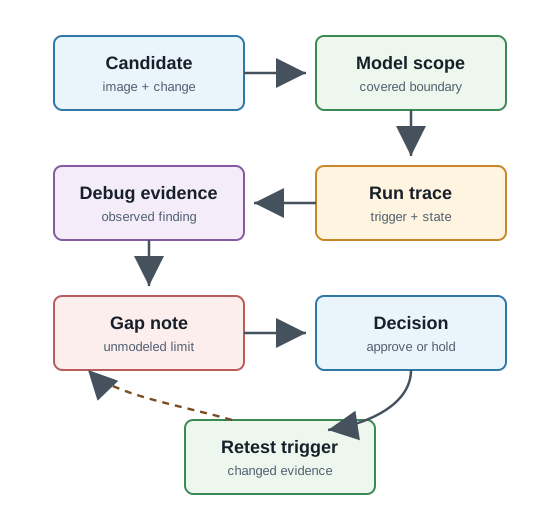
Read Figure 11.1 from the candidate image into the modeled scope and run trace. The image is the real firmware artifact, while scope states which processor, peripherals, timing, and faults the emulated platform represents. Debug evidence then records the observed state, and the gap note names behavior still requiring hardware. The retest trigger closes the chain. This order connects early binary-level debugging to the chapter’s running rule: preserve what the emulator proved without extending the claim beyond its model.
The One-Minute View
Real code, real debugging
The actual binary runs, so boot, register state, and crashes are inspectable with breakpoints and single-step — before hardware.
Modeled peripherals
Sensors, radios, buses, and clocks are modeled or stubbed; fidelity stops where the peripheral model does.
Name the gap
Analog, radio, power, and real-time timing the model omits stay open as specific hardware questions.
Beginner Examples
Read these examples as a progression from the simplest observation to the boundary that still needs evidence. Begin with this case: a firmware image boots in the emulator and the team single-steps the startup sequence to confirm the correct initial state — no board required. Then examine how a crash is reproduced deterministically because the emulator captured the triggering input and the register state at the fault. Finish by considering how a parser is run against recorded input bytes in the emulator to confirm it rejects a malformed message. Together, the examples connect an intuitive result to a bounded engineering claim.
Overview Knowledge Check
If you can explain "real binary, modeled machine," you have the core idea. Continue to Practitioner for what emulation can support, what it hands off, and how to record a debug finding.
11.3 Practitioner: What Emulation Proves and What It Hands Off
This section: Practitioner: What Emulation Proves and What It Hands Off — Emulation is strong evidence for claims that live at the logic boundary and weak for claims that depend on the physical world the model simplifies.
Emulation is strong evidence for claims that live at the logic boundary and weak for claims that depend on the physical world the model simplifies. The job is to keep the trace tied to a specific artifact and to label the gap honestly.
What an Emulator Cannot Prove Alone
An emulator is weak when the claim depends on behavior outside the model: analog sensor response represented only as a fixed input, radio behavior not modeled at the real boundary, clock- or bus-timing interactions that depend on physical hardware, electrical, power, and thermal behavior, and any peripheral that is stubbed, absent, or only partially represented. The right response is not to reject the emulator; it is to label the gap and decide whether the candidate needs a hold, a hardware check, or a retest trigger.
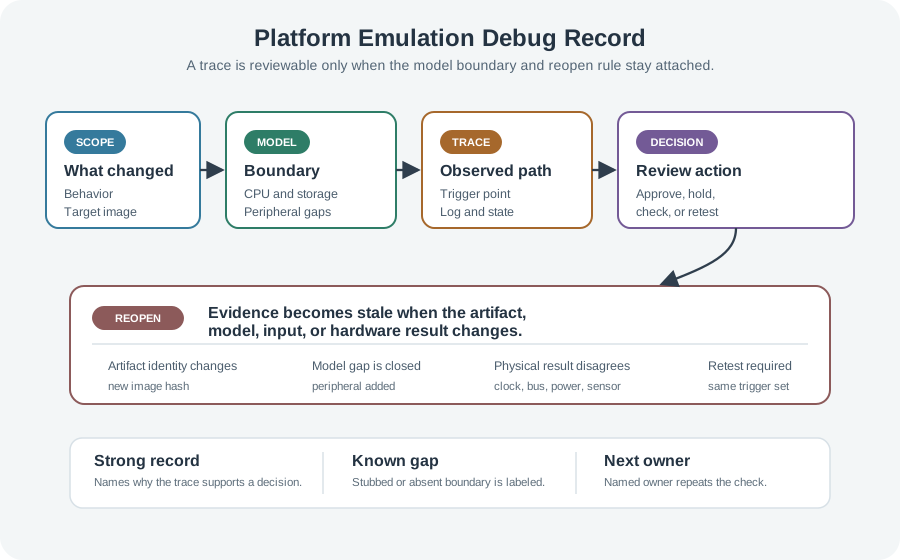
A screenshot or trace is not enough by itself; the record should say why the trace supports a decision. Keep it explicit: Read Figure 11.2 in that order.
- Scope: the changed behavior, target image, and affected boundary.
- Model: the processor, peripheral assumptions, inputs, and known gaps.
- Trace: the trigger, breakpoint, log, state, and artifact identity.
- Decision: approve, hold, hardware check, or retest.
- Reopen rule: the change or observation that makes the evidence stale.
Worked Example: Boot-State Regression and a Stubbed Sensor
Suppose a firmware candidate changes the state saved before a reboot, and an emulator run reproduces a failure where the candidate reports the wrong next state after restart. A weak record says "emulator run failed, boot state looked wrong, developer should debug." A strong record says the tested artifact identity matches the candidate, the model includes the processor, storage boundary, and boot-state file the change touches, the trace names the reboot trigger and the first incorrect state read after restart, and it states that storage is modeled but device-specific health confirmation is not — so the gate holds the candidate until the fix is retested and the health check is done separately. Now suppose a different candidate changes how firmware handles a sensor, and the emulator passes because the sensor is represented by fixed input values. The pass is real code-path evidence, but the model never exercised malformed or absent sensor data; the review must record that the sensor is stubbed and keep the sensor-error behavior as a hardware handoff.
Practitioner Knowledge Check
If you can separate logic evidence from a stubbed boundary and write a debug record with a specific reopen rule, you can stop here. Continue to Under the Hood for how emulation works and where its timing fidelity ends.
11.4 Under the Hood: How Emulation Works and Where Timing Ends
This section: Under the Hood: How Emulation Works and Where Timing Ends — The deeper layer is about why a confident emulator pass can still mislead.
The deeper layer is about why a confident emulator pass can still mislead. Three mechanisms matter: how an emulator executes the instructions, where peripheral models set the fidelity boundary, and why most emulators do not prove real-time timing.
Interpreting Instructions and Full-System Emulation
An emulator reads the target's machine instructions and reproduces their effect on a modeled CPU state — either by interpreting each instruction in turn or, for speed, by translating blocks of target instructions into host instructions and running those. Either way, the firmware's own bytes drive the run, which is why logic behavior is faithful. Full-system emulation models the processor plus memory and peripherals so an unmodified image boots as it would on the device; tools such as QEMU and Renode are recognizable examples used for embedded and IoT targets. The completeness of that modeled system — which peripherals exist and how accurately — is what determines how much of the device the run actually represents.
Peripheral Models Are the Fidelity Boundary
The CPU may be modeled faithfully, but a device is mostly its peripherals, and each one is a modeling decision. A peripheral can be fully modeled, partially modeled, replaced with a fixed-input stub, or simply absent. A stubbed sensor returns a constant; an absent radio means radio code paths never run as they would. The emulator pass is only as strong as the weakest peripheral the claim depends on, so the record must state which peripherals were modeled, which were stubbed, and which were missing — that list is the evidence boundary.
Most Emulation Is Not Cycle-Accurate
Functional, full-system emulators usually prioritize correct behavior and speed over exact timing: they are instruction-accurate, not cycle-accurate, and may run faster or slower than real time. That makes them excellent for logic and debugging and unreliable for claims about precise timing, interrupt latency, or hardware races — those need an explicitly cycle-accurate model or real hardware. Reading a functional emulator's timing as the device's real-time behavior is a classic over-claim; keep timing questions on hardware-in-the-loop or the board itself unless the emulator is documented as cycle-accurate.
Common Pitfalls
Review these failure modes in the order they can weaken or invalidate the result. Begin with Treating a pass as full coverage. An emulator proves the boundaries its model represents, not every physical boundary. Then examine Ignoring a stubbed peripheral. A fixed input can make an unexercised path look tested. Then examine Reading functional timing as real time. Instruction-accurate is not cycle-accurate. Then examine Losing the artifact identity. A trace with no image hash cannot be reproduced or trusted later. Finish with Reusing a stale trace. A changed image or model can invalidate an old finding. This sequence connects each warning to the evidence a reviewer should demand before accepting the claim.
Under-the-Hood Knowledge Check
At this depth, emulation is the disciplined use of a real binary on a modeled machine: it is faithful at the instruction level, bounded by its peripheral models, and usually silent on real-time timing. The strongest emulation evidence ties a trace to a specific artifact, names which peripherals were modeled or stubbed, keeps timing claims off non-cycle-accurate runs, and states the hardware question it handed onward.
11.5 Summary
This section: Summary — Emulation runs the real firmware image on a modeled CPU and peripherals; simulation models behavior, so the two produce different kinds of evidence.
Emulation runs the real firmware image on a modeled CPU and peripherals; simulation models behavior, so the two produce different kinds of evidence. Because the real binary executes, emulation is faithful at the instruction and logic boundary and supports full debugging — boot, parsing, state machines, and crash reproduction — before hardware exists. The fidelity boundary is the peripheral model: a peripheral can be fully modeled, partially modeled, stubbed with a fixed input, or absent, and the pass is only as strong as the weakest peripheral the claim depends on. A debug finding is reviewable only when it ties the trace to a specific artifact identity and records scope, model, trace, decision, and a reopen rule. Claims that depend on analog input, radio, power, thermal, or real timing are hardware handoffs and should be named specifically, not waved off. Most functional full-system emulators are instruction-accurate, not cycle-accurate, so they cannot establish real-time deadlines or interrupt-latency claims without a cycle-accurate model or real hardware. The right response to a model gap is bounded: keep what the run proved, label what it did not, and set a retest trigger on image and model changes.
Platform emulation should verify integration and logic behavior while preserving the distinction between emulated timing and real hardware behavior. An emulator run is evidence only when it names the artifact, the modeled peripheral boundary, the timing fidelity, and the specific hardware question it could not close.
11.6 See Also
This section: See Also
Hardware Simulation Fundamentals
The model-boundary and reality-gap ideas that frame why an emulator pass is bounded evidence.
Online Hardware Simulators
The lighter, browser-based end of the same spectrum, where models trade fidelity for convenience.
Network Simulation Tools
Extend modeled evidence from a single emulated node to many nodes, links, and traffic at scale.
Find help
3 reviewed answers.
Where should I start in a module?
Open the module page from the sidebar to see its chapters in order. Use the module map to return to a topic you need.
Modules and pathsReviewed
What can I try when a project does not work?
Check the symptom, then work through the diagnostic steps. Keep the error message and the smallest example that reproduces it.
When you are stuckReviewed
How do interactive examples work?
Use the interactive guide to check how examples and simulations work before changing your project.
Interactive examples guideReviewed