14 Traffic Analysis Fundamentals
More
Depth: Practitioner
Progress saves as you read. Mark sections complete as you go; your progress appears in the sidebar.
14.1 Start Simple: Follow One Missing Message
This section: Start Simple: Follow One Missing Message — Picture a temperature reading that appears in the device log but never changes the dashboard.
Watch One Boundary Before Capturing Everything
Picture a temperature reading that appears in the device log but never changes the dashboard. A focused trace can show which boundary first loses the message.
Follow the missing temperature message across one boundary at a time.
-
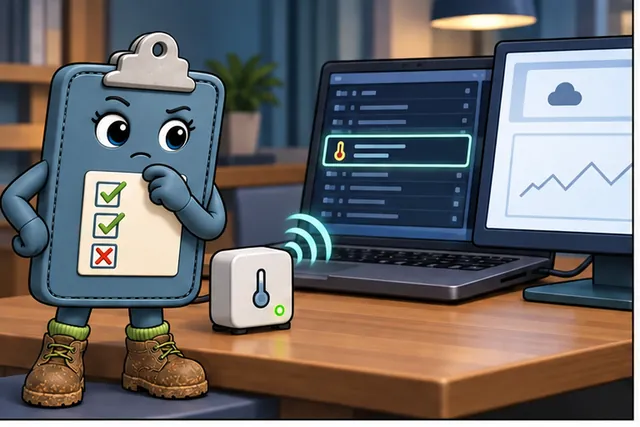
A temperature reading appears in the device log but not on the dashboard.
-
Capturing everything at once can hide the first broken boundary.
-
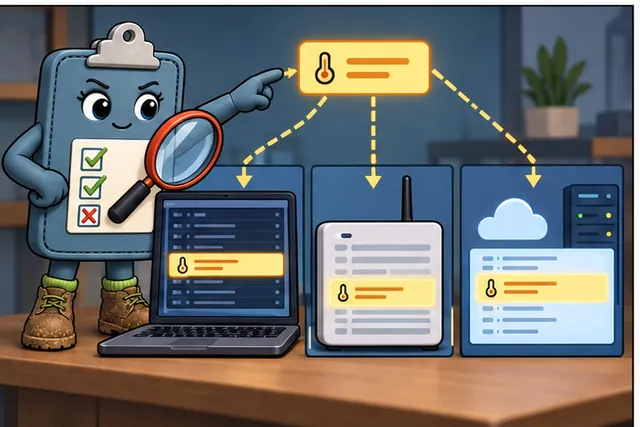
Mark one message and compare the device, bridge, and service records.
-
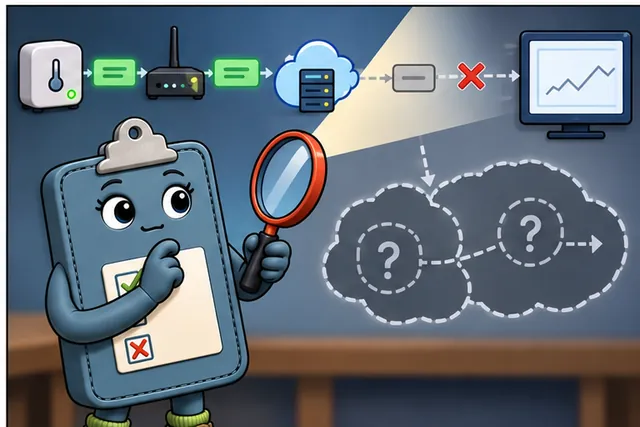
The focused trace finds where the reading first disappears and states its blind spots.
A gateway means the boundary system that connects local devices to another network or service. A protocol means shared rules for exchanging messages.
Mark one test message, capture at one justified point, then repeat after loss and reconnect. Keep device and service logs, packet times, addresses, message state, filters, result, and blind spots.
This runway does not prove the whole cause from one capture. The deeper sections explain review questions, observation points, filters, timing, protocol state, privacy, correlation, and evidence limits.
Picture a temperature sensor that says it sent a reading, while the dashboard never changes. The first move is not to capture everything. The first move is to ask one plain question: did the message leave the device, cross the gateway, and reach the service boundary?
That question gives traffic analysis its shape. You choose the place to watch, keep the packet record, and compare what the wire showed with the device log and service record. If the message is absent at the device, the story is different from a message that leaves the device but never reaches the service. Start there, and every later filter, figure, and knowledge check has a job.
14.2 Packets Are Evidence, Not the Whole Story
This section: Packets Are Evidence, Not the Whole Story
Traffic analysis lets you compare what a device claims it did with what the network actually carried. A device log says it published a reading; a packet capture shows whether a packet ever left, where it went, and what the other end did with it. In IoT systems that comparison explains the failures that logs alone cannot: missing messages, unexpected reconnects, wrong protocol state, endless retries, or a quiet disagreement between a device log and a service record.
The discipline that keeps it honest is simple. Start with a review question, choose an observation point that can actually see the path in question, record the capture scope and any filters, examine only the packets that bear on the question, and write down what the capture does not show. A trace is evidence, never a complete explanation by itself, because every capture is taken from one vantage point and a vantage point has blind spots.
If you only need the intuition, this layer is enough: a packet capture answers "did this communication happen, where, and in what order," not "was the sensor right" or "did the firmware choose correctly." It surfaces network-quality signals — latency, jitter, throughput, packet loss — and protocol state, but the conclusion you draw must never be broader than the point you captured from.
Before opening a capture tool, inspect Figure 14.1 to see how the review question determines the vantage point, evidence, and limit of the conclusion.
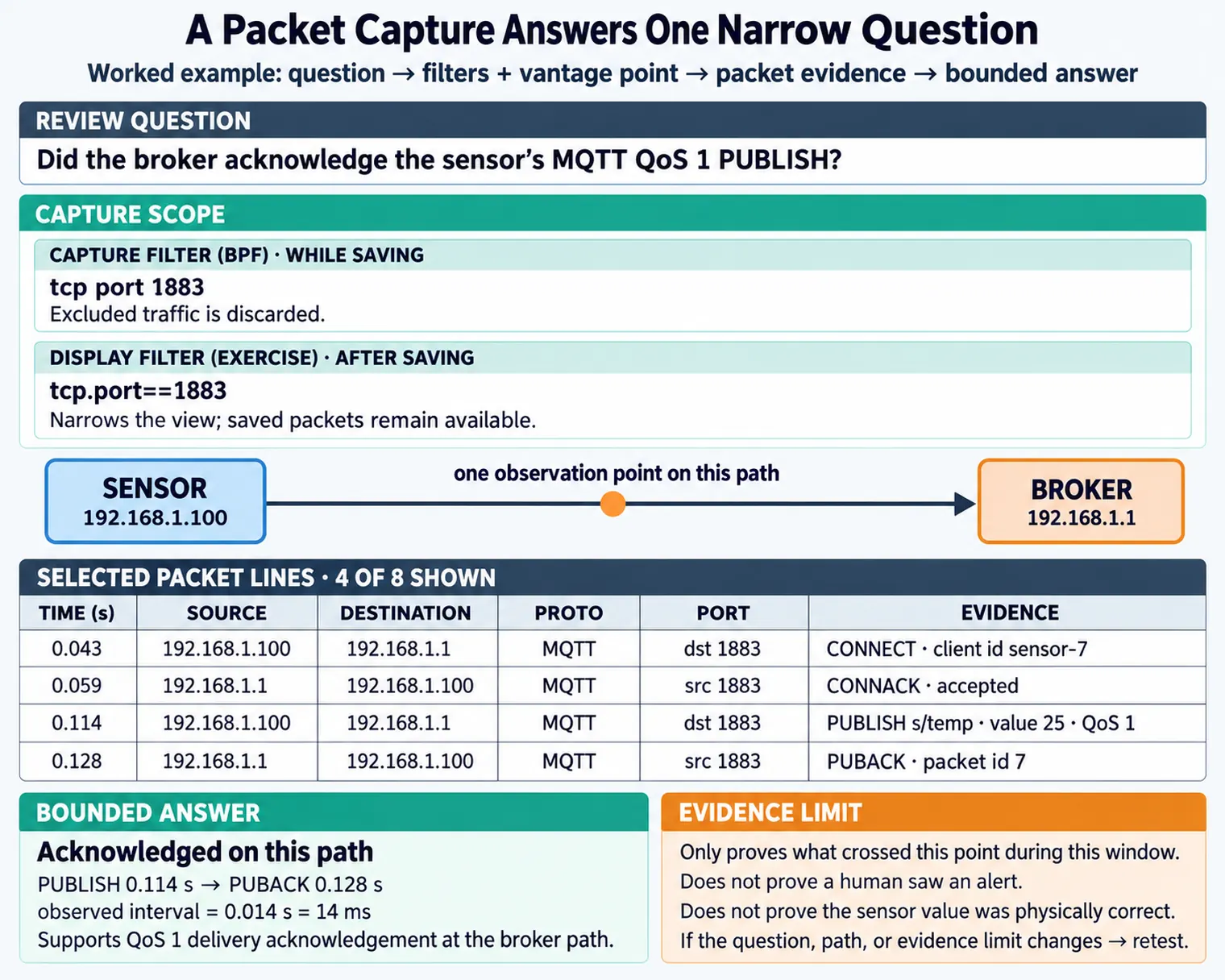
Read Figure 14.1 from the review question to observation point and capture scope, then into packet evidence, evidence limit, and review decision. The question identifies the behavior in dispute; the point and scope determine which packets can be seen; and the evidence limit names what an encrypted payload or unseen segment cannot prove. Only then can the decision stay proportional to the trace. This sequence connects raw packets to the chapter’s evidence-first analysis discipline.
The One-Minute View
Question first
Start from the behavior that needs packet evidence, not from the capture tool. The question chooses the observation point.
Point has blind spots
A capture only shows what is visible from where it was taken. Name the point, and keep the conclusion within what it can see.
Record the limit
Encryption, filters, and radio mode all hide things. Write down what the trace did not expose before you trust it.
Beginner Examples
Read these examples as a progression from the simplest observation to the boundary that still needs evidence. Begin with this case: a device log claims a message was sent, but a device-side capture shows no packet ever left — the log and the wire disagree, and the wire wins. Then examine how an app shows stale data; a capture reveals a reconnect storm where the session keeps dropping before the publish completes. Finish with "The packet is encrypted, so I learned nothing" is wrong — you still see the endpoints, the timing, the retries, and the resets. Together, the examples connect an intuitive result to a bounded engineering claim.
Overview Knowledge Check
If you can explain why a trace is evidence rather than an explanation, you have the core idea. Continue to Practitioner for capture points and filters.
14.3 Capture Points, Filters, and What You Can Measure
This section: Capture Points, Filters, and What You Can Measure
The same device behavior looks different from the device, the gateway, a mirrored switch port, the access point, or the service. Choosing the observation point is the most consequential decision in a traffic review, because it sets what the capture can and cannot support. Pick the point that can actually observe the disputed path, and if no single point can, capture at more than one and reconcile them.
Capture Filters Versus Display Filters
These solve different problems and a common mistake is to confuse them. A capture filter is applied while packets are being saved; it shrinks the capture to a known scope and is useful when the question is already narrow — but it permanently discards anything it excludes, so a retry, handshake, or reset you did not anticipate is simply gone. A display filter is applied after packets are saved; it narrows what you look at while preserving the full capture for later questions, which is safer when the investigation might change direction. Either way, the filter belongs in the record so another reviewer can repeat the analysis.
Promiscuous Mode and Monitor Mode
A network interface normally ignores frames not addressed to it. Promiscuous mode asks a wired interface to hand all visible Ethernet traffic to the capture tool — but it does not make switched traffic appear, because a switch only forwards frames to the relevant port; that is what port mirroring is for. Wireless review usually needs monitor mode or a dedicated radio capture path, and the record must name the channel, mode, and adapter, because a wireless capture on the wrong channel is silently incomplete.
What the Wire Actually Measures
Beyond "did a packet appear," a capture yields network-quality signals that matter for IoT: latency (the delay before a response), jitter (the variation in that delay, which breaks time-sensitive flows), throughput (the achieved data rate), and packet loss (missing packets, often visible as retransmissions). These are observable from the trace and are frequently the real story behind "the app feels slow" or "readings arrive late." Read Figure 14.2 in that order.
Before drawing a conclusion from captured packets, inspect Figure 14.2 to anchor the observation to a question, vantage point, time window, and preserved record.
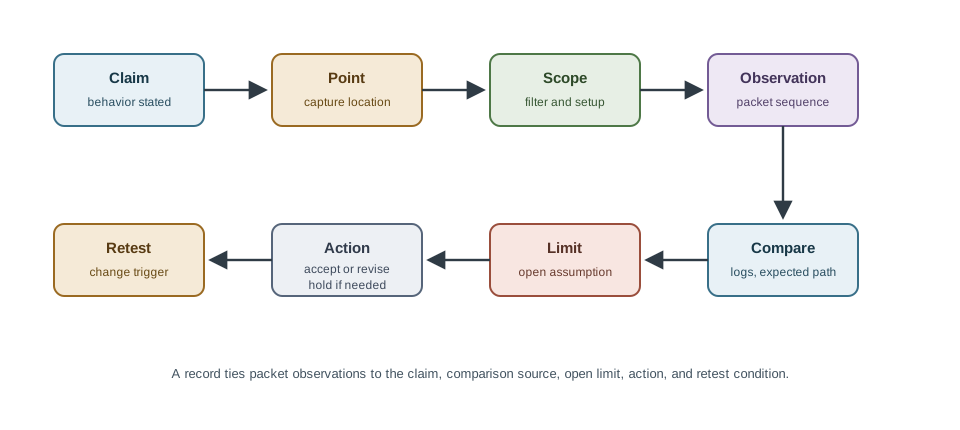
Follow Figure 14.2 from scope and capture context to the observed sequence, then compare related logs before recording the bounded finding. The decision and reopen rule connect what crossed one observation point to the next investigation without inventing a root cause.
Practitioner Knowledge Check
If you can pick the right capture point, distinguish the two kinds of filter, and read latency, jitter, and loss, you can stop here. Continue to Under the Hood for protocol state and how to bound a conclusion. Read Figure 14.2 in that order.
14.4 Protocol State and Bounding the Claim
This section: Protocol State and Bounding the Claim
The deeper skill is reading the conversation, not just counting packets, and then refusing to conclude more than the trace can support. Two failures dominate real reviews: reading protocol state incorrectly, and stretching a network observation into a claim about the sensor or the firmware.
Read the Conversation, Reconcile the Records
IoT protocols have observable state on the wire. A TCP connection shows its handshake, retransmissions, and resets; an MQTT session shows CONNECT, SUBSCRIBE, and PUBLISH exchanges; a CoAP exchange shows requests, responses, and retransmissions over UDP. A secured session shows its handshake too — a TLS handshake over TCP, or a DTLS handshake for CoAP over UDP — so you can confirm whether an encrypted session even started before application data was attempted. When a device log, a gateway capture, and a service record disagree, reconcile them before concluding; the log is a claim, the capture is an observation, and the truth is usually found by comparing them on message time, endpoint pair, and sequence.
Encryption Hides Contents, Not Metadata
Encryption protects the payload, not the envelope. Even when you cannot read application data, the capture still exposes the endpoints, the timing, the packet sizes, the retransmissions, and the connection resets. That metadata is often enough to localize a problem to the transport or the path — but it is not enough to prove an application-layer cause, and that boundary is exactly where over-conclusion happens.
Bound Every Conclusion
A trace that shows a message moved does not prove the sensor reading was correct. A trace that shows a protocol state does not prove the firmware chose the right state. A service record showing received traffic does not show what happened earlier on the local network. When the question outgrows what the trace can answer, move it to the right layer — a unit or HIL test for firmware logic, a sensor calibration check for measurement validity — rather than forcing the packet evidence to carry a claim it cannot bear.
Common Findings
Review these failure modes in the order they can weaken or invalidate the result. Begin with Wrong vantage point. The trace was taken where it could not observe the disputed path, so its absence proves nothing. Then examine Filter hid the answer. A capture filter excluded the very retry or handshake that explained the missing observation. Then examine Encryption misread. Encrypted payloads were treated as if they exposed application contents. Then examine Records not reconciled. A log and a trace disagree, but the review never compares them on time, endpoint, and sequence. Finish with Conclusion too broad. A network observation is stretched into a claim about the sensor or the firmware. This sequence connects each warning to the evidence a reviewer should demand before accepting the claim.
Under-the-Hood Knowledge Check
At this depth, traffic analysis is a discipline of bounded evidence: tie the question to a vantage point, read protocol state honestly, remember that encryption hides contents but not metadata, and reconcile the wire with the logs. A trustworthy review states what the trace shows, what it cannot show, and which layer answers the rest.
14.5 Try It: Inspect a Packet Capture
This section: Try It: Inspect a Packet Capture
Packet capture narrated tour
Play silently with captions on provisional storyboard timing; narration audio is pending. Production pacing is not protocol time. Choose Reduced motion for a complete still at each beat.
Play the tour to open the workbench. Pause, replay a beat, or read the full transcript below. Beats marked CANNOT SHOW provide captions without changing asset controls; the teaching model cannot demonstrate those claims.
Full transcript — Packet capture (8 beats)
B1 — Stale dashboard investigation
You are the engineer responsible for a temperature sensor whose dashboard has stopped changing. The sensor says it sent a reading, but the dashboard stays stale. People using that dashboard are still waiting for an updated temperature. Your question is simple: what happened during the wait?
Model caption: You are investigating a temperature reading that has not updated the dashboard. Follow the sensor–gateway exchange to describe the wait.
B2 — Observation point limits
A packet capture lets you follow messages from one observation point. An endpoint is a sender or receiver in the exchange. A timestamp gives a packet's time. Comparing those details lets you follow the order of communication. The place where the capture was taken limits how much of the journey it describes.
Model caption: Endpoints identify sender and receiver; timestamps place packets in time. A capture describes only what its observation point could see.
B3 — Confirmable request
Take the teaching exchange between a sensor and a gateway, the system connecting local devices to another network or service. The sensor sends a confirmable temperature request. Confirmable means the receiver is asked to acknowledge it. The protocol, meaning the shared rules for exchanging messages, gives that request a message identifier.
Model caption: The sensor asks the gateway to acknowledge a temperature request. The request carries message identifier 0x7a10.
B4 — Retry interval
The original request has timestamp zero point zero zero four. The sensor repeats the request at two point zero zero four. Subtract zero point zero zero four from two point zero zero four. The interval is two timestamp units. The repeated message identifier connects the retry to the original request, rather than a new temperature request.
Model caption: Original: 0.004. Retry: 2.004. Subtract 0.004 from 2.004: 2.000 timestamp units before retry. Both requests use identifier 0x7a10.
B5 — Gateway acknowledgement
The gateway then sends an acknowledgement back to the sensor. In the teaching exchange, that response confirms acceptance after the retry. The sequence gives your investigation a concrete shape: a request, a repeated request after a wait, and a response returning from the gateway.
Model caption: Request → retry → response. The gateway's acknowledgement confirms acceptance after retransmission in this teaching capture.
B6 — Filter and restore context
A display filter can focus attention on the retry while keeping the full capture available. It works after packets have been saved. Restoring the full view brings the surrounding exchange back into focus, so the repeated request can be read alongside the original request and the gateway's response.
Model caption: A display filter focuses attention after capture. Retry matches frame 3; All restores all five matches, including the original request and response.
B7 — Retry does not locate cause
The misconception is that a retry identifies exactly what caused the delay. It tells you the first response did not arrive before the timer expired. That describes the sensor's wait, but one observation point cannot explain the whole path. Your two timestamp units measure the interval before the retry, without locating its cause.
Model caption: The first response was not received before timeout. The two-unit interval describes the wait before retry; it does not locate the cause.
B8 — Capture evidence takeaway
Follow the exchange in time, and keep the explanation within what the capture can tell you.
Model caption: Follow the exchange in time, and keep the explanation within what the capture can tell you.
14.6 Summary
This section: Summary — Traffic analysis compares what a device claims with what the network carried; a packet capture is evidence from one vantage point, not a complete explanation.
Traffic analysis compares what a device claims with what the network carried; a packet capture is evidence from one vantage point, not a complete explanation. Start from a review question, choose an observation point that can see the disputed path, record the scope and filters, and write down what the trace cannot show. Capture points (device, gateway, mirrored switch port, radio, service) each show a different slice; absence at one point is not absence everywhere. Capture filters discard excluded packets permanently while saving; display filters narrow the view after capture while preserving the full record. Record whichever is used. Promiscuous mode passes visible Ethernet traffic to the tool but does not reveal switched traffic; wireless review needs monitor mode with a recorded channel, mode, and adapter. The wire measures latency, jitter, throughput, and packet loss, which are often the real story behind slow or late behavior. Protocol state is observable: TCP, MQTT, and CoAP exchanges, and TLS or DTLS handshakes, show whether a session even started before application data. Encryption hides contents, not metadata; bound every conclusion and move firmware-logic or sensor-validity questions to the right testing layer.
A packet capture answers where and in what order communication happened, never whether the sensor was right or the firmware was correct. Choose the observation point for the question you are asking, separate capture filters from display filters, read protocol state and network-quality signals honestly, and state the blind spots. The strongest traffic review is the one whose conclusion never exceeds what the chosen vantage point could actually see.
14.7 See Also
This section: See Also
Analyzing IoT Protocols
Apply this method to MQTT, CoAP, and other protocol conversations as packet evidence.
Traffic Capture Tools
Select and operate capture utilities once the review question and observation point are clear.
Traffic Analysis in Testing
Fold packet evidence into a repeatable test and monitoring workflow.
Network Simulation Tools
Contrast observed traffic with model-based network evidence from simulation.
Find help
3 reviewed answers.
Where should I start in a module?
Open the module page from the sidebar to see its chapters in order. Use the module map to return to a topic you need.
Modules and pathsReviewed
What can I try when a project does not work?
Check the symptom, then work through the diagnostic steps. Keep the error message and the smallest example that reproduces it.
When you are stuckReviewed
How do interactive examples work?
Use the interactive guide to check how examples and simulations work before changing your project.
Interactive examples guideReviewed