Device Input
Temperature, humidity, and manual trigger state. Use physical sensors, simulator controls, or mocked readings.
Progress saves as you read. Mark sections complete as you go; your progress appears in the sidebar.
This lab belongs to Smart Building Architecture Walkthrough
This section: Start With the Review Record — A payload is the useful data carried inside a message.
Make Every Boundary Leave a Trace
A payload is the useful data carried inside a message. Picture a cold-room monitor that reads a sensor, marks bad values, sends a record, and warns a worker. The screen may show the right number while one hidden step uses stale or unsafe data.
Draw the flow before building it. Give sensing, checking, message shape, local action, storage, and human review one clear job each. For every hand-off, record the input, the output, the time, and the reason a value was accepted or rejected.
Run a normal case first. Then remove a reading, delay it, push it beyond its limit, restart the device, and use the manual override. The evidence should show which layer noticed the change and which action followed. A reviewer must be able to repeat the same cases.
This small lab does not prove a full service is ready for use. It proves that the chosen boundaries can be inspected. The deeper sections add code, tools, and larger architecture layers without changing that proof chain.
In the lab, the architecture becomes real when the review record has something concrete to inspect. A diagram alone is not enough; it needs a flow trace, a boundary decision, a test result, a risk note, and a reason the current design is acceptable.
Treat the lab as a small architecture review. Pick one design, record the claims it makes, attach evidence for each claim, and leave clear limits so the next change can reopen the review without starting from scratch.
This section: Learning Objectives
By the end of this lab, you should be able to:
This section: Lab Route — Start with a narrow physical scenario and move one boundary at a time.
Start with a narrow physical scenario and move one boundary at a time.
The route in Figure 1 starts with an environmental monitor and a clear outcome. Temperature, humidity, manual trigger, and quality status become an input record; the payload adds device and run identity with units. Local decision logic reads that input rather than display text and chooses normal, alert, or invalid output. The worked run shows missing temperature carried as a missing field, which leads to an invalid decision and a fault indicator instead of a normal value. Capture input, payload, decision, output, and review note for the same run. A sensor, threshold, payload, or reset change then has a specific case to repeat.
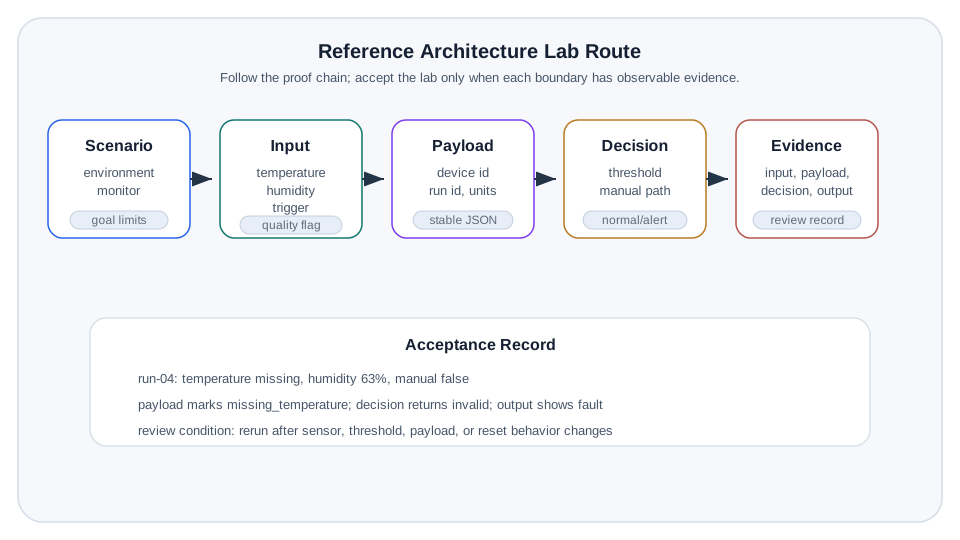
Keep Reference Architecture Lab Route, run id, units, and run-04: temperature missing, humidity 63%, manual false separate while reading Figure 1. The diagram makes Reference Architecture Lab Route a visible lab route cue; its run id, units relationship advances the claim: Reference architecture lab route showing the scenario, device input, payload contract, local decision, evidence capture, and acceptance record that make the lab reviewable.
Use this route; the local script results below are fixture evidence, not sensor or deployment measurements.
normal returned decision=normal, while high returned decision=alert.manual fixture returned decision=manual-alert despite an in-range temperature.missing returned valid=False ... decision=invalid.stale=True decision=invalid, keeping delayed data out of the threshold path.This section: Scenario and Setup — Use a simple environmental monitor as the lab scenario.
Use a simple environmental monitor as the lab scenario. The device observes temperature, humidity, and a manual trigger. It produces a structured message, makes a local alert decision, and records enough evidence for review.
Temperature, humidity, and manual trigger state. Use physical sensors, simulator controls, or mocked readings.
Structured record with device id, timestamp, readings, units, quality flag, and error reason when needed.
Alert state based on threshold and manual trigger rules. The decision consumes validated readings, not raw pins.
Captured input, payload, decision, output, failed case, and reviewer note for each test run.
Allowed tooling: Use a bench microcontroller, a circuit simulator, or a local script. The tooling is acceptable only if it lets you observe the layer evidence listed in this chapter.
This section: Layer Map — The lab begins with three active layers, then documents how it would grow into the full reference architecture.
The lab begins with three active layers, then documents how it would grow into the full reference architecture.
Why pause at layer map? Beside Layer Map for a Replayable Architecture Lab, the diagram Figure 2 makes Extension responsibilities explicit within this relationship: Reference architecture lab layer map separating core input, payload, and decision boundaries from later accumulation, abstraction, application, and operations responsibilities.
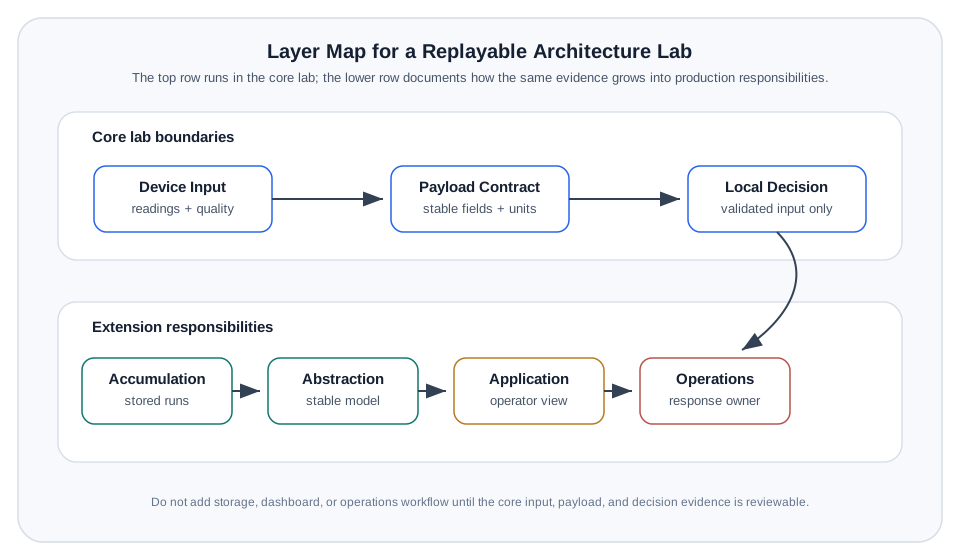
The core path in Figure 2 keeps three lab duties separate. Device input records the missing temperature, valid humidity, manual flag, and quality reason for one run. Message formatting preserves those fields in a stable payload, while local decision logic reads the same input record and returns an invalid state without evaluating a temperature threshold. The output shows a fault indicator, and the review record binds the input, payload, decision, and result to the run. Storage, application, and operations are extension duties after this core proof passes. This separation makes it possible to test a changed format without silently changing the local safety decision.
Reads temperature, humidity, and manual trigger state. Also marks invalid or missing readings.
Builds a payload that can be logged, sent, stored, or replayed without exposing hardware details.
Applies threshold, quality, and manual-trigger rules to create a visible output or alert state.
Add storage, abstraction, dashboards, operator workflow, update records, and support ownership after the core lab passes.
This section: Build the Lab Flow — Use the following compact structure.
Use the following compact structure. Adapt names and syntax to your chosen tool, but keep the boundaries.
Run it: Warm up the layer thinking this flow depends on by playing the architecture game below. Start the quiz to reason through reference-model scenarios, then use the layer builder to place each IoT component into the layer that owns it — device input, message format, or local decision — and press Check Builder to see misplacements. Carry the same boundary discipline into the read, format, decide, and capture functions you write next.
read_device_input()
  -> returns readings, manual trigger, timestamp, quality flag

format_payload(input_record)
  -> returns structured message with readings and quality information

evaluate_local_decision(input_record)
  -> returns normal, alert, invalid, or manual-trigger state

capture_evidence(input_record, payload, decision)
  -> records test id, observed output, notes, and pass/fail result
This section:
Avoid a single long loop that reads inputs, builds payloads, checks thresholds, drives outputs, and prints review text in one block. That design is hard to test and hides responsibility boundaries. Each layer should be callable and inspectable on its own.
This section:
This section: Payload Contract — The payload should be boring and stable.
The payload should be boring and stable. Keep it easy to inspect.
Device id, firmware or lab version, and scenario name.
Timestamp or monotonic run counter so test evidence can be ordered.
Temperature, humidity, manual trigger, and units.
Valid flag, error reason, stale flag, or missing-reading note.
Example payload shape:
{
  "device_id": "lab-node-01",
  "scenario": "environment-monitor",
  "run_id": "run-03",
  "readings": {
    "temperature_c": 31.5,
    "humidity_percent": 68,
    "manual_trigger": false
  },
  "quality": {
    "valid": true,
    "reason": "ok"
  }
}This section: Test Matrix — Run the lab as a set of tests, not as a one-time demonstration.
Run the lab as a set of tests, not as a one-time demonstration.
Do not apply test matrix until its premise is visible near Test Matrix: Prove More Than the Happy Path in Figure 3: Reference architecture lab test matrix showing normal, high-threshold, manual-trigger, invalid-reading, delayed-reading, and reset-recovery runs with the evidence required for each row. Inspect the span to Invalid Reading.
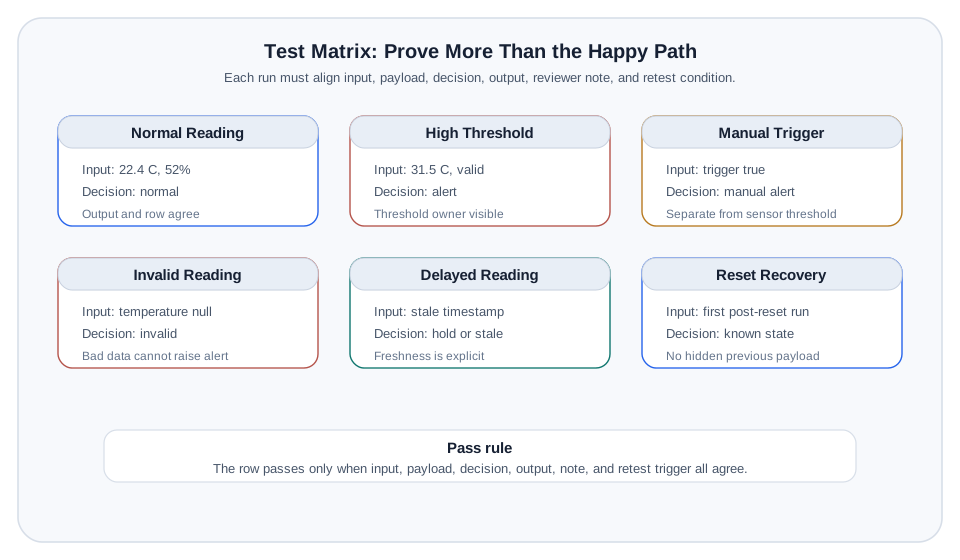
At Test Matrix: Prove More Than the Happy Path, the diagram Figure 3 establishes one design concern. Invalid Reading introduces the next; Pass rule provides the final test matrix review cue. This Pass rule sequence supports the claim: Reference architecture lab test matrix showing normal, high-threshold, manual-trigger, invalid-reading, delayed-reading, and reset-recovery runs with the evidence required for each row.
Valid readings stay inside limits. Payload is valid. Local decision remains normal.
A reading crosses the threshold. Payload remains valid. Local decision becomes alert.
The trigger is active. Local decision shows manual alert even if readings are inside limits.
A sensor value is missing or invalid. Payload quality is marked invalid. Threshold logic does not fire from bad data.
A reading is stale or delayed. The lab record shows whether the system suppresses, marks, or holds output.
Restart the lab target and verify it returns to known state with a new evidence record.
Pass rule: A test passes only when the input, payload, decision, output, and reviewer note agree. A visible LED, print line, or dashboard value by itself is not enough.
This section: Lab Record Board — Capture the evidence the same way each time.
Capture the evidence the same way each time.
The board in Figure 4 links test input to output and result; check the full trail.
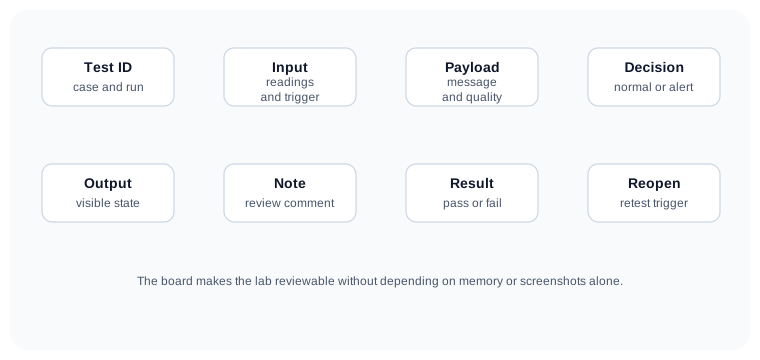
Figure 4 lays out test ID, input, payload, local decision, output, reviewer note, pass result, and review condition for the IoT lab.
For each run, record:
This section: Common Implementation Pitfall — The most common failure is mixing layer responsibilities.
The most common failure is mixing layer responsibilities.
bad_loop()
  read sensor
  build message
  compare threshold
  drive output
  print review text
That structure makes every change risky. A payload-format change should not alter threshold behavior. A sensor replacement should not alter operator workflow. A dashboard change should not alter device input validation.
Use this structure instead:
input_record = read_device_input()
payload = format_payload(input_record)
decision = evaluate_local_decision(input_record)
output_state = apply_output(decision)
capture_evidence(input_record, payload, decision, output_state)This section: Extension Plan — After the core lab passes, extend it one layer at a time.
After the core lab passes, extend it one layer at a time.
Why pause at extension plan? Beside Extension Route After the Core Lab Passes, the diagram Figure 5 makes record explicit within this relationship: Reference architecture lab extension route from the core input-payload-decision lab through accumulation, abstraction, application, operations, update evidence, and retest ownership.
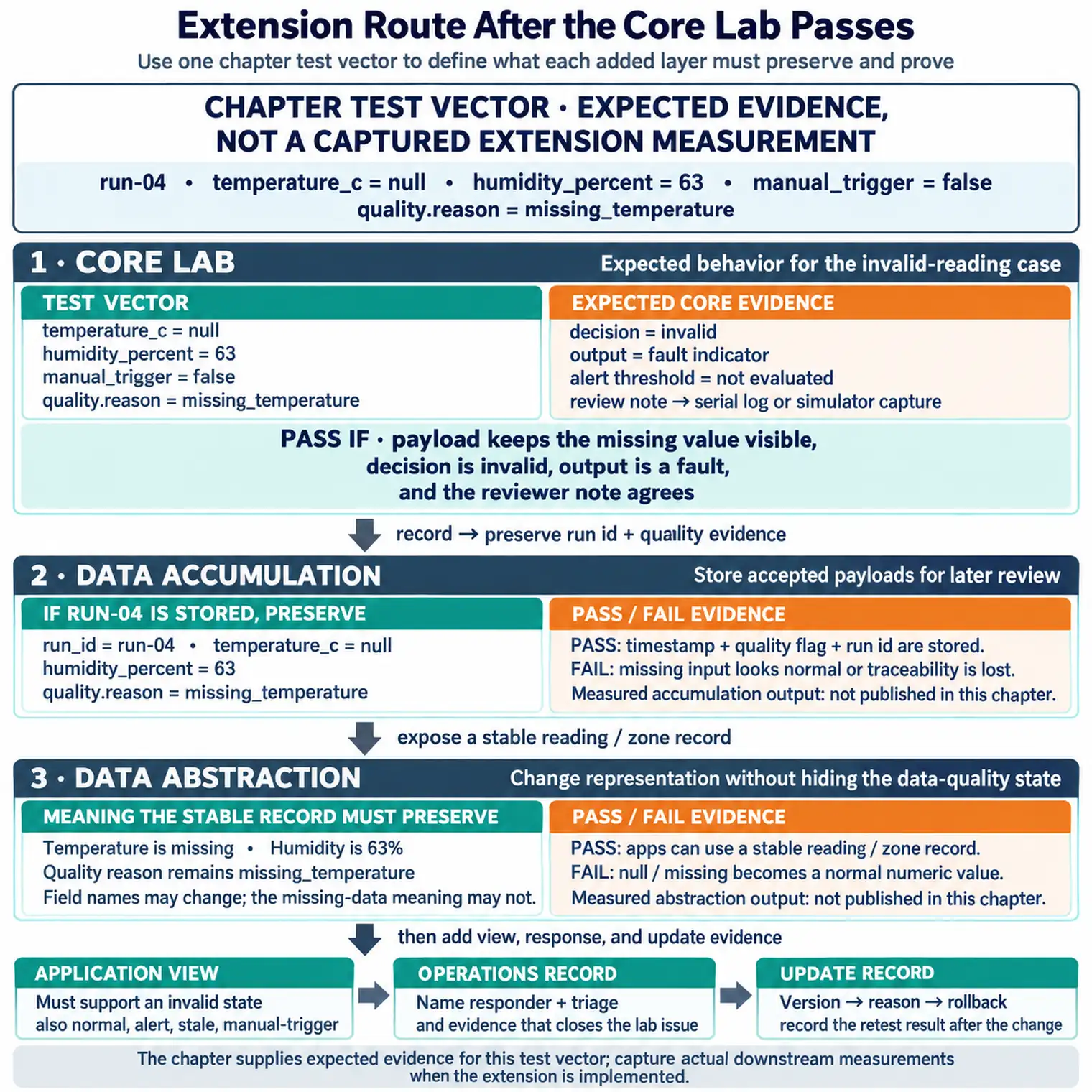
Keep Extension Route After the Core Lab Passes, record, and Core Lab separate while reading Figure 5. The diagram makes Extension Route After the Core Lab Passes a visible extension plan cue; its record relationship advances the claim: Reference architecture lab extension route from the core input-payload-decision lab through accumulation, abstraction, application, operations, update evidence, and retest ownership.
Store accepted payloads with timestamps, quality flags, and run ids for later review.
Expose a stable reading or zone record so applications do not depend on device-specific fields.
Show normal, alert, invalid, stale, and manual-trigger states in a human-readable view.
Define who responds, how a failed reading is triaged, and what evidence closes the lab issue.
Record firmware or configuration version, change reason, rollback expectation, and retest result.
This section: Knowledge Check
This section: Common Pitfalls
A demo shows that something can happen once. A lab proves behavior across normal, alert, invalid, delayed, manual-trigger, and recovery cases.
Do not replace missing readings with normal-looking values. Mark the quality condition and prove the decision layer handles it.
Clicking a simulator button or flashing a board is setup work. Architecture proof is the captured input, payload, decision, output, and review record.
A change from JSON to another payload format should not require rewriting local threshold logic. Keep formatting and decisions separate.
A lab record should say what would require retesting: new sensor, new threshold, new payload field, new storage path, or failed recovery behavior.
This section: Key Concepts — These concepts describe one replayable lab result.
These concepts describe one replayable lab result. Lab evidence captures the run; the payload contract carries its fields across layers; quality flags prevent invalid or stale input from looking normal; the local decision acts only on validated state; and the review condition says when the result must be repeated. Keep the five elements together so a convincing display output cannot replace the underlying input, decision, and failure proof.
For every case, compare raw input, formatted payload, decision output, visible behavior, and stored note using the same run identifier. A disagreement reveals the boundary that needs repair. A sensor, threshold, library, payload, or downstream workflow change then invokes the recorded review condition and repeats the affected cases.
This section: Overview: Evidence Is The Architecture — This lab is not finished when the device produces a normal-looking output.
This lab is not finished when the device produces a normal-looking output. It is finished when the evidence shows which layer accepted the input, which layer shaped the payload, which layer made the local decision, and which record lets another reviewer replay the result.
The architecture claim is therefore a proof chain. A good run can show normal behavior, but a useful lab also proves invalid input, delayed input, manual override, reset recovery, and the exact boundary that owns each failure.
Use a small environmental monitor to keep the proof concrete. The device-input layer can be an ESP32 reading a DHT22-style temperature and humidity sensor, a Wokwi simulation, or a Python script that feeds the same fields from fixtures. The important point is that each run produces a raw input record before anything else changes it. That record should include timestamp or run counter, source, units, manual-trigger state, and quality status such as valid, missing, stale, or out-of-range.
The payload layer then turns that input into a stable JSON-like contract with device id, scenario, readings, units, quality reason, and run id. The decision layer reads validated input, not raw pins or display text, and produces normal, alert, invalid, stale, or manual-trigger state. The lab-record layer stores the input, payload, decision, visible output, note, pass/fail result, and review condition. When those artifacts line up, the architecture is visible instead of implied.
Keep the artifacts beside the chapter or lab notebook rather than relying on memory. A fixture file, serial transcript, simulator screenshot, expected payload schema, and short acceptance note let the same run be compared after a sensor swap, library upgrade, threshold edit, or dashboard change.
Before approving overview: evidence is the architecture, test the depicted proposition in Figure 2: Use the modern layer map inside the depth review to keep the lab focused on input, payload, and decision evidence before adding storage, dashboards, or operations workflow. Read from Layer Map for a Replayable Architecture Lab toward Extension responsibilities.
In the depth review, Figure 2 still begins with the shared input record. A fixture, sensor, or script must produce a raw reading with time, source, units, manual state, and quality before formatting or decision work begins. The payload preserves a missing value as missing, and local logic marks the run invalid rather than treating it as an ordinary threshold case. The record keeps the exact input, payload, output, note, and pass result together. Only after that route can the lab add storage, dashboards, or operator workflow one layer at a time. A sensor swap or threshold edit reruns the same fault case.
This section: Lab Record — Before extending the lab toward storage, dashboards, or operations, make the core record replayable.
Before extending the lab toward storage, dashboards, or operations, make the core record replayable. A reviewer should be able to read one row and know what happened without asking which script, sensor board, or simulator button produced it.
Record the reading source, timestamp or run counter, raw value, quality flag, and any manual trigger state.
Record the payload fields, validation result, local decision, output state, and the layer that owns the next action.
Record pass or fail, evidence location, reviewer note, and the review condition that would make the result stale.
This is why the invalid-reading and delayed-reading cases are as important as the alert case. They prove that the lab does not silently convert bad input into a confident application decision.
A useful lab row is specific enough to rerun. For example, run-04 might inject temperature_c: null, humidity_percent: 63, manual_trigger: false, and quality.reason: missing_temperature. The expected payload keeps the missing value visible, the local decision returns invalid rather than alert, the output shows a fault indicator rather than a threshold alarm, and the reviewer note points to the serial log or simulator capture. If the same row only says “LED on” or “test passed,” it is not architecture evidence.
Keep the normal and alert cases equally explicit. A normal case proves units, timestamp, payload shape, and non-alert output. A high-temperature case proves threshold ownership. A manual-trigger case proves that operator input has a separate path from sensor thresholds. A reset case proves the first record after restart does not inherit hidden state from the previous run.
Name artifact paths in the row, such as fixtures/run-04.json, logs/run-04-serial.txt, captures/run-04.png, and the commit or build id. Then write the acceptance criteria as observable facts: payload marks the missing field, decision is invalid, alert threshold is not evaluated, and the output uses the fault indicator.
This section: Boundary Collapse Hides Defects — When input reading, payload formatting, threshold logic, output control, and review text live in one long loop, a lab can pass by accident.
When input reading, payload formatting, threshold logic, output control, and review text live in one long loop, a lab can pass by accident. A payload-format change can alter decision behavior. A missing sensor value can look like a normal reading. A dashboard label can become the only evidence that an alert happened.
Separated functions make defects visible. The device-input layer can mark bad readings, the payload layer can carry quality evidence, the decision layer can refuse invalid data, and the lab-record layer can show which case failed.
The failure mode is usually an implicit dependency. A function that formats JSON might also clamp values, so the decision layer never sees an out-of-range input. A display routine might translate invalid into the same red LED used for a high threshold, so the reviewer cannot distinguish a sensor fault from a real alert. A reset routine might clear output state but leave the last payload in memory, so the next record looks current when it is stale. Each of those defects hides because the lab observes the final output instead of the boundary evidence.
Make the checks small enough to isolate. Unit-test read_device_input() with valid, missing, stale, and manual-trigger fixtures. Test format_payload() without driving outputs. Test evaluate_local_decision() with validated input objects, including invalid quality states. Then test capture_evidence() to confirm it records the source fields, not only the final output. The integrated run should prove the same boundaries in order, not replace them.
Regression fixtures also guard against well-intended refactors. A payload-format change should preserve decision outcomes for the same validated input. A threshold change should alter only the decision cases it names. A parser change should not convert null, stale, or missing readings into numeric values just because the display layer expects a number.
This section: Summary — This lab demonstrates layered architecture through evidence, not through a specific board or simulator.
This lab demonstrates layered architecture through evidence, not through a specific board or simulator. A clean lab separates device input, payload formatting, local decision logic, and evidence capture. It proves normal, alert, invalid, delayed, manual-trigger, and recovery behavior. It then explains how the same core flow can grow into accumulation, abstraction, application, operations, and update evidence without collapsing responsibility boundaries.
This section: Key Takeaway — Reference-architecture labs should map real requirements to layers, responsibilities, data flows, security boundaries, and validation evidence.
Reference-architecture labs should map real requirements to layers, responsibilities, data flows, security boundaries, and validation evidence.
This section: What’s Next
Test reference-architecture reasoning after completing the lab evidence flow.
Apply the same evidence-first thinking to a full scenario mapping.
Practice explaining lab evidence as an architecture interview answer.