3 Interface Design: State Patterns and Feedback
More
Depth: Practitioner
Progress saves as you read. Mark sections complete as you go; your progress appears in the sidebar.
3.1 Start With the Decision
This section: Start With the Decision — A user needs different feedback when a device is idle, working, blocked, or unsafe.
A user needs different feedback when a device is idle, working, blocked, or unsafe. Context and risk should drive each state cue.
3.2 Route Overview
This section: Route Overview — This is part 2 of 2.
This is part 2 of 2. Review Interface Design: Modalities and Context for the preceding evidence.
3.3 Learning Objectives
This section: Learning Objectives
- Choose interface patterns from context and risk.
- Design state-aware feedback for device actions.
3.4 Chapter Roadmap
This section: Chapter Roadmap
- Choose by Context and Risk
- Pattern Families
- State-Aware Interface Model
- Incremental Examples
- Feedback and Freshness
- Interface Route and Latency Rule
- Components and Hierarchy
- Accessibility and Shared Use
- Worked Review: Shared Entry Reader
- Equipment Maintenance Review
- Common Interface Defects
- Review Checklist
- Try It Now
- Identify Missing State
- Hidden State Behind Controls
- Match Modality to Role
- Order Interface Design Route
- Summary
- Key Takeaway
- See Also
- What’s Next
3.5 Choose by Context and Risk
This section: Choose by Context and Risk — For example, a physical shutoff button may be better than an app-only control for a local safety task.
Interface modality should follow the use context:
- Is the user local or remote?
- Are their hands, eyes, or attention available?
- Is the action frequent or rare?
- Is the action reversible?
- Does the user need precise control or quick confirmation?
- Is the setting private, public, noisy, dark, shared, wet, cold, or safety-critical?
- Does the user have permission to act?
- What happens if the interface is misunderstood?
For example, a physical shutoff button may be better than an app-only control for a local safety task. A dashboard may be better than a phone notification for a technician comparing many devices. A short local indicator may be better than a long message when someone is carrying bags at an entry door.
Good modality choices reduce effort without hiding important risk.
3.6 Pattern Families
This section: Pattern Families — IoT interfaces are easier to understand when each screen, control, or flow has a clear pattern family.
IoT interfaces are easier to understand when each screen, control, or flow has a clear pattern family.
Common families include:
Status: show current state, freshness, health, and exceptions. Direct control: turn something on, set a level, start an action, stop an action, or confirm a command. Setup and pairing: find the device, prove possession, assign location, connect, and recover from failure. Configuration: change preferences, roles, thresholds, schedules, and integrations. Automation: define conditional behavior and preview consequences. Alerts and notifications: decide what needs attention, why it matters, and what action is available. History and evidence: show events, measurements, logs, and who did what. Support and maintenance: route recovery, service, replacement, ownership, and escalation.
Do not mix too many families into one view. A screen that combines live camera, setup, automation editing, alerts, and device settings makes the user solve the interface structure before solving their actual task.
3.7 State-Aware Interface Model
This section: State-Aware Interface Model — An IoT control can look successful while the device is offline or the data is stale.
An IoT control can look successful while the device is offline or the data is stale. Use Figure 3.1 to separate the kinds of state an interface must reconcile before it reports an outcome to the user.
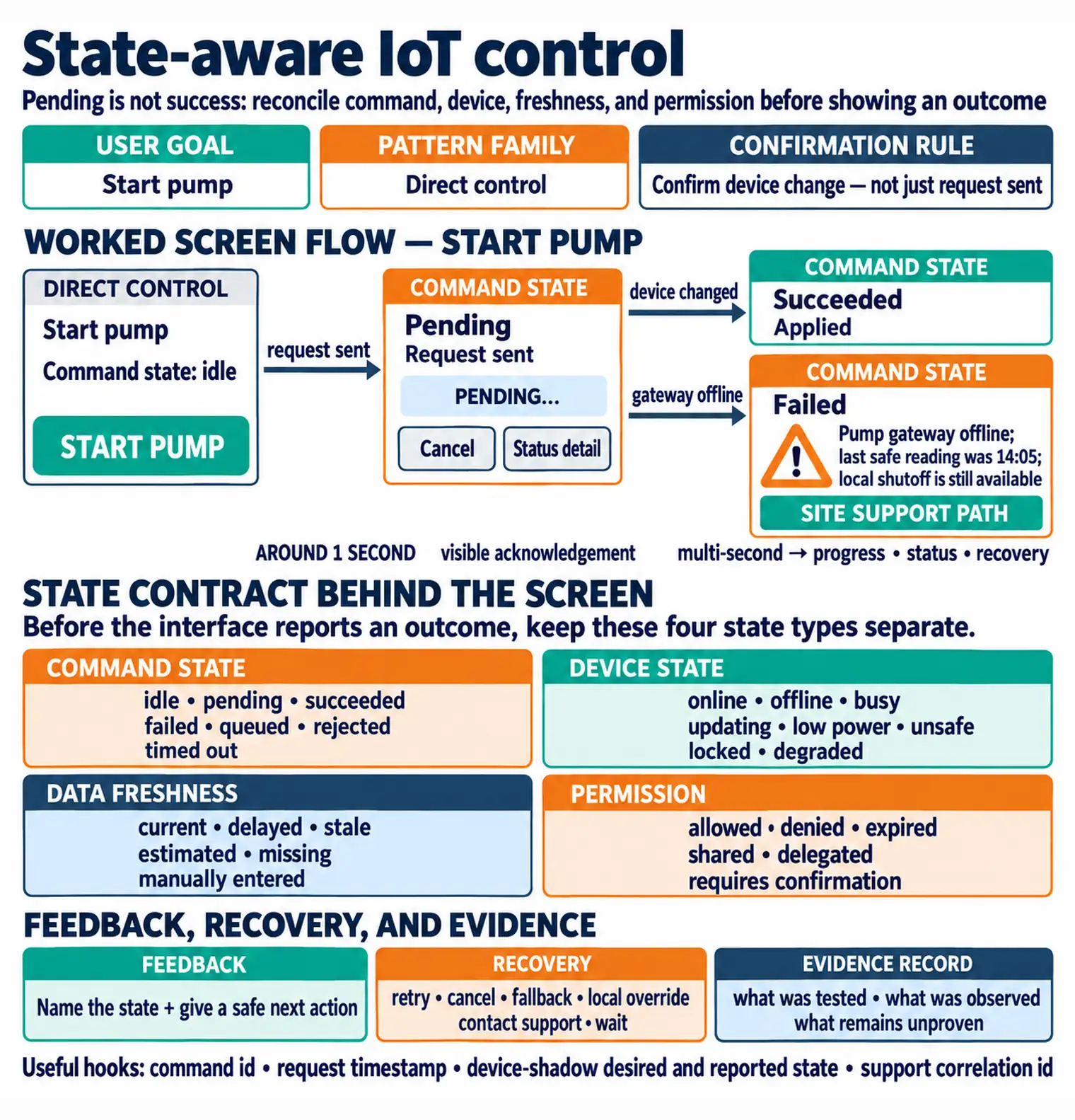
In the state map Figure 3.1, User goal and Pattern family establish what the person is trying to do and whether the interface is showing status, control, setup, or an alert. The next row deliberately splits Command state—including pending, failed, or rejected—from Device state, such as offline, busy, or low power. Freshness and Permission can independently invalidate an apparently current control, so Feedback must disclose the cause and Recovery must offer retry, fallback, or support. The Interface evidence record preserves what was actually observed.
User goal: what the person is trying to understand or do. Pattern family: status, control, setup, automation, alert, history, or support. Command state: idle, pending, succeeded, failed, queued, rejected, or timed out. Device state: online, offline, busy, updating, low power, unsafe, locked, or degraded. Data freshness: current, delayed, estimated, stale, missing, or manually entered. Permission: allowed, denied, shared, delegated, expired, or requires confirmation. Feedback: local, remote, visual, audio, haptic, notification, or support response. Recovery: retry, cancel, fallback, local override, contact support, or wait. Evidence record: what was tested, what was observed, and what remains unproven.
Many IoT interface failures happen because the screen shows the desired action but hides command state, data freshness, or recovery.
3.8 Incremental Examples
This section: Incremental Examples
3.8.1 Beginner Example: Water-Leak Sensor
A battery leak sensor might have no screen at all. The interface can be a local buzzer, a red LED, a phone notification, and a small history card in the app. The design should distinguish dry, wet, muted, low battery, offline, last checked, and alert acknowledged states. A simple ESP32-C3 or nRF52 prototype can publish wet/dry events over MQTT, but the user still needs local feedback when Wi-Fi is unavailable.
3.8.3 Industrial Maintenance Panel
An industrial panel may combine a local HMI, a Grafana or SCADA dashboard, maintenance notifications, and a computerized maintenance management system handoff. The interface state may come from Modbus TCP, OPC UA, MQTT Sparkplug, a gateway buffer, and a work-order system. Operators need fault severity, last update time, safe local action, lockout state, and escalation ownership. Engineers may need richer diagnostics, but the operator view should not make them interpret protocol details during a fault.
3.9 Feedback and Freshness
This section: Feedback and Freshness — Before action: What will happen if I do this?
Feedback should answer different questions at different moments:
Before action: What will happen if I do this? During action: Did the device hear me? Is the command pending? After success: What changed and where can I verify it? After failure: What failed, what is safe, and what can I do next? After delay: Is the data stale, queued, or still updating? After handoff: Who owns the next step?
Avoid vague feedback such as “something went wrong.” A useful message names the state and gives a safe next action. If the device is offline, say what is known locally, what is not known remotely, and whether the last value is stale.
Interface design splits into several review layers:
Core modality: screen, voice, physical control, light, sound, haptic cue, automation, or service touchpoint. Interaction flow: how the user starts, confirms, pauses, cancels, recovers, and hands off a task. State synchronization: how device, app, cloud, and shared-user views show current, stale, pending, and failed states. Design practice: how prototypes, checklists, and usability tests verify the interface before release.
Rule of thumb: feedback under about 100 ms feels immediate, delays around 1 second need visible acknowledgement, and multi-second IoT actions need progress, status, and recovery options.
3.10 Components and Hierarchy
This section: Components and Hierarchy — Interfaces need hierarchy so users can scan without reading everything.
Interfaces need hierarchy so users can scan without reading everything.
A practical IoT hierarchy is:
Surface: app, dashboard, device face, notification, voice response, or physical label. Task area: status, control, setup, automation, history, or support. Group: room, device, zone, role, event type, or maintenance area. Component: card, toggle, slider, action button, status chip, timeline item, permission row, or alert. State detail: fresh, stale, pending, failed, locked, offline, low power, or needs confirmation.
The leak sensor screen in Figure 3.2 shows how interface hierarchy supports an urgent state.
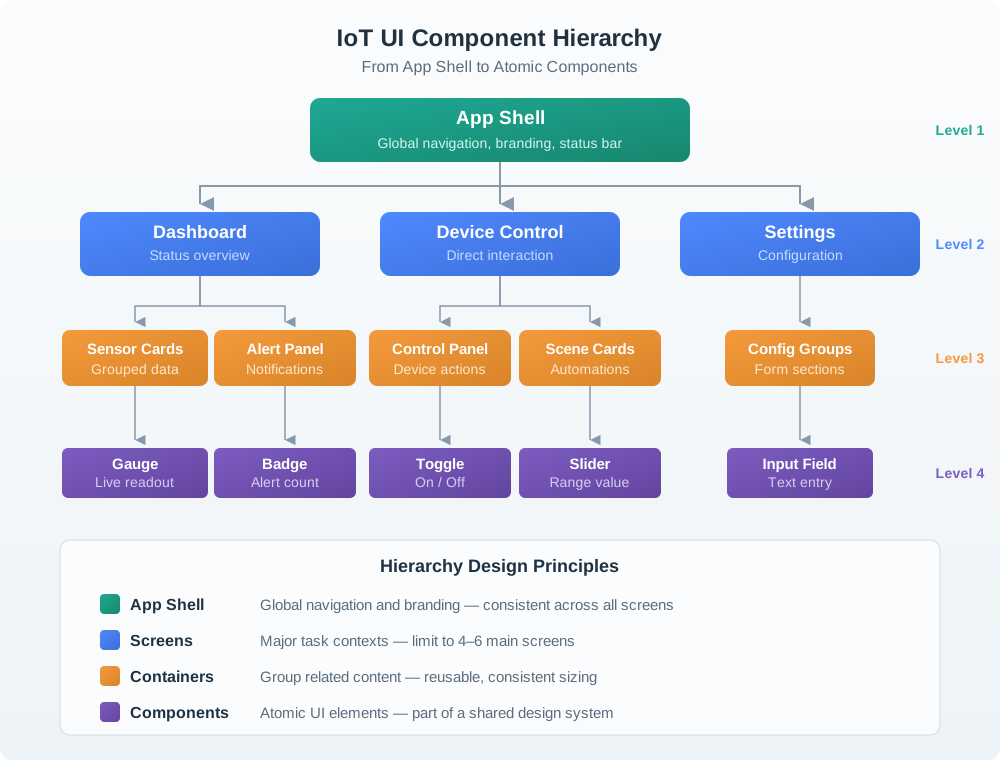
The app surface contains a status task area and a history area. Within status, the device group and WET chip make the current alert prominent, while low battery stays visible as a related state detail. History keeps last checked and acknowledgement evidence available without taking over the main path. The five nested levels help a reviewer ask where each MQTT or state binding appears on screen. A person should see what needs action first and still be able to inspect the evidence behind that status.
The most frequent and risky question should be easiest to see. Secondary details should be available without taking over the main path. Rare configuration should not compete with daily status and control.
3.13 Equipment Maintenance Review
This section: Equipment Maintenance Review — A maintenance panel reports fault state through a dashboard and a local indicator.
A maintenance panel reports fault state through a dashboard and a local indicator.
Weak interface:
The dashboard shows a fault code. The local panel has a tiny indicator behind a cover. The technician must guess whether the device is safe to inspect.
Improved interface:
The dashboard groups faults by site, equipment, severity, and last update time. The local panel shows maintenance mode and unsafe state before the cover is opened. The action flow separates acknowledge, inspect, reset, and escalate. The record shows who changed state and when the device returned to service.
The interface supports both remote monitoring and local action. Neither modality has to carry the whole experience alone.
3.14 Common Interface Defects
This section: Common Interface Defects
3.14.1 Screen-Only Thinking
Treating the app as the complete interface leaves important parts of the device experience outside the design review. Local controls, indicators, labels and sound communicate where the device is used, while installation and support handoffs form part of setup and recovery. These surfaces matter when the app is unavailable or when a person needs immediate local feedback. In a shared entry system, the mobile invite screen needs to work alongside reader status and a support path. Review the user’s task across the relevant surfaces, checking what each communicates and who owns the next step. Choose the combination according to context, available attention and risk.
3.14.3 Mixed Pattern Families
Daily controls, setup, automation editing, alert triage and settings serve different user goals. When they compete on one surface without a clear structure, the person must work out the interface organization before completing the task. Give each view or flow a clear purpose, then organize related controls and state details around that purpose. Frequent or risky questions should be easiest to see, while secondary information remains available for inspection. The leak sensor example places wet status prominently and keeps history in a secondary area. Apply the same hierarchy when reviewing other surfaces: rare configuration should not compete with daily status and control, and urgent information should remain visible.
3.14.4 Feedback Without Recovery
Reporting a failure gives the user only part of the information needed to recover. Useful feedback names the relevant state, distinguishes known information from uncertainty and explains a safe next action. If a device is offline, describe what is known locally, what cannot be confirmed remotely and whether the last displayed value is stale. Recovery may involve retrying, canceling, waiting, using a local fallback or contacting support, according to the state and available permissions. A support handoff also needs clear ownership of the next step. Review failure messages together with their recovery paths, checking whether users can understand the problem and identify an available action.
3.14.5 Color-Only Status
Users who cannot distinguish colors, or who view the interface under poor lighting, lose important state information when color carries the meaning alone. A visible indicator is useful only if the user can understand which state it represents. Pair color with readable text or clear physical symbols so important status remains available through another cue. Redundant feedback can also connect a local indicator with a remote dashboard state, according to the setting and task. For critical actions, provide independent cues and a fallback path. Review what the user can understand when the color cue is unavailable, including the device state and the safe next action.
3.15 Review Checklist
This section: Review Checklist — Is the primary user goal explicit?
Before accepting an IoT interface design, check:
Is the primary user goal explicit? Is the chosen modality appropriate for context, attention, frequency, and risk? Does each surface have a clear pattern family? Does the interface show command state, device state, and data freshness? Are failure, delay, offline, and permission states designed? Does feedback include safe recovery or support handoff? Are physical controls, embedded indicators, and labels included where relevant? Is important status available without relying on color alone? Are shared-use roles and permissions visible? Is the interface evidence record tied to observed user behavior?
3.16 Try It Now
This section: Try It Now — A stronger answer should name what is known, what is unknown, whether the data is stale, what the user can safely do next, and which modality should carry the message.
Rewrite this weak interface status into a state-aware message:
“Device unavailable.”
A stronger answer should name what is known, what is unknown, whether the data is stale, what the user can safely do next, and which modality should carry the message. For example, a local panel might say “Pump gateway offline; last safe reading was 14:05; local shutoff is still available” while the dashboard links to the site support path.
3.17 Identify Missing State
This section: Identify Missing State — Choose one common IoT control, such as unlock, start pump, change temperature, silence alarm, or revoke access.
Choose one common IoT control, such as unlock, start pump, change temperature, silence alarm, or revoke access. Write the hidden command state, device state, data freshness state, permission state, and fallback channel that the interface must show before the user can trust the action.
3.19 Match Modality to Role
This section: Match Modality to Role
3.20 Order Interface Design Route
This section: Order Interface Design Route
3.21 Summary
This section: Summary — IoT interface design is the work of making connected-device state understandable, controllable, and recoverable.
IoT interface design is the work of making connected-device state understandable, controllable, and recoverable. A strong interface chooses the right modality for the context, organizes tasks by pattern family, exposes command and device state, handles freshness and permission, and gives users a safe next step when something fails. Screens matter, but the complete interface also includes physical controls, embedded indicators, notifications, dashboards, labels, audio, haptics, and support handoffs.
3.22 Key Takeaway
This section: Key Takeaway — Interface fundamentals for IoT center on status visibility, clear controls, feedback timing, error prevention, accessibility, and constrained-device behavior.
Interface fundamentals for IoT center on status visibility, clear controls, feedback timing, error prevention, accessibility, and constrained-device behavior.
3.23 See Also
This section: See Also — Decision-First Prototype Learning Loop explains how to test interface assumptions.
Interface fundamentals connect to the rest of the UX sequence:
Decision-First Prototype Learning Loop explains how to test interface assumptions. Interactive Design Principles defines feedback, control, and recovery expectations. User Testing and Iteration explains how to observe whether people understand state and next action. Understanding People and Context explains why modality choice depends on role and setting. Lightweight Review Template turns these fundamentals into a review process.
Interface design also connects to engineering. Firmware state, network delay, command acknowledgement, data freshness, local fallback, privacy, and support routing all affect what the interface must communicate.
3.24 What’s Next
This section: What’s Next — Continue to Multimodal Interface Design to choose and combine physical, app, dashboard, voice, notification, and support surfaces around the same connected-device state.
Continue to Multimodal Interface Design to choose and combine physical, app, dashboard, voice, notification, and support surfaces around the same connected-device state.
3.25 Continue Your Route
This section: Continue Your Route — This is the last part of this chapter.
This is the last part of this chapter. Return to Interface Design: Modalities and Context. See ux-design module index.
Find help
3 reviewed answers.
Where should I start in a module?
Open the module page from the sidebar to see its chapters in order. Use the module map to return to a topic you need.
Modules and pathsReviewed
What can I try when a project does not work?
Check the symptom, then work through the diagnostic steps. Keep the error message and the smallest example that reproduces it.
When you are stuckReviewed
How do interactive examples work?
Use the interactive guide to check how examples and simulations work before changing your project.
Interactive examples guideReviewed