14 Accessible IoT Interfaces: Adaptation and Device Sync
More
Depth: Practitioner
Progress saves as you read. Mark sections complete as you go; your progress appears in the sidebar.
14.1 Start With the Situation
This section: Start With the Situation — An interface can meet its WCAG and adaptation duties on one screen yet still fail when a person moves between a phone, display, voice device, and physical control.
An interface can meet its WCAG and adaptation duties on one screen yet still fail when a person moves between a phone, display, voice device, and physical control. The team must preserve responsive interaction and accessible state across that journey.
14.2 Overview
This section: Overview — This route applies responsive design and state synchronization across phones, displays, voice devices, and controls.
This route applies responsive design and state synchronization across phones, displays, voice devices, and controls.
This is part 2 of 2. Review Accessible IoT Interfaces: Foundations and WCAG when you need the first route.
14.3 Learning Objectives
This section: Learning Objectives
By the end of this chapter, you will be able to:
- design responsive accessible interactions across device classes
- keep navigation and feedback consistent across modalities
- preserve accessible state across multiple devices
14.4 Multi-Device Experiences
This section: Multi-Device Experiences
14.4.1 Consistency Across Devices
Inspect Figure 14.1 to ask how a thermostat, phone, voice helper, and web page confirm the same state change in the same terms.
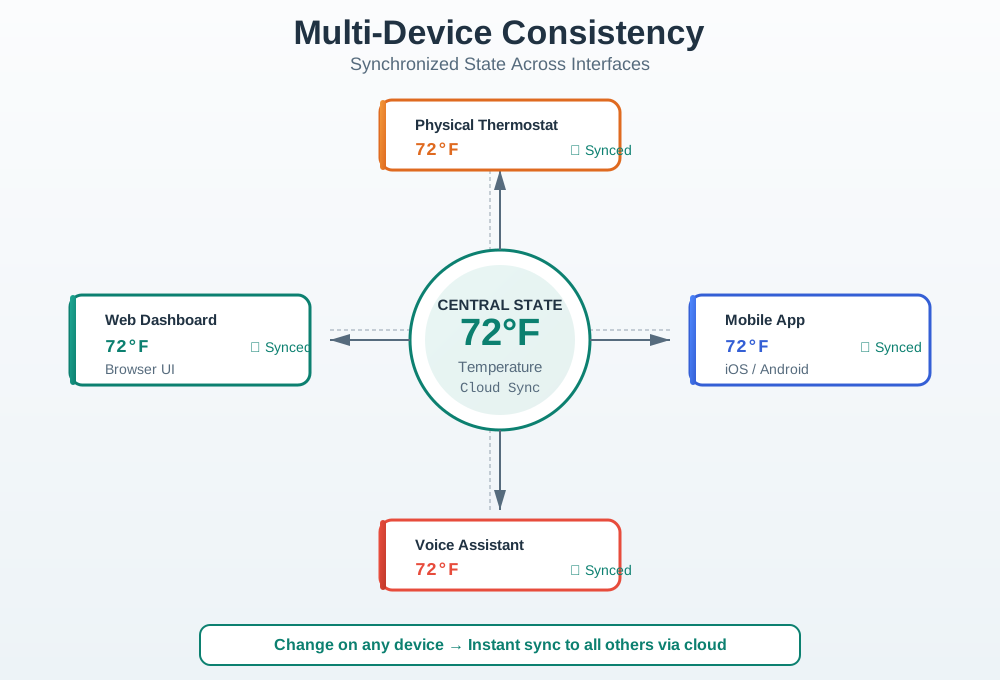
Treat synced as evidence, not a promise. Follow the thermostat change into cloud sync, then inspect the phone, voice helper, and web page as separate subscribers. Each surface should show the same final state even though its control and feedback differ. A delayed subscriber must remain pending or stale rather than displaying an old value as current. Test the reverse route as well, because a change from any surface can race with another user’s action. Version, time, and activity history give support staff the evidence to resolve that conflict.
Use Figure 14.2 to follow a device’s OFF update through the Message Queuing Telemetry Transport (MQTT) broker to the mobile app and dashboard. Which arrows acknowledge message delivery, and what must the screens show if their state is late?
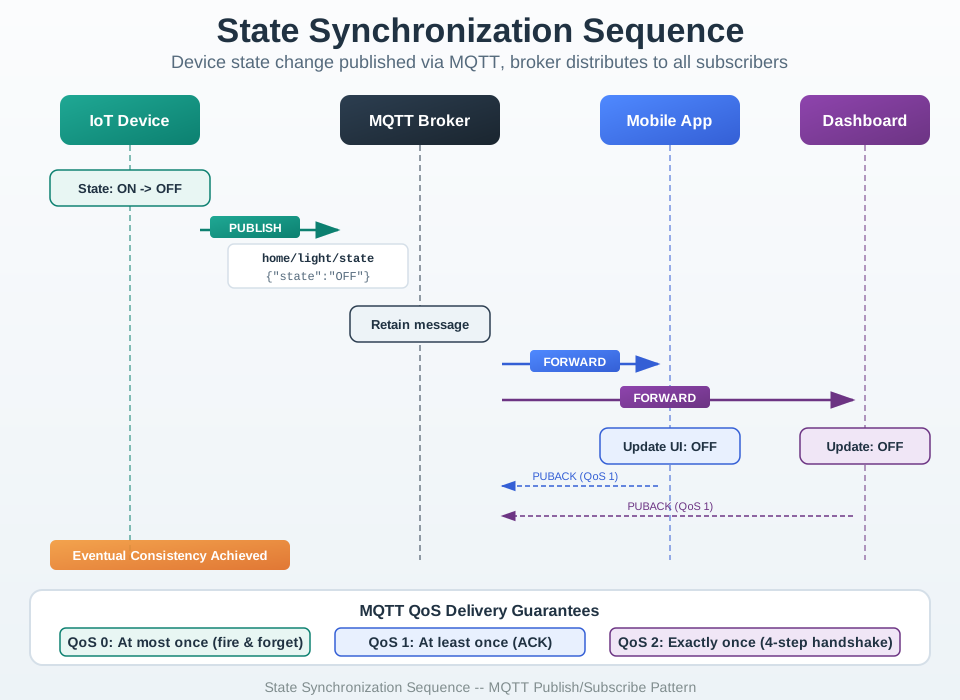
The device publishes OFF. In this drawn example, the broker stores a retained message and forwards OFF to the app and dashboard. Each screen then displays OFF; the PUBACK arrows acknowledge QoS 1 packet receipt, not a new device reading or a confirmed user display. A screen that has not processed the latest reported state should show pending or stale.
Design Principles:
Same core functionality across all interfaces. Interface-appropriate interactions (touch vs voice vs physical). Consistent terminology and iconography. Synchronized state across devices.
14.4.2 Responsive Design Patterns for IoT
Different devices require different interface approaches while maintaining consistent functionality:
Use Figure 14.3 to compare how the same IoT status works on phone, tablet, and watch.
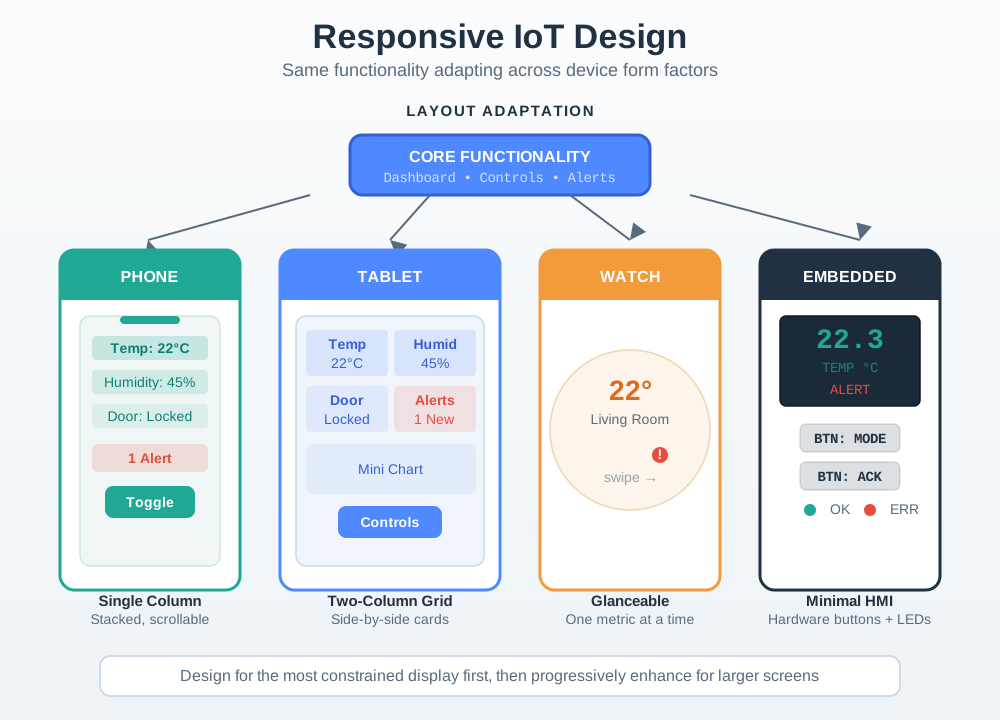
The phone stacks temperature, humidity, lock state, alert, and control in a single column. The tablet has room for side by side cards and a small chart, while the watch keeps only a compact glance and action. These layouts change the amount of detail, not the meaning of the underlying state. Review whether an alert remains visible and the control still has clear feedback on every surface. A smaller screen should lead to a deliberate path to detail rather than hiding a critical condition.
| Device Type | Primary Use | Interface Approach | Touch Target |
|---|---|---|---|
| Smartwatch | Quick glances, simple actions | Minimal UI, swipe gestures | 48x48pt+ |
| Smartphone | On-the-go control, notifications | Touch-optimized, one-hand use | 44x44pt |
| Tablet | Room-by-room control, dashboards | Multi-touch, landscape layouts | 44x44pt |
| Desktop | Configuration, analytics | Mouse/keyboard precision | 24x24pt+ |
| Voice | Hands-free, ambient control | Natural language, confirmations | N/A |
 Checkpoint: Multi-Device Fit
You now know:
- Consistency means shared terminology, icon meaning, permissions, and synchronized state, not identical screens on every device.
- Form factor changes the interface: watches need glanceable quick actions, tablets can show room grids, web dashboards can handle analytics, and voice should stay short and confirm ambiguous commands.
- The chapter’s sync target is practical: state changes should reach other devices within 2 seconds, and sub-500 ms feedback often needs pub-sub or local paths.
The next quizzes test that distinction: keep the mental model consistent while giving each surface a job it can actually perform.
Common Pitfalls
This section: Common Pitfalls — With the core rules tested, the summary turns the chapter into release-ready checklists and two optional deep-dive case studies.
Attempting to add screen reader support and colour contrast after the UI is built requires extensive refactoring because accessibility is architectural, not cosmetic. The retrofit approach takes 3-5× longer than building it in from the start. Include accessibility acceptance criteria in every user story and test with assistive technology in each sprint.
A red/green-only status LED can be hard to distinguish for some users; pair color with text, shape, sound, or another independent cue. (W3C)
Small controls can be difficult to tap accurately for users with tremors, arthritis or large fingers; test the actual targets. Use the applicable WCAG target-size criterion and verify dimensions during usability testing.
Checkpoint: Pitfalls and Practice
You now know:
- Accessibility retrofits can require additional redesign and testing; budget for accessibility in each story instead of claiming a universal 3–5× time penalty.
- Color-only status fails users with color-vision differences, so every critical cue needs text, shape, pattern, sound, or another redundant channel.
- Label, code, matching, and ordering activities reinforce the same rule: accessibility is a tested behavior, not a decorative layer.
With the core rules tested, the summary turns the chapter into release-ready checklists and two optional deep-dive case studies.
14.5 Summary
This section: Summary — This chapter covered accessibility and multi-device UX design for IoT systems.
This chapter covered accessibility and multi-device UX design for IoT systems. Here are the key takeaways:
14.5.1 Key Accessibility Standards
| Standard | Requirement | IoT Application |
|---|---|---|
| WCAG 2.2 AA | Pointer-target criterion with exceptions | 4.5:1 normal-text contrast; 24×24 CSS px targets or permitted exceptions; 44×44 CSS px is Enhanced (AAA) |
| ADA/Section 508 | US legal requirement | Public-facing IoT must comply |
| EU Accessibility Act | European requirement | IoT products sold in EU |
POUR Principles:
Perceivable: Information in multiple formats (visual + audio + haptic). Operable: Usable via multiple inputs (touch + voice + keyboard). Understandable: Clear, consistent, predictable behavior. Robust: Compatible with assistive technologies.
14.5.2 Multi-Device Design Patterns
Use Figure 14.4 to compare what each device surface contributes while preserving one shared system state.
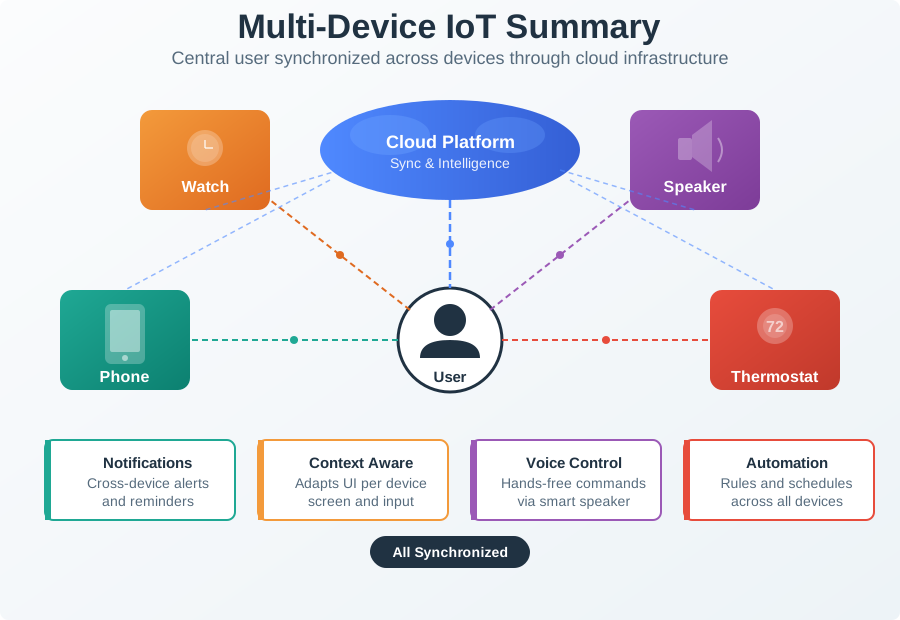
Begin with the physical device, which can provide immediate local control and status when the network is absent. The phone and web views add detail, history, and remote reach, while the speaker offers hands-free access but less visual context. These are complementary surfaces, not independent products. State names, permissions, and action results must agree across them. When one surface is delayed, offline, or unable to express a setting, it should expose that limit and route the person to a suitable fallback rather than inventing a simplified conflicting state.
14.5.3 Design Tradeoffs Checklist
[ ] Simplicity vs. Customization: Use progressive disclosure - simple defaults with advanced options accessible. [ ] Universal vs. Targeted: Prefer universal design (one solution for all) over separate accessible versions. [ ] Mobile vs. Desktop Priority: Match primary interface to primary use context. [ ] Voice Ambiguity: Use context (location, time, history) to disambiguate commands.
14.5.4 Critical Numbers to Remember
| Metric | Minimum Value | Why It Matters |
|---|---|---|
| Touch target | 44x44 points | Motor accessibility |
| Text contrast | 4.5:1 ratio | Visual accessibility |
| Font size | 16px minimum | Readability |
| State sync delay | < 2 seconds | Perceived responsiveness |
| Automated accessibility checks | Use alongside manual review and user testing | No universal coverage percentage |
Remember: Accessibility is not optional - it’s legally required (ADA, Section 508, EU Accessibility Act) and improves UX for ALL users, not just those with disabilities.
Scenario: A smart medication dispenser for elderly users (target: 65-85 years old) launched with 67% customer return rate due to accessibility failures.
Original Design (Inaccessible): 3.5-inch touchscreen with 12pt font. 6 icon buttons (no text labels). Setup via smartphone app only (no alternative). Audio alerts at 65 dB (barely audible). Glossy black enclosure (high glare, fingerprints).
Accessibility Audit Results:
| WCAG Principle | Violations | Impact | Severity |
|---|---|---|---|
| Perceivable | 8 violations | 85% of users can’t read screen | Critical |
| Operable | 5 violations | 70% can’t press buttons accurately | Critical |
| Understandable | 3 violations | 60% confused by icons | Major |
| Robust | 2 violations | Screen readers don’t work | Major |
Detailed Accessibility Failures:
WCAG 1.4.3: Contrast (Minimum) - FAIL Text: Light gray (#CCCCCC) on white background. Contrast ratio: 1.6:1 (needs 4.5:1 for WCAG AA). Impact: 85% of elderly users can’t read text. Cost: 12-minute average support calls for “can’t see instructions”.
Touch-target design review The 32×32 device-unit buttons fall below the 44×44 CSS px design target used in this scenario. For web controls, assess target dimensions in CSS px under WCAG 2.5.8 (AA) or 2.5.5 (AAA), including applicable exceptions. Modeled result in the medication-dispenser design scenario: 70% of users with arthritis mis-tap wrong buttons; this is not observed user data. Error rate: 3.2 errors per medication dispensing.
WCAG 1.4.1: Use of Color - FAIL Medication slot colors: Red/green indicators (color-blind unfriendly). No redundant cue (shape, text, icon). Modeled result in the medication-dispenser design scenario: 8% of users cannot distinguish slots; this is not observed user data.
Audible-only reminder design - FAIL Reminder alarm: 65 dB (hard to hear for hearing-impaired). No visual flash indicator. No adjustable volume. Modeled result in the medication-dispenser design scenario: 45% of users miss medication reminders; this is not observed user data.
Uma’s Worst-Moment Test
- Moment: pill time for an 85-year-old, and the reminder goes unheard.
- Modeled scenario: the alert is one 65 dB tone; 45% of users miss doses. This is not observed user data.
- Fix: the redesign’s multi-sensory alert — 85 dB audio plus LED flash — with 56×56 CSS-pixel targets to confirm.
Redesign Based on WCAG Compliance:
1. Perceivable (Visual Improvements)
| Element | Before | After | WCAG Compliance |
|---|---|---|---|
| Font Size | 12pt | 18pt (body), 24pt (headings) | ✓ WCAG AAA (large text) |
| Contrast | 1.6:1 (gray on white) | 21:1 (black on white) | ✓ WCAG AAA (7:1 required) |
| Color Coding | Red/green only | Red/green PLUS shapes (circle/triangle) PLUS text (“Morning”/“Evening”) | ✓ WCAG 1.4.1 (not relying on color alone) |
| Screen Glare | Glossy black enclosure | Matte white enclosure + anti-glare screen coating | Modeled 80% reflection reduction; validate by measurement |
| Visual Alerts | Audio only (65 dB) | Audio (85 dB) + bright LED flash (red for missed dose, green for taken) | ✓ Multi-sensory redundancy |
2. Operable (Interaction Improvements)
| Element | Before | After | WCAG Compliance |
|---|---|---|---|
| Touch Targets | Device buttons | 32×32 to 56×56 device units; 56 is 27.3% larger than 44 in each dimension. For web controls, assess target dimensions in CSS px under WCAG 2.5.8 (AA) or 2.5.5 (AAA). | Design target |
| Button Spacing | 2pt gaps | 12pt gaps (prevents accidental adjacent taps) | ✓ WCAG 2.5.8 (spacing) |
| Physical Buttons | Touchscreen only | Touchscreen + 3 large physical buttons (Confirm, Cancel, Help) | ✓ Alternative to touchscreen |
| Button Labels | Icons only | Icons + text labels (“Take Medicine” not just pill icon) | ✓ WCAG 2.4.6 (descriptive) |
| Voice Control | None | “OK Dispenser, did I take my morning pills?” | ✓ Hands-free operation |
3. Understandable (Cognitive Improvements)
| Element | Before | After | WCAG Compliance |
|---|---|---|---|
| Setup | 15-step smartphone app | 3-step guided setup on device (“What time do you take pills?” → “Morning 8am” → Done) | ✓ Simplified workflow |
| Error Messages | “ERR_SYNC_FAIL” (cryptic) | “Can’t connect to internet. Medicine schedule still works. [Try Again] [Skip]” | ✓ WCAG 3.3.1 (error explanation) |
| Language | Medical jargon (“dosage”, “regimen”) | Plain language (“How many pills?”, “What time?”) | ✓ 6th-grade reading level |
| Consistency | Different icons in different screens | Same icons + labels throughout | ✓ WCAG 3.2.4 (consistent identification) |
4. Robust (Technical Improvements)
| Element | Before | After | WCAG Compliance |
|---|---|---|---|
| Screen Reader | Not supported | Full VoiceOver/TalkBack support | ✓ WCAG 4.1.2 (assistive tech) |
| Semantic HTML | <div class="button"> (wrong) | <button aria-label="Take morning medicine"> (correct) | ✓ Proper ARIA labels |
| Keyboard Nav | None (touchscreen only) | Tab navigation through all controls | ✓ WCAG 2.1.1 (keyboard accessible) |
Synthetic eight-person usability exercise:
Before Redesign:
| Test | Users | Task Success | Time on Task | Errors | Satisfaction |
|---|---|---|---|---|---|
| Setup device | 8 elderly (65-85) | 2/8 (25%) | 18 min | 4.2 errors | 2.1/10 |
| Take medication | 8 elderly | 6/8 (75%) | 3.5 min | 1.8 errors | 4.5/10 |
| Change schedule | 8 elderly | 1/8 (12.5%) | N/A (gave up) | N/A | 1.3/10 |
After Redesign:
| Test | Users | Task Success | Time on Task | Errors | Satisfaction |
|---|---|---|---|---|---|
| Setup device | 8 elderly (65-85) | 8/8 (100%) | 4 min | 0.3 errors | 8.7/10 |
| Take medication | 8 elderly | 8/8 (100%) | 1.2 min | 0.1 errors | 9.2/10 |
| Change schedule | 8 elderly | 7/8 (87.5%) | 2.8 min | 0.6 errors | 8.4/10 |
Business Impact:
Hypothetical 10,000-unit business model: Treat all before/after return and retention rates, costs, and savings below as assumptions, not product-cohort outcomes.
Before (Inaccessible Design): Assumed customer return rate: 67% within 30 days. Reason: “Too hard to use,” “Can’t see screen,” “Buttons too small”. Support calls: 22 min average (walking users through setup). Cost per unit: $50 refund + $18 support + $12 restocking = $80. On 10,000 units: 6,700 returns × $80 = $536,000 loss.
After (Accessible Design): Assumed customer return rate: 11%; do not describe this as normal for electronics. Support calls: 4 min average (simple questions). Additional design cost: $35K (accessibility audit + redesign + testing). Assumed retention: 89% of users still using device after one year (versus 33% before). Modeled net avoided return cost: $413K ($448K gross avoided returns − $35K redesign cost), conditional on the assumed return-rate change.
Key Accessibility Features That Benefited ALL Users (Not Just Disabled):
| Feature | Designed For | Also Helps |
|---|---|---|
| Large 18pt font | Vision-impaired elderly | Everyone reading from 6+ feet away, bright sunlight glare |
| High contrast (21:1) | Low vision | Everyone in poor lighting, older adults (need 3× more contrast) |
| 56×56 CSS-pixel touch targets | Arthritis, tremor | Everyone with wet/dirty hands, gloves, rushing |
| Voice control | Blind users, dexterity impairments | Everyone with hands full (carrying groceries), multitasking |
| Physical buttons | Screen reader users | Everyone when touchscreen fails, gloves on, or battery-saving mode |
| Plain language | Cognitive impairments, non-native speakers | Everyone (reduces cognitive load, faster comprehension) |
| Multi-sensory alerts | Deaf (visual flash), blind (audio), deaf-blind (vibration) | Everyone in noisy environments OR quiet environments |
ROI of Accessibility:
Design cost: $35K. Return reduction: 67% → 11% = 56 percentage points fewer returns (an 83.6% relative reduction) = 5,600 fewer returned units out of 10,000. Savings: 5,600 units × $80/return = $448K. ROI: 1,180% ($35K → $448K savings).
Key Insight: In this hypothetical model, $35,000 of accessibility work could avert $448,000 in gross return costs and yield $413,000 net if the assumed 46-point return-rate reduction occurs. The return and retention inputs are not observed product outcomes.
Checkpoint: Accessibility ROI
You now know:
- In the hypothetical 10,000-unit model, assumed returns change from 67% to 11%; gross avoided returns are $448K and net benefit is $413K after $35K redesign cost.
- Large text, high contrast, 56×56 CSS-pixel targets, physical buttons, voice control, and multi-sensory alerts help users in the stated design scenario under glare, noise, gloves, and distraction.
- ROI evidence is strongest when it combines WCAG findings, task success, error rate, support cost, and retention.
When designing IoT systems that span multiple devices (smartphone, tablet, smartwatch, web, voice assistant, physical device), you face a critical trade-off: consistency (same experience everywhere) vs. platform-appropriate design (optimize for each device’s strengths).
The Consistency vs. Appropriateness Spectrum:
| Approach | Philosophy | Example | Pros | Cons |
|---|---|---|---|---|
| Extreme Consistency | Identical UI on all platforms | Responsive web app that looks same on phone/tablet/desktop | Easy to learn, predictable | Ignores platform strengths, poor UX on some devices |
| Balanced (Recommended) | Consistent terminology + platform-appropriate interfaces | Nest app: phone (quick control), tablet (dashboard), web (analytics), voice (basic commands) | Best UX per platform, consistent mental model | More design/development effort |
| Extreme Appropriateness | Completely different UX per platform | Unrelated interfaces on each device | Optimized for each platform | Relearning required, confusing |
Decision Framework:
What to Keep Consistent Across ALL Devices:
| Element | Why Consistency Matters | Example |
|---|---|---|
| Terminology | Users shouldn’t relearn vocabulary | “Away Mode” on all devices (not “Vacation” on app, “Unoccupied” on web, “Gone” on voice) |
| Core Concepts | Mental model should transfer | “Scenes” work the same way everywhere (group of devices triggered together) |
| Iconography | Visual recognition aids navigation | Lightbulb icon = lights, lock icon = security (same icons everywhere) |
| Data | State synchronized across devices | Thermostat set to 72°F on phone → web/watch/physical device all show 72°F within 2 sec |
| Permissions | Security model consistent | “Guest mode” works same way on all interfaces |
What to Make Platform-Appropriate:
| Platform | Strengths | Interface Strategy | Example |
|---|---|---|---|
| Smartphone | Glanceable, mobile, notifications | Quick controls, status overview, alerts | Smart lock: “Lock/Unlock” + “Who’s home?” |
| Tablet | Large screen, relaxed use | Detailed dashboards, multi-room control, graphs | Smart home: Room-by-room control grid |
| Smartwatch | Ultra-glanceable, wrist-convenient | Minimal info, 1-tap actions, complications | Smart lock: “Lock” button + “Front door unlocked” glance |
| Desktop/Web | Keyboard+mouse, large screen, analytical | Configuration, analytics, troubleshooting, detailed history | Smart thermostat: Energy charts, 7-day schedule editor |
| Voice Assistant | Hands-free, ambient | Simple commands, status queries, no complex navigation | “Alexa, lock front door” OR “What’s the temperature?” |
| Physical Device | Always available, tactile, offline | Core functions without app, physical feedback | Smart thermostat: Dial to adjust temp, works if internet down |
Multi-Device Task Flow Example: Smart Lock
Scenario: User wants to let dog walker in at 2pm today.
| Device | Interface Design | Rationale |
|---|---|---|
| Smartphone (Primary) | Full feature set: Create temporary access code → Set time window (2-3pm today) → Name “Dog Walker” → [Save] | Most capable interface, full keyboard, can handle complexity |
| Tablet | Same as smartphone, optimized layout | Large screen → no simplification needed |
| Smartwatch | “Quick Commands”: Tap “Dog Walker” preset (created on phone) → Auto-enables 2-3pm today | Minimal UI for pre-configured actions only |
| Web | Same as smartphone + bulk management (create codes for multiple users at once) | Desktop power users get batch operations |
| Voice | “Alexa, enable dog walker access code until 3pm” | Natural language, no visual UI needed |
| Physical Lock | Keypad: Enter “5423” (dog walker’s code) → LED blinks green → unlocks | Works offline, no app required |
Key Principle: Create complex config on capable devices (phone/web), execute simple commands on any device (watch/voice/physical).
State Synchronization Rules:
| State Change | Where It Happens | Sync Requirement | Example |
|---|---|---|---|
| User action | Any device | Sync to all devices within 2 sec | User locks door on phone → watch shows “Locked” within 2 sec |
| Automated action | System (schedule, sensor) | Notify all devices | Motion detected → push notification to phone + smartwatch |
| Conflict resolution | Latest action wins | Most recent command | User unlocks on phone at 14:32:05, system auto-locks at 14:32:03 → unlocked (phone wins) |
Decision Matrix: Which Features on Which Devices?
| Feature | Phone | Tablet | Watch | Web | Voice | Physical | Reasoning |
|---|---|---|---|---|---|---|---|
| View status | ✓ | ✓ | ✓ | ✓ | ✓ | ✓ | Universal need |
| Quick control | ✓ | ✓ | ✓ | ✗ | ✓ | ✓ | Web for detailed config, not quick actions |
| Detailed config | ✓ | ✓ | ✗ | ✓ | ✗ | ✗ | Watch/voice/physical too limited |
| Analytics/history | Simplified | ✓ Full | ✗ | ✓ Full | ✗ | ✗ | Large screen needed for graphs |
| Notifications | ✓ | ✓ | ✓ | ✓ | ✗ | ✓ (LED) | Voice doesn’t push notifications |
| Guest access | ✓ | ✓ | ✗ | ✓ | ✗ | ✓ | Watch too small for user management |
Common Mistakes:
✗ Mistake 1: Forcing Phone UX onto Smartwatch
- Problem: Scrolling through 50-item device list on 1.5-inch watch screen
- Fix: Watch shows only current room’s devices + favorites (context-aware)
✗ Mistake 2: Making Voice Assistant Do Everything
- Problem: “Alexa, create a schedule for bedroom lights to turn on at 6:30am on weekdays, 8am on weekends, with 30-minute gradual brightening, but only if motion detected”
- Fix: Voice for simple commands (“Turn on bedroom lights”), phone/web for complex config
✗ Mistake 3: Inconsistent Terminology
- Problem: “Away Mode” (phone) vs. “Vacation Setting” (web) vs. “Unoccupied” (voice)
- Fix: Pick ONE term (“Away Mode”) and use everywhere
✗ Mistake 4: Platform Feature Parity
- Problem: Cramming analytics dashboard into smartwatch (unreadable)
- Fix: Each platform gets features appropriate to its context and constraints
Testing Multi-Device UX:
Cross-Device Task Flow Test:
- User creates schedule on phone → Verify: Appears on tablet, web within 2 sec
- User edits schedule on web → Verify: Phone shows update
- User triggers scene via voice → Verify: Phone/tablet/watch show new state
- System auto-adjusts (motion sensor) → Verify: All devices receive notification
Handoff Testing:
- User starts task on phone (searching for device in list)
- User continues on tablet (larger screen easier for browsing)
- Verify: Context preserved (scroll position, search query)
Key Insight: Consistency in terminology and data (state sync) enables users to switch devices seamlessly. But interface design should leverage each platform’s strengths—cramming a desktop interface onto a smartwatch creates terrible UX. Design hierarchy: Smartphone = full-featured primary, Watch = glanceable quick actions, Web = detailed analytics, Voice = hands-free simple commands, Physical = works offline.
The Mistake: Running automated WCAG checkers (WAVE, axe, Lighthouse) and assuming 100% pass rate means the product is accessible to disabled users.
Why It Fails:
Automated accessibility checks find some machine-detectable issues, such as missing alt text or contrast failures, but cannot establish complete conformance or usability for disabled users.
Fictional eight-person smart home accessibility audit
Automated Tool Results (WAVE): ✓ All images have alt text. ✓ Color contrast meets 4.5:1 ratio. ✓ Form inputs have labels. ✓ Heading hierarchy correct. Automated result: No errors found in the tested rules; a knowledgeable human review and user testing are still required to assess WCAG AA conformance. (W3C)
Fictional test with disabled users (8 participants):
Blind User (Screen Reader):
Issue: Alt text exists but says “image_2847.png” (useless). Impact: User has no idea what icon represents (settings? help? close?). Automated Tool: Passed (alt text present, didn’t check quality).
Low Vision User (Screen Magnification 400%):
Issue: Buttons move outside viewport when zoomed, no way to scroll. Modeled result: Assume 60% of the interface is inaccessible at 400% zoom in this fictional audit; a real count requires its test record. Automated Tool: Passed (contrast correct, didn’t test zoomed behavior).
Motor Impairment User (Head Pointer):
Issue: Buttons meet the 44×44 CSS px design target but are spaced only 2 device units apart. Modeled result: Assume adjacent-button activation occurs 70% of the time in this fictional audit; a real rate requires its test record. Automated Tool: Passed (size correct, didn’t check spacing).
Deaf User (Caption Dependency):
Issue: Video tutorials have auto-generated captions with errors in this fictional audit. Modeled result: Assume auto-generated captions have a 40% error rate in this fictional audit; assess caption accuracy by human review. Automated Tool: Passed (captions present, didn’t check accuracy).
Cognitive Impairment User (Dyslexia):
Issue: Complex 15-step setup wizard with no progress indicator. Impact: User gets lost, can’t remember which step they’re on. Automated Tool: Passed (all text readable, didn’t evaluate cognitive load).
Color Blind User (Red-Green Deficiency):
Issue: Error messages only in red text (no icon, no redundant cue). Impact: User can’t distinguish error text from normal text. Automated Tool: Passed (contrast correct, didn’t check color-only information).
Quantitative Results:
| Issue Type | Automated Tools Catch | Manual Testing Catches | Real User Testing Catches |
|---|---|---|---|
| Technical (missing alt, contrast) | Automated checks find machine-detectable rules | Expert review assesses semantics and interaction | Disabled-user testing reveals task and context barriers |
| Semantic (alt text quality) | Automated checks find machine-detectable rules | Expert review assesses semantics and interaction | Disabled-user testing reveals task and context barriers |
| Interaction (keyboard traps, focus order) | Automated checks find machine-detectable rules | Expert review assesses semantics and interaction | Disabled-user testing reveals task and context barriers |
| Contextual (zoomed behavior, real screen readers) | Automated checks find machine-detectable rules | Expert review assesses semantics and interaction | Disabled-user testing reveals task and context barriers |
| Cognitive (complex workflows, unclear labels) | Automated checks find machine-detectable rules | Expert review assesses semantics and interaction | Disabled-user testing reveals task and context barriers |
| Overall coverage | No universal percentage; varies by tool and site | No universal percentage; varies by review design | No universal percentage; varies by test cohort and task |
What Automated Tools Miss:
| Automated Tool Says | Reality for Disabled Users | Why Tools Miss It |
|---|---|---|
| ✓ “Alt text present” | ✗ Alt text = “image_2847.png” (meaningless) | Tools check presence, not quality |
| ✓ “4.5:1 contrast ratio” | ✗ Text unreadable at 400% zoom (overlaps, truncated) | Tools test default size, not magnified |
| ✓ “Keyboard accessible” | ✗ Focus indicator invisible on blue background | Tools verify keyboard navigation works, not visibility |
| ✓ “ARIA labels present” | ✗ ARIA label = “button” (not descriptive) | Tools check attributes exist, not meaningfulness |
| ✓ “Captions available” | In this fictional audit, auto-generated captions contain many incorrect words; assess caption accuracy by human review. | Tools verify caption file exists, not accuracy |
How to Fix It: Multi-Layer Accessibility Testing
Layer 1: Automated Tools (Fast) When: Every build, CI/CD pipeline. Tools: axe, WAVE, Lighthouse, Pa11y. Catches: Missing alt text, contrast violations, missing labels. Cost: Free/$50/month. Limitations: Can’t evaluate quality, context, user experience.
Layer 2: Manual Expert Review When: Before major releases. Who: Accessibility specialist (CPACC/WAS certified). Tests: Keyboard-only navigation, screen reader compatibility, zoom behavior. Cost: $2,000-$5,000 per audit. Limitations: Expert isn’t actual disabled user, may miss real-world issues.
Layer 3: Real User Testing When: Before launch, major redesigns. Who: 6-8 disabled users (2 blind, 2 low vision, 2 motor, 2 deaf/cognitive). Tests: Complete real tasks (not just “can you navigate?”). Cost: $3,000-$8,000 (8 users × $75-$100/hour × 1-2 hours each + recruiting). Best Coverage: Reveals real-world usability issues automated tools can’t detect.
Recommended Testing Strategy:
| Stage | Method | Illustrative cost input | Illustrative time input |
|---|---|---|---|
| Every Sprint | Automated tools | Free | 5 min |
| Pre-Release | Manual expert review | $2-5K | 1-2 days |
| Major Launch | Real user testing | $3-8K | 1-2 weeks |
Replace these planning inputs with local quotes and team capacity; the user-testing allowance includes recruitment, incentives, facilitation, analysis, and accommodations.
Real User Testing Protocol:
Recruit:
2 blind users (screen reader experts: JAWS, NVDA, VoiceOver). 2 low vision users (screen magnification 200-400%). 2 motor impairment users (head pointer, switch device, or voice control). 2 deaf or cognitive impairment users.
Test Tasks (Not Just Navigation): ✗ “Can you navigate to the settings page?” (too easy). ✓ “You want lights to turn off every night at 10pm. Set that up.” (real task).
Observe:
Task success rate (did they complete it?). Time on task (2× longer than sighted users = problem). Error rate (wrong taps, backtracking). Frustration indicators (sighs, “I give up”). Workarounds (memorizing button positions because labels unhelpful).
Example Findings:
Before user evaluation (automated checks only): Automated checker found no issues in the rules it tested; WCAG AA conformance still needs a complete evaluation. Assumed: Product is accessible. In the hypothetical launch, assume 58% of disabled purchasers return the product after accessibility failures.
After Real User Testing:
In this fictional test, assume 18 issues that automated checks did not find; a real count requires a tracked audit. Fixed: Alt text quality, zoom behavior, spacing, caption accuracy, cognitive load. In the hypothetical redesign, assume the return rate falls to 12%; do not call 12% a normal electronics rate. Modeled avoided return cost: $276,000 (about $280,000 rounded), conditional on the assumed 58% to 12% return-rate change.
Cost-Benefit:
Real user testing: $6,000 (8 users × 90 min). Returns avoided: $276,000 (5,000 units × 46 percentage-point return reduction × $120 per return), about $280,000 rounded. Modeled net ROI: 4,500% (($276,000 avoided returns − $6,000 testing cost) ÷ $6,000), conditional on the assumed return-rate reduction.
Key Insight: Automated tools catch some technical issues but cannot assess every accessibility barrier; combine them with expert and user evaluation. In this hypothetical model, $6,000 of user testing could avert $276,000 of return costs if the assumed 46-point reduction occurs.
Checkpoint: Testing Stack
You now know:
- Automated tools are fast regression gates but cannot determine complete accessibility.
- Manual expert review and testing with disabled users reveal barriers that automated checks miss; no universal detection percentages apply.
- A release record should name tools, assistive technologies, user tasks, device states, firmware/app versions, and the evidence that blocked or delayed states remain recoverable.
14.6 What’s Next
This section: What’s Next
Continue exploring UX design:
| Chapter | Description |
|---|---|
| UX Design Evaluation | Nielsen’s heuristics and comprehensive testing |
| UX Design Pitfalls and Patterns | Real-world mistakes and solutions |
| Interface and Interaction Design | Detailed interface patterns |
| UX Design Fundamentals | Return to the main UX foundations chapter |
Find help
3 reviewed answers.
Where should I start in a module?
Open the module page from the sidebar to see its chapters in order. Use the module map to return to a topic you need.
Modules and pathsReviewed
What can I try when a project does not work?
Check the symptom, then work through the diagnostic steps. Keep the error message and the smallest example that reproduces it.
When you are stuckReviewed
How do interactive examples work?
Use the interactive guide to check how examples and simulations work before changing your project.
Interactive examples guideReviewed