13 Accessible IoT: Platform State
More
Depth: Practitioner
Progress saves as you read. Mark sections complete as you go; your progress appears in the sidebar.
13.1 Start With the Decision
This section: Start With the Decision — A door lock may be pending, stale, or offline.
A door lock may be pending, stale, or offline. Each screen and voice control must report the same state and next step.
13.2 Route Overview
This section: Route Overview — This is part 2 of 2.
This is part 2 of 2. Review Accessible IoT: Interface Foundations for the preceding evidence.
13.3 Learning Objectives
This section: Learning Objectives
- Test accessible state on platforms with a concrete scenario and pass criteria.
- Compare universal vs targeted access against the chapter’s stated constraints.
13.4 Chapter Roadmap
This section: Chapter Roadmap
- Accessible State on Platforms
- Checkpoint: Accessible State
- Accessibility in IoT
- Key Concepts
- IoT Accessibility Checker
- Interactive: IoT UX Heuristics Game
- WCAG Implementation Basics
- MVU: WCAG Accessibility Standards
- Deep dive: Putting Numbers to It
- Tradeoff: Simplicity vs Customization
- Universal vs Targeted Access
- Checkpoint: WCAG Mechanics
- Concept Relationships
- See Also
- Continue to Part 2
13.5 Accessible State on Platforms
This section: Accessible State on Platforms — Implementation should expose the same control semantics that the visual design implies.
Implementation should expose the same control semantics that the visual design implies. Web and app controls need accessible names, roles, values, focus order, error descriptions, and live status updates. Useful handles include semantic HTML buttons, ARIA labels only where native semantics are insufficient, aria-describedby for recovery text, aria-live for asynchronous device state, prefers-reduced-motion, focus restoration after dialogs, and disabled states that still explain why action is unavailable.
For connected-device state, make accessibility part of the data model. A device shadow, MQTT retained topic, WebSocket event, push notification payload, or local cache should carry state, timestamp freshness, source, confidence, and action availability so each interface can speak or display the same truth. Native layers should map that truth into UIAccessibility on iOS, AccessibilityNodeInfo on Android, notification categories, haptic patterns, and voice-assistant confirmations.
The platform should not force every surface to infer accessibility semantics from a visual string. Publish stable state codes, human-readable labels, severity, freshness, reversibility, next action, and recovery copy from the same source that drives the visual UI. A thermostat event might expose `state=heating_pending`, `freshness=12s`, `can_cancel=true`, and `reason=gateway_ack_waiting`; the phone, watch, web dashboard, and voice assistant can then present equivalent feedback without inventing different meanings.
Asynchronous state needs special care. If a command can remain pending, fail, retry, or succeed after delay, the UI should announce state changes without stealing focus, keep the control reachable, and avoid disabling the only recovery path. Use polite live regions for progress, assertive alerts only for critical safety changes, visible focus after dialogs, and reduced-motion alternatives for animated status. Physical devices should mirror the same contract with tactile button shape, LED pattern plus label, audio cue plus visual cue, or documented support fallback.
- State contract: locked, unlocked, pending, stale, offline, muted, denied, low_battery, update_required, and manual_override should not be visual-only strings.
- Input contract: pointer, keyboard, switch, screen reader, voice, hardware button, and automation paths need equivalent command outcomes.
- Feedback contract: every critical command needs success, failure, delayed, and reversible feedback across the devices that can issue it.
Test automation should cover the contract but not pretend to replace human review. axe-core, Playwright accessibility snapshots, contrast checks, keyboard tab-order tests, and unit tests for `aria-live` updates can catch regressions. Manual review with VoiceOver, TalkBack, NVDA, zoom, switch control, high contrast, and reduced motion still catches whether the workflow is understandable, forgiving, and usable under real IoT timing.
The final implementation record should connect accessibility to release engineering: which state codes are exposed, which devices can issue equivalent commands, which fallbacks work offline, which assistive technologies were tested, and which firmware, app, or cloud changes require a fresh accessibility review. That record keeps accessibility from being lost when the product adds a new gateway, account role, notification path, or automation feature.
This section:
 Checkpoint: Accessible State
You now know:
- Critical IoT states such as offline, stale, locked, muted, permission denied, low battery, and manual override need accessible names, signals, controls, and recovery paths.
- Reviews should test tasks across modalities: screen reader, keyboard, switch, touch, voice, physical controls, notifications, haptics, and support consoles.
- Accessibility belongs in the data model and release record, not only in visual styling.
This section: — We have framed accessibility as state exposure.
We have framed accessibility as state exposure. The next question is how WCAG turns that contract into measurable interface requirements.
13.6 Accessibility in IoT
This section: Accessibility in IoT
Key Concepts
This section: Key Concepts — WCAG 2.1: Web Content Accessibility Guidelines specifying minimum contrast ratios, keyboard navigation, and screen reader support.
WCAG 2.1: Web Content Accessibility Guidelines specifying minimum contrast ratios, keyboard navigation, and screen reader support. Screen Reader Compatibility: Design property ensuring all UI elements have accessible names and roles for visually impaired users. Motor Accessibility: Designing controls with sufficient tap target size (≥44×44 CSS px) and avoiding fine-motor gestures for users with tremors. Cognitive Load Reduction: Simplifying interface complexity and using progressive disclosure to support users with cognitive differences. Multimodal Feedback: Providing information through visual + auditory + haptic channels so users with a single impairment can still receive it. Alternative Text: Text description of an image that screen readers announce to visually impaired users, required for all informational graphics. Inclusive Design: Philosophy considering the full spectrum of human diversity from the start rather than retrofitting accessibility later.
WCAG principles translate into concrete design decisions:
1. Perceivable (Information Available in Multiple Forms)
Visual indicators → Add audio descriptions for screen readers. Color-coded status → Add text labels or icons as redundant cues. Charts/graphs → Provide data tables as alternative.
2. Operable (All Functions Accessible)
Touch-only control → Add voice control or physical buttons. Timed actions → Provide “more time” option or remove time limits. Small buttons (28 CSS px) → Enlarge to minimum 44 CSS px targets.
3. Understandable (Clear and Predictable)
Technical jargon → Replace with plain language (6th-grade level). Inconsistent behavior → Make similar actions behave the same way. Cryptic errors → “Sensor disconnected. Check cable.” not “ERR_0x4F3A”.
4. Robust (Works with Assistive Tech)
No ARIA labels → Add aria-label="Lock front door" to buttons.
Non-semantic HTML → Use <button> not <div class="button">.
Missing alt text → Add meaningful fig-alt to all images.
Each principle cascades through your design: perceivable affects what users can sense, operable affects what they can do, understandable affects comprehension, and robust ensures compatibility with tools they use.
Core Concept: Accessible IoT design follows four WCAG principles - Perceivable, Operable, Understandable, and Robust (POUR) - ensuring devices work for users with visual, auditory, motor, and cognitive differences. Why It Matters: WHO estimates that about 16% of people worldwide experience significant disability; situational impairments such as bright sunlight, loud environments, or full hands affect people in different contexts. (WHO) Key Takeaway: WCAG 2.5.5 AAA specifies 44×44 CSS-pixel touch targets subject to exceptions; text contrast must meet 4.5:1 for normal text (WCAG AA), and every critical function must be operable through at least two modalities (visual + audio, touch + voice).
13.6.1 WCAG Principles Applied to IoT
Figure 13.1 shows the four Web Content Accessibility Guidelines (WCAG) ideas. Perceivable means people can sense the information. Operable means they can use the control. Understandable means the result is clear and steady. Robust means access tools can read and control it.
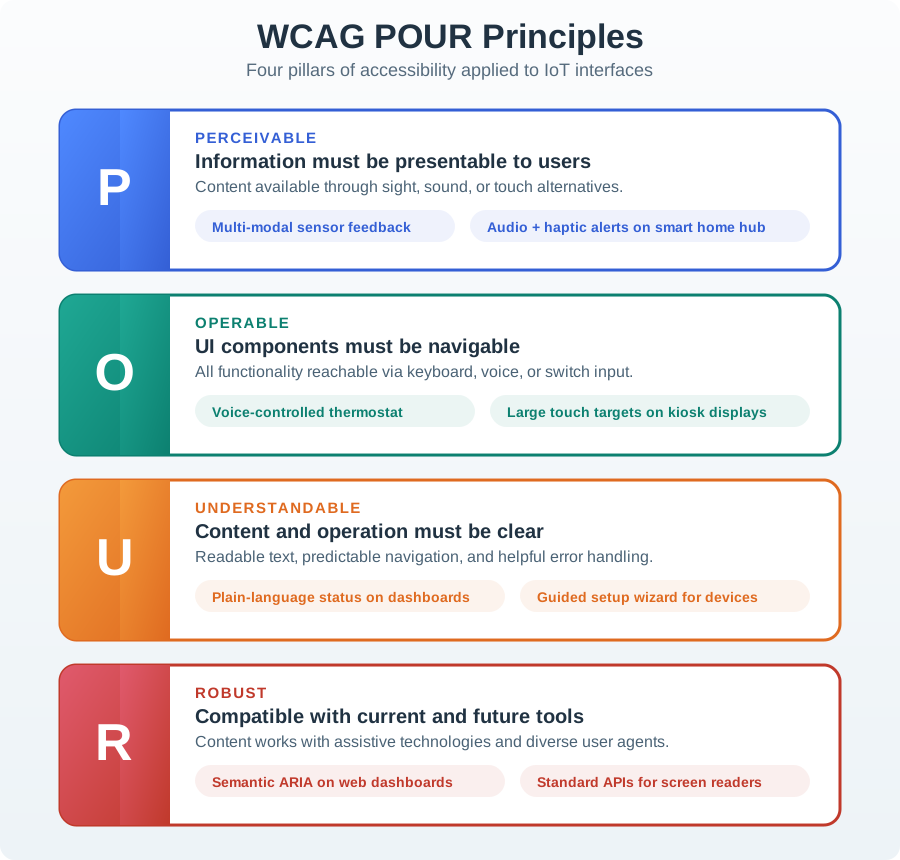
Read each row from barrier to response. A visual-only alert gains sound or vibration under Perceivable. A touch-only control gains a voice or physical route under Operable. A cryptic error becomes a message that names what happened and what to do under Understandable. Non-semantic markup gives way to controls an assistive tool can read under Robust. The smart-light example below tests those same ideas in one task.
Perceivable: Information must be presentable in multiple ways. Visual indicators + audio alerts. Haptic feedback for touchscreens. High contrast displays.
Operable: Interface must be usable by all. Voice control option. Large touch targets (min 44×44 CSS px for the WCAG 2.5.5 AAA criterion, subject to exceptions). Alternative to time-based interactions.
Understandable: Interface behavior must be predictable. Clear, simple language. Consistent behavior. Error messages with solutions.
Robust: Compatible with assistive technologies. Screen reader support. Keyboard navigation. API for third-party assistive apps.
Example: Multi-Modal Smart Light Control
Use Figure 13.2 to compare two ways to turn on a smart light. Look at the steps before each route can show that the light changed state.
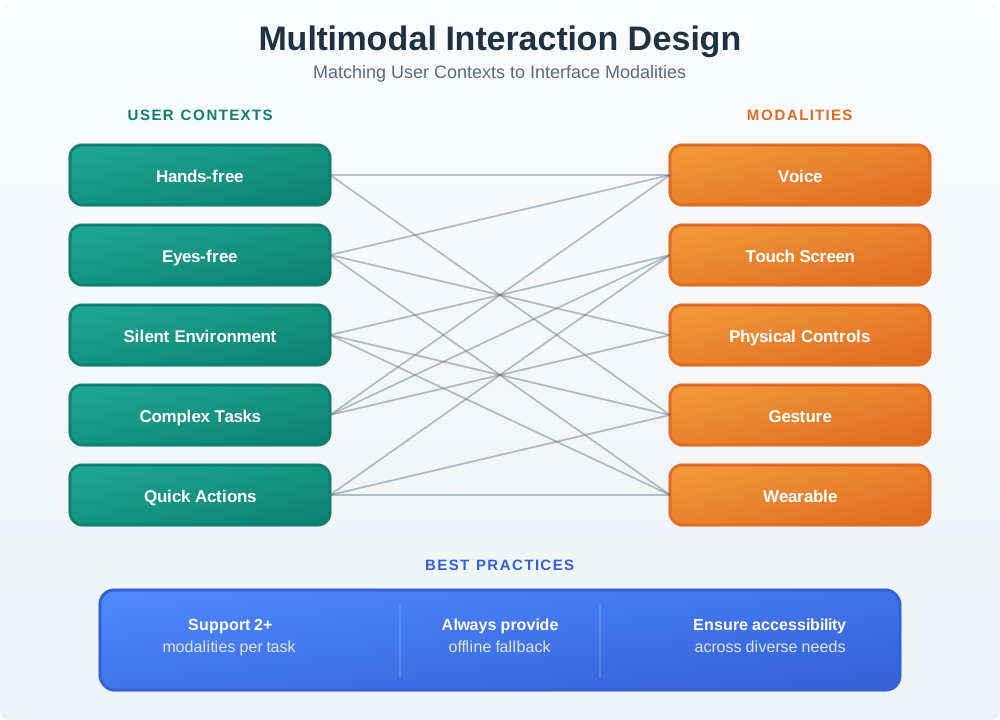
The voice route goes from a spoken smart-light request through capture, recognition, intent, command execution, and a spoken response. The touch route goes from the on-screen control through interpretation to vibration and device-state feedback. They measure different spans of the task, but both must use the same state names and reach the same safe result. A physical switch provides a fallback. The table below lists more control options.
An accessible smart light provides multiple ways to interact:
| Control Method | Primary Users | Implementation |
|---|---|---|
| Voice Commands | Visually impaired, hands-free situations | “Turn on living room light” with audio feedback |
| Physical Switch | All users, especially when tech fails | Wall switch or device button with tactile feedback |
| Touchscreen App | Deaf users, silent environments | Large buttons (min 44×44 CSS px for WCAG 2.5.5 AAA, subject to exceptions), high contrast, clear labels |
| Automation | Everyone | Motion sensors, schedules, geofencing triggers |
Accessibility Features:
Visual Feedback: LED indicator (on/off/dimming state). Audio Feedback: Text-to-speech confirmation for visually impaired. Haptic Feedback: Vibration on button press (touchscreen). ARIA Labels: Screen reader support for web/app interfaces.
WCAG contrast ratio calculation: For text to be WCAG AA compliant, contrast ratio must be (normal text) or (large text ≥18pt). Light gray #AAAAAA on white #FFFFFF has relative luminance , , giving — fails WCAG AA (needs 4.5). Dark gray #595959 has , giving — passes WCAG AA.
Touch target accessibility: WCAG 2.5.5 (Level AAA) specifies at least 44 × 44 CSS pixels for pointer targets, subject to exceptions. A 32 CSS px square has area ; a 44 CSS px square has area , 89% larger. In an illustrative independent two-axis model with independent horizontal and vertical normal touch errors of , the hit probability for a square target of half-width is : 32 px gives 79.3% and 44 px gives 94.5%, a 19.2% relative improvement.
Fitts’s Law for motor accessibility: Time to reach a target is where = distance, = target width, , . For a button 200 CSS px away, 32 CSS px wide: . For 48 CSS px wide: — 15% faster targeting, critical for users with motor impairments.
Multi-device state sync latency: For a smart home with devices (phone, tablet, watch, hub, voice assistant), achieving consistent state across all devices with (perception threshold) requires real-time pub-sub architecture. Star topology (all devices → hub → cloud → broadcast) has 2-hop latency . Peer-to-peer mesh has simultaneous broadcasts at (local network) — 6× faster than cloud round-trip.
Screen reader semantic markup efficiency: In this illustrative navigation model, two 1.5-second jumps through properly named landmarks take 3 seconds versus an assumed 15-second linear scan, an 80% modeled reduction. Use labelled <nav> landmarks for navigation and native <button> elements for actionable controls; do not rely on role="button" alone.
13.6.2 Accessibility Design Process
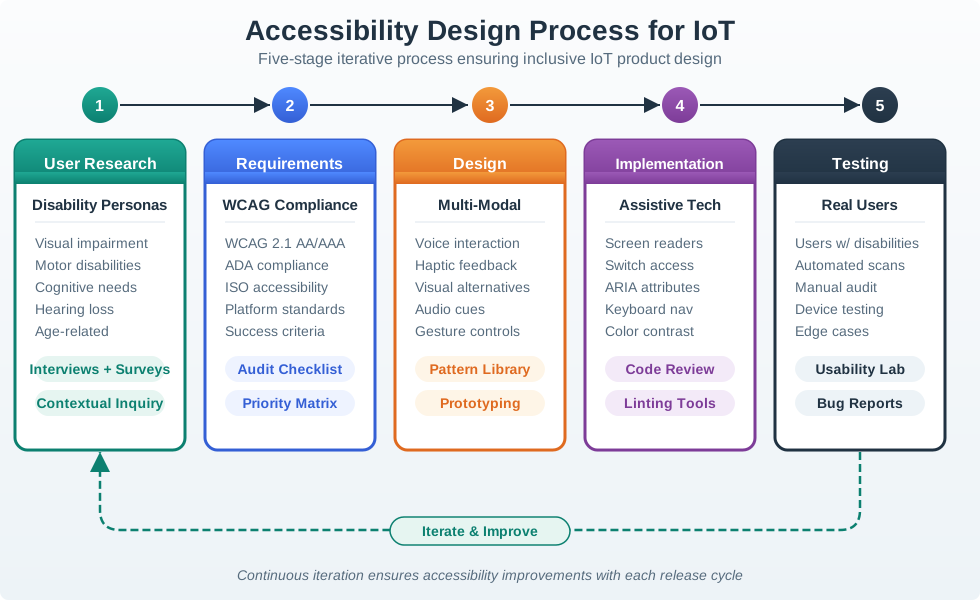
The following diagram illustrates a systematic approach to designing accessible IoT interfaces. This process ensures accessibility is built-in from the start rather than retrofitted.
Use Figure 13.3 to compare screen reader travel through a flat control list and a semantic page.
The worked example has twenty controls. A linear scan makes the person move through controls one by one, while landmarks provide a shorter route to the intended section. The figure shows the resulting time contrast under its stated swipe assumption; that is an example, not a promise for every user. The design choice is to group controls with meaningful navigation and test them with a screen reader. Check whether the person can reach, identify, and operate the needed control without hearing unrelated items first.
Key Process Steps:
User Research: Understand the full range of users, including those with permanent, temporary, and situational disabilities. Requirements: Define accessibility standards (WCAG AA minimum) and legal compliance needs. Accessible Design: Apply universal design principles with measurable criteria. Implementation: Build with semantic markup, keyboard support, and assistive technology APIs. Testing: Combine automated accessibility checks with manual review and user testing; no universal percentage of issues is caught by each method.
Option A: Offer a simple, opinionated design with sensible defaults that work for most users, minimizing configuration options and decision fatigue. Option B: Provide extensive customization options allowing users to tailor every aspect of the experience to their specific preferences and workflows. Decision Factors: Choose simplicity when users are diverse (varying tech skills, ages, contexts), when quick setup matters, or when the product should “just work.” Choose customization when users have strong individual preferences, when workflows vary significantly between users, or when the product serves professionals who need precise control. Consider a hybrid approach: simple defaults that work immediately, with customization accessible through settings for those who want it.
Option A: Design for universal accessibility from the start, ensuring the core experience works for users across all ability levels (vision, hearing, motor, cognitive), even if this constrains some design choices. Option B: Design the primary experience for the mainstream user, then add accessibility features as accommodations for specific disability groups. Decision Factors: Choose universal design when building consumer products with broad market reach, when regulatory compliance (ADA, WCAG) is required, or when you want features that benefit everyone (large buttons help all users, not just those with motor impairments). Choose targeted accessibility when serving a well-defined user group, when adding universal features would significantly increase cost or complexity, or when the product inherently requires specific abilities (a running app assumes mobility). Note: Universal design often creates better products for everyone, and retrofit accessibility is typically more expensive than designing inclusively from the start.
- Keyboard Navigation: Tab through controls without mouse
- High Contrast: 4.5:1 minimum contrast ratio (WCAG AA)
- Fallback Controls: Always works without internet/app
Checkpoint: WCAG Mechanics
You now know:
- WCAG POUR maps to IoT design as perceivable signals, operable controls, understandable errors, and robust assistive-technology support.
- The chapter’s minimum numbers are concrete: 44×44 CSS-pixel targets for WCAG 2.5.5 AAA (subject to exceptions), 4.5:1 normal-text contrast, 3.0 large-text contrast, and at least two modalities for critical functions.
- Automated checks cover only part of the process, so the design process still needs real users and real assistive technology.
Those mechanics are easiest to remember when they are tested as scenarios, so the next checks put WCAG choices into smart-home and hub decisions.
Accessibility enables multi-device experiences: Designing for disabilities creates features everyone uses across different devices: Large touch targets (for arthritis) → work better on all devices, especially wearables. Voice control (for vision impairment) → convenient for hands-free situations (driving, cooking). High contrast (for low vision) → readable in bright sunlight on mobile screens.
Universal design reduces platform fragmentation: One accessible interface often works across phone/tablet/desktop without device-specific versions.
Related concepts:
Progressive disclosure (UX Fundamentals) → show essential features first, advanced options later. Offline-first design (UX Introduction) → core functions work without connectivity. Error recovery patterns (UX Evaluation) → accessible error messages benefit all users.
Within this module:
UX Design Evaluation - Apply heuristics to accessibility testing. UX Design Pitfalls - Avoid common accessibility mistakes.
Other modules:
Interface and Interaction Design - Detailed interaction patterns. Understanding People and Context - User research including accessibility needs.
External resources:
WCAG 2.1 Guidelines - Official accessibility standard. WebAIM Contrast Checker - Test color contrast ratios. Inclusive Design Principles - Microsoft’s accessibility framework.
We have established the accessibility rules for one interface. Multi-device IoT adds a second constraint: the same state must stay understandable when it moves from a thermostat face to a phone, watch, dashboard, or voice response.
13.7 Continue to Part 2
This section: Continue to Part 2 — Continue with Accessible IoT Interfaces: Adaptation and Device Sync.
Continue with Accessible IoT Interfaces: Adaptation and Device Sync.
13.8 Continue Your Route
This section: Continue Your Route — This is the last part of this chapter.
This is the last part of this chapter. Return to Accessible IoT: Interface Foundations. See ux-design module index.
Find help
3 reviewed answers.
Where should I start in a module?
Open the module page from the sidebar to see its chapters in order. Use the module map to return to a topic you need.
Modules and pathsReviewed
What can I try when a project does not work?
Check the symptom, then work through the diagnostic steps. Keep the error message and the smallest example that reproduces it.
When you are stuckReviewed
How do interactive examples work?
Use the interactive guide to check how examples and simulations work before changing your project.
Interactive examples guideReviewed