5 Multimodal Interfaces: Modalities and Trade-offs
More
Depth: Practitioner
Progress saves as you read. Mark sections complete as you go; your progress appears in the sidebar.
5.1 Start With the Decision
This section: Start With the Decision — Voice works across a room but fails beside a loud machine; touch is private but fails under gloves.
Voice works across a room but fails beside a loud machine; touch is private but fails under gloves. A modality choice must fit the user, place, delay, and fallback.
5.2 Route Overview
This section: Route Overview — This is part 2 of 3.
This is part 2 of 3. Review Multimodal Interfaces: Channel Contracts for the preceding evidence.
5.3 Learning Objectives
This section: Learning Objectives
- Compare touch, voice, visual, audio, and haptic channel limits.
- Choose local fallbacks from latency, privacy, and accessibility evidence.
5.4 Chapter Roadmap
This section: Chapter Roadmap
- Key Concepts
- Introduction
- Multimodal Interaction Design
- Checkpoint: Modality Selection
- Design Tradeoffs
- Touch vs Voice Interfaces
- Putting Numbers to It
- Checkpoint: Voice Latency
- Visual vs Audio Feedback
- Single vs Multimodal Interaction
- Input/Output Modalities for IoT
- Graceful Degradation
- Cloud-First vs Local-First
- Checkpoint: Failure Resilience
- Accessibility Considerations
- The Curb Cut Effect
- Common Pitfalls in Multimodal Design
- Pitfalls to Avoid
Key Concepts
This section: Key Concepts — A modality is a way to interact, such as voice or touch.
A modality is a way to interact, such as voice or touch. Voice works across a room but fails beside a loud machine; touch is private but fails under gloves. Latency is the wait for a response. A fallback is the other way to act when the first way fails. Choose by user, place, wait, and fallback.
Interaction Design: Discipline defining how users communicate with digital systems through input, output, and feedback mechanisms. Multimodal Interface: System accepting input and delivering output through multiple channels (touch, voice, gesture, haptic) simultaneously. User Testing: Structured observation of representative users attempting defined tasks, exposing interface problems invisible to designers. Prototype Fidelity: Level of detail in a prototype: low fidelity (paper sketch) validates concepts; high fidelity (interactive mockup) validates usability. Information Architecture: Structural design of digital spaces to support usability and findability, determining where content lives and how users navigate. Cognitive Load: Mental effort required to use an interface; IoT systems must minimise cognitive load for users managing many connected devices. Usability Heuristic: Principle-based rule for evaluating interface quality (e.g. Nielsen’s 10 heuristics) without requiring user testing.
5.5 Introduction
This section: Introduction — Most IoT devices are used in contexts where users cannot devote full attention to a single screen.
Most IoT devices are used in contexts where users cannot devote full attention to a single screen. A nurse checking patient vitals has gloved hands. A driver monitoring vehicle diagnostics is watching the road. A homeowner adjusting the thermostat may be carrying groceries. In each case, the interface must adapt to the user’s available senses and limbs rather than demanding a specific posture or focus.
Multimodal interaction design addresses this challenge by providing multiple parallel channels — voice, touch, physical controls, gesture, and haptic feedback — so that users can interact through whichever modality suits their current context. This chapter explores how to select, combine, and gracefully degrade across these modalities, with particular attention to accessibility and failure resilience.
The principles covered here build directly on the component hierarchies from Interface Design Fundamentals and the state synchronization patterns from Interaction Patterns. Where those chapters addressed what to display and when to update, this chapter addresses how users physically interact with IoT systems across diverse real-world conditions.
5.6 Multimodal Interaction Design
This section: Multimodal Interaction Design — Different interface modalities excel in different contexts.
Different interface modalities excel in different contexts. Effective IoT design matches modality to use case:
The smart light example in Figure 5.1 compares voice and touch as routes to one action.
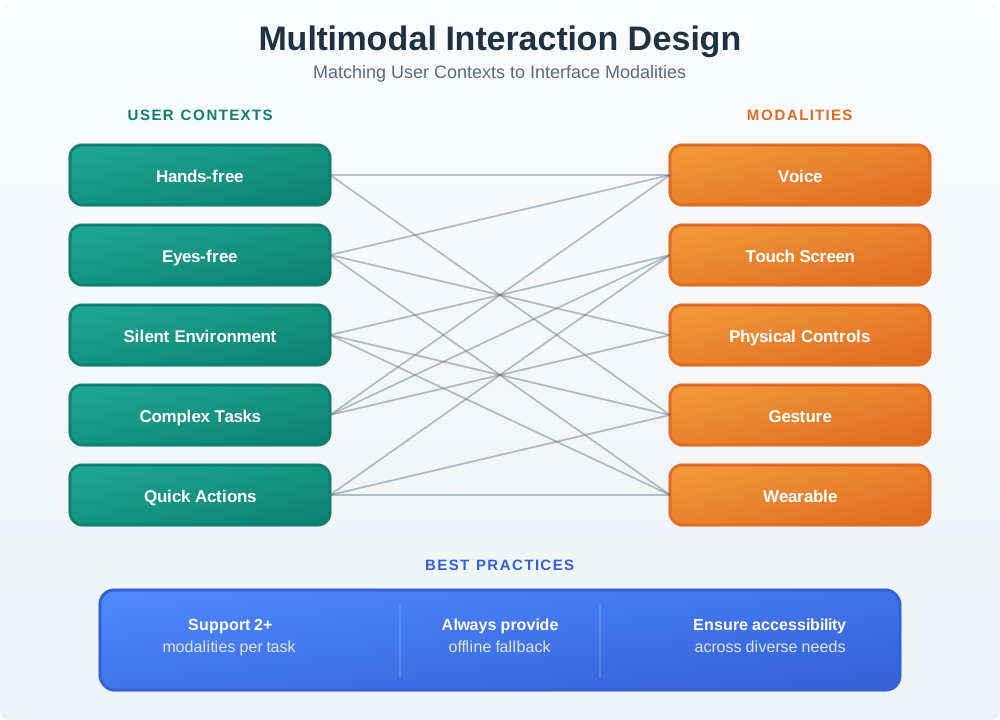
Busy hands may favor a spoken request, while detailed choices may be easier on a touchscreen. The voice path moves through wake detection, audio capture, speech recognition, intent parsing, and command execution before the light can respond. The touch path enters the same device action from an app control. The worked timing values help locate delay along the voice route; they do not replace an end to end test. Both channels need the same truthful feedback about pending, applied, or failed state.
5.6.1 Modality Comparison Matrix
| Modality | Best For | Limitations | Accessibility |
|---|---|---|---|
| Voice | Hands-free, quick commands | Privacy, noisy environments | Helps motor impairments |
| Touch (App) | Complex settings, browsing | Requires attention | Screen readers available |
| Physical | Immediate, tactile | Limited options | Works with disabilities |
| Gesture | Quick, natural | Learning curve | May exclude some users |
| Wearable | Glanceable info | Tiny screen | Haptic helps vision impaired |
5.6.2 Modality Selection Framework
Use this decision framework to select the appropriate modality for a given interaction:
Use Figure 5.2 to choose an input and feedback channel from the user’s context rather than from novelty.
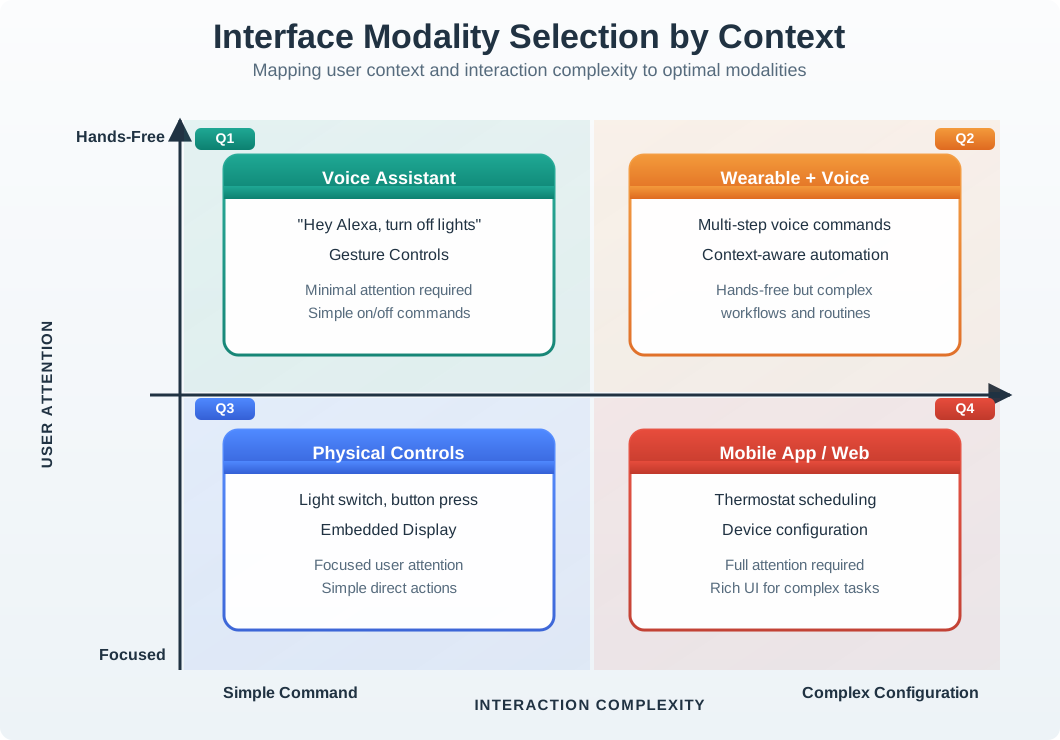
Read the chart left to right from a simple command to complex configuration, and bottom to top from focused use to hands-free use. Voice fits a quick hands-free command; physical controls fit an immediate tactile action; mobile or web views fit complex work needing attention. The upper-right pairs a wearable cue with voice when hands and eyes are occupied. These are starting points. Check noise, privacy, accessibility, confirmation, and fallback at the real site. A casual query can tolerate recognition repair that a safety action cannot.
 Checkpoint: Modality Selection
You now know:
- Voice fits hands-free commands; touch fits complex settings; physical controls fit immediate local actions.
- Critical state changes need at least two output channels, with fast local feedback when users need confidence within 100 ms.
- Choose each channel because it answers a context, fallback, accessibility, or privacy problem.
5.7 Design Tradeoffs
This section: Design Tradeoffs — Now the chapter pressure-tests the selection framework.
Now the chapter pressure-tests the selection framework. Each tradeoff below asks whether a modality is the primary path, a fallback path, or a risk that needs another channel beside it.
Option A (Touch Interface): Visual app or touchscreen with tap/swipe gestures. Touch supports precise choices and multi-step work. Works in any noise level, preserves privacy, supports complex workflows. Requires visual attention and free hands.
Option B (Voice Interface): Natural language commands with audio feedback. Enables hands-free and eyes-free operation (cooking, driving); measure speed and recognition in noise for the chosen system. Privacy concerns in shared spaces.
Decision Factors: Choose touch when precision matters (selecting specific percentages, complex schedules), when privacy is needed (public spaces), when noise levels are high, or for detailed configuration. Choose voice when hands/eyes are occupied, for quick single commands, or for accessibility (motor impairments). Best products support both: “Hey Google, turn on kitchen lights” AND app toggle. Voice for convenience, touch for control, physical buttons for reliability.
5.7.1 Voice Interface Processing Pipeline
Understanding how voice commands are processed helps designers optimize response times and handle failures:
Use Figure 5.3 to locate where a spoken command can be delayed, misunderstood, or rejected before it becomes an action.
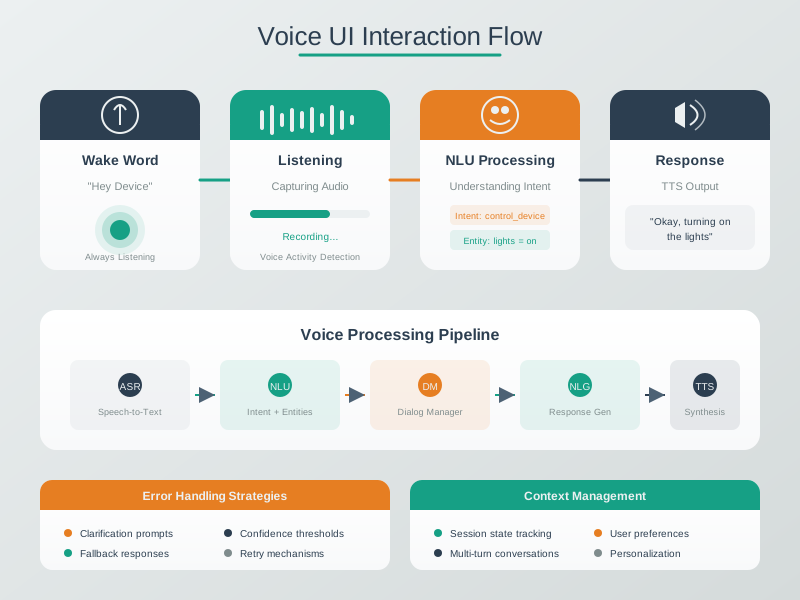
Begin with the wake word, which decides when audio enters the command path and therefore affects privacy as well as false activation. Speech recognition converts sound to text; natural-language understanding maps that text to intent and entities. Context then resolves details such as room, device, or user before execution. The response must expose what was understood and whether the action succeeded, not merely that audio was heard. Timing and confidence evidence at each stage help the interface choose between acting, asking a focused question, offering another channel, or stopping safely.
Pipeline Latency Budget (target: <1 second total):
| Stage | Target Time | Optimization |
|---|---|---|
| Wake word detection | <100 ms | On-device ML model |
| Audio capture | 200-500 ms | Endpoint detection |
| Speech-to-text | 100-300 ms | Streaming ASR |
| Intent recognition | 50-100 ms | Pre-compiled grammar |
| Command execution | <100 ms | Local device control |
| Voice confirmation | 200-400 ms | TTS or pre-recorded |
How do we calculate the total latency of a voice interface and why does each millisecond matter?
Voice pipeline timing breakdown (typical values):
Total end-to-end latency:
User perception (from HCI research):
| Latency | Perception | User action |
|---|---|---|
| <150 ms | Instant | Confident system heard |
| 150-400 ms | Slight lag | Acceptable, barely noticed |
| 400-1000 ms | Noticeable delay | Keep command status visible |
| >1000 ms | Flow may be interrupted | Show that processing continues; test repeat and abandonment rates |
Optimization path to reach <800 ms (acceptable threshold):
- Edge ASR (avoid cloud round-trip): 220 ms → 45 ms saves 175 ms
- Pre-recorded confirmations (skip TTS): 310 ms → 80 ms saves 230 ms
- Endpoint prediction (don’t wait for silence): 350 ms → 180 ms saves 170 ms
New total: ms (well below 800 ms threshold)
Cost tradeoff:
- Cloud ASR: Free (or $0.006/query with Google Speech API)
- Edge ASR: $8-15/unit (dedicated NPU chip) + 2W power draw
- Payoff: modeled latency falls from 1,095 ms to 520 ms; measure repeat-command rates with users.
Key insight: Every stage above 100 ms is a candidate for optimization. The 350 ms endpoint wait is the largest single stage in this example, but edge ASR alone only saves 175 ms (16% of total latency); reaching the 520 ms figure needs all three fixes together—edge ASR, pre-recorded confirmations, and endpoint prediction combined cut total latency by 53% at the cost of $12/unit hardware for the edge ASR chip.
Interactive Calculator: Optimize Your Voice Pipeline
Experiment: Try switching from Cloud ASR to Edge ASR and from TTS to Pre-recorded feedback. Notice how latency drops from 1,095 ms to 520 ms, moving from “Users give up” to “Acceptable” perception, at the cost of $14/unit in hardware.
Checkpoint: Voice Latency
You now know:
- The default voice path totals 1,095 ms across wake detection, capture, cloud ASR, intent parsing, execution, and TTS feedback.
- Edge ASR plus pre-recorded feedback drops the example to 520 ms, but adds hardware cost.
- Latency is a UX requirement because slow feedback makes users doubt the system.
Option A (Visual Feedback): LED indicators, screen displays, and app notifications. Silent operation suitable for quiet environments (bedrooms, offices). User studies show visual indicators are checked in 0.3-0.5 second glances. Color-coded states (green=OK, red=error, amber=warning) are universally understood. Limited to line-of-sight; users must look at device.
Option B (Audio Feedback): Beeps, chimes, voice announcements, and alarms. Attention-grabbing without requiring user to look at device. Reaches users anywhere in the room. Critical for urgent alerts (smoke alarms: 85+ dB required by code). Offer a mute setting because some users find audio feedback intrusive; treat 11 PM–7 AM as a configurable quiet-hours example.
Decision Factors: Use visual-primary for routine status (device state, sync progress, battery level), quiet environments, and continuous monitoring. Use audio-primary for urgent alerts requiring immediate attention (security, safety, critical errors) and confirmation of voice commands. Best practice: tiered audio with visual redundancy. Critical alerts use both modalities. Routine confirmations default to visual with optional audio. Always provide mute/quiet hours settings. Accessibility: audio helps visually impaired users; visual helps hearing impaired users.
Option A: Optimize for a single primary modality (e.g., touch app only), allowing deep refinement of one interaction paradigm with lower development cost and simpler testing.
Option B: Support multiple modalities (voice, touch, physical, gesture) so users can interact via their preferred method based on context, accessibility needs, and situational constraints.
Decision Factors: Choose single modality when targeting a well-defined use context (office dashboard = mouse/keyboard), when budget is constrained, or when the modality perfectly fits the task. Choose multimodal when users interact in varied contexts (home = sometimes hands-free, sometimes visual), when accessibility is important, when the product serves diverse user populations, or when reliability requires fallback options. Consider that multimodal design improves resilience (if voice fails, touch still works) and accessibility (motor-impaired users can use voice, hearing-impaired users can use visual interfaces).
5.8 Input/Output Modalities for IoT
This section: Input/Output Modalities for IoT — IoT devices use diverse input and output modalities.
IoT devices use diverse input and output modalities. Effective design matches modality to message type and user context:
Follow Figure 5.4 from user input to system feedback to check whether every modality closes the action loop.
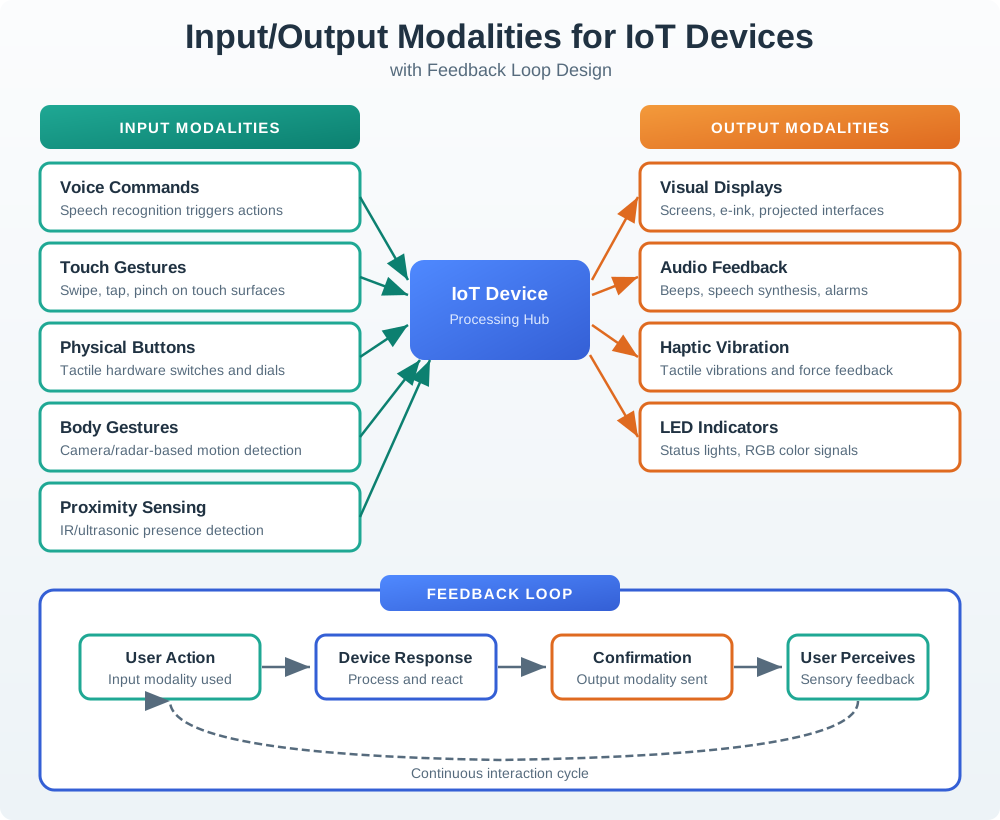
The input side offers touch, voice, buttons, gestures, and proximity, each with a different physical and social fit. The system then interprets the signal and changes or rejects state. On the output side, displays, lights, sound, and haptics can confirm receipt, progress, completion, or failure. A feedback loop connects those halves: the person must be able to tell what the system understood and what happened next. Multimodal design is strongest when channels reinforce one state, not when several cues report conflicting outcomes or all fail under the same condition.
Modality Selection Guidelines:
| Message Type | Best Input | Best Output | Example |
|---|---|---|---|
| Quick command | Voice, physical button | LED + beep | “Lock door” with confirmation chime |
| Complex setting | Touch screen | Visual display | Thermostat schedule configuration |
| Urgent alert | Auto-triggered | Audio + haptic + visual | Smoke detector alarm |
| Status check | Glance, presence | LED, display | Light ring color shows device state |
| Privacy control | Physical switch | LED indicator | Camera shutter with red LED |
5.9 Graceful Degradation
This section: Graceful Degradation — IoT interfaces must handle failures gracefully at each layer.
IoT interfaces must handle failures gracefully at each layer. The following diagram illustrates five degradation levels, from full cloud connectivity down to minimal manual override:
When a preferred channel disappears, the design needs a planned reduction in capability rather than a single offline screen. The diagram in Figure 5.5 orders those reductions so the interface can explain what still works at each failure boundary.
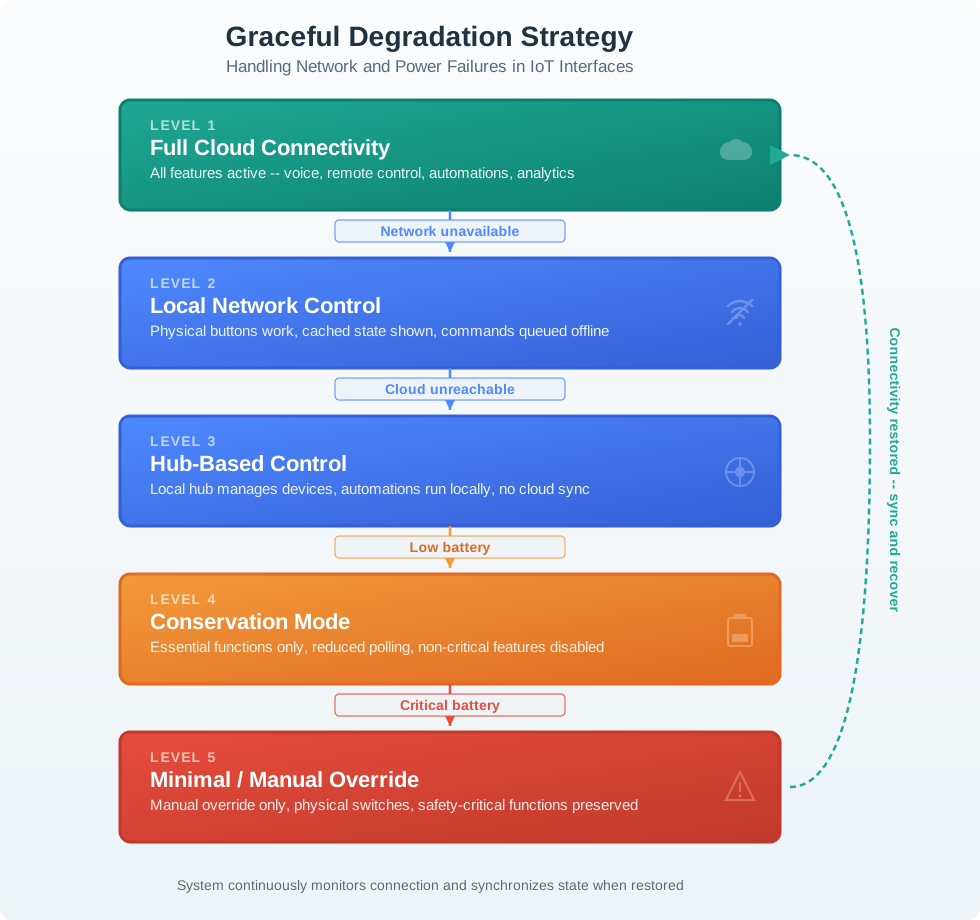
The diagram begins at LEVEL 1 in Figure 5.5, where Full Cloud Connectivity enables voice, remote control, automations, and analytics. A network outage moves the product to LEVEL 2 Local Network Control, where physical buttons still work, cached state is identified, and commands may be queued. If the cloud remains unreachable, LEVEL 3 Hub-Based Control preserves local automations; low battery then narrows operation through Conservation Mode to LEVEL 5 Minimal / Manual Override. The recovery arrow requires state synchronization when connectivity returns, linking degradation back to truthful multimodal feedback.
Design for Failure — Four Essential Principles:
Always provide physical fallback — Light switches that work without Wi-Fi. Queue commands offline — Sync when connectivity returns. Cache last known state — Show users what they last knew. Clear failure indication — Don’t leave users guessing about device status.
Option A: Cloud-first architecture routes all commands through cloud services, enabling remote access, cross-device coordination, advanced AI features, and simplified device hardware at the cost of internet dependency.
Option B: Local-first architecture processes commands on-device or via local hub, ensuring core functions work offline with faster response times, but limiting remote access and advanced features without connectivity.
Decision Factors: Choose cloud-first when remote access is essential, when features require significant compute power (AI, complex automation), when devices need coordination across locations, or when continuous software updates add value. Choose local-first when reliability is critical (locks, safety devices), when latency matters (industrial control), when privacy is paramount, or when internet connectivity is unreliable. Best practice: hybrid approach with local-first core functions and cloud-enhanced features, so essential operations never depend on internet availability.
Checkpoint: Failure Resilience
You now know:
- Graceful degradation is not just an error screen; core controls must keep working when cloud, phone, sound, display, or touch fails.
- Local-first is strongest for locks, safety, industrial control, privacy, and unreliable connectivity; cloud-first is strongest for remote access or heavy compute.
- The review question is always what still works, what is stale, and which channel tells the user the truth.
5.10 Accessibility Considerations
This section: Accessibility Considerations — Use Figure 5.6 to test a pairing failure through a screen reader, not just a successful screen.
Multimodal design inherently improves accessibility by providing alternative interaction paths:
Use Figure 5.6 to test a pairing failure through a screen reader, not just a successful screen.
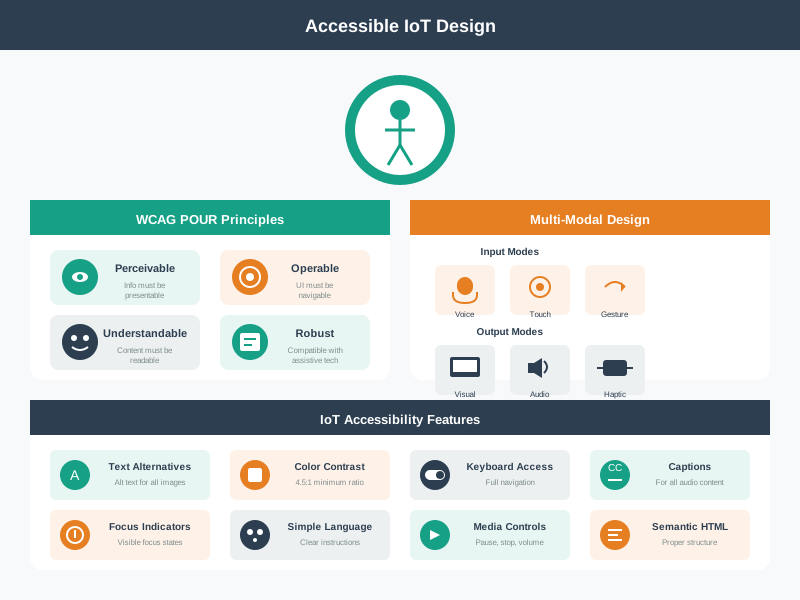
The VoiceOver task starts at Pair device while the gateway is offline. The failure state must be announced through a live region, first as still trying and then with a local reset option, so the person is not left waiting in silence. The recovery path must remain reachable with the available controls. This trace joins status, timing, and action across an assistive channel. A review should confirm what is spoken and whether the person can complete or leave the task safely.
| User Need | Modality Support | Implementation |
|---|---|---|
| Vision impaired | Voice input/output, haptic feedback | Screen reader, audio descriptions, vibration patterns |
| Hearing impaired | Visual displays, haptic alerts | LED indicators, on-screen text, vibration |
| Motor impaired | Voice control, large touch targets | Voice commands, 44px minimum touch targets |
| Cognitive load | Simple controls, consistent patterns | Progressive disclosure, familiar metaphors |
Designing for accessibility benefits everyone. Voice control helps motor-impaired users AND users with full hands. Large touch targets help users with tremors AND users wearing gloves. Closed captions help deaf users AND users in noisy environments. When you design for edge cases, you improve the experience for all users.
5.11 Common Pitfalls in Multimodal Design
This section: Common Pitfalls in Multimodal Design
1. Voice-Only Trap: Designing a smart device that only supports voice interaction. When voice recognition fails (noisy room, accent mismatch, service outage), the device becomes a paperweight. Always provide at least one non-voice fallback.
2. Feedback Channel Mismatch: Confirming a voice command with a small on-screen text message the user cannot see because they are across the room. Match the feedback channel to the input channel — voice commands should produce audible confirmation.
3. Ignoring Quiet Hours: Audio feedback that cannot be silenced or scheduled. A smart lock that announces “DOOR UNLOCKED” at 2 AM will be disabled by users, losing the security benefit. Always provide configurable quiet hours with visual-only fallback.
4. Modality Overload: Supporting five input modalities but implementing none of them well. Better to have two polished modalities (e.g., app + physical button) than five half-finished ones. Prioritize the modalities your users actually need.
5. No Offline State Indication: When cloud connectivity is lost, the interface looks identical to the connected state. Users issue commands that silently fail, eroding trust. Always show a clear offline indicator and explain what still works.
6. Assuming Universal Gesture Recognition: Designing gesture controls that require specific hand shapes or movement speeds. Users with arthritis, tremors, or prosthetics may not be able to perform precise gestures. Provide generous recognition thresholds and alternative inputs.
5.12 Continue to the Next Part
This section: Continue to the Next Part — Carry this evidence into Multimodal Interfaces: Cases and Practice, which begins with Real-World Case Study: Amazon Echo Show.
Carry this evidence into Multimodal Interfaces: Cases and Practice, which begins with Real-World Case Study: Amazon Echo Show.
Find help
3 reviewed answers.
Where should I start in a module?
Open the module page from the sidebar to see its chapters in order. Use the module map to return to a topic you need.
Modules and pathsReviewed
What can I try when a project does not work?
Check the symptom, then work through the diagnostic steps. Keep the error message and the smallest example that reproduces it.
When you are stuckReviewed
How do interactive examples work?
Use the interactive guide to check how examples and simulations work before changing your project.
Interactive examples guideReviewed