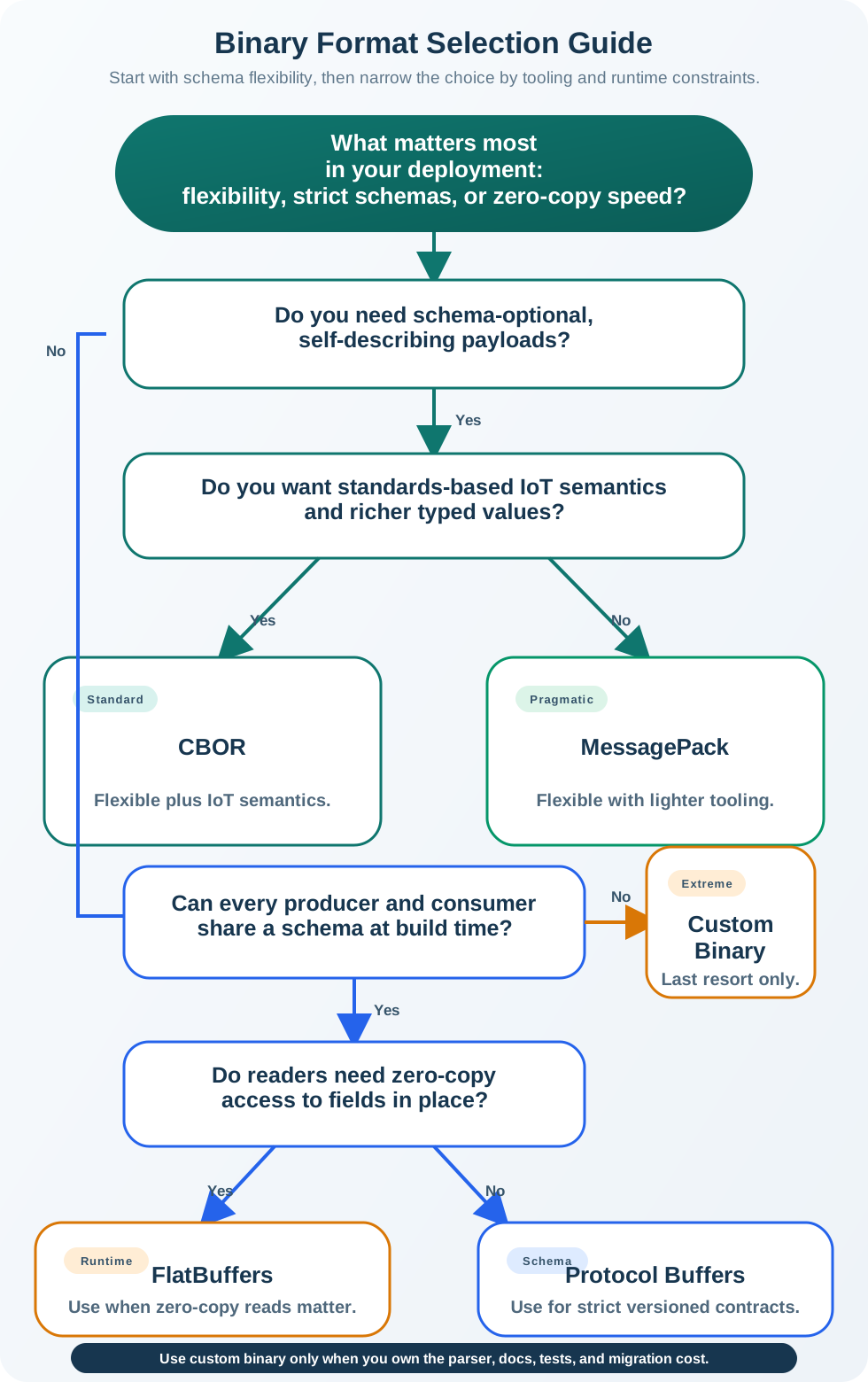
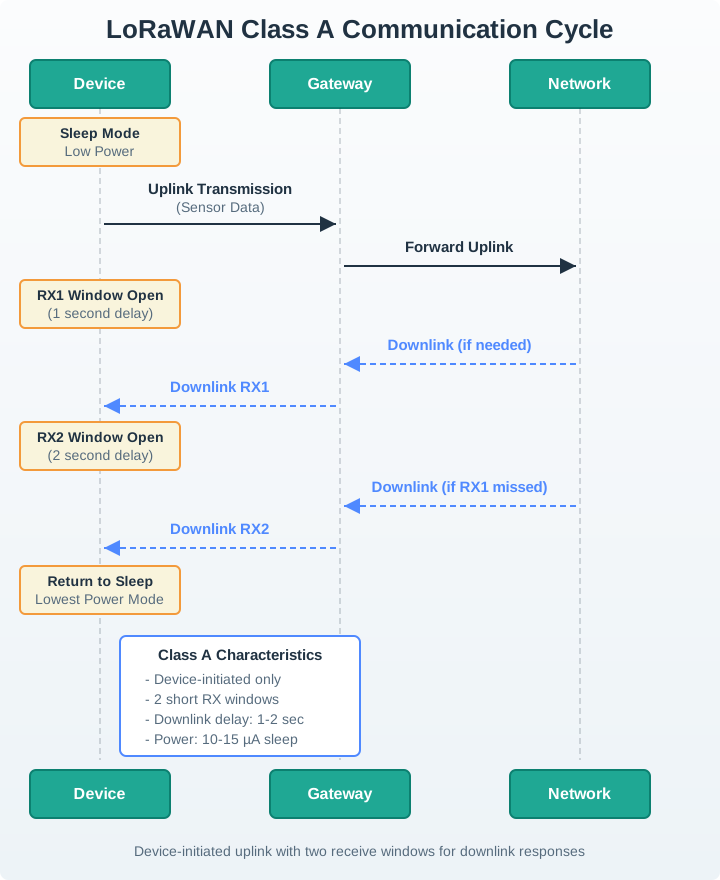
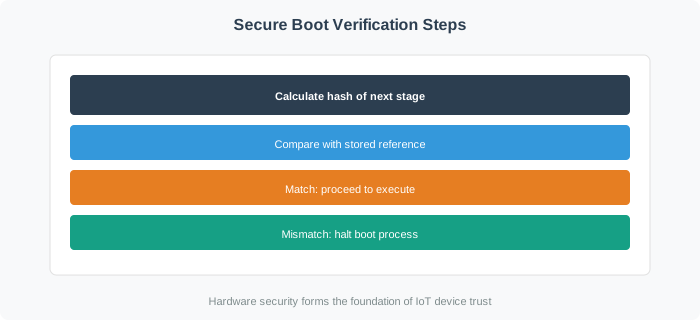
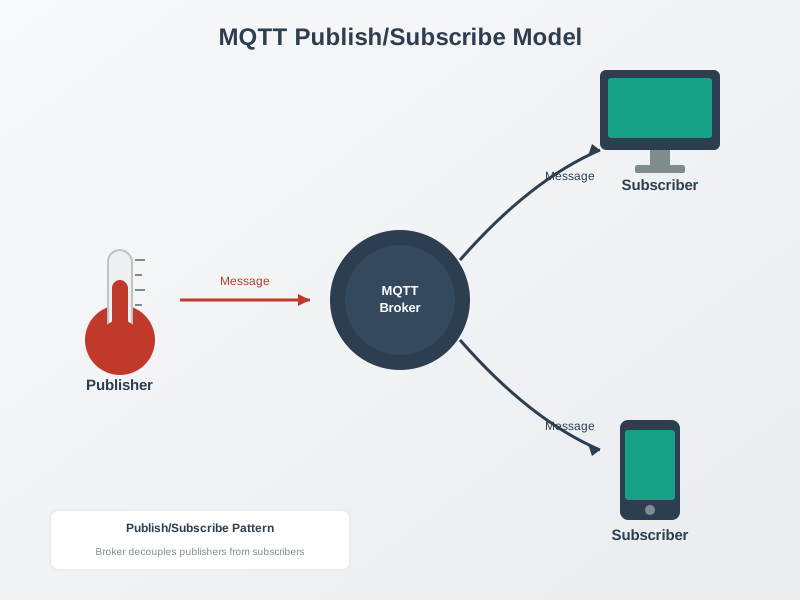
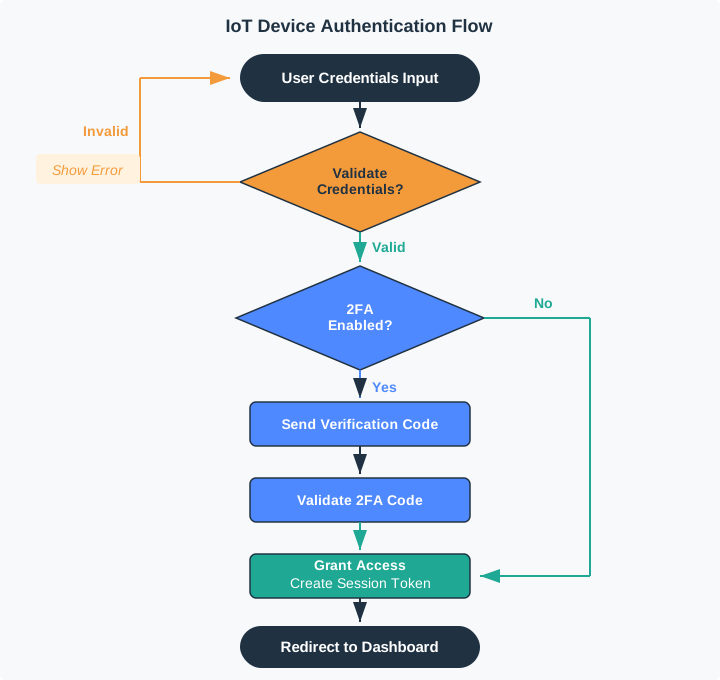
This visual style guide defines the standards for all IoTClass diagrams, colors, and formatting to ensure consistency across 1,600+ chapters. The IEEE color palette – Navy (#2C3E50), Teal (#16A085), Orange (#E67E22), and Gray (#7F8C8D) – serves as the foundation for all visual elements, with concept-type colors extending the palette for specific diagram categories. All images must include WCAG 2.1-compliant alt text, and diagrams should use the standardized base theme template to maintain automatic compliance with project standards.
Putting Numbers to It
Reference usability can be estimated by lookup coverage:
\[
U = \frac{N_{\text{resolved-lookups}}}{N_{\text{total-lookups}}}
\]
Worked example: If learners perform 220 glossary lookups and 198 are resolved without leaving the section, usability is \(198/220=90\%\). Improving cross-references and examples should push this ratio higher.
10.1 Learning Objectives
Apply the IEEE color palette (Navy, Teal, Orange, Gray) and concept-type colours consistently across diagrams and content
Compose descriptive alt text for images following WCAG 2.1 accessibility requirements
Select the correct callout types (note, tip, warning, important) and formatting conventions for tables, code blocks, and headings
Configure diagram themes using the standardised base theme template
Key Takeaway
In one sentence: Consistent visual styling using the IEEE color palette and standardized diagram themes creates a professional, accessible learning experience that helps students recognize patterns across chapters.
Remember this rule: Copy the theme initialization template from the Quick Reference Card section when creating new diagrams to ensure automatic compliance with project standards.
10.2 Overview
This guide documents the visual standards for IoTClass content, ensuring consistency across all chapters, diagrams, and interactive tools. Following these standards creates a cohesive learning experience and maintains accessibility compliance (WCAG 2.1).
Why consistency matters:
Recognition: Students learn visual patterns, making navigation intuitive
Accessibility: Consistent color usage supports readers with color vision differences
contrast_ratio = {// Convert hex to RGBconst hexToRgb = (hex) => {const result =/^#?([a-f\d]{2})([a-f\d]{2})([a-f\d]{2})$/i.exec(hex);return result ? {r:parseInt(result[1],16),g:parseInt(result[2],16),b:parseInt(result[3],16) } :null; };// Calculate relative luminanceconst getLuminance = (rgb) => {const [r, g, b] = [rgb.r, rgb.g, rgb.b].map(val => { val = val /255;return val <=0.03928? val /12.92:Math.pow((val +0.055) /1.055,2.4); });return0.2126* r +0.7152* g +0.0722* b; };const fg =hexToRgb(fg_color);const bg =hexToRgb(bg_color);const l1 =getLuminance(fg);const l2 =getLuminance(bg);const lighter =Math.max(l1, l2);const darker =Math.min(l1, l2);return (lighter +0.05) / (darker +0.05);}
Show code
html`<div style="background: var(--bs-light, #f8f9fa); padding: 1rem; border-radius: 8px; border-left: 4px solid ${contrast_ratio >=4.5?'#27AE60':'#E67E22'}; margin-top: 0.5rem;"><div style="background: ${bg_color}; color: ${fg_color}; padding: 1rem; border-radius: 4px; margin-bottom: 0.5rem; text-align: center; font-weight: bold;">Sample Text Preview</div><p><strong>Contrast Ratio:</strong> ${contrast_ratio.toFixed(2)}:1</p><p><strong>WCAG 2.1 AA Status:</strong> ${contrast_ratio >=4.5?'✓ PASS (Normal Text)':'✗ FAIL (Needs 4.5:1)'}</p><p><strong>WCAG 2.1 AAA Status:</strong> ${contrast_ratio >=7?'✓ PASS (Normal Text)': contrast_ratio >=4.5?'AA only (Needs 7:1 for AAA)':'✗ FAIL'}</p></div>`
10.4 Concept Type Colors
Each concept type has a dedicated color scheme for visual consistency across diagrams, callouts, and interactive tools.
10.4.1 Color Reference Table
Concept Type
Primary
Secondary
Border
Light Background
Use For
Protocol
#1B4F72
#2874A6
#1A5276
#D4E6F1
MQTT, CoAP, HTTP, LoRaWAN, Zigbee
Hardware
#7B8A8B
#95A5A6
#707B7C
#E5E8E8
Sensors, microcontrollers, actuators
Data
#16A085
#1ABC9C
#138D75
#D1F2EB
JSON, CBOR, payloads, schemas
Reliability
#E67E22
#F39C12
#CA6F1E
#FDEBD0
QoS, retries, buffering, guarantees
Security
#6B2D5B
#8E44AD
#5B2C6F
#E8DAEF
TLS, authentication, encryption
Edge
#27AE60
#2ECC71
#229954
#D5F5E3
Edge computing, gateways, fog
Cloud
#3498DB
#5DADE2
#2E86C1
#D6EAF8
Cloud services, backend, storage
Time
#D4A500
#F1C40F
#B7950B
#FCF3CF
Timestamps, sync, NTP
10.4.2 Concept Color Swatches
Protocol #1B4F72
Hardware #7B8A8B
Data #16A085
Reliability #E67E22
Security #6B2D5B
Edge #27AE60
Cloud #3498DB
Time #D4A500
10.5 Diagram Standards
10.5.1 Base Theme Configuration
The following theme configuration was historically used for Mermaid diagrams (now migrated to modern SVGs). This reference is maintained for understanding the color choices in existing diagrams:
When a diagram focuses on a single concept type, use the concept-specific theme:
Protocol Theme Example:
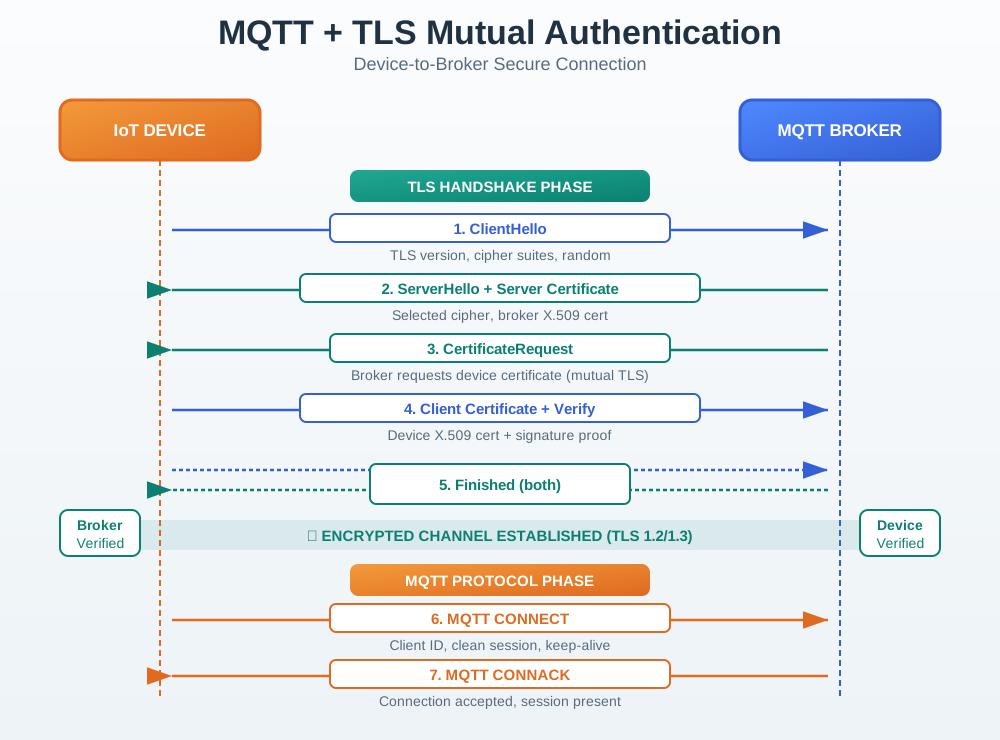
MQTT protocol diagram
Security Theme Example:
Security authentication flowchart
10.6 Callout Standards
Callouts provide contextual information with consistent visual styling.
10.6.1 Types and Usage
Callout Type
Icon
Use For
Color Accent
note
Info circle
Key information, clarifications
Blue
tip
Lightbulb
Best practices, recommendations
Green
warning
Triangle
Pitfalls, cautions, common mistakes
Orange
important
Exclamation
Critical information, must-know
Red
caution
Shield
Security concerns, data safety
Yellow
10.6.2 Formatted Examples
Key Concept
This is a note callout used for important information that students should pay attention to. Use notes to highlight key concepts, definitions, or essential context.
Best Practice
This is a tip callout for recommendations and best practices. Use tips to share practical advice, shortcuts, or optimal approaches that help students succeed.
Common Mistake
This is a warning callout for pitfalls and cautions. Use warnings to prevent common errors, highlight potential issues, or flag deprecated approaches.
Critical Information
This is an important callout for must-know information. Use this sparingly for critical facts that students absolutely must understand.
10.6.3 Collapsible Callouts
Use collapsible callouts for supplementary content that should not interrupt the main flow:
For Beginners: Understanding Protocols
A protocol is simply an agreed-upon way for devices to communicate. Think of it like a language - if two people speak the same language, they can understand each other. If two devices use the same protocol, they can exchange information.
Common IoT protocols include:
MQTT: Lightweight messaging for constrained devices
HTTP: The same protocol web browsers use
CoAP: Like HTTP but optimized for small devices
10.6.4 Callout Do’s and Don’ts
Do:
Use appropriate callout type for the content
Keep callout titles concise (3-5 words)
Use collapsible callouts for optional deep dives
Include actionable information
Don’t:
Overuse callouts (max 2-3 per section)
Put essential content only in callouts
Use warning for non-critical information
Nest callouts within callouts
10.7 Image Standards
10.7.1 Alt Text Requirements (WCAG 2.1)
Every image must include descriptive alt text for accessibility:
{fig-alt="Three-tier IoT architecture diagram: Bottom layer shows IoT devices and sensors connected to edge gateways. Middle layer depicts fog computing nodes for local processing. Top layer represents cloud services for storage, analytics, and applications. Arrows show bidirectional data flow between all layers."}
Alt text guidelines:
Describe what the image shows, not just what it is
Include key information conveyed by the image
Keep descriptions concise but complete (50-150 words)
Don’t start with “Image of” or “Picture showing”
10.7.2 Image Format Selection
Format
Use For
Advantages
SVG
Diagrams, icons, logos
Scalable, small size, editable
PNG
Screenshots, diagrams with text
Lossless, transparency support
JPEG
Photographs, complex images
Small file size for photos
WebP
Web-optimized versions
Best compression, wide support
10.7.3 Image Sizing
Full-width diagrams: Use default (100% container width)
Inline figures: Specify width as percentage (e.g., width="60%")
Side-by-side images: Use grid layout with columns
Example grid layout:
::: {.grid}::: {.g-col-6}{fig-alt="Example placeholder image for style guide demonstration"}:::::: {.g-col-6}{fig-alt="Example placeholder image for style guide demonstration"}::::::
10.8 Code Block Standards
10.8.1 Language Highlighting
Always specify the language for syntax highlighting:
```python# Python code with proper highlightingdef read_sensor():return sensor.get_value()```
Worked Example: Creating a Consistent Mermaid Sequence Diagram for MQTT Authentication
You’re documenting the MQTT connection flow with TLS authentication for a capstone project. Here’s how to apply the visual style guide step-by-step.
Step 1: Choose the Right Diagram Type
From Section “Mermaid Diagram Standards” → Sequence diagrams show message flows between entities over time.
Step 2: Initialize Theme (Mandatory)
Copy the base theme template from Quick Reference Card:
# Base theme template%%{init: {'theme':'base','themeVariables':{'primaryColor':'#2C3E50','primaryTextColor':'#FFFFFF','primaryBorderColor':'#1A252F','lineColor':'#7F8C8D','secondaryColor':'#16A085','tertiaryColor':'#E8F6F3','background':'#FFFFFF','actorBorder':'#2C3E50','actorBkg':'#E8F6F3','sequenceNumberColor':'#FFFFFF'}}}%%
Step 3: Apply Concept-Specific Colors
From Section “Concept Type Colors” → This diagram involves Security (purple #6B2D5B) and Protocol (blue #1B4F72).
Since sequence diagrams only support global theme colors, we’ll use: - primaryColor = Security purple #6B2D5B (for actors/boxes) - lineColor = Navy #2C3E50 (for message arrows) - secondaryColor = Protocol blue #1B4F72 (for activation boxes)
Refined theme:
# Refined theme with concept-specific colors%%{init: {'theme':'base','themeVariables':{'primaryColor':'#6B2D5B','primaryTextColor':'#FFFFFF','primaryBorderColor':'#5B2C6F','lineColor':'#2C3E50','secondaryColor':'#1B4F72','tertiaryColor':'#E8DAEF','background':'#FFFFFF','actorBorder':'#6B2D5B','actorBkg':'#E8DAEF','activationBorderColor':'#1B4F72','activationBkgColor':'#D4E6F1'}}}%%
Step 4: The Resulting Diagram
Figure 10.1: MQTT over TLS secure connection sequence showing mutual TLS authentication followed by MQTT session establishment
Step 5: Add Descriptive Alt Text (WCAG 2.1)
From Section “Image Standards” → Alt text must describe what the diagram shows, not just what it is.
{fig-alt="Sequence diagram showing MQTT connection with TLS mutual authentication between IoT device, MQTT broker, and Certificate Authority. First phase (TLS handshake): Device sends ClientHello, Broker responds with ServerHello and certificate, both parties verify certificates with CA, device sends encrypted pre-master secret, symmetric keys are derived. Second phase (MQTT authentication): Device sends CONNECT with credentials, Broker responds with CONNACK (success), Device subscribes to sensors/temp topic, Broker confirms with SUBACK, Device publishes message with QoS 1, Broker acknowledges with PUBACK. Diagram uses security purple (#6B2D5B) for actors, navy (#2C3E50) for message arrows, and protocol blue (#1B4F72) for activation boxes."}
Step 6: Add Context with Callouts
From Section “Callout Standards” → Use note callout for key information, tip for best practices.
::: {.callout-note}## Key Concept: Two-Phase AuthenticationMQTT authentication happens in TWO phases:1. **TLS layer**: Cryptographic verification using X.509 certificates (mutual TLS)2. **MQTT layer**: Application-level authentication using client ID + username/passwordBoth must succeed for the connection to establish. This defense-in-depth approach protects against both network-level and application-level attacks.:::::: {.callout-tip}## Best Practice: Certificate PinningFor production IoT deployments, implement certificate pinning on the device - store the broker's certificate hash in firmware rather than trusting any CA-signed certificate. This prevents man-in-the-middle attacks even if a CA is compromised.:::
Step 7: Format for Consistency
Title: Use H3 heading (###) for diagram titles within sections
Labels: Consistent with glossary terminology (e.g., “MQTT Broker” not “MQTT Server”)
Color consistency: Security purple used because authentication is primary concern
Final Formatted Section:
### MQTT Authentication Flow with Mutual TLS::: {.callout-note}## Key Concept: Two-Phase AuthenticationMQTT authentication happens in TWO phases: TLS layer (cryptographic) and MQTT layer (application-level). Both must succeed.:::{fig-alt="Sequence diagram showing MQTT connection with TLS mutual authentication between IoT device, MQTT broker, and Certificate Authority. TLS handshake verifies certificates bidirectionally, then MQTT CONNECT/CONNACK establishes session. Device subscribes to sensors/temp topic and publishes QoS 1 message with acknowledgment. Uses security purple for actors, navy for messages, protocol blue for activations."}::: {.callout-tip}## Best Practice: Certificate PinningFor production IoT deployments, implement certificate pinning - store the broker's certificate hash in firmware rather than trusting any CA-signed certificate.:::
Key Takeaways:
Always initialize theme - ensures consistent colors across all diagrams
Choose concept color - match diagram topic (Security → purple, Protocol → blue, etc.)
Write descriptive alt text - explain the flow, not just label it “diagram”
Add context with callouts - help readers understand WHY the design matters
Use glossary terminology - consistent terms across all documentation
Decision Framework: Selecting Diagram Types for Different IoT Concepts
Use this framework to choose the most effective Mermaid diagram type based on what you’re trying to communicate.
Sensor calibration procedure, error handling logic, decision trees
System states and transitions
State diagram
Section “State Diagram Example”
Device lifecycle (sleep → active → transmit), connection states, power modes
System architecture layers
Flowchart with subgraphs
Section “Concept-Specific Themes”
Edge-fog-cloud architecture, network topology, data pipeline
Data model relationships
Entity Relationship
(Not covered - use tables)
Database schema, relationships between entities
Timeline or lifecycle
Gantt chart
(Not covered - use timeline viz)
Project milestones, battery degradation over time
10.14.2 Detailed Decision Guide
Scenario 1: Explaining CoAP Request-Response
Goal: Show client-server message exchange with confirmable/non-confirmable messages
Choose: Sequence diagram
Theme colors: Protocol blue (#1B4F72) for actors, reliability orange (#E67E22) for ACK messages
Why not flowchart? Flowcharts don’t show time dimension or message ordering
Example structure:
sequenceDiagram
    Device->>Server: CON GET /temperature (MID=0x1234)
    Server-->>Device: ACK 2.05 Content (MID=0x1234)
    Device->>Server: NON POST /data (MID=0x1235)
    Note over Server: No ACK required for NON
Scenario 2: Sensor Sampling Decision Logic
Goal: Show algorithm for deciding when to transmit data
Choose: Flowchart
Theme colors: Base theme (navy/teal) for general logic, orange for warning conditions
Why not sequence diagram? This is internal logic, not communication between entities
Goal: Show how device transitions between sleep, idle, active, and transmit modes
Choose: State diagram
Theme colors: Base theme, highlight low-power states in green (edge/efficiency)
Why not flowchart? State diagrams emphasize CURRENT STATE and valid transitions
Example structure:
stateDiagram-v2
    [*] --> Sleep
    Sleep --> Idle: Timer wake
    Idle --> Active: Sensor threshold
    Active --> Transmit: Data ready
    Transmit --> Sleep: TX complete
    Idle --> Sleep: No activity (30s)
10.14.3 Color Selection Guide by Concept
From Section “Concept Type Colors”, match colors to diagram focus:
Diagram Focus
Primary Actor/Node Color
Arrow/Line Color
Example
Protocol mechanics
Protocol blue #1B4F72
Navy #2C3E50
MQTT, CoAP, HTTP flows
Security/authentication
Security purple #6B2D5B
Navy #2C3E50
TLS handshake, OAuth flow
Data transformation
Data teal #16A085
Navy #2C3E50
JSON→CBOR, compression pipeline
Reliability mechanisms
Reliability orange #E67E22
Navy #2C3E50
QoS levels, retry logic, circuit breaker
Edge processing
Edge green #27AE60
Navy #2C3E50
Local aggregation, gateway logic
Cloud services
Cloud blue #3498DB
Navy #2C3E50
Cloud API calls, storage workflows
Time-based operations
Time gold #D4A500
Navy #2C3E50
NTP sync, scheduled tasks
10.14.4 Accessibility Checklist for Diagrams
Before finalizing any diagram, verify against Section “Accessibility Checklist”:
10.14.5 Common Mistakes to Avoid
From Section “Diagram Do’s and Don’ts”:
Don’t:
Use sequence diagrams for algorithms (use flowchart)
Show static architecture in sequence diagrams (use subgraphs in flowchart)
Omit theme initialization (inconsistent colors)
Write generic alt text like “Diagram showing MQTT” (describe the FLOW)
Overload one diagram with >8 entities (split into multiple diagrams)
Do:
Match diagram type to concept (time → sequence, logic → flowchart, states → state diagram)
Use concept colors consistently (security = purple, protocol = blue)
Include notes for clarification (Note over Entity: Explanation)
Link to glossary terms in surrounding text (e.g., “See MQTT”)
10.14.6 Example: Choosing Between Flowchart and Sequence Diagram
Bad choice: Using sequence diagram to show “Steps to configure LoRaWAN device”
Why bad? Configuration is a procedure (algorithm), not a conversation between entities.
Correct choice: Flowchart with decision nodes
### LoRaWAN Device Provisioning ProcedureUse this flowchart to configure a new LoRaWAN device for The Things Network:{fig-alt="Flowchart showing LoRaWAN device provisioning steps: Start with generate DevEUI, register on TTN console (decision: OTAA or ABP?), if OTAA configure AppKey and join procedure with decision (join success?), if yes enable uplink confirmation and end, if no retry with backoff and check retry count. If ABP configure DevAddr, NwkSKey, AppSKey directly and enable uplink. Uses protocol blue for standard nodes, reliability orange for retry logic."}
When sequence diagram IS correct: Showing the OTAA join procedure messages (DeviceEUIJoinRequest, JoinAccept, etc.)
Common Mistake: Inconsistent Callout Usage Leading to Cognitive Overload
The Problem: Students often overuse callouts or use the wrong callout types, making content hard to scan and overwhelming to read.
Real Example from Student Capstone Report:
A 3-page chapter on MQTT had: - 12 callouts (4 per page) - 8 “Important” callouts (red, high urgency) - 3 nested callouts (callout inside callout - NOT SUPPORTED) - Essential protocol explanation buried inside a collapsible “Tip”
Why This Failed:
Overuse: From Section “Callout Do’s and Don’ts” → max 2-3 callouts per section. With 12 callouts, nothing stood out as actually important.
Wrong severity: “Important” callout (red) is for MUST-KNOW information (e.g., security vulnerabilities). Using it for “MQTT uses TCP” creates alert fatigue.
Hiding essential content: From Section “Callout Do’s and Don’ts” → “Don’t put essential content only in callouts.” The main MQTT pub/sub explanation was hidden in a collapsed tip - readers skipped it.
10.14.7 Decision Framework: When to Use Each Callout Type
From Section “Callout Standards”, here’s the precise usage guide:
Callout Type
Icon
Use Exactly When
Do NOT Use For
Color Accent
note
Info
Key definitions, essential context that clarifies main text
Warnings, tips, or optional info
Blue
tip
Lightbulb
Best practices, optimization suggestions, shortcuts
Critical requirements or definitions
Green
warning
Triangle
Common mistakes, pitfalls that lead to bugs, deprecated patterns
General advice or alternatives
Orange
important
Exclamation
Safety issues, security vulnerabilities, data loss risks
::: {.callout-important}## Important: MQTT Uses TCPMQTT runs over TCP, which provides reliable delivery at the transport layer.:::::: {.callout-important}## Important: QoS LevelsMQTT has three QoS levels: 0, 1, and 2.:::::: {.callout-important}## Important: Port NumbersMQTT uses port 1883 for unencrypted and 8883 for TLS.:::
Why wrong?
“Important” (red) should be reserved for CRITICAL information (e.g., “Never store credentials in code”)
These are factual definitions, not urgent warnings
3 consecutive red boxes = reader fatigue, nothing stands out
Corrected version:
::: {.callout-note}## Key Concept: MQTT TransportMQTT operates over TCP (port 1883 unencrypted, 8883 with TLS), providing reliable ordered delivery at the transport layer. Unlike UDP-based protocols (CoAP), MQTT connections are stateful and maintained continuously.:::**QoS Levels**:- **QoS 0**: At-most-once (fire-and-forget)- **QoS 1**: At-least-once (acknowledged)- **QoS 2**: Exactly-once (four-way handshake)::: {.callout-tip}## Best Practice: QoS SelectionUse QoS 0 for high-frequency telemetry (temperature readings), QoS 1 for important events (alerts), and reserve QoS 2 only for critical commands (actuation). Higher QoS increases battery consumption: QoS 2 uses 4× messages vs. QoS 0.:::::: {.callout-warning}## Common Mistake: Using QoS 2 for All MessagesStudents often set all MQTT traffic to QoS 2 thinking "more reliable is better." This quadruples network traffic and battery drain. For sensor data sent every minute, losing 1 reading (QoS 0) is acceptable - you'll get the next reading in 60 seconds.:::
What improved?
Note (blue) → used for MQTT transport explanation (key factual context)
Plain text → QoS levels listed as bullet points (not in callout - they’re part of main content)
Tip (green) → best practice guidance (actionable advice)
Warning (orange) → common design mistake with explanation (prevents errors)
Zero Important callouts → saved for actual critical issues (none in this section)
10.14.9 Callout Budget Per Section
From Section “Callout Do’s and Don’ts” + accessibility best practices:
Section Length
Max Callouts
Distribution
<500 words
1-2
1 note/tip, 0-1 warning
500-1000 words
2-3
1 note, 1 tip, 0-1 warning
1000-2000 words
3-4
1-2 notes, 1 tip, 1 warning, 0 important
>2000 words
4-5
2 notes, 1-2 tips, 1 warning, 0-1 important
Rule: If you need >5 callouts, your section is too long - split it into subsections.
10.14.10 Nesting and Collapsibility Rules
From Section “Collapsible Callouts”:
Do:
Use collapse="true" for “For Beginners” explanations (optional deep dives)
Use collapse="true" for lengthy code examples (preserve flow)
Use collapse="true" for “Advanced Topics” (skip for now)
Don’t:
Hide essential definitions in collapsed callouts (readers will skip)
Collapse warnings (defeats the purpose - warnings should be visible)
Example of WRONG collapsing:
::: {.callout-note collapse="true"}## Definition: MQTTMQTT (Message Queuing Telemetry Transport) is a lightweight pub/sub messaging protocol.:::
Why wrong? The definition of MQTT is ESSENTIAL to the chapter. If collapsed, new students won’t expand it, won’t understand the rest of the chapter.
Correct usage:
**MQTT** (Message Queuing Telemetry Transport) is a lightweight publish-subscribe messaging protocol designed for constrained devices and unreliable networks.::: {.callout-tip collapse="true"}## For Beginners: Understanding Publish-SubscribeIn a publish-subscribe system, senders (publishers) don't directly address receivers (subscribers). Instead, they send messages to named channels (topics), and anyone interested in that topic receives a copy. It's like a newsletter - you subscribe to topics you care about, and messages arrive automatically without asking the sender for each one.:::
What’s better? Main definition is VISIBLE in body text. The “For Beginners” analogy is COLLAPSED because it’s supplementary (advanced students can skip).
10.14.11 Visual Noise Test
Before publishing, print your chapter and scan visually:
Too many colored boxes? → You’ve overused callouts, promote some to body text
All boxes the same color? → You’ve used one callout type for everything, misapplied categorization
Important (red) boxes everywhere? → Nothing is actually important anymore, re-categorize
Can you read the main narrative without opening any callout? → Good! Callouts are truly supplementary
Goal: Callouts should be HIGHLIGHTS, not the main content. A reader skipping all callouts should still understand 80% of the chapter.
Every chapter in this course follows these standards—observe callout usage, color consistency, and fig-alt descriptions throughout the content
Interactive Quiz: Match Visual Style Guide Concepts
Interactive Quiz: Sequence the Steps
Common Pitfalls
1. Using off-brand colors for urgency without accessibility testing
Adding red or bright yellow to diagrams for ‘urgency’ without verifying contrast ratios creates inaccessible content. The IEEE palette already includes Orange (#E67E22) for warnings and Navy (#2C3E50) for structure. Using these consistently trains readers to recognize meaning from color. Custom colors require WCAG 2.1 contrast checking (minimum 4.5:1 ratio) before use in any learning content.
2. Writing fig-alt text that repeats the caption rather than describing the image
Alt text like ‘Diagram showing system architecture’ is redundant with a caption that says the same thing. Screen readers read both the alt text and the caption. Alt text should describe what is visually encoded: ‘Flow diagram with four boxes labeled Device, Gateway, Cloud, and Application connected by left-to-right arrows, with a feedback loop from Application back to Device.’ Describe the structure and information, not just the subject.
3. Ignoring the diagram theme template when creating new figures
Diagrams created without the standardized base theme template use inconsistent fonts, line weights, and colors that break visual continuity across chapters. Readers who see multiple diagram styles within one section experience increased cognitive load as they adjust to each style. Always initialize new diagrams with the provided theme template, even if the diagram appears simple – style consistency compounds into professionalism at scale.
Label the Diagram
10.17 What’s Next
If you want to…
Read this
Build capstone projects following these visual standards