16 BLE App Development on ESP32
More
Depth: Practitioner
Progress saves as you read. Mark sections complete as you go; your progress appears in the sidebar.
16.1 Start With the Story
This section: Start With the Story — Picture a room sensor that appears in a scan but sends an old temperature after reconnecting.
Prove One Value From Board to Phone
Picture a room sensor that appears in a scan but sends an old temperature after reconnecting. Seeing the device is only the first step. The app must show which value it read, when it changed, and why it is current.
Bluetooth Low Energy, or BLE, is a short-range radio system designed for small exchanges and low power. Firmware means the software stored on the board. A service groups the values that an app may read or change.
Scan, connect, read, subscribe, disconnect, and restart. Record device identity, service and value names, permissions, time, value, and phone result. Change one value and reject an unexpected writer before calling the path complete.
This runway does not prove range, privacy, or production scale. The deeper sections explain advertising, services, notifications, beacon use, code structure, and the tests needed around the real board.
An ESP32 demo becomes an IoT lesson when the phone can explain what it read and why it trusted it. Advertising, services, characteristics, permissions, notifications, and code structure all shape that user-visible result.
Use this chapter as a build story. Start with the smallest sensor value, make it visible over BLE, then add only the checks needed to prove the firmware, app, and test record match the intended product behavior.
16.2 Your Phone Reads the ESP32
This section: Your Phone Reads the ESP32 — By the end of this chapter, your phone can read live sensor data from an ESP32 that you programmed.
By the end of this chapter, your phone can read live sensor data from an ESP32 that you programmed. The ESP32 is a small board with Bluetooth built in. You will make it announce itself, give it a temperature value to share, and then watch that value move through the same kind of Bluetooth path used by wearables, room sensors, tags, and simple smart-home devices.
The Bluetooth we use here is Bluetooth Low Energy, usually shortened to BLE. “Low Energy” means the radio is designed to wake up, send a small amount of information, and go back to sleep instead of staying busy all the time. That is why BLE is a good fit for battery-powered sensors that only need to send a few bytes every few seconds.
The story starts with the simplest question: can we even see nearby Bluetooth devices? Once we can see them, we will make our own ESP32 visible, give the phone a value to read, and set up the beacons that the next chapter turns into an indoor positioning system. Each build step ends with something observable, because a BLE design is only useful when you can prove what happened.
16.3 The BLE Idea
This section: The BLE Idea — Before writing code, inspect Figure 16.1 to see where each lab stops on the ordered path from advertising and scanning to connection and GATT work.
Before writing code, inspect Figure 16.1 to see where each lab stops on the ordered path from advertising and scanning to connection and GATT work.
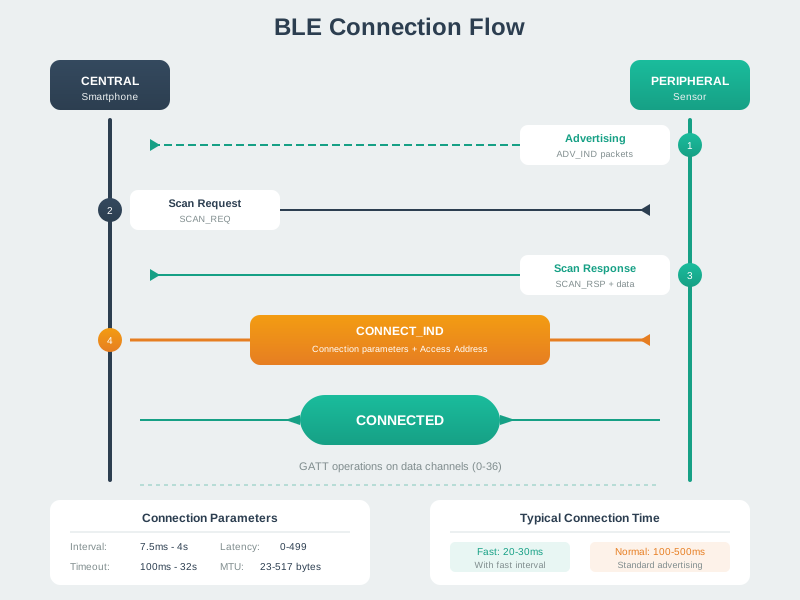
Read Figure 16.1 from the first advert to the data exchange. The peripheral tells nearby devices that it is ready. The central scans, finds that advert, and asks to connect. Both devices then move to data channels. There, GATT reads, writes, and notices carry small values for the app. The role names are exact, but the flow is simple: announce, find, connect, and exchange. Use those four steps as the test plan, since each can fail on its own.
16.3.1 Roles: who talks first
The device that advertises is the peripheral. In our build, the ESP32 becomes a peripheral when it behaves like a temperature sensor or an iBeacon, and in connected GATT examples it is also the server. The device that scans or connects is the central. A phone is usually the central because it has the screen, the app, and the power budget to search for nearby devices, and in connected GATT examples it usually behaves as the client.
The scanner lab reverses the view on purpose. First, the ESP32 acts as a central so you can see the radio world around you. Then, after the scan output makes advertising concrete, the ESP32 becomes the thing your phone can discover.
One source-era Classic Bluetooth remote-control design makes the connected roles concrete without pretending that its socket API is GATT. The remote sends command messages through a BluetoothSocket. The receiver listens with a BluetoothServerSocket, accepts a BluetoothSocket, parses each message, and dispatches the result to a GpioProcessor that owns the hardware action. Keep those boundaries separate in any implementation: transport moves bytes, parsing turns bytes into a command, and the GPIO layer decides how that command reaches a pin. A successful socket connection is therefore not proof that the actuator path is correct.
| BLE idea | Everyday picture | In this chapter |
|---|---|---|
| Peripheral | A small device putting up a sign | ESP32 temperature sensor or beacon |
| Central | A phone looking for signs and opening a connection | Phone app or scanner |
| Advertising | A short broadcast that says “I am here” | Scanner results and iBeacon packets |
| GATT | The organized data shelf inside a connected device | Temperature service and characteristic |
16.3.2 GATT: folders, files, and values
GATT is BLE’s way to organize connected data. Think of a service as a folder and a characteristic as a file in that folder. A temperature sensor might have an Environmental Sensing service, and inside it a Temperature characteristic. The value in that characteristic is the live reading.
The properties on a characteristic say what a central may do. READ means the phone can ask for the current value. NOTIFY means the ESP32 can push an update after the phone opts in. That opt-in matters: BLE notifications are not automatic just because the characteristic advertises the NOTIFY property.
16.3.3 What this chapter promises
By the end of this chapter you will be able to:
Work through What this chapter promises as a connected sequence. Start with implement BLE scanning and advertising on ESP32 with the Arduino BLE library. Next, configure GATT services and characteristics with the right properties and descriptors. Then, build iBeacon transmitters with correct manufacturer data and calibrated signal power (the trilateration build continues in Indoor Positioning with BLE Beacons). Then, diagnose the classic failures: MTU mismatches, missing CCCD descriptors, and connection-parameter surprises. Finally, estimate BLE range with the path-loss exponent formula.
With the mental model in place, the next section turns it into code. We start by listening before we transmit, because the fastest way to understand BLE advertising is to watch real advertisements arrive.
16.4 Build the BLE Sensor, Step by Step
This section: Build the BLE Sensor, Step by Step — This section is one continuous build.
This section is one continuous build. Each step follows the previous one: first you learn to see advertisements, then you create data for a phone to read, then you broadcast calibrated beacon frames, and finally you combine several distance estimates into a position.
16.4.1 Step 1: Build a BLE beacon scanner
Advertising made BLE discoverable in the mental model. The first build step is therefore a scanner: the ESP32 is configured as a BLE Central device, listens for nearby advertisements, parses BLE advertisement data, and extracts the device name, address, RSSI, and a rough proximity zone. This nearby-device scanning is signal-strength proximity analysis in miniature, and it lets you see that BLE is not magic; it is a stream of short radio messages with measurable signal strength.
Open the ESP32 starter at Wokwi ESP32 starter if the embedded Wokwi simulator is slow to load. In the simulator below, click inside the code editor, replace the default code with the BLE scanner code, click the green Play button to compile and run, and open the Serial Monitor with the terminal icon to see scan results.
Here is the complete scanner. The important path is BLEDevice::init(), then BLEDevice::getScan(), then a callback that runs for each BLEAdvertisedDevice.
#include <BLEDevice.h>
#include <BLEScan.h>
#include <BLEAdvertisedDevice.h>

BLEScan* pBLEScan;

// Callback: runs for each discovered BLE device
class ScanCallbacks : public BLEAdvertisedDeviceCallbacks {
    void onResult(BLEAdvertisedDevice dev) {
      int rssi = dev.getRSSI();
      const char* proximity = rssi >= -50 ? "IMMEDIATE (<1m)"
                            : rssi >= -70 ? "NEAR (1-3m)"
                            : rssi >= -90 ? "FAR (3-10m)"
                            :               "VERY FAR (>10m)";

      Serial.printf("Device: %s | Addr: %s | RSSI: %d dBm | %s\n",
        dev.getName().c_str(),
        dev.getAddress().toString().c_str(),
        rssi, proximity);
    }
};

void setup() {
  Serial.begin(115200);
  BLEDevice::init("ESP32-Scanner");
  pBLEScan = BLEDevice::getScan();
  pBLEScan->setAdvertisedDeviceCallbacks(new ScanCallbacks());
  pBLEScan->setActiveScan(true);  // Request scan response data
  pBLEScan->setInterval(100);
  pBLEScan->setWindow(99);        // Nearly continuous scanning
}

void loop() {
  BLEScanResults found = pBLEScan->start(5, false); // 5-second scan
  Serial.printf("Scan complete: %d device(s)\n\n", found.getCount());
  pBLEScan->clearResults();
  delay(2000);
}
The setup begins by naming the scanner and creating the scan object.
BLEDevice::init("ESP32-Scanner");
pBLEScan = BLEDevice::getScan();
Active scanning asks advertisers for scan response data, while the interval and window decide how often and how long the ESP32 listens.
pBLEScan->setActiveScan(true);   // Request scan response data
pBLEScan->setInterval(100);       // Time between scan windows
pBLEScan->setWindow(99);          // Duration of each listening window
The scanner converts RSSI into coarse zones. Those names are deliberately rough: they are useful for “near enough” logic, not tape-measure distance.
if (rssi >= -50) proximity = "IMMEDIATE (<1m)";
else if (rssi >= -70) proximity = "NEAR (1-3m)";
else if (rssi >= -90) proximity = "FAR (3-10m)";
else proximity = "VERY FAR (>10m)";RSSI-based distance estimation is approximate. Signal strength is affected by obstacles such as walls, furniture, and people; by device orientation and antenna design; by interference from other 2.4 GHz devices; and by environmental factors such as humidity and reflective surfaces.
Checkpoint: you should now see scan results in the Serial Monitor. Each line should include a device name if one was advertised, an address, an RSSI value in dBm, and a proximity label such as NEAR or FAR.
16.4.2 Step 2: Give the phone something to read
Advertising made the device discoverable; now inspect Figure 16.2 to decide how the phone will find and interpret the actual sensor value. The hierarchy matters because a characteristic only has application meaning inside an agreed service, UUID, encoding, properties, and access policy.
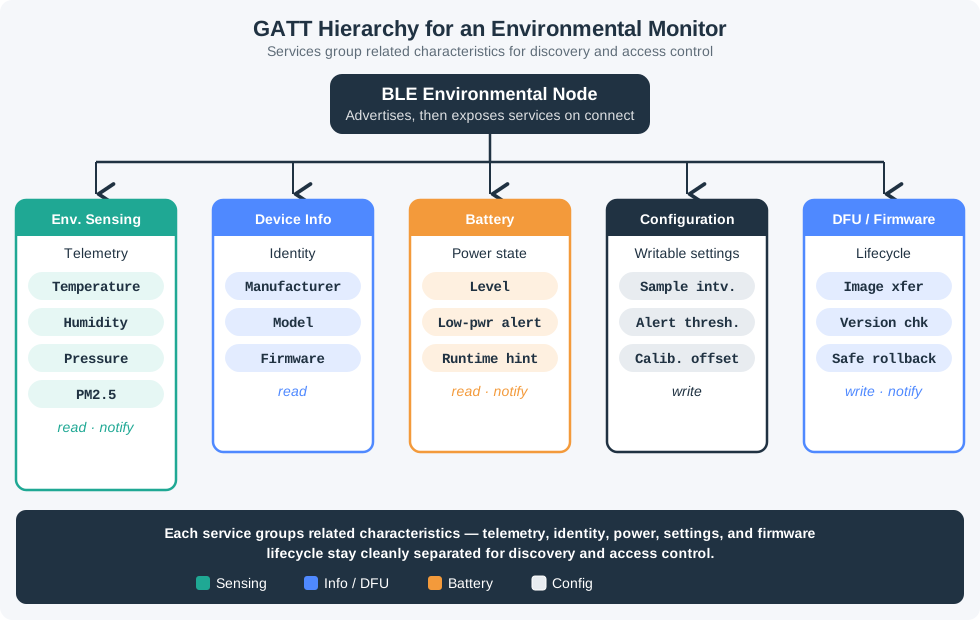
Read Figure 16.2 from the GATT server into its services and then down to characteristics. For this build, the phone discovers Environmental Sensing service 0x181A, then Temperature characteristic 0x2A6E, whose properties and encoding define what the client can read or subscribe to. That ordered discovery connects the scanner exercise to the code below: the ESP32 becomes ESP32-TempSensor, but interoperability comes from the standard service contract rather than the device name.
#include <BLEDevice.h>
#include <BLEServer.h>
#include <BLE2902.h>

#define SERVICE_UUID   "181A"  // Environmental Sensing (standard)
#define TEMP_CHAR_UUID "2A6E"  // Temperature (standard)

BLECharacteristic* pTempChar = NULL;
bool deviceConnected = false;
float temperature = 22.5;

class ServerCB : public BLEServerCallbacks {
  void onConnect(BLEServer* s)    { deviceConnected = true; }
  void onDisconnect(BLEServer* s) {
    deviceConnected = false;
    s->getAdvertising()->start(); // Resume advertising
  }
};

void setup() {
  Serial.begin(115200);
  BLEDevice::init("ESP32-TempSensor");
  BLEServer* pServer = BLEDevice::createServer();
  pServer->setCallbacks(new ServerCB());

  BLEService* pSvc = pServer->createService(SERVICE_UUID);
  pTempChar = pSvc->createCharacteristic(TEMP_CHAR_UUID,
      BLECharacteristic::PROPERTY_READ |
      BLECharacteristic::PROPERTY_NOTIFY);
  pTempChar->addDescriptor(new BLE2902()); // CCCD for notifications
  pSvc->start();

  BLEDevice::getAdvertising()->addServiceUUID(SERVICE_UUID);
  BLEDevice::getAdvertising()->start();
}

void loop() {
  if (deviceConnected) {
    temperature += random(-10, 11) / 100.0;
    int16_t val = (int16_t)(temperature * 100); // 0.01 C resolution
    pTempChar->setValue((uint8_t*)&val, 2);
    pTempChar->notify();
  }
  delay(1000);
}
The service UUID 181A tells generic BLE tools that this is Environmental Sensing data. The characteristic UUID 2A6E says the value is temperature. Standard services improve interoperability with generic tools and gateways, while vendor-specific UUIDs still work for private services when you document them clearly; the Bluetooth SIG database matters for shared meaning, not for whether packets can move. PROPERTY_READ supports polling, while PROPERTY_NOTIFY supports real-time updates after the client enables notifications. The BLE2902 descriptor is the Client Characteristic Configuration Descriptor, or CCCD, that gives the client a place to write that opt-in. The temperature is packed as an int16_t in 0.01 C units, so 22.50 C travels as 2250.
Checkpoint: you should now be able to discover ESP32-TempSensor, find service 0x181A, read characteristic 0x2A6E, and receive changing notifications once the client writes the CCCD.
16.4.3 Step 3: Turn advertisements into beacons
Inspect Figure 16.3 before filling the beacon API so every byte has an explicit identity or calibration purpose. Unlike the connected GATT example, receivers must interpret this advertisement without negotiating a service contract.
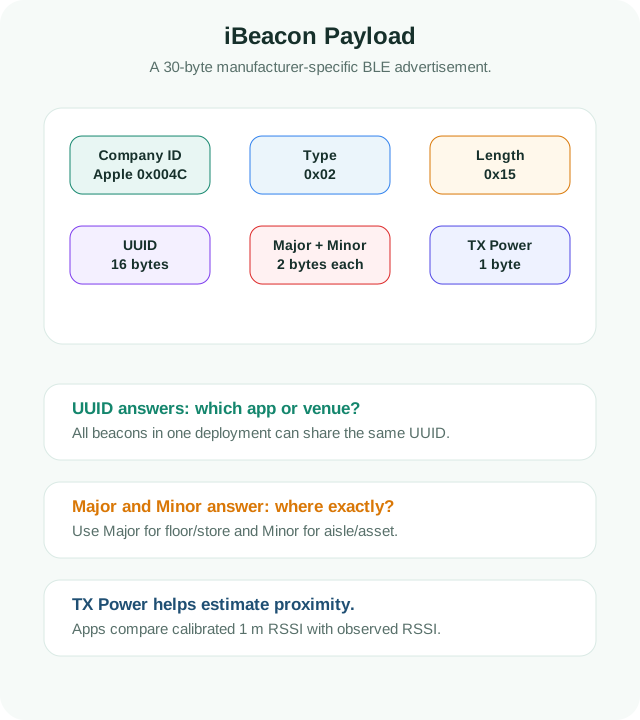
Read Figure 16.3 from Apple’s company identifier and the iBeacon type and length bytes into the 16-byte UUID, then Major and Minor, and finally the calibrated TX Power byte. UUID identifies the deployment namespace, Major and Minor subdivide it, and TX Power supports a rough RSSI-based distance estimate. This layout connects the connected sensor build to a connectionless pattern: the phone can classify nearby beacons, but payload meaning, calibration, privacy, and authenticity must be designed in advance.
#include <BLEDevice.h>
#include <BLEBeacon.h>

#define BEACON_UUID  "FDA50693-A4E2-4FB1-AFCF-C6EB07647825"
#define BEACON_MAJOR 1     // Store/building number
#define BEACON_MINOR 101   // Specific beacon ID

void setup() {
  Serial.begin(115200);
  BLEDevice::init("iBeacon");
  BLEDevice::createServer();

  BLEBeacon beacon;
  beacon.setManufacturerId(0x4C00);  // Apple's company ID
  beacon.setProximityUUID(BLEUUID(BEACON_UUID));
  beacon.setMajor(BEACON_MAJOR);
  beacon.setMinor(BEACON_MINOR);
  beacon.setSignalPower(-59);  // Calibrated RSSI at 1 m

  BLEAdvertisementData advData;
  advData.setFlags(0x04);  // BR_EDR_NOT_SUPPORTED
  advData.setManufacturerData(beacon.getData());

  BLEAdvertising* pAdv = BLEDevice::getAdvertising();
  pAdv->setAdvertisementData(advData);
  pAdv->start();
}

void loop() { delay(1000); }
The manufacturer ID 0x4C00 marks Apple’s company ID. The UUID identifies the beacon group, major can represent a store or building, and minor can represent a specific beacon. setSignalPower(-59) stores the calibrated RSSI at 1 meter, which receivers use as the reference point for distance estimation.
The distance estimate comes from the path loss formula:
TxPower is the RSSI measured at 1 meter, typically around -59 to -65 dBm for iBeacon work. n is the path loss exponent: about 2.0 in free space and often 2.5 to 4.0 indoors. RSSI is the measured signal strength at the receiver.
float calculateDistance(int rssi, int txPower = -59, float n = 2.5) {
  if (rssi == 0) return -1.0;
  float ratio = (txPower - rssi) / (10.0 * n);
  return pow(10, ratio);
}
Curious how those numbers behave in a real room? The worked example below runs two actual measurements through the formula — open it to see why exact distances wobble and why the zone labels are the trustworthy part. It is optional: the build works without it.
The path loss equation shows how RSSI translates to distance, though environmental factors add significant error.
For a beacon calibrated at -59 dBm at 1m with indoor path loss n=2.5, measuring RSSI = -74 dBm:
Measured RSSI = -84 dBm yields . An illustrative ±8 dB RSSI change multiplies that estimate by , giving about 4.8 m to 20.9 m under the same assumed path-loss exponent. This is why calibrated zone-based proximity (near/medium/far) is more useful than an unqualified exact distance.
Checkpoint: you should now have an ESP32 that broadcasts an iBeacon frame. A scanner should be able to see the UUID, major value, minor value, and calibrated signal power, then estimate distance from RSSI with visible uncertainty.
16.4.4 Step 4: Make the build your own
After the scanner, temperature service, and beacon all work, the next useful move is practice. These challenges keep the same code path but ask you to change one design decision at a time.
Modify the scanner to only display devices with RSSI stronger than -80 dBm.
Hint: Add an if statement in onResult():
if (rssi < -80) return; // Skip weak signalsTrack how many devices are in each proximity zone and display a summary after each scan. Add counter variables and increment them in onResult().
Create an array of “known” device addresses and highlight them differently.
Hint:
String knownDevices[] = {"a4:c1:38:12:34:56", "b8:27:eb:aa:bb:cc"};
// Check if address matches known devicesModify the scanner to specifically detect and parse iBeacon packets. Check manufacturer data for Apple’s company ID (0x004C).
Checkpoint: you should now be able to point to the exact line you changed, describe the BLE behavior it affects, and predict what should appear differently in the Serial Monitor or phone scanner.
16.4.5 Build Checks
Quick self-tests for what you just built. The multiple-choice questions check the essentials; the matching, sequencing, labeling, and code checks after them push the same ideas further — each one earns XP.
Check: GATT Notifications
The build now works as a sequence — and the failures that make BLE feel unreliable in the field have a chapter of their own: BLE Field Debugging and Internals.
Two paths deeper
The build works — and two bigger stories start exactly here:
Work through Two paths deeper as a connected sequence. Start with Indoor Positioning with BLE Beacons — turn the beacons you just built into an indoor GPS with trilateration. Then connect that result to BLE Field Debugging and Internals — the war stories: what breaks in real deployments and what the stack is really doing underneath.
16.5 Companion Lab: Android Bluetooth Classic RFCOMM
This section: Companion Lab: Android Bluetooth Classic RFCOMM — This chapter’s main build uses BLE/GATT.
This chapter’s main build uses BLE/GATT. RFCOMM is a different path: it is a reliable stream transport over Bluetooth Classic (BR/EDR), commonly used for serial-style links. Do not label an RFCOMM socket as a BLE characteristic. Android pairs devices before the RFCOMM connection; pairing is not proof that the application protocol or actuator command is safe.
On Android 12 and later, request BLUETOOTH_SCAN for discovery and BLUETOOTH_CONNECT for paired-device access and connections. Earlier Android versions have different manifest/location rules, so gate behaviour by platform version and follow the current Android permission guide. Show the learner why the permission is needed, handle denial, cancel discovery before connecting, and never select a device by display name alone: retain its address/identity and the expected service UUID.
private val SERVICE_ID: UUID =
    UUID.fromString("00001101-0000-1000-8000-00805F9B34FB") // lab SPP UUID

suspend fun acceptOne(adapter: BluetoothAdapter) = withContext(Dispatchers.IO) {
    adapter.listenUsingRfcommWithServiceRecord("IoT GPIO lab", SERVICE_ID).use { server ->
        server.accept().use { socket -> handleFrames(socket) }
    }
}

suspend fun connectOne(adapter: BluetoothAdapter, device: BluetoothDevice) =
    withContext(Dispatchers.IO) {
        adapter.cancelDiscovery()
        device.createRfcommSocketToServiceRecord(SERVICE_ID).use { socket ->
            socket.connect()
            socket.outputStream.bufferedWriter(Charsets.US_ASCII).use { writer ->
                writer.write("SET LED 1\n")
                writer.flush()
                val reply = socket.inputStream.bufferedReader(Charsets.US_ASCII).readLine()
                check(reply == "OK LED 1") { "unexpected acknowledgement: $reply" }
            }
        }
    }

private fun handleFrames(socket: BluetoothSocket) {
    val allowed = setOf("SET LED 0", "SET LED 1", "GET STATUS")
    val reader = socket.inputStream.bufferedReader(Charsets.US_ASCII)
    val writer = socket.outputStream.bufferedWriter(Charsets.US_ASCII)
    while (true) {
        val frame = reader.readLine() ?: break
        val safeFrame = frame.take(65)
        val response = when {
            frame.length > 64 -> "ERR FRAME_TOO_LONG"
            safeFrame !in allowed -> "ERR COMMAND_DENIED"
            else -> applyBoundedLabCommand(safeFrame) // returns an explicit OK/ERR line
        }
        writer.write("$response\n")
        writer.flush()
    }
}
The newline is the frame boundary; the 64-byte ceiling prevents an unbounded line; the allowlist rejects arbitrary pin numbers, shell text, and energising commands outside the lab. applyBoundedLabCommand must map logical names to fixed outputs, enforce electrical and timing limits in the device firmware, default outputs to a safe state on disconnect, and return an acknowledgement only after the device applies or rejects the change.
Run these mutations and retain timestamped client/server logs:
- Deny the runtime permission and prove discovery/connection stops cleanly.
- Discover the device, pair through the system UI, cancel discovery, and connect with the same UUID on both ends.
- Send one valid command split across multiple writes; newline framing must still produce one command.
- Send an unknown command and a line longer than 64 bytes; neither may change an output.
- Move out of range, close both socket streams, restore safe output, and reconnect with bounded exponential backoff and a user-visible cancel action.
- Reboot the peer and prove stale buffered commands are not replayed without a fresh application decision.
RFCOMM supplies a byte stream, not command authentication, freshness, electrical interlocking, or fail-safe behaviour. Pairing, application identity, command authorization, sequence/freshness, device-side limits, physical safety, acknowledgement, timeout, and disconnect recovery are separate evidence.
16.6 Production Notes and What’s Next
This section: Production Notes and What’s Next
This chapter gave you three working BLE implementation patterns: a scanner for discovering devices and estimating proximity from RSSI, a GATT server for a temperature service with notifications, and an iBeacon transmitter with calibrated signal power. The story continues in two directions: Indoor Positioning with BLE Beacons turns those beacons into a position estimate, and BLE Field Debugging and Internals covers the failure modes around CCCD notifications, connection intervals, and MTU negotiation.
16.6.1 What’s Next
| Topic | Chapter | Why Read It |
|---|---|---|
| Bluetooth Mesh Networking | BLE Mesh Networking | Extend BLE beyond point-to-point: multi-hop mesh, provisioning, and publish/subscribe models |
| BLE Protocol Internals | Bluetooth Architecture and Protocol Stack | Understand the link layer, GAP advertising PDUs, and GATT attribute tables underpinning every lab |
| BLE Security | Bluetooth Security | Apply pairing modes, bonding, and LE Secure Connections to protect your BLE implementations |
| Zigbee and Thread | Zigbee, Thread and Matter | Compare BLE mesh with Zigbee and Thread mesh topologies for multi-device IoT deployments |
| Indoor Positioning Systems | RFID, NFC and UWB | Contrast RSSI trilateration with UWB time-of-flight positioning for sub-metre accuracy |
| IoT Protocol Selection | Protocol Integration | Apply a structured framework to select BLE, Wi-Fi, LoRaWAN, or Zigbee for a given use case |
Bluetooth implementation quality depends on the event lifecycle: advertise, connect, discover services, exchange data, handle errors, and recover after disconnects. Treat each state as testable behavior. Before you call the build production-ready, expand the review checks below — they test exactly these lifecycle states.
Find help
3 reviewed answers.
Where should I start in a module?
Open the module page from the sidebar to see its chapters in order. Use the module map to return to a topic you need.
Modules and pathsReviewed
What can I try when a project does not work?
Check the symptom, then work through the diagnostic steps. Keep the error message and the smallest example that reproduces it.
When you are stuckReviewed
How do interactive examples work?
Use the interactive guide to check how examples and simulations work before changing your project.
Interactive examples guideReviewed