After completing this chapter and game, you will be able to:
Select the appropriate window type (tumbling, sliding, session) for a given IoT streaming scenario
Handle late-arriving data using watermark policies and allowed-lateness configurations
Apply Complex Event Processing (CEP) patterns to detect meaningful event sequences across sensor streams
Evaluate the trade-off between latency and accuracy in stream processing pipeline design
Compare Apache Flink, Kafka Streams, and Spark Streaming for different IoT use cases
In 60 Seconds
This interactive game tests your understanding of stream processing concepts through challenges that simulate real IoT data pipeline decisions. You will classify events into correct processing windows, select the right architecture for given latency requirements, and diagnose pipeline failures from symptom descriptions. Completing the game reinforces stream processing fundamentals through active recall rather than passive reading — aim for 80%+ score before moving to advanced chapters.
Stream processing handles infinite data flows in real-time by grouping events into finite windows (tumbling, sliding, session) and applying computations as data arrives. Choosing the right window type, handling late-arriving data with watermarks, and managing the trade-off between latency and accuracy are the three critical decisions in any IoT streaming pipeline.
Sensor Squad: The River of Data
Sammy the Sensor is standing by a river, watching leaves float past. “I can’t stop the river to count the leaves!” Sammy says. Lila the LED has an idea: “What if you count the leaves that pass every 10 seconds? That’s a tumbling window — you count, report, then start fresh!” Max the Microcontroller adds: “Or you could keep counting the last 10 seconds of leaves at every moment — that’s a sliding window, like always looking at the most recent handful!” Bella the Battery reminds them: “Just make sure you don’t try to remember every single leaf forever — you’ll run out of energy!” Stream processing is like watching a river of data and being smart about how you count what flows past.
For Beginners: Why Play a Stream Processing Game?
Imagine you work at an airport baggage screening station. Bags arrive on a conveyor belt continuously — you cannot pause the belt to think. You must decide in real-time: is this bag safe or suspicious?
Tumbling window: Check every 100 bags as a batch, then reset your count
Sliding window: Always monitor the most recent 100 bags, updating with each new one
Session window: Group bags by which flight they belong to, closing the group when no more bags arrive for that flight
This game puts you in exactly that situation with IoT sensor data. You practice making split-second decisions about which window to use, how to handle data that arrives late (a bag that got stuck on the belt), and when to trigger alerts. Making these decisions in a game builds the intuition you need for real production systems.
14.1 How Stream Processing Decisions Flow
The following diagram shows the decision process you will practice in the game — from raw sensor events arriving to choosing the right window strategy and producing results.
Try It: Window Type Scenario Matcher
Select an IoT scenario and see which window type best fits, along with a visual explanation of how events are grouped.
Show code
viewof scenario_select = Inputs.select( ["Temperature average every 5 minutes (non-overlapping)","Rolling 1-hour average updated every 10 seconds","Group user interactions until 30-min inactivity gap","Count vehicles passing a sensor every 15 minutes","Moving average of power consumption (last 60 sec, every 5 sec)","Track login sessions, closing after 10-min idle" ], {label:"IoT Scenario",value:"Temperature average every 5 minutes (non-overlapping)"})
Show code
scenario_result = {const scenarios = {"Temperature average every 5 minutes (non-overlapping)": {window:"Tumbling Window",color:"#16A085",why:"Non-overlapping, fixed-size intervals. Each event belongs to exactly one window. Simple and memory-efficient --- ideal for periodic reporting.",params:"Window size: 5 minutes | Overlap: none | Trigger: end of window",windows: [ {start:0,end:120,label:"W1"}, {start:120,end:240,label:"W2"}, {start:240,end:360,label:"W3"} ] },"Rolling 1-hour average updated every 10 seconds": {window:"Sliding Window",color:"#3498DB",why:"Overlapping windows produce smooth, continuously updated results. Each event belongs to multiple windows. Higher memory cost but provides real-time rolling aggregates.",params:"Window size: 60 min | Slide: 10 sec | Active windows: 360",windows: [ {start:0,end:200,label:"W1"}, {start:60,end:260,label:"W2"}, {start:120,end:320,label:"W3"} ] },"Group user interactions until 30-min inactivity gap": {window:"Session Window",color:"#E67E22",why:"Groups events by activity. A session closes when no new events arrive within the gap duration. Window size varies per session --- ideal for user behavior analysis.",params:"Gap timeout: 30 min | Window size: variable | Trigger: gap expiry",windows: [ {start:0,end:150,label:"S1"}, {start:200,end:280,label:"S2"}, {start:330,end:360,label:"S3"} ] },"Count vehicles passing a sensor every 15 minutes": {window:"Tumbling Window",color:"#16A085",why:"Fixed counting intervals with no overlap. Each vehicle count belongs to one period. Straightforward for traffic monitoring dashboards with periodic refresh.",params:"Window size: 15 minutes | Overlap: none | Trigger: end of window",windows: [ {start:0,end:120,label:"W1"}, {start:120,end:240,label:"W2"}, {start:240,end:360,label:"W3"} ] },"Moving average of power consumption (last 60 sec, every 5 sec)": {window:"Sliding Window",color:"#3498DB",why:"Overlapping windows give a continuously updated moving average. Each reading contributes to 12 concurrent windows (60/5). Produces smooth trend lines for real-time dashboards.",params:"Window size: 60 sec | Slide: 5 sec | Active windows: 12",windows: [ {start:0,end:200,label:"W1"}, {start:60,end:260,label:"W2"}, {start:120,end:320,label:"W3"} ] },"Track login sessions, closing after 10-min idle": {window:"Session Window",color:"#E67E22",why:"Activity-driven grouping. Each user session has a different length depending on their behavior. The window closes after the idle gap, making it ideal for session analytics.",params:"Gap timeout: 10 min | Window size: variable | Trigger: gap expiry",windows: [ {start:0,end:100,label:"S1"}, {start:160,end:300,label:"S2"}, {start:340,end:360,label:"S3"} ] } };const s = scenarios[scenario_select];const events = [30,70,90,140,180,210,250,290,310,350];returnhtml`<div style="background:#f8f9fa; border-left:4px solid ${s.color}; border-radius:6px; padding:16px; margin:8px 0; font-family:system-ui;"> <div style="display:flex; align-items:center; gap:10px; margin-bottom:10px;"> <span style="background:${s.color}; color:white; padding:4px 12px; border-radius:12px; font-weight:bold; font-size:0.95em;">${s.window}</span> <span style="font-size:0.85em; color:#7F8C8D;">${s.params}</span> </div> <p style="margin:8px 0; color:#2C3E50;">${s.why}</p> <svg viewBox="0 0 400 100" style="width:100%; max-width:500px; height:auto; margin-top:8px;"> <line x1="20" y1="70" x2="380" y2="70" stroke="#7F8C8D" stroke-width="2"/> <text x="390" y="74" font-size="11" fill="#7F8C8D" font-family="Arial">time</text>${s.windows.map((w, i) =>` <rect x="${w.start+20}" y="${20+ i *4}" width="${w.end- w.start}" height="${30- i *4}" rx="4" fill="${s.color}" opacity="${0.2+ i *0.1}" stroke="${s.color}" stroke-width="1.5"/> <text x="${(w.start+ w.end) /2+20}" y="${40+ i *4}" text-anchor="middle" font-size="11" fill="${s.color}" font-weight="bold" font-family="Arial">${w.label}</text> `).join('')}${events.map((e, i) =>` <circle cx="${e +20}" cy="70" r="4" fill="#E74C3C"/> `).join('')} <text x="20" y="90" font-size="10" fill="#7F8C8D" font-family="Arial">Events shown as red dots on timeline</text> </svg> </div>`;}
14.2 Stream Processing Game: Data Stream Challenge
Interactive Learning Game
Test your stream processing skills with this educational game! Process incoming IoT data streams in real-time by applying the correct window functions, detecting anomalies, and balancing latency vs accuracy trade-offs. Progress through 3 levels of increasing difficulty.
Interactive Animation: This animation is under development.
What You Learn from This Game
This game teaches critical stream processing skills through practical scenarios:
Level 1 - Basic Windowing:
When to use tumbling windows (non-overlapping, distinct periods)
When to use sliding windows (overlapping, moving averages)
When to use session windows (activity-based grouping)
Event time vs processing time semantics
Level 2 - Complex Event Processing:
Handling late-arriving data with watermarks
Pattern detection across event sequences
Multi-stream joins and correlation
Exactly-once processing semantics
Backpressure management
Level 3 - Anomaly Detection:
Statistical anomaly detection (Z-scores)
Adaptive baselines for changing conditions
Compound anomalies from correlated sensors
Latency vs accuracy trade-offs
Production system design considerations
Putting Numbers to It
Understanding sliding window resource costs helps you size your stream processing infrastructure. The key metrics are:
Events per window instance: \(N_w = E \times W\) where \(E\) = events/sec and \(W\) = window duration (sec).
Overlapping windows: \(O = \frac{W}{S}\) where \(S\) = slide interval (sec). This is the number of active windows at any moment.
New events per slide: \(N_s = E \times S\) — the number of new events ingested during each slide interval.
With 50 machines (separate keyed windows): 480 KB \(\times\) 50 = 24 MB total state per time slice (though incremental aggregation can reduce this to just the aggregate values)
Compare tumbling (60-sec non-overlapping): 1 window active at a time, 30,000 events/window. State resets every 60 seconds, no overlap. Tumbling uses \(\frac{1}{12}\) the memory of 5-sec sliding windows but produces results only once per minute instead of every 5 seconds. Sliding provides smoother continuous monitoring; tumbling has lower computational and memory overhead.
Show code
viewof calc_events_sec = Inputs.range([10,5000], {value:500,step:10,label:"Events/sec (E)"})viewof calc_window_sec = Inputs.range([5,300], {value:60,step:5,label:"Window duration (W, sec)"})viewof calc_slide_sec = Inputs.range([1,60], {value:5,step:1,label:"Slide interval (S, sec)"})viewof calc_event_bytes = Inputs.range([8,512], {value:16,step:8,label:"Bytes per event"})viewof calc_num_keys = Inputs.range([1,500], {value:50,step:1,label:"Number of keys (machines)"})calc_events_per_window = calc_events_sec * calc_window_seccalc_overlapping = calc_window_sec / calc_slide_seccalc_new_per_slide = calc_events_sec * calc_slide_seccalc_storage_per_window = (calc_events_per_window * calc_event_bytes /1024).toFixed(1)calc_total_state = (calc_events_per_window * calc_event_bytes * calc_num_keys / (1024*1024)).toFixed(2)html`<div style="background:#f8f9fa; border:1px solid #dee2e6; border-radius:8px; padding:16px; margin:8px 0; font-family:system-ui;"><h4 style="margin-top:0; color:#2C3E50;">Sliding Window Resource Calculator</h4><table style="width:100%; border-collapse:collapse;"><tr style="border-bottom:1px solid #dee2e6;"> <td style="padding:6px;"><strong>Events per window instance</strong></td> <td style="padding:6px; text-align:right; font-family:monospace;">${calc_events_per_window.toLocaleString()}</td></tr><tr style="border-bottom:1px solid #dee2e6;"> <td style="padding:6px;"><strong>Overlapping windows (active simultaneously)</strong></td> <td style="padding:6px; text-align:right; font-family:monospace;">${calc_overlapping.toFixed(1)}</td></tr><tr style="border-bottom:1px solid #dee2e6;"> <td style="padding:6px;"><strong>New events per slide interval</strong></td> <td style="padding:6px; text-align:right; font-family:monospace;">${calc_new_per_slide.toLocaleString()}</td></tr><tr style="border-bottom:1px solid #dee2e6;"> <td style="padding:6px;"><strong>Storage per window instance</strong></td> <td style="padding:6px; text-align:right; font-family:monospace;">${calc_storage_per_window} KB</td></tr><tr> <td style="padding:6px;"><strong>Total state (all keys, one time slice)</strong></td> <td style="padding:6px; text-align:right; font-family:monospace; color:#E67E22; font-weight:bold;">${calc_total_state} MB</td></tr></table><p style="margin-bottom:0; font-size:0.85em; color:#7F8C8D;">Adjust sliders to explore how window parameters affect resource requirements. Note: incremental aggregation (e.g., running sum) reduces storage to just the aggregate value per window rather than all raw events.</p></div>`
14.3 Comparing Stream Processing Platforms
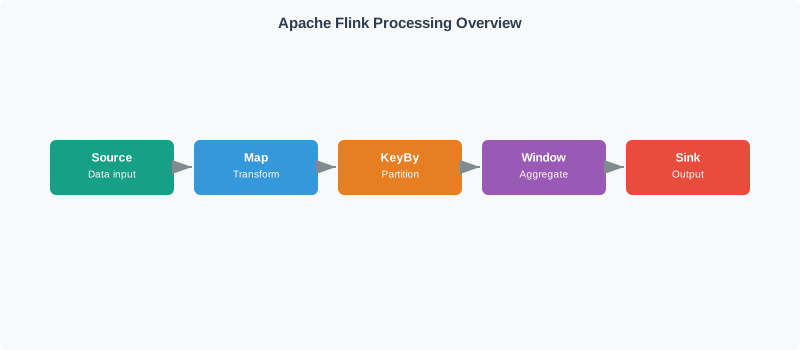
Selecting the right platform depends on your latency needs, team expertise, and ecosystem. The following diagram compares the three major stream processing frameworks across key dimensions.
Try It: Platform Comparison Explorer
Adjust your requirements to see which stream processing platform is the best fit for your IoT use case.
Show code
viewof req_latency = Inputs.select( ["< 10 ms (ultra-low)","10-100 ms (real-time)","100 ms - 10 s (near real-time)","> 10 s (batch-compatible)"], {label:"Latency requirement",value:"10-100 ms (real-time)"})viewof req_cep = Inputs.checkbox(["Need Complex Event Processing (CEP)"], {label:"CEP patterns"})viewof req_ml = Inputs.checkbox(["Need ML model integration"], {label:"ML integration"})viewof req_kafka = Inputs.checkbox(["Already using Kafka ecosystem"], {label:"Kafka ecosystem"})
Show code
platform_result = {const scores = {flink:0,kafka:0,spark:0};if (req_latency ==="< 10 ms (ultra-low)") { scores.flink+=3; scores.kafka+=1; scores.spark+=0; }elseif (req_latency ==="10-100 ms (real-time)") { scores.flink+=2; scores.kafka+=3; scores.spark+=1; }elseif (req_latency ==="100 ms - 10 s (near real-time)") { scores.flink+=1; scores.kafka+=2; scores.spark+=3; }else { scores.flink+=0; scores.kafka+=1; scores.spark+=3; }if (req_cep.includes("Need Complex Event Processing (CEP)")) { scores.flink+=3; scores.kafka+=1; scores.spark+=1; }if (req_ml.includes("Need ML model integration")) { scores.flink+=1; scores.kafka+=1; scores.spark+=3; }if (req_kafka.includes("Already using Kafka ecosystem")) { scores.flink+=1; scores.kafka+=3; scores.spark+=1; }const maxScore =Math.max(scores.flink, scores.kafka, scores.spark);const platforms = [ {name:"Apache Flink",score: scores.flink,color:"#E67E22",icon:"Flink",strengths:"Ultra-low latency, native CEP library, advanced state management with RocksDB, event-time processing"}, {name:"Kafka Streams",score: scores.kafka,color:"#16A085",icon:"Kafka",strengths:"Lightweight library (no cluster needed), Kafka-native, exactly-once via transactions, microservice-friendly"}, {name:"Spark Structured Streaming",score: scores.spark,color:"#3498DB",icon:"Spark",strengths:"MLlib integration, unified batch + streaming API, Spark SQL support, large ecosystem"} ];const barMax =300;returnhtml`<div style="background:#f8f9fa; border:1px solid #dee2e6; border-radius:8px; padding:16px; margin:8px 0; font-family:system-ui;"> <h4 style="margin-top:0; color:#2C3E50;">Platform Fit Scores</h4>${platforms.map(p => {const barWidth = maxScore >0? (p.score/ maxScore) * barMax :0;const isBest = p.score=== maxScore && maxScore >0;return`<div style="margin-bottom:14px;"> <div style="display:flex; align-items:center; gap:8px; margin-bottom:4px;"> <strong style="color:${p.color}; min-width:220px;">${p.name}</strong> <span style="font-family:monospace; font-size:0.9em;">${p.score} pts</span>${isBest ?'<span style="background:#16A085; color:white; padding:2px 8px; border-radius:8px; font-size:0.75em; font-weight:bold;">BEST FIT</span>':''} </div> <svg viewBox="0 0 ${barMax +10} 18" style="width:100%; max-width:${barMax +10}px; height:18px;"> <rect x="0" y="2" width="${barMax}" height="14" rx="4" fill="#ecf0f1"/> <rect x="0" y="2" width="${barWidth}" height="14" rx="4" fill="${p.color}" opacity="0.85"/> </svg> <div style="font-size:0.8em; color:#7F8C8D; margin-top:2px;">${p.strengths}</div> </div>`; }).join('')} <p style="margin-bottom:0; font-size:0.85em; color:#7F8C8D; border-top:1px solid #dee2e6; padding-top:8px;">Toggle requirements above to see how your constraints shift the recommendation. Scores are additive --- higher means better fit for your specific combination of needs.</p> </div>`;}
14.4 Knowledge Check: Stream Processing Concepts
Test your understanding of the key concepts covered in this chapter and the interactive game.
14.5 Try It: Late Data & Watermark Explorer
Adjust the watermark delay and event arrival parameters to see how a stream processing system classifies events as on-time, late-but-accepted, or dropped.
Show code
viewof wm_delay = Inputs.range([1,30], {value:10,step:1,label:"Watermark delay (sec)"})viewof wm_allowed_lateness = Inputs.range([0,60], {value:15,step:1,label:"Allowed lateness (sec)"})viewof wm_event_time = Inputs.range([0,50], {value:12,step:1,label:"Event timestamp (sec)"})viewof wm_arrival_time = Inputs.range([5,80], {value:30,step:1,label:"Arrival time at server (sec)"})
Show code
watermark_result = {const maxObserved = wm_arrival_time;const watermark = maxObserved - wm_delay;const isLate = wm_event_time < watermark;const lateness = watermark - wm_event_time;const isDropped = isLate && lateness > wm_allowed_lateness;const isAccepted =!isLate;const isLateAccepted = isLate &&!isDropped;let status, statusColor, statusIcon, explanation;if (isAccepted) { status ="ON-TIME: Processed normally"; statusColor ="#16A085"; statusIcon ="OK"; explanation =`Event time (${wm_event_time}s) is at or ahead of watermark (${watermark.toFixed(0)}s). The event is within the expected arrival window and will be assigned to its correct window.`; } elseif (isLateAccepted) { status ="LATE but ACCEPTED (within allowed lateness)"; statusColor ="#E67E22"; statusIcon ="LATE"; explanation =`Event time (${wm_event_time}s) is ${lateness.toFixed(0)}s behind watermark (${watermark.toFixed(0)}s), but within the allowed lateness of ${wm_allowed_lateness}s. The window result may be updated (late firing).`; } else { status ="DROPPED: Exceeds allowed lateness"; statusColor ="#E74C3C"; statusIcon ="DROP"; explanation =`Event time (${wm_event_time}s) is ${lateness.toFixed(0)}s behind watermark (${watermark.toFixed(0)}s), exceeding the allowed lateness of ${wm_allowed_lateness}s. This event is discarded or sent to a side output.`; }const svgW =420;const tMax =80;const scale = (svgW -40) / tMax;const eX =20+ wm_event_time * scale;const aX =20+ wm_arrival_time * scale;const wmX =20+Math.max(0, watermark) * scale;const alX =20+Math.max(0, watermark - wm_allowed_lateness) * scale;returnhtml`<div style="background:#f8f9fa; border-left:4px solid ${statusColor}; border-radius:6px; padding:16px; margin:8px 0; font-family:system-ui;"> <div style="display:flex; align-items:center; gap:10px; margin-bottom:10px;"> <span style="background:${statusColor}; color:white; padding:4px 12px; border-radius:12px; font-weight:bold; font-size:0.95em;">${statusIcon}</span> <span style="font-weight:bold; color:${statusColor};">${status}</span> </div> <p style="margin:6px 0 12px; color:#2C3E50; font-size:0.92em;">${explanation}</p> <svg viewBox="0 0 ${svgW} 90" style="width:100%; max-width:${svgW}px; height:auto;"> <line x1="20" y1="50" x2="${svgW -20}" y2="50" stroke="#7F8C8D" stroke-width="2"/> <text x="${svgW -15}" y="54" font-size="10" fill="#7F8C8D" font-family="Arial">t(s)</text>${watermark >0&& wm_allowed_lateness >0?`<rect x="${alX}" y="40" width="${wmX - alX >0? wmX - alX :0}" height="20" fill="#E67E22" opacity="0.15" rx="2"/>`:''}${watermark >0?`<line x1="${wmX}" y1="30" x2="${wmX}" y2="70" stroke="#3498DB" stroke-width="2" stroke-dasharray="5,3"/> <text x="${wmX}" y="25" text-anchor="middle" font-size="9" fill="#3498DB" font-family="Arial" font-weight="bold">WM:${watermark.toFixed(0)}s</text>`:''} <circle cx="${eX}" cy="50" r="6" fill="${statusColor}" stroke="white" stroke-width="2"/> <text x="${eX}" y="80" text-anchor="middle" font-size="9" fill="${statusColor}" font-family="Arial">event:${wm_event_time}s</text> <line x1="${eX}" y1="56" x2="${aX}" y2="56" stroke="#9B59B6" stroke-width="1.5" stroke-dasharray="3,2"/> <circle cx="${aX}" cy="56" r="3" fill="#9B59B6"/> <text x="${aX}" y="80" text-anchor="middle" font-size="9" fill="#9B59B6" font-family="Arial">arrival:${wm_arrival_time}s</text> </svg> <div style="display:flex; gap:16px; margin-top:8px; font-size:0.8em; color:#7F8C8D; flex-wrap:wrap;"> <span><span style="color:#3498DB;">---</span> Watermark position</span> <span><span style="display:inline-block; width:10px; height:10px; background:#E67E22; opacity:0.3; border-radius:2px;"></span> Allowed lateness zone</span> <span><span style="display:inline-block; width:10px; height:10px; background:${statusColor}; border-radius:50%;"></span> Event</span> <span><span style="display:inline-block; width:10px; height:10px; background:#9B59B6; border-radius:50%;"></span> Arrival</span> </div> </div>`;}
Common Pitfalls in Stream Processing
1. Using processing time when event time is needed. IoT devices send data over unreliable networks. If you use the server clock (processing time) instead of the sensor timestamp (event time), network delays can scramble the order of events. A temperature spike at 2:00 PM that arrives at 2:05 PM gets bucketed in the wrong window, producing incorrect aggregations and missed alerts.
2. Ignoring late-arriving data. In any real IoT deployment, some events will arrive late due to network congestion, device sleep cycles, or gateway buffering. Systems that silently drop late data produce subtly incorrect results. Always configure watermarks and allowed-lateness policies, and send late data to a side output for auditing.
3. Choosing a streaming platform before understanding latency requirements. Teams often default to the most powerful framework (e.g., Apache Flink) when their actual requirement is daily reports that a simple batch job handles perfectly. Over-engineering with streaming infrastructure adds operational complexity, cost, and debugging difficulty. Ask “does the value of this insight degrade with time?” — if not, batch is fine.
4. Forgetting about backpressure. Without backpressure handling, a sudden spike in sensor data (e.g., all devices reporting during a storm) can overwhelm downstream components, causing cascading failures. Always implement rate limiting, buffering strategies, and graceful degradation. See the detailed backpressure case study below for production-grade solutions.
5. Storing unbounded state. Session windows and stateful joins can accumulate state indefinitely if sessions are never closed or join conditions are too broad. This leads to out-of-memory failures in production. Always configure state TTLs (time-to-live) and monitor state size metrics.
🏷️ Label the Diagram
💻 Code Challenge
14.6 Summary
Stream processing is essential infrastructure for modern IoT systems requiring real-time insights and actions. This chapter’s interactive game reinforces the practical decision-making skills needed to design and operate streaming pipelines.
14.6.1 Core Concepts
Stream processing core concepts and their IoT significance
Concept
What It Means
Why It Matters for IoT
Event time vs processing time
Use the sensor’s timestamp, not the server’s clock
Ensures correct ordering despite network delays
Windowing (tumbling, sliding, session)
Group infinite streams into finite computations
Enables aggregations, averages, and pattern detection
Watermarks
Track how far behind real-time the pipeline is
Determines when it is safe to emit results and how to handle late data
Exactly-once semantics
Each event is processed once and only once
Prevents duplicate alerts, incorrect counts, and data loss
Backpressure
Flow control when producers outpace consumers
Prevents cascading failures during traffic spikes
14.6.2 Technology Decision Guide
Apache Flink: Best for complex event processing, ultra-low latency (1–10 ms), stateful computations with managed checkpoints
Kafka Streams: Best for Kafka-centric architectures, lightweight library deployment (no separate cluster), microservice patterns
Spark Structured Streaming: Best for ML integration, unified batch and stream code, teams already using Spark for analytics
14.6.3 Performance Benchmarks
Latency: 1–10 ms (Flink) to 100 ms–10 s (Spark Structured Streaming)
Throughput: Millions of events per second per cluster
Scale: Thousands of nodes, petabytes of daily data
14.6.4 Key Takeaway
The most important skill in stream processing is not choosing the fastest framework — it is choosing the right level of complexity for your requirements. Start with the simplest approach that meets your latency needs, and evolve as your system grows. Stream processing transforms IoT from reactive data collection to proactive real-time intelligence.
Worked Example: Designing a Stream Processing Pipeline for Real-Time Fraud Detection
A payment processing platform handles 10,000 transactions/second and must detect fraudulent patterns within 100ms to block suspicious charges. Design a complete Apache Flink pipeline with windowing, pattern matching, and exactly-once semantics.
Requirements:
Detect pattern: “3+ failed transactions from same card within 5 minutes” –> flag as fraud
Latency: <100ms from transaction to alert
Throughput: 10,000 TPS (transactions per second)
Guarantee: Exactly-once processing (no duplicate alerts, no missed fraud)
Stream processing design:
Step 1: Event schema
publicclass Transaction {String cardNumber;// Hashed for privacyString merchantId;double amount;String status;// SUCCESS, DECLINED, FRAUD_SUSPECTEDlong timestamp;// Event time (when charge attempted)}
Step 2: Watermark configuration (handle late arrivals)
env.enableCheckpointing(60000);// Checkpoint every 60 secondsenv.getCheckpointConfig().setCheckpointingMode(CheckpointingMode.EXACTLY_ONCE);env.getCheckpointConfig().setMinPauseBetweenCheckpoints(30000);env.getCheckpointConfig().setCheckpointTimeout(120000);
Step 6: Output to fraud alerting system
alerts.addSink(new KafkaSink<>("fraud-alerts").withExactlyOnceSink());// Kafka transactional writes// Parallel sink to block card immediatelyalerts.addSink(newCardBlockingService().withIdempotentWrites());// Dedup based on alert ID
Performance calculations:
Input: 10,000 TPS
After filtering (failed txns only): ~500 TPS (5% failure rate)
Keyed by cardNumber: distributed across 12 parallel instances
Per instance: 500 / 12 = ~42 TPS
Window aggregation: 5-minute window x 42 TPS = 12,600 events per window per instance
Memory per window: 12,600 x 200 bytes = 2.5 MB per instance (manageable)
Pattern matching state: worst case 3x failed txns per card = 7,500 events in state
Accepting processing-time semantics means some late-arriving events may be missed
Mitigation: Run parallel event-time pipeline for audit/reconciliation (alerting happens on processing-time pipeline, reporting happens on event-time pipeline)
This demonstrates the classic latency vs accuracy trade-off in stream processing: sub-100ms requires processing-time semantics (fast but imperfect), while exactly-once with event-time requires seconds of latency (accurate but slower).
Decision Framework: Choosing Stream Processing Platform by Requirement
Already using Kafka ecosystem? –> Kafka Streams (simplest integration)
Need ML model scoring in stream? –> Spark Structured Streaming (MLlib integration)
Complex event patterns (A followed by B within N seconds)? –> Flink CEP
Microservice architecture, no separate cluster wanted? –> Kafka Streams (library, not cluster)
Team has Spark expertise? –> Spark Structured Streaming (leverage existing knowledge)
Common Mistake: Deploying Stream Processing Without Backpressure Handling
Teams build stream processing pipelines that handle steady-state load perfectly but collapse during traffic spikes because they didn’t implement backpressure mechanisms. A sudden 10x surge in events causes cascading failures.
What goes wrong: An e-commerce site runs a real-time recommendation engine using Kafka Streams. During Black Friday, traffic spikes from 5,000 requests/sec to 50,000 requests/sec. The stream processing application: 1. Consumes events from Kafka faster than it can process them 2. JVM heap fills with unprocessed events (OutOfMemoryError) 3. Application crashes and restarts in a loop 4. Kafka consumer group rebalancing causes further delays 5. Recommendation engine unavailable for 2 hours during peak sales
Why it fails: No backpressure mechanism to slow down consumption when processing lags. Kafka producer keeps sending events, consumer keeps accepting them, but processor cannot keep up.
// Drop low-priority events during overloadDataStream<Event> prioritized = input.filter(e ->{if(getCurrentLag()> THRESHOLD && e.priority== LOW){returnfalse;// Drop low-priority events}returntrue;});
Monitoring for backpressure detection:
-- Kafka consumer lag (critical metric)SELECT topic, partition, consumer_lagFROM kafka_consumer_group_lagWHERE consumer_lag >100000; -- Alert if lag exceeds 100K-- Flink backpressure metrics (via REST API)GET /jobs/:jobid/vertices/:vertexid/backpressure# Response: ratio=0.8 means 80% backpressured (red flag!)
Real consequence: A financial services firm ran Spark Structured Streaming for transaction monitoring. During a system migration, a batch process dumped 3 days of backlogged transactions into Kafka (30 million messages). The streaming app had no backpressure control: - Consumed all 30M messages into memory within 5 minutes - Driver OOM crash - Restarted and consumed again (exactly-once not configured) - Crashed 5 times, processed same events 5x (duplicate fraud alerts sent) - Customers received 5 duplicate “suspicious activity” notifications
The fix: configured maxOffsetsPerTrigger=10000 to limit consumption rate, implemented checkpoint recovery, and added consumer lag alerting. The lesson: stream processing systems MUST handle traffic spikes gracefully through backpressure, rate limiting, and circuit breakers — or they will fail catastrophically during peak load when you need them most.
Try It: Backpressure Impact Simulator
Model a traffic spike on your stream processing pipeline. See how buffer size, processing capacity, and rate limiting affect queue buildup and whether the system survives or crashes.