Separate operator and IoT wireless access
Test separate operator and Thing WPA2 admission, DHCP and an IoT Registration Server account as distinct access layers.

Packet Pete
Predict the reading, then compare it with the measurement.
Cisco Packet Tracer
Desktop labTest separate operator and Thing WPA2 admission, DHCP and an IoT Registration Server account as distinct access layers.
Install the tool; build from the steps. No file yet.
Download the Packet Tracer fileSteps
Step 1
- Do
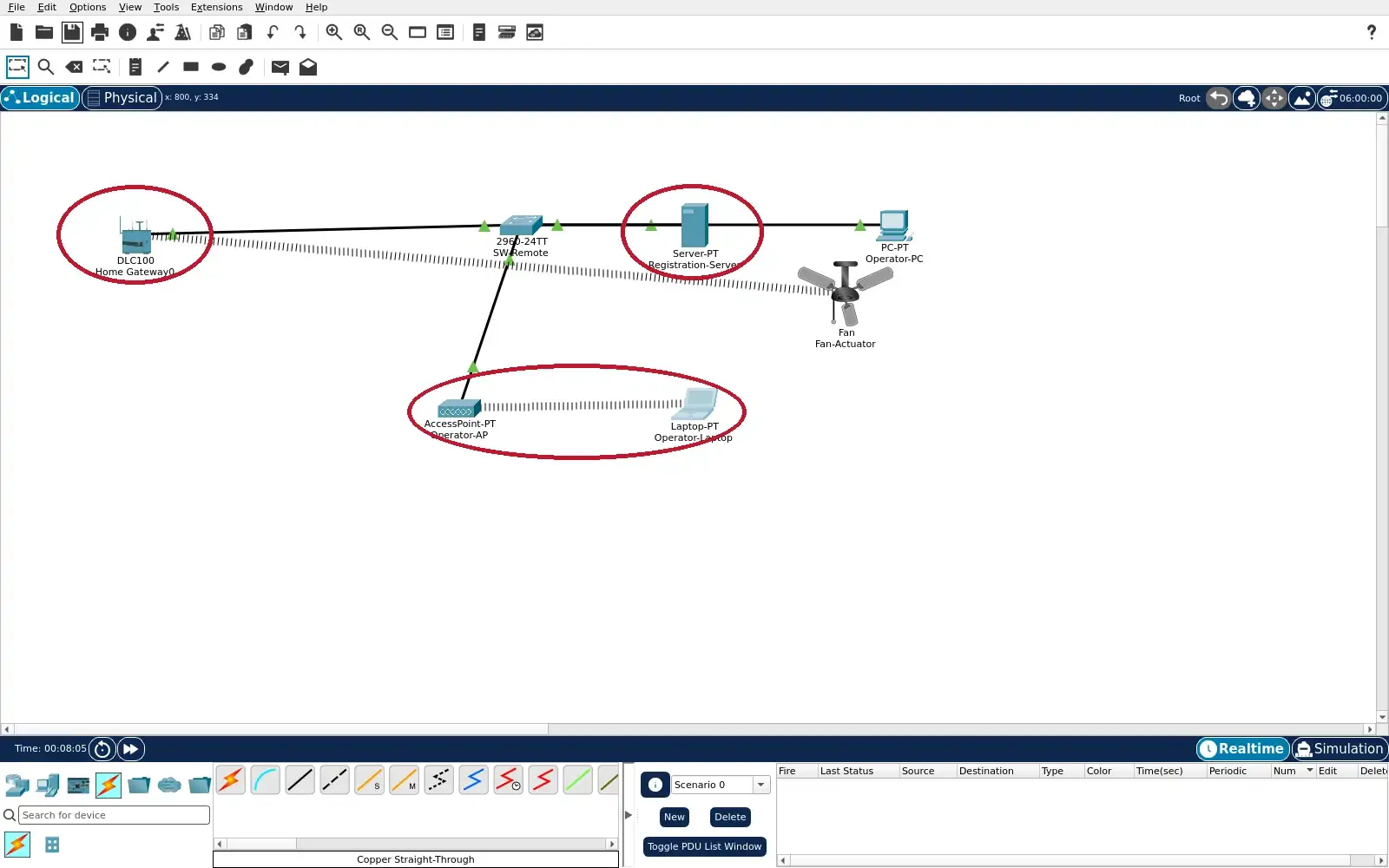
- Open lab.pkt in the Packet Tracer Logical workspace. Locate Home Gateway0, Operator-AP and the 2960 switch. Trace Fan-Actuator to the Home Gateway dotted link. Trace Operator-Laptop to the separate AP dotted link.
- You will see
- Home Gateway0 and Operator-AP have separate device icons. The Home Gateway has a dotted link to Fan-Actuator. Operator-AP has a dotted link to Operator-Laptop. Both access devices have green wired links to SW-Remote.
- Why it matters
- The two wireless entry points represent distinct roles. A dotted line establishes current simulated radio association. The wired switch provides the shared service-side path. The topology alone does not establish traffic isolation.
Step 1 · Cisco Packet Tracer; numbered callout added to a real capture. Enlarge screenshot (new tab) Step 2
- Do
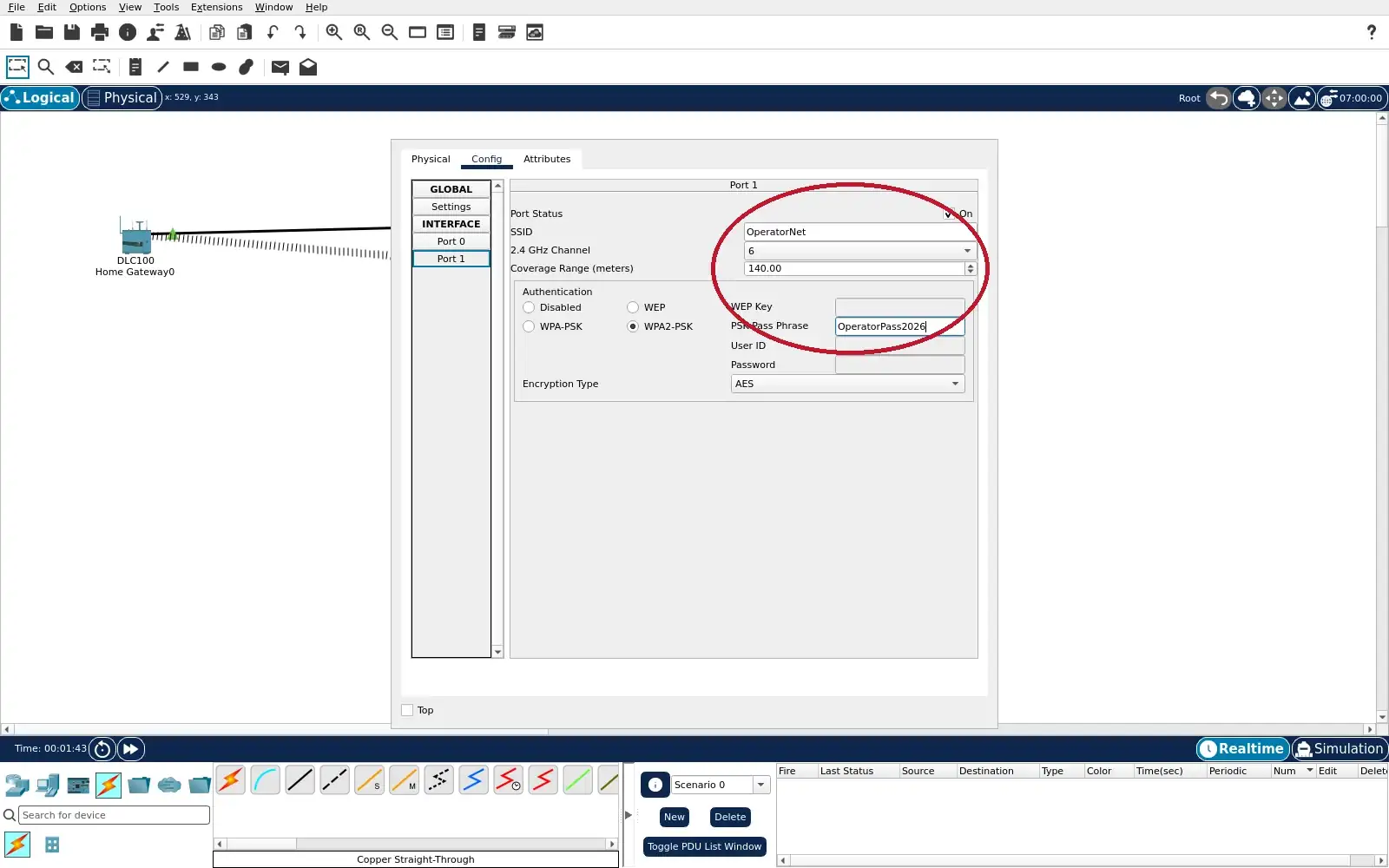
- Open Operator-AP Config tab, then Port 1 panel. Read the SSID and selected authentication mode. Check that Port Status is On and encryption is AES. Compare its role with the Home Gateway in the next step.
- You will see
- Port 1 is On and the SSID field reads OperatorNet. WPA2-PSK is selected in the authentication group. The PSK Pass Phrase field contains an exercise key. Encryption Type reads AES.
- Why it matters
- This access point admits the operator laptop by one credential. WPA2-PSK here is a shared-key teaching configuration. A correct key is a radio admission check, not a service permit. The IoT Thing uses a different network identity.
Step 2 · Cisco Packet Tracer; numbered callout added to a real capture. Enlarge screenshot (new tab) Step 3
- Do
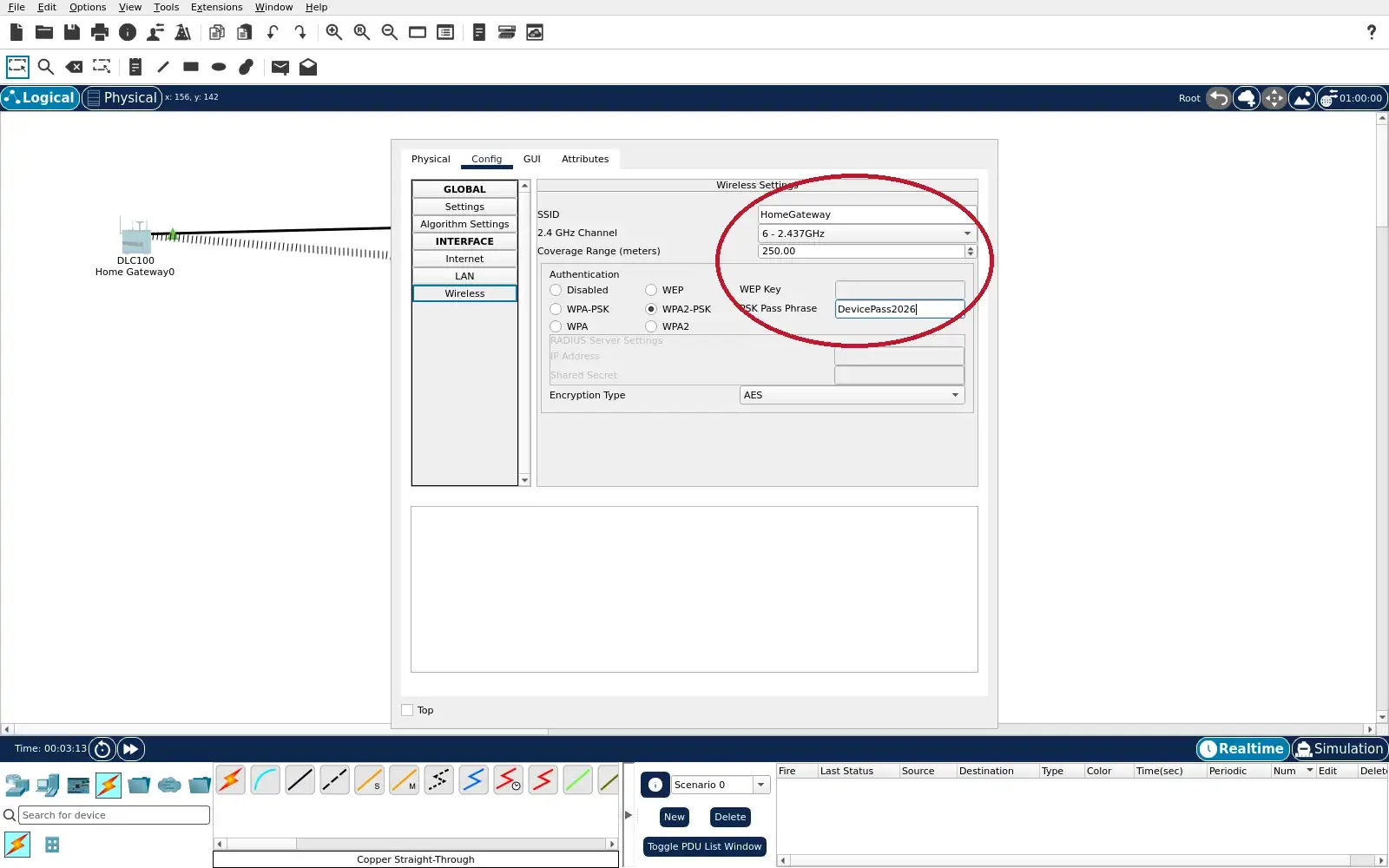
- Open Home Gateway0, then Config and Wireless. Read its SSID and selected authentication mode. Check the PSK field and encryption mode. Compare these settings with Operator-AP Port 1.
- You will see
- The gateway Wireless SSID reads HomeGateway. WPA2-PSK is selected for authentication. The PSK Pass Phrase is different from Operator-AP. Encryption Type reads AES.
- Why it matters
- The Thing and operator use separate wireless credentials. A stolen operator key should not be the Thing key in this model. The two SSIDs still bridge into the same exercise LAN. Later service checks must not be mistaken for a VLAN boundary.
Step 3 · Cisco Packet Tracer; numbered callout added to a real capture. Enlarge screenshot (new tab) Step 4
- Do
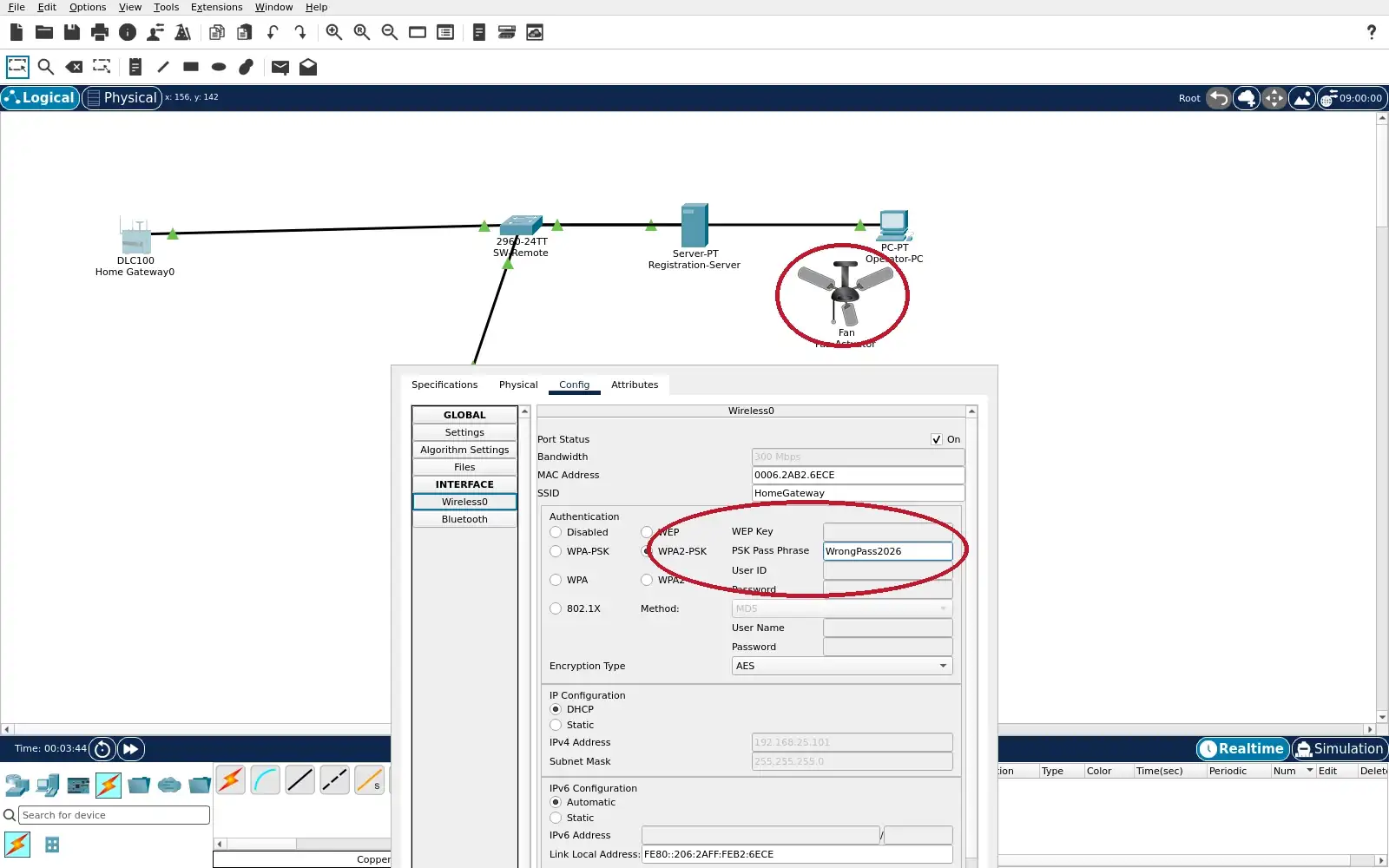
- Open Fan-Actuator, then Config and Wireless0. Temporarily enter WrongPass2026 as its WPA2-PSK key. Keep the SSID as HomeGateway and Port Status On. Inspect the fan and gateway on the visible canvas.
- You will see
- Wireless0 still names HomeGateway and WPA2-PSK. The PSK field shows WrongPass2026. No dotted association appears between gateway and fan. The other wired devices remain visible on the canvas.
- Why it matters
- The wrong radio credential prevents the shown association. An old grey DHCP field does not prove current reachability. This is admission failure, before an application request. Restore the saved key to return to the intended state.
Step 4 · Cisco Packet Tracer; numbered callout added to a real capture. Enlarge screenshot (new tab) Step 5
- Do
- Replace the fan key in the Wireless0 panel with DevicePass2026. If necessary, toggle Wireless0 Port Status Off and On. Check that the fan-to-gateway dotted association returns. Leave Wireless0 On before continuing.
- You will see
- Wireless0 shows the restored exercise key. The Port Status checkbox is On. A dotted line joins Home Gateway0 and Fan-Actuator. The wired gateway-to-switch path remains up.
- Why it matters
- Restoring the credential restores simulated radio admission. The port reset triggers a fresh association in this PT run. The dotted link is visible evidence of the radio path. The service test still needs IP and account checks.
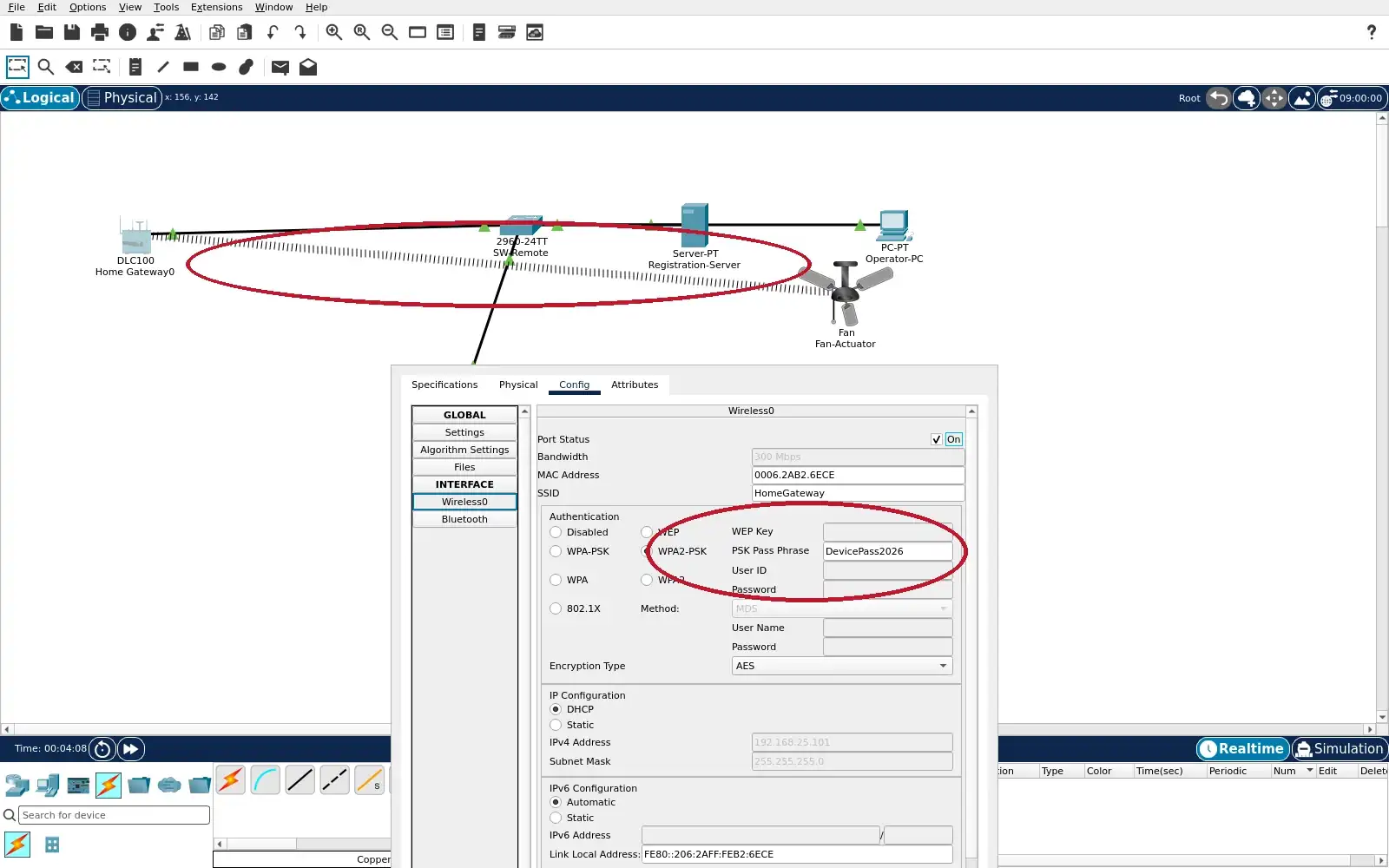
Step 5 · Cisco Packet Tracer; numbered callout added to a real capture. Enlarge screenshot (new tab) Step 6
- Do
- Open Operator-Laptop Desktop tab and PC Wireless monitor. Choose Link Information, then More Information. Read the network name, security and current address. Check that the adapter reports an active wireless link.
- You will see
- Wireless Network Name reads OperatorNet. Security reads WPA2-Personal. This run shows IPv4 address 192.168.25.102. The monitor shows signal bars and Adapter is Active.
- Why it matters
- The laptop joined the operator SSID rather than HomeGateway. The monitor supplies an independent association check. Its address shows the client also reached an IP configuration. Lease suffixes can change after reopening the saved file.
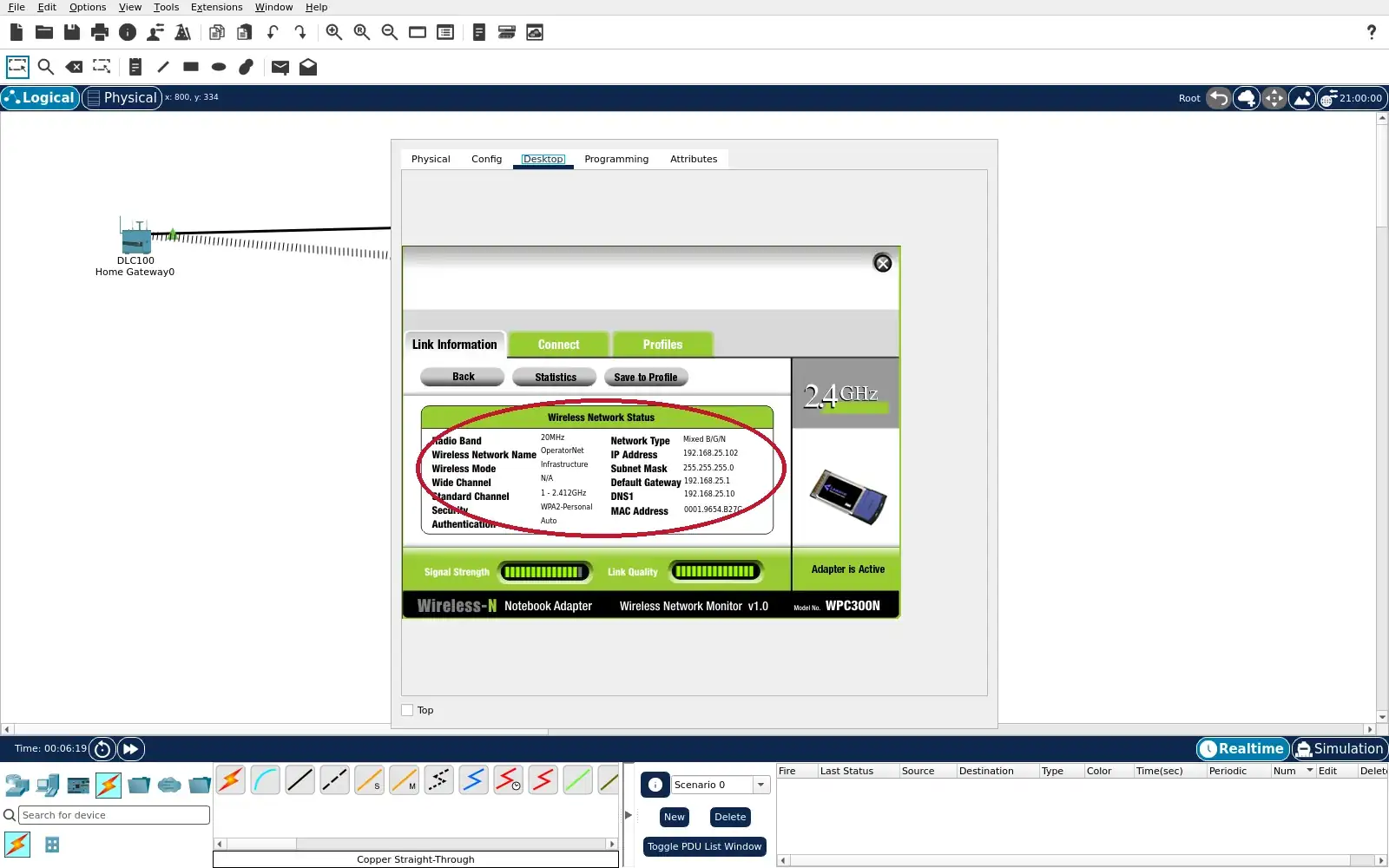
Step 6 · Cisco Packet Tracer; numbered callout added to a real capture. Enlarge screenshot (new tab) Step 7
- Do
- Reopen the byte-identical learner project. Open Operator-Laptop Desktop and IP Configuration. Wait for DHCP request successful on Wireless0. Record the address, mask, gateway and DNS shown now.
- You will see
- The Wireless0 selector and DHCP radio are visible. The status reads DHCP request successful. This reopened run assigned 192.168.25.101/24. Gateway is 192.168.25.1 and DNS is 192.168.25.10.
- Why it matters
- Radio admission and IP configuration are separate checks. The reopened address differs from the prior screenshot. The server path requires a valid local address and DNS. Use current fields, not a remembered suffix, when diagnosing.
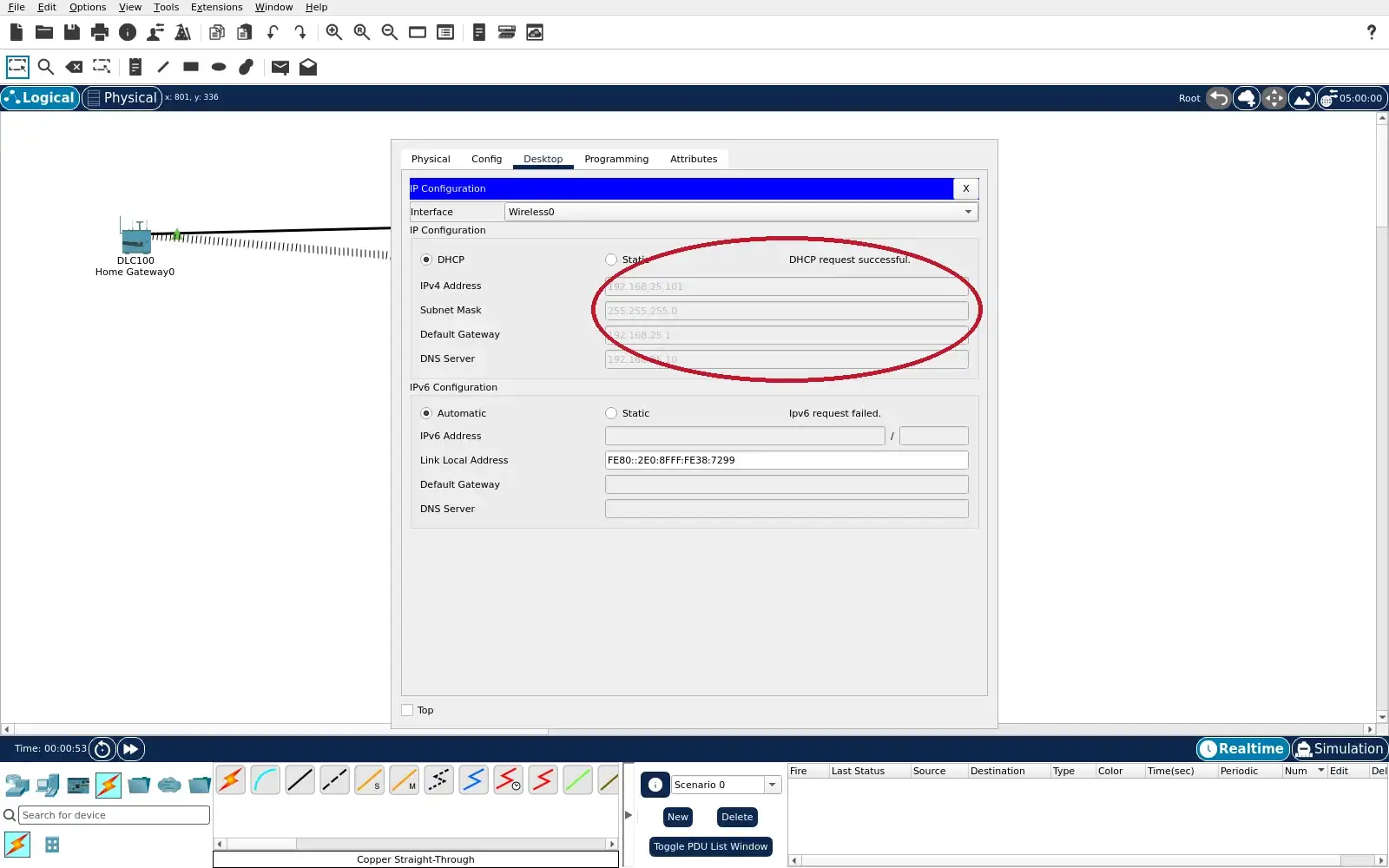
Step 7 · Cisco Packet Tracer; numbered callout added to a real capture. Enlarge screenshot (new tab) Step 8
- Do
- In the laptop Web Browser URL field, open http://iot.lab.local. At the Registration Server Login, try a made-up account. Observe the response from the service page. Leave the approved exercise account for the next step.
- You will see
- The PT browser URL ends in /index.php. The page still says Registration Server Login. Red text reads Wrong username or password. The sign-in fields remain available for another attempt.
- Why it matters
- The laptop reached the application over the admitted network. The made-up account did not enter the IoT dashboard. This is a service login rejection, not a packet-drop ACL. A valid wireless key does not grant an IoT Server account.
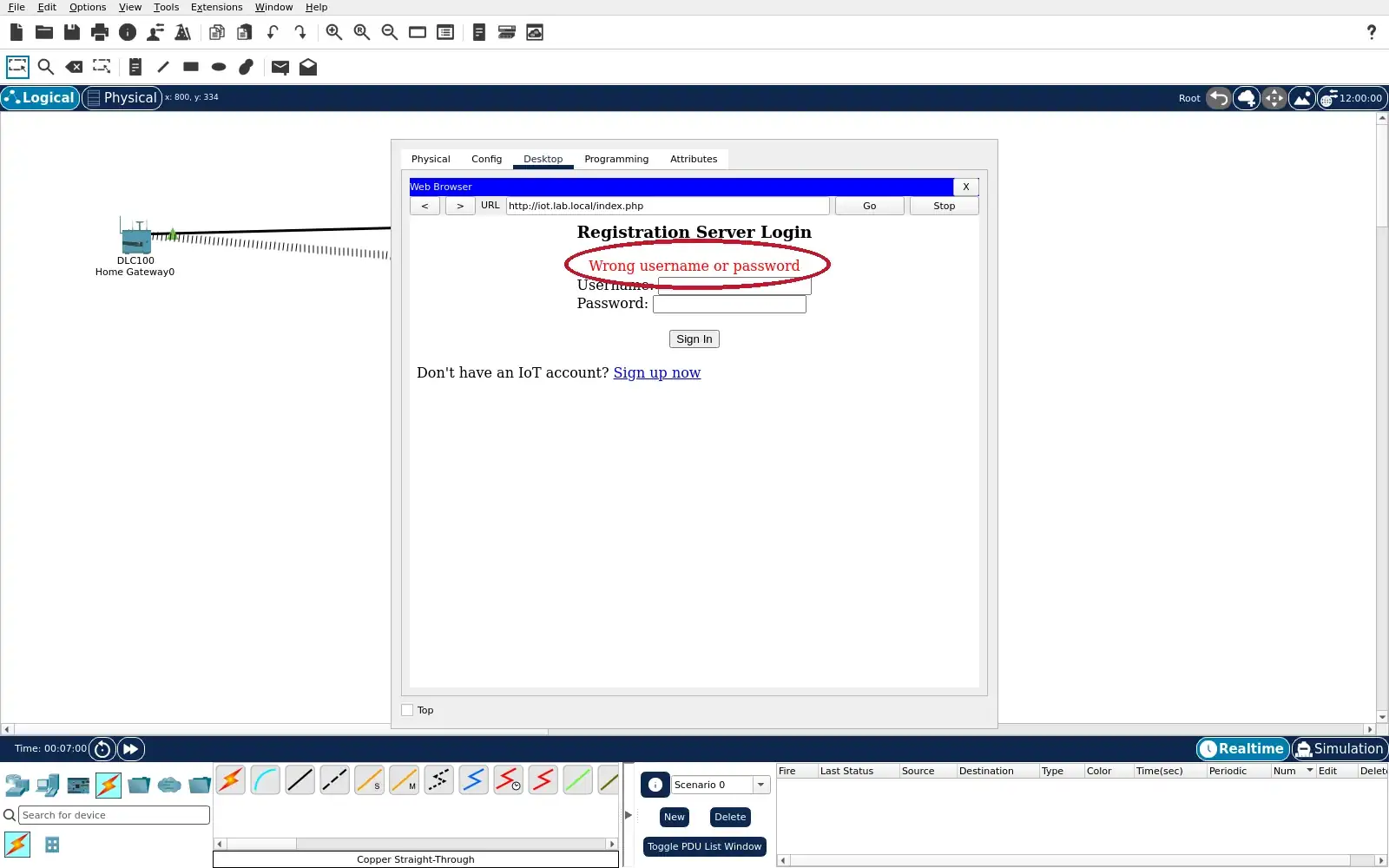
Step 8 · Cisco Packet Tracer; numbered callout added to a real capture. Enlarge screenshot (new tab) Step 9
- Do
- Use the disposable lab8-demo exercise account. Sign in from Operator-Laptop at iot.lab.local. Find Fan-Actuator in the IoT Server device list. Leave the saved project with both wireless paths restored.
- You will see
- The PT browser URL is http://iot.lab.local/home.html. The page heading reads IoT Server Devices. Fan-Actuator appears with a green status dot. The row identifies it as a Ceiling Fan.
- Why it matters
- The admitted operator can reach the named IoT service. The approved account opens a device list after login. The fan was registered through its distinct wireless path. The lesson proves access layers, not VLAN containment.
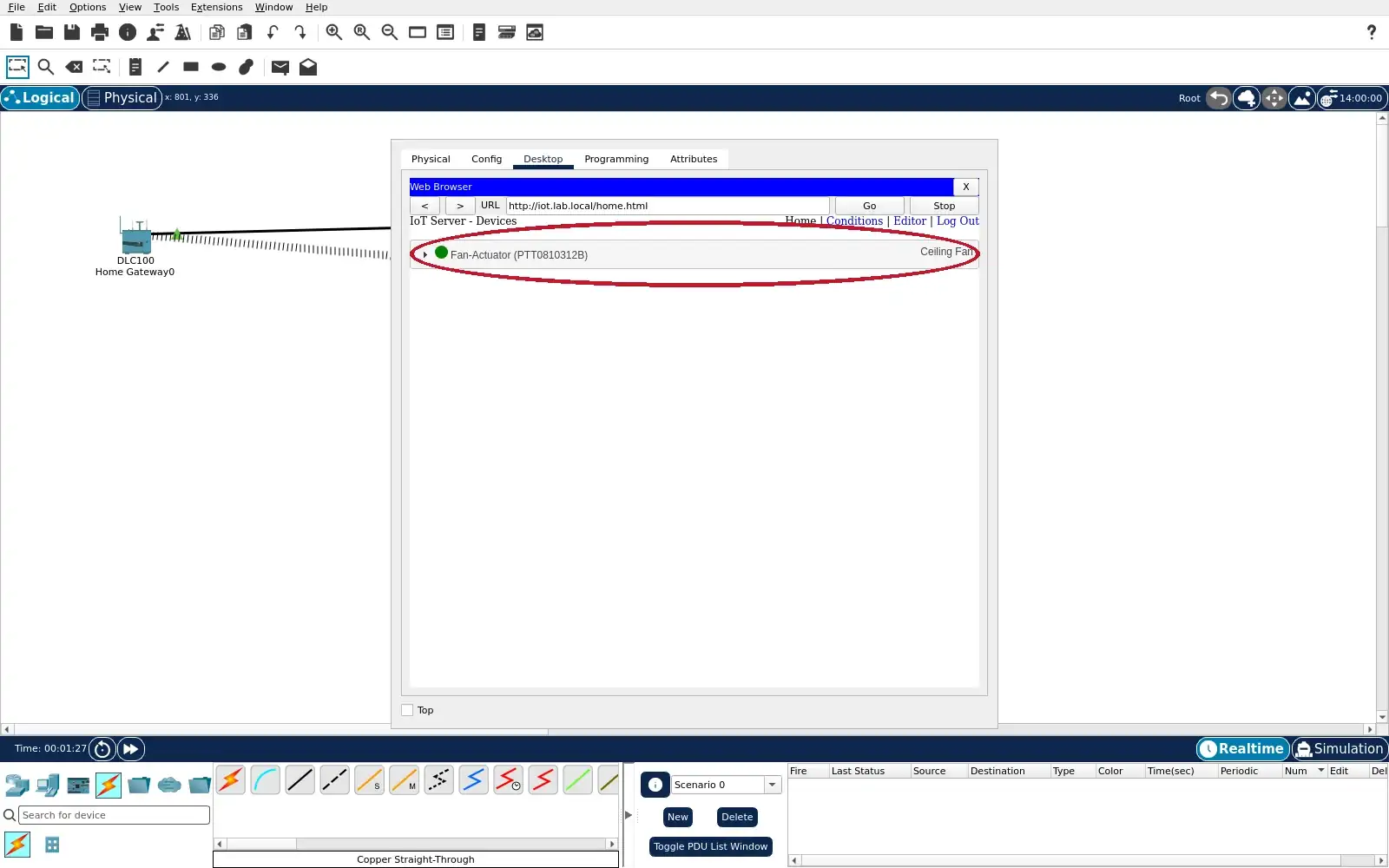
Step 9 · Cisco Packet Tracer; numbered callout added to a real capture. Enlarge screenshot (new tab)
Chapter checks
These questions refer to the chapter’s examples. Use the return links to review their answers.
A team wants every deployed sensor to share one Wi-Fi password because it is easy to install. What is the strongest review response?
Return to the chapter’s knowledge checkA sensor authenticates to Wi-Fi but can contact every internal server. What should the release review require?
Return to the chapter’s knowledge check
Return to Wi-Fi Security: Access and Segmentation Controls · Browse Labs