Separate gateway connectivity from IoT registration
Show that local wireless connectivity and gateway IoT registration are separate checkpoints, then command a registered Thing through the tablet monitor.

Packet Pete
Predict the reading, then compare it with the measurement.
Cisco Packet Tracer
Desktop labShow that local wireless connectivity and gateway IoT registration are separate checkpoints, then command a registered Thing through the tablet monitor.
Install the tool; build from the steps. No file yet.
Download the Packet Tracer fileSteps
Step 1
- Do
- Open lab.pkt in Packet Tracer Logical workspace. Find Home Gateway0, Temp-Monitor and Fan-Actuator. Find Tablet PC0 and the wired PC0 on the same local network. Identify the wireless and wired sides of the gateway.
- You will see
- The DLG100 Home Gateway0 sits at the left. Temp-Monitor and Fan-Actuator are Home Things. Tablet PC0 is the wireless operator device. PC0 is the retained wired local client.
- Why it matters
- The gateway has a local LAN and a wireless side. The tablet provides a separate application view. The two Things can share a link without sharing registration. The following checks inspect each boundary separately.
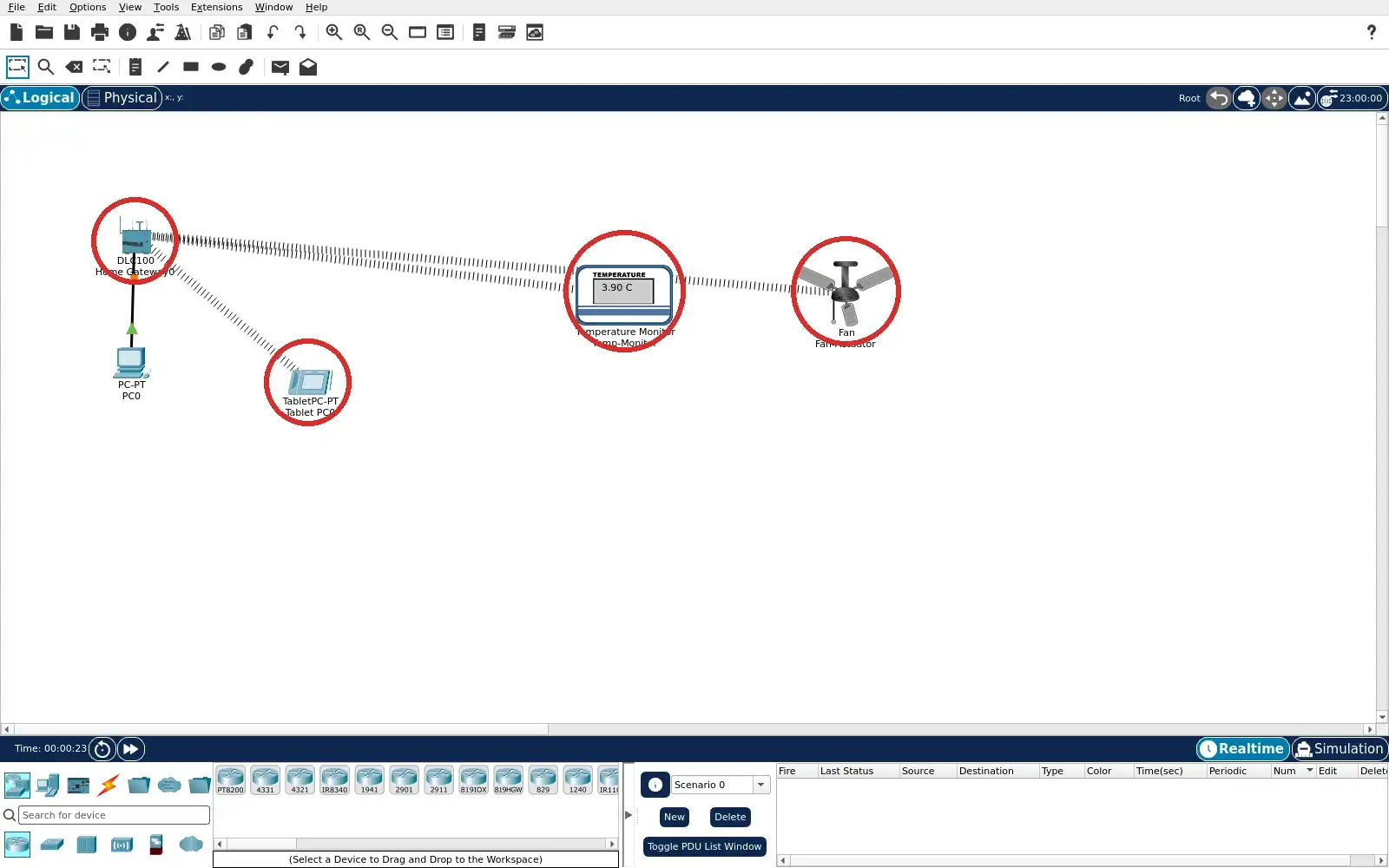
Step 1 · Cisco Packet Tracer; numbered callout added to a real capture. Enlarge screenshot (new tab) Step 2
- Do
- Open Home Gateway0 Config tab. Select Wireless in the left panel. Read the SSID field and Authentication setting. Use these saved exercise values to inspect the clients.
- You will see
- The Wireless panel shows SSID HomeGateway. Authentication is Disabled in this exercise. The range is shown as 250 metres in the simulation. These settings describe the local radio network.
- Why it matters
- An SSID is a local link identifier. It does not by itself register a Thing with IoT Monitor. The disabled authentication is only for this exercise. Real deployments need suitable wireless protection.
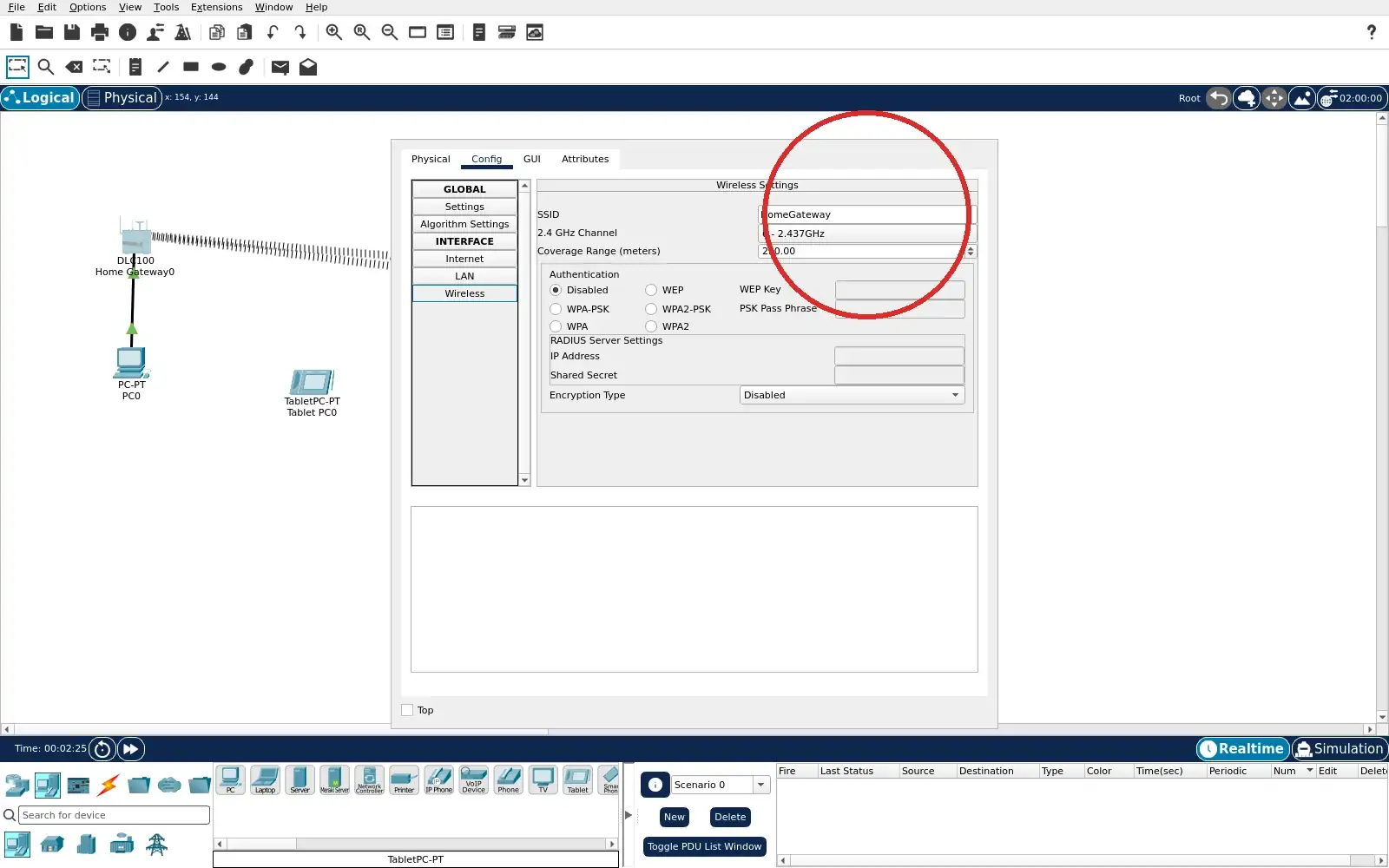
Step 2 · Cisco Packet Tracer; numbered callout added to a real capture. Enlarge screenshot (new tab) Step 3
- Do
- Open Tablet PC0 Config tab. Select Wireless0 and inspect Port Status. Compare its SSID with Home Gateway0. Read the DHCP IPv4 address.
- You will see
- Wireless0 is On and names HomeGateway. Authentication is Disabled to match the exercise gateway. DHCP assigned 192.168.25.104 in this capture. The tablet has a local wireless network path.
- Why it matters
- The tablet must reach the gateway to open IoT Monitor. Matching SSIDs and an address show local setup. An address alone does not list every Thing. The monitor list tests the application service next.
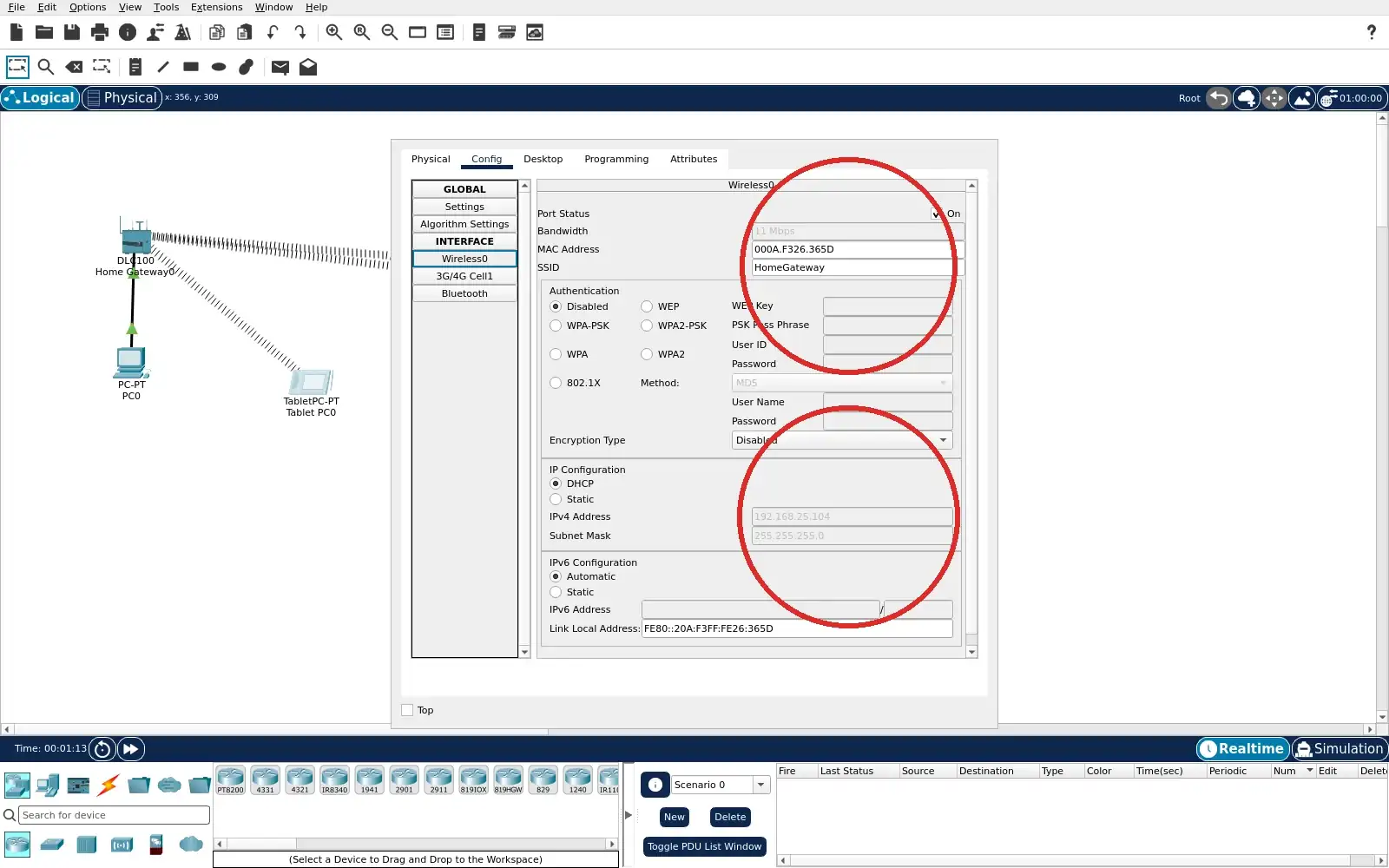
Step 3 · Cisco Packet Tracer; numbered callout added to a real capture. Enlarge screenshot (new tab) Step 4
- Do
- Open Fan-Actuator Config tab. Select Wireless0 in the left panel. Check Port Status, SSID and DHCP address. Compare these with the tablet Wireless0 panel.
- You will see
- Wireless0 is On and uses HomeGateway. DHCP assigned 192.168.25.101 in this capture. The canvas behind the dialog shows a gateway association. The fan is present on the local wireless link.
- Why it matters
- Wireless membership is the first checkpoint. The fan can have a local address before IoT registration. Its local path does not guarantee a monitor entry. The next Settings panel shows that separate choice.
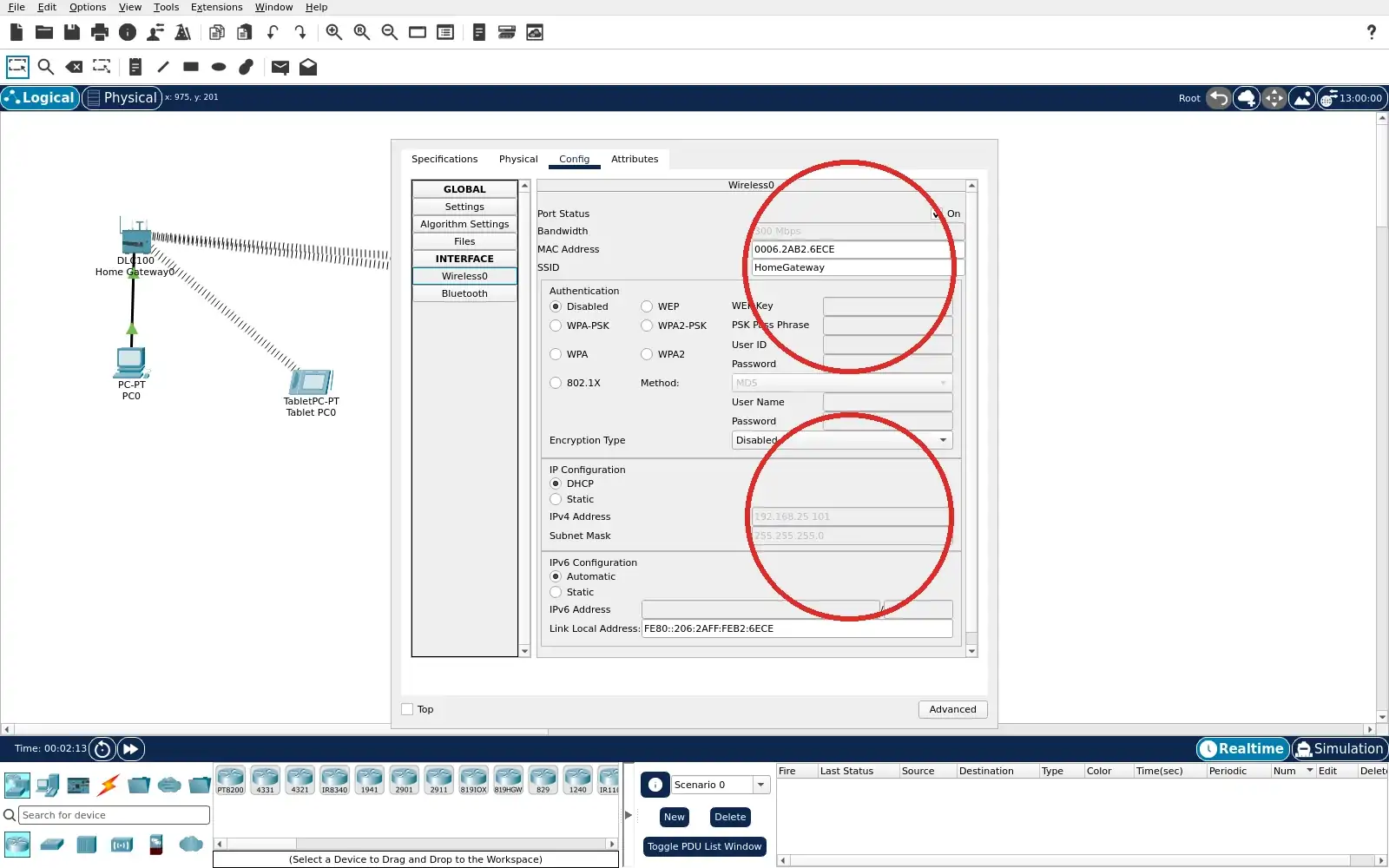
Step 4 · Cisco Packet Tracer; numbered callout added to a real capture. Enlarge screenshot (new tab) Step 5
- Do
- Stay in Fan-Actuator Config tab. Select Settings in the left panel. Scroll to the IoT Server section if necessary. Read the selected radio option before changing it.
- You will see
- The IoT Server setting is None. Home Gateway is available but not selected. The Wireless0 connection remains configured. This is the saved learner starting state.
- Why it matters
- None excludes the fan from gateway registration. It does not turn off Wireless0. This creates the registration boundary to investigate. The monitor list should show only the other Thing.
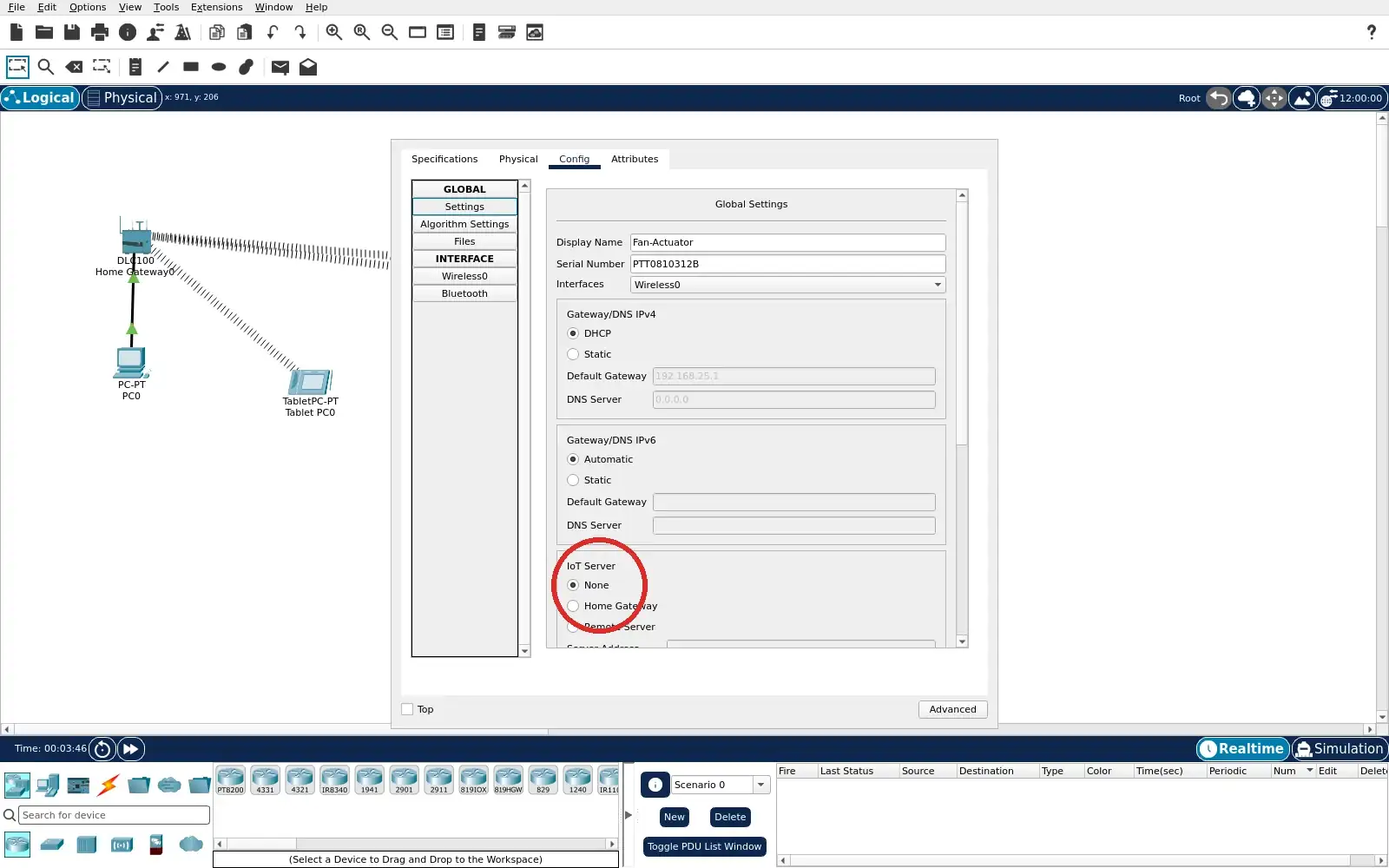
Step 5 · Cisco Packet Tracer; numbered callout added to a real capture. Enlarge screenshot (new tab) Step 6
- Do
- Open Tablet PC0 Desktop tab. Double-click IoT Monitor and log in if prompted. Use gateway address 192.168.25.1 and the exercise admin account. Inspect the Devices list before registering the fan.
- You will see
- The Devices list shows Temp-Monitor with a green indicator. Fan-Actuator is absent from this captured list. Both Things remain on the local wireless network. The tablet can reach the gateway monitor.
- Why it matters
- The first Thing is already registered. The second has local connectivity without a monitor identity. The difference is visible at the application layer. Registration is a distinct checkpoint from association.
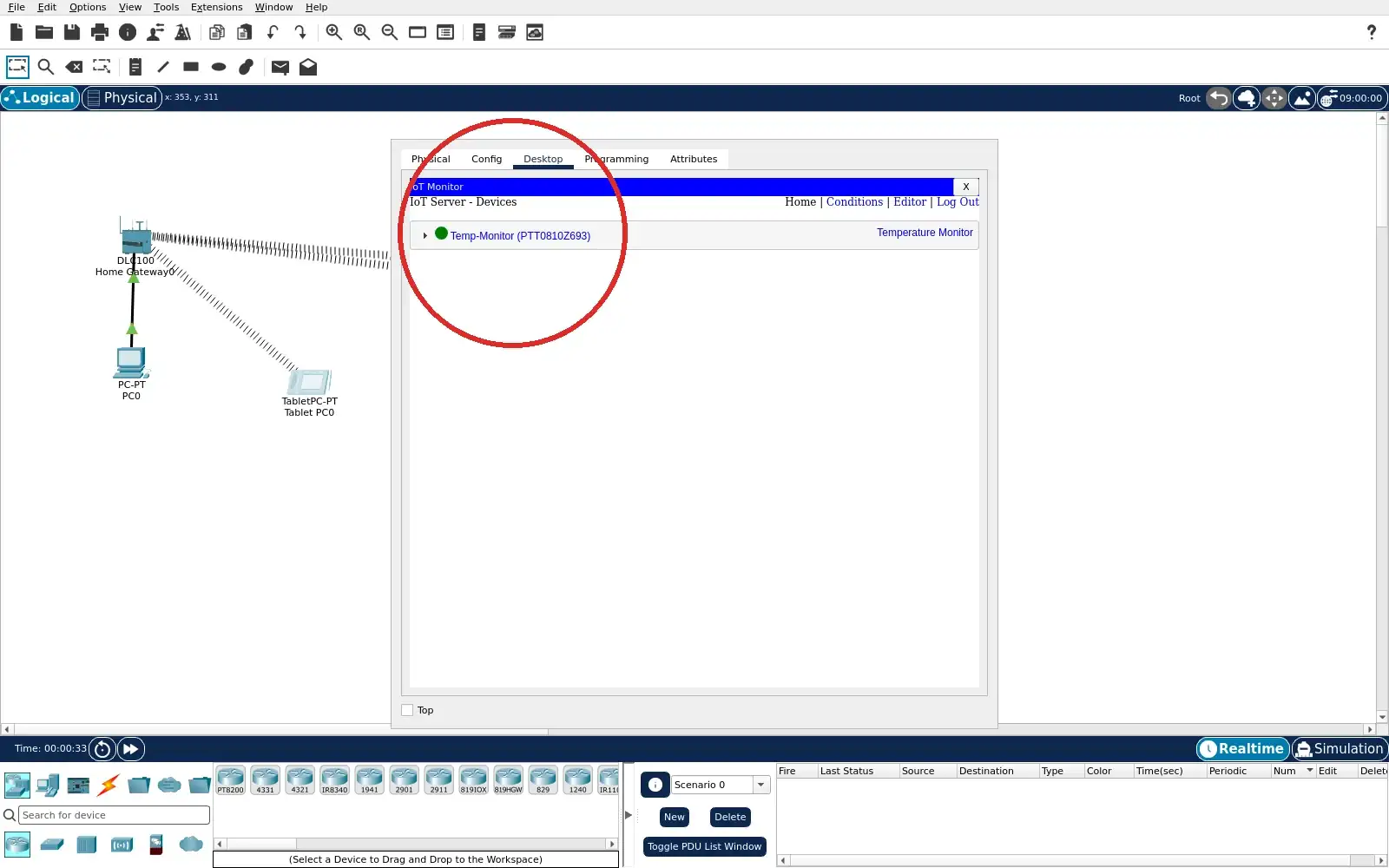
Step 6 · Cisco Packet Tracer; numbered callout added to a real capture. Enlarge screenshot (new tab) Step 7
- Do
- Open Fan-Actuator Config → Settings. In the IoT Server section select Home Gateway. Leave Wireless0 and DHCP settings in place. Return to Tablet PC0 IoT Monitor.
- You will see
- Home Gateway is now the selected IoT Server. The fan keeps its original local wireless configuration. Only the registration choice changed here. The screenshot is from the real Config panel.
- Why it matters
- This adds the fan to the gateway IoT service. The unchanged local link isolates the new variable. A monitor entry can now test successful registration. No remote registration server is configured.
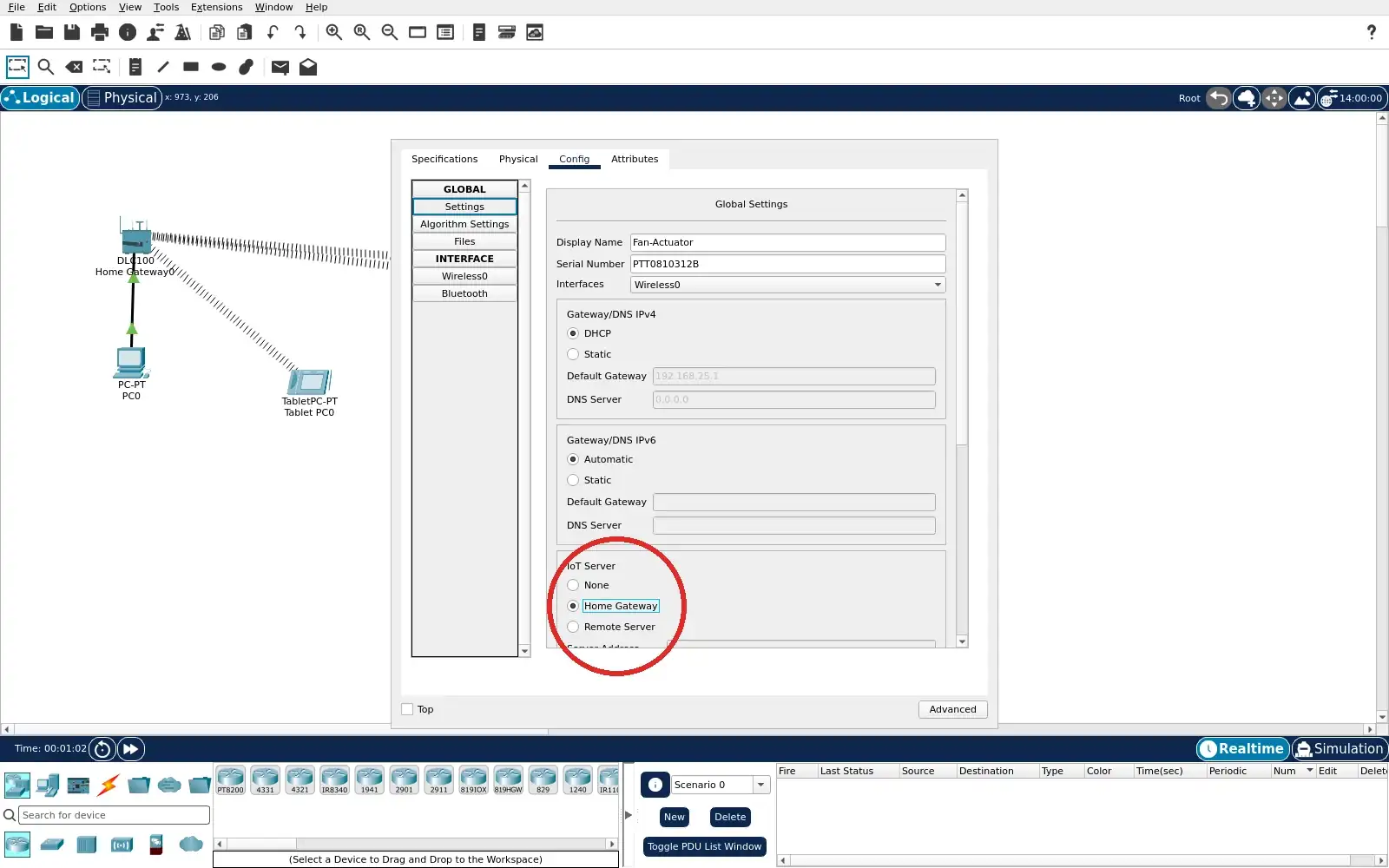
Step 7 · Cisco Packet Tracer; numbered callout added to a real capture. Enlarge screenshot (new tab) Step 8
- Do
- Refresh or reopen Tablet PC0 IoT Monitor. Confirm both Thing names appear in the Devices list. Expand Fan-Actuator with its arrow. Read its Status control before changing it.
- You will see
- Temp-Monitor and Fan-Actuator both appear. Both rows show green service indicators. The fan Status row has Off selected. Low and High are available controls.
- Why it matters
- The second entry proves gateway registration was accepted. The Status row is an application control, not a radio setting. Off establishes a baseline before a command. A state change can test the application path.
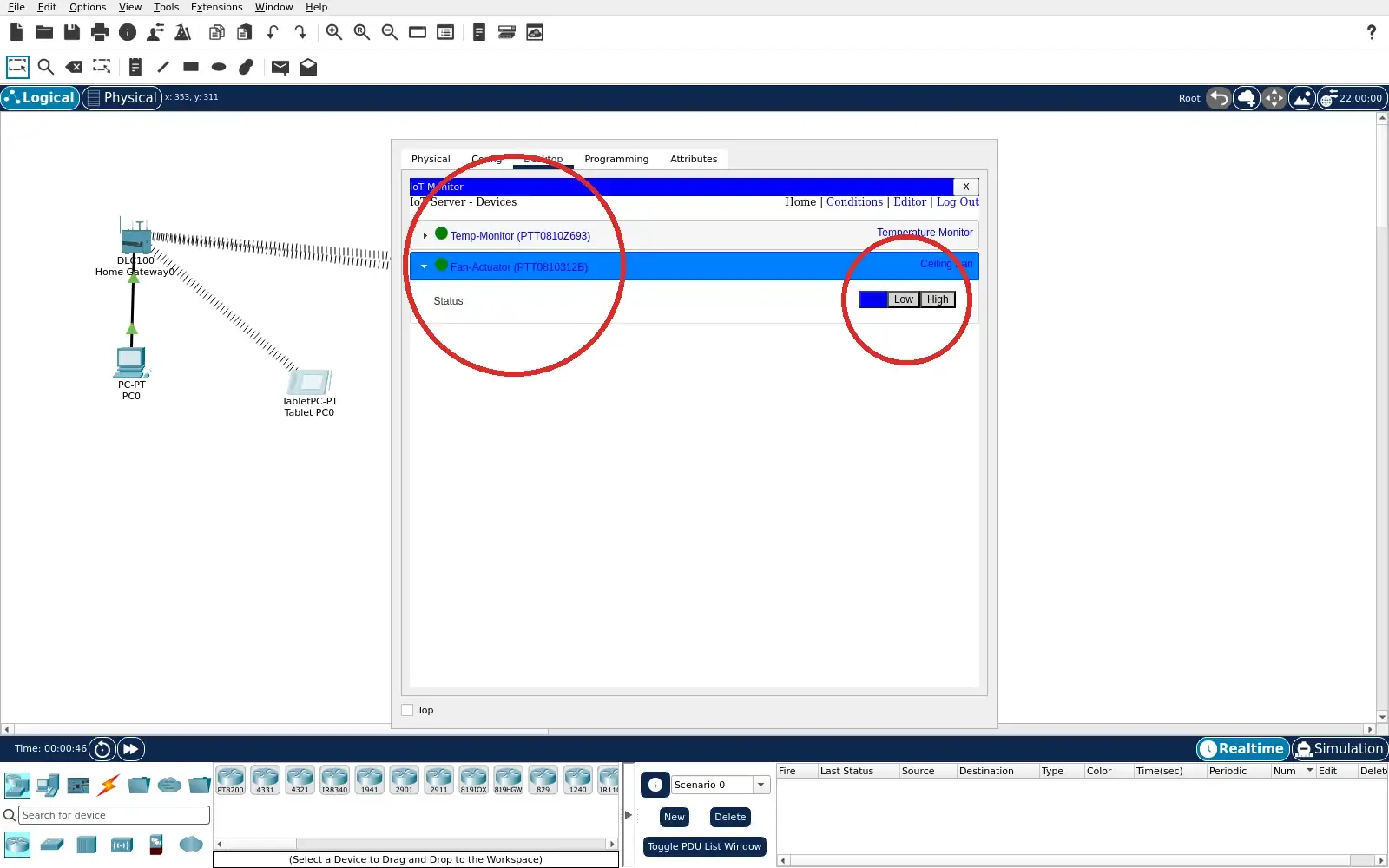
Step 8 · Cisco Packet Tracer; numbered callout added to a real capture. Enlarge screenshot (new tab) Step 9
- Do
- In the expanded Fan-Actuator row choose High. Refresh or reopen IoT Monitor if its row does not update. Compare the selected Status with the previous Off capture. Return to Off after the check if you want a quiet simulation.
- You will see
- High is selected in the Fan-Actuator Status row. The earlier capture had Off selected. The fan remains listed beside Temp-Monitor. The changed control is visible through the tablet monitor.
- Why it matters
- The gateway application path accepted a state command. It is stronger evidence than link membership alone. The simulator does not measure motor current or physical safety. Reopen lab.pkt to restore the unregistered starting state.
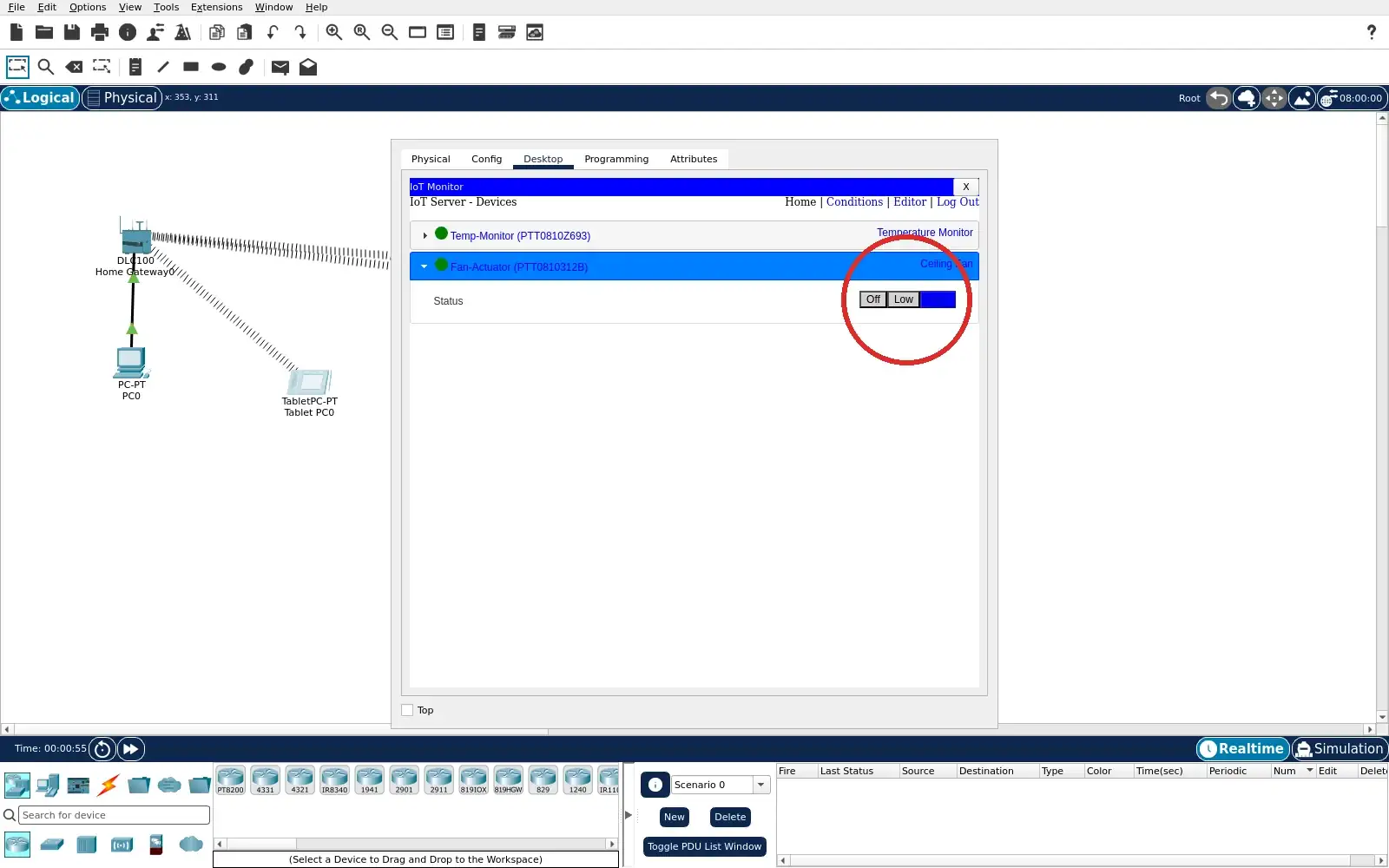
Step 9 · Cisco Packet Tracer; numbered callout added to a real capture. Enlarge screenshot (new tab)
Chapter checks
These questions refer to the chapter’s examples. Use the return links to review their answers.
Which artifact best proves that the lab bridge preserves source meaning?
Return to the chapter’s knowledge checkBeyond converting byte formats, what must a protocol gateway also translate to avoid quietly changing a system's behavior?
Return to the chapter’s knowledge check