Diagnose DHCP and DNS before IoT onboarding
Check DHCP scope, client lease data and DNS resolution before attempting IoT registration; isolate a bad client DNS setting while direct IP reachability remains intact.

Packet Pete
Predict the reading, then compare it with the measurement.
Cisco Packet Tracer
Desktop labCheck DHCP scope, client lease data and DNS resolution before attempting IoT registration; isolate a bad client DNS setting while direct IP reachability remains intact.
Install the tool; build from the steps. No file yet.
Download the Packet Tracer fileSteps
Step 1
- Do
- Open lab.pkt in the Logical workspace. Locate Registration-Server, SW-Remote and Operator-PC. Trace Home Gateway0 Ethernet 1 to the switch. Find Fan-Actuator on the gateway wireless link.
- You will see
- The DLG100 gateway connects by a black wired line to SW-Remote. Registration-Server and Operator-PC also connect to that switch. Fan-Actuator has a dotted wireless association to Home Gateway0. The green link markers show the shown paths are up.
- Why it matters
- The server can offer DHCP and DNS on this local segment. The PC and wireless Thing both need valid addressing first. A visible association alone does not prove a usable lease. The later client panels supply that evidence.
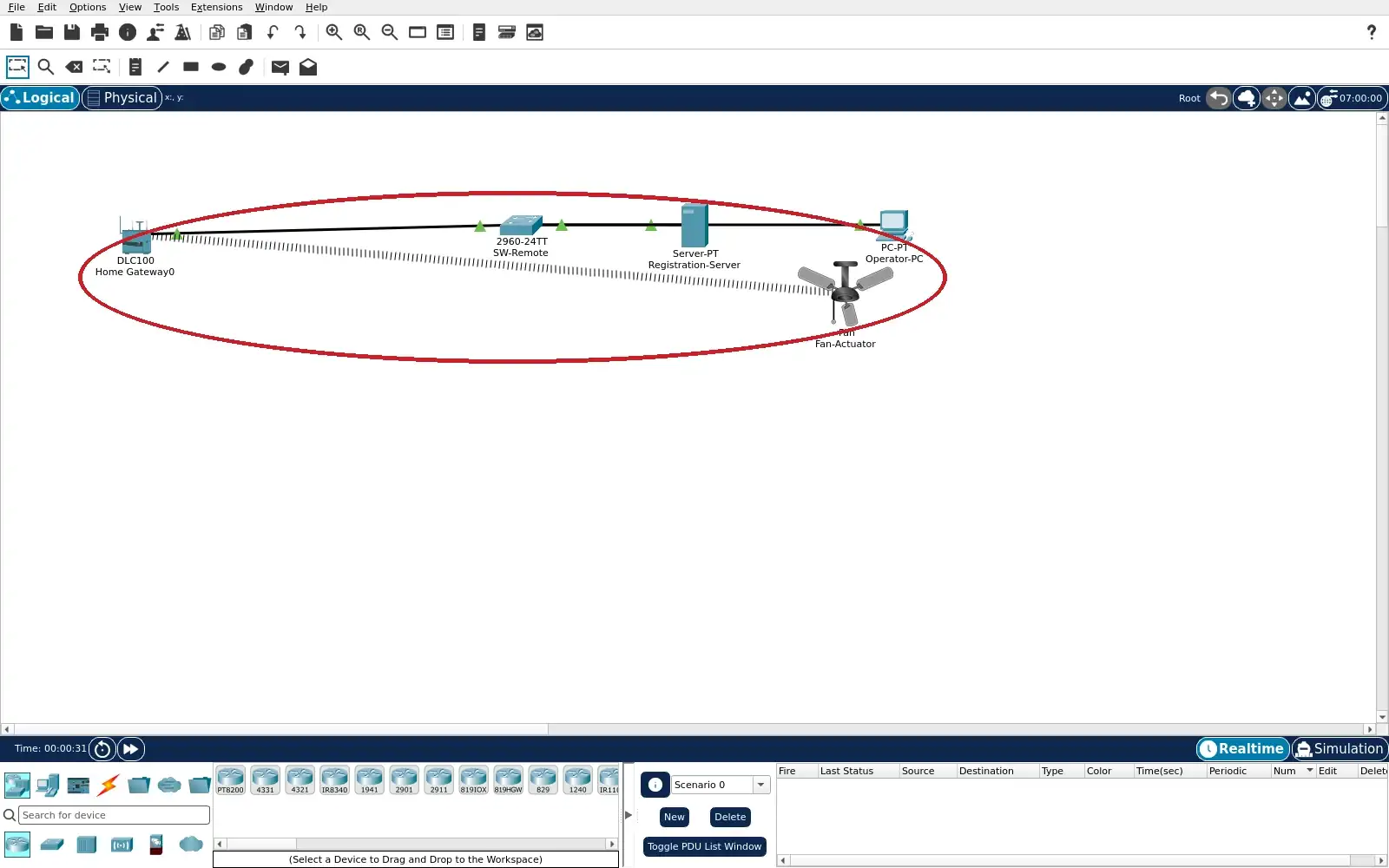
Step 1 · Cisco Packet Tracer; numbered callout added to a real capture. Enlarge screenshot (new tab) Step 2
- Do
- Open Registration-Server and choose the Services tab then DHCP. Check that the DHCP service is On. Read the pool start, mask, maximum users, gateway and DNS. Notice the built-in serverPool is bounded to match IoT-LAN.
- You will see
- The service radio reads On. The selected pool starts at 192.168.25.100. The mask is 255.255.255.0 and Max Users is 30. Gateway is 192.168.25.1 and DNS is 192.168.25.10.
- Why it matters
- A bounded scope limits where clients can be assigned. The gateway field gives the intended next hop. The DNS field tells clients which resolver to ask. The matching default pool avoids conflicting PT offers.
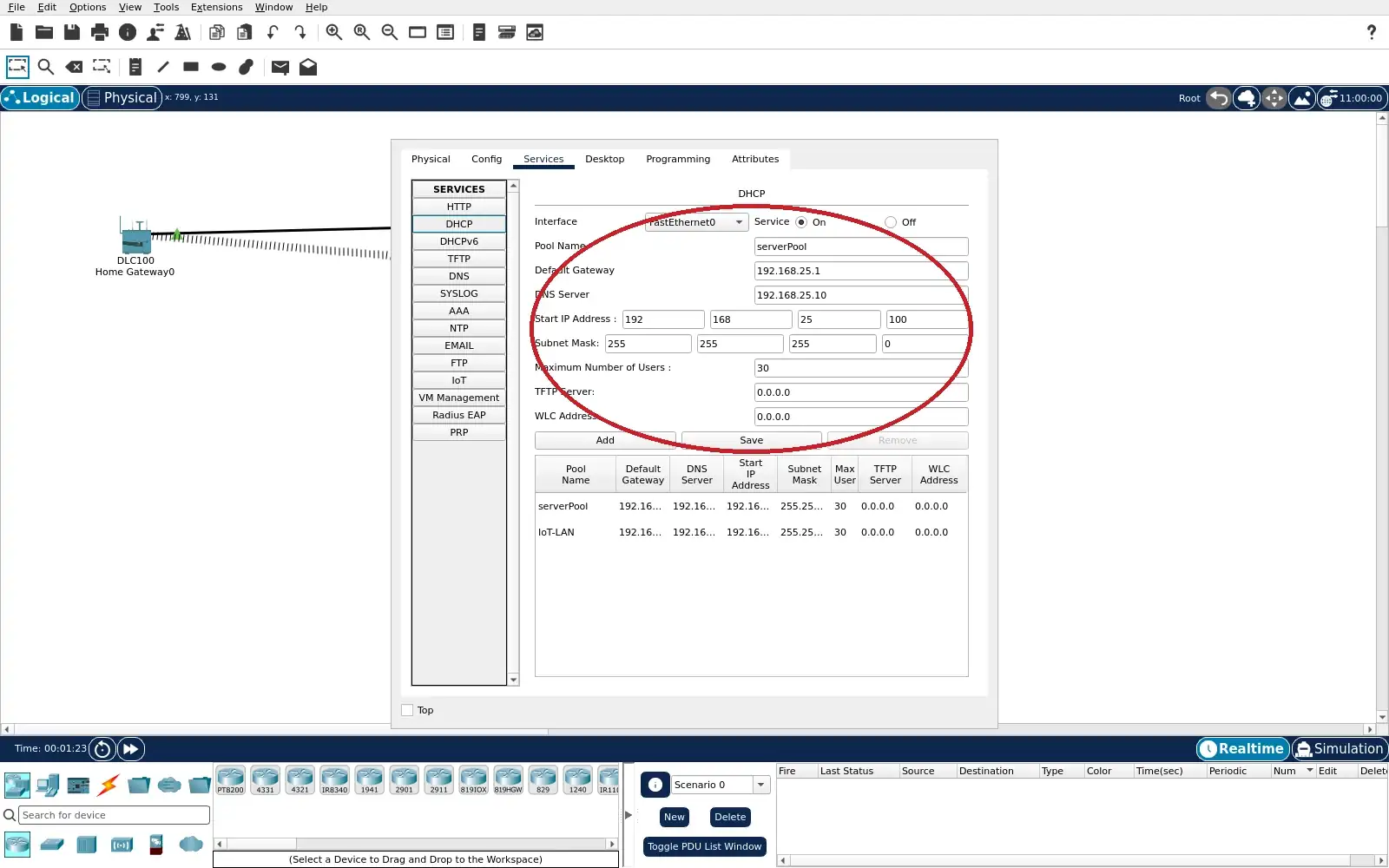
Step 2 · Cisco Packet Tracer; numbered callout added to a real capture. Enlarge screenshot (new tab) Step 3
- Do
- Stay in the Registration-Server Services tab and choose DNS. Check that the DNS service is On. Read the A Record for iot.lab.local. Compare its address with the server FastEthernet0 address.
- You will see
- The DNS service radio reads On. The resource table lists iot.lab.local. Its type is A Record. Its detail is 192.168.25.10.
- Why it matters
- An A record maps a service name to an IPv4 endpoint. The address points at the Server-PT service interface. A correct record cannot help a client using the wrong resolver. The PC test later checks both DNS and HTTP.
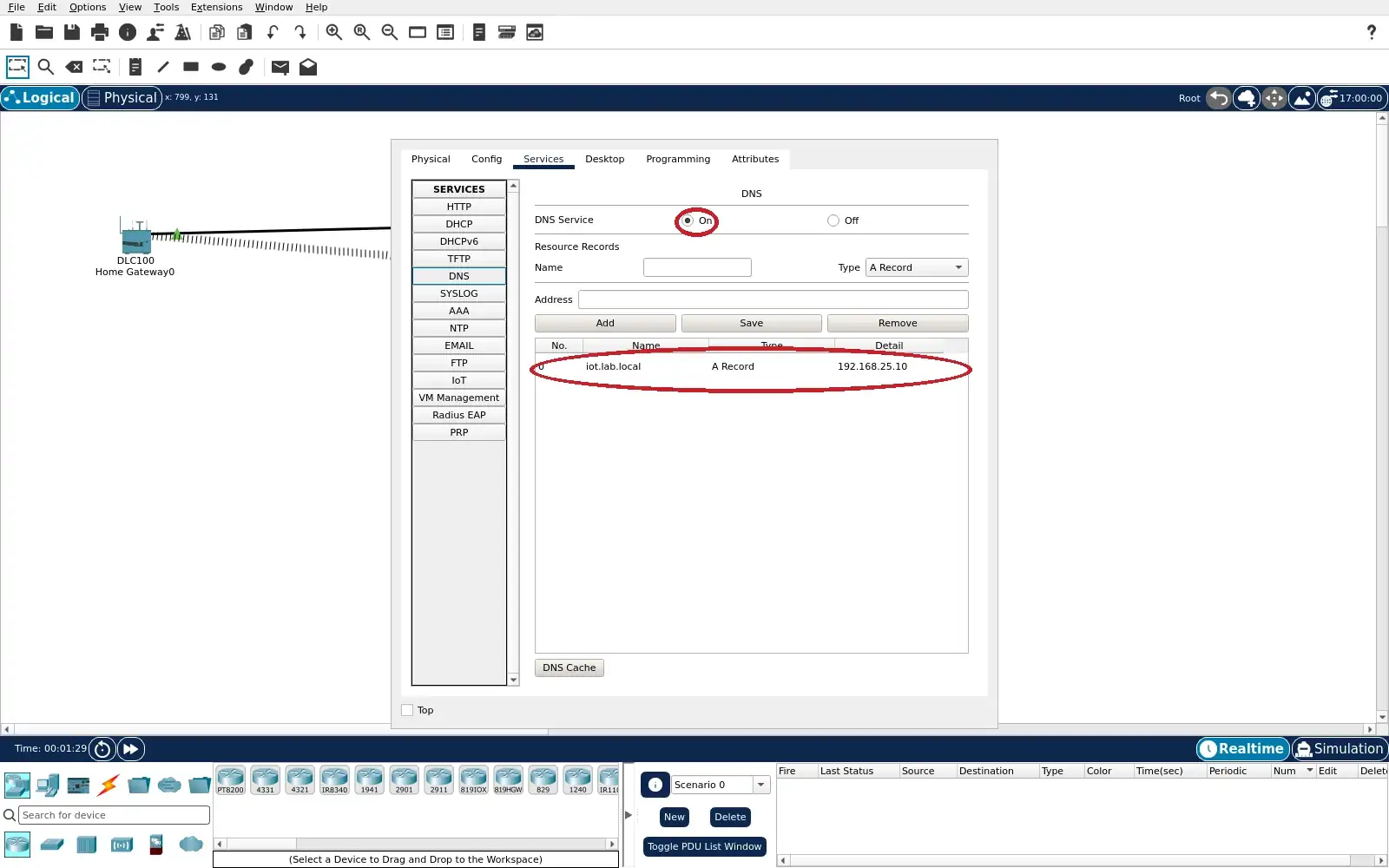
Step 3 · Cisco Packet Tracer; numbered callout added to a real capture. Enlarge screenshot (new tab) Step 4
- Do
- Open Operator-PC then Desktop then IP Configuration. Wait for DHCP request successful after opening the project. Read its IPv4 address, subnet mask, gateway and DNS server. Record your current lease because the suffix can change.
- You will see
- DHCP is selected and the request says successful. This reopened run assigned 192.168.25.101 to Operator-PC. The mask is 255.255.255.0 and gateway is 192.168.25.1. The DNS server is 192.168.25.10.
- Why it matters
- The client has a usable subnet and next-hop configuration. The DNS value came with the DHCP configuration. An address alone would not establish name resolution. The assigned suffix can differ after another reopen.
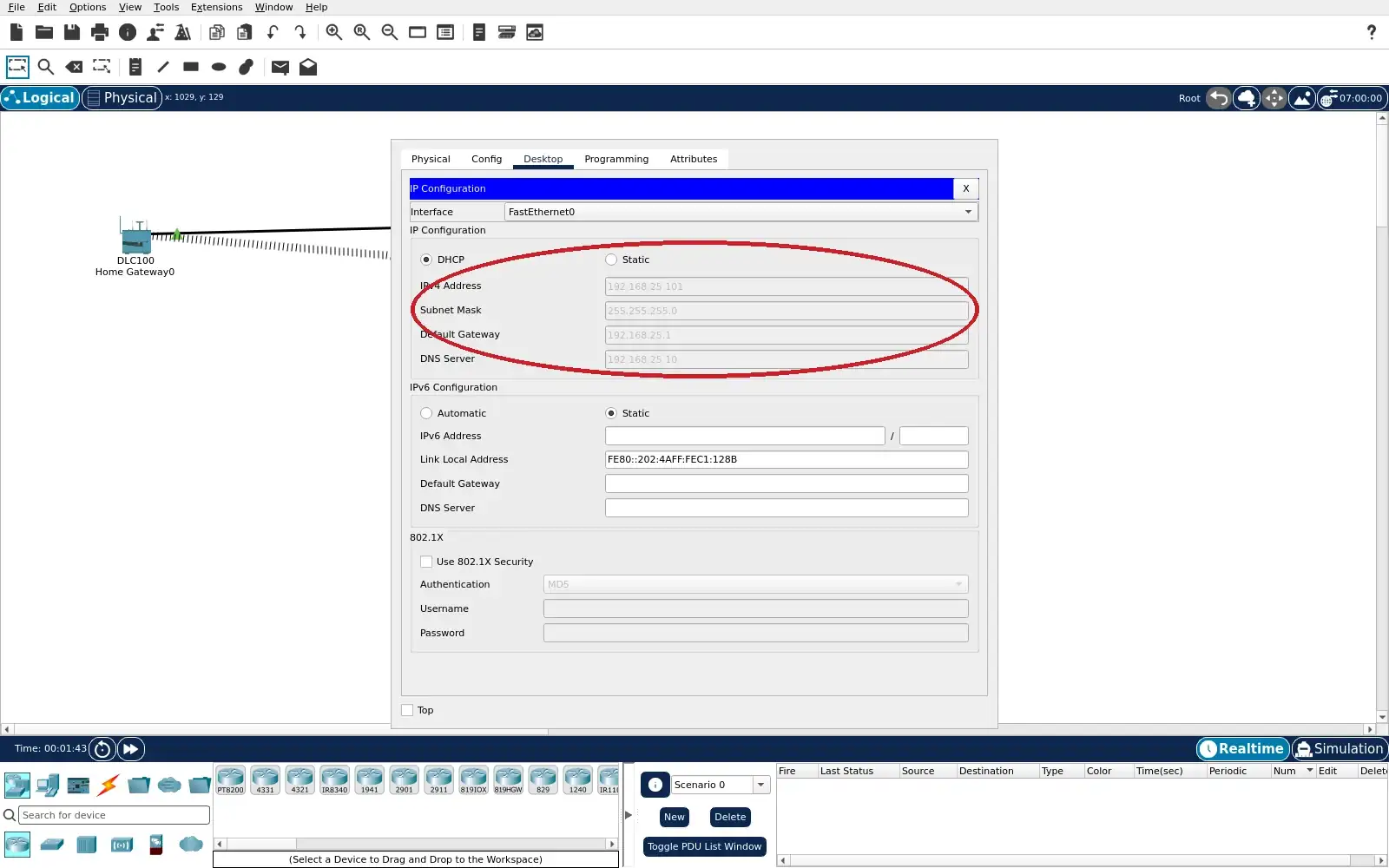
Step 4 · Cisco Packet Tracer; numbered callout added to a real capture. Enlarge screenshot (new tab) Step 5
- Do
- Open Fan-Actuator Config tab then Wireless0. Check SSID HomeGateway and Port Status On. Read the DHCP radio state and IPv4 fields. Compare its subnet with Operator-PC without requiring the same suffix.
- You will see
- Wireless0 shows SSID HomeGateway and Port Status On. Its IP Configuration is DHCP. This reopened run assigned 192.168.25.100 to the fan. The subnet mask is 255.255.255.0.
- Why it matters
- The IP-capable Thing also received a local address. The PC and Thing are separate DHCP clients. Wireless association and addressing precede IoT registration. The Thing remains unregistered in this saved lesson.
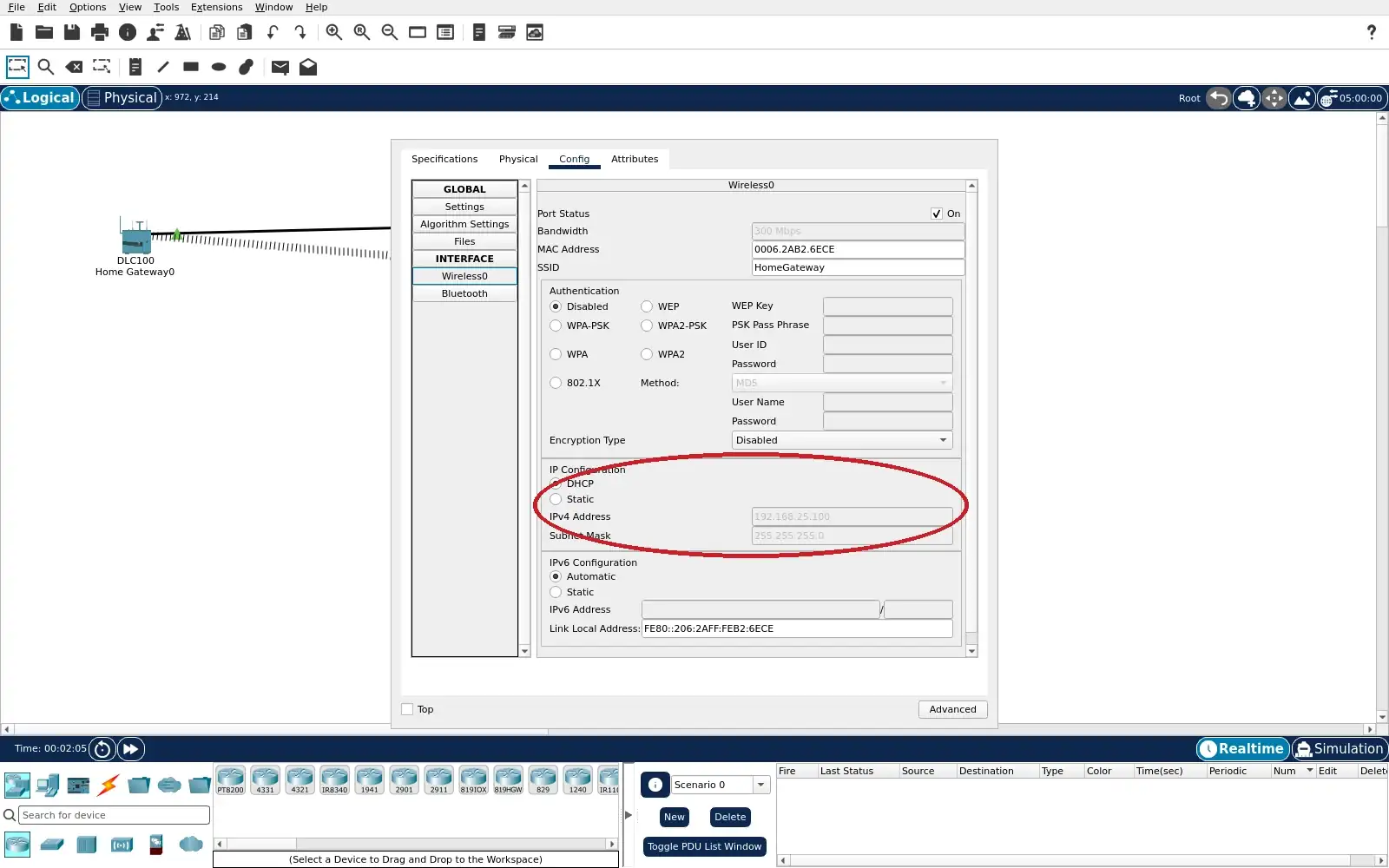
Step 5 · Cisco Packet Tracer; numbered callout added to a real capture. Enlarge screenshot (new tab) Step 6
- Do
- Open Operator-PC Desktop then Command Prompt. Run ping iot.lab.local and wait for its four probes. Read the resolved address on the Pinging line. Compare it with the DNS A record and direct server IP.
- You will see
- The command line contains ping iot.lab.local. Packet Tracer prints Pinging 192.168.25.10. Four replies are shown from 192.168.25.10. The statistics report four received and zero lost.
- Why it matters
- The name was resolved to the configured A record. ICMP replies also show the resolved host is reachable. This is still below the IoT application layer. The browser next checks the named HTTP service.
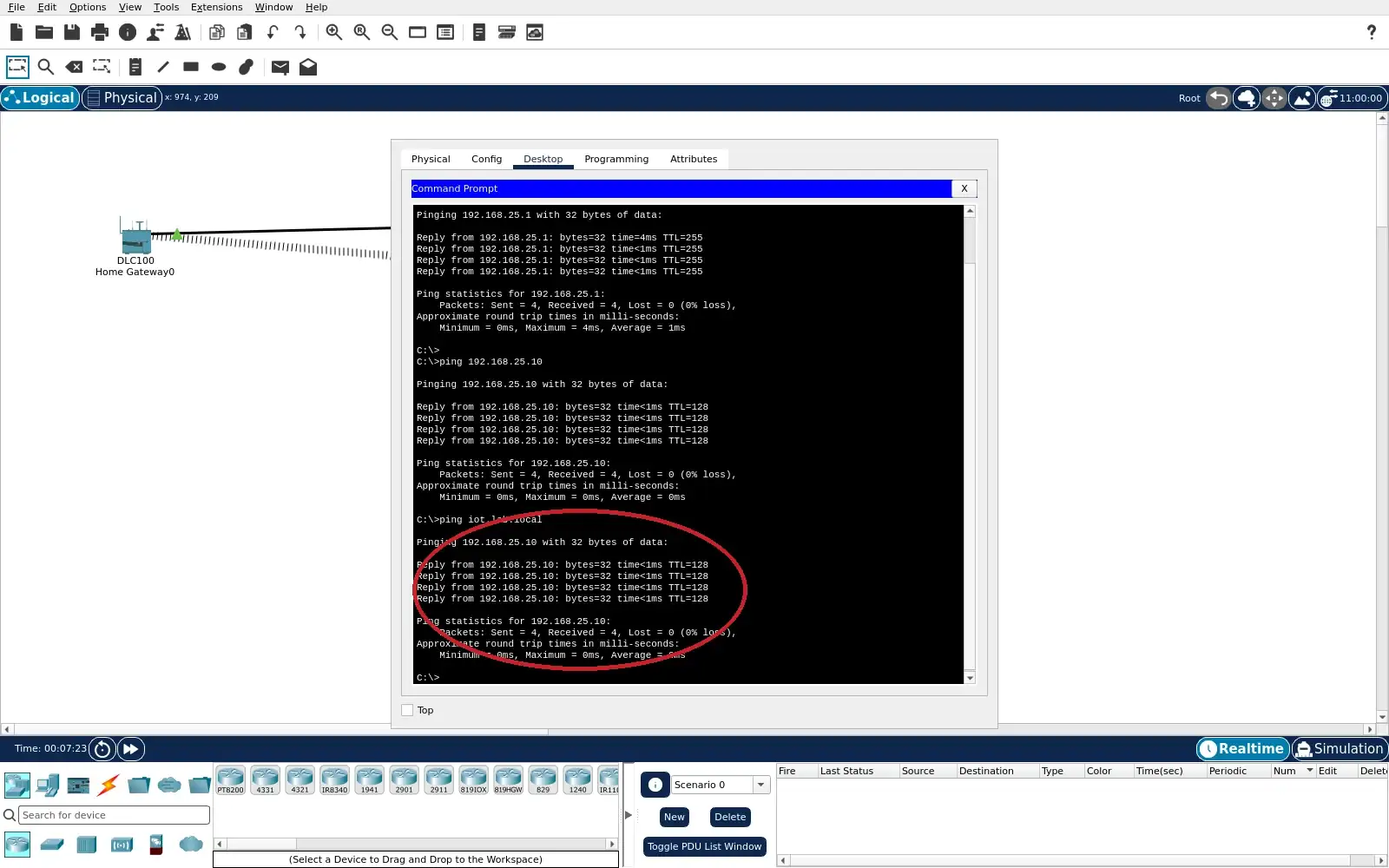
Step 6 · Cisco Packet Tracer; numbered callout added to a real capture. Enlarge screenshot (new tab) Step 7
- Do
- In Operator-PC Desktop open Web Browser. Enter http://iot.lab.local in its URL field. Press Go and wait for the page to render. Identify the service without signing in.
- You will see
- The browser URL reads http://iot.lab.local. The page heading reads Registration Server Login. Username and Password fields and Sign In are visible. The named HTTP service answered this PC request.
- Why it matters
- This joins DNS resolution to an actual service request. A successful ping alone would not show an HTTP response. The login page identifies the service but does not onboard the Thing. No account credentials are needed for the DNS exercise.
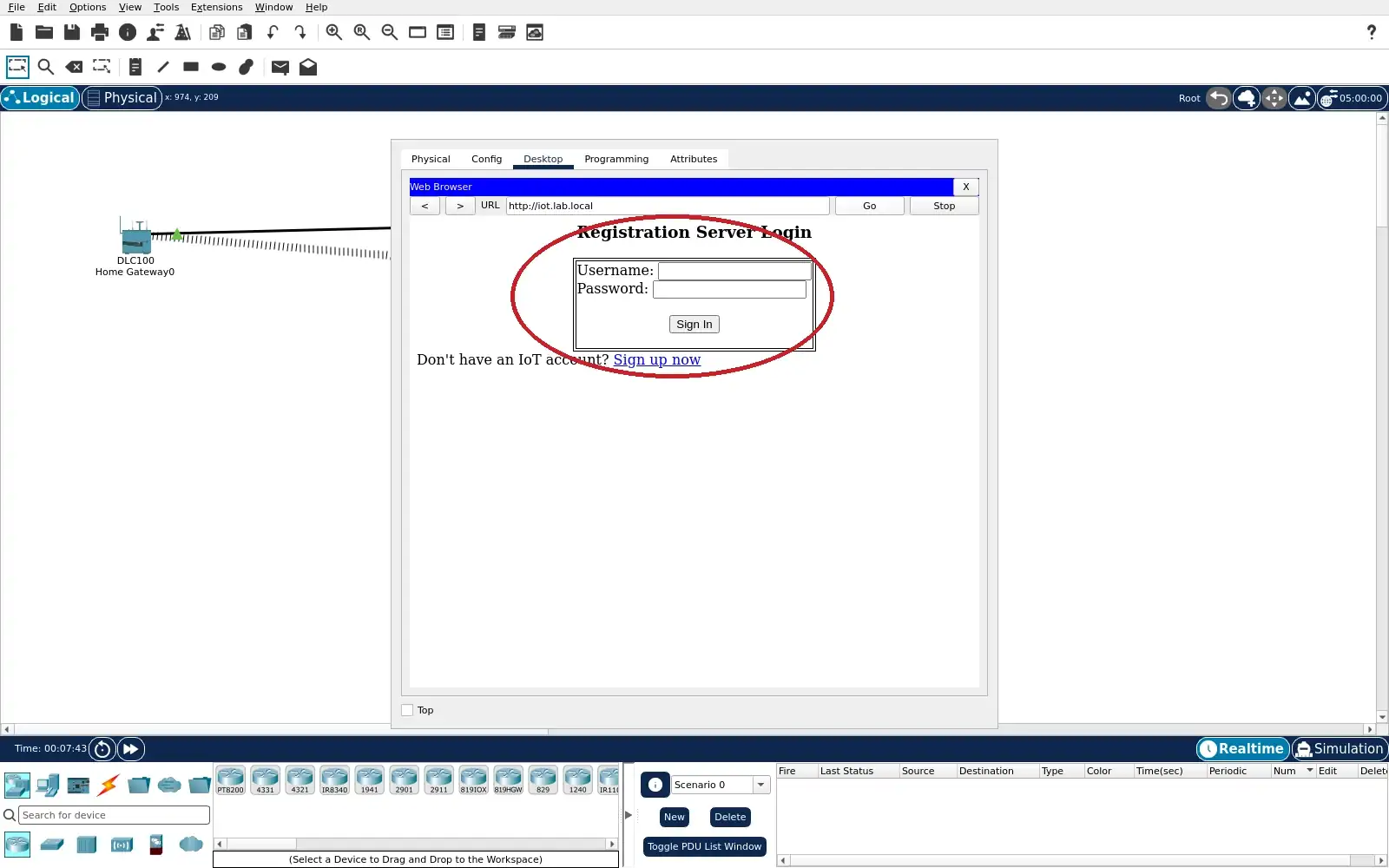
Step 7 · Cisco Packet Tracer; numbered callout added to a real capture. Enlarge screenshot (new tab) Step 8
- Do
- Record the PC lease, then use the Config Settings panel to set Gateway/DNS IPv4 to Static. Re-enter the same interface address because PT clears it on this switch. Set client DNS to 192.168.25.99 and ping 192.168.25.10. Request http://iot.lab.local again in Web Browser.
- You will see
- The browser still shows http://iot.lab.local in its URL field. The page area remains blank after the wrong-DNS request. No Registration Server login form appears in this capture. Separate raw PT captures show 192.168.25.99 and direct-IP ping replies.
- Why it matters
- Direct IP reachability isolates the fault from the Ethernet path. The blank named request coincides with the wrong client resolver. Packet Tracer gives no explicit DNS error on this page. Restoring only DNS tests the diagnosis.
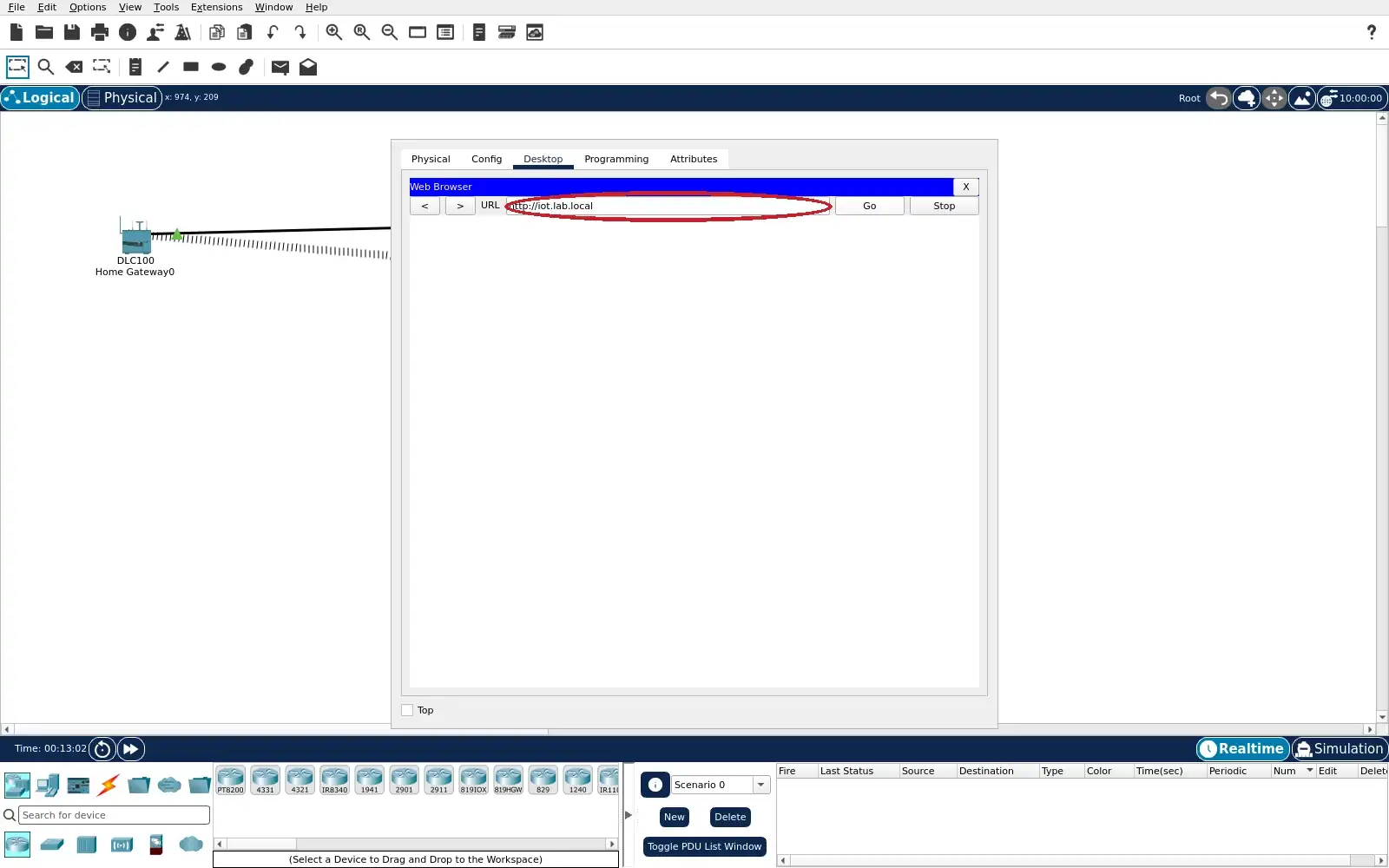
Step 8 · Cisco Packet Tracer; numbered callout added to a real capture. Enlarge screenshot (new tab) Step 9
- Do
- In Operator-PC Config restore DNS to 192.168.25.10. Return to Desktop Web Browser and press Go on the same URL. Confirm the login form reappears. Finally return Desktop IP Configuration to DHCP.
- You will see
- The browser URL remains http://iot.lab.local. Registration Server Login is rendered again. Username, Password and Sign In are visible. The final saved exercise has DHCP selected on the PC.
- Why it matters
- Only the client resolver changed for the recovery. The reappearing page supports the DNS diagnosis. Returning to DHCP restores the learner baseline. A new lease may use a different suffix on reopen.
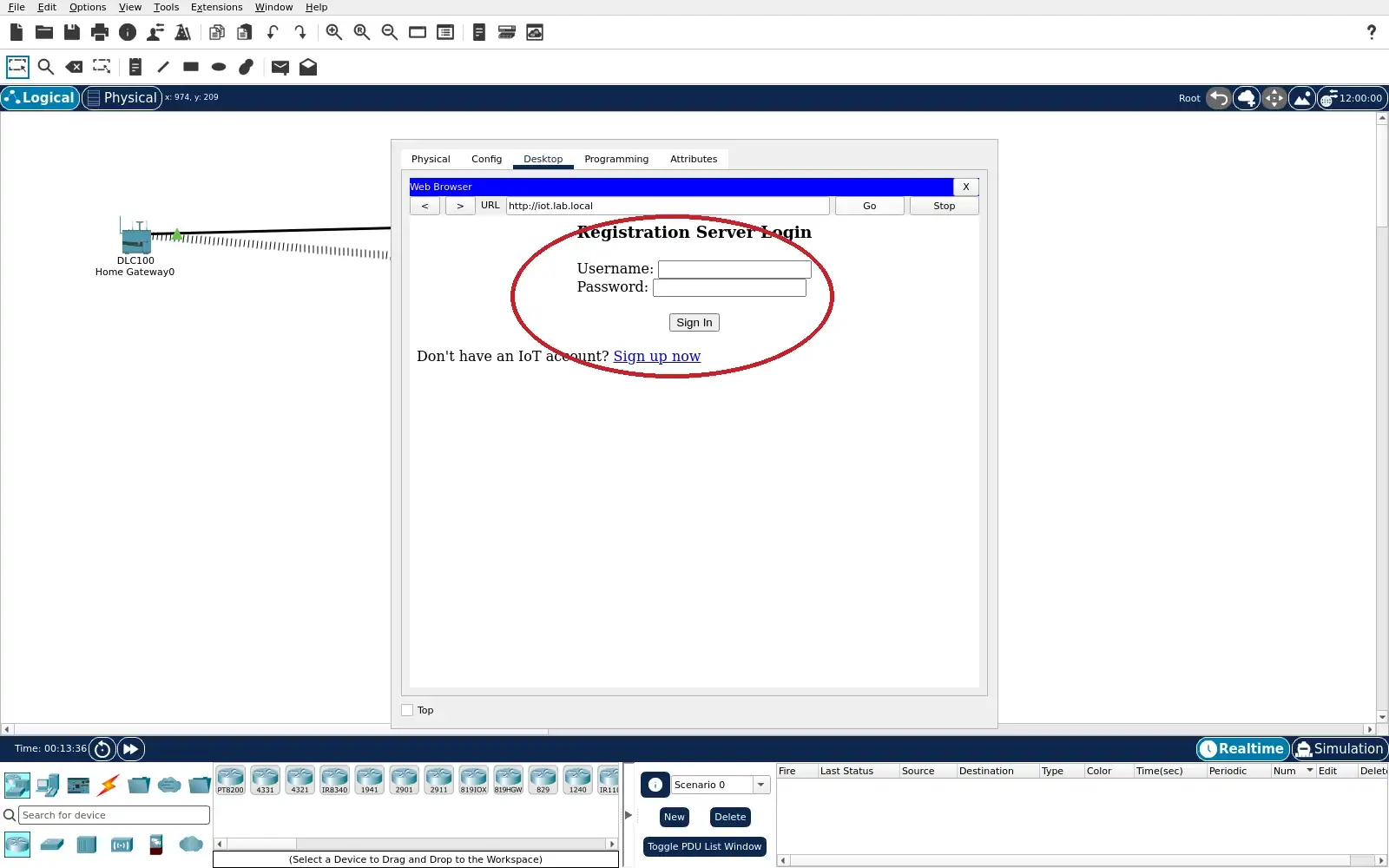
Step 9 · Cisco Packet Tracer; numbered callout added to a real capture. Enlarge screenshot (new tab)
Chapter checks
These questions refer to the chapter’s examples. Use the return links to review their answers.
A sensor receives an IP address, subnet mask, gateway, DNS server, and lease time from DHCP but still cannot send data to its local gateway. What should you check next?
Return to the chapter’s knowledge checkA warehouse has 300 permanently mounted PoE RFID readers with one-hour DHCP leases. During a two-hour DHCP maintenance window, many readers lose connectivity. Which policy best fits this device class?
Return to the chapter’s knowledge check