Touch and microphone permission fallback
Make state, control, location, and consent accessible and recoverable: keep a touch route when microphone access is unavailable.
UX Uma: Keep every control usable when permission or a device is unavailable.
Predict the reading, then compare it with the measurement.
Phone browser (Web APIs)
Phone browserMake state, control, location, and consent accessible and recoverable: keep a touch route when microphone access is unavailable.
Open the lab on your phone over HTTPS, then use its permission button.
Open the phone lab (new tab)Steps
Step 1
- Do
- In the controls panel, tap Tap to confirm before requesting microphone access.
- You will see
- Input: Tap touch control. Test microphone/permission state in real mobile Chromium. Observed: Touch action confirmed 1. Readout: Touch count 1. Microphone idle. Interpretation: Touch operates without a microphone stream.
- Why it matters
- Evidence: The real browser API and page produced the quoted state. Boundary: The browser test microphone and browser-controlled denial are not a physical phone. Reason: Touch operates without a microphone stream. Next check: In the controls panel, tap Request microphone and inspect the actual API outcome.
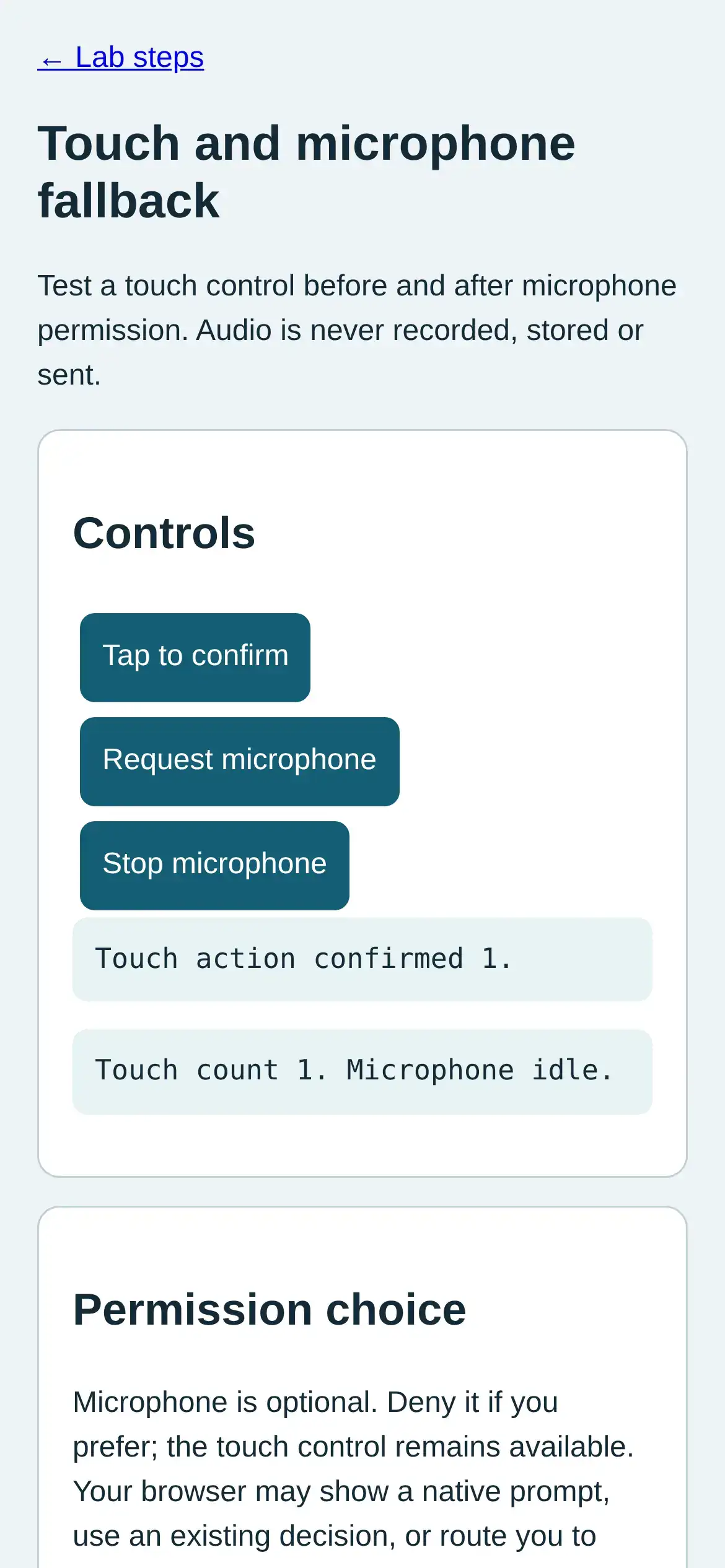
Step 1 · Phone browser (Web APIs); numbered callout added to a real capture. Enlarge screenshot (new tab) Step 2
- Do
- In the controls panel, tap Request microphone and inspect the actual API outcome.
- You will see
- Input: Request microphone in denied test context. Test microphone/permission state in real mobile Chromium. Observed: Microphone NotAllowedError; touch remains available. Readout: Touch count 1. Microphone idle. Interpretation: The tested context reports NotAllowedError after a browser-controlled denial, without a native prompt.
- Why it matters
- Evidence: The real browser API and page produced the quoted state. Boundary: The browser test microphone and browser-controlled denial are not a physical phone. Reason: The tested context reports NotAllowedError after a browser-controlled denial, without a native prompt. Next check: In the controls panel, tap Tap to confirm again while microphone is unavailable.
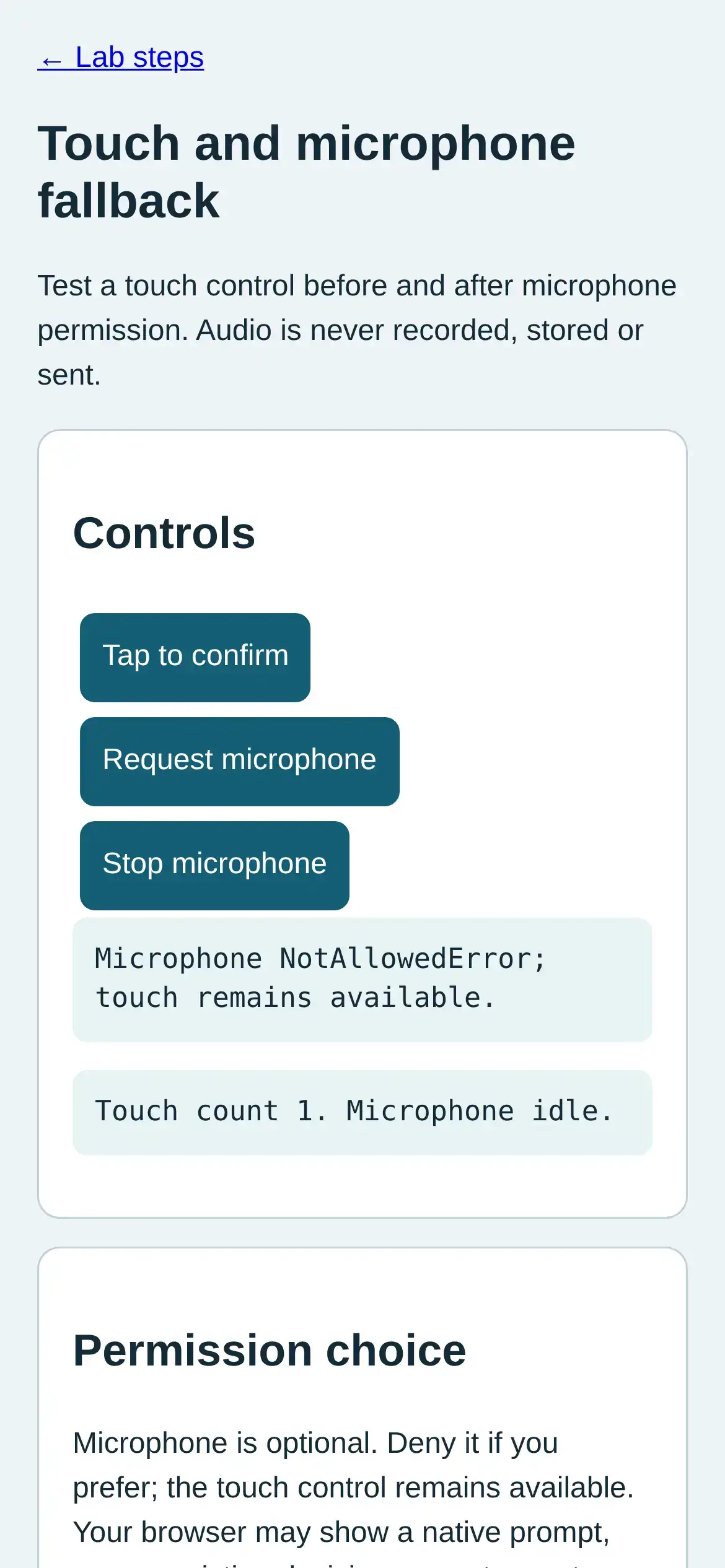
Step 2 · Phone browser (Web APIs); numbered callout added to a real capture. Enlarge screenshot (new tab) Step 3
- Do
- In the controls panel, tap Tap to confirm again while microphone is unavailable.
- You will see
- Input: Tap touch control again. Test microphone/permission state in real mobile Chromium. Observed: Touch action confirmed 2. Readout: Touch count 2. Microphone idle. Interpretation: Touch still works after the denied result.
- Why it matters
- Evidence: The real browser API and page produced the quoted state. Boundary: The browser test microphone and browser-controlled denial are not a physical phone. Reason: Touch still works after the denied result. Next check: In the controls panel of a browser with microphone access granted, tap Request microphone and inspect stream status.
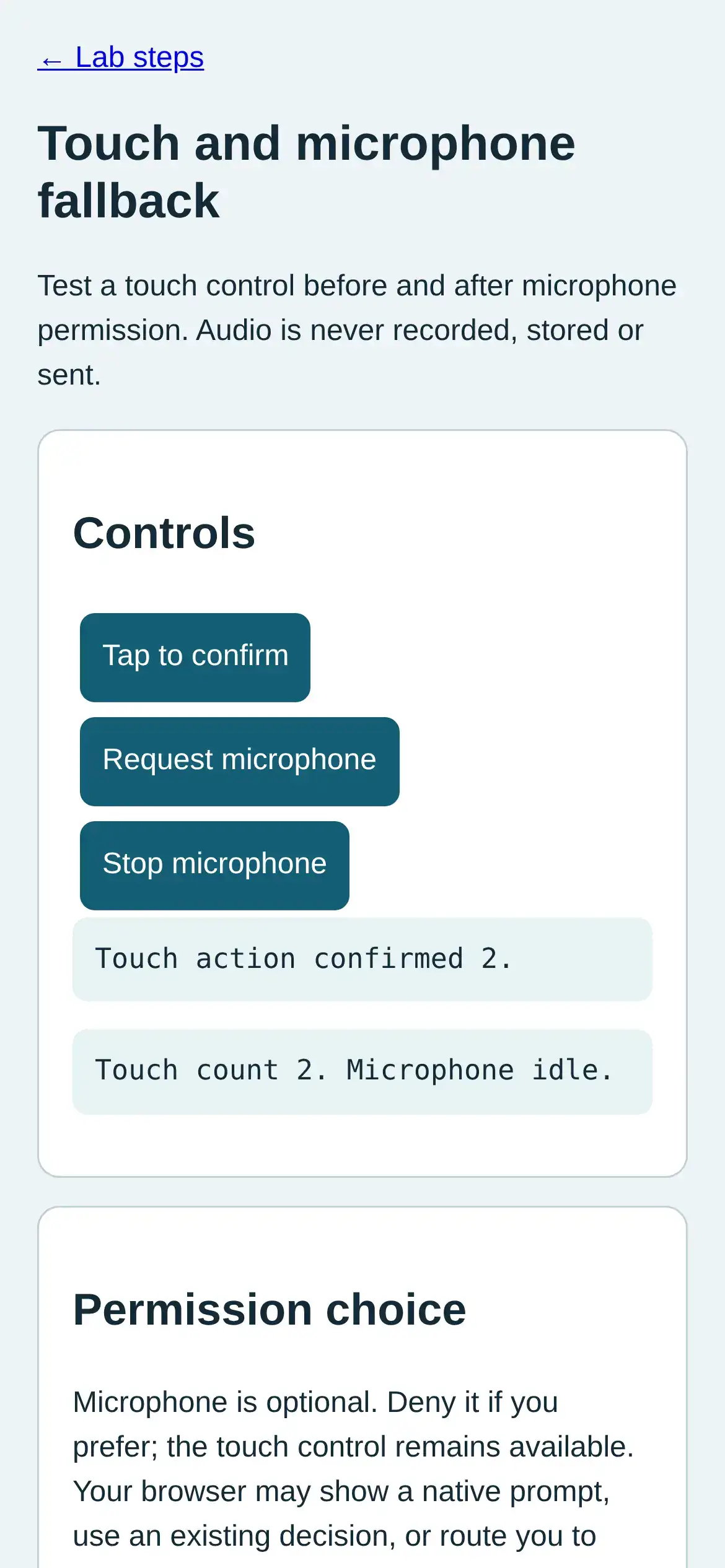
Step 3 · Phone browser (Web APIs); numbered callout added to a real capture. Enlarge screenshot (new tab) Step 4
- Do
- In the controls panel of a browser with microphone access granted, tap Request microphone and inspect stream status.
- You will see
- Input: Grant test microphone in a fresh browser context. Test microphone/permission state in real mobile Chromium. Observed: Microphone stream active; touch remains available. Readout: Touch count 0. Microphone stream active. Interpretation: A separately granted test microphone can start a stream.
- Why it matters
- Evidence: The real browser API and page produced the quoted state. Boundary: The browser test microphone and browser-controlled denial are not a physical phone. Reason: A separately granted test microphone can start a stream. Next check: In the controls panel, tap Stop microphone and inspect idle status.
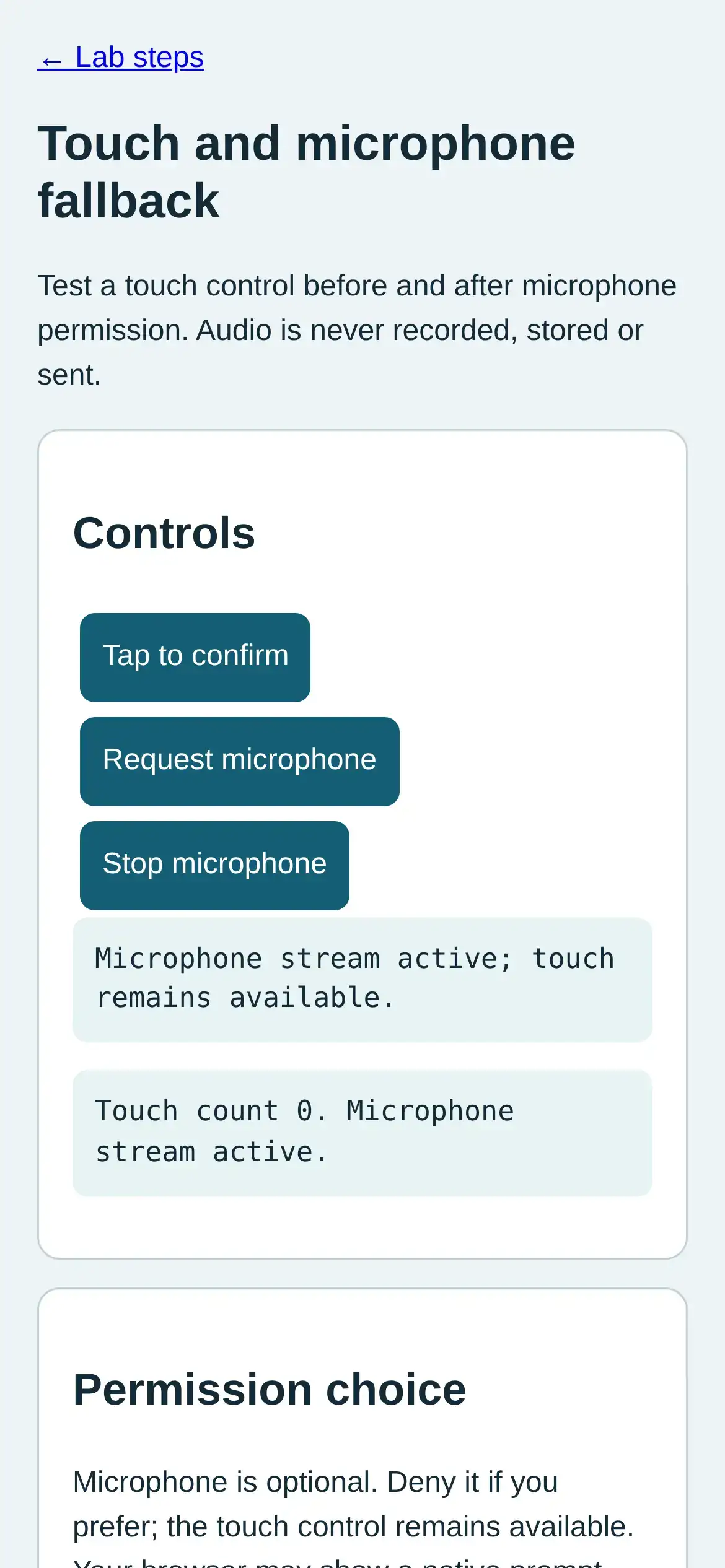
Step 4 · Phone browser (Web APIs); numbered callout added to a real capture. Enlarge screenshot (new tab) Step 5
- Do
- In the controls panel, tap Stop microphone and inspect idle status.
- You will see
- Input: Stop granted microphone stream. Test microphone/permission state in real mobile Chromium. Observed: Microphone stopped; touch remains available. Readout: Touch count 0. Microphone idle. Interpretation: Stopping tracks returns the stream to idle.
- Why it matters
- Evidence: The real browser API and page produced the quoted state. Boundary: The browser test microphone and browser-controlled denial are not a physical phone. Reason: Stopping tracks returns the stream to idle. Next check: In the controls panel, tap Tap to confirm after stopping microphone.
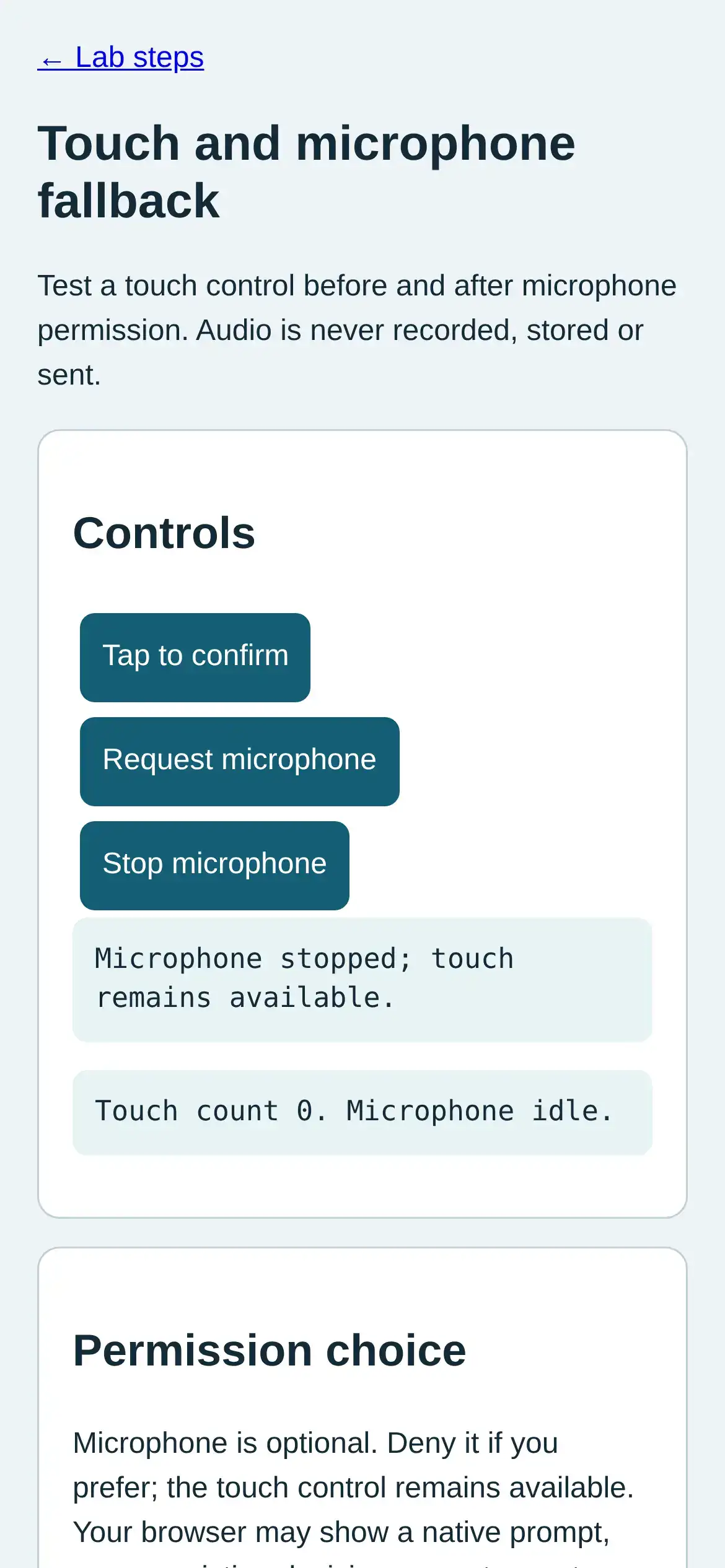
Step 5 · Phone browser (Web APIs); numbered callout added to a real capture. Enlarge screenshot (new tab) Step 6
- Do
- In the controls panel, tap Tap to confirm after stopping microphone.
- You will see
- Input: Tap touch control after stop. Test microphone/permission state in real mobile Chromium. Observed: Touch action confirmed 1. Readout: Touch count 1. Microphone idle. Interpretation: Touch remains usable after stream stop.
- Why it matters
- Evidence: The real browser API and page produced the quoted state. Boundary: The browser test microphone and browser-controlled denial are not a physical phone. Reason: Touch remains usable after stream stop. Next check: This result does not establish physical audio capture, speech recognition, or calibrated level.
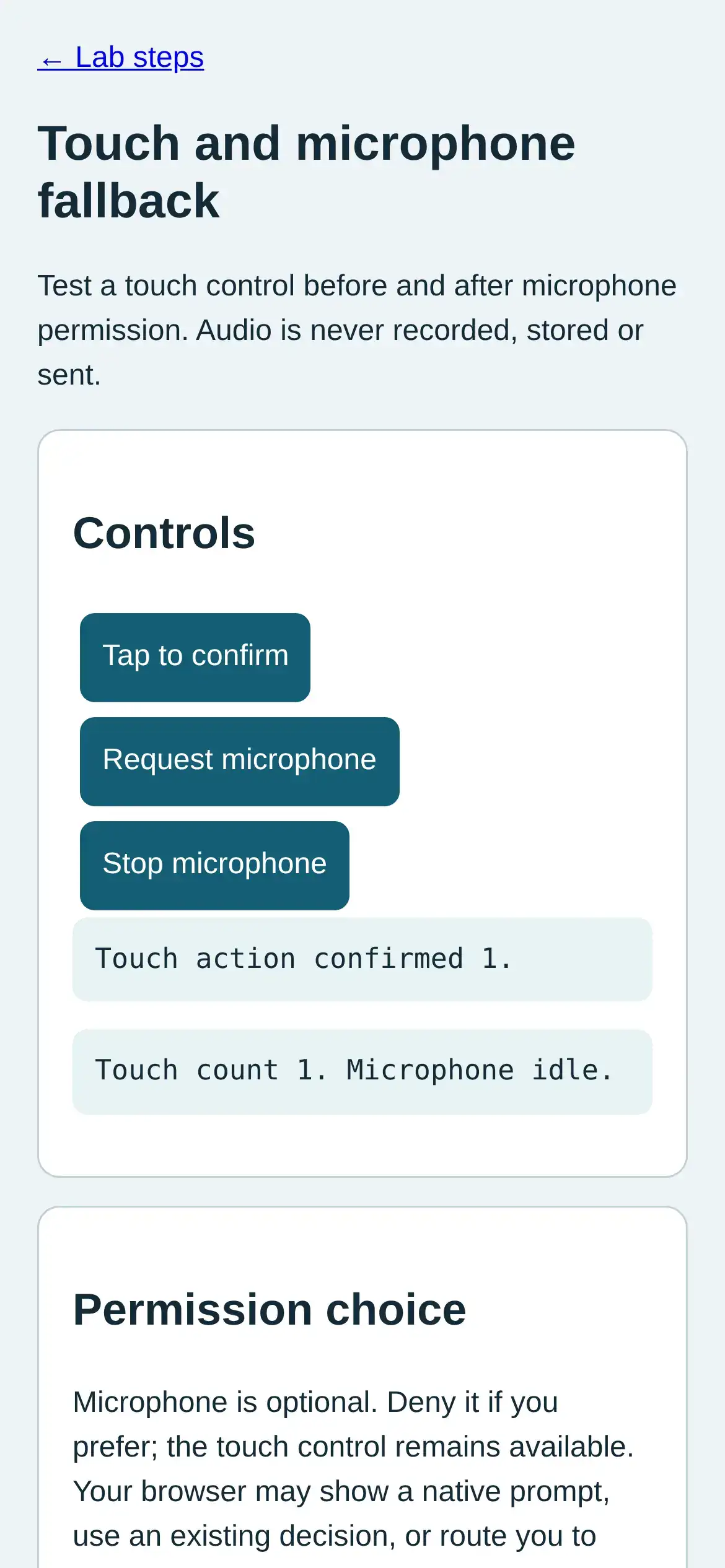
Step 6 · Phone browser (Web APIs); numbered callout added to a real capture. Enlarge screenshot (new tab)
Chapter checks
These questions refer to the chapter’s examples. Use the return links to review their answers.
A gloved worker must stop a noisy pump. What should the channel design prioritize?
Return to the chapter’s knowledge checkA kitchen user has greasy hands and looks away from a device. What feedback design fits the chapter’s principle?
Return to the chapter’s knowledge check
Return to 'Multimodal Interfaces: Channel Contracts' · Browse Labs