Audit device access-control policy
Evaluate role and zone rules against device requests, expose an over-broad grant and test a least-privilege correction.
The Authentication guide leads learners through access-control models, identity management and authorization.
Predict the reading, then compare it with the measurement.
Python 3 in your browser (JupyterLite)
Python · no installEvaluate role and zone rules against device requests, expose an over-broad grant and test a least-privilege correction.
Open the notebook in your browser and run each Python cell; no install or account is needed.
Three ways to run: use JupyterLite here with no install; run main.py locally from the downloadable lab folder; or open the same notebook in Google Colab.
Steps
Step 1
- Do
- Run the first notebook cell in the editor and inspect the synthetic policy table and request count.
- You will see
- Synthetic classroom policy and requests; no live identity service P1: admin * * -> allow P2: technician plant-a read -> allow P3: technician plant-a configure -> allow P4: viewer * read -> allow requests=7; unmatched requests default to deny STEP 1 policy fixture fixed
- Why it matters
- The small table separates role, zone and action so each grant can be reviewed.
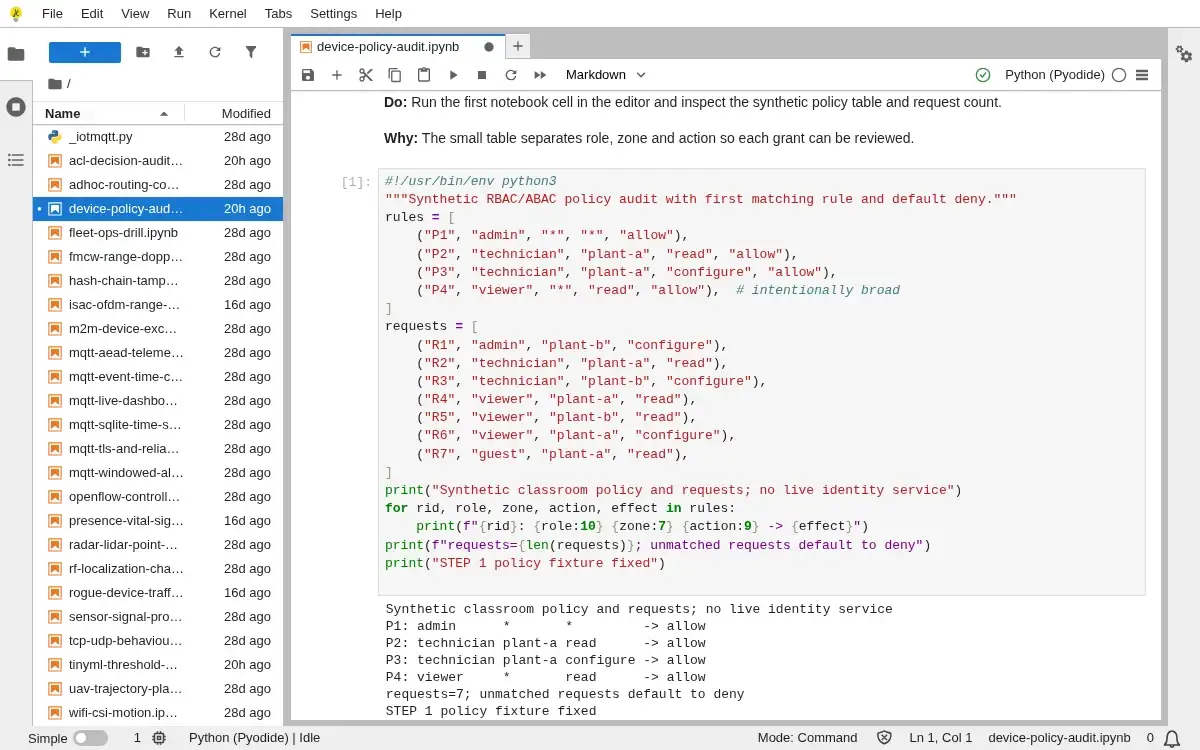
Step 1 · Python 3 in your browser (JupyterLite); numbered callout added to a real capture. Enlarge screenshot (new tab) Step 2
- Do
- Run the second cell in the editor and inspect each decision with its matching rule in the output table.
- You will see
- request role zone action decision matching-rule R1 admin plant-b configure allow P1 R2 technician plant-a read allow P2 R3 technician plant-b configure deny default-deny R4 viewer plant-a read allow P4 R5 viewer plant-b read allow P4 R6 viewer plant-a configure deny default-deny R7 guest plant-a read deny default-deny STEP 2 first-match decisions evaluated
- Why it matters
- A matching-rule column makes default deny and explicit grants distinguishable.
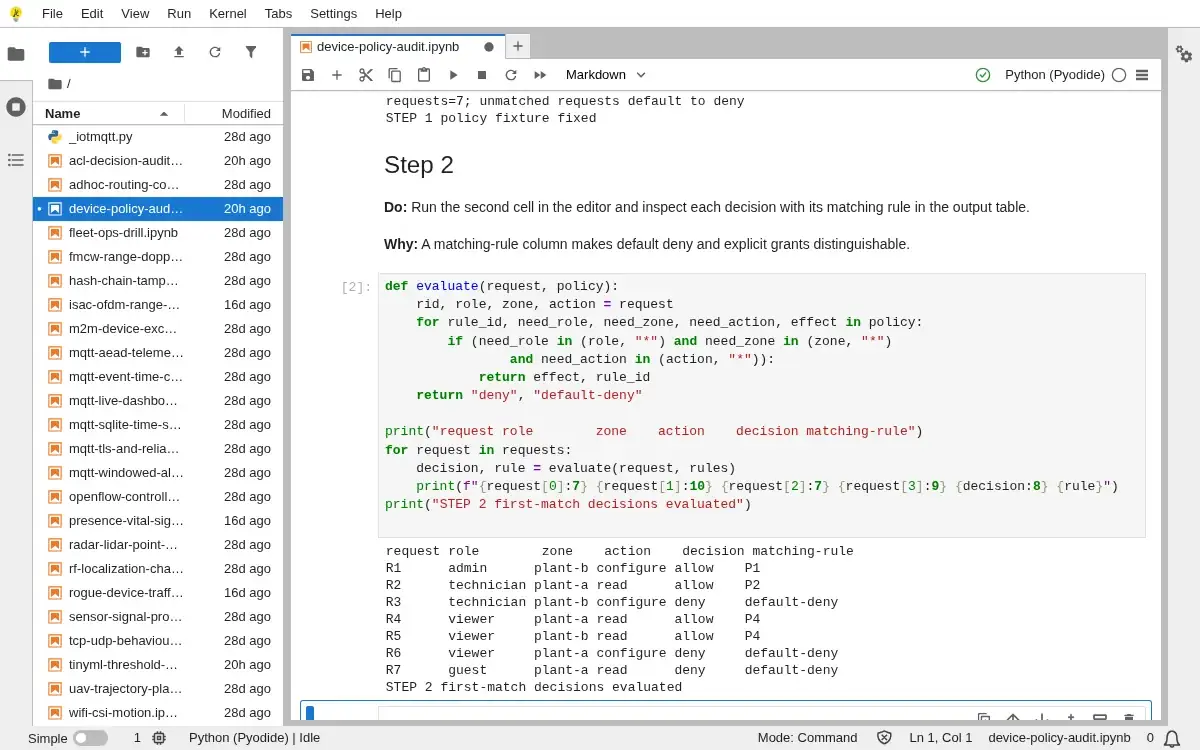
Step 2 · Python 3 in your browser (JupyterLite); numbered callout added to a real capture. Enlarge screenshot (new tab) Step 3
- Do
- Run the third cell in the editor and inspect the cross-zone viewer request in the audit readout.
- You will see
- Audit request=R5 role=viewer zone=plant-b action=read Observed decision=allow; matching rule=P4 Expected least-privilege boundary: viewer reads only plant-a Finding: P4 wildcard zone grants plant-b read to every viewer P1 admin wildcard is intentional in this classroom policy STEP 3 over-broad rule identified
- Why it matters
- A wildcard zone silently crosses the intended viewer boundary.
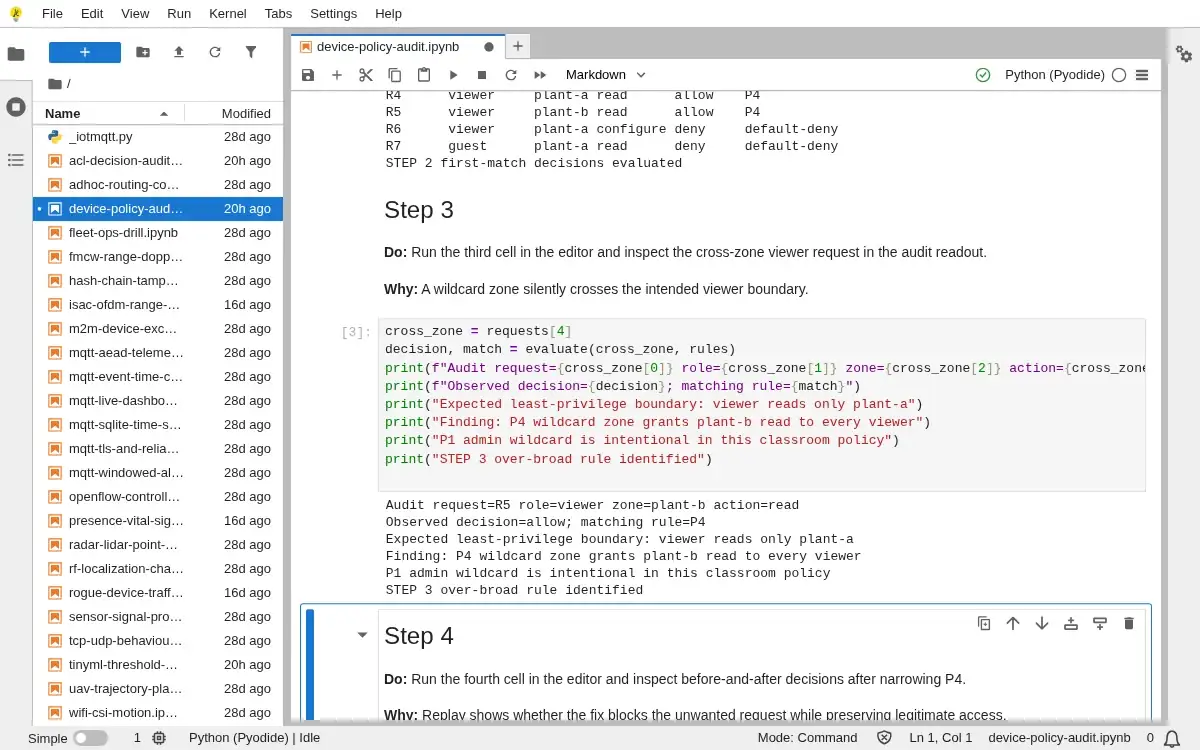
Step 3 · Python 3 in your browser (JupyterLite); numbered callout added to a real capture. Enlarge screenshot (new tab) Step 4
- Do
- Run the fourth cell in the editor and inspect before-and-after decisions after narrowing P4.
- You will see
- Patch: P4 zone '*' -> 'plant-a'; other rules retained request before/rule after/rule R1 allow/P1 allow/P1 R2 allow/P2 allow/P2 R3 deny /default-deny deny /default-deny R4 allow/P4 allow/P4 R5 allow/P4 deny /default-deny R6 deny /default-deny deny /default-deny R7 deny /default-deny deny /default-deny STEP 4 policy narrowed and replayed
- Why it matters
- Replay shows whether the fix blocks the unwanted request while preserving legitimate access.
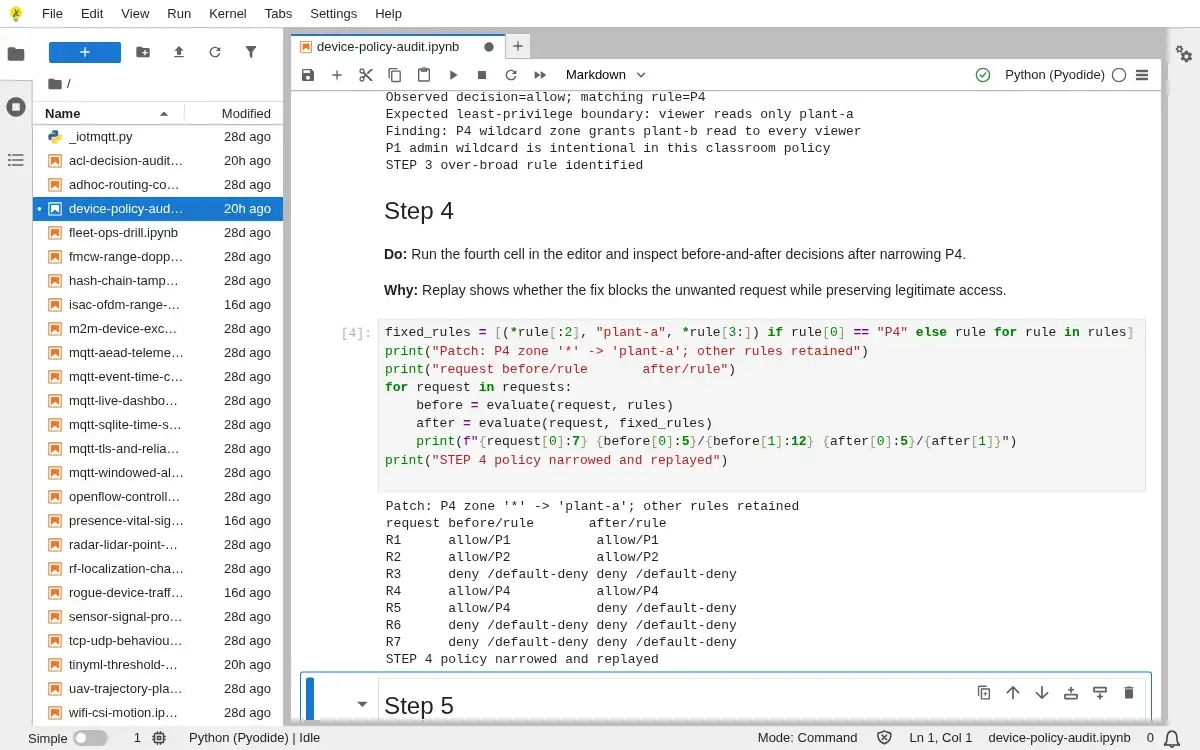
Step 4 · Python 3 in your browser (JupyterLite); numbered callout added to a real capture. Enlarge screenshot (new tab) Step 5
- Do
- Run the final cell in the editor and inspect the post-fix allow/deny totals and assertions.
- You will see
- Post-fix: allow=3, deny=4 R5 cross-zone viewer read: deny/default-deny R2 plant-a technician read: allow/P2 R7 unknown role: deny/default-deny Seven expected decisions: PASS This table does not establish enforcement by a real device or service. STEP 5 policy invariants validated
- Why it matters
- Expected decisions make the classroom policy auditable after any future change.
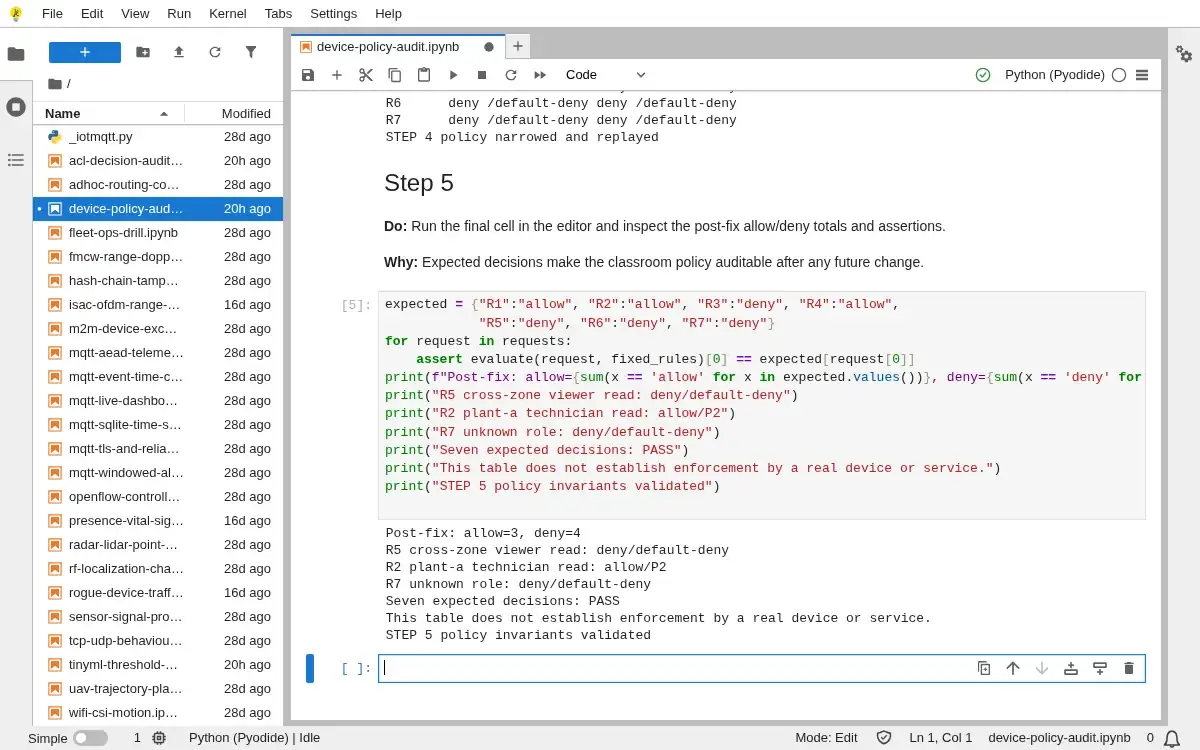
Step 5 · Python 3 in your browser (JupyterLite); numbered callout added to a real capture. Enlarge screenshot (new tab)
Chapter checks
These questions refer to the chapter’s examples. Use the return links to review their answers.
A new technician account is created in an IoT platform. Following least privilege, what should its initial access be?
Return to the chapter’s knowledge checkAn AWS IoT-style policy contains a broad statement that Allows publishing to all device topics and a separate statement that explicitly Denies publishing to another tenant's topics. A device tries to publish to another tenant's topic. What happens?
Return to the chapter’s knowledge check