Accessible Status After Device State Change
Make a simulated device control and its pending, confirmed, and failed states accessible and recoverable.
The Interfaces, Location and Privacy guide asks learners to make state, control, location, and consent accessible and recoverable. On iotclass.org a service worker in this lab folder plays the server; nothing leaves your browser.
Predict the reading, then compare it with the measurement.
Browser (Chromium DevTools)
Phone browserMake a simulated device control and its pending, confirmed, and failed states accessible and recoverable.
Open the browser lab, then inspect the real Network, Console, or Accessibility panel in DevTools.
Open the phone lab (new tab)Steps
Step 1
- Do
- In the Elements panel, switch to the Accessibility Tree view and inspect the initial control.
- You will see
- Input: Initial simulated device off. Observed page: Visible device state: off; Live status: off. Observed DevTools: The tree exposes a switch and a status region; the page says off. Interpretation: The starting state is available through visible and semantic channels.
- Why it matters
- Evidence: Step 1 screenshot shows the real Chromium page and DevTools panel. Mechanism: The native output exposes a status role in Chromium. Boundary: A tree entry alone does not prove audible announcement. Next check: Activate the switch by keyboard.
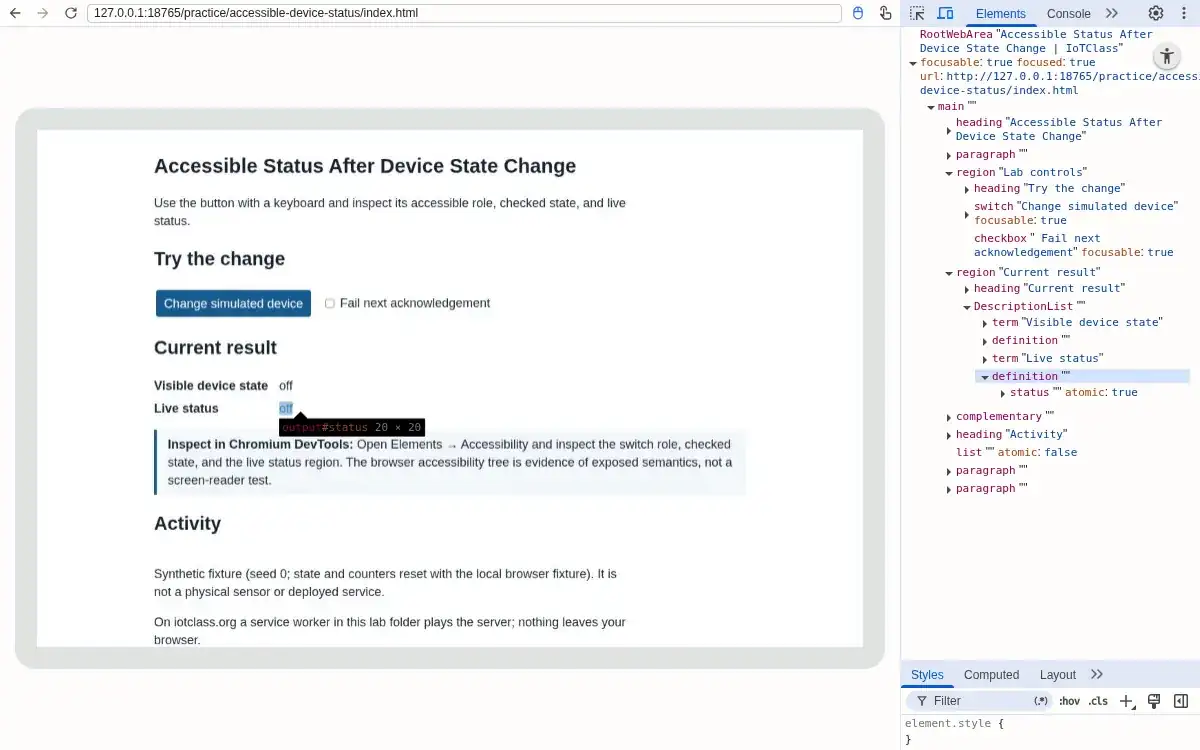
Step 1 · Browser (Chromium DevTools); numbered callout added to a real capture. Enlarge screenshot (new tab) Step 2
- Do
- Focus the switch button and press Space; inspect the status in the Accessibility Tree.
- You will see
- Input: Keyboard Space on the focused switch. Observed page: Visible device state: pending; Live status: pending. Observed DevTools: The page and status read pending. Interpretation: Keyboard activation entered the pending state.
- Why it matters
- Evidence: Step 2 screenshot shows the real Chromium page and DevTools panel. Mechanism: The real browser sent Space to the focused control. Boundary: The temporary state is not confirmation from a device. Next check: Wait while acknowledgement is delayed.
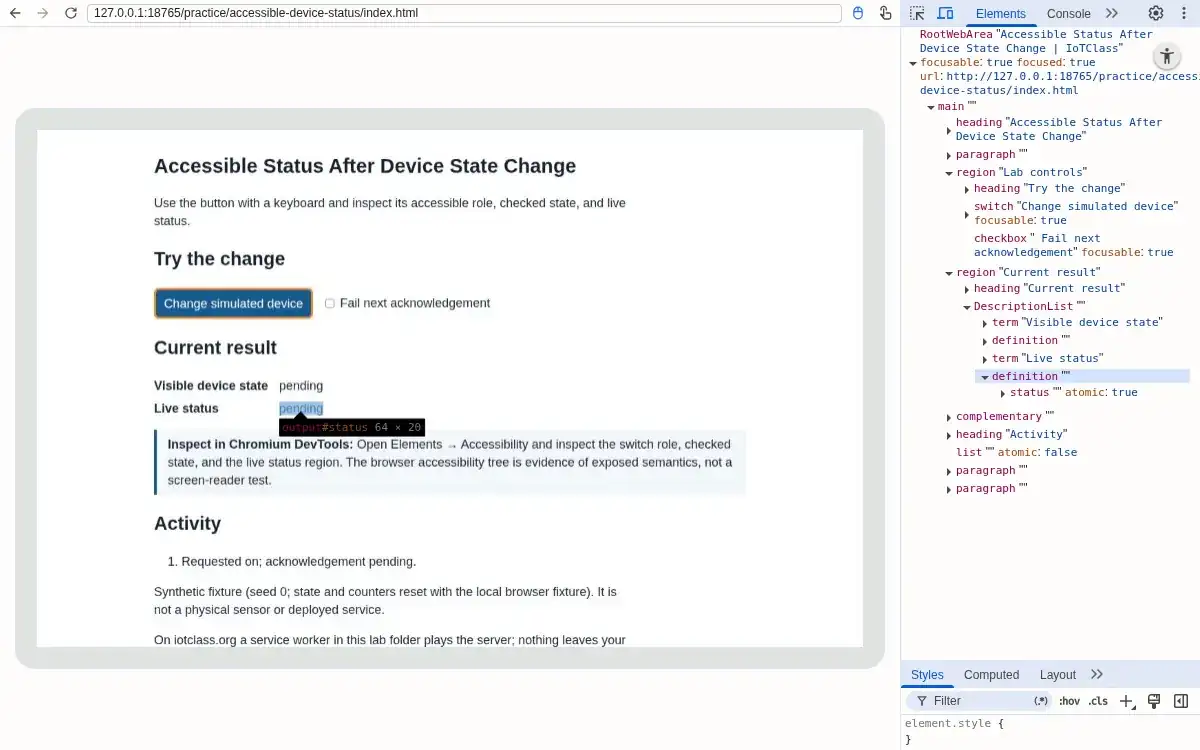
Step 2 · Browser (Chromium DevTools); numbered callout added to a real capture. Enlarge screenshot (new tab) Step 3
- Do
- In the Current result panel watch the pending status during the delayed acknowledgement.
- You will see
- Input: Waited inside the 1200 ms delay. Observed page: Visible device state: pending; Live status: pending. Observed DevTools: The page still reads pending; the tree retains the status node. Interpretation: The control exposes uncertainty before confirmation.
- Why it matters
- Evidence: Step 3 screenshot shows the real Chromium page and DevTools panel. Mechanism: The simulated acknowledgement delay keeps the pending state observable. Boundary: Timing may vary on other machines. Next check: Allow the acknowledgement to complete.
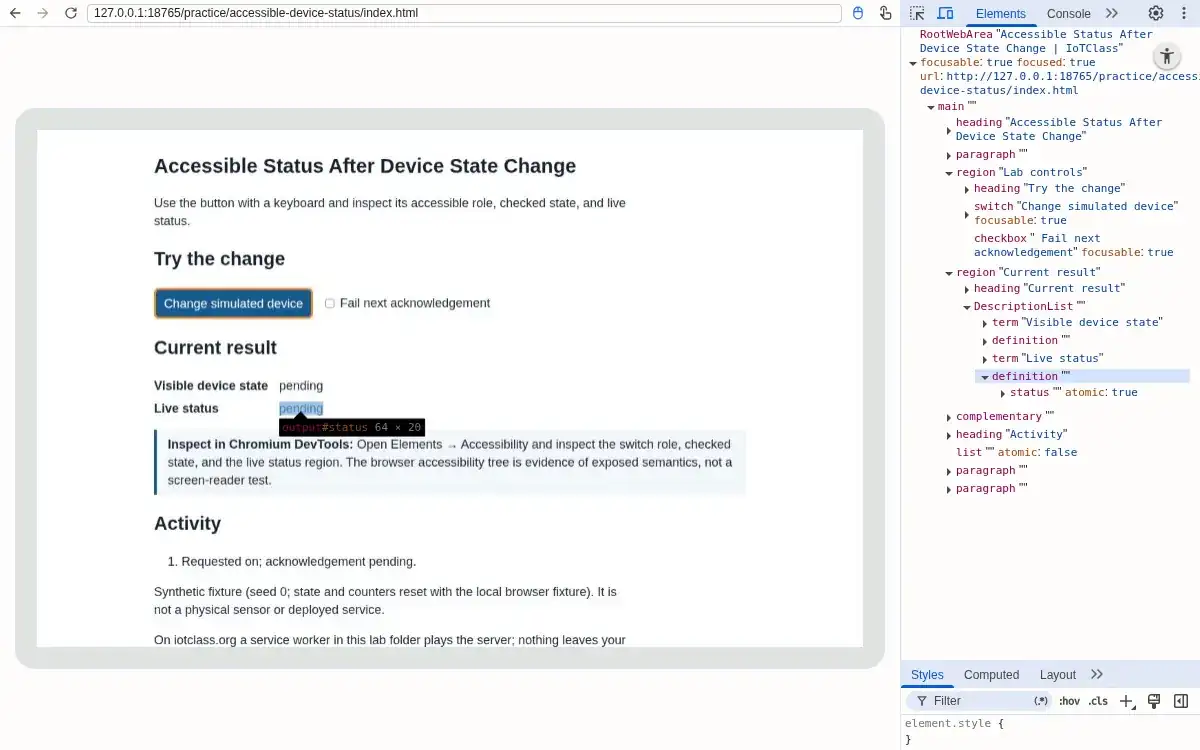
Step 3 · Browser (Chromium DevTools); numbered callout added to a real capture. Enlarge screenshot (new tab) Step 4
- Do
- In the Current result panel read the confirmed state after the delay.
- You will see
- Input: Allowed the successful acknowledgement. Observed page: Visible device state: on; Live status: on. Observed DevTools: The page reads on and the status reads on. Interpretation: Visible and accessible status return to a confirmed value.
- Why it matters
- Evidence: Step 4 screenshot shows the real Chromium page and DevTools panel. Mechanism: The simulated successful response changes confirmed state only after delay. Boundary: The browser fixture is not a hardware acknowledgement. Next check: Trigger a failed change.
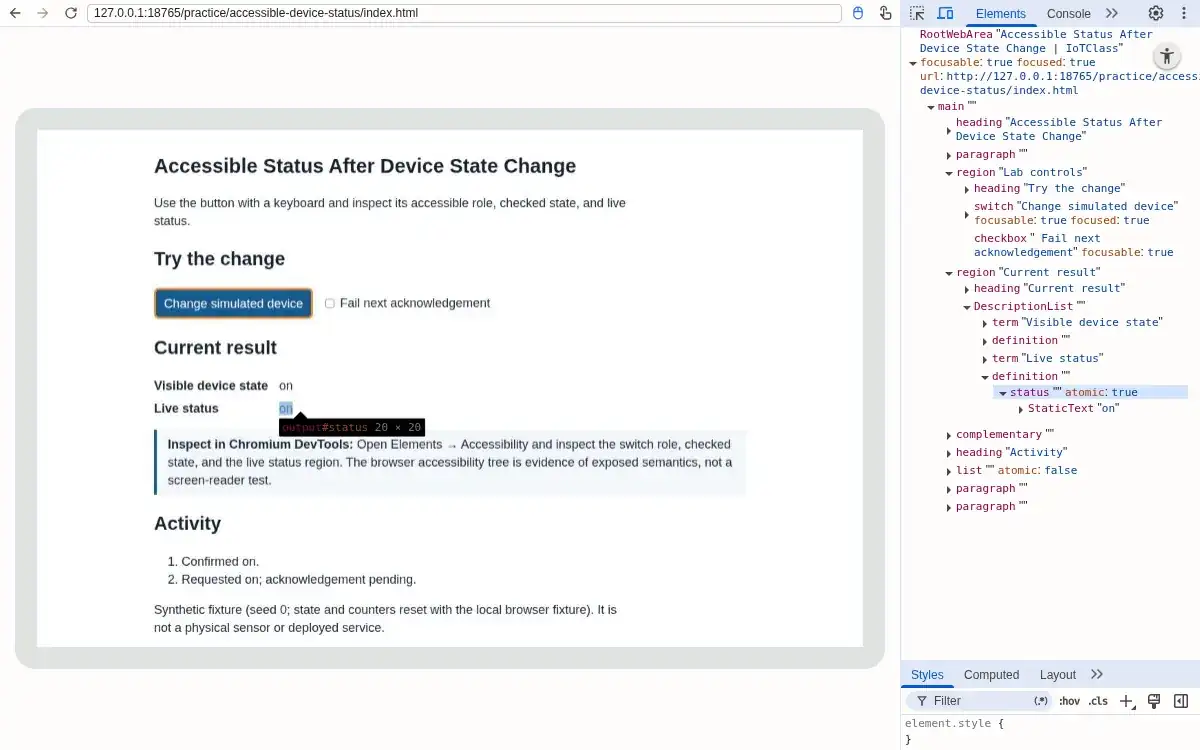
Step 4 · Browser (Chromium DevTools); numbered callout added to a real capture. Enlarge screenshot (new tab) Step 5
- Do
- Tick Fail next acknowledgement, activate the switch button, then inspect the result.
- You will see
- Input: Failed the attempted off transition. Observed page: Visible device state: on; Live status: Failed to set off; on remains confirmed. Observed DevTools: The status says Failed to set off; on remains confirmed. Interpretation: The prior confirmed state is restored.
- Why it matters
- Evidence: Step 5 screenshot shows the real Chromium page and DevTools panel. Mechanism: Failure leaves confirmed state on rather than treating pending as success. Boundary: The failure is a controlled synthetic fixture. Next check: Inspect the semantic failure text in the tree.
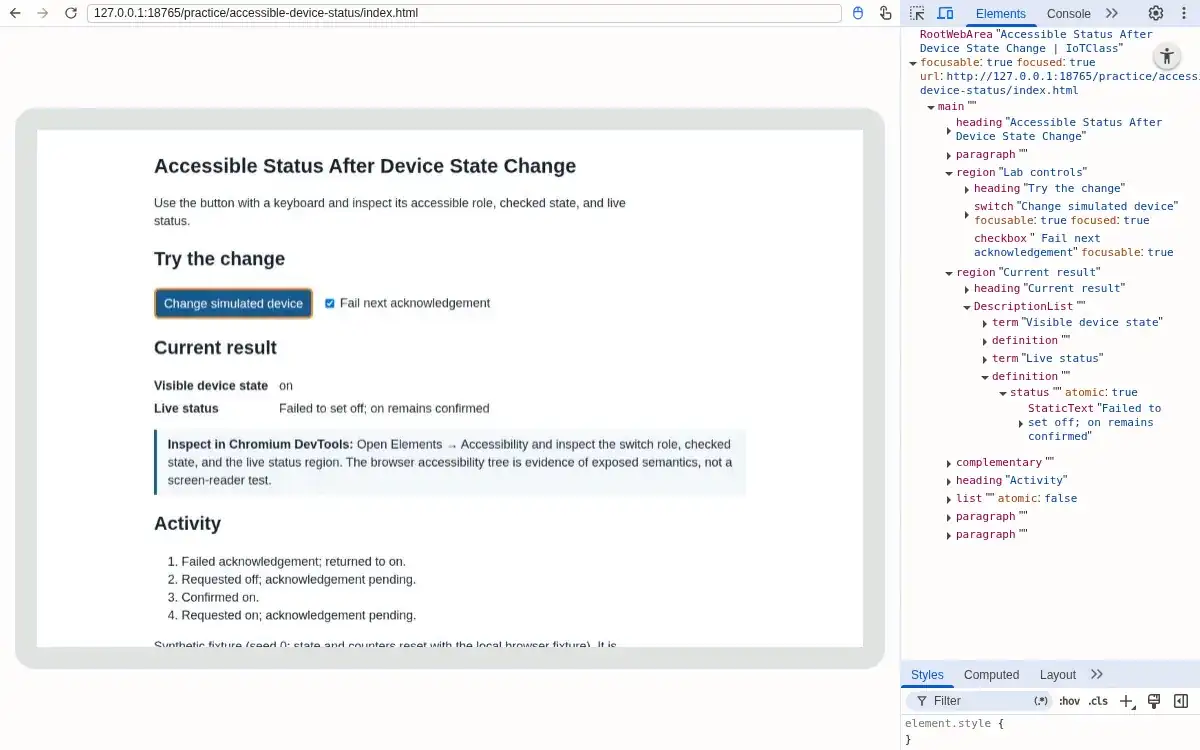
Step 5 · Browser (Chromium DevTools); numbered callout added to a real capture. Enlarge screenshot (new tab) Step 6
- Do
- In the Elements panel inspect the expanded status node in the Accessibility Tree.
- You will see
- Input: Expanded Current result, DescriptionList, definition, and status. Observed page: Visible device state: on; Live status: Failed to set off; on remains confirmed. Observed DevTools: The tree shows status atomic: true and StaticText for the failure. Interpretation: The failure is exposed as live status text.
- Why it matters
- Evidence: Step 6 screenshot shows the real Chromium page and DevTools panel. Mechanism: Chromium generated the tree from the actual output element. Boundary: This does not replace assistive-technology testing. Next check: Use the tree as one accessibility review artifact.
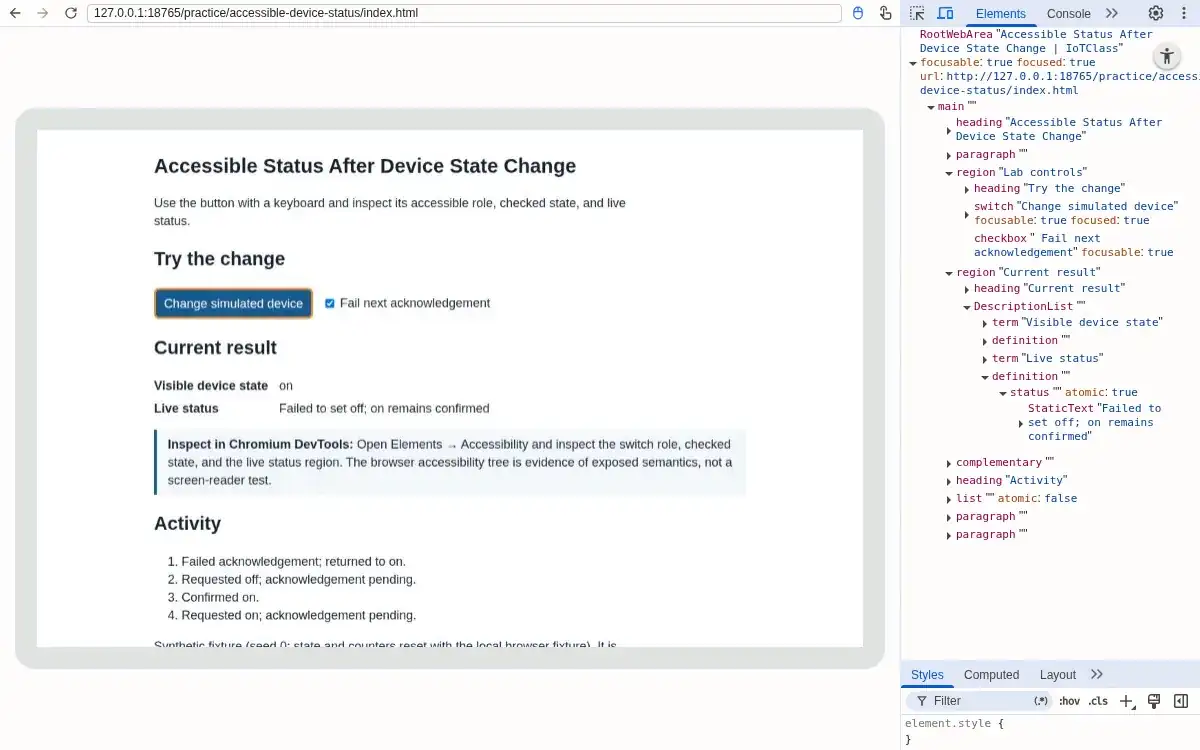
Step 6 · Browser (Chromium DevTools); numbered callout added to a real capture. Enlarge screenshot (new tab)
Chapter checks
These questions refer to the chapter’s examples. Use the return links to review their answers.
A lock shows pending on the phone but appears unlocked on a wall display. What should the accessibility review require?
Return to the chapter’s knowledge checkA lock command is pending. Which test gives a clear accessibility pass criterion across app and voice?
Return to the chapter’s knowledge check
Return to Accessible IoT: Interface Foundations · Browse Labs